

How to Reset ASUS Laptop: 5 Levels Tested on a G16
If you live and work on your laptop, you’re going to run into problems eventually. Maybe it’s crawling for no reason, or the screen goes black and won’t come back. Before you throw a full factory reset on your ASUS laptop, know that the fix is usually a lot simpler than people think.
When I checked my own Zephyrus G16, it had gone 184 hours without a real restart. So I tested every level of reset on it, from a quick keyboard shortcut to a full factory wipe, so you can match your problem to the lightest fix that actually works. You might not even need a reset at all.
After testing every level on my G16, a full Restart did more than Shut down ever did, and a real reset only made sense once Windows itself was broken.
- Restart: Dropped uptime from 184 hours to about 2 minutes, where Shut down changed nothing
- Startup apps: Showed 4 of 31 enabled while 21 ASUS processes still ran
- EC reset: Kept my Armoury Crate modes, but the first boot took about 62 s to 78 s to reach sign-in vs 17 s
- Keep my files: Would remove 71 of my 85 programs, including the NVIDIA driver
- Zephyrus G16 (GA605WI)
- Ryzen AI 9 HX 370
- RTX 4070 Laptop
- Windows 11 Home 26H2
- Armoury Crate 6.7.6.0
- MyASUS 4.0.81.0
Build 26300.9711 · BIOS 316 · Tested on battery and plugged in
Which reset your problem actually needs
Most guides on how to reset ASUS laptop issues jump straight to a factory reset, but every level below goes one step deeper than the last, so find the problem you’re having in the table below and start at the level next to it. If that level doesn’t do it, move down 1 row, and you’ll only end up wiping your laptop if nothing lighter worked.
| Your problem | Level to try | What it removes |
|---|---|---|
| Slow or laggy for no clear reason | 1. Check what’s running | Nothing |
| Frozen, or the screen went black | 2. Restart (properly) | Unsaved work only |
| Won’t charge, won’t turn on, keyboard or touchpad acting up | 3. EC reset | Nothing |
| Windows itself is broken (crashes, failed updates) | 4. Reinstall now, then Keep my files | Nothing, then your installed apps |
| Selling it, malware, or locked out | 5. Remove everything or ASUS Recovery | Everything |
Check what’s running before you reset
When I first started using Windows I just plainly assumed Task Manager showed everything that would or could run on my laptop, and I was mistaken. On my G16, the Startup apps tab listed 31 apps with only 4 of them enabled (you can see the purple box in the screenshot below), so on paper almost nothing was starting with Windows.

Then I counted what was actually running, and the G16 had 21 ASUS processes using about 479 MB of memory, plus 30 third-party services and 27 non-Microsoft scheduled tasks. The reason the Startup apps tab misses them is that it only lists programs set to open when you sign in, while services and scheduled tasks start on their own, so a laptop that looks clean in Task Manager can still be running a lot of leftover programs from countless downloads in the background without you knowing.
To check yours, press Ctrl + Shift + Esc to open Task Manager, click Startup apps on the left, and turn off anything you don’t need by right-clicking it and choosing Disable. Then click Processes and sort by Memory to see what’s taking up the most. If most of what you find is ASUS software, my rundown of every ASUS app on the G16 goes through which of those apps are worth keeping and how to remove the rest, and if Armoury Crate is the heavy one, the Armoury Crate Service breakdown covers what stopping it frees up.
How to restart ASUS laptop when frozen
I’ve definitely had times where my laptop got so laggy I had to use the power-button shutoff, but there are 2 lighter things worth trying before you do that.
Try the graphics shortcut first
If the picture is frozen or black but you can still hear things running, press Win + Ctrl + Shift + B, which is Windows’ built-in shortcut for restarting the graphics driver. When I pressed it on my G16 the screen flickered once and came right back, and all 13 of my open apps were still open afterward, so you don’t lose anything by trying it first.
Restart instead of Shut down
With Fast Startup on (it’s on by default), Shut down doesn’t fully close Windows, because it saves the core of the running system to a hibernation file and loads it back the next time you turn the laptop on, which Microsoft’s own documentation describes as a fast startup loading the hibernation file instead of a cold boot. Restart does a real cold boot every time, and you can see the difference on my G16 in the table below.
| Start > Power > Shut down | Start > Power > Restart | |
|---|---|---|
| Uptime afterward | 184.64 hours (unchanged) | About 2 minutes |
| Boot type Windows logged | Fast Startup | Full cold boot |
| Getting to sign-in | 17 s after pressing power | 30 s of spinner, then 42 s |
| PIN to desktop | 30 s | 14 s |
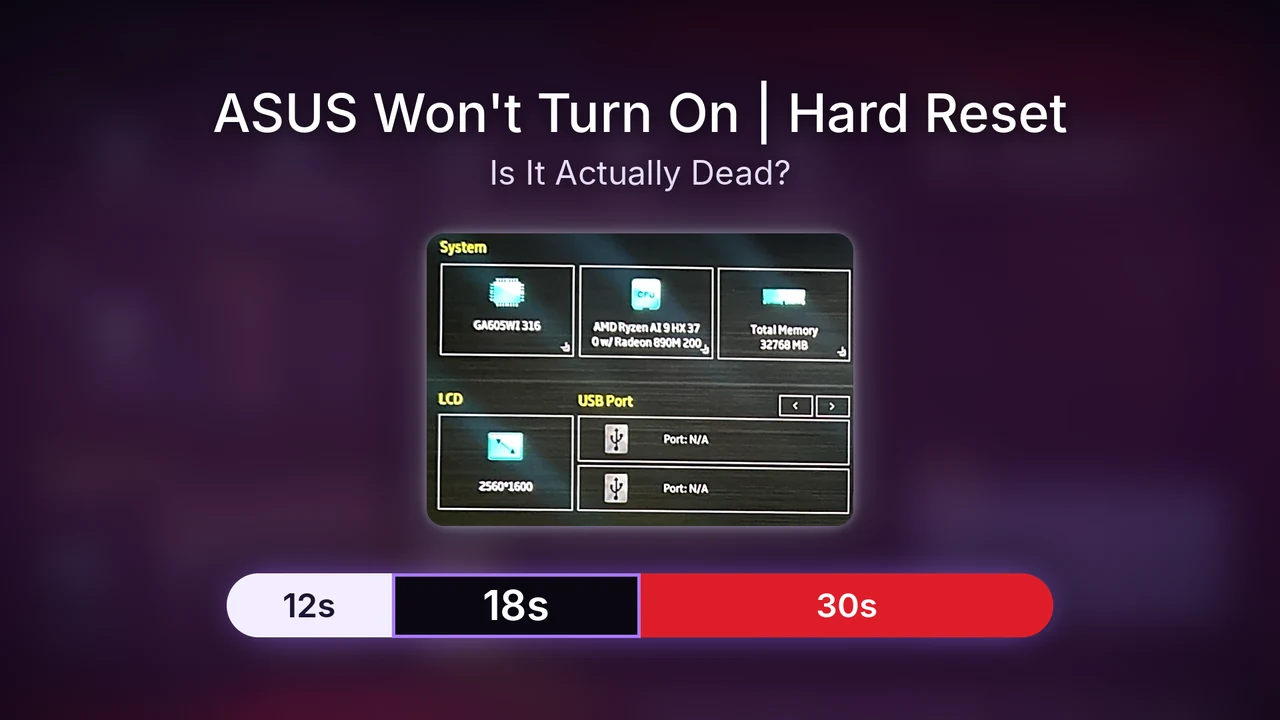
Uptime is how long Windows has been running since its last full boot, and wow, 184 hours of uptime is quite a lot, so I should probably be doing a full restart more often. If your laptop is laggy and you can still click, go to Start > Power > Restart. If the mouse is frozen, press Ctrl + Alt + Delete, click the power icon in the bottom right and choose Restart, and if nothing responds at all, hold the power button for about 10 to 15 seconds until the screen goes off (anything you hadn’t saved is gone), then press it once to turn it back on.
Hard reset ASUS laptop with an EC reset
A hard reset on an ASUS laptop usually means an EC reset. The EC (embedded controller) is a small chip on the motherboard that handles charging, the battery, the keyboard and powering on, and ASUS’s EC reset guide recommends it for battery, keyboard, touchpad and startup problems. It doesn’t touch Windows or any of your files, which is why it sits above every Windows reset on this list.
- Unplug every USB device, drive and dongle from the laptop.
- Click Start > Power > Shut down and wait until the screen and keyboard lights are fully off.
- Connect the charger, which is what ASUS’s guide says to do. Most other guides tell you to unplug it instead, so I ran it both ways on my G16 to see if it matters.
- Press and hold the power button for 40 seconds. Some models flash the power light fast at about 15 seconds instead, and on those you let go when the flashing stops.
- Let go, wait a few seconds, then press the power button once to turn it on normally.
What threw me off was that holding the button from fully off actually turned the laptop on first, with the ROG logo up for about 17 seconds before it forced itself off, and then I held it for another 40 seconds on a pure black screen without ever seeing a light flash. The next boot was even stranger, because the logo came up for 17 seconds, the screen went black for 19, then the red logo came back for 26 more before I finally got to the sign-in screen. With my USB-C power bank plugged in, the hold looked almost the same (5 seconds of black, the logo for 6, then black again), and the boot after it took even longer, with 13 seconds of nothing, the logo for 18, a 40-second black screen and the logo again for 7 before sign-in.
| First boot | After a normal Shut down Baseline | EC reset, charger unplugged | EC reset, charger connected |
|---|---|---|---|
| Power button to sign-in screen | 17 s | About 62 s +264.7% | About 78 s +358.8% |
| BIOS time (Task Manager’s Last BIOS time) | 6.6 s | 19.8 s +200.0% | 19.9 s +201.5% |
| PIN to desktop | 30 s | 35 s +16.7% | 20 s −33.3% |
Both times, my Armoury Crate Silent mode and Standard GPU mode were exactly where I left them, so nothing in Windows got erased, and having the charger in or out didn’t change anything on my G16 besides the boot taking a bit longer. The EC reset was definitely a bit slow and confusing though, and with the logo coming and going 3 times, someone doing this for the first time without instructions would have a frustrating time and probably think they broke something (I timed every stage of that boot in my guide for when an ASUS laptop won’t turn on). If you’re doing it because your laptop won’t charge, my posts on an ASUS laptop battery draining while plugged in and a battery that drains when it’s turned off cover the other causes I tested.
Try Reinstall now before a full reset
If Windows itself is the problem (apps crashing, updates failing, settings that won’t stick), there’s an option on the Recovery page most reset guides skip right over. Reinstall now, under Fix problems using Windows Update, reinstalls your current version of Windows and repairs its system files while keeping your apps, files and settings, according to Microsoft’s guide to it.
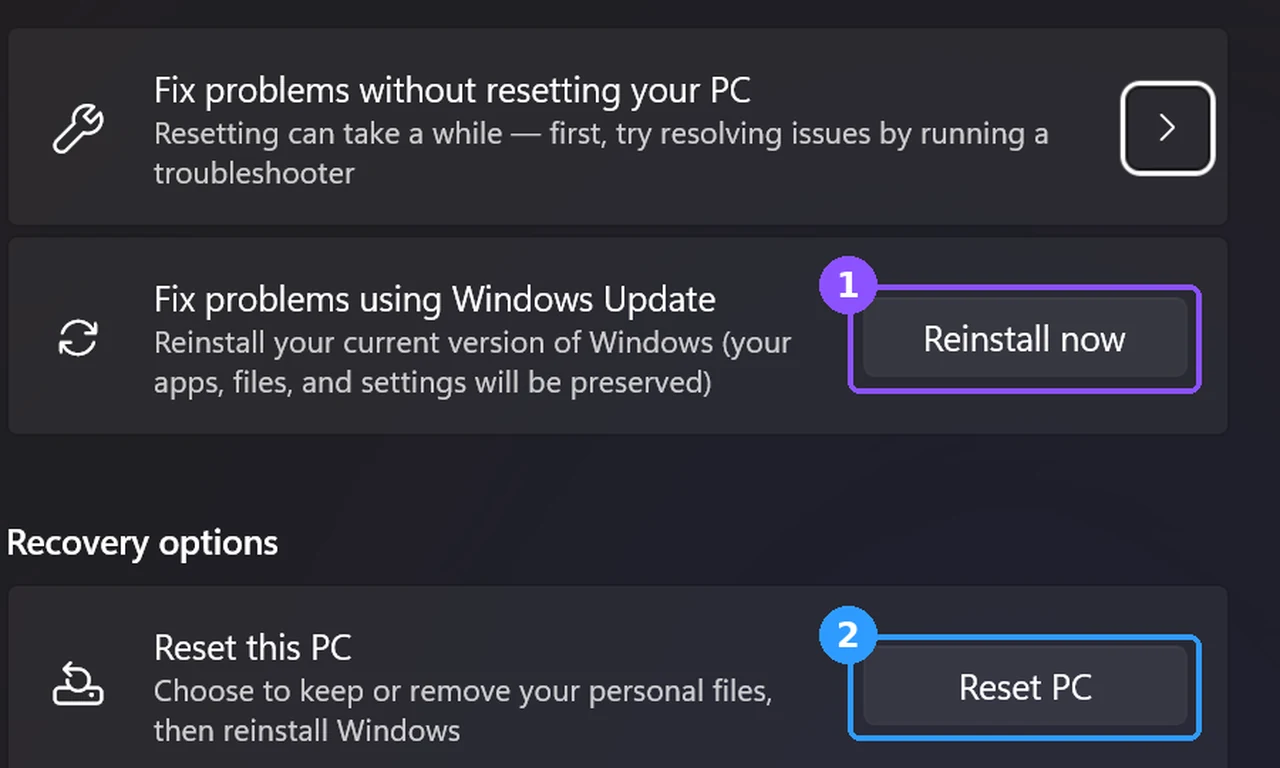
Go to Settings > System > Recovery and click Reinstall now (box 1 in the screenshot above). Choose whether you want the laptop to restart automatically once it’s done, then click OK, and keep it plugged in and on Wi-Fi the whole time, since it downloads a repair copy through Windows Update. I didn’t run a full reinstall or reset on my G16 for this post, but this is the one I would personally try first, and I would only wipe the laptop fully if it was simply too cluttered to save.
Find your BitLocker key before you reset
To be honest, I wasn’t aware of BitLocker at all before this. My G16’s drive turned out to be fully encrypted with device encryption, and the only backup key on it was a 48-digit recovery password. Microsoft’s reset guide says you’ll need that key to reset an encrypted laptop from the recovery screen, and Microsoft can’t recover it for you if you lose it.
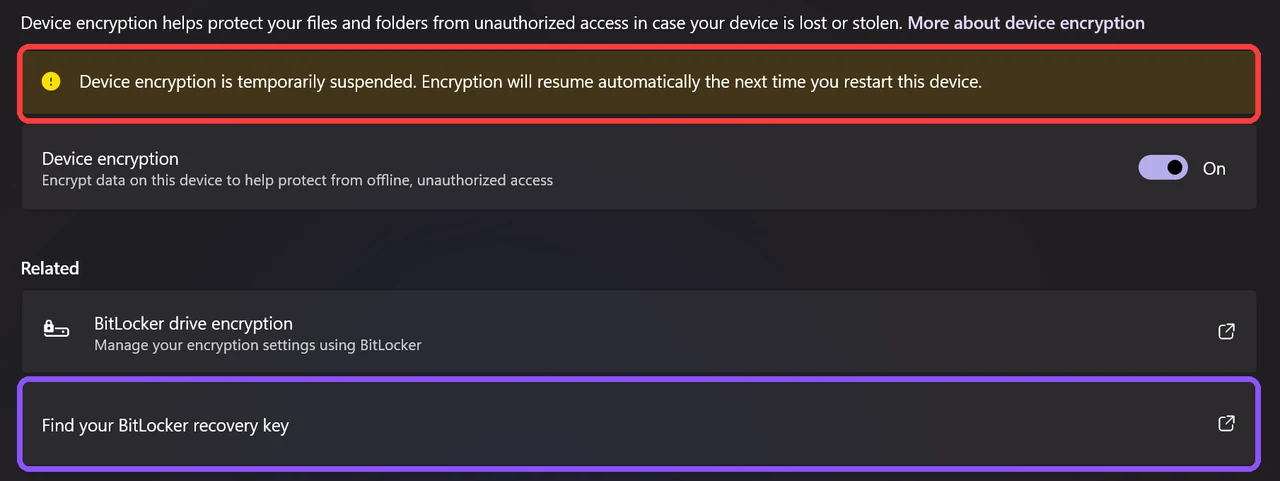
To see where yours stands, open Settings > Privacy & security > Device encryption. Mine said encryption was temporarily suspended (the red box above), and because I use a local account instead of a Microsoft account, the key wasn’t saved online anywhere. If you sign in with a Microsoft account, click Find your BitLocker recovery key (the purple box) to see it online. On a local account, you can use the command prompt by searching cmd in Start, right-clicking Command Prompt, and choosing Run as administrator while just pasting this:
manage-bde -protectors -get C:The 48-digit number under Numerical Password is your key, so make sure you save it somewhere off the laptop (your phone or a password manager works) before you go any further.
Factory reset ASUS laptop with Reset this PC
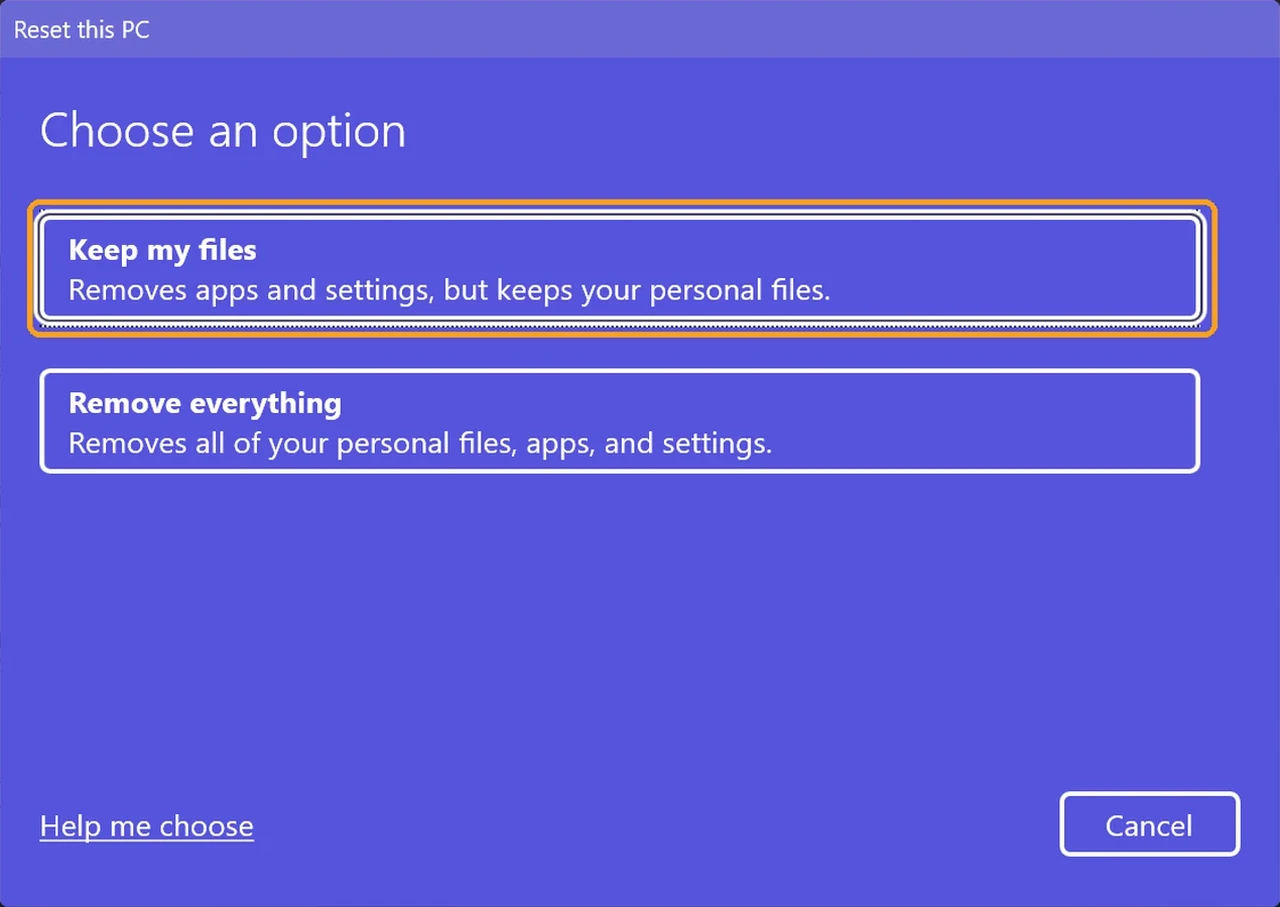
If you need to factory reset your ASUS laptop from Windows, it’s the Reset PC button on the same Recovery page (box 2 in the Recovery screenshot). I walked through every screen of it on my G16 and cancelled before the final button, so these are the exact screens you’ll see.
First it asks whether to keep your files. Keep my files removes your apps and settings but leaves your documents, photos and downloads, while Remove everything deletes all of it.
Next it asks how to reinstall Windows. Local reinstall uses the files already on your laptop, and Cloud download pulls a fresh copy, which Windows warns can use more than 4 GB of data, so Local reinstall is the safer pick on a slow or metered connection.

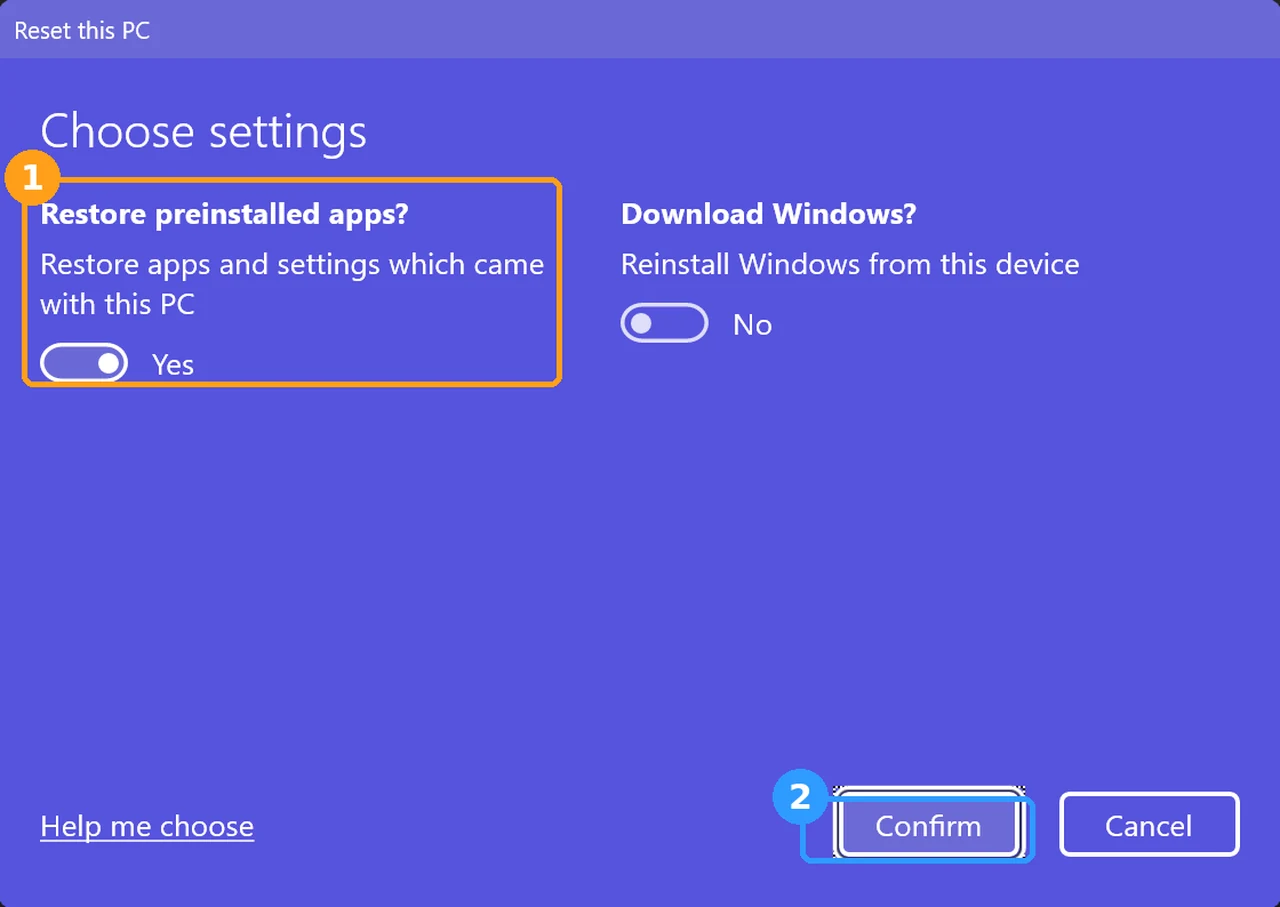
The Additional settings screen is the one that decides whether your ASUS apps come back. On my G16, Restore apps and settings which came with this PC was already on (box 1), and clicking Change settings (box 2) let me see the toggle behind it.
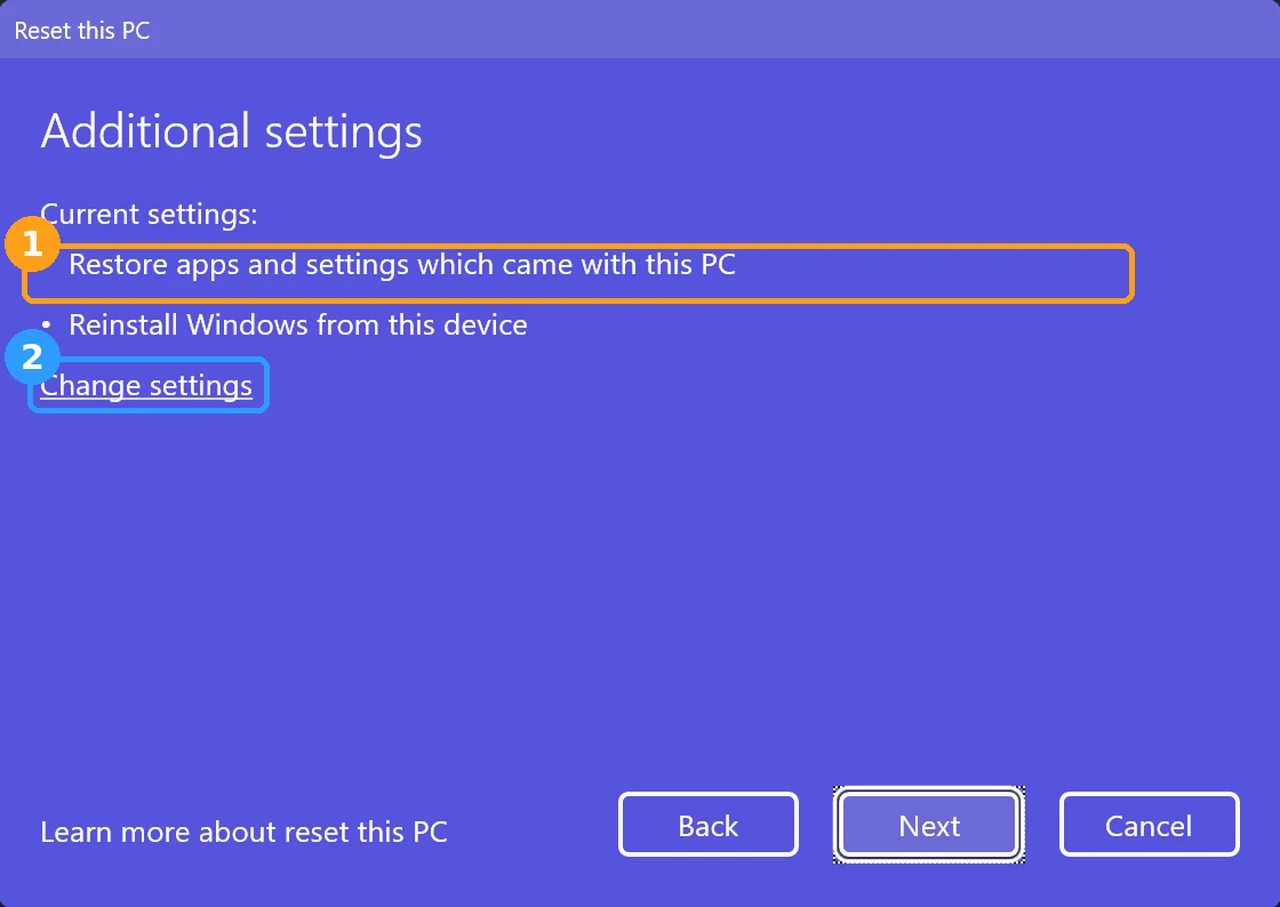
Leave Restore preinstalled apps? on Yes if you want Armoury Crate, MyASUS and the rest of the factory apps back, or switch it to No to come back without them, which ASUS’s reset guide confirms removes every ASUS app that came preinstalled. Then click Confirm and Next.
Make sure your charger is plugged in before this step. When I ran through it on battery, Windows stopped right here with a Plug in your PC message and only a Back and Cancel button, and it didn’t let me go any further until the laptop was charging.

What Keep my files actually removes
Plugged in (even my USB-C power bank counted), the last screen says Ready to reset this PC and has a View apps that will be removed link right under the list of what resetting will do, in the orange box below.


On my G16 that list had 71 of my 85 installed programs on it, including Steam, Discord, Chrome, Windhawk, Open-Shell and the NVIDIA Graphics Driver, so a “light” reset that keeps your files still means reinstalling almost everything you use, plus your graphics driver from the NVIDIA App before you game again.
The few programs that weren’t on the list were mostly ASUS’s own background pieces, like ASUS Smart Display Control, ASUS Hotplug Controller, the GlideX Service Installer, ROG Live Service and the AURA lighting add-ons. Windows says it saves the removed list to your desktop after the reset, so you can use it as a reinstall checklist.
How long a factory reset takes
ASUS says a Windows reinstall can take anywhere from 30 minutes to several hours depending on the model, and Microsoft warns the screen can stay black for 15 minutes or more and restart by itself partway through. Don’t restart it yourself during that time, since that can make the reset fail. If you’re selling the laptop, pick Remove everything and turn on Clean data in its settings, which Microsoft says makes your deleted files harder to recover.
ASUS Recovery from MyASUS in WinRE
ASUS has its own factory reset that lives in the Windows recovery screen (WinRE), and it restores the exact Windows version and apps your laptop shipped with. To get there, restart the laptop and tap F12 about twice a second as soon as the screen goes black. On my G16 it showed Please wait with a loading circle and then dropped me straight into the blue recovery screen (ASUS says some models use F9 instead). From there, the Troubleshoot screen had MyASUS in WinRE listed right under Reset this PC.

Opening it asked me to connect to Wi-Fi to check for an update (I clicked Cancel and it still worked), then showed a Privacy Notice that I clicked Agree on. After that I got 3 options: System Diagnosis, Cloud Recovery and ASUS Recovery, and both recovery options warn that your data and apps will be deleted (the red box below).

Clicking Exit doesn’t take you back one screen, it drops you all the way to Choose an option, so you’ll have to click Troubleshoot again if you want to look at anything else. My G16’s BIOS also has an ASUS Cloud Recovery entry on its Advanced tab, which is worth knowing about if Windows won’t start at all, and I opened both versions and put them up against Reset this PC in my ASUS Cloud Recovery test.
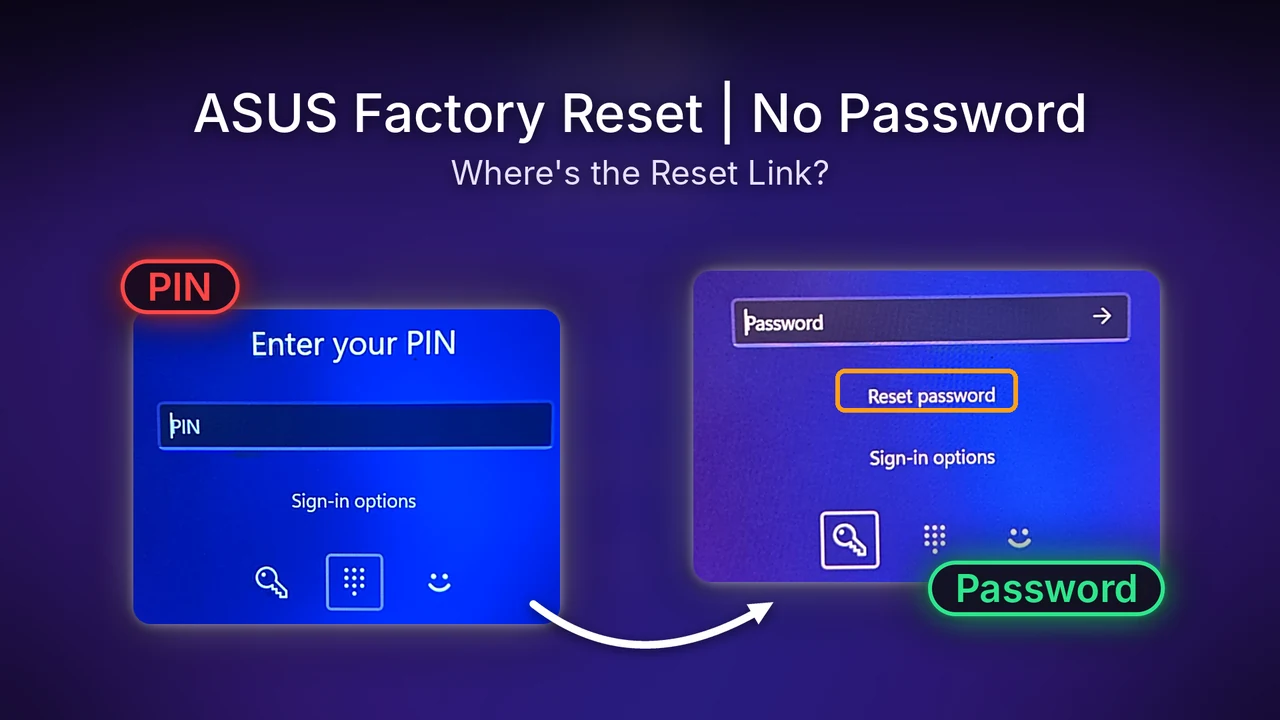
Reset ASUS laptop without password
If you’re locked out and want to reset your ASUS laptop without the password, most guides tell you to hold Shift and click Restart on the sign-in screen to open the recovery menu. That didn’t work for me, since I tried it twice holding the left Shift key the whole time and both times it just did a normal restart. If you can still get into Windows, this command (in an administrator Command Prompt) boots straight into the recovery menu, which is how I got there:
shutdown /r /o /t 0If you can’t get into Windows at all, tapping F12 while it boots worked on the first try on my G16, and it’s the one route that doesn’t need Windows running. From the recovery menu, I went to Troubleshoot > Reset this PC > Keep my files, and it went straight to Cloud download or Local reinstall without asking for my password or a BitLocker key. My encryption was suspended, which is likely why it never asked for the key, and Microsoft says a laptop with encryption fully on will need it.

No password being needed is a bit troubling, and interesting as well, but it doesn’t worry me too much because most people won’t know about it and I keep my laptop close, so it’s more likely to end up being useful for me if I ever get locked out. Watch out for that screen though, because it has no back button or Cancel, and Esc did nothing, so I had to hold the power button for about 15 seconds to get out, and it booted back into Windows normally.
Will Armoury Crate come back after a reset
A lot of ROG owners ask this, because some ASUS BIOS versions reinstall Armoury Crate automatically after Windows is wiped. On my G16 that BIOS setting, Auto-install app service mechanism on the Advanced tab, was set to Toggle Off from the factory, and I never touched it (you can see it in the orange box below).

That means on a laptop like mine, the Restore preinstalled apps toggle in Reset this PC is what decides whether Armoury Crate comes back, not the BIOS. After a reset I would personally want Armoury Crate back, since some control over my laptop beats no control, but I would still be happier with G-Helper. If you do bring it back, the Armoury Crate settings I tested on this same G16 are the ones worth setting first. If you reset without the ASUS apps, you can get them back with my Armoury Crate download guide, the steps to install MyASUS without the Microsoft Store, or the lighter G-Helper download and setup.
My verdict on how to reset ASUS laptop
If your laptop just feels slow, I’d go through the first 3 levels before touching a reset. If Windows itself is acting broken, I’d try Reinstall now first since it keeps your apps, and only wipe it fully if the laptop is simply too cluttered to save. The no-password reset from recovery doesn’t worry me much since I keep my laptop close, but it’s good to know it’s there if you ever get locked out.
How to reset ASUS laptop FAQ
Is there a reset button on an ASUS laptop?
The power button is your reset button. Holding it for about 10 to 15 seconds forces the laptop off, and holding it for 40 seconds from fully off does the EC reset that ASUS recommends for charging and startup problems.
Does Shut down count as restarting my laptop?
Not with Fast Startup on, which is the default. My G16 kept 184 hours of uptime through a Shut down, while Restart brought it down to about 2 minutes, so use Restart whenever you’re trying to clear out a problem.
Can I factory reset my ASUS laptop on battery?
Not with Reset this PC. On my G16, Windows stopped at a Plug in your PC screen while I was on battery, but a USB-C power bank was enough for it to let me through to the last screen, so plug into either before you start.
Will a reset fix my battery draining?
For charging problems, try the EC reset first. For battery drain, my Armoury Crate battery life tests cover what was actually costing me battery on the G16.
Did this fix it for you?
Nice, glad it worked.
Thanks, that helps.
I use these to decide what to retest next. If you want a reply, ask in the comments and I'll take a look.
If you’ve got an ASUS problem that none of these levels fixed, drop your laptop model and what happened in the comments, and I’ll take a look at what to try next. If it’s only Armoury Crate that’s broken, turning the ASUS services back on fixed mine when its own Reset didn’t, and problems that keep coming back after every level here might need the BIOS update MyASUS hid on my G16.