
Revo Uninstaller Not Working? 3 Problems I Hit and Fixed
If Revo threw an error halfway through an uninstall, or the app still seems to be there afterward, the problem often starts before Revo even gets going. The first time I saw Revo Uninstaller not working, it was my fault for removing Epic Games Launcher while it was still open. Epic’s own setup refused to run, and 732.1 MB of Epic Online Services stayed on my laptop. So if you just hit an error, I’ll go through the 3 I ran into and what got me past each one.
After I ran into 3 different Revo Uninstaller problems during a full day of uninstall testing on my G16, this is what each one did and what got me past it:
- App still running: Left Epic Online Services (732.1 MB) installed, because Epic’s own setup refused to run while the launcher was open
- Uninstaller failed: Clicking OK and running an Advanced scan anyway removed all but 1 of TreeSize’s 1,607 files
- No space freed: Revo had parked 438.6 MB of deleted leftovers in my Recycle Bin
- Zephyrus G16 (GA605WI)
- Ryzen AI 9 HX 370
- RTX 4070 Laptop
- Windows 11 Home 26H2
- Revo Uninstaller Free 2.7.2
- TreeSize Free 4.8.1
Build 26300.9974 · Revo Uninstaller Pro 5.5.4 trial · Epic Games Launcher 1.3.210 · tested Nov 16, 2026
Why Revo Uninstaller stops partway
It helps to know what Revo is actually doing when you click Uninstall, because both of the errors I hit came from the first half of it. Revo doesn’t remove the app itself first, it launches the app’s own uninstaller (the same one Windows runs from Settings > Apps), waits for it to close, and only then scans your drive and registry for whatever that uninstaller left behind. So if the app’s uninstaller is missing, broken, or refuses to run, Revo gets stuck at step 1, and the message you see is usually the app’s error rather than Revo’s.
That order confused me at first too, because I assumed Revo would just rip everything out in one go. Once I had hit a couple of these errors, though, it made a lot more sense, since the scan in the second half still works even when the first half fails.
“App is currently running” error
This is the one I caused myself. I was removing Epic Games Launcher with the Revo Pro trial, forgot Epic was still sitting in my system tray, and right after Revo started, Epic’s setup wizard popped up saying the launcher was currently running and it couldn’t continue (the red box below).
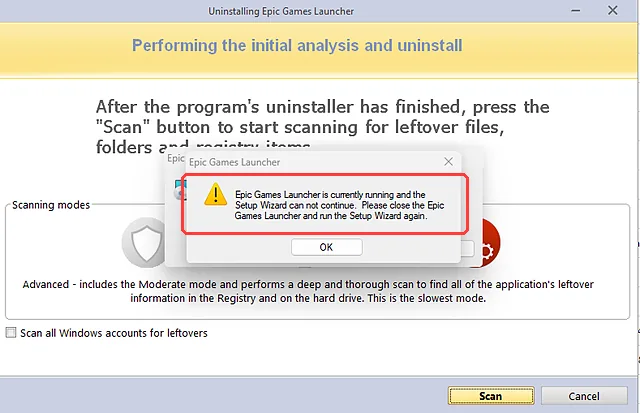
Revo still let me click Scan afterward, so it looked like everything went through, but when I compared snapshots of my laptop after that run, Epic Online Services (the background piece Epic installs for its games) was still installed, along with its Windows service and 732.1 MB of files.
To get past this one:
- Click OK on the app’s error and Cancel in Revo.
- Right-click the app’s icon in your system tray (the arrow next to the clock) and choose Exit or Quit. Closing the window isn’t enough for launchers like Epic, Steam or G Hub, since they keep running in the tray (FanControl did the same thing when I uninstalled FanControl).
- Press Ctrl + Shift + Esc to open Task Manager, look for anything with the app’s name under Processes, click it and hit End task.
- Go back to Revo, select the app again, and click Uninstall.
If you already pushed through like I did, scroll through Revo’s app list afterward. Epic Online Services showed up as its own separate entry, so you can simply select it and uninstall it the normal way. Make sure you close an app before you uninstall it from now on, since it saves you a second run every single time.
“Running the application’s uninstaller failed”
The full message is “Running the application’s uninstaller failed! Possible invalid uninstall command!” and it shows up when the uninstaller Revo was told to run isn’t there anymore. It can show up after someone deleted part of an app’s folder by hand, after a broken update, or with old apps that were moved to another drive.
To test it on purpose, I installed TreeSize Free, then moved its unins000.exe uninstaller out of the program folder into a backup folder before opening Revo. Revo’s confirm box still showed it was about to run that exact file (the purple box below), because it reads the command from the registry, not from the folder.

After I clicked Continue, Revo made its restore point and then threw the error in the red box below.

When it told me there was no uninstaller and then dropped me straight onto the scan screen, I thought that was a little weird, since it felt like it was skipping a step. It’s actually what you want, because the scan doesn’t need the app’s uninstaller at all, so this is what to do from there:
- Click OK on the error.
- On the scan screen, pick Advanced (box 1). With no uninstaller doing the first pass, Revo’s scan is doing all of the work, so you want the deepest one.
- Click Scan (box 2).
- On the registry screen, click Select All, Delete, confirm, then Next.
- On the files screen, click Select All, Delete, confirm, then Finish.

I took a snapshot of the laptop before and after, and Revo’s scan cleaned up almost everything even without the app’s own uninstaller, as you can see in the table below.
| TreeSize Free 4.8.1 | Installed | Left after Revo Advanced |
|---|---|---|
| Files | 1,607 | 1 |
| Folders | 41 | 0 |
| Registry keys | 9 | 3 |
| Shortcuts | 3 | 0 |
The 3 keys that stayed were TreeSize’s notification entry and 2 keys for its right-click menu in File Explorer. They don’t do anything with the app gone, but if you want them out, they’re the kind of thing a second Advanced scan or a quick search in regedit for the app’s name will turn up.
If the app doesn’t show up in Revo’s list at all, that’s a different problem. Revo Pro has a Forced Uninstall option for that case, which I didn’t need for this test, so I can’t tell you how well it works yet (I compared the rest of what Pro adds in my Revo Free vs Pro test).
Revo deleted leftovers but no space came back
This one isn’t an error message, but it makes Revo look like it did nothing. After I finished all my test runs, I checked my drive space and it hadn’t moved much, so I opened the Recycle Bin and it was holding 438.6 MB of files Revo had “deleted”.
Revo sends leftover files to the Recycle Bin instead of wiping them, which is a good safety net if it ever grabs something it shouldn’t, but it means the space isn’t free until you empty it. Once you’ve checked the app you removed is really gone and nothing else is acting up, right-click the Recycle Bin on your desktop, click Empty Recycle Bin and confirm with Yes. Then restart, since that’s when Windows lets go of any leftover file that was still in use.
2 messages that aren’t errors
If you’re using the Pro trial, you’ll get a little pop-up in the bottom right after some uninstalls, like “EpicGamesLauncher.exe will no longer auto start!” I saw it for Epic and again for G Hub, and as far as I can tell it says that for everything that had a startup entry. It’s Revo telling you it removed that app from startup, not that something failed.
The other one is Hunter Mode’s “Unresolved! Try to point to another window, icon or a taskbar item.” Hunter Mode replaces Revo’s window with a small target icon that you hold and drag onto the app you want to remove, and you get this message whenever you drop it on empty desktop. Simply drag it onto the app’s open window, its desktop shortcut or its taskbar icon instead, and if you want Revo’s normal window back, right-click the target and click Open Main Window.
If Revo still can’t remove it
Every Revo run I did made a restore point first (the box comes ticked, so leave it on), which means you always have a way back if a removal goes wrong. If the app still won’t budge after closing it and running an Advanced scan, Microsoft has its own guide to fixing problems that block programs from being removed, which covers the Windows side of things like corrupted install data.
If you’re brand new to Revo, my full walkthrough of how to use Revo Uninstaller covers every screen and which scan mode removed the most on my tests. And if the app you’re fighting with is ASUS’s, I measured exactly what the Armoury Crate uninstall tool leaves behind too.
Revo Uninstaller not working FAQ
Does Revo Uninstaller work on Windows 11?
Yes. Every test in this article ran on Windows 11 Home 26H2 (build 26300.9974) with Revo Uninstaller Free 2.7.2, and the only problems I hit were the 3 above.
Can I get back something Revo deleted?
Files go to the Recycle Bin first, so you can right-click them there and choose Restore as long as you haven’t emptied it. For registry entries, roll back to the restore point Revo made before the uninstall. If you’re on Pro, the official Revo page says it also backs up every registry item it deletes, and you can restore them one by one from its Backup Manager.
If you’re getting a Revo error that isn’t on this list, drop the exact message and the app you were removing in the comments, and I’ll try to reproduce it on my G16.
Did this fix it for you?
Nice, glad it worked.
Thanks, that helps.
I use these to decide what to retest next. If you want a reply, ask in the comments and I'll take a look.