Armoury Crate Battery Life: Is It Draining Yours? (2026)
Armoury Crate battery life is one of the first things people look up when their ASUS laptop dies early off the charger. The app is always running in the background, so it’s the easy thing to blame. So I unplugged my G16 and measured how fast the battery drained with Armoury Crate stopped, sitting in the background and open on screen, and then again while watching YouTube.
Out of everything I tested, 1 setting I never would’ve thought to check more than doubled how fast my battery drained watching YouTube, which is more than every Armoury Crate setting put together, and it isn’t in Armoury Crate at all. So whether you’re trying to figure out if the app is the problem or you just want more hours out of a charge, I’ll go through everything I measured down below in the order I’d fix it.
After I measured my battery with Armoury Crate stopped, in the background and open:
- Background services: Cost about 0.4 W, roughly 25 minutes off a full charge
- Open window: Drew 9.60 W with spikes up to 19.22 W
- Browser hardware acceleration: Having it off more than doubled my video drain, more than every Armoury Crate setting combined
- Zephyrus G16 (GA605WI)
- Ryzen AI 9 HX 370
- RTX 4070 Laptop
- Windows 11 Home 26H2
- Armoury Crate 6.7.6.0
- Battery at 86% health
OLED screen · build 26300
How I Measured It
Armoury Crate doesn’t show your battery percentage or how many watts the laptop is pulling anywhere in the app, so I read the battery’s discharge rate straight from Windows with PowerShell. Every test was unplugged at 50% brightness with Wi-Fi on, and I set sleep and screen-off to Never under Settings > System > Power & battery > Screen, sleep, & hibernate timeouts after my laptop fell asleep halfway through my first run and threw the numbers off.
For each setting I waited 2 minutes for things to settle, then took 24 readings over 4 minutes and averaged them. My first attempt took 5 quick readings, and Windows only refreshes that number every so often, so I kept catching the same value twice. I put the exact script at the bottom of the post if you want to run the same test on yours.
To turn watts into hours, I divided by how much my battery actually holds today. Windows’ battery report put that at 77,452 mWh against 90,005 when it was new, which is where the 86% comes from.

Does Armoury Crate Drain Battery?
On my G16, Armoury Crate comes with 13 ASUS services in Windows’ Services list, and 11 of them were running with the laptop sitting idle, so the window you open is only a small part of it. So to answer “does armoury crate drain battery” properly, I measured 3 states with everything else locked in place (Eco GPU mode, Silent, Panel Power Saver on, keyboard light off, bare desktop).
| Armoury Crate state | Typical draw (W) | Full charge at that rate (h) |
|---|---|---|
| ASUS services disabled Baseline | 8.88 | ~8.7 |
| Services running, window closed | 9.31+4.8% | ~8.3−0.4 h |
| Services running, window open on Home | 9.60, spikes up to 19.22+8.1% | — |
I sorted the 3 runs into the table above. With the window closed, the background services cost me about 0.4 W, which works out to roughly 25 minutes off a full charge, so the app sitting in the background barely registers. Task Manager showed why it’s so small. Once I closed the window, Windows put Armoury Crate Service, Armoury Crate Control Interface and Armoury Crate User Session Helper into Efficiency mode, the green leaf in the Status column, which Microsoft describes as lowering the process priority and running it in a power-saving mode, and every ASUS service sat at 0% CPU.
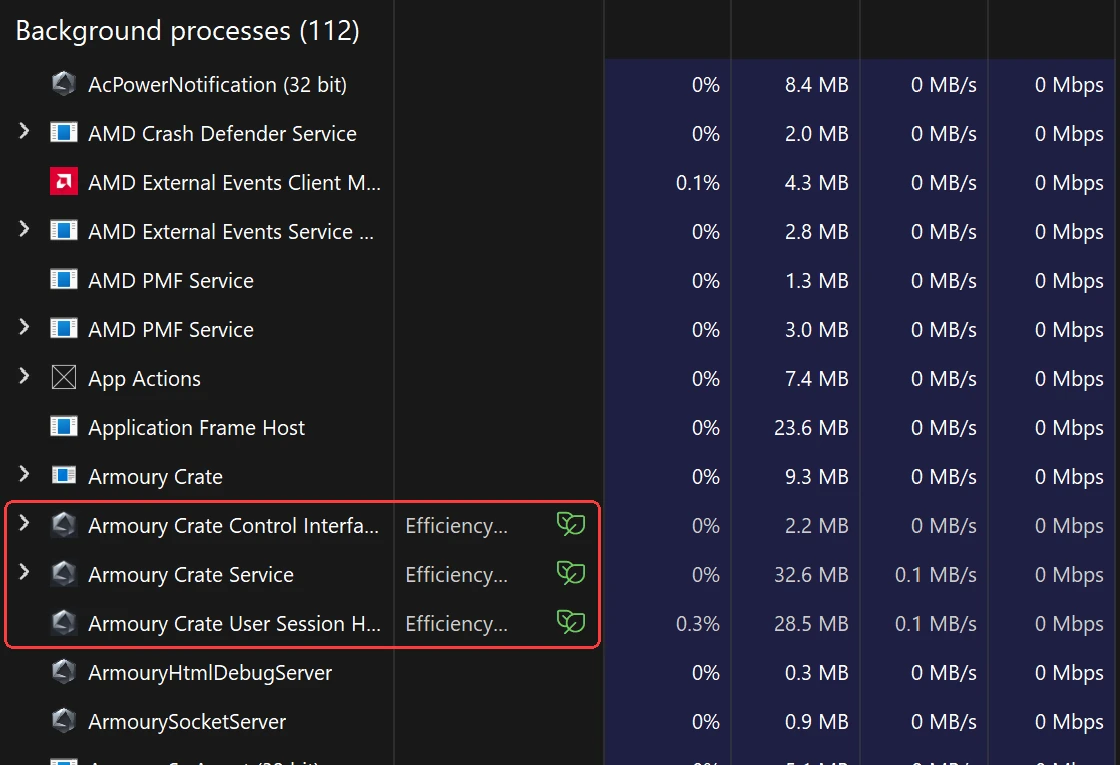
Leaving the window open on Home was a different story. The typical number barely moved, but my readings kept jumping as high as 19 W, and Task Manager had Armoury Crate itself at only 0.3% CPU while it happened. The most likely reason is the live CPU, GPU and fan graphs on the Home page making the graphics redraw the window, which wouldn’t show up as CPU use, though I didn’t check GPU use with the window open. Either way, if you leave Armoury Crate open on a second screen or behind your browser, close it when you unplug.
What happens if you disable the services
To get the “disabled” number, I opened Services (Win + R, type services.msc, press Enter), double-clicked each ASUS and Armoury Crate entry, set Startup type to Disabled, clicked Apply and OK, then restarted. I left AsusPTPService alone since that one runs the touchpad.
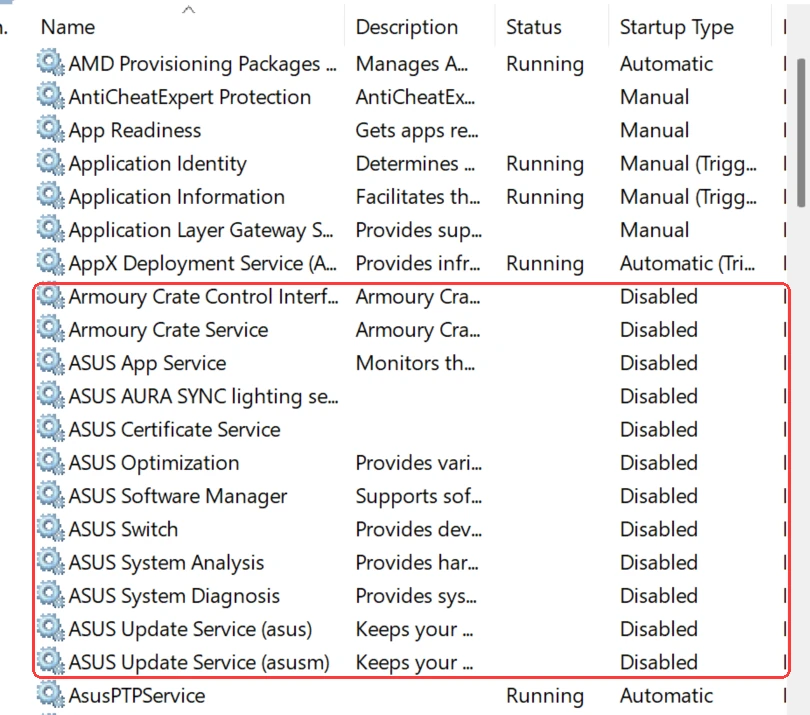
Opening Armoury Crate after that threw a Service Error screen saying some features may be disabled. Clicking Continue still loaded the Home page with live temperatures and fan speeds, and my operating mode and GPU mode carried over the restart since the laptop stores those itself.
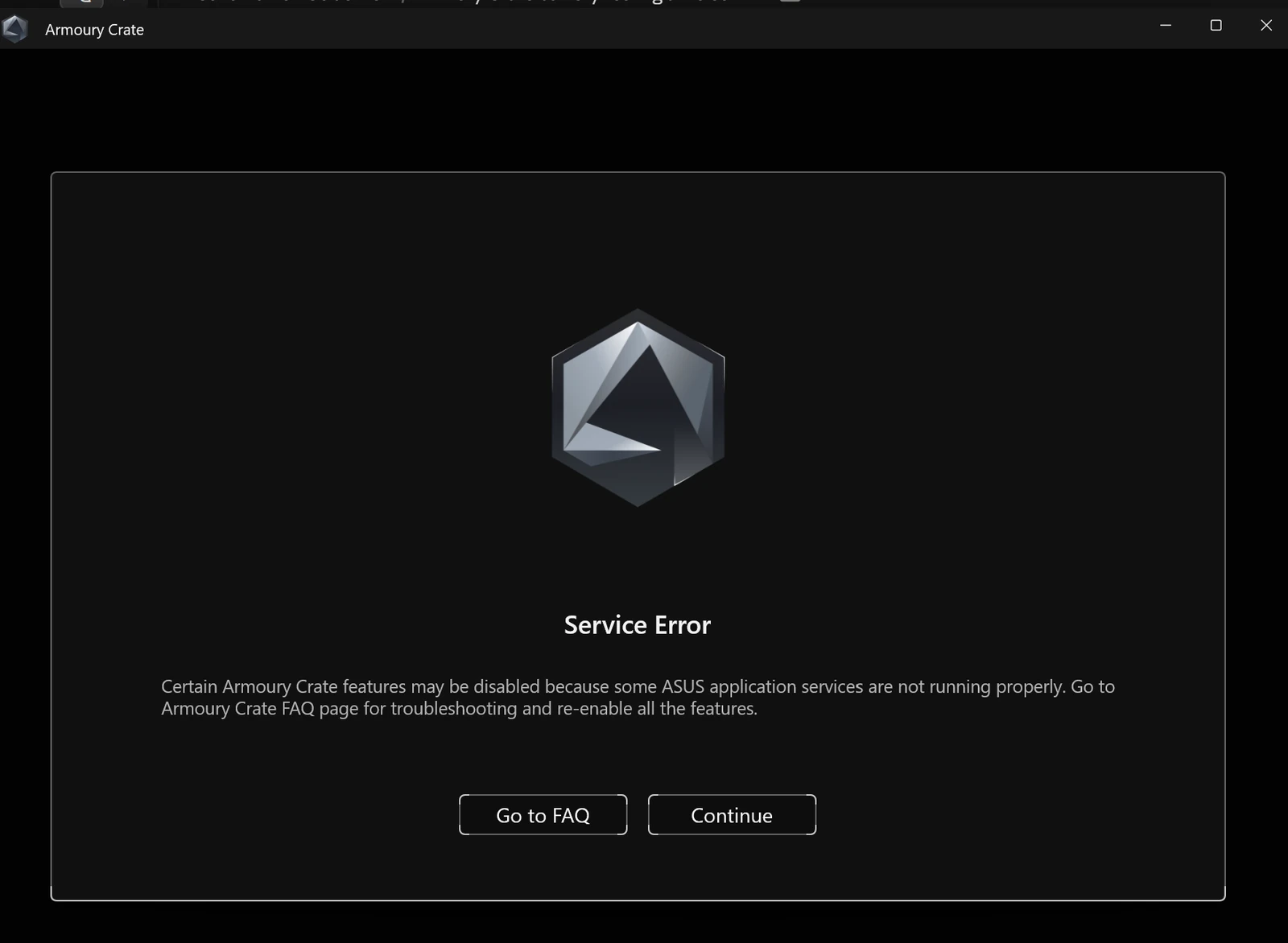
Here’s the catch though, a few minutes later Armoury Crate Service was back on Automatic and running. The most likely reason is that opening the app switched its own main service back on, which I didn’t confirm with a clean check, so my “disabled” number still had that 1 service running and really shows what the other 11 cost. I haven’t measured the laptop with Armoury Crate fully removed yet. So does Armoury Crate drain battery in the background? On mine it was about 0.4 W, and for that and a broken app, disabling the services won’t move your battery enough to bother, and if you’re thinking about getting rid of Armoury Crate entirely, my Armoury Crate bloatware post goes through what it runs and how much memory it takes.
What Actually Drains an ASUS Laptop on Battery
So if the app isn’t the big one, what is? On a gaming laptop, most of the battery goes to 3 things. The screen is always on, and mine is a 2560×1600 OLED that can run at 240 Hz. The CPU speeds up and slows down depending on how much work it’s handed. The NVIDIA graphics card is the hungriest part of the laptop, and on battery the goal is for it to be completely asleep.
Armoury Crate battery life settings mostly work by keeping those 3 in check. Eco turns the NVIDIA GPU off, Silent lowers how much power the CPU is allowed to pull, and Panel Power Saver drops the screen to 60 Hz when you unplug. When I tested my best Armoury Crate settings, an NVIDIA GPU left awake in Standard cost me almost 9 W sitting on the desktop doing nothing, which is way more than the app itself.
What I didn’t expect was how much depends on whatever app is doing the work, and on my laptop the app eating the most battery was the one I had open all day.
Your Browser Can Cost More Than Every Armoury Crate Setting
My first video test was supposed to be the best case, with every battery setting turned on, and it came in at 30.87 W, over 3 times what the laptop pulled sitting on the desktop, for a 1080p YouTube video. Something was working way harder than it should, and if I’d stopped there I would’ve written this whole post blaming Armoury Crate draining battery when it was something else entirely.
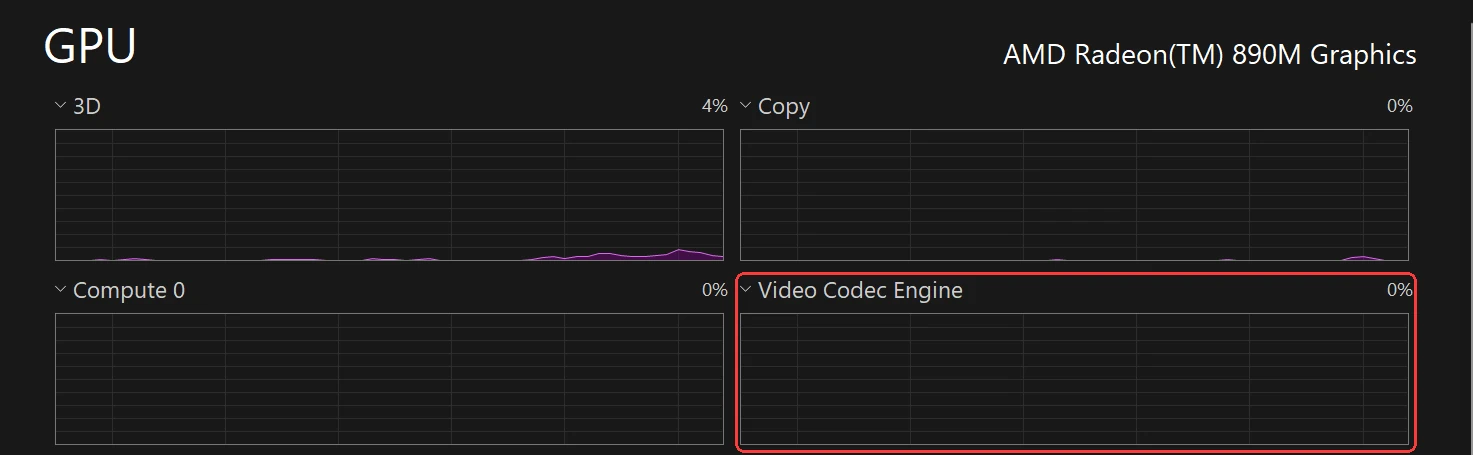
I played the video, opened Task Manager, clicked Performance, clicked GPU 0 (the AMD Radeon 890M), and switched one of the small graphs to Video Codec Engine, which is the part of the graphics chip built to decode video, and it sat at 0% while the CPU was at 8% but holding almost 4 GHz the whole time, so the CPU was decoding the video instead of the graphics chip.
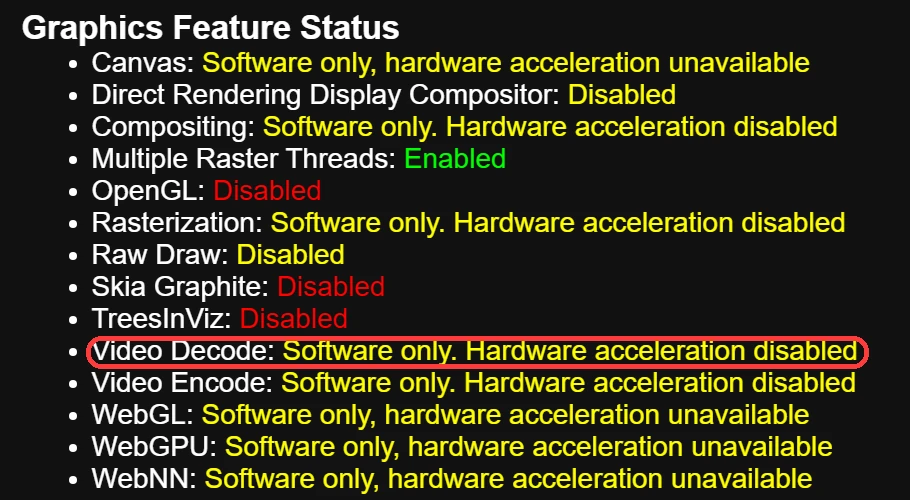
Then I typed vivaldi://gpu into my browser’s address bar, and under Graphics Feature Status almost everything said Software only, including Video Decode. Further down, the GPU line said Microsoft Basic Render Driver, which is Windows’ fallback that draws everything on the CPU, so my browser wasn’t using the graphics chip for anything at all.
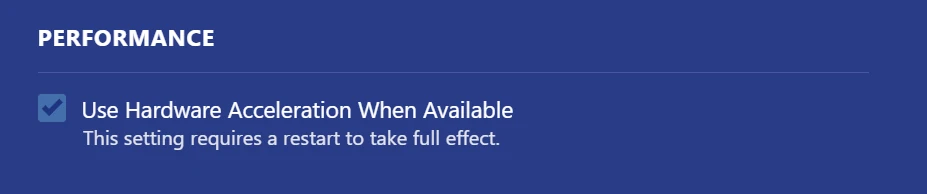
The cause was 1 unchecked box. In Vivaldi it’s under Settings > Performance > Use Hardware Acceleration When Available, and I don’t remember ever turning it off. Vivaldi’s own help page says people turn it off when videos misbehave, so it’s easy to end up off and forget about.
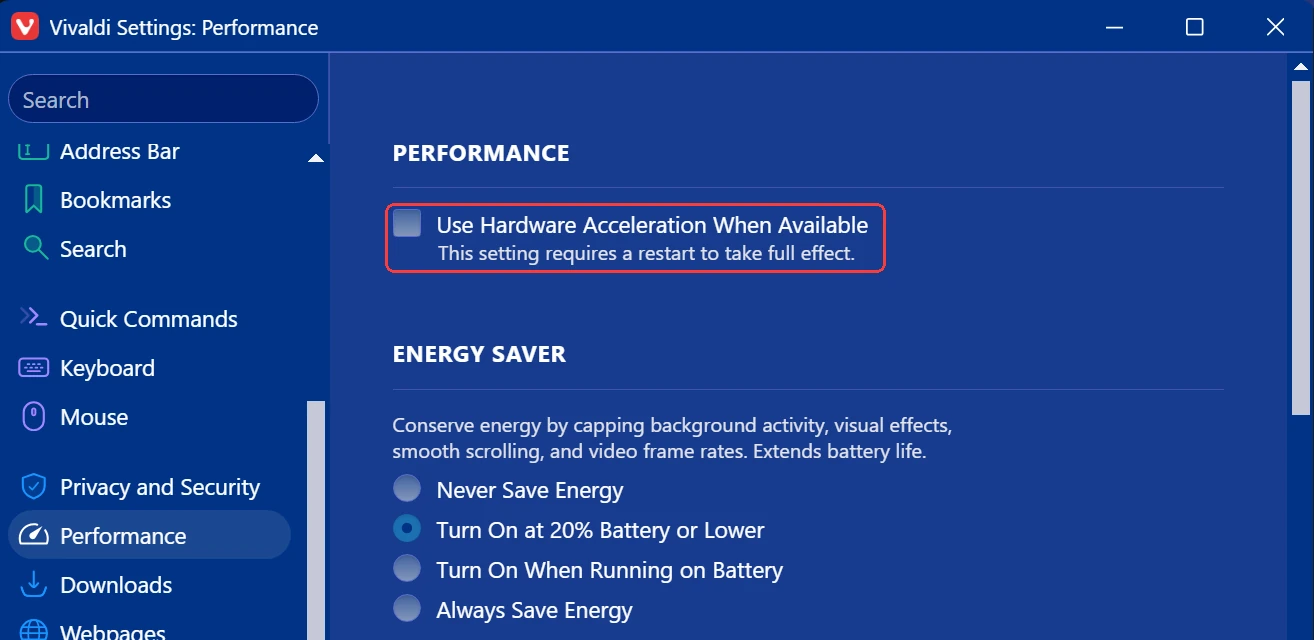
To turn it back on:
- Click the V logo in the top-left of Vivaldi, then click Settings.
- Click Performance in the left sidebar.
- Check Use Hardware Acceleration When Available.
- Fully quit Vivaldi by clicking the V logo > File > Exit, then open it again. Closing the window isn’t always enough, so check Task Manager for leftover Vivaldi entries if you want to be sure.
- Type
vivaldi://gpuin the address bar and make sure Video Decode now says Hardware accelerated.
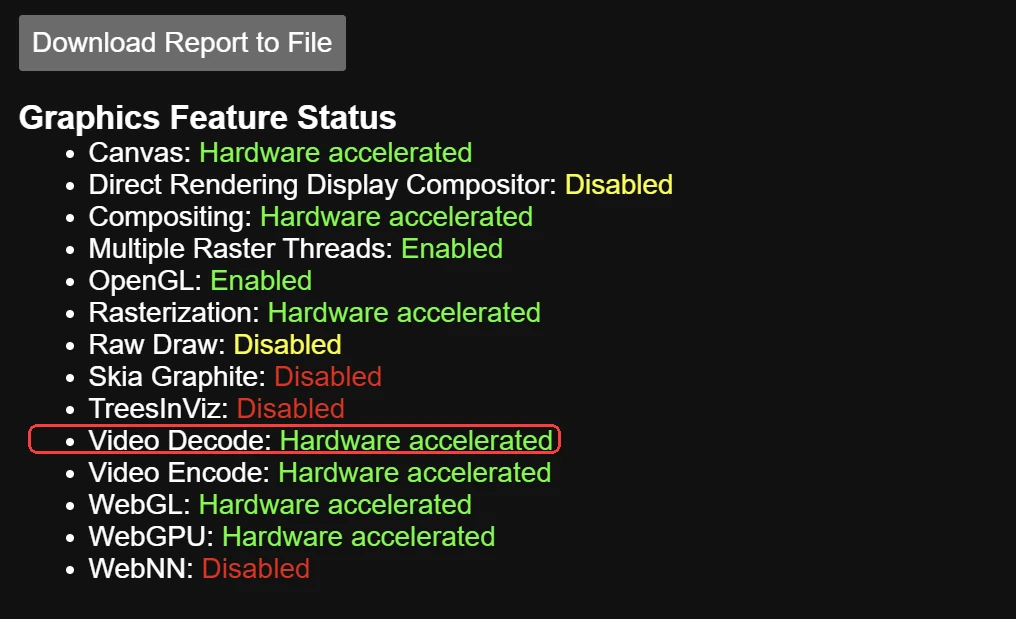
I reran the exact same video with the exact same Armoury Crate settings, and the only thing that changed was that checkbox.
| Same video, same Armoury Crate settings | Typical draw (W) | Full charge at that rate (h) |
|---|---|---|
| Hardware acceleration off Baseline | 30.87 | ~2.5 |
| Hardware acceleration on | 11.97−61.2% | ~6.5+4.0 h |
So the draw dropped about 61%, roughly 19 W, and that 1 checkbox did more for my Armoury Crate battery life than any setting inside the app. I only use Vivaldi, but Chrome, Edge and Firefox all have the same switch. In Chrome it’s Settings > System > Use graphics acceleration when available, in Edge it’s Settings > System and performance > Use graphics acceleration when available, and you can check either one the same way by typing chrome://gpu or edge://gpu into the address bar. In Firefox it’s under Settings > General > Performance, where you uncheck Use recommended performance settings to see Use hardware acceleration when available.
Armoury Crate Battery Life Test on Video Playback
With the browser fixed, I ran the same video on my stock setup (Performance, Standard GPU mode, 240 Hz, keyboard light at max) and again with every battery setting on, and the draw went from 17.81 W down to 12.81 W, about 1.7 more hours of video on a full charge. Panel Power Saver did about 3.2 W of that on its own, which I broke down in my Armoury Crate Panel Power Saver test, and Eco, Silent and turning the lights off added the last 1.8 W between them.


I didn’t split Eco, Silent and the lights up during video, so those 3 only have a combined number. The stock run also had a few readings jump up to almost 23 W, and the most likely reason is the NVIDIA GPU waking up in Standard, though I didn’t track what woke it.
Armoury Crate battery life settings in order
Put together, this is the order I’d go in, from the biggest saving to the smallest on my G16:
- Browser hardware acceleration on. About 19 W during video, and it’s free.
- Panel Power Saver on. About 3.2 W during video, which is roughly an extra hour. I went through how it behaves when you unplug, and the G-Helper conflict that broke it on mine, in my Armoury Crate Panel Power Saver post.
- Eco GPU mode. It keeps the NVIDIA GPU fully off, so it can’t wake up and burn the almost 9 W I saw in my settings testing.
- Silent and the keyboard light off. Together with Eco these were the last 1.8 W during video. I measured the backlight on its own in my Armoury Crate keyboard lighting post.
Armoury Crate battery saver checklist
If you just want the clicks, this is my Armoury Crate battery saver setup for a day off the charger, and it’s what got me from about 4.3 to about 6 hours of video:
- Check your browser first by typing
chrome://gpu,edge://gpuorvivaldi://gpuinto the address bar and confirm Video Decode says Hardware accelerated. - In Armoury Crate, click Devices in the left menu, click your laptop, then open the System Configuration tab and click the Panel Power Saver tile to turn it on.
- On the same page, open the GPU Performance tab and click Eco. If it refuses, set NVIDIA Control Panel > 3D Settings > Manage Display mode to Optimus first, which I walk through in my Armoury Crate GPU mode post. Save your work before you click, since switching can close apps.
- Click Home in the left menu, then click Silent under Operating Mode.
- Turn the keyboard backlight off with Fn + Down Arrow.
- Close Armoury Crate so it isn’t sitting open on Home.
Battery Care Is About Years
The settings above are all about 1 charge. Battery health is the other half of it, and mine was already down to 86% on a 2024 laptop. You can check yours by opening Terminal and running powercfg /batteryreport, which is one of Windows’ built-in power commands, then opening the report it saves and comparing Design Capacity with Full Charge Capacity under Installed batteries.

Mine also left the cycle count blank, so don’t worry if yours does too. The way to slow that number down is the charge limit, and I went through the 60, 80 and 100% options in ASUS Battery Care Mode.
Measure Your Own Battery Drain
Every laptop is a little different, so if you want to see where your own battery is going, this is the exact script I used. Open Terminal (right-click Start > Terminal), paste the whole block, and press Enter. If Terminal warns you about pasting multiple lines, click Paste anyway.
function Test-Drain {
    $label = Read-Host "Which state is this?"
    $full = (Get-CimInstance -Namespace root\wmi -ClassName BatteryFullChargedCapacity).FullChargedCapacity
    if ((Get-CimInstance -Namespace root\wmi -ClassName BatteryStatus).PowerOnline) {
        Write-Host "Charger is plugged in. Unplug it and run Test-Drain again." -ForegroundColor Red; return
    }
    Write-Host "Settling for 2 minutes. Don't touch the laptop until the green line."
    for ($s = 120; $s -gt 0; $s -= 30) { Write-Host "  $s s left"; Start-Sleep 30 }
    $samples = @()
    Write-Host "Measuring for 4 minutes..."
    for ($i = 1; $i -le 24; $i++) {
        Start-Sleep 10
        $samples += [math]::Round((Get-CimInstance -Namespace root\wmi -ClassName BatteryStatus).DischargeRate / 1000, 2)
        if ($i % 6 -eq 0) { Write-Host "  $(4 - $i / 6) min left" }
    }
    $sorted = $samples | Sort-Object
    $avg = [math]::Round(($samples | Measure-Object -Average).Average, 2)
    $median = [math]::Round(($sorted[11] + $sorted[12]) / 2, 2)
    $pct = (Get-CimInstance Win32_Battery).EstimatedChargeRemaining
    $estH = [math]::Round($full / ($avg * 1000), 1)
    Write-Host ""
    Write-Host "$label | avg $avg W | median $median W (range $($sorted[0])-$($sorted[-1])) | battery $pct% | ~$estH h on a full charge" -ForegroundColor Green
}
That only loads the test. Type Test-Drain, press Enter, type a name for whatever you’re testing, and leave the laptop alone for 6 minutes until the green line shows up. For the steadiest numbers, set sleep to Never first and close anything you aren’t testing.
Battery Drain FAQ
Does closing Armoury Crate save battery?
A little, and it’s the easiest Armoury Crate battery saver habit there is. With the window closed, its services drop into Windows’ Efficiency mode and sat at 0% CPU on mine. With it open on Home, my battery readings kept spiking up to about 19 W, so I close it before unplugging.
Should I disable Armoury Crate’s services to save battery?
I wouldn’t. On my G16, the 11 services I could keep off saved about 0.4 W, around 25 minutes per charge, and the app threw a Service Error afterward. Its main service also came back on by itself after I opened the app, and when I broke it on purpose for Armoury Crate not working, it turned out the app switches that service back on every time you open it.
Why is Armoury Crate draining battery so fast?
In my testing, the app itself was the smallest part of it, so if you’re seeing Armoury Crate draining battery, look at what else is running. Check whether your browser is decoding video on the CPU (chrome://gpu or edge://gpu), and whether the NVIDIA GPU is awake in Standard, which cost me almost 9 W at idle, and switching to Eco and back puts it to sleep.
Does Armoury Crate show battery percentage?
Not that I could find on mine. Neither Home nor any other page shows the percentage or how many watts the battery is putting out, so I used the battery icon in the Windows taskbar for the percentage and PowerShell for watts.
How much battery life should a Zephyrus G16 get?
On my 86%-health battery, watching a 1080p YouTube video worked out to about 4.3 hours on stock settings and about 6 hours with everything in my checklist on. Sitting on the desktop with the battery settings on, it was closer to 8 hours.
If your Armoury Crate battery life is still dropping faster than mine after the checklist, drop your laptop model, what you were doing, and your Test-Drain number in the comments. I’d like to know if anyone else finds their browser running on the CPU like mine was.