

ASUS Cloud Recovery vs Reset this PC: Is It Worth It?
If your ASUS laptop needs a fresh start, you’re stuck choosing between ASUS Cloud Recovery and Windows’ own Reset this PC. I went through both on my Zephyrus G16, and I’ll be honest, ASUS’s version might not be worth it. If you want a simple breakdown before you reset anything, I’ll compare the 2 and show you exactly how to get to the ASUS one. Locked out of Windows and just need it wiped? Then the F12 reset that gets around a forgotten password is the one you want.
When I clicked through both on my G16, Reset this PC asked me for none of these, while the 2 ASUS routes put them in front of me first:
- Charger: Cloud recovery in WinRE stopped and asked for the adapter while I was on battery
- Update first: Once I connected to Wi-Fi, MyASUS in WinRE updated itself to 3.0.7.0 before anything else, which took about 1 minute
- Age gate: The BIOS version kept Agree greyed out until I ticked “I am above the age of 20 years”
- Zephyrus G16 (GA605WI)
- Ryzen AI 9 HX 370
- RTX 4070 Laptop
- Windows 11
- BIOS 316
- MyASUS in WinRE 3.0.7.0
Local Windows account · Device encryption off · Run on battery
How ASUS Cloud Recovery vs Windows reset compare
Both of these put Windows back to a clean state, and on an ASUS laptop both can be reached from the same blue recovery screen, so the difference that matters for you is everything that happens before the reset actually starts. ASUS’s version downloads a factory image from ASUS, while Reset this PC is Microsoft’s built-in reset that’s already part of Windows. I took every route on my G16 as far as it would go without wiping anything (for the BIOS one, that was its privacy notice), and the table below shows what each one put in front of me.
| Reset this PC (recovery screen) | Cloud recovery (MyASUS in WinRE) | Cloud Recovery (BIOS) | |
|---|---|---|---|
| How I got there | F12 > Troubleshoot > Reset this PC | F12 > Troubleshoot > MyASUS in WinRE | F2 > F7 > Advanced > ASUS Cloud Recovery |
| Privacy or age screen | None | ASUS Privacy Notice, Agree or Decline | Agree locked until the age 20 box is ticked |
| Update first | None | Once online, no skip button, about 1 minute to 3.0.7.0 | Never reached |
| Charger | Warned me to plug in, Reset still clickable on battery | Asked for the adapter | Never reached |
| Password, PIN or BitLocker key | Not asked | Not asked before I stopped | Not asked before I stopped |
| Where I stopped | Final Reset screen, clicked Cancel | “Do you want to backup your files first?” | Declined the privacy notice |
Every ASUS route had at least 1 extra hoop to jump through, and the BIOS one wouldn’t even start unless you agree to ASUS’s privacy notice. If you’re not even sure you need a full reset yet, my main ASUS reset guide goes through the lighter levels first, starting from a simple restart.
Getting into MyASUS in WinRE
MyASUS in WinRE is ASUS’s own app inside the Windows recovery screen (WinRE, short for Windows Recovery Environment), and it’s where the first version of ASUS Cloud Recovery lives. To reach it you need the blue recovery screen, and the way most people try to get there is holding Shift while clicking Restart on the sign-in screen. It went 0 for 3 on my G16, with each try lagging a bit, the spinning circle stopping, and then a plain restart right back to sign-in.
Finding that out was quite disappointing, since a lot of people count on ASUS for exactly this, and I would’ve been quite mad if I had only learned it was broken on the day I actually needed it. What worked on every try was tapping F12 as soon as I pressed the power button, which got me a Please wait screen about 6 seconds in and then the blue Choose an option screen, where you’ll want to click Troubleshoot (the orange box).

The Troubleshoot screen on my G16 had 4 tiles: Point-in-time restore, Reset this PC, MyASUS in WinRE and Advanced options. Reset this PC and the ASUS app sit right next to each other, so if you’re choosing between them you’ll be making that choice on this exact screen. Click MyASUS in WinRE (orange box) to open the ASUS side.

The update it pushed before anything else
The first thing MyASUS in WinRE showed me was a prompt saying Connect to the Wi-Fi to check if an updated version is available, with a list of networks plus OK and Cancel (the purple box). I connected to my phone’s hotspot and clicked OK, so if you’re going to use this, make sure you have some kind of internet connection ready before you boot into recovery.

It found a new version right away, and the New update found! box only had an OK button on it (purple box), so there was no way to skip it from there. Click OK and let it run. Mine updated to version 3.0.7.0 in about 1 minute, restarted itself, and then showed No update required! before letting me in.

Next comes the ASUS Privacy Notice / ASUS EU Data Act Notice with Agree and Decline. I clicked Agree (purple box), and that finally took me to the main menu of MyASUS in WinRE.

What Cloud recovery asked for
The main menu has 3 options plus Exit: System Diagnosis (box 1), Cloud recovery (box 2) and ASUS Recovery (box 3). Both recovery options carry the same line under them, “Reset to ASUS factory setting. Warning: User data and apps will be deleted.”
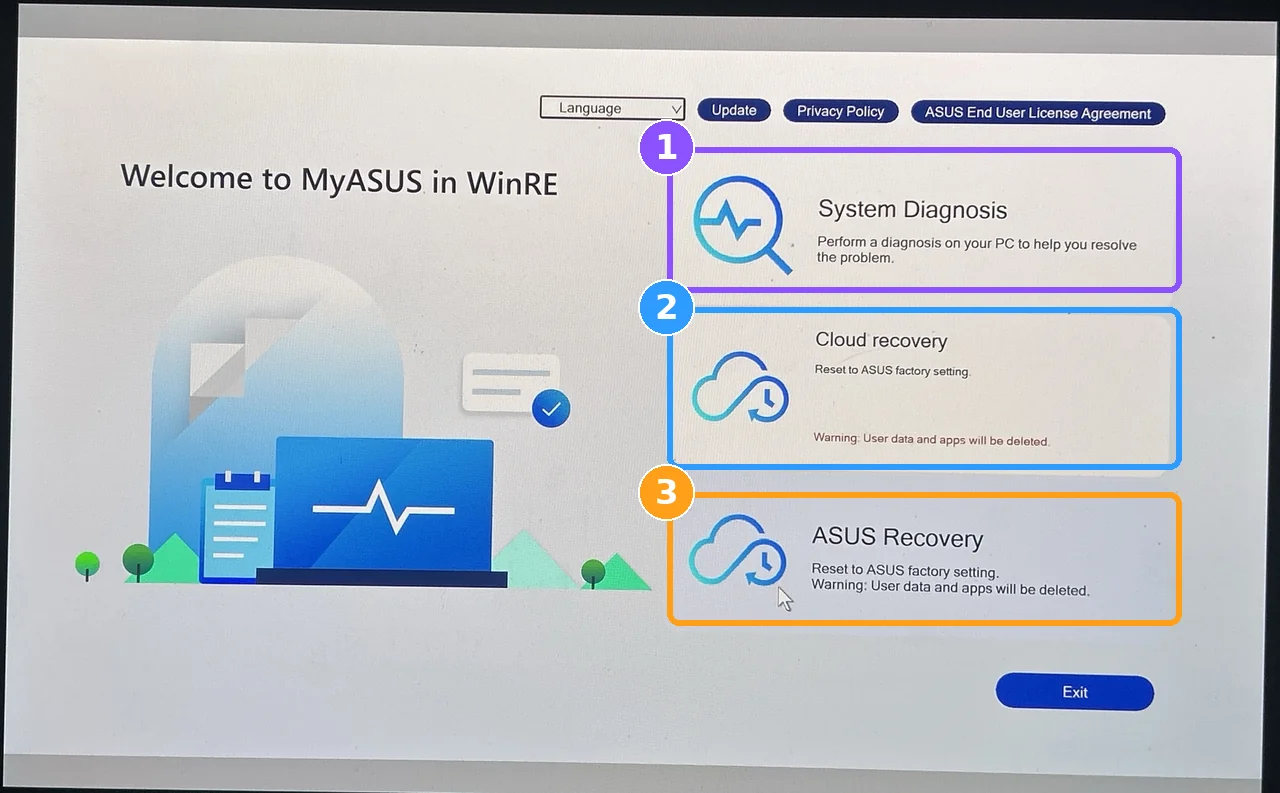
Once I clicked Cloud recovery, it checked the MyASUS version again and sat on Checking…. for a moment, then the screen flashed and asked me to plug in the adapter, since I was still on battery. After that came a warning saying the process would erase your personal data and recommending you back everything up to an external hard drive first, with OK and No buttons (the red box).

I stopped right there, so Cloud recovery never downloaded or erased anything. Watch out if you’re only looking around like I was, because Esc did nothing on that screen and I had to hold the power button to get out of it.
Opening MyASUS in UEFI from the BIOS
The second version of ASUS Cloud Recovery lives in the BIOS, as part of something ASUS calls MyASUS in UEFI, and it’s the one ASUS points you to when Windows can’t start at all. To get there, tap F2 while the laptop powers on, which opened BIOS Utility – EZ Mode on my G16, then press F7 for Advanced Mode (boxed in white along the bottom bar).

Click the Advanced tab (box 1), and you’ll see ASUS Cloud Recovery (box 2) sitting right above ASUS System Diagnostics (box 3), so select it and press Enter.

It opened a Current Status of Privacy Notice screen with View Policy and Cancel [ESC], and clicking View Policy brought up the full notice, which says if you decline, “some functions will be restricted.” What it doesn’t tell you up front is that one of those functions is Cloud Recovery itself, because the Agree button (box 2) stays greyed out until you tick “I am above the age of 20 years.” (box 1).

I tried declining to see what would happen, and it dropped me straight back to the BIOS Advanced tab, so there’s no way to use the BIOS version of Cloud Recovery without ticking that box and agreeing. ASUS’s own MyASUS in UEFI page also says it only supports laptops whose serial number has “N0” as the 3rd and 4th characters, and mine doesn’t, yet the module still opened from that BIOS menu item on my G16.
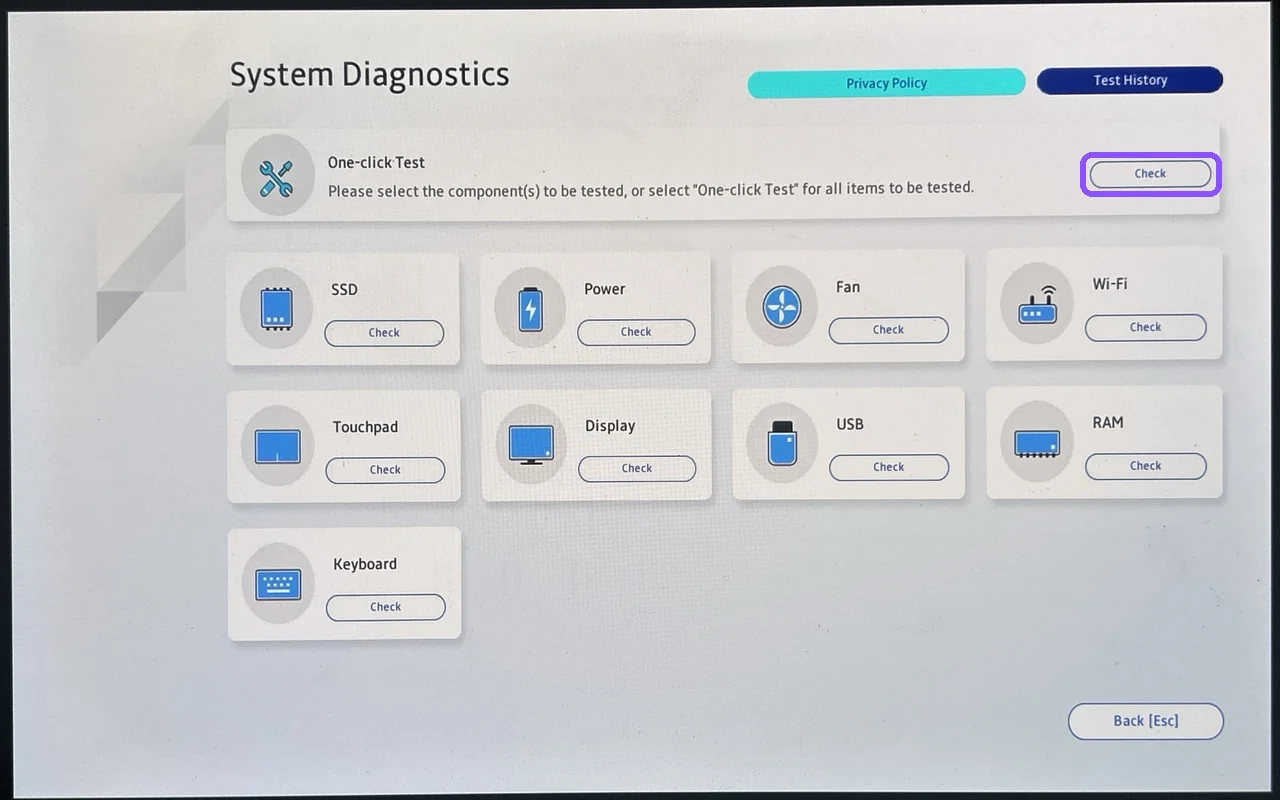
The ASUS System Diagnostics item right under it had no privacy or age screen at all. It went straight to a One-click Test (purple box) plus the same 9 component checks as the WinRE version, so the gate is only on the recovery side. I left with Discard Changes every time I was done, so nothing in the BIOS was saved.
What Reset this PC asked for instead
From the same Troubleshoot screen, Reset this PC took me through 5 screens: Keep my files or Remove everything, Cloud download or Local reinstall, whether to keep the PC set up for a workplace, whether to fully clean the drive, and then the final Reset button, where I clicked Cancel. It never asked for a password, a PIN or a BitLocker key, and there was no update, no privacy notice and no age box anywhere in it.
Being on battery didn’t stop it either, since the last screen only said “Make sure your device is plugged in” while the Reset button stayed available. The one data warning I saw was on Cloud download, which Windows says “can use more than 4 GB of data,” and Local reinstall was sitting right next to it if you’re on a slow or metered connection. Microsoft’s Recovery options in Windows page also lists Reset this PC as something you can start from the recovery environment with no external media.
One thing to keep in mind is that encryption protection was off on my laptop, which is why no BitLocker key came up, so if yours is fully encrypted make sure you have that key saved somewhere off the laptop first.
Does ASUS Cloud Recovery delete everything
Going by what the screens told me, yes. The MyASUS menu says “User data and apps will be deleted” right under Cloud recovery, and the backup prompt says the “Cloud recovery process will erase your personal data,” so you should treat it like a full wipe and back up anything you care about to an external drive first. On the screens I got through, Cloud recovery never offered a Keep my files choice the way Reset this PC does, and the only choice it gave me after the adapter prompt was whether to back up first.
When ASUS Cloud Recovery makes sense
I never ran a full Cloud Recovery on my G16, so the 3 situations in this list come from ASUS’s documentation. According to ASUS, these are the times Cloud Recovery is the one to reach for:
- Windows or its recovery files are broken. Cloud Recovery downloads a factory image from ASUS, so it doesn’t depend on the reset files already on your drive, which ASUS’s Cloud Recovery in WinRE page covers along with its requirements (a network connection and a power supply that stays connected).
- The drive is blank or was replaced. The BIOS version runs with no Windows install at all, although a Windows install USB also covers this.
- You want the exact as-shipped image. It brings back ASUS’s own drivers and apps the way the laptop came from the factory.
If none of those sound like you, Reset this PC is going to get you to a clean copy of Windows with a lot fewer screens in the way. And if you’re wondering whether you even need the regular MyASUS app back once Windows is fresh, I went through what MyASUS actually does on a ROG laptop in a separate post.
Wi-Fi and the privacy notice
Do I need Wi-Fi for MyASUS in WinRE?
For Cloud recovery, yes. The first thing MyASUS in WinRE did on my G16 was ask me to connect to Wi-Fi so it could check for an update, and I used my phone’s hotspot to get through it.
Does MyASUS in UEFI work without agreeing?
Not for Cloud Recovery. I declined it, and it sent me right back to the BIOS Advanced tab, although ASUS System Diagnostics still opened with no notice at all.
Which reset I’m sticking with
After going through both, I don’t know why I’d use the ASUS one instead of Reset this PC, when Reset this PC is right there in Windows and I don’t need a roundabout way to get to it. ASUS Cloud Recovery is built for the 3 situations I listed earlier, and none of them applied to my G16, so for most of you Reset this PC is going to be the one to start with. After your reset finishes, my list of which ASUS apps are worth putting back and which to skip saves you from reinstalling everything ASUS shipped.
Has anyone actually needed Cloud Recovery because Reset this PC failed on them? If that’s you, tell me in the comments which laptop it was and what broke, because I want to know if that situation really happens. When you’re setting the laptop back up, G-Helper’s download and setup is the lighter way to get fan and power controls back, or if you’d rather stay with ASUS’s app, the lean Armoury Crate install skips its optional extras.
Did this fix it for you?
Nice, glad it worked.
Thanks, that helps.
I use these to decide what to retest next. If you want a reply, ask in the comments and I'll take a look.