
ASUS Laptop Won’t Turn On? My 40-Second Hard Reset Test
When an ASUS laptop won’t turn on, the mainstream advice is to just hold the power button and wait. Although this seems simple, there were some points where I got a bit confused, especially after around 20 seconds of black screen. If you want a simple walkthrough to get your ASUS laptop back online, I’ll outline the steps that got mine to boot again.
After I held the power button for 40 seconds on battery, my G16 booted back up on its first press, as long as I left it alone through the dark part.
- Black screen: Stayed completely black for 18 s, right after a 12 s white logo
- Back to sign-in: About 60 s from pressing power, then 12 s from PIN to desktop
- Modes kept: Armoury Crate was still on Silent and Standard GPU mode afterward
- Hibernate: Looked exactly like off, but reached sign-in in 27 s from 1 press
- Zephyrus G16 (GA605WI)
- Ryzen AI 9 HX 370
- RTX 4070 Laptop
- Windows 11
- BIOS 316
- MyASUS in WinRE 3.0.7.0
EC version FG150136.R3.16 · Hard reset run on battery, charger unplugged
My G16 has always turned on in the end, but there were times when a cold boot took a while, and sitting there in front of a dark screen gave me some scares. So I ran the hard reset ASUS recommends on it, on battery with the charger unplugged, and timed every stage of the boot, then checked the power hardware with the diagnostics ASUS hides in the recovery screen and the BIOS. Mine was never actually dead, so you won’t see a fried board here, but you will see what a working hard reset looks like, which is what tells you when to wait and when to worry. If your problem turns out to be Windows rather than power, I put the full list of ASUS reset options in one post, from a simple restart all the way to a factory wipe.
When your ASUS laptop won’t turn on
Before you hold anything down, take a second to look at the laptop’s power indicator light, because ASUS’s own boot failure troubleshooting page sorts this whole problem by what that light is doing:
- Light off: ASUS points at power delivery first, so check the charger, the cable and the outlet, unplug any extra devices, and then do the EC reset in the next sections.
- Light on, screen black: If your ASUS laptop won’t turn on but power light is on, ASUS has you try an external monitor, press Win + P to switch display modes, then Win + Ctrl + Shift + B (which ASUS says can restore your display settings), before moving on to the EC reset.
- Light flashing: ASUS says the BIOS is running its own recovery, which can take hours, so keep it plugged in and don’t force it off.
Rule out hibernate first
Hibernate on my G16 looked exactly like the laptop was off, with the screen fully dark, so it’s an easy one to mistake for a dead laptop. When I pressed the power button once, it took 27 seconds to reach the sign-in screen, and the logo popped up 3 times along the way, which is the kind of thing that makes you think something is wrong when it isn’t. After I typed my PIN, my desktop came back instantly.
Before you decide your ASUS laptop won’t turn on, press the power button once and give it at least the 27 seconds mine needed, because a laptop coming out of hibernate can look dead for most of that time.
The 40-second hard reset I ran
If one press and a full wait gets you nothing, the next step is a hard reset, which ASUS calls an EC reset (EC is short for embedded controller, a small chip on the motherboard). ASUS lists it for both the light-off and light-on cases, and on my G16 it didn’t need Windows, a USB drive or any app to work, just the power button and some patience, as long as you go through these steps in order:
- Unplug the charger. I ran mine on battery with the charger out, and ASUS’s boot failure page also says to disconnect the adapter before the reset.
- If the laptop is on in any way, shut it down with Start > Power > Shut down.
- Press and hold the power button for 40 seconds, then let go.
- Press the power button once, then keep your hands off the laptop until you see the sign-in screen.
- Plug the charger back in once you’re signed in, which ASUS also says to do after the reset.
What the boot looked like
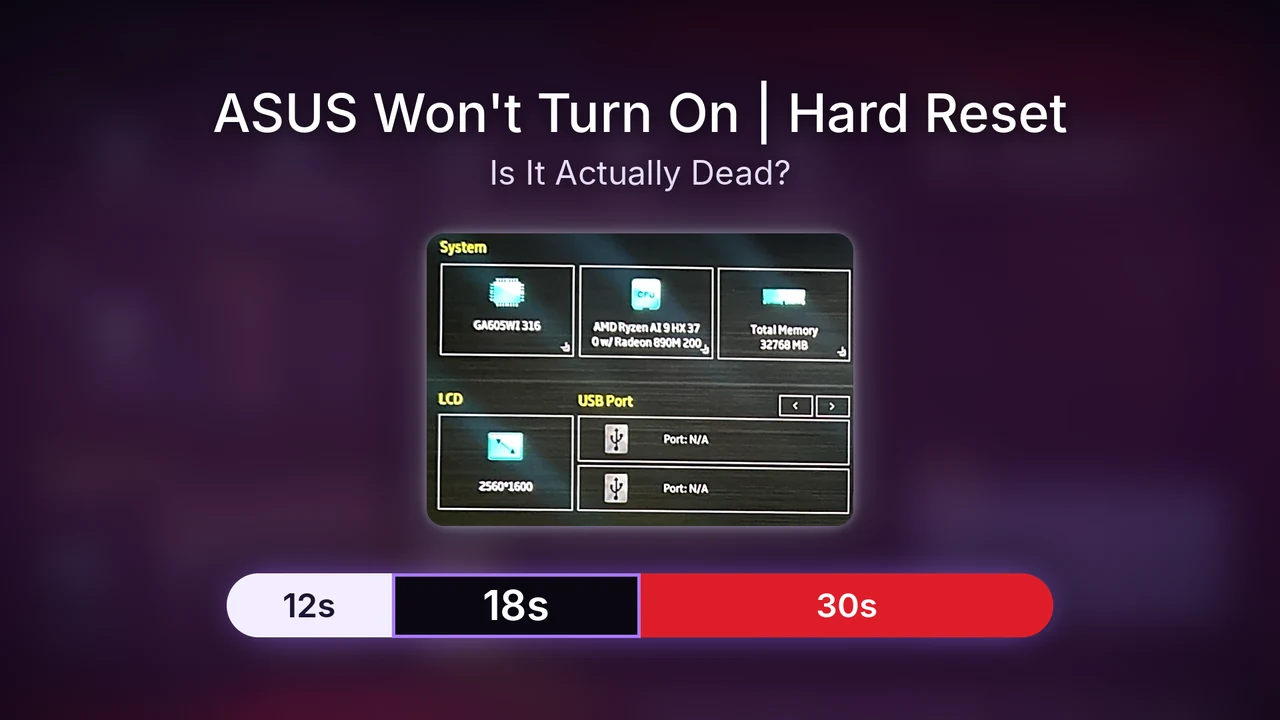
After I let go and pressed power, the boot went through 3 very different stages before I got anywhere, and you can see how long each one lasted in the table below.
| Stage | What I saw | How long |
|---|---|---|
| 1 | White logo | 12 s |
| 2 | Completely black screen | 18 s |
| 3 | Red logo | 30 s |
| Total | Power press to sign-in screen | About 60 s |
| After | PIN to desktop | 12 s |
The whole thing took about a minute to reach sign-in, and I never had to force it off or press anything extra to get it there, so if yours is going through the same white logo, black, red logo pattern, simply let it run.
Don’t touch the black screen
The first time I hit that 18 seconds of total black right after the white logo, it definitely gave me some second thoughts, because it looks exactly like the laptop gave up. Be mindful here and don’t go pressing more buttons, because you might mess up the process right when it’s in the middle of starting.
If you’re stuck on an ASUS laptop black screen after hard reset and it’s lasting a lot longer than mine did, ASUS’s boot failure page says the first boot after a reset can sit with no display for 5 to 10 minutes while the memory trains, and that you should keep it plugged in and not force a shutdown during that time.
My settings survived it
Once I was back on the desktop, I opened Armoury Crate to see if the reset had thrown anything back to default, and my Operating Mode was still on Silent (see the orange box), the same as before I started.

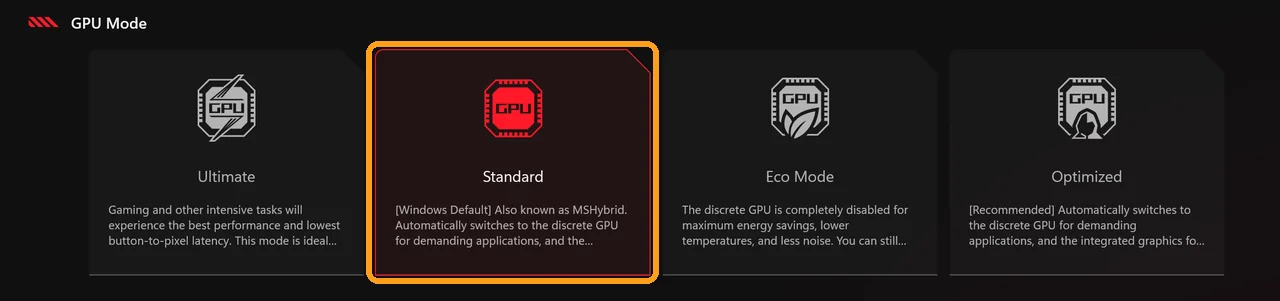
My GPU Mode was still on Standard too (the orange box again), so the EC reset kept both of the settings I had set, and I had nothing to redo in Armoury Crate afterward. If yours did get knocked back to a different mode, it’s worth knowing how much Silent and Turbo actually changed on my G16 before you pick one again.
Test the power hardware in MyASUS
If your ASUS laptop won’t turn on even when plugged in, or it only starts with the charger in, you want to know whether the adapter and battery are healthy before you blame anything else. ASUS puts a Power test inside MyASUS in WinRE, a version of MyASUS that runs from the blue Windows recovery screen, so it works before Windows loads (Microsoft’s recovery options page covers what else that screen can do).
To get there, turn the laptop on and start tapping F12 right away. My G16 showed Please wait after 6 seconds, then the blue Choose an option screen. Click Troubleshoot, then MyASUS in WinRE, which matches the steps in ASUS’s WinRE support article. Mine first asked me to connect to Wi-Fi to check for an update, so I connected to my phone’s hotspot and clicked OK, and it updated itself in about 1 minute and restarted. Then I clicked Agree on the privacy notice to reach the main menu.
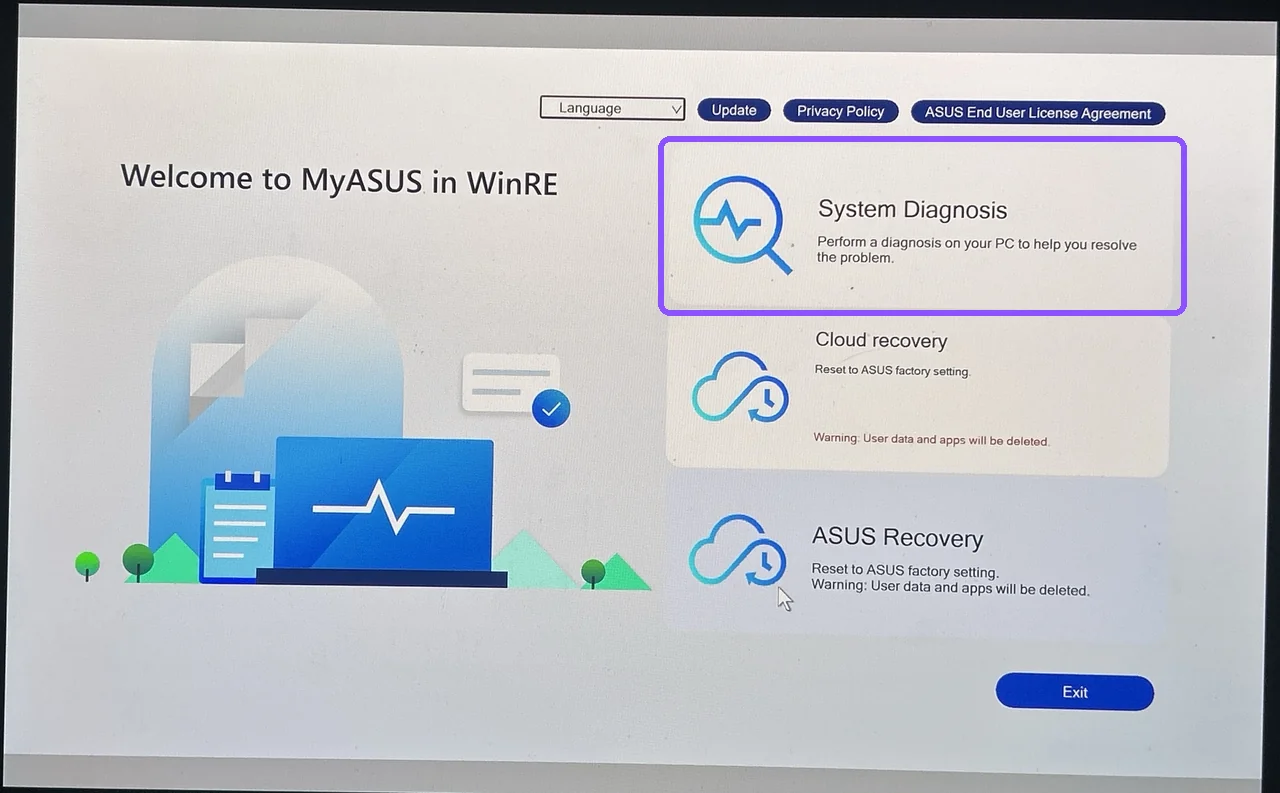
From the main menu, click System Diagnosis (the purple box below).
That opens the Component Test page, which has a One-click diagnosis plus 9 separate tests (SSD, Power, Fan, Wi-Fi, RAM, Display, USB, Touchpad and Keyboard). For a laptop that won’t power on, the one you care about is Power, so click Checkup on that card (in the purple box).

Make sure the charger is plugged in before you start it, since the test page says so right at the top (see the purple box).

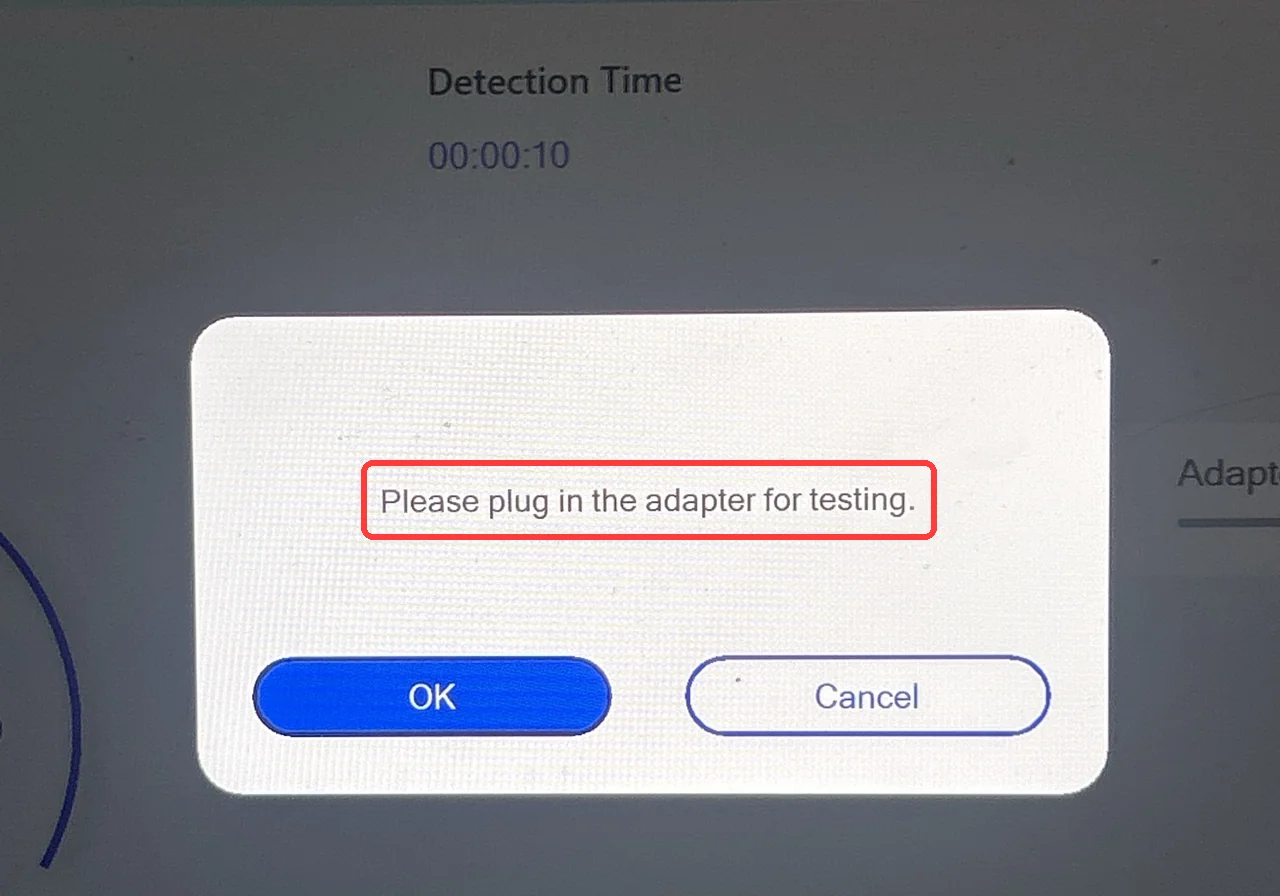
I ran it on battery first anyway, and it stopped 10 seconds in with Please plug in the adapter for testing (the red box), so it won’t give you a battery-only result no matter how long you wait.
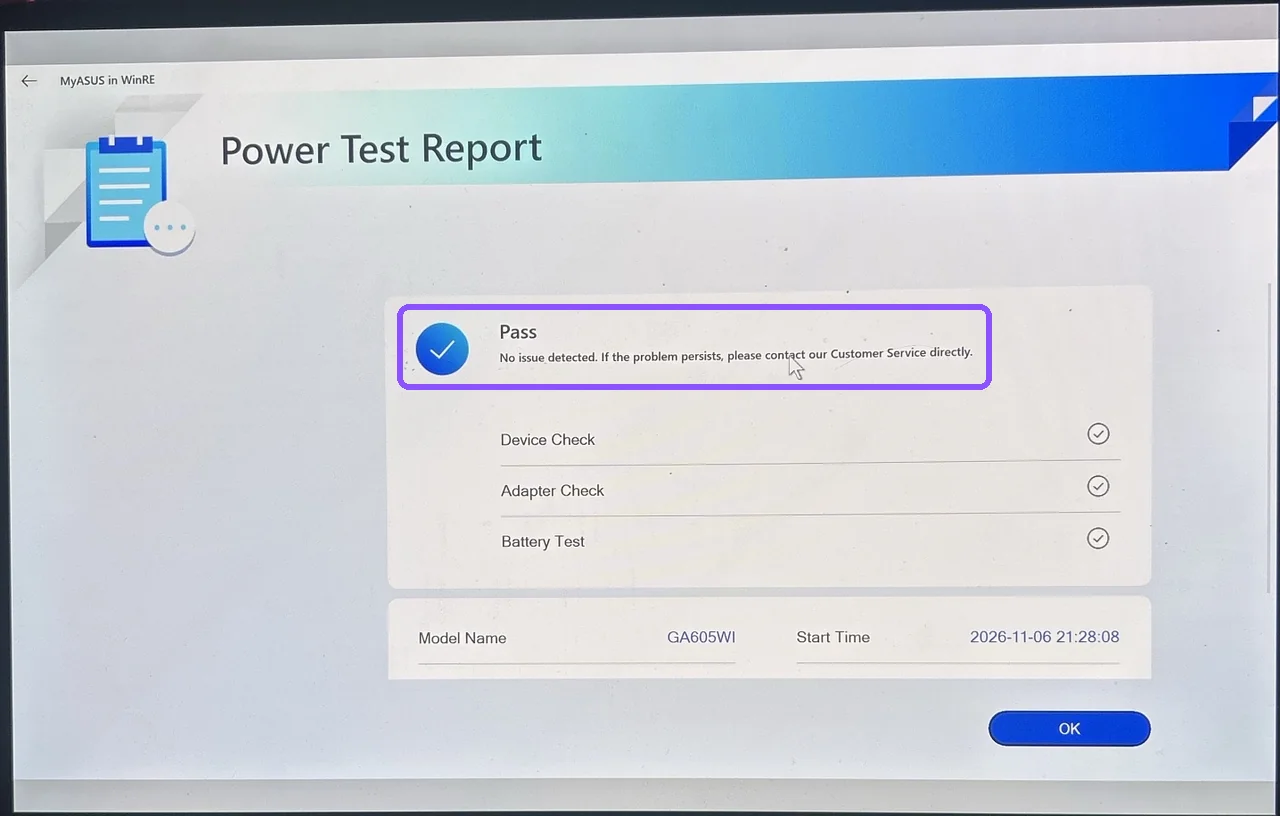
With the charger plugged in, the same test came back Pass with No issue detected (the purple box), and the Device Check, Adapter Check and Battery Test all passed. A Pass there means the charger and battery checked out, so if your laptop still has trouble starting, you can move on from those two.
The MyASUS app in Windows has its own System Diagnosis section, which I went over in my post on whether MyASUS is necessary, but this recovery version is the one you can reach when Windows isn’t cooperating. If yours does turn on fine but the battery keeps dropping with the charger in, it’s a separate problem, and I compared my barrel charger with a USB-C charger in my battery draining while plugged in post.
Run diagnostics from the BIOS instead
The BIOS has its own copy of these tests, and it was the easier of the 2 to get into on my G16, since it didn’t ask me to agree to anything first. Turn the laptop on and tap F2 right away to open BIOS Utility – EZ Mode, then press F7 to switch to Advanced Mode (the white box at the bottom).

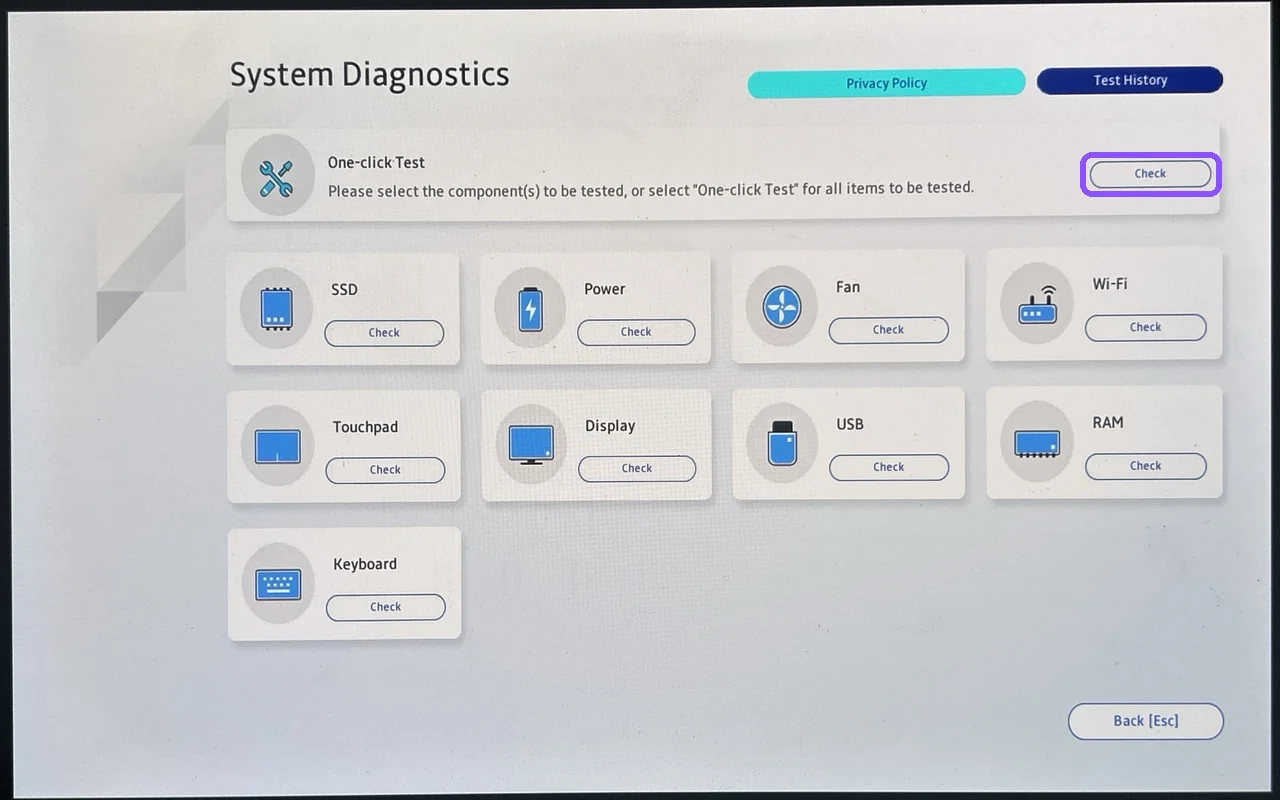
Click the Advanced tab, then ASUS System Diagnostics. It opened straight into System Diagnostics with no privacy notice, and it had a One-click Test (the Check button in the purple box), the same 9 components as MyASUS in WinRE, and a Test History page.
When you’re done, go to the Save & Exit tab and choose Discard Changes, which is how I left the BIOS every single time, so nothing you clicked around in gets saved by accident.
Patience did most of the work
Every scare I’ve had with my G16 came from a slow cold boot or that black stretch after the logo, and it always turned on in the end. If yours seems dead, give it 1 press and a full wait, do the 40-second hold on battery, leave it completely alone through the black screen, and then run the Power test with the charger plugged in before you start assuming the worst. If it powers on but Windows won’t load properly, ASUS has a cloud reinstall in that same recovery screen, and I compared what ASUS Cloud Recovery asks for against Reset this PC.
If it still seems dead
How long does the black screen last?
Mine was 18 seconds of total black, between a 12-second white logo and a 30-second red logo. ASUS’s boot failure page says the first boot after a reset can go 5 to 10 minutes with no display while the memory trains, so don’t force it off if yours takes longer.
Should you unplug for an EC reset?
I did mine on battery with the charger unplugged, and it booted fine on the first press. ASUS’s boot failure page also says to disconnect the adapter before the reset and reconnect it afterward.
Does a hard reset change any settings?
Not the ones I checked. Armoury Crate was still on Silent and Standard GPU mode after mine, and Windows went straight back to my normal sign-in screen.
Can MyASUS test the battery without the charger?
No. The Power test in MyASUS in WinRE stopped 10 seconds in and asked me to plug in the adapter, and it only passed once the charger was in, so if your ASUS laptop won’t turn on even when plugged in, run it with the charger connected. And if yours keeps waking up to a flat battery instead, check whether it was really off, since my G16 lost about 4.2% overnight with the lid closed but only about 1% shut down.
If your ASUS laptop still won’t start after the 40-second hold, leave a comment with your model and what the power light is doing (off, on or flashing), and I’ll help you figure out what to try next.
Did this fix it for you?
Nice, glad it worked.
Thanks, that helps.
I use these to decide what to retest next. If you want a reply, ask in the comments and I'll take a look.