
How to Update ASUS Laptop BIOS (MyASUS Hid Mine)
Every guide on how to update ASUS laptop BIOS makes it sound like ASUS’s own apps will tell you when a new one is out. So when ASUS posted a new BIOS for my Zephyrus G16, I checked every place ASUS points you to. Armoury Crate kept telling me my laptop was up to date 8 days later.
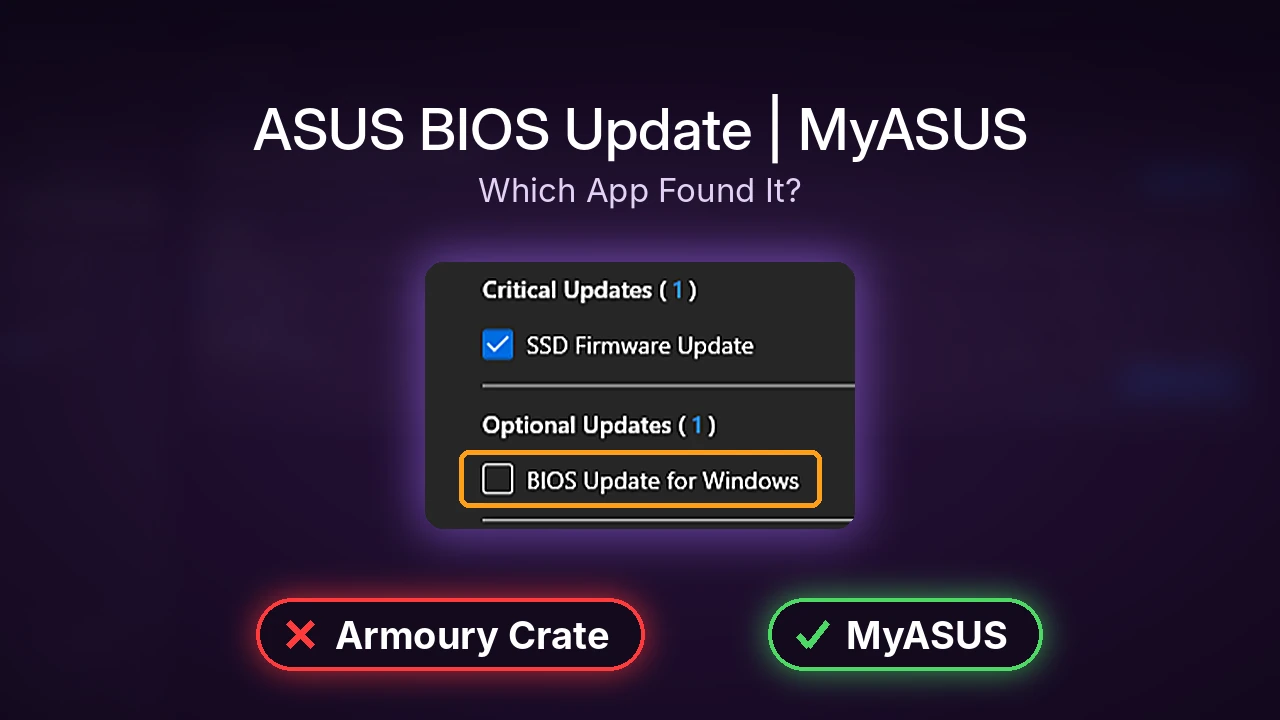
The app that did find it left the box unticked, under a different update that was ticked for me. You’ll see which app actually caught it, the exact clicks I used to install it, and what changed on my laptop once it came back from the restart.
After I installed BIOS 317 through MyASUS, my first BIOS update on this laptop went like this:
- Armoury Crate: Still said “Up to date” 8 days after ASUS posted 317
- MyASUS: Listed it as an unticked Optional update, under a pre-ticked SSD firmware update
- Restart: About 9 min 30 s from clicking Restart to the sign-in screen, with 1 prompt to accept
- Charge limit: Battery went from 71% to 83% during the update, past my 80% limit
- Zephyrus G16 (GA605WI)
- Ryzen AI 9 HX 370
- RTX 4070 Laptop
- Windows 11 Home 26H2
- MyASUS 4.0.82.0
- BIOS 316 to 317
Armoury Crate 6.7.6.0 · Barrel charger plugged in
I had never updated the BIOS on this laptop before, and it always seemed like a bit of an undertaking if you don’t play around in the BIOS much. Since MyASUS is the app that ended up doing all the work here, it’s also worth knowing what MyASUS actually runs in the background before you decide to keep it around just for updates.
Should you update your ASUS laptop BIOS?
The BIOS is the small program on your motherboard that starts the laptop before Windows loads, and ASUS’s own BIOS update FAQ says an update can fix known issues and improve stability, but only recommends one when it lines up with what you actually need. That FAQ also says you can’t go back to an older BIOS once you’ve updated, which is a big part of why I’m not in a rush with these.
If a friend asked me, I’d tell them to update the BIOS only if they’re running into a serious limitation, like a bug or a feature that’s broken on their laptop. ASUS’s description for 317 just said it optimizes system performance, and it seems like it didn’t change much, so it makes sense that MyASUS treated it as optional.
Which ASUS app found the update
ASUS posted BIOS 317 for the GA605WI on October 30, and my G16 was still on 316. On that same day, Windows Update offered nothing and Armoury Crate said everything was up to date, so 8 days later I checked every route again before installing anything, and you can see what each one showed in the table below.
| Where I checked | What it showed 8 days after 317 came out |
|---|---|
| Windows Update | No BIOS at all, only an AMD driver and a Microsoft audio driver |
| Armoury Crate Update Center | “Up to date”, even after clicking Check for Updates |
| MyASUS System Update | BIOS 317 listed under Optional Updates, unticked |
| driverhub.asus.com | “Scanning your system…”, then a prompt to download the DriverHub app |
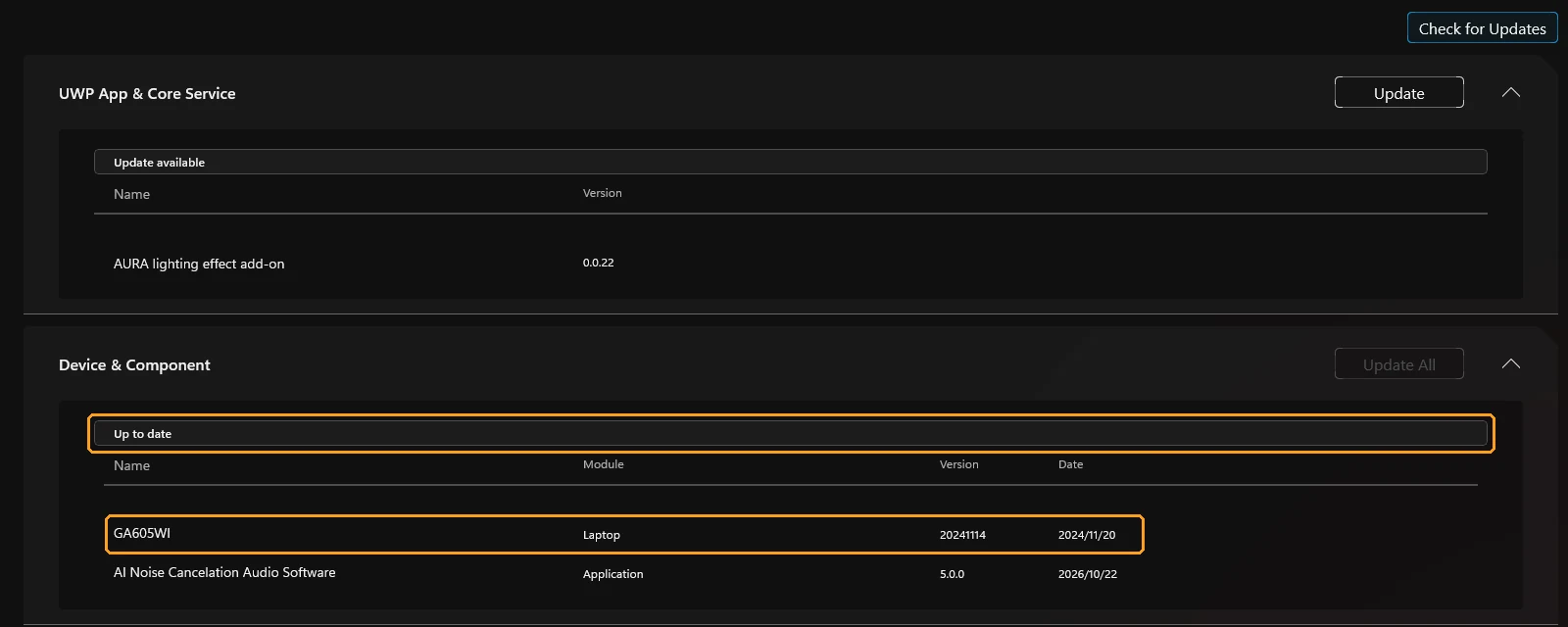
In Armoury Crate, go to Settings > Update Center and look at Device & Component. Mine listed the laptop with a 2024 date and said Up to date (both orange boxes below) on the day 317 came out, and it said the exact same thing when I checked again 8 days later.
MyASUS was the only app that knew about 317, but it put the BIOS under Optional Updates with the box unticked (the orange box), while an SSD Firmware Update sat above it under Critical Updates, already ticked (the blue box). So if you open System Update and just click the big blue button, you get the SSD firmware and skip the BIOS completely.

It’s a bit weird that Armoury Crate said up to date while MyASUS had a new BIOS sitting right there, and I feel like 2 apps from the same company should match up. If you’re wondering which of the 2 you even need, I compared the charge limit only MyASUS had and what each app leaves running in a separate post.
How to update ASUS laptop BIOS with MyASUS
This is the route that worked on my G16, and it never needed a USB drive or a trip into the BIOS menus. Before you start, plug in your charger (I used the barrel charger, with the battery at 66%), because the update runs while Windows isn’t loaded and you don’t want the laptop losing power in the middle of it.
Also check whether BitLocker is protecting your drive. Microsoft’s BitLocker recovery overview lists a BIOS or UEFI firmware upgrade as one of the things that can make Windows ask for your recovery key, and says suspending protection first avoids it. Mine had protection off, so I never saw a key prompt, and if you’re not sure where yours stands, I showed where to check your BitLocker status and find the key when I was testing resets on this same laptop.
- Open MyASUS and click System Update in the left sidebar.
- Click Check for updates and wait for the list to load.
- Untick SSD Firmware Update (box 1 below) if you only want the BIOS right now.
- Tick BIOS Update for Windows under Optional Updates (box 2), and check that the Latest version column is higher than Installed version (mine went from V316 to V317).
- Click Update selected items (box 3).
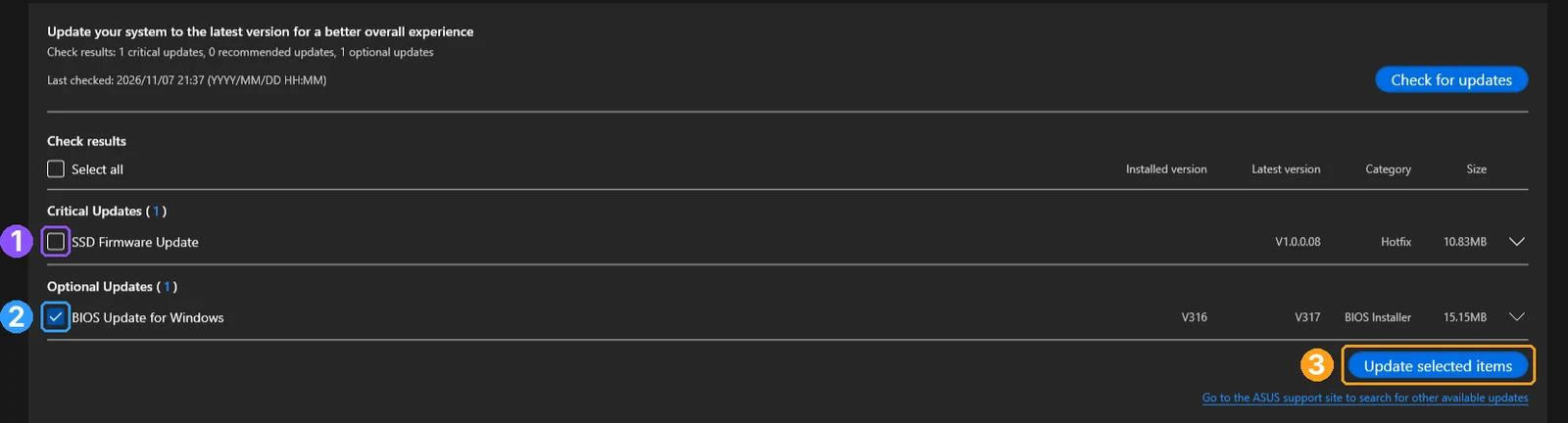
I left the SSD firmware unticked on purpose, so that if anything changed after the restart I would know it came from the BIOS and nothing else. After I clicked the button, MyASUS downloaded the 15 MB BIOS installer and had it ready in about 15 seconds, with no progress window at all, and then it showed the message below asking me to reboot.

It doesn’t restart on its own, so save whatever you have open, then go to Start > Power > Restart, because the actual flash only happens once the laptop starts back up.
What the restart looked like
Partway through the restart, a screen came up asking if I wanted to install the update, with a warning not to unplug any external power while it ran. I pressed accept, kept my hands off the laptop, and it went all the way back to the Windows sign-in screen by itself, about 9 minutes 30 seconds after I first clicked Restart.
It was honestly a lot easier than I expected, since I didn’t even have to open the BIOS myself. The only part that takes patience is those 9 and a half minutes, so don’t close the lid or pull the charger just because the screen sits there for a while.
What the BIOS update changed on my G16
Once I was back on the desktop, Windows reported the BIOS as GA605WI.317, so the update took. The firmware inside it is dated July 5, 2026, almost 4 months before ASUS posted it on October 30, which is another reason I don’t think you need to jump on a BIOS the day it shows up.
My settings came through fine, with Armoury Crate still on Silent and GameVisual still on Default, and MyASUS still had Battery Care Mode switched on. The one thing that surprised me was the battery, because I had turned on that 80% limit before the update at 48%, and by the time I was signed back in it was sitting at 83%.
So the limit didn’t do anything while the update was running, since it only kicked back in once Windows had loaded, and from there the laptop stopped charging and held at 83% with the charger still in. It’s not a big deal for 1 update, but if you’re using the 80% limit to protect your battery health, expect it to go a little past that whenever the laptop is busy outside of Windows.
Can you update ASUS BIOS with Armoury Crate?
Armoury Crate does have a place where device updates show up, under Settings > Update Center > Device & Component, so if you want to update ASUS BIOS with Armoury Crate, that’s where you’d look. On my G16 it never offered 317, not on the day ASUS posted it and not 8 days later after a fresh check, so for this BIOS MyASUS was the only one of the 2 apps that could install it.
How to update ASUS BIOS without USB
The MyASUS route above is already a way to update ASUS BIOS without USB, because it downloads the installer and flashes it on the next restart with nothing plugged in except the charger. ASUS’s BIOS update FAQ also covers EZ Flash, a tool inside the BIOS (press F2 while the laptop starts) that flashes a BIOS file from a drive, which is the fallback for models that can’t update from Windows. I didn’t need it on my G16, so I can’t tell you how that one goes in practice.
Does ASUS DriverHub work on laptops?
ASUS DriverHub is ASUS’s newer driver tool, and when I opened driverhub.asus.com on my G16 it showed Scanning your system… for a moment and then just asked me to download and install the DriverHub app. The website can’t check anything on its own, and since MyASUS had already found the BIOS, I didn’t add another ASUS app to the laptop just to see if DriverHub would agree.
Would I update again?
After doing it once, I’d still only update the BIOS if I hit a real limitation, but I’m not scared of it anymore, since the whole thing was a few clicks in MyASUS and 1 accept press. If you do decide to update, use MyASUS instead of trusting Armoury Crate’s “Up to date”, tick the BIOS box yourself, and leave the laptop plugged in and alone until it’s back at the sign-in screen.
ASUS BIOS update FAQ
Does MyASUS update BIOS automatically?
Not on mine. It found 317 but left it unticked under Optional Updates, and even after I ticked it and clicked update, it waited for me to restart the laptop myself.
Does Windows Update install ASUS BIOS updates?
It didn’t for this one. Windows Update offered no BIOS in the 8 days I checked, and even after the update there was no BIOS entry in my Windows Update history, because MyASUS installed it with its own installer.
Does an ASUS BIOS update reset your settings?
Mine kept Silent mode, GameVisual and Battery Care Mode. The battery did charge past the 80% limit during the update, from 71% to 83%, before the limit took over again in Windows.
Can you go back to the old BIOS?
ASUS’s BIOS update FAQ says downgrading isn’t allowed, so treat every update as one-way.
If MyASUS isn’t on your laptop at all, I put together the winget command that got it back on mine without the Microsoft Store, and if System Update just won’t load, it was 5 ASUS services behind it when MyASUS stopped working on my G16. And if Armoury Crate or MyASUS showed you a different BIOS than mine, drop your model and what each app said in the comments, because I want to know if this mismatch happens on other ASUS laptops too.
Did this fix it for you?
Nice, glad it worked.
Thanks, that helps.
I use these to decide what to retest next. If you want a reply, ask in the comments and I'll take a look.