Uninstall Armoury Crate: What the Official Tool Leaves Behind (2026)
I used ASUS’s own tool to uninstall Armoury Crate on my Zephyrus G16, expecting the usual “run it, restart, done” that every guide promises. It finished in about a minute and told me everything was gone, and then the laptop booted back up with a brand new 78 MB Armoury Crate process running that wasn’t there before I started.
That wasn’t the only thing it skipped either, so I scanned every ASUS service, scheduled task, folder and driver before the uninstall, right after it, and again after the restart. Whether you’re switching to G-Helper or just want Armoury Crate off your laptop for good, I’ll go through the exact steps and everything the official tool actually left behind down below.
After I ran ASUS’s own Uninstall Tool and restarted:
- Cleared: About 680 MB of files and 15 background processes
- New process: A 78 MB ArmouryCrateKeyControl showed up that wasn’t there before
- Left behind: 4 dead scheduled tasks and the Control Interface service
- ASUS drivers: All 5 stayed put, so G-Helper could go straight on
- Zephyrus G16 (GA605WI)
- Ryzen AI 9 HX 370
- RTX 4070 Laptop
- Windows 11 Home 26H2
- Armoury Crate 6.7.6.0
- Uninstall Tool 2.4.3.0
Build 26300
Why You Can’t Just Uninstall Armoury Crate From Settings
Armoury Crate is really 2 things. There’s the app window you open, and there’s a pile of background services, which are programs Windows runs on its own with no window at all. Those services are what actually switch your fan modes, run the lighting and check for updates, and on my laptop the app plus everything around it added up to 18 ASUS services and 33 ASUS processes before I touched anything.
If you uninstall Armoury Crate from Settings > Apps > Installed apps, you’re only removing the app window. ASUS’s own Armoury Crate FAQ says to use the Armoury Crate Uninstall Tool for a complete uninstall, followed by a restart, and that’s the official route I went with.
How to Uninstall Armoury Crate Completely With the Armoury Crate Uninstall Tool
The Armoury Crate uninstall tool is a free 1.21 MB download from ASUS, and it’s hidden enough that a lot of people don’t know it exists. These are the exact steps I did on mine:
- Go to ASUS’s Armoury Crate support page, stay on Driver & Tools, and pick your Windows version from the Please select OS dropdown.
- Scroll to Armoury Crate Uninstall Tool (mine was Version 2.4.3.0, dated 2026/10/14) and click DOWNLOAD.
- Right-click Armoury_Crate_Uninstall_Tool.zip, click Extract All, then Extract.
- Open the Armoury Crate Uninstall Tool V2.4.3.0 folder, double-click Armoury Crate Uninstall Tool.exe, and click Yes if Windows asks for admin permission.
- Click Uninstall.
- When it says the uninstallation is complete, click Restart now.
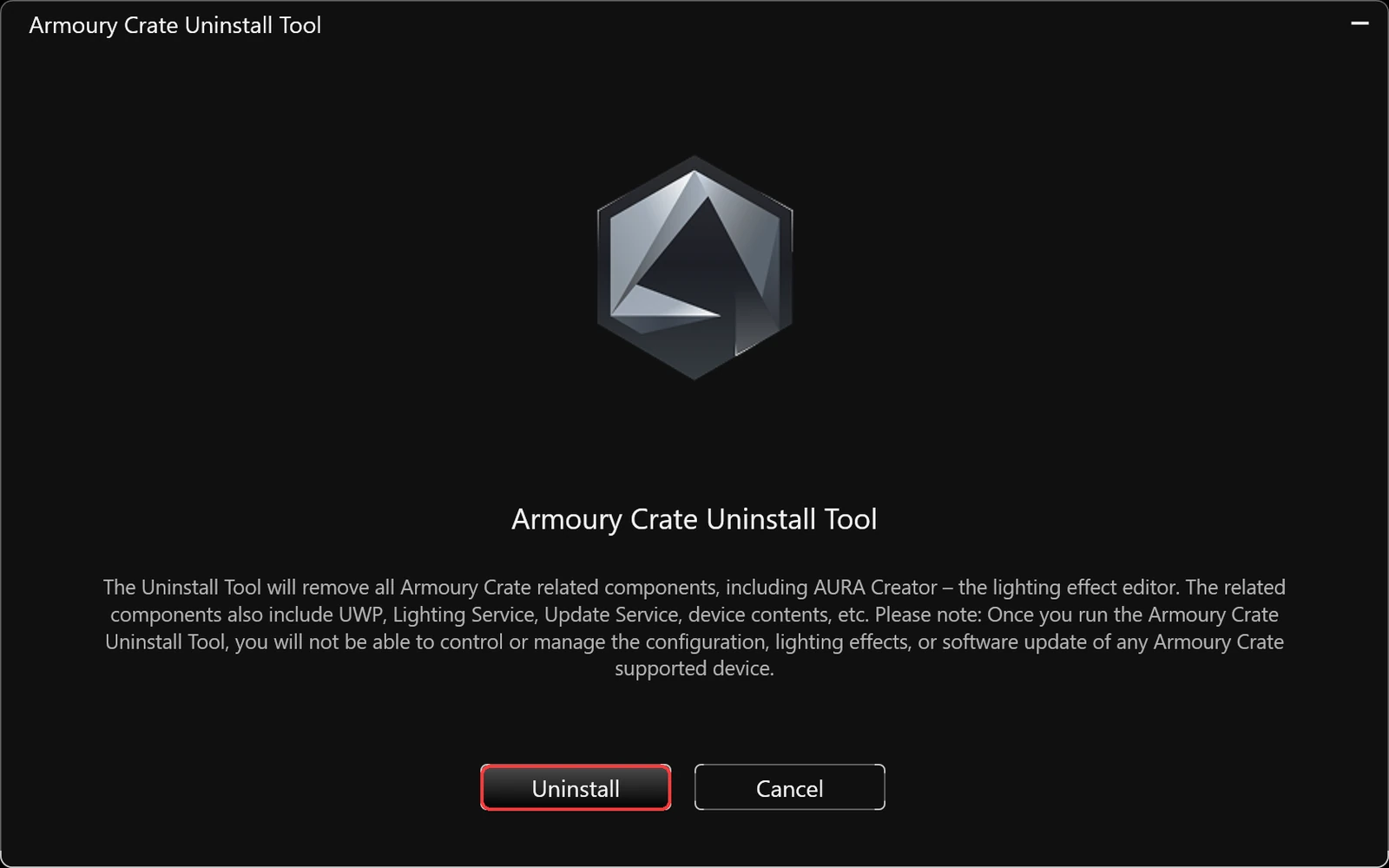
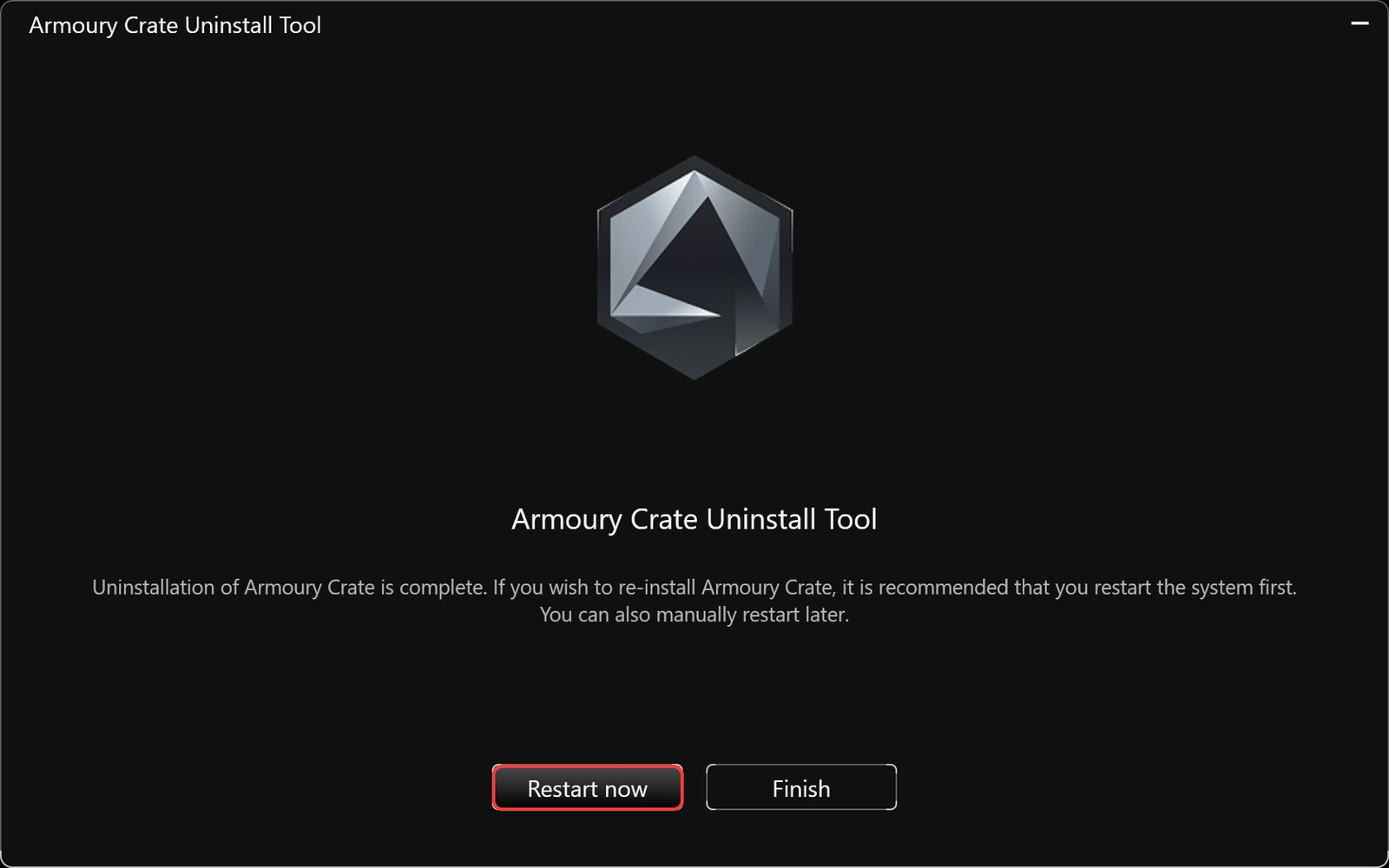
The first screen spells out what it’s going to remove, which you can see in the screenshot above: “all Armoury Crate related components, including AURA Creator”, plus the UWP app, Lighting Service, Update Service and device contents. On mine it went from clicking Uninstall to the finish screen in about a minute, with a short Uninstalling device contents… bar in between.
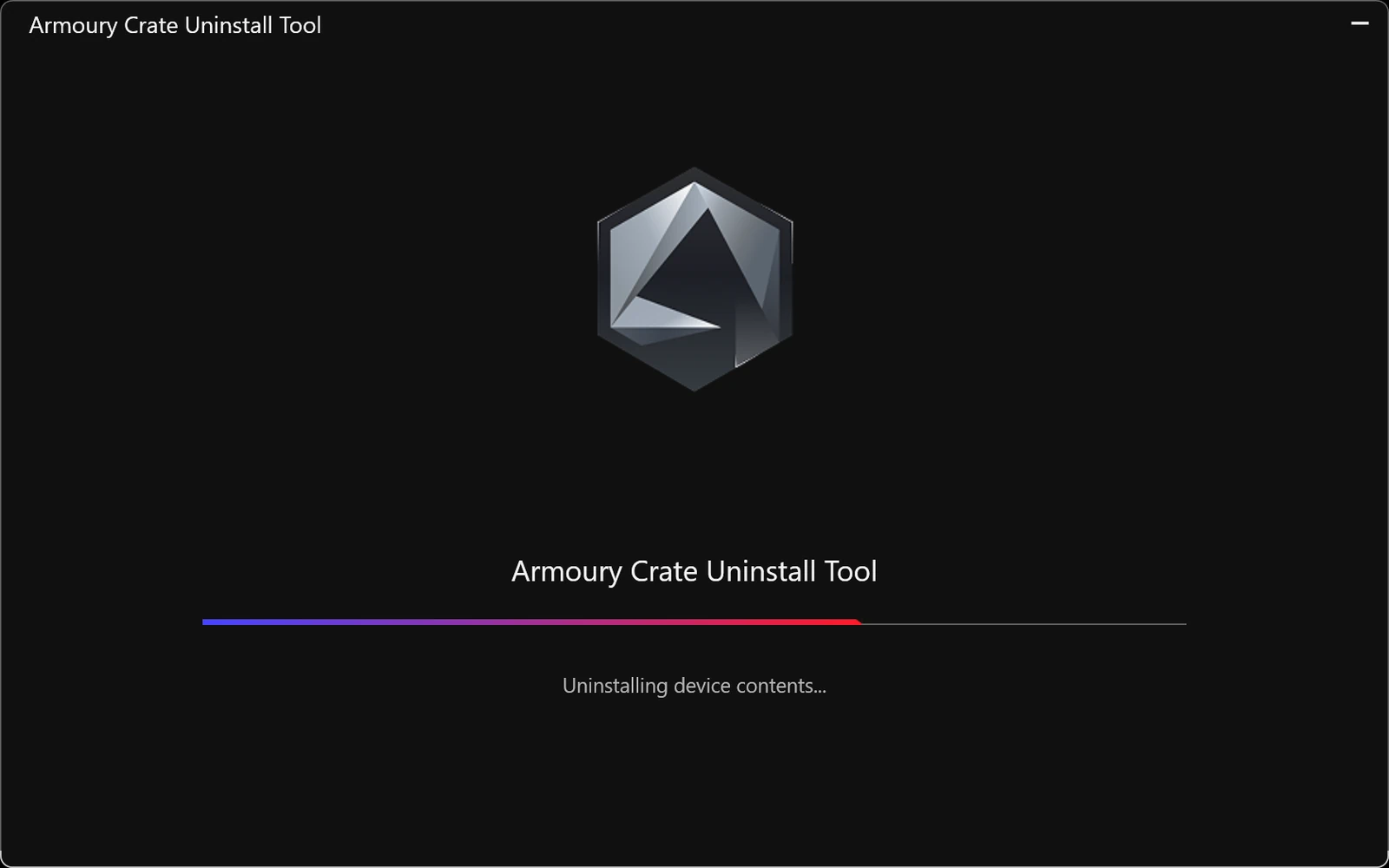
The last screen gives you Restart now or Finish, boxed in the screenshot down below. ASUS says the restart is what completes the uninstall, so don’t skip it, and if you plan on reinstalling later, the tool itself recommends restarting before you do.
SHA-256 checksums are listed right under each download on that ASUS page, and both files I grabbed matched them, so you can confirm yours with 1 command in PowerShell if you’re the careful type:
Get-FileHash "$env:USERPROFILE\Downloads\Armoury_Crate_Uninstall_Tool.zip"What Happens If I Uninstall Armoury Crate
To answer “what happens if I uninstall Armoury Crate” with actual numbers, I had a script on my laptop list every ASUS-related service, process, scheduled task, folder, program entry, registry key and driver 3 times: before the uninstall, right after it, and after the restart. I sorted it into the table down below.
| What I counted | Before Baseline | Right after the tool | After the restart |
|---|---|---|---|
| ASUS services | 18 (16 running) | 12−6 | 12−6 |
| ASUS background processes | 33 | 18−15 | 18−15 |
| Memory those processes held | 586 MB | 102 MB−82.6% | 137 MB−76.6% |
| ASUS scheduled tasks | 13 | 11−2 | 11−2 |
| Files in the ASUS folders | ~815 MB | ~136 MB−83.3% | ~138 MB−83.1% |
| Entries in Installed apps | 23 | 8−15 | 8−15 |
| ASUS drivers | 5 | 5±0 | 5±0 |
A few notes so the numbers make sense. These counts include every ASUS thing on the laptop, not just Armoury Crate, so GlideX, Smart Display Control and the other factory apps the tool doesn’t touch are in all 3 columns. The memory number is Windows’ private memory count per process, which runs higher than the Memory column in Task Manager, so don’t compare it straight against that.
So the tool did do a lot of work. It stopped and removed Armoury Crate Service, Lighting Service, ROG Live Service, the ASUS Certificate Service and the 2 ASUS update services, killed 4 ASUS Framework processes that had been holding about 200 MB between them, removed the app itself, and cleared about 680 MB of files. The memory jump after the restart is the part that caught me off guard, which I’ll get to next.
What the Uninstall Tool Left Behind
Everything in this section was still on my laptop after the restart, and it all belongs to Armoury Crate rather than the other ASUS apps:
| Leftover | Where it lives | Still doing anything? |
|---|---|---|
| Armoury Crate Control Interface service + driver | C:\Windows\System32\ASUSACCI | Yes, running at every boot |
| ArmouryCrateKeyControl.exe (78 MB) | Same folder, started by the service above | Yes, showed up after the restart |
| 4 dead scheduled tasks | Task Scheduler > Task Scheduler Library > ASUS | No, the files they point at are gone |
| ~36 MB of Armoury Crate folders | C:\ProgramData\ASUS and C:\Program Files\ASUS | No |
| 2 old Armoury Crate 6.4.10 package folders | C:\Program Files\WindowsApps | No |
| Armoury Crate registry keys | HKLM\SOFTWARE\ASUS and HKCU\SOFTWARE\ASUS | No |
Armoury Crate Control Interface and Armoury Crate Key Control
Armoury Crate Control Interface is the big one, and it isn’t installed like a normal app. It’s a driver for a device built into the laptop’s firmware, which Windows lists as a device with the hardware ID ACPI\ASUS9001, so the uninstall tool leaves it alone and it keeps running as a service at every boot.
After my restart, that service launched a second program called ArmouryCrateKeyControl.exe, holding 78 MB, which hadn’t been running at all while Armoury Crate was installed. It’s also the reason so many people end up searching “armoury crate key control”. Inside the file there’s a link to ASUS’s Armoury Crate download page, and the most likely reason it exists is to point you back to Armoury Crate when you hit an ASUS hotkey with the app gone, though I didn’t catch it actually opening anything. The service was also listening on 2 network ports on my laptop.
Here’s the catch though, I watched the laptop for about 40 minutes after the restart and nothing tried to reinstall Armoury Crate on its own, and no popup asked me to install it either. So on my G16, the leftover was sitting there using memory rather than actively pulling the app back in.
The 4 dead scheduled tasks
Under the ASUS folder in Task Scheduler, 4 tasks survived: AcPowerNotification, ArmourySocketServer, Aura Wallpaper Service and P508PowerAgent_sdk. All 4 point at files the tool already deleted, so they can’t run anymore. The last one cracked me up, since it’s a power agent for a ROG Strix Carry mouse, which I’ve never owned (side note: Armoury Crate installs support for gear you don’t have, then forgets to uninstall it lol).
Leftover folders, OLED Care and the registry
In C:\ProgramData\ASUS, folders called Armoury Crate Rollback (17 MB), ARMOURY CRATE Config, Virtual Pet, GameVisual, GPU Tweak II, AsusSurvey and DataCollection all stuck around, plus a 17.7 MB log the uninstall tool wrote about itself in ACUT Log. The tool also stopped the process behind OLED Care‘s pixel shift, which on my laptop only ever nudged the wallpaper around, as I found when I went through the ASUS OLED Care settings.
Out of the 5 ASUS drivers, none were removed, which answers the “does uninstalling Armoury Crate remove drivers” question. Your touchpad, firmware and ASUS System Control Interface drivers all stay exactly where they were.
How to Clean Up What the Armoury Crate Uninstall Tool Missed
I reinstalled Armoury Crate right after this test, so I didn’t run these cleanup steps on my own laptop. They target only the Armoury Crate leftovers listed above, and none of them are needed for your laptop to work, so treat them as optional tidying.
Delete the dead tasks
- Press Win + R, type
taskschd.msc, and press Enter. - In the left pane, expand Task Scheduler Library and click the ASUS folder.
- Right-click AcPowerNotification and click Delete, then Yes.
- Do the same for ArmourySocketServer, Aura Wallpaper Service and P508PowerAgent_sdk.
Delete the leftover folders
Open File Explorer, paste C:\ProgramData\ASUS into the address bar, and delete ARMOURY CRATE Config, ARMOURY CRATE One Package, Armoury Crate Rollback, ACUT Log, Virtual Pet and GameVisual. Then go to C:\Program Files\ASUS and delete ARMOURY CRATE One Package there too.
Leave anything called ASUS System Control Interface alone. That one is a driver package for the laptop itself, and G-Helper’s GitHub page lists it as the ASUS driver G-Helper still needs to do its job.
Stop Armoury Crate Control Interface
If you want the 78 MB Key Control process gone too, the cleanest way is to open services.msc, double-click Armoury Crate Control Interface, set Startup type to Disabled, click Stop, then OK. I left this untested since I needed the service for the reinstall, so if a hotkey stops doing something after you disable it, set it back to Automatic.
Uninstall Armoury Crate and Install G-Helper
Most of you guys searching this want to uninstall Armoury Crate and install G-Helper, which is exactly what I did back in February. The tool keeps the ASUS System Control Interface driver in place, so you can go straight into G-Helper afterward without reinstalling anything else. I went through the full switch, including the official download link and the lookalike site to avoid, in my G-Helper download and setup guide, and the side-by-side reasons in G-Helper vs Armoury Crate.
Without either app installed, my keyboard backlight stayed on the same red it was before, and pressing Fn + F5 didn’t do anything noticeable. There’s also nothing left to switch your fan or graphics modes, so the laptop just sits in whatever mode you last picked until you install something that can change it. After the restart, my battery also charged straight past 80% and kept going, so if you rely on a charge limit, set it again in whichever app you move to, which I went through in ASUS Battery Care Mode.
Should I Uninstall Armoury Crate?
If you’re running G-Helper, or you only ever opened Armoury Crate to switch modes, I’d go for it. Honestly, the background services were the heaviest part of it on my laptop, and I measured what all of them cost in is Armoury Crate bloatware. If you use ASUS peripherals, Aura lighting or the Update Center, keep it, since none of that works without the app.
If Armoury Crate is just broken rather than unwanted, uninstalling isn’t always the fix either. In my Armoury Crate not working testing, turning the ASUS services back on fixed it without reinstalling anything.
Uninstall Armoury Crate FAQ
Is it safe to uninstall Armoury Crate?
On my G16 it was. The tool is ASUS’s own, it didn’t touch any of the 5 ASUS drivers, and the laptop booted and ran normally afterward. You just lose what the app was doing, like mode switching and lighting control, until you install something that replaces it.
Armoury Crate uninstall tool not working?
ASUS’s FAQ says to restart and run the tool a second time if it fails, and that the second run should succeed. If it fails again, it writes a log file starting with ACUTLog that ASUS support can read, which on mine landed in C:\ProgramData\ASUS\ACUT Log. Mine went through on the first run, so I never needed the log.
Why is the Armoury Crate uninstall taking forever?
Mine took about a minute from clicking Uninstall to the finish screen. If yours sits much longer than that, give it a few minutes before closing anything, since stopping it halfway is the kind of thing that leaves an install broken.
Can I reinstall Armoury Crate after uninstalling it?
Yes, I did it right after this test. Restart first like the tool suggests, then grab the installer from the same ASUS page. If you’re stuck choosing between ASUS’s 2 downloads, I compared them in Armoury Crate lite vs full.
Does this work for the ROG Ally?
The ROG Ally uses Armoury Crate SE, which I don’t have the hardware to test, so I left it untested. The same ASUS support page has a separate download for it.
If your Armoury Crate uninstall left something behind that wasn’t on my list, drop your laptop model and what you found in the comments, and I’ll add it.