

G-Helper vs Armoury Crate: A Full Comparison (and Why I Switched)
ASUS’s Armoury Crate is undeniably a useful tool to tweak and personalize how you use your laptop, but it’s heavy. Unfiltered bloat and undeserved RAM usage have led people to search for a “lighter” alternative. This was my own thought process as well before I tried it out, and now I can say that G-Helper will most likely be better for you – and let me explain why.
What is Armoury Crate?
Armoury Crate, at its core, is a central hub for anything hardware-related on your laptop. You’ll see it written as Armory Crate about as often as the official spelling, since ASUS uses the British spelling and most of the people complaining about it don’t. Whether it’s cooling down to silent mode while studying or turning on your RGB lights, it has you covered. Its usefulness is real, but its presentation might need some work. While it does handle the essentials that anyone might need, it also adds its own “ASUS tax”, with its extra background usage, install footprint, and can be annoying to navigate at times. I actually went back and measured how much Armoury Crate runs in the background, and it came out to 11 processes and about 114 MB idle.
What is G-Helper?
G-Helper, on the other hand, is an open-source program made by the developer Seerge. This program essentially connects to the same hardware essentials that you rely on Armoury Crate to change, but gives them to you in a simple and clean layout. Its intention to be a simple control hub for your laptop allows it to run with minimal RAM usage, without any constant ads or anybody nudging you to log in to an account. Here I’ll give you an upfront comparison of the two apps.
Head-to-Head Comparison
| Feature | Armoury Crate | G-Helper |
|---|---|---|
| Price | Free | Free |
| Open source | No | Yes |
| Install size | Hundreds of MB | ~10 MB |
| Background processes | Several always-on services | One lightweight process |
| Performance modes | Yes | Yes |
| Turbo on battery | Restricted | Yes |
| Custom fan curves | Yes | Yes (more granular) |
| CPU undervolting | No | Yes |
| GPU clock overclock | No (preset modes only) | Yes (core/memory offsets) |
| Keyboard & RGB lighting | Yes | Yes |
| Aura Sync across devices | Yes | No |
| Slash lighting | Yes | Yes |
| Peripheral firmware updates | Yes | No |
| ASUS account / telemetry | Yes | None |
We can see each of the Trade-Offs for these apps here, giving you a clear picture of whether or not the app aligns with your own personal needs.
Where G-Helper wins
Now, if you’re looking at that table with some uncertainty as to what those features mean, I’ll give you a rundown on what real differences we’re talking about here
Battery/Efficiency
When it comes to saving battery life, G-Helper is unrivaled in its many ways to squeeze some more time out of your gaming laptop (I personally went from 3hrs to around 7hrs). The full breakdown of how I got there is in my best G-Helper settings guide, but this insane jump can occur from the following. I will link an in-depth guide for anything you might be interested in exploring more.
- Undervolting – Saving your CPU from leaking power – G-Helper – Undervolt Guide
- Fan Curves – Keeping your Fans Quiet and Frugal with Power – Fan Guide
- CPU boost modes – How strong you want your CPU to run – CPU Boost Modes Explained
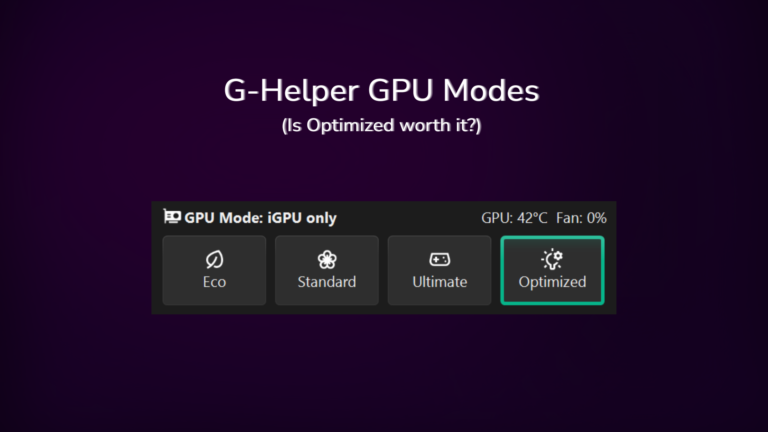
- GPU modes – Shutting your dedicated GPU off when you don’t need it – G-Helper GPU modes explained
In all, you get each of these additions with no extra weight to your RAM or bloat onto your system, giving you the freedom to tune your laptop to your personal needs.
Where Armoury Crate still wins
Although G-Helper wins in deep customization, it still lacks some of ASUS’s flagship features that might be too much to lose for some. Here I’ll go over the things G-Helper won’t be able to do.
- Aura Sync across devices – No synchronized RGB lighting
- Peripheral firmware updates – Mouse/Keyboard firmware can only be done through AC
- AniME Matrix Animations – Only applies if your model has the dot-matrix panel
If these specific cases are things you find important to you, I would recommend keeping Armoury Crate as your main control hub. There are simply some things that ASUS will always have over G-Helper due to its wide range of support integration.
Can you uninstall Armoury Crate?
Yes, you can run G-Helper without Armoury Crate while still controlling not just the same hardware, but more, within your setup. Whether you want to change basic settings, undervolt your rig, or optimize for pure FPS during gaming, G-Helper will objectively give you more tools to get that done. And if you ever want to go back the other way, it’s a lot less painful — here’s how to uninstall G-Helper completely.
The Caveat
Uninstalling Armoury Crate (just like using it) is a hassle. It’s not just a simple “right click” and uninstall; In reality, you’re going to need to visit the ASUS website to download the dedicated uninstaller tool (no, I’m not joking), but once you get it done, it won’t come back onto your PC without your permission (I hope). Here’s the link to the uninstall tool, and make sure to click “Show All” if you don’t see it – Armoury Crate Support
Is G-Helper Safe? A Quick FAQ
This is easily the question I get asked the most whenever I recommend the switch, so here’s the short version before you commit to anything.
Is G-Helper safe to use?
Yes, and the reason comes down to what it’s actually doing. G-Helper talks to the same ASUS hardware interfaces that Armoury Crate already uses, so it isn’t reaching for anything ASUS didn’t build into your laptop in the first place. The difference is that G-Helper is open source, meaning anyone can read exactly what it’s sending to your hardware, which is more than you can say for the software that shipped with your machine. Just make sure you grab it from the official GitHub release rather than some random mirror. I go through the whole thing in more depth in my guide on whether G-Helper is safe, including admin rights, antivirus flags, and where the actual risk sits.
Why does G-Helper need administrator rights?
Anything that controls fan speeds, power limits, or your GPU mode has to talk to your laptop at a level Windows won’t hand out to a normal program. Armoury Crate needs that exact same access, it just asks for it during install so you never end up thinking about it. The admin prompt isn’t a warning sign here, it’s what the app needs in order to do anything useful at all.
Will G-Helper void my ASUS warranty?
G-Helper itself doesn’t flash firmware or physically change anything, so simply running it isn’t really the risky part. Where you’d want to be careful is with the tuning it unlocks, since aggressive undervolting or overclocking is the kind of thing any manufacturer could take issue with, and warranty terms vary quite a bit depending on where you live. I stick to a conservative undervolt for exactly that reason, and I go through how I found mine in my G-Helper undervolt guide.
Verdict – My recommendation
If you’re like my past self and want to optimize your laptop for whichever tasks you might have for it, I would say G-Helper wins 10/10 times in the G-Helper vs Armory Crate matchup. It’s straight to the point with its features, and you will see real results from every added setting. If you’ve decided to make the switch, my G-Helper install guide covers getting Armoury Crate off and G-Helper running, and my complete profile guide has the exact settings I run day to day.



[…] Here I’ll take you through the basics of downloading and setting up G-helper for your ASUS laptop. G-helper is a simple and effective open-source tool made by a developer named Seerge, allowing for technical control at the click of a button. After making the switch myself, I’ve found it miles better than Armoury Crate, and if you’re wondering why it might be worth the switch, please check out my post on G-Helper vs Armoury Crate. […]