ASUS Laptop Battery Draining While Plugged In? I Tested Why (2026)
An ASUS laptop battery draining while plugged in usually means the charger can’t keep up with what the laptop is doing, and on my Zephyrus G16 the fix was as simple as going back to the barrel charger it came with. I ran the same game benchmark twice with the laptop plugged in both times, and the barrel charger kept charging the battery the whole way through while a 60 W USB-C charger lost about 1.2% a minute.
On top of that, 1 of the 2 chargers made Armoury Crate quietly lock me out of my fastest mode, and plugging it into the wrong port turned the cable into a decoration. Whether your battery drops while gaming or you just want to know which charger to trust, I’ll go through what’s actually happening and how to fix it down below.
After I ran the same Cyberpunk benchmark on the barrel charger and then a 60 W USB-C charger:
- Barrel charger: Kept charging at about 51 W
- 60 W USB-C: The battery drained at about 54 W, roughly 1.2% a minute
- FPS: Dropped about 28% on USB-C
- Turbo and Manual: Grayed out on USB-C
- After the swap: Armoury Crate stayed stuck on Silent
- Zephyrus G16 (GA605WI)
- Ryzen AI 9 HX 370
- RTX 4070 Laptop
- Windows 11 Home 26H2
- Armoury Crate 6.7.6.0
- Cyberpunk 2077 2.5
Build 26300 · 200 W barrel vs 60 W USB-C charger
Why an ASUS Laptop Battery Drains While Plugged In
Every charger has a limit on how much power it can push, measured in watts. When the laptop needs more than that, it doesn’t slow down to match the charger, it pulls the difference from the battery instead, so the battery percentage drops even though the cable is in. Nothing is broken when that happens, the charger is just too small for what you’re doing.
My G16 shipped with a 200 W barrel charger, per ASUS’s own Zephyrus G16 spec sheet, and it can also charge over USB-C, where ASUS’s own adapter for it tops out at 100 W. The USB-C charger I tested with is the stock Nintendo Switch 2 one, which Nintendo rates at 20 V / 3 A, so 60 W at most.
Funny enough, ASUS’s own battery draining while plugged in FAQ never mentions charger wattage at all. It goes through checking the cable, updating the BIOS, running MyASUS battery diagnostics and testing in Safe Mode, which is all fine, but none of it would have caught what I found.
Barrel vs USB-C: My ASUS Laptop Battery Draining While Plugged In Test
For the test, I logged the battery every 2 seconds straight from Windows while running Cyberpunk 2077’s built-in benchmark at the Medium preset and 2560 x 1600, with the external monitor unplugged. Run 1 was on the barrel charger in Turbo, run 2 on the USB-C charger in Performance, since Turbo wasn’t available on USB-C (more on that below). That’s 1 run per charger, but the gap was big enough that a second run wasn’t going to flip it. I sorted both runs into the table down below.
| Barrel charger (200 W) Baseline | USB-C charger (60 W) | |
|---|---|---|
| Armoury Crate mode | Turbo | Performance (Turbo grayed out) |
| Average FPS | 104.6 | 74.9−28.4% |
| 1% low FPS | 65.6 | 58.5−10.8% |
| GPU power | 73 W | 42 W−42.5% |
| Battery during the benchmark | Charging at about 51 W | Draining at about 54 W |
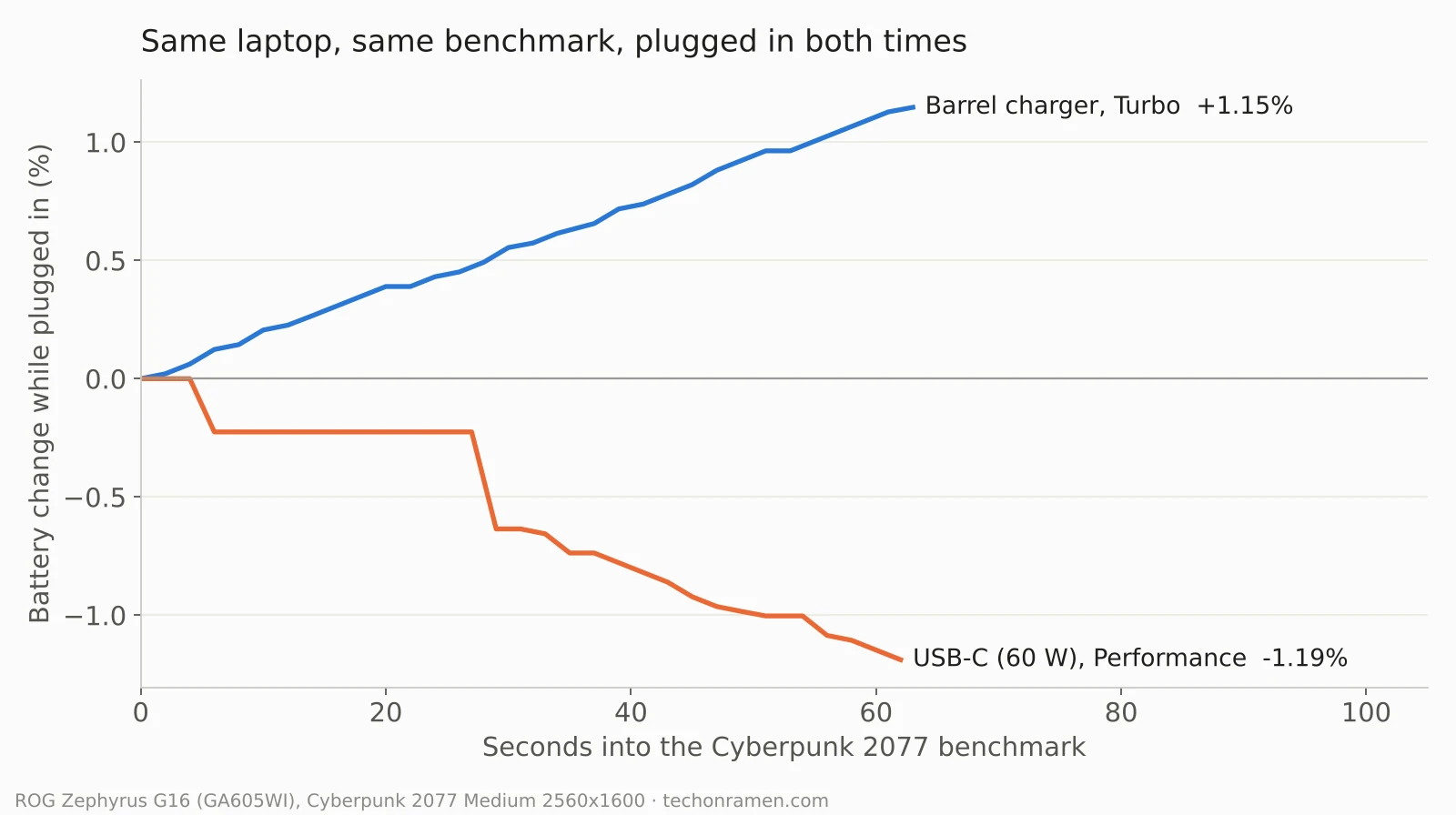
The barrel charger had so much headroom that it kept charging the battery at around 51 W in Turbo with the GPU pulling 73 W, going from 73.4% to 74.5% across the benchmark. On USB-C, the battery dropped from 70.5% to 69.3% in about a minute, which works out to roughly 1.2% a minute, even with the GPU held down to 42 W. The steps in the chart above are just Windows updating its battery reading in chunks rather than smoothly.
So the ASUS laptop battery draining while plugged in on my G16 came down to 1 thing, the charger, and the same laptop went from charging to draining by swapping a cable.
Laptop Losing Battery While Plugged In Gaming
Gaming is where this shows up first, because that’s when the laptop pulls the most power. On USB-C, mine was losing battery while plugged in even sitting in Cyberpunk’s main menu, at around 35 to 59 W depending on the moment, and FPS in the benchmark dropped 28% compared to the barrel run.

Turbo and Manual gray out on USB-C
With the USB-C charger in, Armoury Crate grayed out both Turbo and Manual under Operating Mode, which I boxed in the screenshot down below. So on USB-C you’re capped at Performance, and the GPU ran at 1,421 MHz on average compared to 2,321 MHz on the barrel.

Armoury Crate stayed on Silent after I swapped chargers
Here’s the catch though, when I pulled the barrel plug, Armoury Crate dropped itself to Silent, and it stayed on Silent after the USB-C charger went in. Nothing told me, so if I hadn’t checked, I’d have been gaming in a mode that cost 31% FPS in my Armoury Crate operating mode testing. After any charger swap, open Armoury Crate’s Home page and check Operating Mode before you start a game.
The Wrong USB-C Port Doesn’t Charge at All
This one got me. The first time I plugged in the USB-C charger, I used the wrong port, and the laptop didn’t charge at all. Windows still showed it on battery, it drained around 50 W in the game menu, and nothing popped up to tell me. I only caught it because my logger showed the battery dropping, then I moved the cable over and it started charging right away.
ASUS’s spec sheet for the 2024 G16 lists “power delivery” on both of its Type-C ports, but on mine only 1 of them actually charged the laptop, so don’t assume either port works just because the cable fits. After plugging in, hover over the battery icon in the taskbar. It should show a plug symbol and say it’s charging, and if it doesn’t, try the other port.
How to Check If Your ASUS Laptop Is Draining While Plugged In
To check for an ASUS laptop battery draining while plugged in, the battery percentage alone moves too slowly to tell you much in a few minutes, so I’d read the actual watts. Right-click Start, click Terminal (Admin), click Yes, then paste this and press Enter while you’re doing whatever normally drains it (a game, a render, anything heavy):
$a = (Get-CimInstance -Namespace root\wmi -ClassName BatteryStatus).RemainingCapacity; Start-Sleep 60; $b = (Get-CimInstance -Namespace root\wmi -ClassName BatteryStatus).RemainingCapacity; "{0:N1} W into the battery (negative = draining)" -f (($b - $a) * 60 / 1000)It reads your battery’s stored energy, waits 60 seconds, reads it again and turns the difference into watts. A positive number means the charger is keeping up, and a negative one means the battery is covering the gap. If you’d rather not touch Terminal, the plain version is to note your battery percentage, play for 10 minutes plugged in, and check whether it went down.
How to Stop It: Fixes in Order
These are the fixes for an ASUS laptop battery draining while plugged in, in the order I’d try them:
- Game on the barrel charger. On my laptop it was the only one that kept up, with room to spare even in Turbo.
- If you have to use USB-C, make sure it’s in the charging port and use the highest-wattage USB-C charger you have. ASUS sells a 100 W one for this laptop, which I haven’t tested against the barrel yet.
- Check Operating Mode in Armoury Crate after swapping chargers, since mine got stuck on Silent.
- If it drains on the barrel charger even at the desktop, then something else is going on, and ASUS’s FAQ steps are worth going through: reseat both ends of the cable, try another outlet, update the BIOS, and run the Battery problems check in MyASUS.
- If it drains with nothing heavy open, see what’s running in the background. In my Armoury Crate battery life testing, a single browser setting more than doubled how fast video drained the battery.
Is Draining While Plugged In Bad for the Battery?
The battery is doing what it’s built for here, covering the gap when the charger can’t. Every minute it drains while gaming is a bit of extra charging and discharging, which counts toward its wear the same as unplugged use would, though I didn’t measure how much. If you spend most of your time plugged in, the bigger win is a charge limit, which I went through in ASUS Battery Care Mode.
ASUS Laptop Battery Draining While Plugged In FAQ
Does Turbo mode work on USB-C?
Not on my G16. Turbo and Manual were both grayed out in Armoury Crate the whole time the USB-C charger was in, and they came back with the barrel charger.
Why does my ASUS laptop say plugged in but not charging?
On mine it happened in 2 situations, the charger being too weak for what the laptop was doing, and the cable sitting in a USB-C port that doesn’t charge. A charge limit like Battery Care’s 80% also stops charging on purpose once it’s reached, so check that before assuming something’s wrong.
Can I charge my ASUS gaming laptop with a phone or Switch charger?
It does charge, since the laptop took power from my 60 W Switch 2 charger, but it drained in a game even then. I didn’t test how it does at the desktop with just a browser open, so I left light use untested.
Is the battery draining while plugged in normal for gaming laptops?
If the charger is smaller than what the laptop pulls, yes, and it isn’t a fault. If it happens on the original barrel charger while you’re just browsing, that’s not normal, and ASUS’s FAQ is the place to start. For the settings that matter most once you’re plugged in, check out my best Armoury Crate settings.
If your ASUS laptop battery is draining while plugged in on a charger I didn’t cover, drop your model and the charger’s wattage in the comments, and I’ll add it to the list.