

Uninstall TranslucentTB: Does the Clear Taskbar Stay?
If you want to uninstall TranslucentTB, you’re probably worried your taskbar will stay see-through after it’s gone. So I tested the worst way to do it on my Zephyrus G16. I left it running and hit Uninstall anyway, which is exactly what most guides tell you not to do. Windows had it gone in about 2 seconds, and you’ll see below what my taskbar did right after.
After I hit Uninstall in Settings with TranslucentTB still running, Windows restarted Explorer by itself and my taskbar went straight back to the normal solid bar.
- Removal time: About 2 seconds from clicking Uninstall to the app being gone
- Explorer: Restarted on its own in the same second, no manual restart
- Leftovers: 0 folders, startup entries or scheduled tasks found afterward
- Zephyrus G16 (GA605WI)
- Ryzen AI 9 HX 370
- RTX 4070 Laptop
- Windows 11 26H2
- TranslucentTB 2026.2
Build 26300.9711 · TranslucentTB from the Microsoft Store
How to uninstall TranslucentTB in Windows 11
Since TranslucentTB comes from the Microsoft Store, there’s no uninstaller file sitting in a folder like older programs have (so if a guide tells you to run unins000.exe, it’s describing a version you most likely don’t have). Windows simply removes it like any other Store app, which makes this a quick few clicks in Settings as long as you know where to look. If you’re only removing it because it kept fighting your Windhawk setup, the Taskbar Styler’s TranslucentTaskbar theme gives you the same clear bar without a second app.
- Open Settings > Apps > Installed apps.
- Type TranslucentTB in the search box, then click the ⋯ (More options) button at the right of its row, in the orange box below.
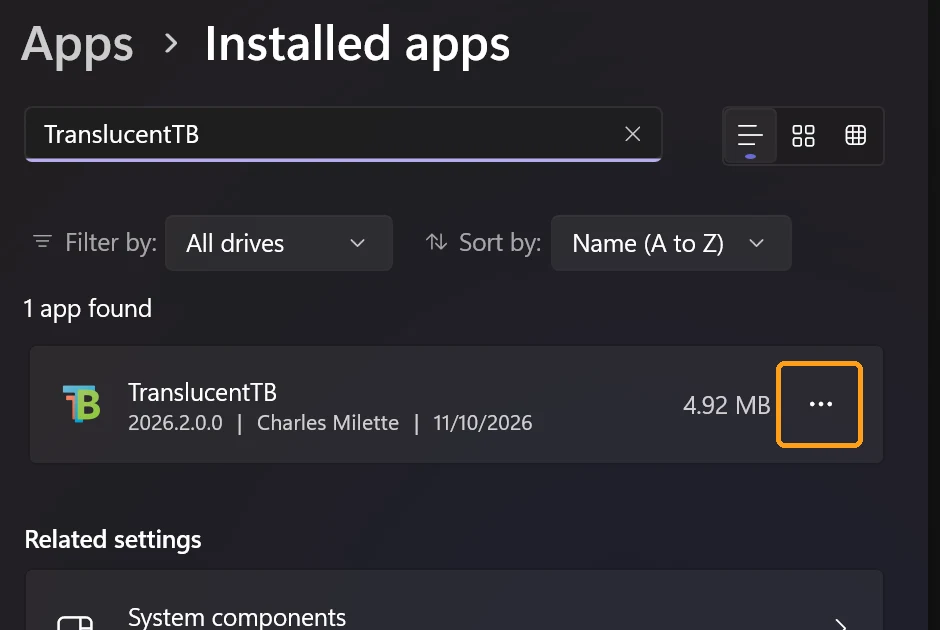
- Click Uninstall in the menu that drops down.
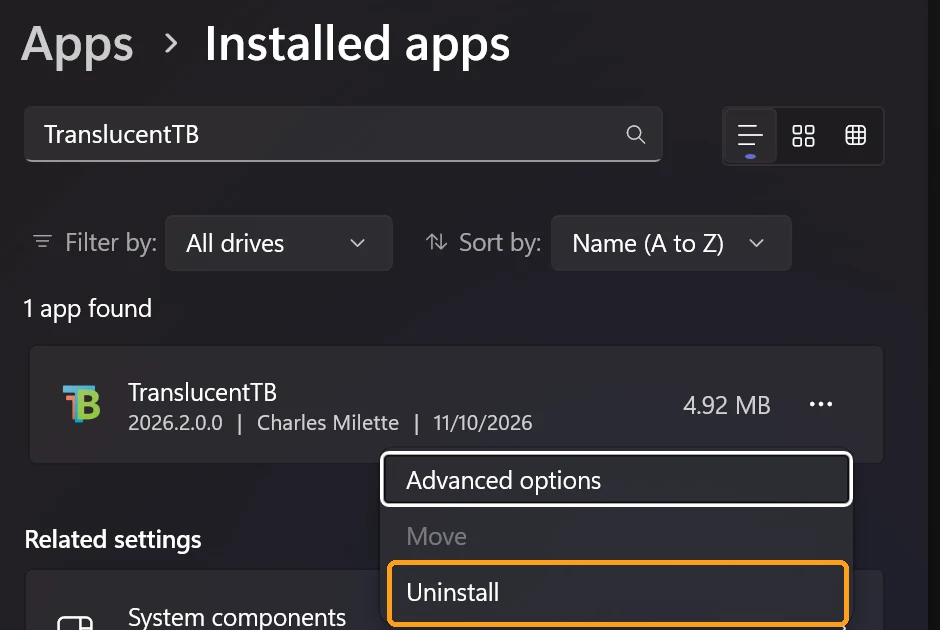
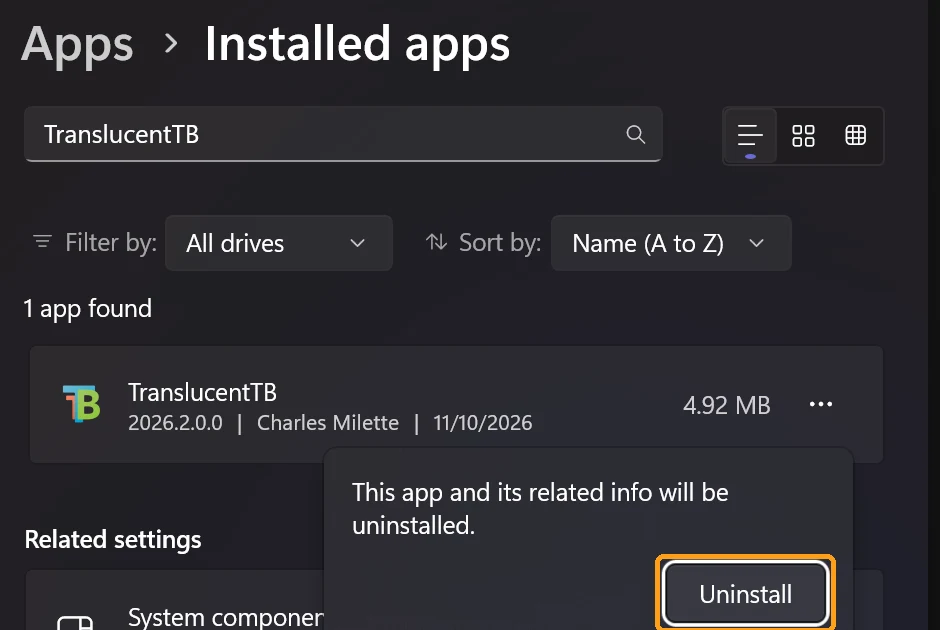
- Windows asks you to confirm with “This app and its related info will be uninstalled.” Click Uninstall on that popup.
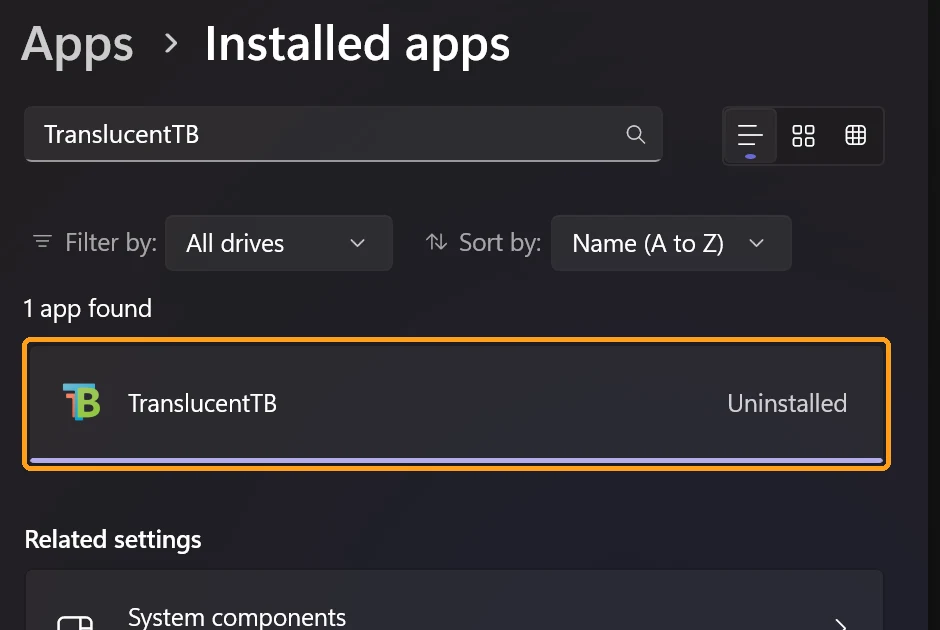
The row flips to Uninstalled almost right away, like in the screenshot below. On my laptop the app process closed about 1 second after I confirmed, and the package was completely gone by the 2-second mark.
If you’d rather do it from a terminal, the same Store package comes off with winget (this is the command I used to clean it off my G16 after an earlier taskbar test):
winget uninstall --id 9PF4KZ2VN4W9 --source msstoreWhat happened when I uninstalled it while running
The usual advice is to exit TranslucentTB from the tray first, because older reports (like this GitHub issue from Windows 11’s first release) had the taskbar staying see-through until Explorer got restarted. So I did the opposite on purpose: TranslucentTB was running with a fully clear bar, and I uninstalled it straight from Settings without closing anything.
After I clicked Uninstall, Windows basically handled the rest for me. When I went through Event Viewer afterward, the removal started and in that exact same second a line saying “The shell stopped unexpectedly” showed up, which is Windows killing and relaunching Explorer (the process that draws your taskbar and desktop). I never restarted it myself, and by the time I checked, my taskbar was already back to the normal solid Windows 11 bar, so make sure you compare it with the clear one in the image below.

The reason it has to restart Explorer is that TranslucentTB doesn’t just sit in the tray. While it was running on my laptop, a file from its own app folder called ExplorerTAP.dll was loaded inside Explorer itself, which is how it reaches into the taskbar to change its look. After the uninstall that DLL was no longer loaded in the fresh Explorer, so the restart is what cleared the clear-bar look off your screen, and the quick taskbar flash you might notice is exactly that.
What TranslucentTB leaves behind
Before uninstalling, I logged everything it had put on my laptop, so I’d know exactly what to look for afterward. Right after setup it had already switched on its own start-with-Windows task (I never touched that setting), and it kept a data folder in AppData\Local\Packages holding its settings.json plus the 2 DLLs it loads into Explorer.
After the uninstall, all of it was gone. I checked for the data folder, the startup task, any Run entries in the registry, scheduled tasks and services, and whether that DLL was still loaded in Explorer, and found 0 of them. Windows also moved the app’s own install folder into C:\Program Files\WindowsApps\Deleted to be cleaned up, so you don’t need to go digging through WindowsApps yourself, and you really shouldn’t (more on that in the FAQ).
This was a lot cleaner than a regular desktop app, and if you’re curious how big that difference can get, Windhawk’s default uninstall left about 68 MB sitting on my laptop when I tested what Windhawk leaves after you uninstall it.
Taskbar still transparent after uninstalling TranslucentTB
I couldn’t make this happen on Windows 11 26H2, since Explorer restarted itself every time the app came off. If your taskbar is still transparent after you uninstall TranslucentTB, something other than TranslucentTB is most likely doing it. Go through these in order:
- Restart Explorer yourself: open Task Manager, right-click Windows Explorer and click Restart. If the bar goes solid, that was all it needed.
- Check for another taskbar tool. A Windhawk Taskbar Styler theme like TranslucentTaskbar or SimplyTransparent makes the bar see-through too, and so do apps like ExplorerBlurMica. In the GitHub issue linked above, the bar stayed clear because of a leftover scheduled task from a different taskbar program.
- Remember the stock Windows 11 taskbar is slightly see-through on its own when Transparency effects is on under Settings > Personalization > Colors, so a light tint is normal.
Why I don’t run TranslucentTB on my own laptop
I don’t really have an annoyance with TranslucentTB, I just prefer my taskbar to have some substance. Even when you click on the “empty” space of a fully clear taskbar, it still counts as part of the taskbar, so if you’re trying to reach a button that sits under it, you’re not even going to hit it. For me that’s the part people forget when they see a clean screenshot of a see-through bar.
I run the Windhawk Taskbar Styler with the Windows7 theme instead, and after this test I switched it back on and got my theme back right away (in the image below). The 2 apps fight over the same connection to the taskbar, so you can only keep 1 of them anyway, and I went through that clash in detail in my Windhawk vs TranslucentTB comparison. If your Styler theme stopped applying while TranslucentTB was installed, my Taskbar Styler not working guide covers getting it back, and the other mods I’d stack on the bar are in my Windhawk taskbar mods roundup.

Uninstall TranslucentTB FAQ
Can’t uninstall TranslucentTB?
Don’t delete its folders by hand. In this GitHub issue, someone who couldn’t remove it was told by the maintainer to right-click it in the Start menu and pick Uninstall, and warned that deleting things in the WindowsApps folder could break the system. If it isn’t showing up in search, give Windows a minute and try Settings > Apps > Installed apps again.
Do I need to exit TranslucentTB before uninstalling?
Not on Windows 11 26H2. I uninstalled it while it was running and Windows closed it and restarted Explorer for me. Exiting it from the tray first doesn’t hurt, it just isn’t needed anymore.
Will it still start with Windows after uninstalling?
No. It switched its own startup task on when I first set it up, but that task was removed along with the app.
If you’re switching to Windhawk for the clear look, installing it takes about 2 minutes, and the 9 mods I still keep enabled are what I’d add next. If your taskbar is still see-through after uninstalling, drop your Windows build and any other taskbar tools you’ve had installed in the comments and I’ll help you track down what’s still holding it.