

How to Uninstall FanControl and PawnIO Completely
When I went to uninstall FanControl on my Zephyrus G16, the uninstaller refused to run at all. Once I got past that, FanControl itself was easy to remove. The driver it depends on, PawnIO, needed its own uninstaller. Even after that one finished and I restarted, 2 pieces of PawnIO were still on the laptop.
Everything you need to remove both apps completely is below, including the commands that got rid of what PawnIO’s uninstaller missed.
Once I removed FanControl and PawnIO twice, scanning my G16 after each run, these were the results:
- Closing the window: Left FanControl running in the tray, so the uninstaller refused to start
- FanControl uninstaller: Finished in about 2 seconds and left 3 small files in its folder
- PawnIO uninstaller: Left the driver’s service entry and driver package behind, even after a restart
- Full cleanup: 27 seconds on my second, scripted run, with the same leftovers both times
- Zephyrus G16 (GA605WI)
- Ryzen AI 9 HX 370
- RTX 4070 Laptop
- Windows 11 Home 26H2
- FanControl V285
- PawnIO 2.2.0.0
Build 26300 · BIOS 317
FanControl is really 2 installs sitting next to each other: the app itself, and a kernel driver called PawnIO that FanControl asks you to install the first time you open it, which is what lets it read your sensors and talk to the fans. If you’re not sure you even want PawnIO gone, I went through what it is and who signs it in my FanControl safety check, and you can decide after reading that.
A lot of you are probably here because FanControl couldn’t see the fans on your laptop in the first place, which is exactly what happened on mine (I went through every symptom in FanControl not detecting fans). If that’s you, the steps below take it all back off.
Exit FanControl from the tray first
This is the step that tripped up my first try. I closed the FanControl window, ran the uninstaller, and it stopped right away with the message in the screenshot below: “FanControl is currently running. Please close it before uninstalling.” Closing the window doesn’t actually quit FanControl, because the app keeps running down in the system tray, and the uninstaller won’t touch it while it’s there. A lot of apps behave this way, and when I later removed Epic Games Launcher while it was still in the tray, the half-finished uninstall left Epic Online Services behind (I went through that one in my Revo Uninstaller troubleshooting guide).
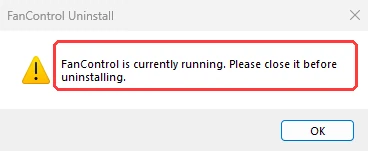
To quit it properly, click the ^ arrow on the right side of your taskbar, right-click the FanControl icon, and click Exit. If you can’t find the icon, open Task Manager with Ctrl + Shift + Esc, right-click FanControl in the list, and click End task, which does the same thing my script did when it ended FanControl on my second run.
How to uninstall FanControl
Once FanControl isn’t running anymore, these are the steps to uninstall FanControl if you used the installer version (I ran its uninstaller straight from the install folder, which is the same unins000.exe that Settings opens for you):
- Open Settings > Apps > Installed apps and type FanControl in the search box.
- Click the … button next to it, click Uninstall, then click Uninstall again on the small pop-up, and click Yes if Windows asks for admin permission.
- Click OK on the PawnIO warning.
- Click Yes when it asks if you want to completely remove FanControl and all of its components.
- Click OK on the “successfully removed” message.
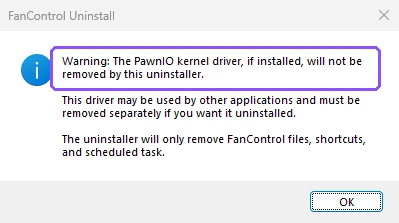
That warning in step 3 is the one worth actually reading, and you can see the whole thing in the screenshot below. It says straight up that the PawnIO kernel driver “will not be removed by this uninstaller”, because other apps might use it too, and that the uninstaller only removes FanControl’s own files, shortcuts and scheduled task.
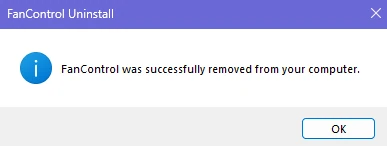
After I clicked Yes, it took about 2 seconds to get to the message in the screenshot below, and the Programs entry, the app files and the desktop shortcut were all gone.
If you’re on the portable zip version instead, you don’t need an uninstaller at all to uninstall FanControl, since its GitHub page says you simply delete the folder you extracted. The developer also says that if you set it to start with Windows, you should untick that option or delete the Fan Control task in Task Scheduler, which I never needed because I didn’t turn that option on.
FanControl leftover files
I took a full scan of the laptop before I installed anything and another one right after the uninstall, and the only FanControl thing left was its folder, C:\Program Files (x86)\FanControl. Inside were 3 small files and an empty Plugins folder:
| Leftover file | Size | What it holds |
|---|---|---|
Configurations\userConfig.json | 1,329 bytes | Your FanControl setup |
log.txt | 1,555 bytes | FanControl’s log |
Configurations\CACHE | 637 bytes | App settings, like whether the PawnIO pop-up shows |
None of that runs or takes up any real space, so it’s purely tidying. If you think you’ll reinstall FanControl later, keep it, because when I reinstalled over the top of that folder, FanControl opened with my old layout already in place and skipped the setup screens. If you’re done with it for good, open File Explorer, paste C:\Program Files (x86) into the address bar, right-click the FanControl folder, and click Delete (click Continue if Windows asks for admin permission).
How to uninstall PawnIO
Before you remove PawnIO, make sure nothing else on your laptop is using it (like another fan or sensor app you still use that asked you to install PawnIO), since FanControl’s own warning points out other apps can rely on the same driver. PawnIO had been on my laptop since September without me remembering where it came from. I test a lot of tools on this G16, so it was probably something I grabbed for one of them, but a kernel driver you can’t account for is exactly the kind of thing worth double-checking before you assume it’s harmless.
PawnIO shows up as its own entry in your apps list, so it’s the same process as before:
- Open Settings > Apps > Installed apps and type PawnIO in the search box.
- Click …, click Uninstall, click Uninstall again, and click Yes if Windows asks for admin permission.
- Click Yes on “Are you sure you want to uninstall PawnIO?”

Don’t wait for a “done” message, because there isn’t one. The PawnIO window on my laptop just closed about 2 seconds after I clicked Yes, so check your apps list to confirm PawnIO is gone. Afterward, PawnIO had removed its Programs entry and the C:\Program Files\PawnIO folder, and the driver had stopped running.
What PawnIO’s uninstaller leaves behind
Right after that uninstall, 2 things were still there: PawnIO’s service entry in the registry (the key at HKLM\SYSTEM\CurrentControlSet\Services\PawnIO), and the driver package itself, still sitting in Windows’ Driver Store, which is the folder where Windows keeps copies of installed drivers. I restarted the laptop to see if Windows would clean them up by itself, and both were still there after the reboot.
The driver wasn’t running anymore, so neither leftover was doing anything on my laptop, but if you’re removing PawnIO because you don’t want it on your laptop, you probably want all of it gone. Microsoft’s own tools handle both pieces. sc delete removes a service’s entry from the registry, and PnPUtil removes a driver package from the Driver Store.
Remove the PawnIO service and driver
Right-click the Start button, click Terminal (Admin), and click Yes on the admin prompt. First, delete the service entry (make sure you type sc.exe and not just sc, because in Windows PowerShell sc is short for Set-Content, a completely different command):
sc.exe delete PawnIOMine came back with [SC] DeleteService SUCCESS. Next, you need the name Windows gave the PawnIO driver package on your PC, which won’t be the same as mine. Run this and scroll through the list for the entry whose Original Name is pawnio.inf:
pnputil /enum-driversThe Published Name right above it is the one you want. Mine was oem66.inf, with namazso as the provider and version 2.2.0.0, so the command I ran was the one below. Swap in your own number from that list before you press Enter:
pnputil /delete-driver oem66.inf /uninstallIt answered with “Driver package uninstalled” and “Driver package deleted successfully.” To double check, run pnputil /enum-drivers one more time, and pawnio.inf shouldn’t be anywhere in the list. After that, the service entry, the Driver Store folder and the driver were all gone from my laptop, with no restart needed.
I ran the whole removal twice
To make sure none of this was a one-off, I reinstalled FanControl, let it install PawnIO again from its first-launch pop-up, and then went back through every step to uninstall FanControl and PawnIO a second time, with a script doing the clicks. From ending FanControl to deleting the leftover folder took 27 seconds, and I got the exact same 3 leftover files and the same 2 PawnIO pieces as the first time, so the leftovers weren’t a fluke of my first run.
After that second run, I compared a final scan against the one I took before ever installing FanControl, and there was no FanControl or PawnIO entry, folder, service or driver left anywhere. Microsoft Defender also never flagged anything during either FanControl install. With both of them off your laptop, if you still want a say in how your fans behave, I lined up the laptop fan apps that could actually reach my fans, and compared the 6 ways I tested to control fan speed on an ASUS laptop.
Uninstall FanControl FAQ
Does uninstalling FanControl remove PawnIO?
No. FanControl’s uninstaller tells you so in its first warning, and on my laptop PawnIO’s Programs entry, folder and running driver were all untouched after FanControl was gone. You have to uninstall PawnIO separately, then clean up its service entry and driver package with the commands above.
Why can’t I uninstall FanControl?
If you try to uninstall FanControl and the uninstaller says it’s currently running, it’s still in your system tray. Right-click the tray icon and click Exit, or end it in Task Manager, then run the uninstaller again.
Do my fans go back to normal afterward?
FanControl never found a fan it could control on my G16 in the first place, so it had nothing to hand back when I removed it. If you’re on an ASUS laptop and want quieter fans, G-Helper’s curve editor is where I’d start.
If you’re clearing out other fan and tuning apps while you’re at it, I also went through what Armoury Crate’s uninstaller left behind and removing G-Helper cleanly, and if you’d rather have a tool hunt down leftovers for you, I counted what Revo Uninstaller’s scan modes actually catch. And if pnputil wouldn’t delete the PawnIO driver on your PC, or you found a FanControl leftover that wasn’t in my list, drop the error or the file path in the comments along with your laptop model, and I’ll take a look.