Uninstall Windhawk Completely: The Wrong Way Leaves 68 MB
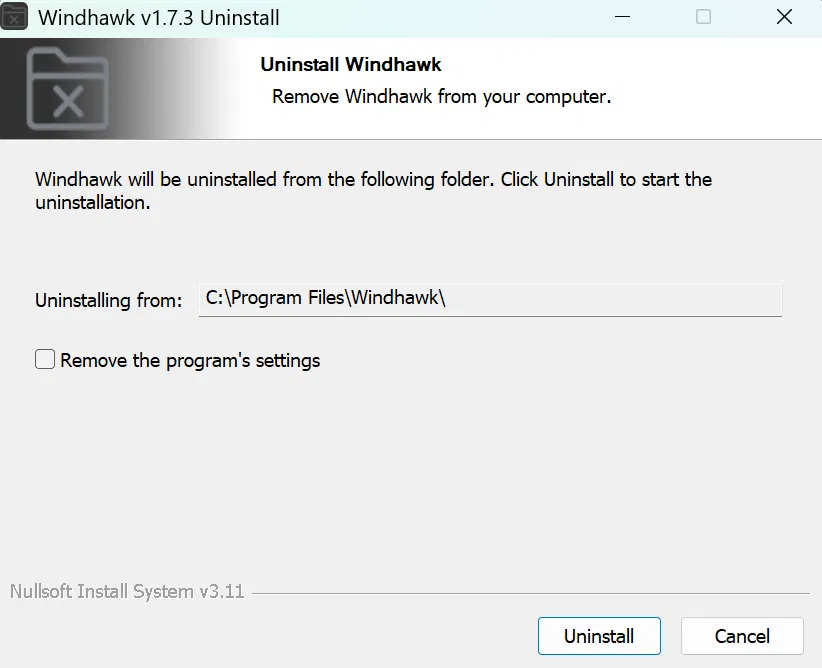
I went to uninstall Windhawk the normal way through Windows Settings, got the “Uninstall was completed successfully” message, restarted, and 67.5 MB of it was still on my laptop along with all 11 of my mods. When I reinstalled it later, every mod came back already turned on, with my themes exactly how I’d left them. The reason is 1 checkbox in the uninstaller called Remove the program’s settings, which is unchecked by default, and even with it checked there’s still about 5.7 MB sitting in 2 folders afterward.
Everything here is off my ASUS ROG Zephyrus G16 (2024, Ryzen AI 9 HX 370, RTX 4070) on Windows 11 Home 25H2 build 26200.9457, running the installed (not portable) version of Windhawk 1.7.3 with 11 mods.
Honestly my first reaction was that it had to be a glitch, so I restarted and checked again, and everything was still there. So I ended up running the whole thing twice, once with the box unchecked and once with it checked, and looked at the same 3 places on my laptop each time. I’m going to go through the steps first, then what each option leaves behind and how to clear it out, and after that how to back up your mods first if you want them back later.
How to Uninstall Windhawk (The Short Version)
If you just want it off your PC, it’s 5 steps. If you want your mods back later, do the backup from further down this post before step 4:
- Open Windhawk and turn off every mod with its toggle on the Home tab.
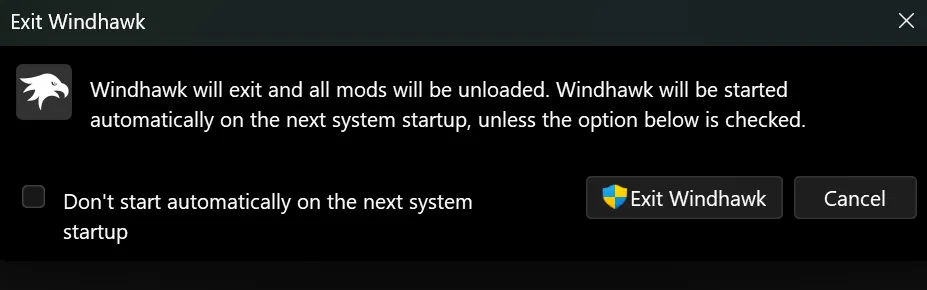
- Right-click the Windhawk icon in the system tray, click Exit, then click Exit Windhawk in the box that pops up.
- Go to Settings > Apps > Installed apps, type Windhawk into the search box, click the ⋯ next to it and click Uninstall.
- In the uninstaller, check Remove the program’s settings if you want your mods and their settings gone too, then click Uninstall and Close.
- Restart your laptop.
If Windhawk isn’t showing up under Installed apps for you, Microsoft lists the other 2 routes (the Start menu and Control Panel) on its uninstall or remove apps and programs page.
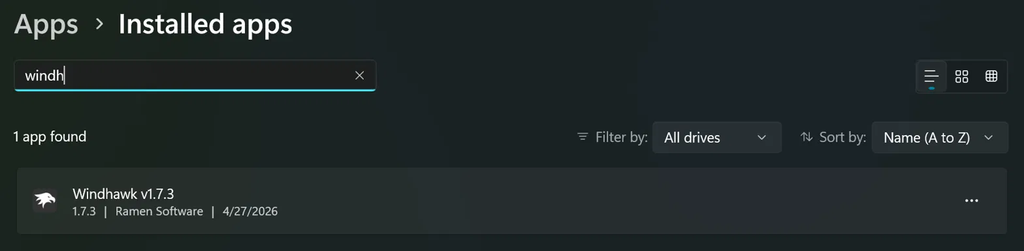
Now step 4 is where most of you guys are going to click straight past the checkbox, and it changes what you end up with by a lot, so I put what was on my laptop after each version into 1 table:
| Where | Before | Default uninstall | Box checked |
|---|---|---|---|
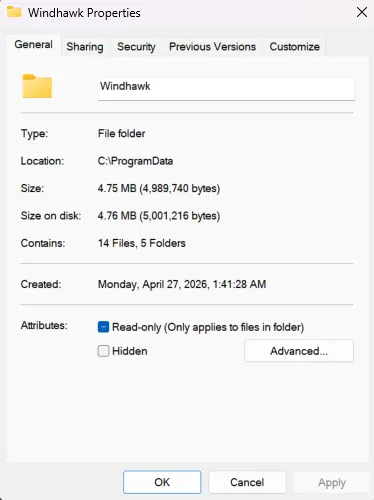
| C:\ProgramData\Windhawk | 67.5 MB, 1,143 files | 67.5 MB | 4.75 MB, 14 files |
| C:\Program Files\Windhawk | The program itself | 956 KB | 956 KB |
| HKEY_LOCAL_MACHINE\SOFTWARE\Windhawk (registry) | 11 mod keys plus settings | All still there | Gone |
| What a reinstall gives you | All 11 mods back, already on | “No mods are installed” |
So the default uninstall takes the program off and leaves basically everything else. Checking the box clears the registry key and about 93% of the ProgramData folder, and you’re left with around 5.7 MB across 2 folders that you delete by hand.
What Uninstalling Windhawk Actually Removes
Windhawk keeps its stuff in 3 different places, and the uninstaller treats each one differently. The app itself lives in C:\Program Files\Windhawk. The files for the mods you’ve installed live in C:\ProgramData\Windhawk. And the list of which mods you have, plus every setting you’ve changed on them, lives in the Windows registry, which Microsoft describes as a central database that stores configuration for apps and the system.
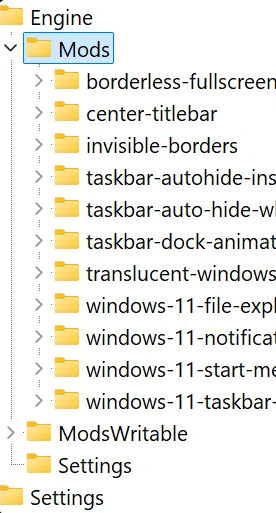
On my laptop that registry key is HKEY_LOCAL_MACHINE\SOFTWARE\Windhawk, and under Engine > Mods there’s 1 key for each of my 11 mods. Your mods survive a default uninstall because the uninstaller counts both that key and the ProgramData folder as your “settings”, and it leaves them alone unless you tell it otherwise.
The good news is that leftover files don’t keep changing how Windows looks. Mods only do anything while Windhawk is running and loading them into other programs like Explorer, which the Windhawk wiki goes into. After my default uninstall and a restart, my taskbar, Start menu and File Explorer were all back to stock Windows 11, even with 67.5 MB of mod files still on the drive.
Do you need to uninstall Windhawk, or just exit it?
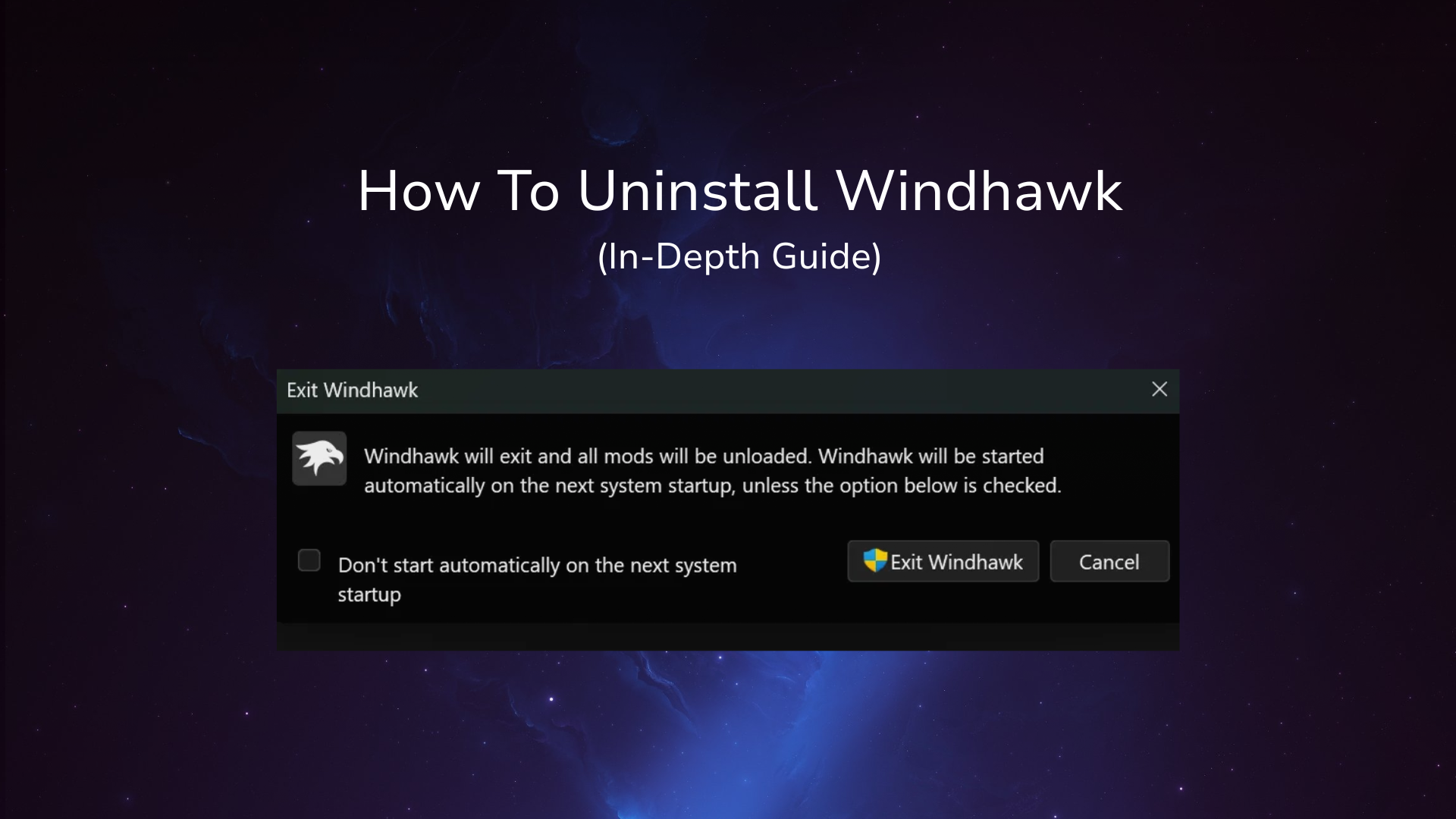
A lot of people reach for uninstall when exiting would’ve done the job. When you click Exit from the tray, Windhawk tells you this: “Windhawk will exit and all mods will be unloaded. Windhawk will be started automatically on the next system startup, unless the option below is checked.” So exiting takes every mod off right away, and checking Don’t start automatically on the next system startup keeps it from coming back when you boot.
If you’re just trying to figure out whether Windhawk is behind a problem, exit it first and see if the problem goes away. I went through that whole process in my Windhawk not working guide, and it keeps all your settings while you test.
Turn your mods off before you exit
This one I found by accident. The first time, I exited Windhawk with all 11 mods still on. My taskbar went back to the stock layout, but the Word and Settings icons stayed stuck at a bigger size than everything else, and they stayed that way until I restarted.

The second time, I turned all 11 mods off with their toggles first and then exited, and the taskbar came back clean with nothing stuck. Now that’s 1 try each way, so I won’t promise it happens to everyone. My guess is Taskbar Dock Animation, since it’s the only mod I run that changes icon size. Honestly though, if you’re planning to uninstall anyway, I’d just turn all of them off first.
How to Uninstall Windhawk Completely
So if you want to know how to uninstall Windhawk completely, the default option won’t get you there. You need the checkbox, and then you need to delete 2 folders yourself. I’ll show you what I found with each option so you can see what you’re dealing with.
What the default uninstall leaves behind
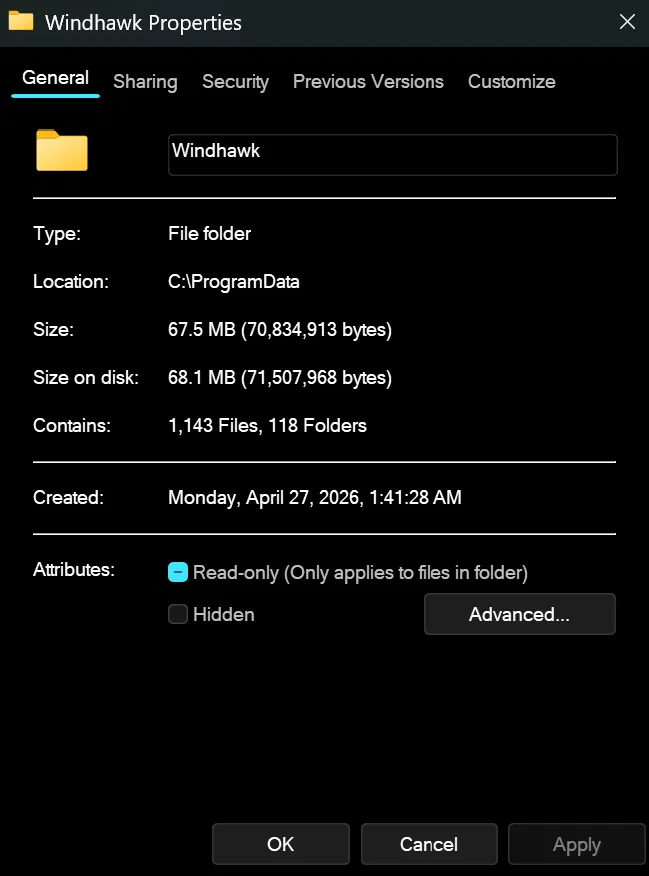
With the box unchecked, I uninstalled, restarted, and checked all 3 places. C:\ProgramData\Windhawk went from 70,834,913 bytes to 70,823,022 bytes, so about 12 KB got removed out of 67.5 MB. C:\Program Files\Windhawk was still there at 956 KB with an Engine folder inside it. And the registry key still had all 11 of my mods in it.
Then I reinstalled Windhawk from the normal installer. It never asked about existing mods or settings, and the second I clicked Finish it opened with all 11 mods listed, turned on, and applied with the same themes I had before.
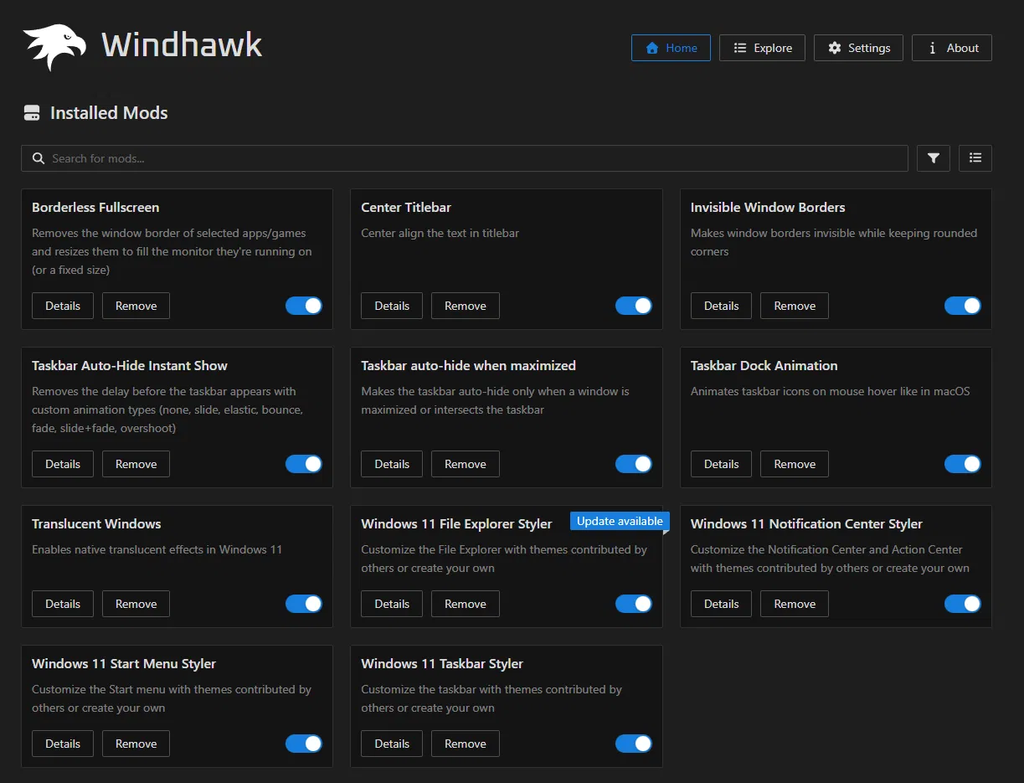
If you’re reinstalling to keep your setup that’s great news, because you don’t need a backup at all. But if you uninstalled because a mod was breaking something, a default uninstall and reinstall brings that same broken mod straight back, turned on.
What checking the box removes
For the second run I checked Remove the program’s settings before clicking Uninstall. I restarted before checking anything, same as the first run. This time C:\ProgramData\Windhawk dropped to 4.75 MB with only an Engine folder left in it, and the registry key was gone completely. C:\Program Files\Windhawk didn’t change at all and was still sitting at 956 KB with the same Engine folder in it.
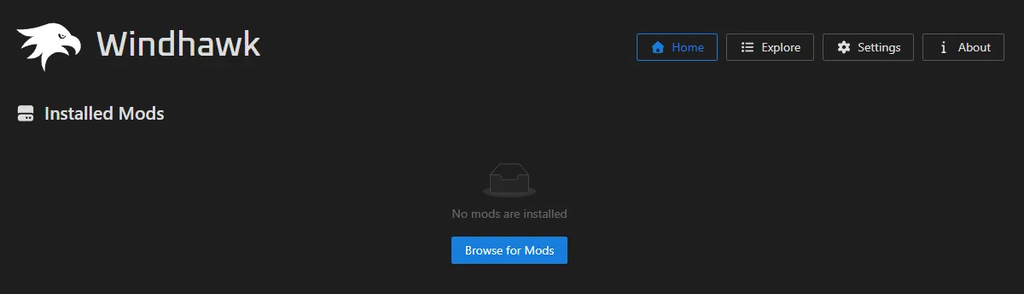
When I reinstalled after that one, Windhawk opened to “No mods are installed” with a Browse for Mods button, so the box really does wipe your mods and their settings.
Clearing the last 2 folders
To get rid of what’s left after checking the box:
- Open File Explorer, click the address bar, paste C:\ProgramData and press Enter. That folder is hidden by default, so typing the path is the easy way in.
- Right-click the Windhawk folder and click Delete.
- Do the same thing in C:\Program Files. Windows will ask for administrator permission on this one, so click Continue.
- To check the registry, press Win + R, type regedit and press Enter. If you don’t see an address bar, click View > Address Bar, then paste HKEY_LOCAL_MACHINE\SOFTWARE\Windhawk and press Enter. If it doesn’t jump anywhere, the key is already gone.
So on the installed version, how to uninstall Windhawk completely comes down to checking the box, deleting those 2 folders and confirming the registry key is gone.
How to Uninstall Windhawk Portable
I run the installed version, so I haven’t tested this part myself. The portable version keeps everything inside the folder you picked when you set it up, so to uninstall Windhawk portable you exit it from the tray first, then delete that folder.
Make sure you exit first on the portable version. There’s a Microsoft Q&A post from someone who deleted their portable folder while a translucent theme was applied, and the glitched look stayed afterward. The reply they got was to go to Settings > Personalization > Themes, pick Windows (Light) or Windows (Dark) again, and restart. So for anyone trying to uninstall Windhawk portable, turn the mods off, exit, restart, and only then delete the folder.
How to Uninstall Windhawk Mods Without Removing Windhawk
If it’s 1 mod you’re tired of, you don’t have to touch the uninstaller. On the Home tab every mod has a toggle and a Remove button. The toggle turns the mod off and keeps its settings so you can flip it back on later, and Remove takes it off your list entirely.
For how to uninstall Windhawk mods there really isn’t more to it than that, and I’d always try the toggle first. If you’re not sure which ones are worth keeping, my best Windhawk mods list covers the ones I still have running.
Windhawk Uninstall Blocked: “This App Has Been Blocked for Your Protection”
I’ve never hit this one on 1.7.3, but it’s all over the search results, so here’s where it comes from. Windhawk’s developer wrote in the v1.7 release post that on October 25, 2025, Microsoft revoked the certificate Windhawk v1.6.1 was signed with. After that, Windows wouldn’t run any Windhawk process with administrator rights, and in his words that “prevented standard operations such as installation, running, and uninstallation.”
So if you’re seeing Windhawk uninstall blocked by your administrator, you’re almost certainly still on 1.6.1, and the uninstaller is one of the things Windows is refusing to run. The developer’s fix is to update to v1.7 or newer, which is signed with a new certificate. Download the current installer from windhawk.net, install it over the top of your old version, and then uninstall like normal. I covered the same message from the “it won’t open” side in my Windhawk fixes guide.
Can’t Uninstall Windhawk? What to Try
If you can’t uninstall Windhawk because a mod has broken your taskbar or your screen goes black, the developer built a few ways out and wrote them up in the v1.3 release post:
- Press Ctrl + Win + W. That opens the Windhawk toolkit even when the taskbar is gone, and from there you can exit Windhawk or restart it in safe mode.
- Run the Windhawk installer with the /safemode switch. It installs with mods held back so you can turn off or remove the bad one before anything loads.
- As a last resort, in the registry under HKEY_LOCAL_MACHINE\SOFTWARE\Windhawk\Settings, set SafeMode to 1.
If Windows itself is too broken to click around in, boot into Windows Safe Mode and uninstall from there. Microsoft’s Windows startup settings page has the steps for getting into it.
There’s also a user-reported workaround on GitHub for a black screen when quitting: move everything except the main program file out of the Windhawk folder, reboot, move it back, then run uninstall.exe. I haven’t needed it, so treat that one as something another user found.
Glitches That Stay After You Uninstall
The one people report most is Translucent Windows leaving parts of the interface black or white. There’s a GitHub issue where it stayed that way even after removing the mod and Windhawk with Revo Uninstaller.
I run Translucent Windows every day, and after both of my uninstalls and a restart nothing stayed translucent or broken on my laptop. So it doesn’t happen to everyone. If it does happen to you, turning the mod off before uninstalling is the first thing I’d do differently, and re-applying the default Windows theme is what Microsoft’s own forum suggests. My Windhawk Translucent Windows guide has the settings I use.
How to Backup Windhawk Mods Before You Uninstall
What you get when you come back depends on that checkbox. If you left it unchecked, all your mods come back by themselves, and if you checked it you’re starting again with an empty mod list.
Windhawk 1.7.3 doesn’t have an export button, I looked. Your setup lives in 2 places, the registry key HKEY_LOCAL_MACHINE\SOFTWARE\Windhawk and the folder C:\ProgramData\Windhawk, so a backup means saving both of them. It’s the same thing I’d do before resetting Windows or moving to a new laptop, though I’ve only tested restoring on the same machine. For most of you guys that’s fine, if you’re running 3 or 4 mods on their default settings it’s quicker to just search them again after reinstalling. If you’ve spent a while tuning the styler mods though, here’s the backup I tested before checking the box:
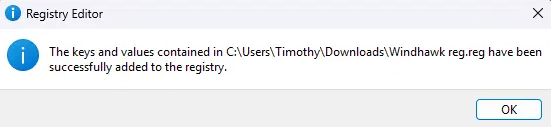
- In regedit, right-click the Windhawk key under HKEY_LOCAL_MACHINE\SOFTWARE, click Export, and save the .reg file somewhere you’ll find it. Mine ended up in Downloads and I spent a minute hunting for it.
- Copy the C:\ProgramData\Windhawk folder somewhere else, like your Desktop.
To restore after a clean reinstall, I exited Windhawk, double-clicked the .reg file and clicked Yes, then copied the folder contents back into C:\ProgramData\Windhawk. Windows said 1 folder was in use, so I checked Do this for all current items and clicked Skip. When I opened Windhawk again all 11 mods were back, turned on, with the same settings.
I did both steps together, so I can’t tell you whether the .reg file would’ve been enough on its own.
For those of you who don’t want to touch regedit, there are free community tools on GitHub that do the same 2 steps for you, like Windhawk Backup Manager and the Windhawk Services Backup Utility. I haven’t tried either one, so the manual way is the only one I can vouch for.
If you’re coming back to Windhawk fresh, my how to install Windhawk guide covers the setup.
Uninstall Windhawk FAQ
Is Windhawk easy to uninstall?
Yes, the uninstall itself is a normal Windows uninstaller with 1 checkbox. What catches people is that it reports success while leaving 67.5 MB and all your mods behind unless you check that box.
Is there a Windhawk export settings option?
Not inside Windhawk. Version 1.7.3 has no export or backup button, and there’s been an open request for one on GitHub since June 2024. To save your setup you export the registry key and copy the ProgramData folder, and I go through both in the backup section of this post.
Does uninstalling Windhawk undo my mods?
Visually, yes. After I uninstalled and restarted, everything went back to stock Windows 11. The mods’ files and settings stay on your PC though, unless you check Remove the program’s settings.
Do I need to restart afterward?
I’d do it. When I exited with mods still on, 2 of my taskbar icons stayed stuck at the wrong size until I restarted.
Do I need Revo Uninstaller for this?
I’ve never used it, and I didn’t need it. Checking the box cleared my mods and the registry key, and what’s left after that is 2 small folders you can delete yourself. In the GitHub report about Translucent Windows, Revo didn’t fix the leftover glitch for that person either.
Is Windhawk safe to leave installed instead?
If safety is the reason you’re uninstalling, I went through what it does to your PC in is Windhawk safe, and what it costs in FPS, battery and RAM in does Windhawk affect performance.
If you’ve uninstalled it and something on your screen still looks wrong after a restart, drop the mod you had running and your Windows build in the comments and I’ll take a look at what it left behind.