Best Windhawk Mods: The 9 I Actually Keep Enabled
If you’re only going to install 3, the first Windhawk mods to install are Taskbar Styler, Start Menu Styler and Taskbar Dock Animation. They change the 2 parts of Windows 11 you look at all day, and they’re the best Windhawk mods for the least setup. I’ve installed 15 mods total, 9 are still running daily, and the 6 I switched off are further down with the exact reason each one got cut (mostly conflicts with other mods).
Everything here runs daily on my ROG Zephyrus G16 on Windows 11 25H2 (build 26200.9168) with Windhawk 1.7.3.

The best Windhawk mods at a glance
These are the best Windhawk mods I’ve kept running, with the exact theme or setting I use for each one. The mod names link to their Windhawk pages where I could confirm the link, and the sections after the table go through why each one stayed while 6 others got cut.
| Mod | What it changes | My setting |
|---|---|---|
| Windows 11 Taskbar Styler | Full taskbar appearance | Luminosity theme |
| Windows 11 Start Menu Styler | Start menu appearance | Translucent theme |
| Windows 11 File Explorer Styler | Explorer appearance | Matter theme |
| Taskbar Auto-Hide Instant Show | Removes the auto-hide delay | Slide + fade, 200, 120fps |
| Taskbar auto-hide when maximized | Hides only when a window fills the screen | Default |
| Taskbar Dock Animation | macOS style icon hover | Default |
| Start Menu Power Buttons | One-click power options | Sleep, sign out, restart, shutdown |
| Invisible Window Borders | Removes borders, keeps rounded corners | Default |
| Dark Paint | Forces dark mode in Paint | Default |
The first Windhawk mods to install
If you’re starting from nothing, get these 3 set up, then use your PC for a while before adding anything else:
- Windows 11 Taskbar Styler with the Luminosity theme
- Windows 11 Start Menu Styler with Translucent
- Taskbar Dock Animation
Those 3 are the ones I’d keep if I had to cut everything else. Between them you’ve restyled the 2 parts of the interface you look at most and added the one animation that makes it all feel smoother, and the other 6 in my list are small fixes on top of that.
Before you install any Windhawk mods
You’ll obviously need Windhawk itself, and if you haven’t gotten that set up yet, I’d start with my guide on how to install Windhawk on Windows 11. If you’re still deciding whether to trust it at all, I went through that in is Windhawk safe.
The one habit worth building early is installing mods one at a time and actually using your machine for a few minutes before adding the next one. It sounds tedious, and it is, but every conflict I ran into was obvious within about 30 seconds of the mod being enabled. Don’t do what I did and install 5 mods at once, then waste time debugging which one is causing the problem.
It’s also worth browsing the Windhawk marketplace yourself, since there are hundreds of mods on there and the right ones for you depend a lot on how you actually use your machine. The 9 here are just the ones that survived on mine.
The 9 best Windhawk mods I actually use
The best Windhawk taskbar mods
Windows 11 Taskbar Styler is the one mod I’d call essential. It restyles the whole taskbar from a theme dropdown, and mine runs Luminosity (compact), which shrinks the bar down to something much smaller and cleaner than stock. That matters when I’m using the laptop without an external monitor, and it’s the biggest visual change on my desktop, so it’s the first thing I’d install on a fresh machine.

Under the hood it works through XAML styling, which sounds intimidating, but you never have to touch it. You pick a theme from the dropdown, save, and the taskbar changes. The individual style rules are only there for when you want something no theme covers.
If none of the built-in themes land for you, Ramen Software keeps an official taskbar styling guide on GitHub with community customizations you can paste straight in. Out of all the Windhawk taskbar mods I tried, this is the one doing the heavy lifting, and my Windows 11 Taskbar Styler setup guide covers the themes, variants and what the mod can’t do. The before-and-after with Luminosity:

Taskbar behavior: instant show and auto-hide when maximized
These 2 Windhawk taskbar mods change how the taskbar behaves instead of how it looks, and I run them as a pair. With Taskbar auto-hide when maximized, the taskbar only disappears when a window is actually filling the screen. On a laptop where vertical space is tight, I get the full screen for whatever’s maximized and still see the taskbar on the desktop.
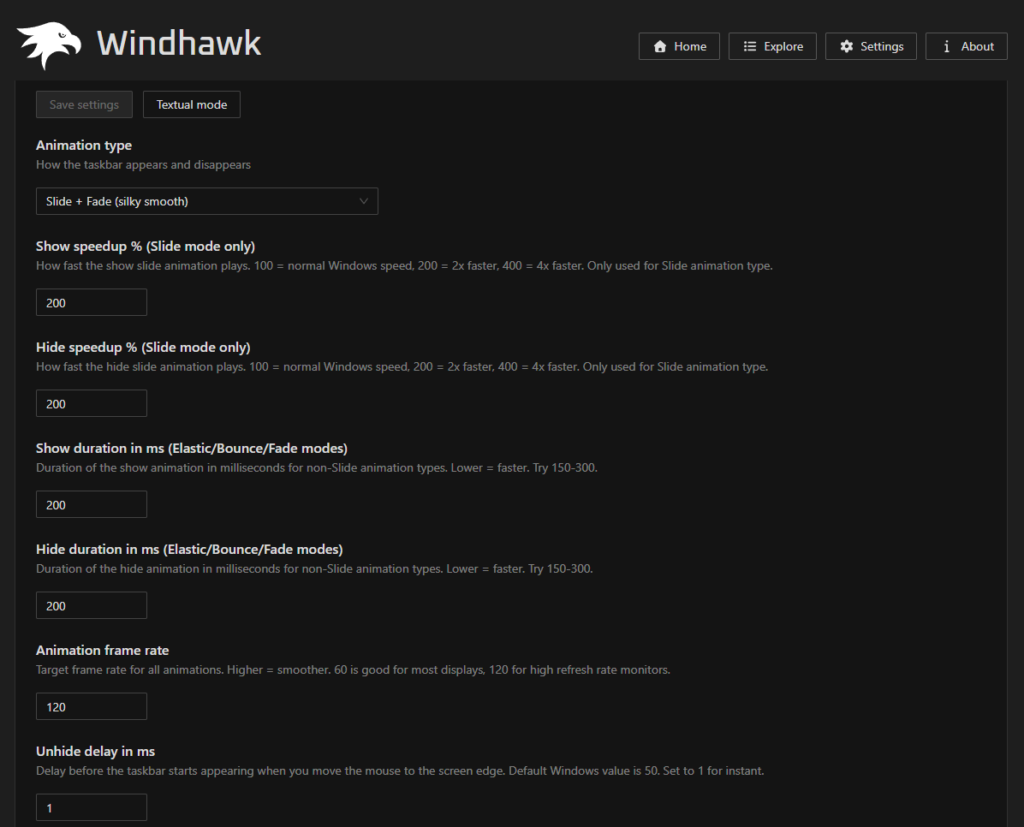
The problem with stock auto-hide is the delay before the bar comes back, which makes the whole thing feel sluggish. Taskbar Auto-Hide Instant Show kills that delay and lets you pick how the bar animates in. I’m running slide + fade with every value set to 200 and the animation frame rate at 120, which comes out silky smooth on a high refresh display. If you’re on a 60Hz panel, there’s no real point pushing the frame rate that high.
Taskbar Dock Animation
This mod animates your taskbar icons on hover the way macOS does, and it’s one of my 3 favorites purely because it’s so clean. There’s no practical benefit here at all, it just makes the desktop feel smoother every time you go near the taskbar. If you want to take that further, it’s 1 of the 3 mods I used to make Windows 11 look like macOS with a floating glass dock.
Heads up though, this mod is the reason Vertical Taskbar and Taskbar on top didn’t survive on my system, which I get into in the turned-off section.
Start menu: Styler and Power Buttons
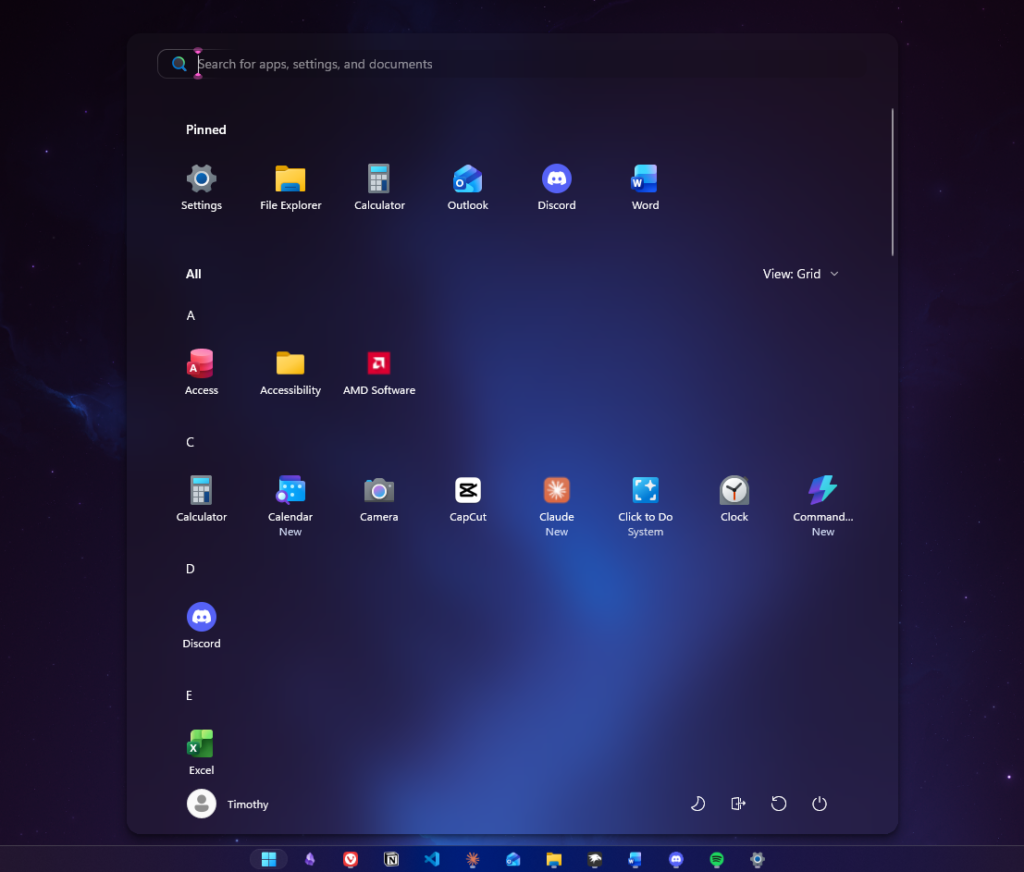
Windows 11 Start Menu Styler does for the Start menu what Taskbar Styler does for the taskbar. Mine runs the Translucent theme, which lets your wallpaper show through instead of dropping a solid slab on top of your desktop. If the Recommended section bugs you, the mod also comes with a NoRecommendedSection theme that removes it in 1 click. I’d already turned it off in Windows’ own settings, since I never used it.
Start Menu Power Buttons adds one-click power options along the bottom instead of making you dig through the flyout. I’ve got sleep, sign out, restart, and shutdown sitting there, which covers everything I ever actually need without opening a menu first. It’s simple but saves you those accidental times where you hit restart instead of shut down.
The Start Menu Styler mod page lists every theme people have contributed, and there’s an official styling guide for the Recommended section specifically if Translucent isn’t your thing. My Windows 11 Start Menu Styler guide covers the rest of the themes, plus what happened when I tested the translucency against battery saver.
Windows 11 File Explorer Styler
Same idea as the taskbar version, applied to Explorer. Mine runs the Matter theme. Out of the 3 stylers this is the one I enjoy the most, which is funny because File Explorer is easily the one I open the least. It cleaned things up enough that I don’t mind being in there anymore. The full walkthrough is in my Windows 11 File Explorer Styler guide, including why a transparent theme turns flat gray the moment you click another window.

There’s an Explorer styling guide maintained alongside the taskbar one if Matter doesn’t suit you.
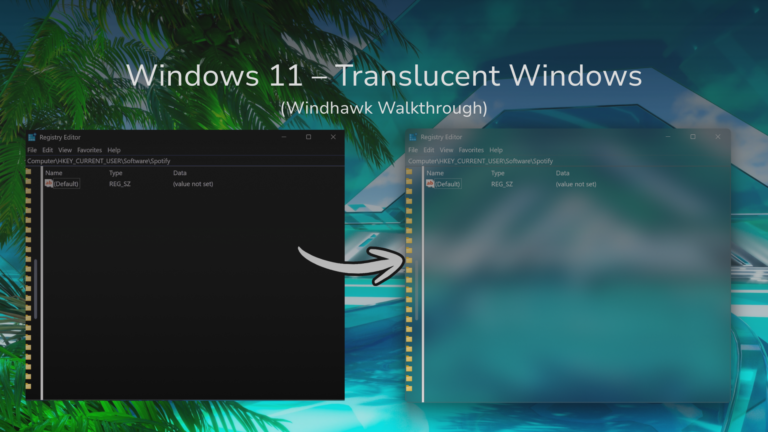
If you want that glass look on older programs too, like regedit and Control Panel, Windhawk Translucent Windows handles those and stacks with the Explorer themes. My Frutiger Aero Windows 11 build runs all 3 stylers together, and adding Translucent Windows on top cleared up the one glitch it had.
Invisible Window Borders
This mod removes the borders around windows while keeping the rounded corners intact. I’ve left it on the default settings since the day I installed it and never had a reason to change them.
Dark Paint
This mod forces dark mode in Paint. It fixes one small annoyance for me, and I’ve never had a reason to turn it off since.
The 6 Windhawk mods I turned off (and why)
Most roundups skip the mods that didn’t work out, since you only find those by actually living with them for a while. A few of these get recommended everywhere and still didn’t last 2 weeks on my machine.
Vertical Taskbar and Taskbar on top: why I went back
Both of these show up in just about every Windhawk mods Windows 11 roundup, and both came off my system for the same reason. Neither one works properly with Taskbar Dock Animation. That snappy hover animation is one of my favorite parts of the setup, and moving the taskbar to the side or the top breaks it. On top of that, I got occasional visual glitches with both of them.
I had to choose between moving the taskbar and keeping the hover animation, and I kept the animation. If you don’t run a dock animation mod, you might have no problems with either one, since these conflicts depend entirely on what else you’ve got enabled.
Taskbar height and icon size
This one’s just redundant if you’re already running Taskbar Styler. The Luminosity (compact) theme handles the taskbar geometry itself, so having a second mod fighting over the same values was overkill. I’d only bother with this if you’re not using a styling mod at all, and I go into how the theme handles geometry in my Taskbar Styler guide.
The 3 that didn’t stick
Taskbar Volume Control lets you scroll over the taskbar to change volume, and I could never get it to feel intuitive. It’s a popular mod, so I suspect that’s my personal preference and you might get along with it fine.
Always show all taskbar tray icons did what it promised and immediately made my tray far too cluttered, so I went back to letting Windows hide them.
Start menu open location is meant to open Start on whichever monitor your cursor is sitting on, and the behavior didn’t work the way I expected, so off it went.
Windhawk mod updates don’t install themselves

Mod updates don’t apply silently in the background. They queue up and sit there with an “Update available” badge until you go and approve them, which means you can be running a version that’s several revisions behind without ever noticing.
I’ve currently got 6 mods waiting on updates, but nothing has broken as a result. It’s worth knowing about, because if a mod suddenly starts misbehaving after a Windows update, checking whether there’s a pending mod update is a much faster first move than uninstalling anything. The steps for updating a mod, and for rolling one back to an older version, are in the update section of my Windhawk install guide.
More Windhawk guides
Everything else I’ve written and tested on Windhawk, grouped by what you’re trying to do:
- Getting set up: how to install Windhawk and is Windhawk safe
- The 3 stylers: Windows 11 Taskbar Styler, Windows 11 Start Menu Styler and Windows 11 File Explorer Styler
- Full builds: make Windows 11 look like macOS, make Windows 11 look like Windows XP, my Frutiger Aero Windows 11 theme and Windhawk Translucent Windows
- What it costs you: does Windhawk affect performance, with my FPS, battery and RAM numbers
- When something goes wrong: Windhawk not working and how to uninstall Windhawk completely
Windhawk mods FAQ
Which 3 Windhawk mods matter most?
Taskbar Styler, Start Menu Styler and Taskbar Dock Animation. If I had to name the best Windhawk mods right now, it’s those 3, because they change the parts of Windows 11 you stare at all day, and the rest of my 9 are refinements on top. New mods land constantly and Windows keeps changing underneath them, so I’d expect this answer to move over time.
How many Windhawk mods can I run at once?
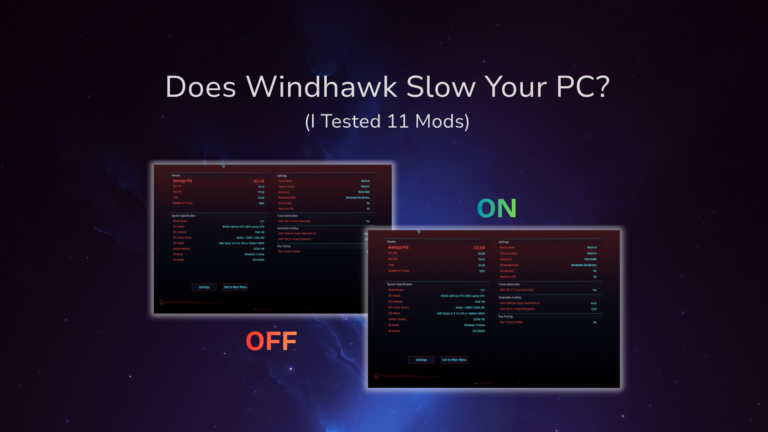
There’s no hard limit that I’ve hit. I benchmarked Cyberpunk 2077 with my mods on and off and the averages came out 0.33 FPS apart, which is in my does Windhawk affect performance test. The limit I actually ran into was conflicts between mods targeting the same part of the interface, so pick the highest impact mods first.
Do Windhawk mods break after Windows updates?
They can, since mods hook into Windows components that Microsoft occasionally changes. On 25H2 I haven’t had a single mod break, but mod authors do push fixes when Windows changes underneath them, which is another reason to keep an eye on those pending updates. If a mod does stop working after an update, my guide on Windhawk not working goes through every fix I’ve needed, starting with how to read the debug log.
Which Windhawk mods conflict with each other?
The ones I found were the taskbar position mods against Taskbar Dock Animation, and Taskbar height and icon size against Taskbar Styler. As a general rule, 2 mods that change the same setting will conflict.
Are Windhawk mods safe to install?
Mods are reviewed before they hit the marketplace and every one has viewable source code in the official windhawk-mods repository, though they’re still third-party code running inside Explorer. I go through the full picture in my Windhawk safety guide.
Do the mods stay if I uninstall Windhawk?
They stop running, but a default uninstall left all of my mods and their settings on the drive, and they came back enabled when I reinstalled. What the uninstaller’s settings checkbox removes is in my uninstall Windhawk guide.
My 9 are what’s left after actually living with 15 mods and cutting whatever got annoying or redundant. Your list probably won’t match mine, since half of my cuts came down to conflicts with other mods I run. I’ll keep this updated as mods and Windows builds change, so treat it as my best Windhawk mods 2026 lineup for now.
If you’re running a mod you think deserves a spot here, or one of these is acting up on your build, drop the mod name and your Windows build number in the comments and I’ll give it a try on my G16.