Windhawk Taskbar Styler Not Working? 8 Real Fixes (2026)
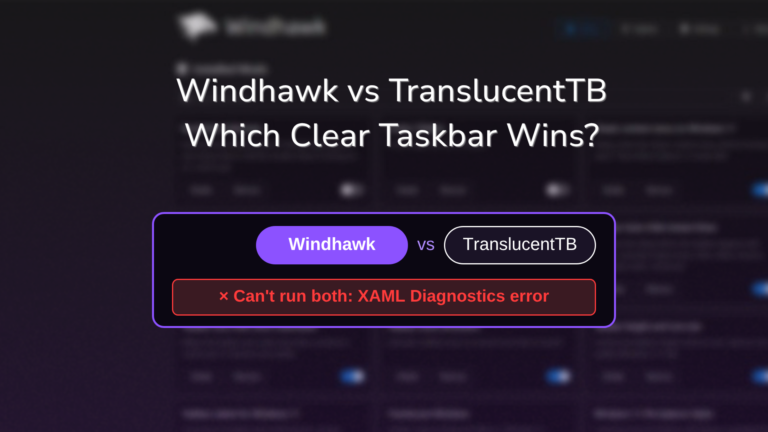
Windhawk Taskbar Styler not working usually means something else on your PC got to your taskbar first, and the mod just quietly lost. I went looking for the cause on my own laptop by running TranslucentTB next to it, the transparent taskbar app a lot of you probably have installed already, and it crashed on all 3 launches while the Styler was on. Turning the mod off didn’t even fix it. Whether your theme vanished after a reboot, never applied in the first place, or your taskbar stopped responding to clicks, I’ll go through every cause I found and the exact fix for each one down below.
After I launched TranslucentTB with Taskbar Styler already running:
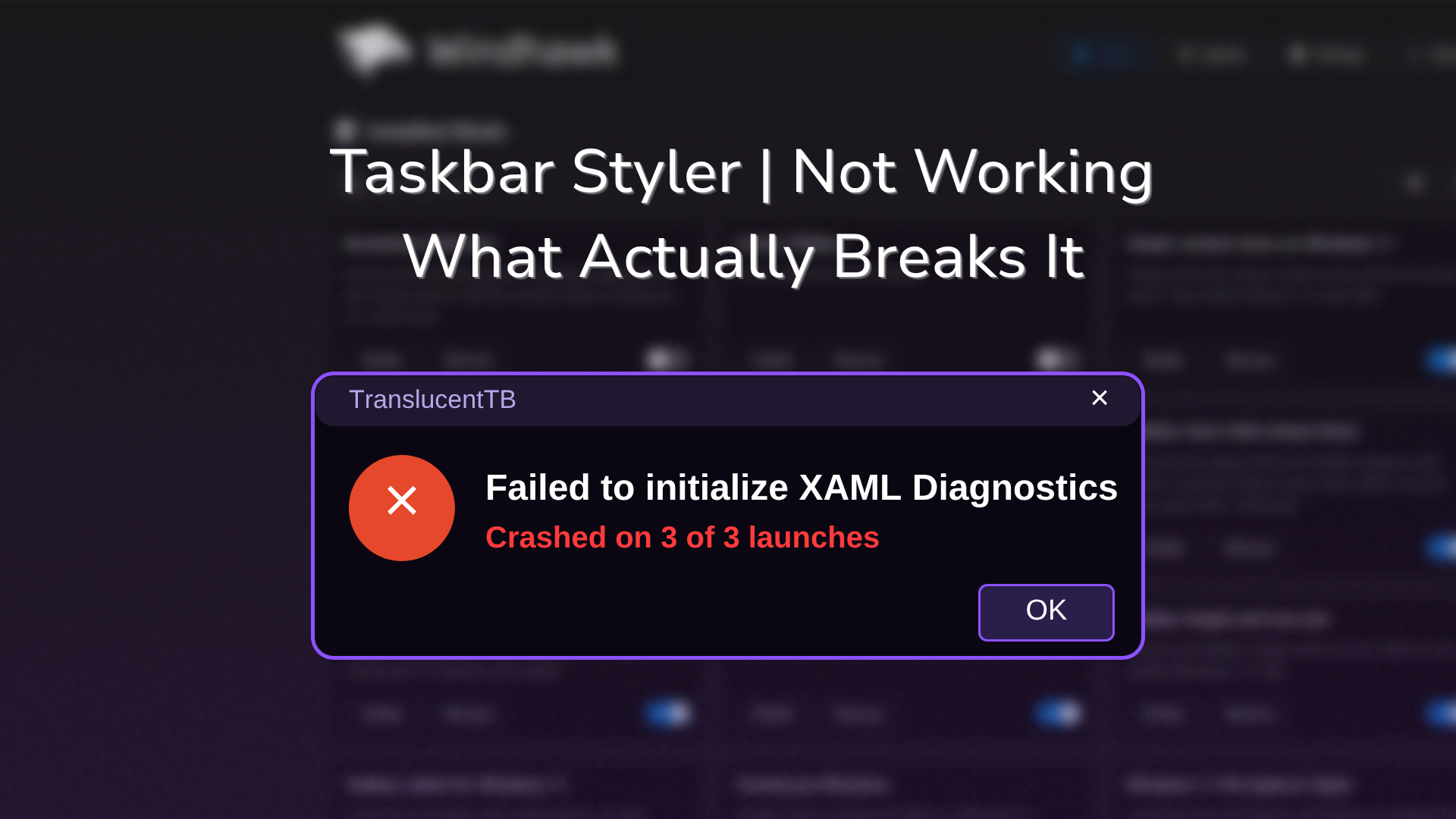
- TranslucentTB: Crashed on all 3 launches with a XAML Diagnostics error (0x80070102)
- The cause: Only 1 app at a time can hook into the taskbar the way the Styler does
- Other causes: I found 7 more reasons the Styler stops working, each with its own fix
- ROG Zephyrus G16
- Windows 11 26H2
- Build 26300.9711
- Windhawk 1.7.3
- Taskbar Styler 1.10
- TranslucentTB 2026.2
Ryzen AI 9 HX 370 · Windows7 Styler theme
The quick checklist
For anyone who just wants it fixed, go through these in order. Most of you will be done by step 2.
- Close TranslucentTB, ExplorerBlurMica or any other taskbar tool, then switch the Styler off and back on.
- Restart Explorer: open Task Manager, right-click Windows Explorer and click Restart.
- Check you’re on the Windows 11 taskbar and not one from ExplorerPatcher or StartAllBack.
- Read your theme’s readme for a second mod or setting it needs.
- Check Windhawk for a pending mod update, especially right after a Windows update.
- If you can’t click your taskbar, turn off Click-through taskbar in the mod’s settings.
Why is Windhawk Taskbar Styler not working?
The simple version is that only 1 program at a time gets to restyle the Windows 11 taskbar this way, so whoever shows up first wins.
Now the technical version. The Windows 11 taskbar is drawn with XAML, the same UI framework a lot of newer Windows apps use. Taskbar Styler changes it by connecting to a Windows feature called XAML diagnostics, which was built so developer tools could inspect and edit a running app’s interface. The mod’s own settings spell out the catch: “There can only be one consumer at a time.” TranslucentTB uses that same connection on Windows 11, and so does ExplorerBlurMica. So when 2 of them are running, one of them breaks, and which one depends on who connected first.
Everything else on this list comes down to the mod looking for parts of the taskbar that aren’t there. That happens when a different taskbar replaced the Windows 11 one, when you’re on Windows 10, or when an update moved things around.
1. Another app is using the taskbar’s XAML connection
This is the one I tested myself. With Taskbar Styler running my Windows7 theme, I launched TranslucentTB 2026.2 and it crashed straight away with this error:
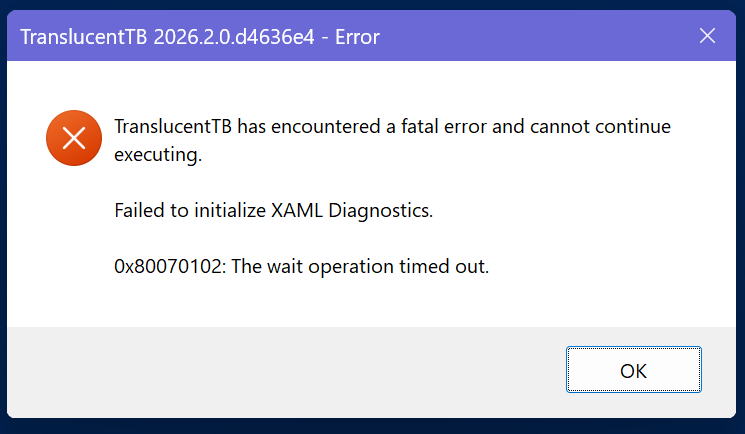
“Failed to initialize XAML Diagnostics. 0x80070102: The wait operation timed out.” I launched it 3 times and got the same crash every time. In my case the Styler won and kept my theme, but it can go the other way too. On the Windhawk GitHub, a user’s Taskbar Styler stopped applying and the maintainer’s first questions were whether other mods were running and whether they had TranslucentTB, in issue #1192. In that thread the Styler’s log showed Error 8000FFFF, and the maintainer’s best guess was another tool using the same mechanism to watch the taskbar.
Here’s the catch though: switching the Styler off did not let TranslucentTB start. It kept crashing until I restarted Explorer, and only then did its welcome window open. Then when I switched the Styler back on while TranslucentTB was still running, my Windows7 theme came straight back and TranslucentTB’s clear bar was gone.

To fix it, pick one tool for the taskbar:
- Right-click the TranslucentTB tray icon and click Exit (or close ExplorerBlurMica, whichever you run).
- Stop it from starting with Windows, or uninstall it if you only used it for a clear taskbar.
- In Windhawk, open Windows 11 Taskbar Styler, switch it off, then switch it back on.
If a see-through bar is the whole reason you had TranslucentTB, the Styler already does it. Pick TranslucentTaskbar or SimplyTransparent from the Theme dropdown and click Save settings. The Windhawk maintainer gave a user in the same situation that exact advice. I went through how the 2 apps compare in my Windhawk vs TranslucentTB test.
There’s also a setting most people never notice. Taskbar Styler 1.10 has an option called XAML diagnostics consumer handling at the bottom of its Settings tab. The default is Alert (asks before blocking the other app), Block stops other apps from connecting, and Allow lets them in, which the mod warns “might break this mod.” Leave it on Alert or Block unless you actually need the other app.
2. Windhawk Taskbar Styler stopped working after every reboot
If your theme works fine until you restart, then only comes back after you toggle the mod off and on, it’s the same conflict as above in a different order. The most likely reason is that TranslucentTB starts at sign-in, grabs the XAML connection before Windhawk loads the Styler, and leaves the Styler with nothing. I didn’t reboot to reproduce this part. One user had exactly this, and the maintainer called it a known incompatibility in this GitHub thread.
Something else I noticed while testing: when I clicked Continue on TranslucentTB’s welcome window, it switched on its own start-with-Windows setting without asking. So if you installed it once to try it out, it may still be launching at every sign-in. Check Settings > Apps > Startup and turn TranslucentTB off, or uninstall it, and the Styler stops losing after reboots.
3. Explorer is stuck holding the old look
Styling applies live, so normally you pick a theme, click Save settings, and the bar changes in front of you. When nothing happens at all, Explorer is usually just stuck. Open Task Manager with Ctrl + Shift + Esc, find Windows Explorer under Processes, right-click it and click Restart. Your taskbar disappears for a couple of seconds and comes back with the mod loaded fresh. I restarted Explorer during this test and every mod I had enabled loaded straight back in on its own. Signing out and back in does the same thing if you’d rather not touch Task Manager.
4. You’re not on the Windows 11 taskbar anymore
ExplorerPatcher and StartAllBack can swap in a Windows 10-style taskbar, and that taskbar isn’t built with XAML. The Styler can only style the Windows 11 taskbar, so with one of those running, it loads fine, reads your settings, and then has nothing to change. In issue #4250, a user’s styles stopped applying after an update even though the log looked clean, and the maintainer pointed out there were no visual elements in the log at all and asked if they were running one of those 2 apps. I don’t run either of them, so I haven’t tested this one myself. If you do, switch them back to the stock Windows 11 taskbar, or pick between the 2 tools.
5. Windows 11 Taskbar Styler not working on Windows 10
This one comes up a lot in searches. The mod is built for the Windows 11 taskbar only, and Windows 10’s taskbar is a completely different kind of window, so it won’t do anything there no matter which theme you pick. If you want Windows 10’s look on Windows 11 instead, I did that build in my guide on how to make Windows 11 look like Windows 10.
6. Your theme needs something extra
Some themes only look right with a second mod or an extra setting, and if you skip it the theme looks half broken or does nothing. The theme’s readme on the official styling guide always tells you. A few I’ve run into:
- Matter expects Taskbar Clock Customization next to it, or the clock looks off.
- Surface wants specific values imported into Taskbar height and icon size, or the icons come out tiny.
- Some community themes need an entry in the mod’s custom process inclusion list under Advanced, and skipping it means the theme saves fine and changes nothing.
The flip side is Taskbar height and icon size fighting a theme that already sets the bar’s size. I run it with my Windows7 theme on purpose, but if a theme looks squished or stretched, switch that mod off first and see if it snaps back. Other taskbar mods can clash with each other too, and I tested 10 of them side by side in my Windhawk taskbar mods roundup. More on how the themes behave is in my Windows 11 Taskbar Styler guide.
7. A Windows update moved the taskbar around
Themes work by targeting specific pieces of the taskbar by name, like the Start button or the background. When an update renames or moves one of those pieces, any style aimed at it silently stops matching. My G16 went from 25H2 to 26H2 this month and nothing in my setup broke, but it does happen to other people. First check Windhawk’s home page for an Update available tag on the Styler, since the mod gets updated fairly often. If it’s already up to date, search the windhawk-mods issues for “Taskbar Styler” plus your build number to see if others are hitting it too.
8. Can’t click on taskbar icons after a theme
If the theme applied but clicking the empty part of your taskbar does nothing, or clicks go through to the window behind it, check the Click-through taskbar option in the Styler’s Settings tab. It makes the empty parts of the bar click-through on purpose, mainly for dock themes like DockLike, so only your buttons and the system tray stay clickable. Turn it off and click Save settings. If the whole bar ignores clicks, including the icons, restart Explorer like in step 3. If it’s still frozen after that, switch the Styler off to rule it out before blaming Windows.
How to read the Taskbar Styler debug log
If you’ve still got Windhawk Taskbar Styler not working after all of that, the log tells you which case you’re in. These steps come from the official Troubleshooting wiki:
- Open the Windows 11 Taskbar Styler in Windhawk and click Disable.
- Go to the Advanced tab and set Debug logging to Detailed debug logs.
- Click Show log output.
- Click Enable on the mod and watch the log fill in.
- Set Debug logging back to None when you’re done.
An Error 8000FFFF line usually points back to cause 1. A log that loads your settings but never mentions any taskbar elements points to cause 4. An empty log means Windhawk isn’t getting into Explorer at all, which is a bigger problem than the Styler, and my Windhawk not working guide covers that one.
Windhawk Taskbar Styler not working FAQ
Why is Windhawk Taskbar Styler not working when my other mods work fine?
Because the Styler uses a different hook than most mods. It needs the taskbar’s XAML diagnostics connection, and only 1 app can hold that at a time, so a taskbar app like TranslucentTB can break the Styler while every other mod keeps running.
Can I use TranslucentTB and Taskbar Styler together?
Not reliably. On my G16 TranslucentTB crashed every time it launched with the Styler running, and when it did get the taskbar, switching the Styler back on took it away again. Use the Styler’s transparent themes instead.
My theme layout is scrambled, not missing. Is that the same problem?
No, that’s usually the theme itself. Some community themes, like TaskbarXII, are known to scramble the layout on certain setups, and the maintainer pointed one user to an existing thread on the styling guide for it. Try a different theme from the dropdown to confirm the mod itself is fine.
Does reinstalling the mod help?
Rarely. A reinstall doesn’t close TranslucentTB, swap your taskbar back, or change your Windows build, which covers almost every case above. Go through the checklist first. If you want to know whether the mod itself is even safe to keep around, I went through that in is Windhawk safe.
I ended up keeping the Windows7 theme as my daily after building my Windows 7 look, purely because I like that Windows Aero feel. If yours still won’t apply after all of this, drop your theme name, your Windows build and any other taskbar apps you run in the comments and I’ll take a look. For the rest of my setup, my best Windhawk mods list covers what I run next to it.