

MyASUS vs Armoury Crate: Which Do You Need on a ROG Laptop? (2026)
MyASUS and Armoury Crate are quite similar software at first glance, which was what confused me when I first looked through them both. Both come from ASUS and show up in your menu, so I originally thought I would need both; that ended up being wrong. I put MyASUS back on my Zephyrus G16 next to Armoury Crate to settle MyASUS vs Armoury Crate for myself. Its settings page only had 4 controls, and a setting I expected in both apps wasn’t in Armoury Crate at all.
If you’re in a similar spot now, or simply want an overview of the trade-offs, I’ll go through both software and which I think you should choose. If the real question is which of the many ASUS apps you can drop, I went through which ASUS apps I’d keep and which I’d remove on this same laptop.
After I ran MyASUS next to Armoury Crate on my G16:
- MyASUS: 4 settings, plus updates, diagnostics and warranty info
- Charge limit: Only MyASUS had it, since Armoury Crate’s System Configuration had 7 tiles and none of them was the limit
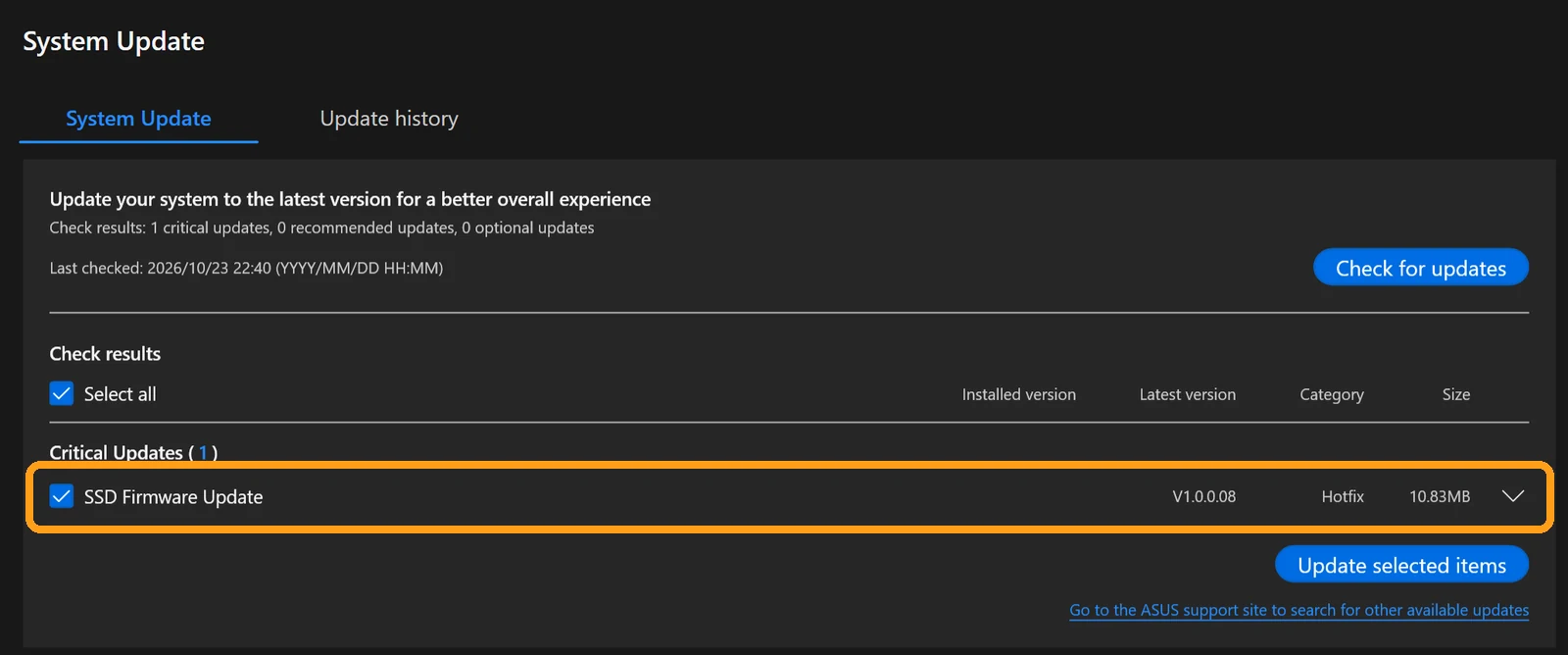
- Updates: MyASUS offered a 10.83 MB SSD firmware update
- Background with apps closed: About 45 MB for MyASUS, about 155 MB for Armoury Crate’s own processes
- Zephyrus G16 (GA605WI)
- Ryzen AI 9 HX 370
- RTX 4070 Laptop
- Windows 11 Home 26H2
- MyASUS 4.0.77.0
- Armoury Crate 6.7.6.0
Build 26300 · ASUS System Control Interface 3.1.72.0
What MyASUS and Armoury Crate each do
In plain terms, MyASUS is ASUS’s support app and Armoury Crate is ASUS’s control panel for gaming laptops. ASUS’s own Armoury Crate vs MyASUS guide splits them the same way, with Armoury Crate for gaming machines and MyASUS for every ASUS laptop.
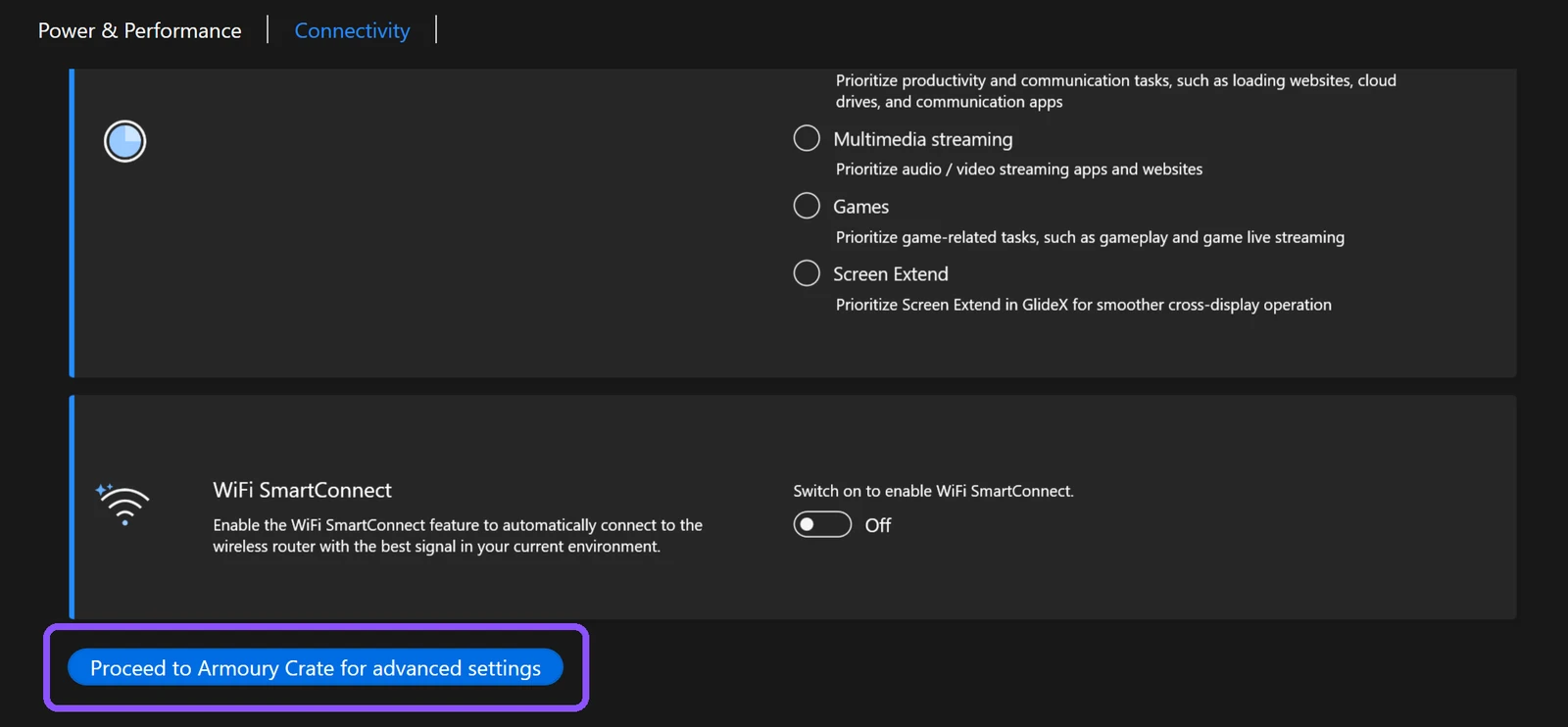
That split was very literal on my G16. MyASUS’s Device Settings page had Battery Care Mode, Instant Full-Charge Mode, TaskFirst and WiFi SmartConnect, and then a Proceed to Armoury Crate for advanced settings button at the bottom. Everything else, from performance modes to fan speeds, lives in Armoury Crate. I tested which of those 4 MyASUS controls are worth changing (TaskFirst included) in the MyASUS settings section further down.
MyASUS vs Armoury Crate side by side (plus G-Helper)
I sorted the MyASUS vs Armoury Crate differences on a ROG laptop into the table below, with G-Helper added as a third column. The MyASUS and Armoury Crate columns are from my G16 this month, and the G-Helper one is from when I ran it as my daily app.
| Feature | MyASUS | Armoury Crate | G-Helper |
|---|---|---|---|
| Battery charge limit | 80% on/off | None in 6.7.6.0 on my G16 | Yes (slider) |
| Performance modes (Silent, Performance, Turbo) | No | Yes | Yes |
| GPU mode (Eco, Standard, Ultimate) | No | Yes | Yes |
| Fan curves | No | Yes | Yes |
| Keyboard and Slash lighting | No | Yes | Yes |
| Network priority (TaskFirst) | Yes | No | No |
| ASUS driver and firmware updates | Yes | Yes | Yes (Updates section) |
| Hardware diagnostics | Yes | No | No |
| Warranty and ASUS support | Yes | No | No |
| ASUS account prompts | Yes | Yes | No |
That last row is the one you’ll notice first, since both ASUS apps keep steering you toward an ASUS account, and Armoury Crate’s User Center still had its Log in to your ASUS account card waiting when I opened it this week. The account pop-up is annoying, feels like it never goes away.
The charge limit is only in MyASUS
I went looking for Armoury Crate’s battery charge limit on my G16 and couldn’t find it anywhere. Under Devices > System Settings > System Configuration there were 7 tiles (Win Key, Function key, Touch Pad, Boot Up Sound, Modern Standby Assistant, Panel Power Saver and Power mode synchronization), and none of the other tabs in the screenshot below had it either.

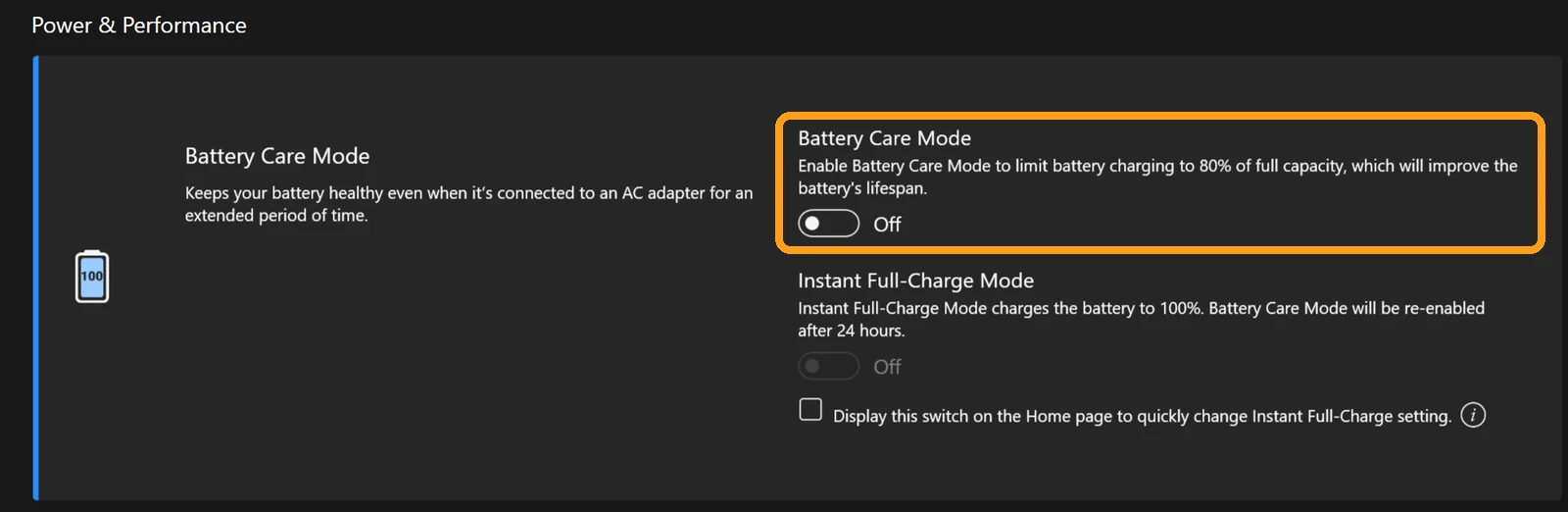
So on my laptop, the Battery Care Mode switch under Device Settings > Power & Performance in MyASUS (the orange box below) is the only place in ASUS’s own apps to set it, and it’s a plain on/off switch fixed at 80%. If you want a different limit than that, G-Helper’s Battery Charge Limit slider lets you pick it, and I went through which limit fits how you use your laptop in ASUS Battery Care Mode.
What each app leaves running in the background
I measured private memory (the RAM a process keeps for itself) for each app’s own processes in the same session, with every window closed.
| App | Processes left running | Memory (MB) |
|---|---|---|
| MyASUS | BackgroundTaskUWP, AsusOSD | 45.3 |
| Armoury Crate | ArmouryCrate.Service, UserSessionHelper, ArmouryCrateControlInterface | 154.8 |
Neither number includes the ASUS System Control Interface services, which run whichever of these apps you pick, since that’s the driver all 3 use to reach the hardware. I went through those in my ASUS System Control Interface post, and the full Armoury Crate breakdown is in is Armoury Crate bloatware, where I counted 29 ASUS processes in total.
MyASUS also uses a lot more while its window is open, with the main process at about 591 MB on the Home page, so the 45 MB is what you pay for having it installed and closed.
Do I need MyASUS and Armoury Crate?
Do I need MyASUS and Armoury Crate both? On a ROG laptop, Armoury Crate is the one you’d miss for gaming, since it holds every setting that changes how the laptop performs. MyASUS adds 3 things Armoury Crate doesn’t have on my G16, which are the battery charge limit, ASUS’s System Diagnosis and the warranty page. When I stopped 5 ASUS background services, the MyASUS Home page broke and 2 of its buttons went gray, which I went through in my MyASUS troubleshooting post.
Its System Update page is worth opening too, because it offered me a 10.83 MB SSD firmware update marked critical (the orange box in the screenshot below), with no BIOS update in the list.
MyASUS or Armoury Crate for a ROG laptop
MyASUS or Armoury Crate, if you only keep one? MyASUS by itself would leave you without performance modes, GPU modes, fan control and lighting on my G16, so it can’t replace Armoury Crate. Armoury Crate 6.7.6.0 by itself leaves you without diagnostics, the warranty page and the charge limit, and while ASUS’s support site covers the first 2, the charge limit needs MyASUS or G-Helper.
Where G-Helper fits in
G-Helper is a free, open-source app that controls the same hardware as Armoury Crate in 1 small process, and it’s what I ran daily for months. It covers the whole Armoury Crate column plus the charge limit, and its Updates section checks for BIOS and driver updates straight from ASUS’s own downloads, which the G-Helper GitHub page spells out. What it doesn’t have is MyASUS’s diagnostics or warranty side, and I compared it to Armoury Crate in detail in G-Helper vs Armoury Crate.
So for MyASUS vs Armoury Crate on a ROG laptop, the 3 realistic setups are Armoury Crate with MyASUS for the charge limit and diagnostics, Armoury Crate alone if you don’t care about capping your battery, or G-Helper alone, and MyASUS by itself isn’t really one of them.
If someone asked me which ASUS apps to keep, I’d tell them MyASUS for simple updates and care, and Armoury Crate for gaming and performance control. G-Helper is naturally the improvement in my eyes though, since it handles the whole Armoury Crate side in 1 small process.
If you keep MyASUS, set these
The first time I opened MyASUS, it walked me through an ASUS account sign-in, a cookie banner and an ASUS Switch screen, and once I landed on Home a popup offering ASUS member deals jumped up right away. On later launches Home still had a Log in and register your device nag plus a Featured row of ASUS offers. If a friend asked me, I’d tell them to turn off all of that extra bloat, because who really needs that in their life. You can’t remove the Featured row, but you can stop the marketing and the login nag in a couple of clicks:
- Click Settings at the bottom of the MyASUS sidebar and stay on the General tab.
- Under Optimize MyASUS usage experience, switch Receive notices of ASUS news and the latest product and service information to Off (box 1 in the screenshot below). It was On by default on my G16, and it stayed Off after I flipped it.
- Leave Customer support functions On if you want warranty status and System Diagnosis to keep working, since MyASUS says it needs that agreement for both.
- The next time the login popup shows up on Home, tick Never show again and click Skip.

Box 2 in that same screenshot is Automatic Critical Update, which was also On by default. It lets MyASUS install the updates ASUS marks as critical without asking you first, and this is the one toggle on that page I’d tell a friend to leave On, because those critical updates are usually the important ones to have.
Does TaskFirst help on dorm Wi-Fi?
TaskFirst pushes whatever you pick (Games, Multimedia streaming and so on) to the front of the line when your Wi-Fi gets busy. To test it, I kept a big Steam download running and played Roblox the whole time on dorm Wi-Fi, while a script pinged 1.1.1.1 twice a second for 2 minutes per round, and you can see every number in the table below.
| TaskFirst | Steam download (Mbps) | Middle ping (ms) | Worst 5% (ms) | Lost pings |
|---|---|---|---|---|
| Off Stock | 411 | 16 | 49 | 16 |
| Games, round 1 | 352 −14.4% | 25 +56.3% | 60 +22.4% | 14 −2 |
| Games, round 2 | 291 −29.2% | 23 +43.8% | 67 +36.7% | 7 −9 |
Setting TaskFirst to Games made that ping worse, and only lost pings improved. My ping script isn’t a game and I was playing Roblox through both settings, so the most likely read is that TaskFirst pushed Roblox ahead and shoved everything else (my test included) further back, but I wasn’t watching Roblox’s own ping, so I can’t promise your game gets faster. What the numbers do show is that anything TaskFirst doesn’t treat as a game got slower, so I’d leave it Off unless the game is the only thing you care about on your Wi-Fi.
WiFi SmartConnect only matters if your home or campus has more than 1 access point broadcasting the same network, so I left it Off. Battery Care Mode caps charging at 80%, and I went through which limit fits how you use your laptop in my ASUS Battery Care Mode guide. Every MyASUS setting I touched is in the table below.
| Setting | Default on my G16 | Set it to |
|---|---|---|
| Receive notices of ASUS news | On | Off |
| Login popup on Home | Shows on launch | Never show again |
| Customer support functions | On | On, if you want warranty status and System Diagnosis |
| Automatic Critical Update | On | On |
| TaskFirst | Off | Off, unless the game is the only thing you care about on your Wi-Fi |
| WiFi SmartConnect | Off | Off, unless you have more than 1 access point |
| Battery Care Mode | Off | On if your laptop mostly stays plugged in |
MyASUS device settings not showing?
If your MyASUS device settings are missing completely, ASUS’s own explanation for partial features in MyASUS points at the ASUS System Control Interface driver, which older models don’t have, so they get a cut-down app. That wasn’t the case on my G16, since the driver was installed and running (I broke down what it installs in my ASUS System Control Interface post). So if you’re on a newer ROG and your MyASUS device settings look as short as mine, nothing is broken, that’s simply how ASUS splits the job between MyASUS and Armoury Crate.
Everything else MyASUS
- What it runs and what you’d lose without it: is MyASUS necessary
- Won’t open or stuck loading: MyASUS not working
- Getting it back without the Store: install MyASUS without Microsoft Store
- BIOS updates MyASUS hid from me: how to update ASUS laptop BIOS
- The Armoury Crate side of the laptop: best Armoury Crate settings
MyASUS vs Armoury Crate FAQ
Is MyASUS better than Armoury Crate?
They don’t do the same job. MyASUS is better for support things like diagnostics, warranty and (on my G16) the charge limit, and Armoury Crate is the only one of the 2 with performance, fan and lighting controls on a ROG laptop.
Is Armoury Crate necessary on an ASUS laptop?
Not if you use G-Helper instead, since it controls the same hardware. If you do keep it, my Armoury Crate setup guide covers the 5 worth changing.
Can I uninstall MyASUS and keep Armoury Crate?
Yes, they’re separate installs. I uninstalled MyASUS in 2.9 seconds and Armoury Crate stayed installed, but on my G16 that also removes the only ASUS app with the charge limit, and I didn’t test whether a limit set beforehand keeps holding after it’s gone. I went through what MyASUS leaves behind in is MyASUS necessary. If you change your mind later, I also covered getting MyASUS back without the Microsoft Store.
Does MyASUS have fan settings?
Not on my G16. You’ll see a Fan Profile option in guides written around other ASUS models, but my ROG’s Device Settings had none, and the fan control lives in Armoury Crate instead.
Does TaskFirst need anything extra installed?
No. It was already in MyASUS 4.0.81.0 on my laptop, and I couldn’t find any new service or Windows network policy tied to it.
If you run MyASUS and Armoury Crate together, tell me in the comments which one you actually open more, because I’m curious if anyone uses MyASUS for more than the warranty page. Anyone landing on G-Helper instead shouldn’t trust ASUS’s uninstall tool to fully clean up Armoury Crate, because it left a service running and 4 dead scheduled tasks on my G16.