ASUS GlideX: What It Runs and Should You Remove It? (2026)
ASUS GlideX is one of those apps that comes preinstalled on ASUS laptops, and most people only notice it when they see a handful of GlideX entries in Task Manager or Services. On my Zephyrus G16 that turned out to be 4 background services using about 16 MB, which isn’t much, except the GlideX app they’re there to support wasn’t even installed.
So I dug into what each of those services does, what they let through Windows’ firewall, and what it takes to get rid of them. Whether you actually use GlideX to mirror your phone or you just want to know if it’s safe to remove, I’ll go through what it runs, what it’s for, and how to uninstall it down below.
After I checked what GlideX was running on my G16:
- GlideX app: Not installed at all
- Services: 4 kept running since boot, about 16 MB together
- CPU: 0% for all 4 over 60 seconds
- Firewall: Inbound rules allowed connections on private and public networks
- Zephyrus G16 (GA605WI)
- Ryzen AI 9 HX 370
- RTX 4070 Laptop
- Windows 11 Home 26H2
- GlideX Service Installer 3.2.6.0
Build 26300 · installed at the factory
What Is ASUS GlideX?
GlideX is ASUS’s free app for using your phone, tablet or a second laptop together with your ASUS laptop. ASUS’s GlideX introduction calls it a cross-device screen sharing solution, so the main idea is mirroring your phone’s screen onto the laptop, or using another device as an extra monitor, over a cable or Wi-Fi.
It’s really 2 separate installs though. There’s the GlideX app, which comes from the Microsoft Store, and there’s GlideX Service Installer, which puts the background services on the laptop. On my G16 the service half was installed at the factory, and the app half wasn’t there anymore.
What GlideX Runs in the Background
GlideX Service Installer adds 4 Windows services, all set to start automatically with Windows. I pulled each one’s description from Windows Services and measured its private memory, and sorted it all into the table down below.
| Service | What ASUS says it does | Version | Memory (MB) |
|---|---|---|---|
| GlideX Service | Screen Mirror, Extend and Unify Control | 3.2.6.0 | 4.2 |
| GlideX Near Service | Shared Cam, File Transfer, URL Share | 3.1.7.0 | 3.6 |
| GlideX Remote Service | Remote File Access and Remote Desktop | 3.3.0.0 | 4.3 |
| GlideX Service Extension | Diagnostics tools | 3.1.17.0 | 4.2 |
| Total | 16.3 |
All 4 had been running since the laptop booted, and over a 60-second check every one of them used 0% CPU, so performance-wise they cost close to nothing. The folder they run from, C:\Program Files\ASUS\GlideX, held 113 files and about 46.5 MB, and Windows lists the installer at 45.5 MB in Installed apps.
One of the descriptions is a bit of a giveaway too. GlideX Remote Service says it provides remote file access and remote desktop “within Link to MyASUS”, so part of what GlideX installs is really there for MyASUS, ASUS’s other support app.
GlideX Services With No GlideX App
Here’s the catch though, the GlideX app wasn’t installed on my laptop, and neither was MyASUS. The services were still running all day with nothing on the laptop to use them.
Windows Defender Firewall still remembered the app too. It had allow rules for GlideX 4.1.2.0 and for MyASUS, even though neither one shows up in Installed apps, so both had been on the laptop at some point and the services just stayed when the apps left. If you’ve removed GlideX through the Microsoft Store and thought that was the end of it, the services are the part that’s easy to miss.
Is ASUS GlideX Safe?
Every GlideX service exe had a valid digital signature from ASUSTeK, so they’re genuine ASUS software. The part worth knowing about is the firewall. GlideX Service, GlideX Near Service and GlideX’s remote agent each had inbound allow rules on both Private and Public networks, which means Windows lets other devices connect to them, including on coffee shop or hotel Wi-Fi.
When I checked, none of the GlideX services were actually listening for connections, so nothing was open at that moment. I didn’t test what changes once the app is installed and a phone is connected, so I left that part untested. If you don’t use GlideX, there’s no reason to have those services and their rules sitting there.
What Is ASUS GlideX and Do I Need It?
You don’t need it for anything the laptop does on its own. It’s only useful if you use one of its features:
- Mirroring your phone onto the laptop screen, or using a tablet as a second monitor.
- Using your phone’s camera as a webcam, which is the Shared Cam feature in GlideX Near Service.
- Sending files or links between your phone and the laptop.
If none of that sounds like something you’d use, GlideX is one of the easiest ASUS apps to remove, since none of the other services on my laptop listed it as something they depend on. It’s a separate install from Armoury Crate, so removing it doesn’t touch your fan modes, charge limit or anything I covered in my best Armoury Crate settings.
How to Uninstall ASUS GlideX
GlideX comes off through the normal Windows app list:
- Open Settings > Apps > Installed apps.
- Type GlideX in Search apps (#1 in the screenshot below).
- Click the three dots next to GlideX Service Installer (#2), then click Uninstall.
- Click Uninstall again to confirm, and click Yes if Windows asks for permission.
- If the GlideX app itself also shows up in the search, uninstall it the same way.
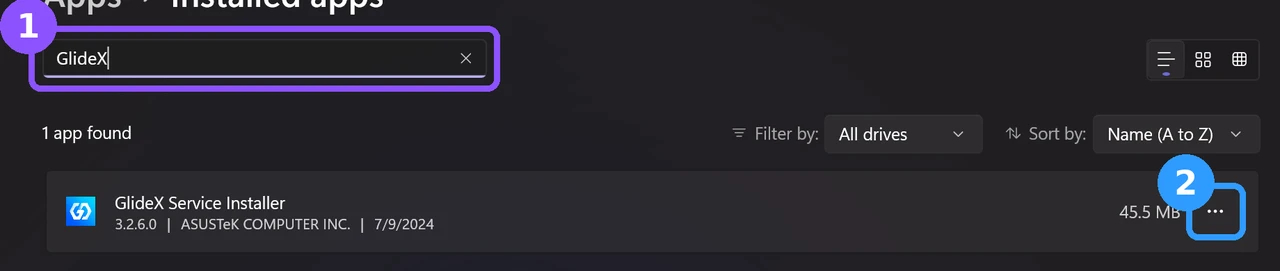
I didn’t uninstall it on mine, so I left the uninstall itself untested, including whether it removes the firewall rules. Afterward, open Services (Windows + R, type services.msc, Enter) and check that the 4 GlideX services are gone. If you’d rather keep GlideX but stop it from starting at boot, you can double-click each GlideX service there, set Startup type to Manual, then click Apply and OK.
ASUS GlideX FAQ
Is ASUS GlideX free?
ASUS describes it as a free app, and there was nothing to pay for on the service side on my laptop. I didn’t install the app to check every feature, so I left any paid options untested.
Does ASUS GlideX work with iPhone?
There’s an ASUS GlideX app on Apple’s App Store as well as Google Play, so ASUS supports both. I didn’t connect a phone for this post.
What is GlideX Service Installer?
It’s the package that installs GlideX’s 4 background services. It’s listed separately from the GlideX app in Installed apps, and it can stay behind after the app is gone, like it did on mine.
Will removing GlideX break anything?
Going by Windows Services, none of the other services on my laptop need it, and going by ASUS’s own descriptions it doesn’t control any hardware. The ASUS background apps that do are a different story, which I went through in Armoury Crate Service and ASUS Smart Display Control.
If you use ASUS GlideX every day, drop what you use it for in the comments, because I want to know if it’s worth installing the app back for a proper test.