MyASUS Not Working? 4 Problems I Fixed Without Rebooting (2026)
MyASUS not working usually shows up as a blank status card, grayed-out buttons or a message telling you to reboot, and on my Zephyrus G16 I got all 3 of those. Most of the time the reboot isn’t what fixes it, since MyASUS leans on 5 ASUS background services and the message shows up whenever they aren’t running the right way.
I installed MyASUS fresh, broke it on purpose and fixed it again without restarting once. Whether MyASUS won’t load your laptop’s info, keeps asking you to restart or seems stuck on a test, I’ll go through the cause and the fix for each one I hit down below.
After I stopped 5 ASUS services and opened MyASUS on my G16:
- Home page: Showed “System status is currently unavailable. Please reboot your system”
- Buttons: One-click diagnosis and Check updates went gray
- Restarting the 5 services: Brought everything back with no reboot
- Out-of-date driver: MyASUS blocked setup until it updated it, about 30 seconds
- Zephyrus G16 (GA605WI)
- Ryzen AI 9 HX 370
- RTX 4070 Laptop
- Windows 11 Home 26H2
- MyASUS 4.0.77.0
Build 26300 · ASUS System Control Interface 3.1.72.0 · Armoury Crate 6.7.6.0 installed
Jump to your problem:
- MyASUS says “System status is currently unavailable” or keeps asking you to restart
- MyASUS keeps asking you to update the ASUS System Control Interface
- One-click diagnosis looks stuck
- MyASUS won’t install from the Microsoft Store
Why MyASUS Stops Working
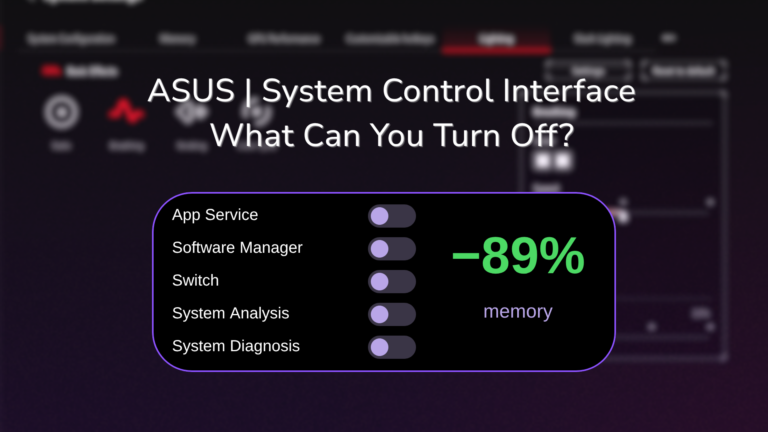
MyASUS is mostly a window. The parts that actually read your battery, run diagnostics and check for updates are separate Windows services that come with the ASUS System Control Interface driver (I’ll call it SCI from here). If those services are stopped, crashed or running an older copy of themselves, MyASUS still opens but has nothing to show.
These are the 5 it depended on during my testing, all set to start automatically:
- ASUS App Service (AsusAppService)
- ASUS Software Manager (ASUSSoftwareManager)
- ASUS Switch (ASUSSwitch)
- ASUS System Analysis (ASUSSystemAnalysis)
- ASUS System Diagnosis (ASUSSystemDiagnosis)
MyASUS Not Working: “System Status Is Currently Unavailable”
With all 5 services stopped, MyASUS opened normally but the Home page showed System status is currently unavailable. Please reboot your system. where the battery and memory cards should be, along with a yellow Please restart the system to ensure the functions work properly banner. One-click diagnosis and Check updates were both grayed out.
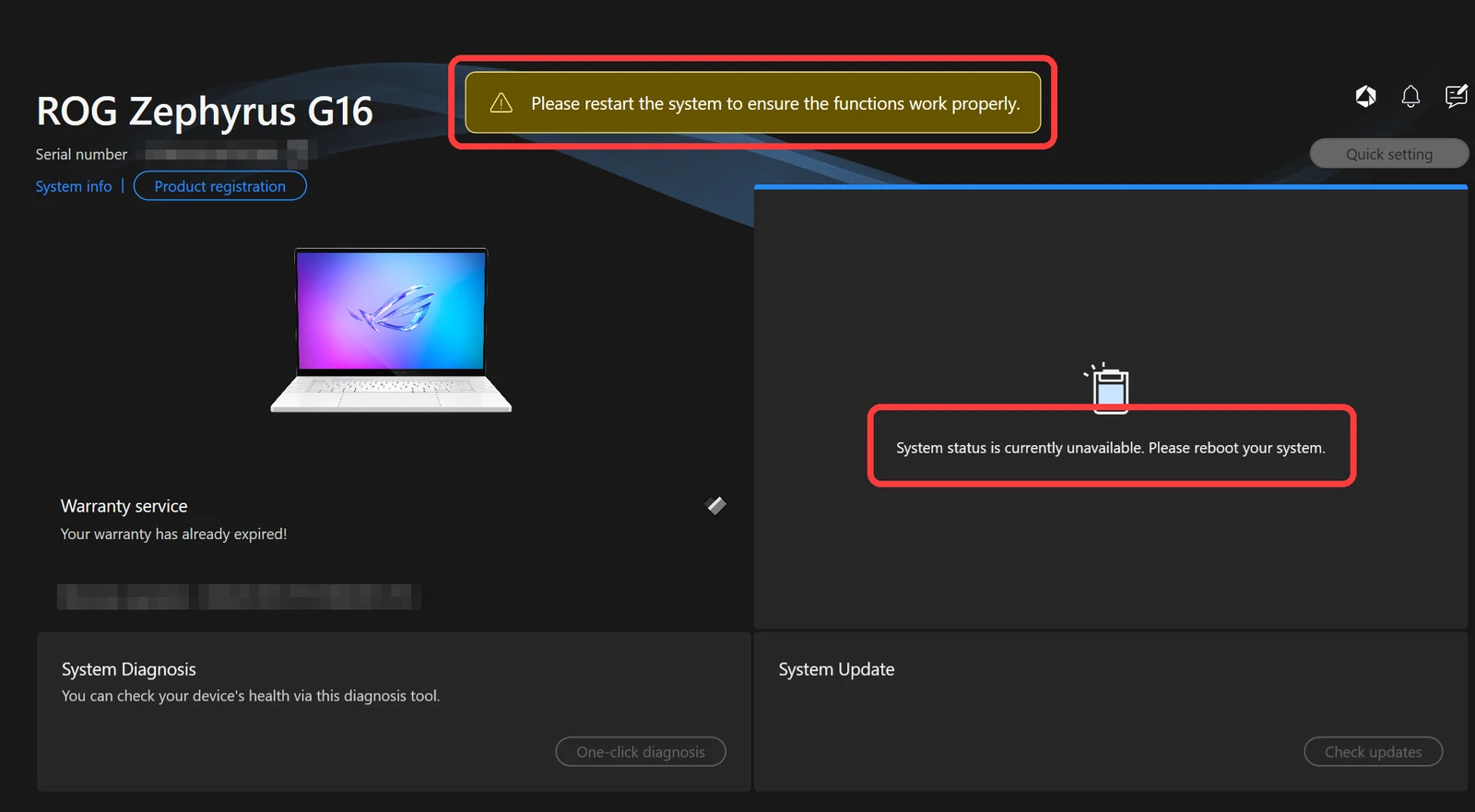
A restart would probably fix it, since the services start with Windows, and for most people that’s the simple answer. It’s definitely annoying though when restarting 5 services does the same thing in a few seconds, so this is how I skipped the reboot:
- Close MyASUS.
- Press Windows + R, type services.msc and press Enter.
- Find each of the 5 services listed above, right-click it and click Start (or Restart if it already says Running).
- If a service won’t start, double-click it, set Startup type to Automatic, click Apply, then click Start.
- Open MyASUS again.
On my laptop that brought the status cards back, turned the diagnosis button back on and made the restart banner disappear, no reboot needed. If you’d rather do it in one go, this does the same thing from an admin Terminal:
'AsusAppService','ASUSSoftwareManager','ASUSSwitch','ASUSSystemAnalysis','ASUSSystemDiagnosis' | ForEach-Object { Restart-Service $_ -Force }Why MyASUS keeps asking you to restart
I got the same yellow restart banner earlier, right after MyASUS updated SCI, with every service running. When I checked, 2 of the services (ASUS Software Manager and ASUS System Diagnosis) were still running from the old driver’s folder while the rest had moved to the new one, which is the mismatch the banner is really about. Restarting the 5 services moved all of them onto the new version, and the banner was gone. That’s most likely what’s behind the threads about MyASUS asking for a restart over and over after a Windows update too, though I only reproduced it after a driver update.
MyASUS Keeps Asking to Update ASUS System Control Interface
The first time I opened MyASUS it wouldn’t go past the welcome screen until I dealt with a New updates box saying to update the ASUS System Control Interface. The only button is I understand, and clicking it is what starts the update.
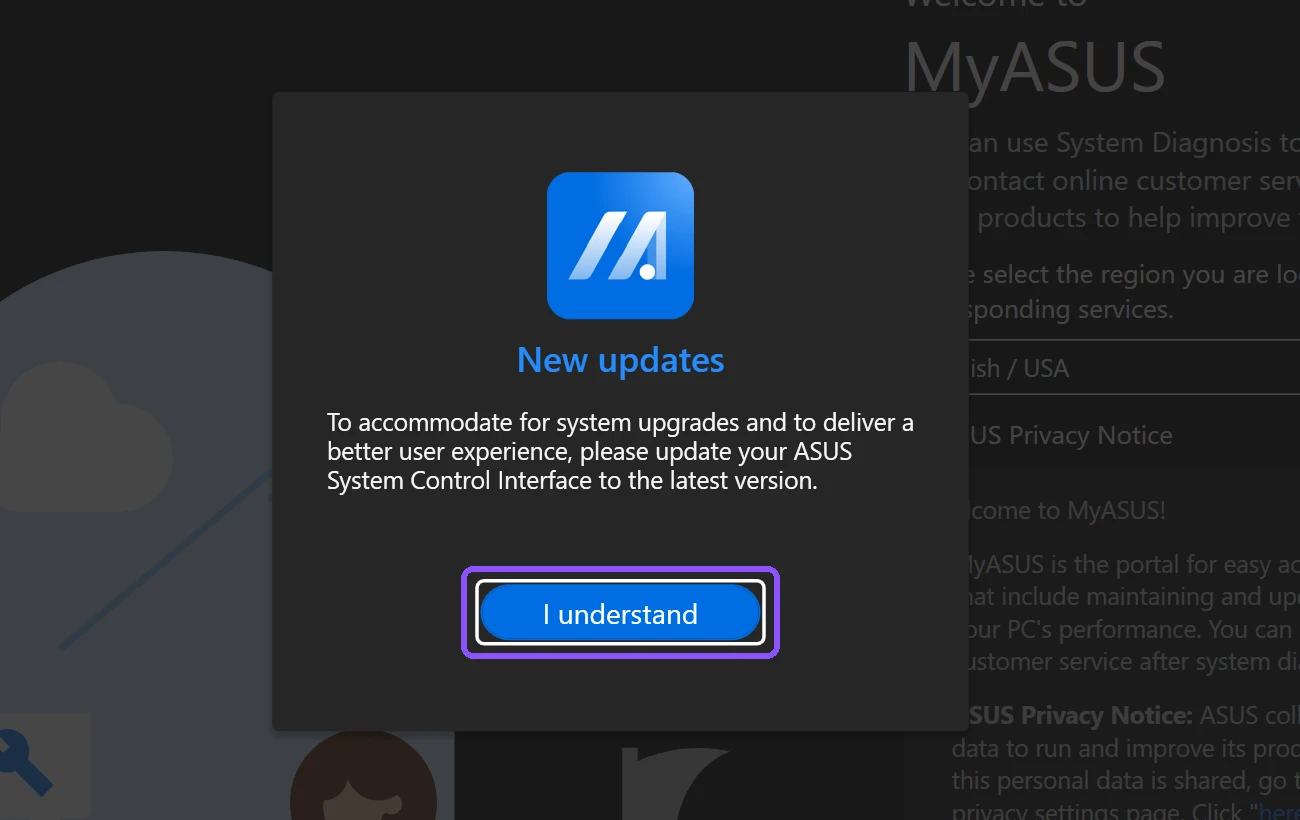
On my G16 it took about 30 seconds to go from 3.1.70.0 to 3.1.72.0, then MyASUS showed Your device has been updated to the latest version and carried on. If the update fails or the box keeps coming back, ASUS’s MyASUS install guide has the manual route, downloading the SCI V3 installer from your model’s support page and restarting after. ASUS also says that if your model has no SCI driver on its support page at all, MyASUS will only ever show partial features, so missing tabs on an older laptop can be normal.
MyASUS Device Settings or System Update missing
If whole pages are missing instead of grayed out, it’s the same driver. ASUS’s own feature table says that without SCI, MyASUS 4.0 drops Device Settings, System Diagnosis, System Update and ASUS Switch, and only shows things like System Info, the warranty page and customer support. On my G16 with SCI V3 installed, all 4 were there. To check yours, right-click Start, click Device Manager, open System devices and look for ASUS System Control Interface.
I covered what else SCI installs in my ASUS System Control Interface post.
MyASUS One-Click Diagnosis Looks Stuck
I clicked Checkup under One-click diagnosis expecting it to run on its own, and it stopped on a Keyboard Test screen asking me to press keys, with a note saying other tests can only run after this one is done. It sits there waiting for you, so if you clicked it and walked away it’ll look frozen.
Either press the keys it asks for, or click Cancel on the Keyboard Test and run Customized diagnosis instead with only the automated items ticked (Adapter, Memory, Wi-Fi, Bluetooth, Solid state disk, Battery, Fan, System check). MyASUS also wouldn’t close normally while that test was waiting, so cancel it before you try to close the app.
MyASUS Not Installing From the Microsoft Store
ASUS only gives out MyASUS through the Microsoft Store, so a broken Store means no MyASUS. I installed mine with Windows’ built-in winget tool instead, which took about 3 minutes and never opened the Store window:
winget install --id 9N7R5S6B0ZZH --source msstore --accept-package-agreements --accept-source-agreementsI wrote up the whole thing, including the first-launch screens, in install MyASUS without the Microsoft Store.
MyASUS Not Working FAQ
Why is MyASUS not opening?
I didn’t get a crash on launch during my testing, so I left that one untested. The quickest thing to try is a reinstall: uninstall MyASUS from Settings > Apps > Installed apps, then install it again. Uninstalling took 2.9 seconds on mine and didn’t touch the SCI driver.
Why is MyASUS stuck initializing?
I didn’t hit this one on my laptop. On Microsoft’s Q&A forum, a user whose MyASUS sat at 50% or 90% on the Welcome screen was told to uninstall it and install it again, and 5 people marked that answer as helpful. That user only needed MyASUS for a 60% charge limit, and Armoury Crate and G-Helper can set the same limit if MyASUS won’t load.
What if the MyASUS login is not working?
You can skip it. The sign-in screen during setup has a Next button that goes straight past it, and everything I tested worked without an account. I didn’t test a failing login, so if you need the account for warranty registration and it won’t sign in, that one’s for ASUS support.
Why is MyASUS not showing BIOS updates?
System Update only lists what ASUS has pushed for your exact model. Mine offered 1 critical update, an SSD firmware update, and no BIOS. If you’re expecting a BIOS update, check your model’s page on ASUS’s support site, which System Update links to at the bottom.
Do I need to log in for MyASUS to work?
No. I skipped the ASUS account sign-in by clicking Next, and Device Settings, System Diagnosis and System Update all worked.
Is MyASUS worth fixing?
On a ROG laptop it has 4 settings and hands the rest to Armoury Crate, which I went through in is MyASUS necessary. If you’re also fighting Armoury Crate, my Armoury Crate not working fixes cover the same services from the other side.
If MyASUS is still showing a blank Home page after restarting those 5 services, drop your laptop model and the exact message you see in the comments and I’ll take a look.