ASUS System Control Interface: What It Installs (Tested 2026)
ASUS System Control Interface is the one piece of ASUS software that even the people who rip everything else out tend to keep, and on my Zephyrus G16 it turned out to be a lot more than a driver. It quietly installs a whole bundle of background services that don’t show up in Installed apps, so I went through every one of them and tested which ones could be switched off.
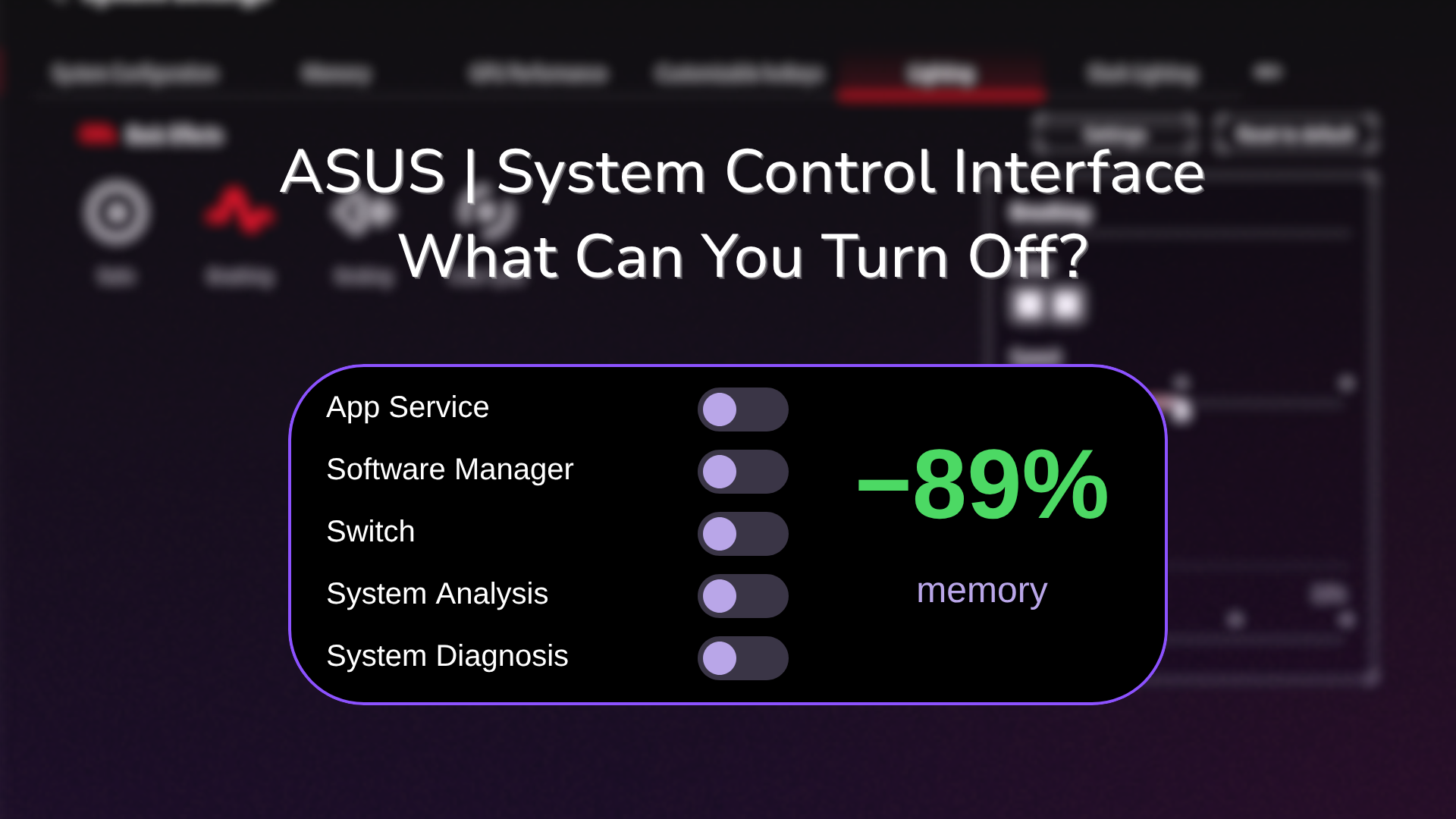
Stopping 5 of them cut its background memory by about 89%, and Armoury Crate didn’t even notice, which wasn’t what I expected after breaking it the last time I turned ASUS services off. Whether you found it in Device Manager and want to know what it is, or you’re trying to slim down an ASUS laptop without breaking anything, I’ll go through what it installs, what you need, and what’s safe to stop down below.
After I stopped 5 of the System Control Interface’s services:
- Memory: Dropped from about 71.6 MB to 7.8 MB
- Armoury Crate: Still opened normally, with no Service Error
- Hotkey processes: AsusHotkey and ASUS Optimization kept running
- Auto-restart: None of the 5 came back on their own within 2 minutes
- Zephyrus G16 (GA605WI)
- Ryzen AI 9 HX 370
- RTX 4070 Laptop
- Windows 11 Home 26H2
- System Control Interface v3 3.1.70.0
- Armoury Crate 6.7.6.0
Build 26300 · MyASUS not installed
What Is ASUS System Control Interface?
It’s a driver that lets Windows talk to the ASUS-specific parts of the laptop, the stuff a generic Windows install has no idea about. In Device Manager, it shows up under System devices as ASUS System Control Interface v3, and it’s attached to an ASUS device built into the laptop’s firmware.
Since it’s a driver, you won’t find it in Settings > Apps > Installed apps at all, which confuses a lot of people looking for it. But the driver package also carries a set of ASUS services, and Windows runs those from its driver store, at C:\Windows\System32\DriverStore\FileRepository, in a folder that held 87 files and about 48.6 MB on my laptop.
What ASUS System Control Interface v3 Installs
On my G16, the System Control Interface package was running 9 processes. I pulled what ASUS says each one does from the descriptions in Windows Services, measured private memory, and sorted it all into the table down below.
| Process | What ASUS says it does | Memory (MB) |
|---|---|---|
| ASUS App Service | Monitors the ASUS service activities | 6.3 |
| ASUS Optimization | Personalization options and hardware configuration features | 3.3 |
| AsusHotkey | Runs from the ASUS Optimization folder, started by a login task | 1.9 |
| AsusOptimizationStartupTask | Also from the ASUS Optimization folder | 2.5 |
| ASUS Software Manager | Software installation and driver/firmware updates | 4.3 |
| AsusSoftwareManagerAgent | A helper the Software Manager starts on its own | 40.5 |
| ASUS Switch | Device migration and backup | 2.7 |
| ASUS System Analysis | Hardware information for system diagnostics | 7.0 |
| ASUS System Diagnosis | System diagnostic services | 3.1 |
| Total | 9 processes | 71.6 |
The biggest one by far was AsusSoftwareManagerAgent at about 40.5 MB, a helper the Software Manager starts on its own. Everything else was under about 7 MB each, and over a 60-second check none of them used any measurable CPU.
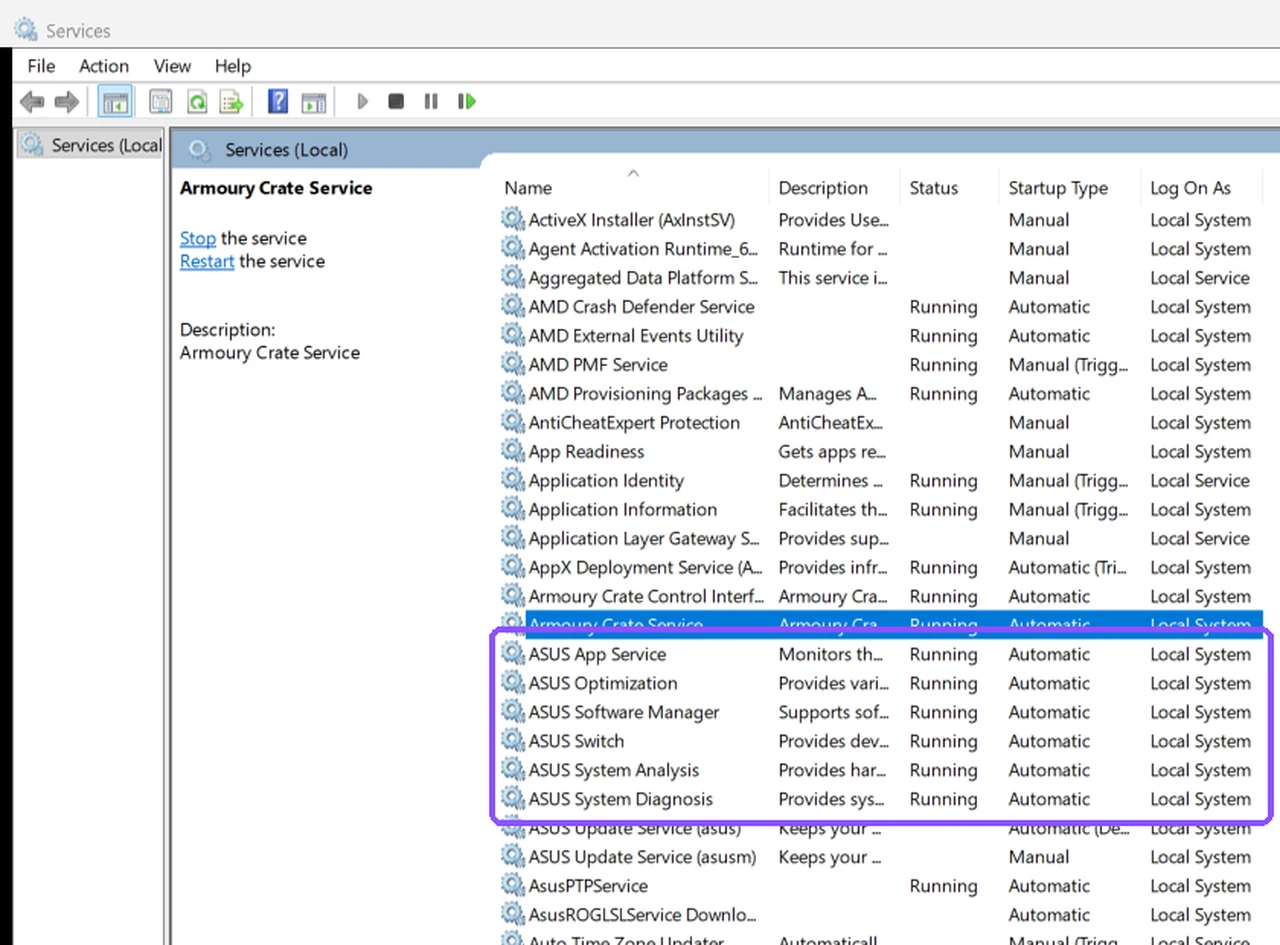
The package also adds 4 scheduled tasks, including ASUS Update Checker 2.0 and one that starts AsusHotkey at every login, and ASUS Switch comes with inbound firewall rules on private and public networks. You can see the services themselves in Services, boxed in the screenshot down below.
Do I Need ASUS System Control Interface?
For the driver itself, yes. The G-Helper wiki lists ASUS System Control Interface as a mandatory requirement, so even if you’ve replaced Armoury Crate with G-Helper, this is the layer G-Helper talks to. I went through setting that up in G-Helper download.
ASUS also uses it to fix things. Its System Control Interface FAQ says updating it fixes Windows 11 upgrade errors 0xC1900101 and 0x80070002 on some laptops. So uninstalling it is the one ASUS cleanup step I’d skip, while a few of the services it brings along are a different story.
Which System Control Interface Services Can You Stop?
To find out, I stopped the 5 services that sound like they’re for support tools rather than hardware, which were ASUS App Service, ASUS Software Manager, ASUS Switch, ASUS System Analysis and ASUS System Diagnosis. I left ASUS Optimization running, since AsusHotkey runs from its folder. Then I watched them for 2 minutes and opened Armoury Crate, and sorted the results into the table down below.
| All running Stock | 5 services stopped | |
|---|---|---|
| Processes running | 9 | 3 −6 |
| Their memory (MB) | 71.6 | 7.8 −89.1% |
| Armoury Crate | Opened normally | Opened normally, no Service Error |
Each one stopped within about 2 seconds, nothing restarted them in the 2 minutes I watched, and Armoury Crate opened normally with no Service Error. It went a lot better than my Armoury Crate not working testing, where disabling all 10 ASUS services broke the app completely. On my laptop, these 5 on their own weren’t enough to trigger that error.
When I started the 5 back up, they came back to 29.5 MB, because AsusSoftwareManagerAgent didn’t relaunch. I didn’t test the Fn keys while the services were stopped, so I left the hotkeys untested with them off.
How to Stop the Services
If you want to try the same thing, here’s how in Windows Services:
- Press Windows + R, type services.msc, and press Enter.
- Double-click ASUS System Diagnosis.
- Set Startup type to Manual, click Stop, then click Apply and OK.
- Do the same for ASUS System Analysis, ASUS Switch, ASUS Software Manager and ASUS App Service.
- Leave ASUS Optimization alone.
I only stopped them for this test, so I didn’t check whether a restart or a driver update puts them back on Automatic. If you use G-Helper, its Extra window has a Stop button for ASUS services that does this for you, and I covered what that button does in G-Helper not working.
How to Check or Update the ASUS System Control Interface Driver
- Right-click Start and click Device Manager.
- Expand System devices and double-click ASUS System Control Interface v3.
- Open the Driver tab and read Driver Version.
Mine was 3.1.70.0, dated August 2026, and Windows still had the previous 3.1.68.0 package stored too, so it had already updated itself at least once. If yours is old, ASUS lists the installer as ASUSSystemControlInterfaceV3.exe on your model’s support page under Software and Utility.
How to Uninstall ASUS System Control Interface
You can remove it from Device Manager by right-clicking ASUS System Control Interface v3, clicking Uninstall device, checking Attempt to remove the driver for this device, and clicking Uninstall. I didn’t do this on mine, because G-Helper needs it and ASUS also delivers its drivers through Windows Update, so I left the uninstall untested. If you’re trying to cut down ASUS’s background load, stopping the 5 services above got me most of the way there without touching the driver.
ASUS System Control Interface FAQ
What’s the difference between System Control Interface v1 and v3?
They’re different generations for different laptops, and ASUS’s FAQ splits its instructions by model. My 2024 G16 uses v3. Install whichever one your model’s support page lists.
Is ASUS System Control Interface the same as MyASUS?
No. MyASUS is the app, and the System Control Interface is the driver and services underneath it. MyASUS hasn’t been on my laptop since February, and the System Control Interface services were still running without it.
Does it affect gaming performance?
I didn’t run a game with the services stopped, so I left FPS untested. At idle all 9 processes used no measurable CPU. For the settings that do change FPS, check out my best Armoury Crate settings.
If you’ve stopped the ASUS System Control Interface services and something broke that I didn’t catch, like a specific Fn key, drop your model and what stopped working in the comments.