
Armoury Crate GameVisual: 9 Modes Tested on OLED
Armoury Crate GameVisual gives your ASUS laptop’s screen 9 color modes, and ASUS doesn’t show you a single picture of what any of them do. So I photographed every one on my Zephyrus G16’s OLED screen in a dark room. A few of them threw away the deep blacks that make an OLED worth having in the first place.
You’ll see which modes kept the screen looking right, the one I actually leave on for gaming, and how to get GameVisual back if it’s missing from Armoury Crate.
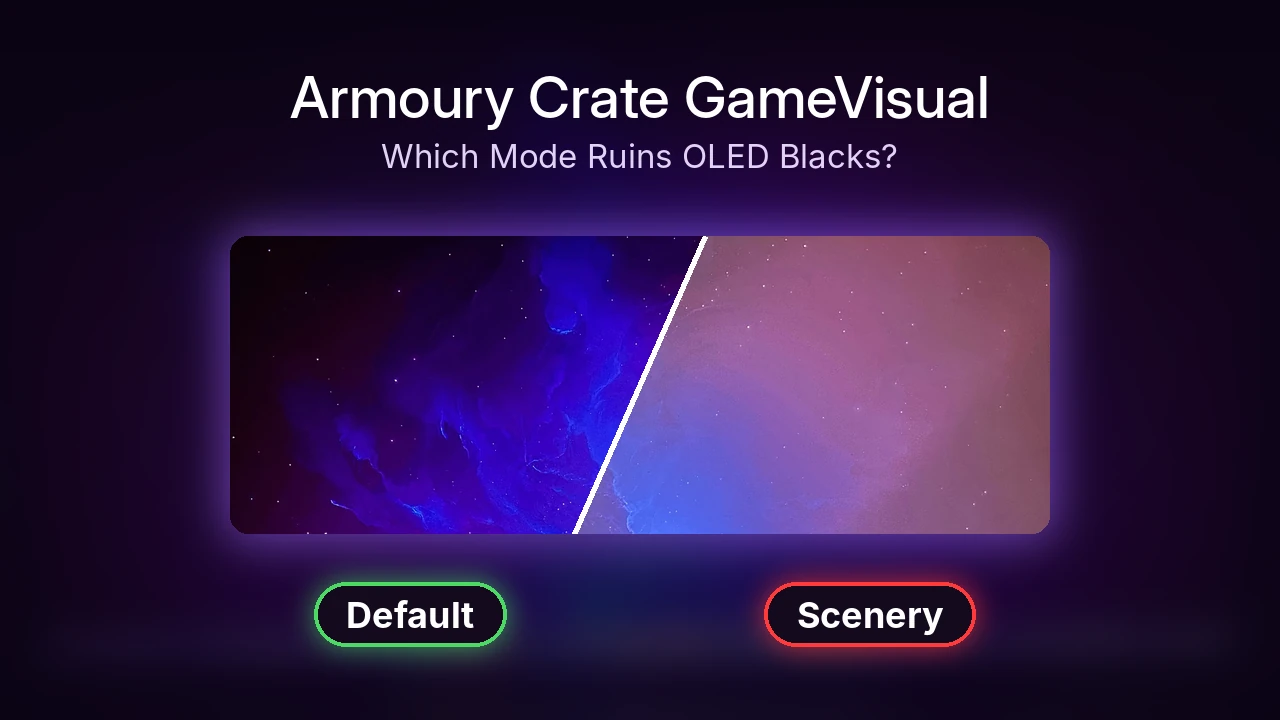
After I cycled through all 9 modes with Fn + V, Default, Vivid and RTS/RPG kept the OLED’s deep blacks, FPS brightened the shadows enough to see in dark scenes, and Cinema, Scenery and Racing washed the whole screen out to pink and lavender.
- Zephyrus G16 (GA605WI)
- Ryzen AI 9 HX 370
- RTX 4070 Laptop
- Windows 11 Home 26H2
- Armoury Crate 6.7.6.0
OLED screen · Phone photos in a dark room, same wallpaper for every mode
The reason I went with phone photos is that GameVisual doesn’t show up in screenshots at all. When I switched my G16 to E-Reading, my whole screen went gray-sepia, but a screenshot I took of Armoury Crate in that exact moment still came out in full color, so if you’ve ever compared modes by screenshot and thought they all looked the same, that’s why. If you’re setting up the rest of the app too, I tested the 5 Armoury Crate settings that actually changed my FPS and battery in a separate post.
What Armoury Crate GameVisual changes
Armoury Crate GameVisual lives under Display Settings > GameVisual in the left sidebar, and every mode is a tile you click once. Under the tiles there’s a Color Gamut dropdown (mine was on Native – Default vivid colors), a Color Temperature slider, and 2 toggles under GameVisual Control: OSD, which shows the mode’s name when it changes, and Hotkey Switch, which lets you flip through the modes with Fn + V.
Each mode turned out to be a color profile file that ASUS keeps for your exact screen, in C:\ProgramData\ASUS\GameVisual. Mine had separate profiles named after my G16’s model (GA605WI), plus a monochrome one that E-Reading uses. So picking a mode just swaps which of those profiles your screen uses.
One thing worth knowing if you’re on an OLED like mine is that there’s no Panel Overdrive option anywhere. I looked through both Display Settings and the System Configuration tab under Devices, and it simply isn’t there on this screen.
Every GameVisual mode on my OLED
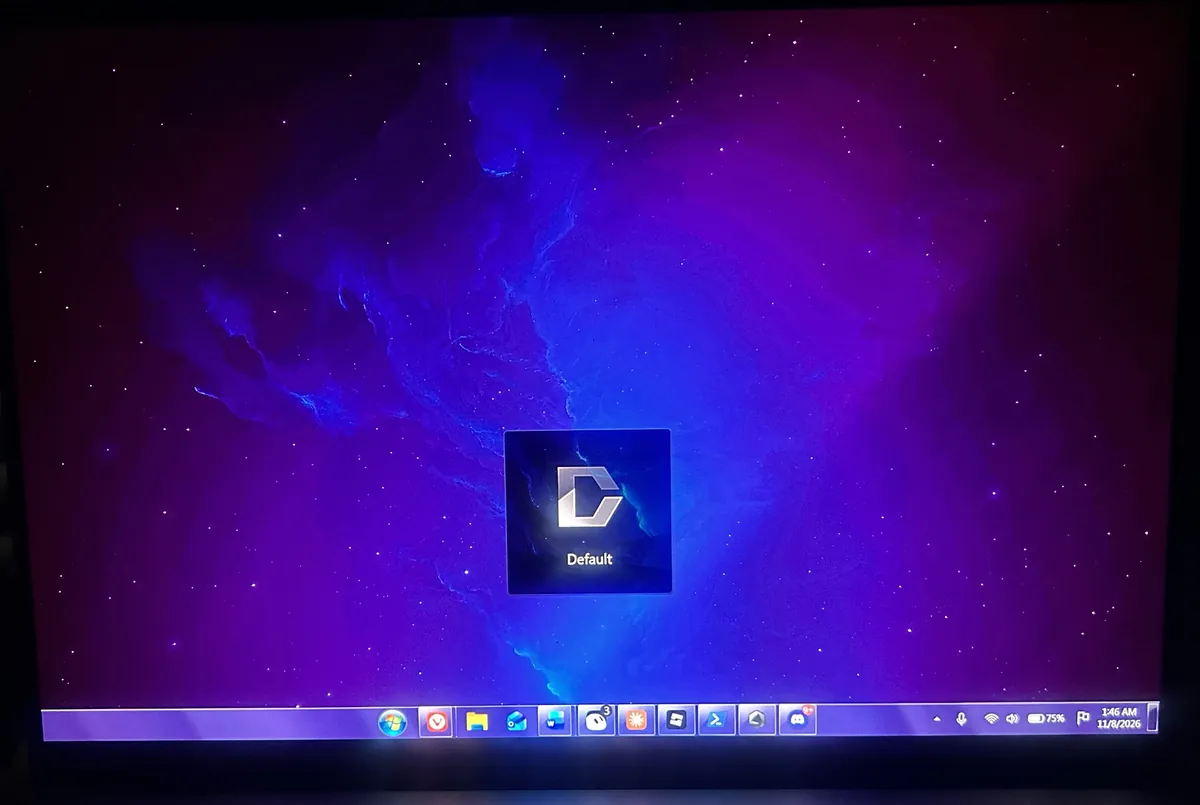
I put my usual purple space wallpaper up, turned every light in the room off, locked my phone’s focus and exposure, and pressed Fn + V on the laptop’s keyboard between each shot. All 9 are in the grid below, in order from Default to Racing.

Default, Vivid and RTS/RPG keep the blacks
These 3 looked almost the same on my screen. The space stayed properly black, the blue in the middle stayed strong, and the edges faded into magenta the way the wallpaper actually looks. Vivid was barely any punchier than Default, and RTS/RPG leaned a touch cooler and bluer, so if you’re picking between the 3, you’re really just splitting hairs.
FPS lifts the shadows
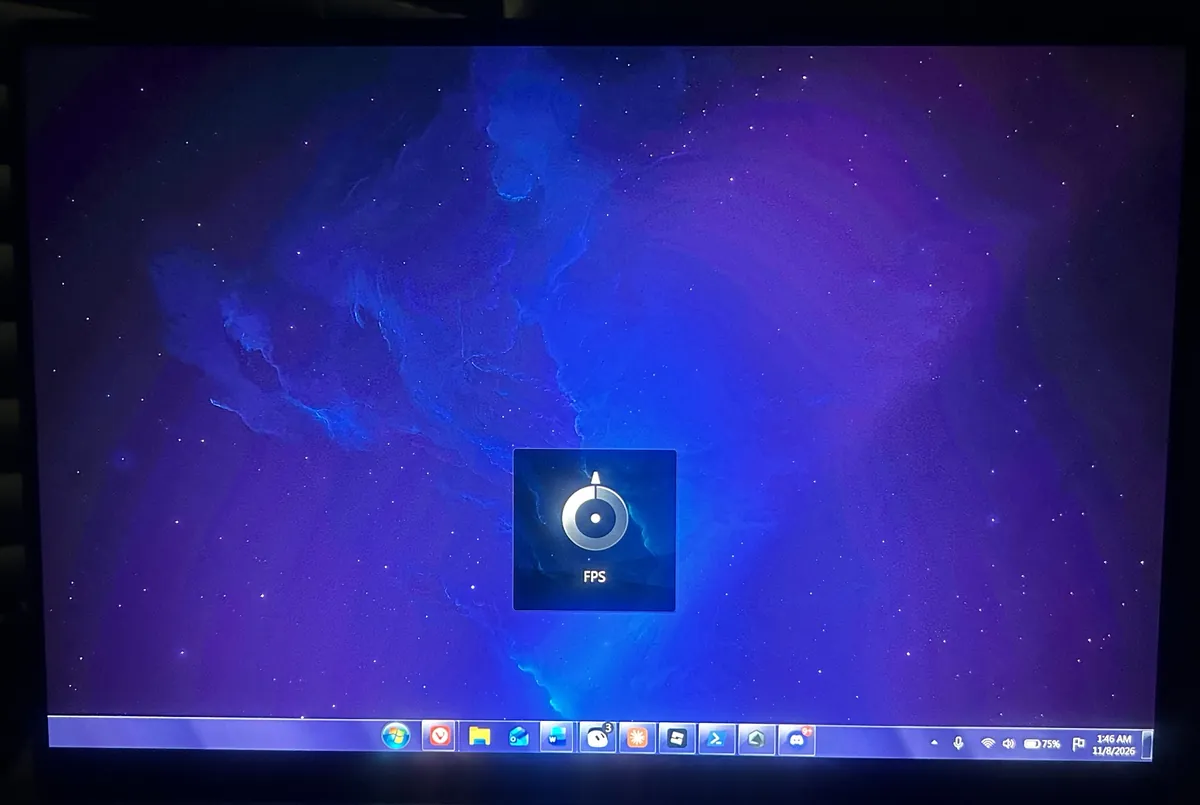
FPS was the one that changed the most without ruining the picture. It brightened the darkest parts of the screen to a blue-gray, so the black space wasn’t black anymore, but you could see a lot more detail in the shadows, which is exactly what you want when you’re hunting for someone hiding in a dark corner of a map.
Eye care and E-Reading for late nights
Eye care pulled the blue in the middle of my wallpaper toward a warm magenta and red, which is the whole point of it, since it’s cutting down blue light for when you’re on your laptop in the dark. E-Reading drained all the color out, but on my screen it came out as a warm gray-sepia rather than the pure black and white ASUS describes it as.

Cinema, Scenery and Racing wash it out
These 3 are the ones I’d stay away from on an OLED. All of them lifted the black space up into a flat lavender or dusty pink, and the contrast that makes an OLED look so good was just gone. Scenery was the worst of them, and in both Scenery and Cinema the darkest corner of my wallpaper turned into a blotchy patch of pixels you can see in the close-up below, which never shows up in Default.

Best GameVisual mode for your laptop
If your use of the laptop is variable, with not one specific thing taking up your time, Default is always the safe way to go, since it’s colorful but also not too vibrant. If you’re working a lot in the dark, Eye care is a nice way to cut out a little blue light, and if you’re an avid gamer, FPS is very useful. For gaming on the laptop’s own screen, the GPU mode matters too, since Ultimate averaged about 7% more FPS than Standard in Cyberpunk on this same G16.
Personally, I love FPS mode because it lets me see in the dark when I’m mining in a Minecraft cave (I know that’s not an FPS, but it’s still useful lol).
| If you mostly | Mode |
|---|---|
| Do a bit of everything | Default |
| Play games with dark scenes | FPS |
| Work or read late at night | Eye care |
| Want the deepest OLED blacks | Default, Vivid or RTS/RPG |
Armoury Crate GameVisual missing
Right after I factory reset my G16, Armoury Crate came back without GameVisual at all. Display Settings was grayed out in the sidebar, along with Scenario Profiles, Macros and Game Library, and clicking one of them just popped up Go to Feature Library. These live in separate add-ons Armoury Crate doesn’t always install for you, so here’s how I got it back:
- Click Feature Library near the bottom of Armoury Crate’s left sidebar.
- Scroll to Assistant and click its Install button.
- Click Install again on the Important reminder box that lists Assistant.
- Wait for the notice saying the feature libraries were installed (mine took about 45 seconds), then click Reopen app.
Once Armoury Crate reopened, Display Settings was clickable again with GameVisual on the first tab. If you’re wondering which pieces the different Armoury Crate downloads come with in the first place, I compared what each Armoury Crate download puts on your laptop.
GameVisual Fn + V not working
Fn + V didn’t do anything for me at first, and that was only because I was typing on my external keyboard. The shortcut needs the Fn key on the laptop’s own keyboard, and as soon as I used that, the mode name popped up in the middle of the screen every single time. If it still does nothing on the built-in keyboard, check that Hotkey Switch is on under Display Settings > GameVisual > GameVisual Control. If your other Fn shortcuts are acting up too, I went through every Armoury Crate hotkey option and what to check when they stop working.
GameVisual FAQ
Why don’t GameVisual modes show up in screenshots?
On my G16 a screenshot taken with E-Reading on still came out in full color, even though the screen itself was gray. To compare modes, you need to look at the screen itself or take a photo of it.
Does a BIOS update reset GameVisual?
Mine stayed on Default through my BIOS update from 316 to 317, along with my other Armoury Crate settings.
Is GameVisual the same as OLED Care?
No. GameVisual only changes colors, while the OLED Settings tab right next to it holds the burn-in protection, which I broke down in what each ASUS OLED Care setting actually does.
If you’ve got an ASUS laptop with a regular IPS screen instead of an OLED, I’m curious whether Cinema and Scenery wash it out as badly as they did mine, so drop your model and your favorite mode in the comments.