Armoury Crate GPU Mode: Best of 4 Modes Tested (2026)
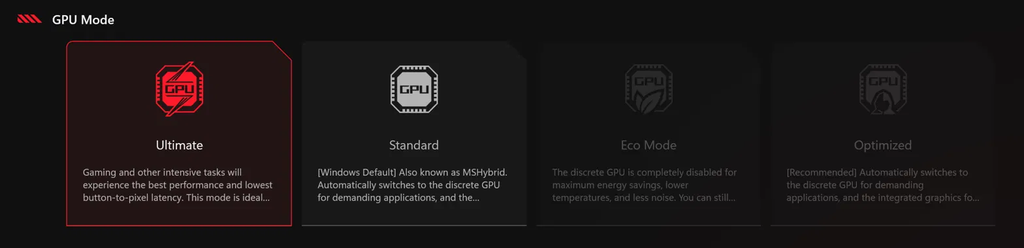
I opened the Armoury Crate GPU mode tab on my Zephyrus G16 expecting Standard, the mode ASUS labels as the Windows default, to keep my graphics card asleep until a game actually needed it, and the first time I measured it on battery the card was wide awake on an empty desktop, burning power with nothing on screen telling me it was happening.
Ultimate, the gaming mode, won every benchmark run I gave it but never let my fans stop spinning, even in Silent, and 2 of the other modes turned the graphics card off in 2 different ways, which ended up being most of the battery difference. So whether you’re after more FPS or a battery that lasts the whole day, I’ll walk through all 4 GPU modes I tested on my laptop down below.
After I tested all 4 Armoury Crate GPU modes on my G16:
- Ultimate: Averaged about 7% more FPS than Standard in Cyberpunk, but never let the fans stop
- Optimized: Drew the least sitting idle on battery, 8.62 W against 10.13 W in Standard
- Ultimate on battery: Drew 13.84 W at idle with the fans spinning
- Standard: Left my graphics card wide awake on an empty desktop until I switched to Eco and back
- Zephyrus G16 (GA605WI)
- Ryzen AI 9 HX 370
- RTX 4070 Laptop
- Windows 11 Home 26H2
- Armoury Crate 6.5.14.0
- NVIDIA 595.97
Build 26300 · every test on the laptop’s own screen
What Each Armoury Crate GPU Mode Does
So your laptop has 2 graphics chips sitting in it. There’s the Radeon graphics built into the AMD CPU, which barely uses any power and is what’s actually wired to the laptop screen, and there’s the RTX 4070, which is way faster and way hungrier. The Armoury Crate GPU mode decides which of those 2 is awake and which one drives the screen, and you get 4 options on the GPU Performance tab. I sorted what each one does into the table below, going off the tooltips Armoury Crate shows when you hover each card and what I saw on mine.
| Mode | NVIDIA GPU | What drives the screen | Restart | Armoury Crate’s label |
|---|---|---|---|---|
| Ultimate | Always on | NVIDIA GPU | Yes, in and out | None |
| Standard | Wakes when an app needs it | AMD graphics (NVIDIA frames passed through) | Only when leaving Ultimate | Windows Default |
| Eco | Off completely | AMD graphics | No | None |
| Optimized | Standard on the charger, off on battery | AMD graphics | No | Recommended |
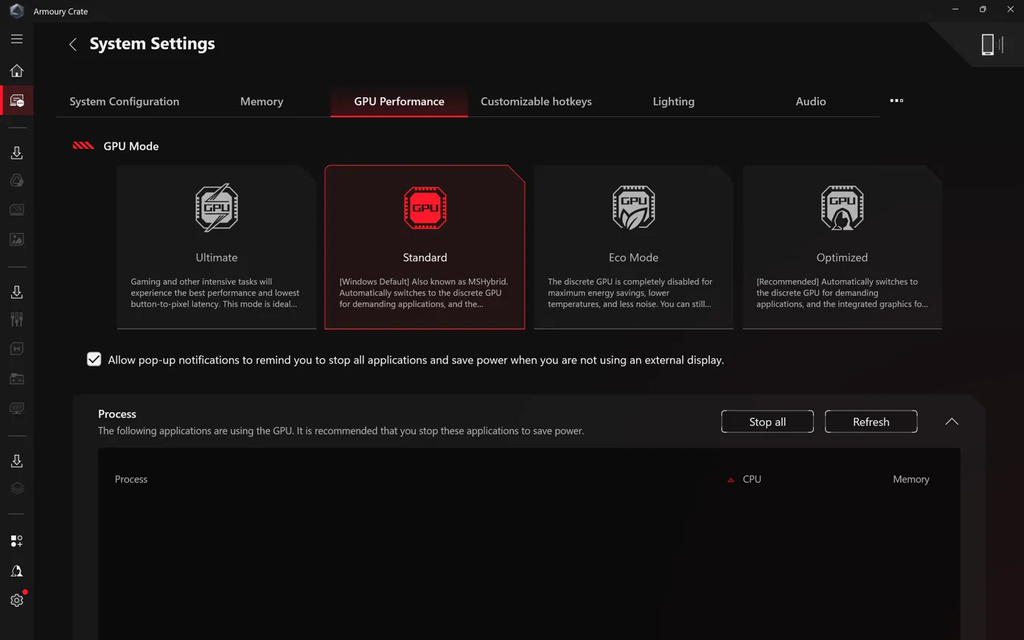
Standard is what ASUS calls MSHybrid in its article on the MUX switch, where Windows decides when to wake the NVIDIA GPU and the frames it renders get passed through the AMD graphics on their way to the screen. You can push a specific app one way or the other in Settings > System > Display > Graphics by clicking the app under Custom options for apps, then Options, picking Power saving or High performance and clicking Save, which is laid out on Microsoft’s graphics settings page.
Ultimate uses a chip ASUS calls a MUX switch to connect the screen straight to the NVIDIA GPU and skip that pass-through, and ASUS says that added about 9% FPS on average in its own testing. Eco shuts the NVIDIA GPU off completely, to the point where ASUS’s Armoury Crate FAQ says it disappears from Device Manager, and Optimized runs Standard on the charger and Eco on battery.
How to Change GPU Mode in Armoury Crate
Changing the Armoury Crate GPU mode only takes a few clicks, with 1 extra step for Ultimate.
- Save whatever you’re working on, since switching can close apps that are using the NVIDIA GPU.
- From the Home page, open System Settings and go to the GPU Performance tab.
- Click the mode you want. Standard, Eco and Optimized switch right there.
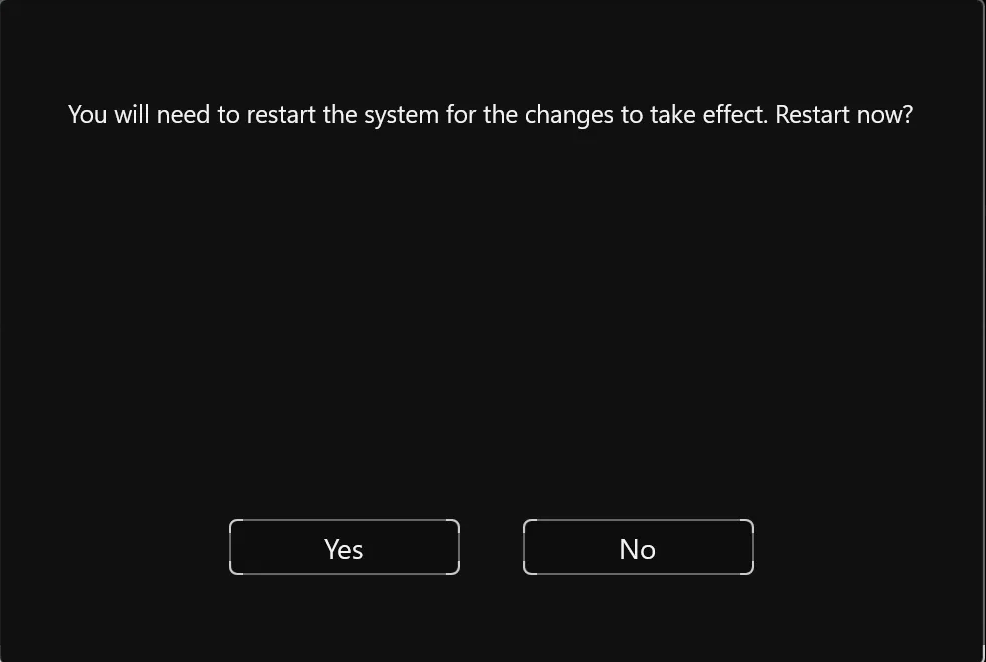
- For Ultimate, Armoury Crate asks “You will need to restart the system for the changes to take effect. Restart now?” Click Yes, and you’ll get the same prompt again when you leave Ultimate.
ASUS’s FAQ also warns that switching GPU modes can bring up a BitLocker recovery screen or a Windows Hello PIN failure on the next login, so if your drive is encrypted, have your recovery key on hand before you go in or out of Ultimate, and ASUS has a BitLocker recovery guide for finding it. Under the 4 cards there’s also a checkbox that lets Armoury Crate pop up a reminder to stop apps using the GPU when you’re not on an external display, and it was on by default on mine.
Why Eco and Optimized Are Grayed Out in Ultimate
Once I restarted into Armoury Crate Ultimate mode, the Eco and Optimized cards went gray and wouldn’t take a click, which lines up with ASUS’s FAQ saying you have to switch back to Standard first. So getting from Ultimate to Eco means clicking Standard, restarting, and then clicking Eco.
Armoury Crate GPU Mode Ultimate vs Standard in Games
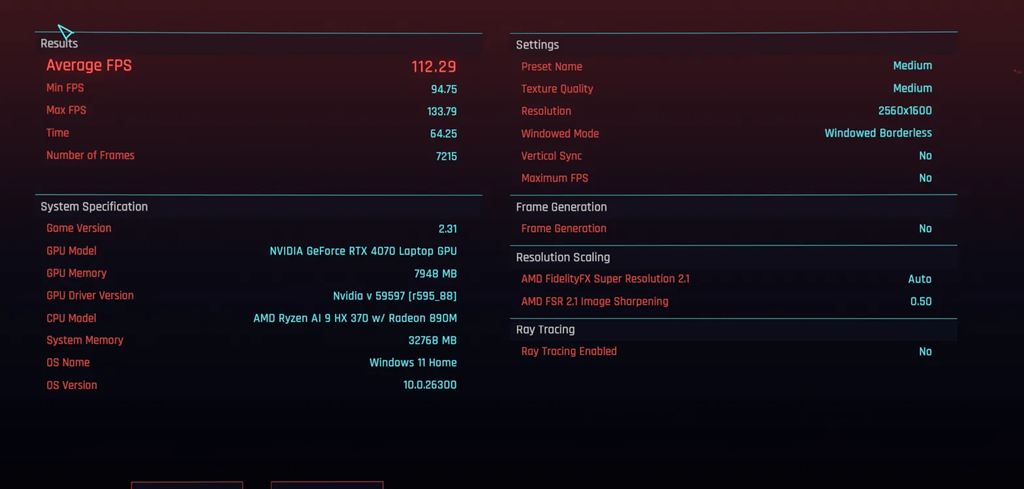
For gaming I ran the built-in Cyberpunk 2077 benchmark (version 2.31) on the laptop screen at 2560×1600, Windowed Borderless, Medium preset, FSR 2.1 Auto, VSync off, no FPS cap, Frame Generation off and ray tracing off, in the Performance operating mode with the barrel charger plugged in. I threw out the first run after each restart since a cold laptop scores differently, and the 6 runs that counted are in the table below.
| GPU mode | Average FPS | Min FPS |
|---|---|---|
| Standard, run 1 | 109.87 | 91.68 |
| Standard, run 2 | 97.94 | 73.49 |
| Standard, run 3 | 108.62 | 88.06 |
| Standard, after restarting back from Ultimate | 102.06 | 86.79 |
| Ultimate, run 1 | 112.29 | 94.75 |
| Ultimate, run 2 | 111.94 | 93.31 |
| Standard mean Stock | 104.62 | 85.01 |
| Ultimate mean | 112.12+7.2% | 94.03+10.6% |
Ultimate->
Standard->
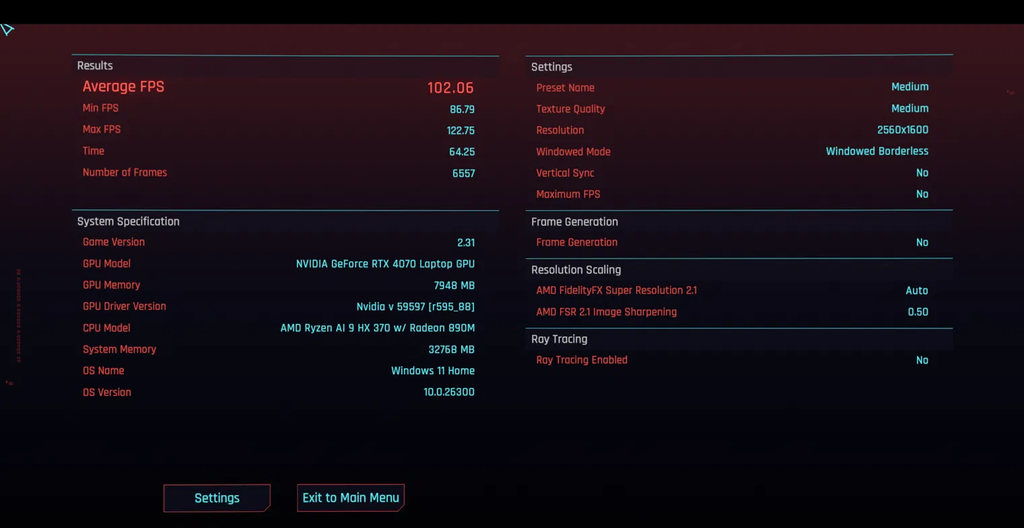
Both Ultimate runs beat every Standard run, by about 7% against Standard’s average and still about 2% against its best run, with a higher minimum FPS every time, which is the number you actually feel as stutter. The most likely reason is that Ultimate skips the pass-through to the AMD graphics that Standard does on every frame, though I didn’t measure that part directly.
Standard in Performance mode was also the only combination that bounced around, landing anywhere from 98 to 110 FPS on the same settings, while Turbo and Silent in Standard each repeated within about 1 FPS. I go through those operating modes in my Armoury Crate operating mode post, and the rest of my gaming setup is in my best Armoury Crate settings.
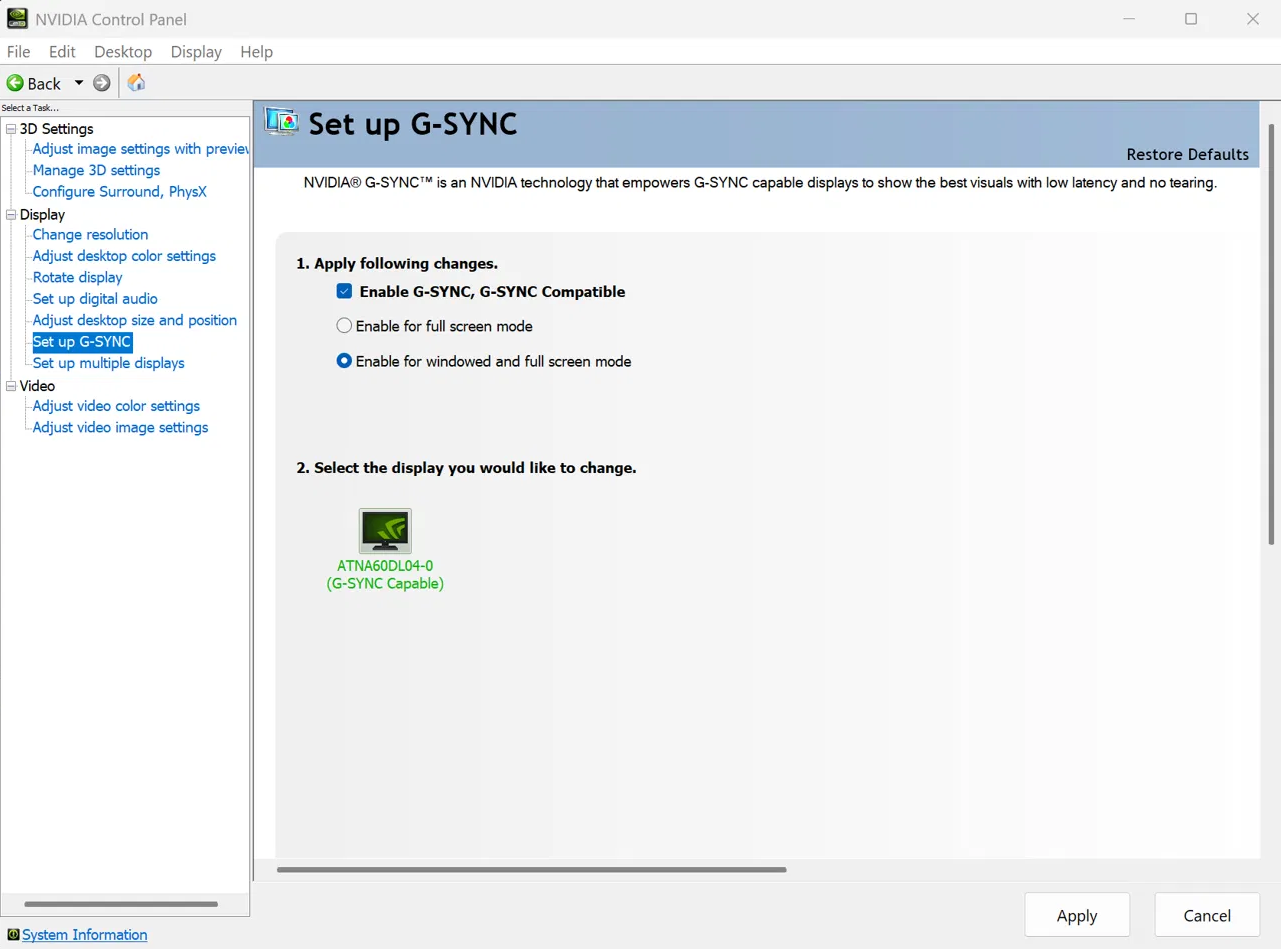
Ultimate also brings G-SYNC to the built-in screen, which matches the refresh rate to whatever frame rate the game is putting out so you don’t get tearing. After restarting into Ultimate, NVIDIA Control Panel gained a Set up G-SYNC page and lost its display mode picker. G-SYNC only covers full screen games out of the box, so if you play borderless, pick Enable for windowed and full screen mode on that page, then click Apply. I left it on the full screen default for my runs, so the gap in the table comes from the Armoury Crate GPU mode alone.
On an external monitor I wouldn’t expect much from Ultimate, and the most likely reason is that an external monitor is already hooked to the NVIDIA GPU in Standard. I didn’t benchmark the external monitor for this post.
Battery Drain in Each Mode, Measured
Battery is where the modes split apart the most, and to measure it I unplugged, set the screen to 50% brightness, left a browser window open, kept the operating mode on Silent with Power mode synchronization off, and read the discharge rate for each Armoury Crate GPU mode sitting idle. Standard and Optimized got measured on a train ride and Ultimate at home that same night, so I ran Standard once more at home to check, and it landed right where it was on the train. All of it is sorted in the table below.
| GPU mode | GPU in System Usage | Idle drain (W) | Fans (Silent) |
|---|---|---|---|
| Optimized | Extreme Power Saving | 8.62−14.9% | 0 RPM |
| Standard (3 runs) Stock | Power Saving | 10.13 | 0 RPM |
| Ultimate (2 runs) | Awake at 1,605 MHz | 13.84+36.6% | 2,200 / 2,100 / 3,700 RPM |
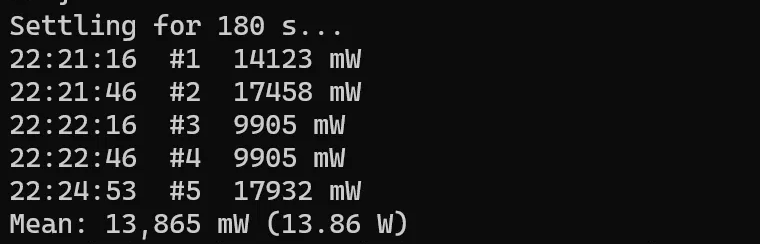
Armoury Crate doesn’t show a battery wattage on laptops, so I used this PowerShell script, which waits a minute, takes 5 readings 30 seconds apart and prints the average. I ran it in an admin PowerShell window while unplugged, and it’s an easy way to check each Armoury Crate GPU mode on your own laptop.
& {
$settle = 60; $gap = 30; $count = 5
Write-Host "Settling for $settle s..."; Start-Sleep -Seconds $settle
$readings = for ($i = 1; $i -le $count; $i++) {
    $v = (Get-CimInstance -Namespace root\wmi -ClassName BatteryStatus).DischargeRate
    Write-Host ("{0:HH:mm:ss}  #{1}  {2} mW" -f (Get-Date), $i, $v)
    $v
    if ($i -lt $count) { Start-Sleep -Seconds $gap }
}
$avg = ($readings | Measure-Object -Average).Average
Write-Host ("Mean: {0:N0} mW ({1:N2} W)" -f $avg, ($avg / 1000))
}
Armoury Crate Ultimate Mode Keeps the GPU and Fans On
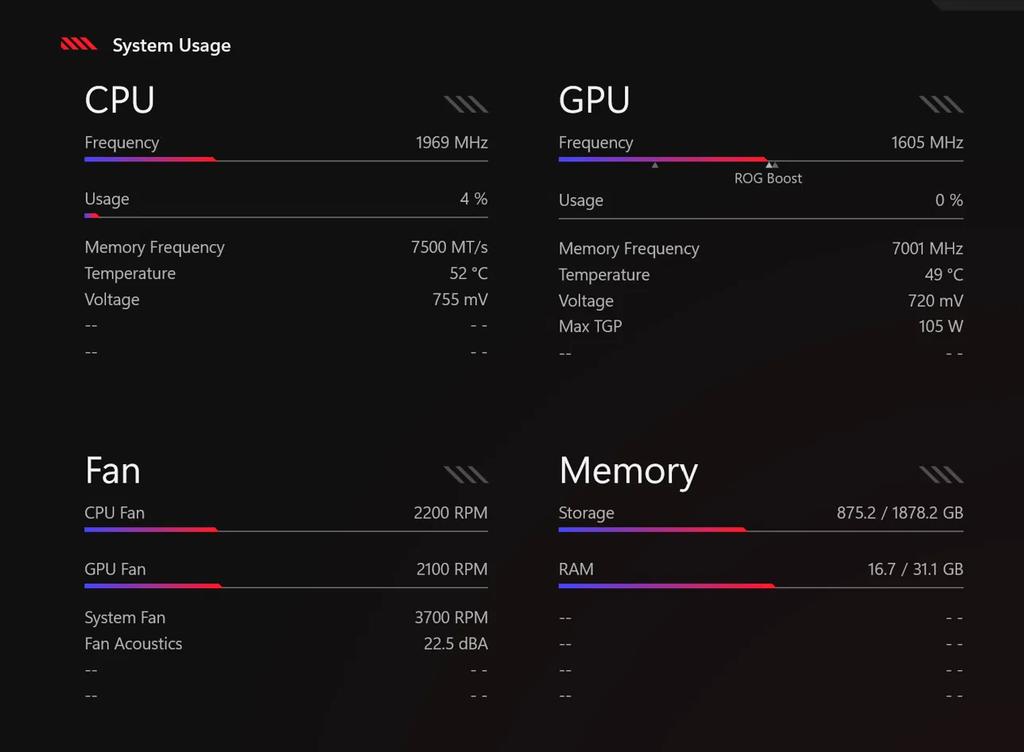
Armoury Crate Ultimate mode drew about 13.8 W sitting on the desktop, roughly 60% more than Optimized and 37% more than Standard. Opening the System Usage panel showed why, with the NVIDIA GPU awake at 1,605 MHz and the ROG Boost marker up even though nothing was running, since in Ultimate it’s the chip driving the screen.
Honestly it drains the battery insanely fast. My laptop was fine for my whole train ride, and the percentage started plummeting once I switched into Ultimate at home. Armoury Crate didn’t warn me about that when I switched while unplugged either, and the only mention of battery is in the Ultimate card’s tooltip, which says it’s ideal when you’re plugged in.
It also kept the fans going. About 45 minutes after restarting into Ultimate, with Silent selected and the CPU at 4%, System Usage showed the 3 fans at 2,200, 2,100 and 3,700 RPM and 22.5 dBA, and back in Standard all 3 dropped to 0 RPM within about 5 minutes even with the CPU busier at 17%. The most likely reason is the NVIDIA GPU staying awake and warm at 49°C, though I didn’t check how Armoury Crate sets fan speed in Silent. So Armoury Crate Ultimate mode stays a charger-only thing for me, and I switch back to Standard before I unplug.
Armoury Crate GPU Mode Standard vs Optimized
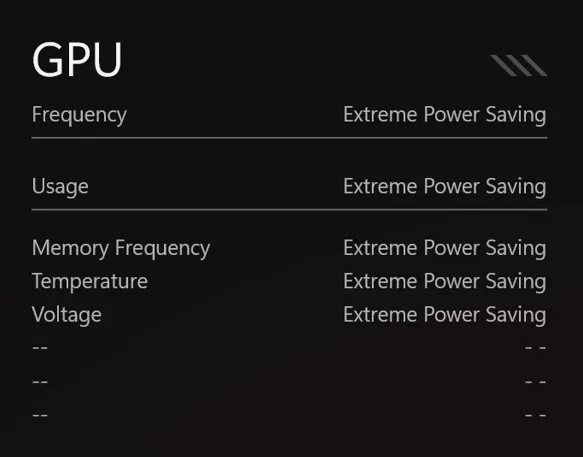
For the armoury crate gpu mode standard vs optimized question, ASUS says the 2 behave the same on the charger, since Optimized just runs Standard there, and I left that half untested. On battery, Optimized’s tooltip says the discrete GPU gets disabled automatically, and mine did exactly that, with System Usage reading Extreme Power Saving and the fans at 0. It switched with no dialog and nothing closed, though the Process list was empty at the time, so I didn’t test what it does to an app that’s using the GPU. My NVIDIA display mode was already on Optimus, which Eco needs, and I’d set that first before relying on Optimized.
Standard sat about 1.3 to 1.5 W higher, and since I measured it both before and after Optimized, the battery draining over time doesn’t explain it. In Standard the GPU rows read Power Saving instead of Extreme Power Saving, so the card was asleep without being fully cut off, and that’s the most likely reason for the extra watt and a half, though I didn’t check what power state the card was actually in for either one.
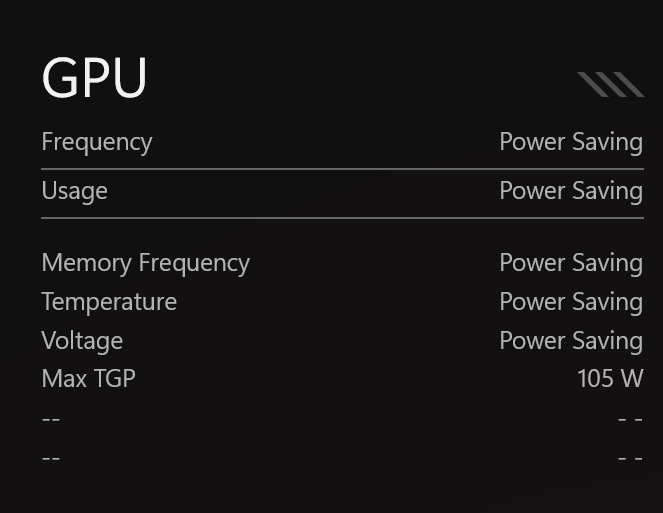
Clicking Standard wakes the GPU for a few seconds too. Right after I switched back, System Usage showed the card at 1,605 MHz, and about 20 seconds later it was back on Power Saving.
The bigger catch with Standard is right after you unplug. My first Standard run started at about 16 W right after I’d pulled out the charger and the USB-C to DisplayPort cable for my external monitor, and it took about 2 minutes to settle down to 10 W with nothing in the Process list. So in the armoury crate gpu mode standard vs optimized matchup, Optimized is the one I’d leave on for battery, and if you’d rather stay on Standard, there’s a quick way to put a wide-awake GPU back to sleep.
Eco and the Switch-Back Trick
Armoury Crate Eco mode shuts the NVIDIA GPU off completely, and when I tested it on a separate day for my best settings post, it took my laptop from 16.43 W down to 7.70 W, about 53% less. That 16.43 W was Standard with the GPU awake for no reason I found, and when I switched back to Standard right after Eco, it held at 7.53 W because nothing woke the GPU back up.
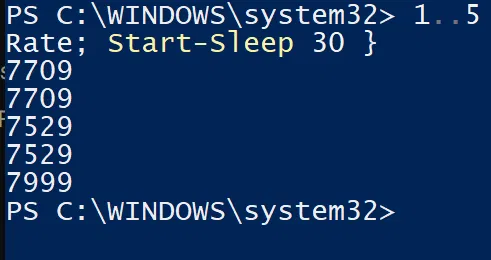
So if your battery is draining fast in Standard, flip to Armoury Crate Eco mode and straight back to Standard, and the GPU goes back to sleep. I didn’t test how long it stays asleep after that. Eco’s tooltip also says you can still play games on the integrated graphics with significantly lower performance, and I didn’t benchmark a game in Eco.
Armoury Crate Eco Mode Not Working? The Optimus Fix
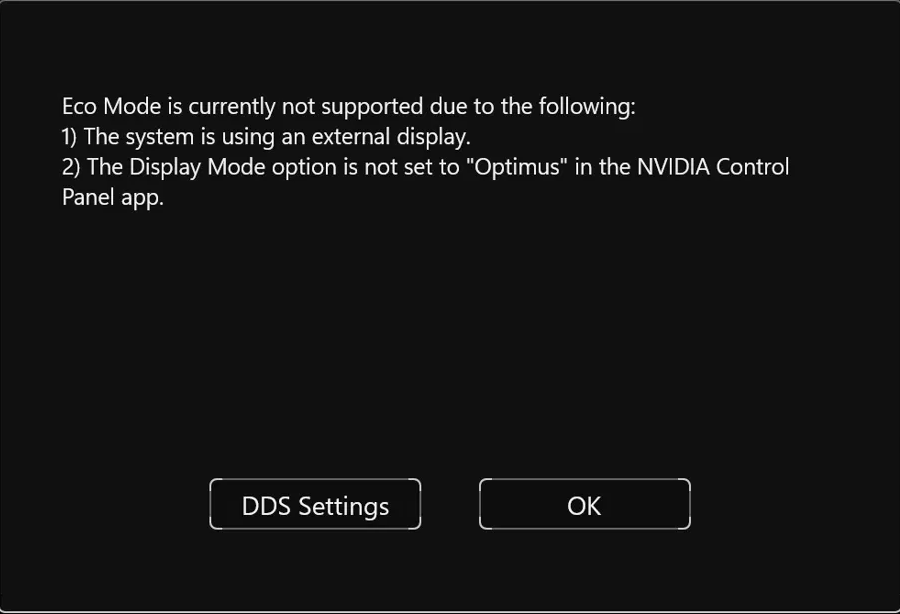
The first time I clicked Eco, Armoury Crate refused with a dialog saying Eco Mode is currently not supported and giving 2 reasons, an external display being connected or the Display Mode not being set to Optimus in NVIDIA Control Panel. I had no monitor plugged in, and the real cause was NVIDIA’s display mode sitting on Automatic Select, which I never set myself.
ASUS does cover this in its MUX switch article rather than the Armoury Crate FAQ, explaining that Automatic Select lets the laptop swap between Ultimate-style and Standard-style output on its own while plugged in, and that Armoury Crate Eco mode needs that setting on Optimus. What got it working on mine:
- Open NVIDIA Control Panel > 3D Settings > Manage Display mode. The dialog’s DDS Settings button takes you to the same setting.
- Click Optimus.
- Go back to the GPU Performance tab in Armoury Crate and click Eco.
- Armoury Crate told me other apps were still using the GPU and closed them, which was everything except PowerShell, Armoury Crate itself included. It still wasn’t showing Eco after that, so I reopened it and clicked Eco a second time, and that one stuck.
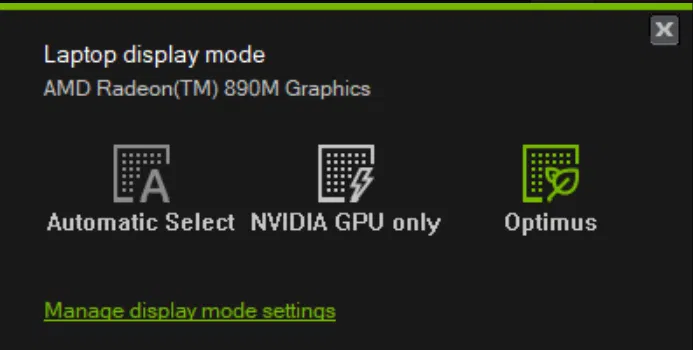
If you want Automatic Select back later, ASUS says to put Armoury Crate on Standard first and then switch NVIDIA’s display mode back. I didn’t test how Automatic Select switches on its own.
Armoury Crate Best GPU Mode for Each Use
Putting all of that together, I sorted the armoury crate best gpu mode for each situation into the table below.
| Situation | GPU mode | Why |
|---|---|---|
| Gaming on the laptop screen, plugged in | Ultimate | Beat every Standard run and adds G-SYNC, restart each way |
| Gaming on an external monitor | Standard | Most likely nothing for Ultimate to add when the monitor is on the NVIDIA GPU already |
| Everyday on the charger | Standard | No restarts, and the GPU only wakes when an app needs it |
| On battery | Optimized or Eco | Lowest idle draw I measured, with fans at 0 |
| Battery draining fast in Standard | Eco, then back to Standard | Puts an awake GPU back to sleep |
Personally I leave mine on Standard on the charger and switch to Eco when I unplug, but Optimized does that same switch for you, which makes it the armoury crate best gpu mode for anyone who doesn’t want to think about it, and it’s the one ASUS marks as Recommended. Save Ultimate for gaming on the laptop screen with the charger in, and give it the restart it asks for both ways.
The Same 4 Modes in G-Helper
If Armoury Crate’s menus aren’t your thing, G-Helper puts the same 4 modes right on its main window, and I went through them in my G-Helper GPU mode guide. If you’re still deciding which app to keep, check out G-Helper vs Armoury Crate.
Armoury Crate GPU Mode FAQ
Do I need to restart to change the Armoury Crate GPU mode?
Only for Ultimate. Going into Ultimate and back out of it both asked for a restart on mine, while Standard, Eco and Optimized switched right away.
Can I game in Armoury Crate Eco mode?
Armoury Crate’s own tooltip says you can, on the integrated graphics, with significantly lower performance. I didn’t benchmark a game in Eco, and I’d switch to Standard or Ultimate before launching anything demanding.
What is the MUX switch in Armoury Crate?
It’s the chip Armoury Crate Ultimate mode uses to connect the screen straight to the NVIDIA GPU. ASUS used to have a separate MUX Switch setting, and on its 2022 and newer laptops it’s built into the Ultimate card instead.
Can changing GPU mode trigger BitLocker?
ASUS’s FAQ says it can, along with a Windows Hello PIN failure after logging in. If your drive is encrypted, have your BitLocker recovery key ready before switching into or out of Ultimate.
Why is Ultimate missing in Armoury Crate?
ASUS’s FAQ says the GPU mode options only come on 2022 and newer models that have both integrated and dedicated graphics, so an older laptop or one without an NVIDIA GPU won’t show it. All 4 show up on my G16, so I haven’t run into it missing myself.
Which Armoury Crate GPU mode is best for battery?
Optimized or Armoury Crate Eco mode. Optimized idled at 8.62 W on mine, against about 10.1 W for Standard and 13.8 W for Ultimate.
If your Standard mode pulls way more than 10 W on battery with nothing open, or Ultimate actually lets your fans stop, drop your laptop model, Armoury Crate version and discharge numbers in the comments, because I’d like to know whether my G16 is the odd one out on which Armoury Crate GPU mode wins.