ASUS OLED Care Settings: What Each One Actually Does
The ASUS OLED Care settings are 4 toggles sitting in Armoury Crate or MyASUS, and 3 of them are Windows features with ASUS branding painted on. That matters if you’ve uninstalled either app, because the answer to “did I just give up burn-in protection” is basically no. The one setting that genuinely needs software talking to your hardware carries straight over to G-Helper, and the other 3 take about 2 minutes to set up yourself.
There is one of the ASUS OLED Care settings worth checking on your own machine though, and it’s not the part people expect. Short version before the details:
- Pixel Shift and Hide Taskbar are plain Windows settings you can rebuild in a couple of minutes
- Flicker-free dimming carries over to G-Helper and there’s nothing to turn on
- Pixel Refresh is a screensaver, and on my G16 that screensaver isn’t on the machine at all
- Even if yours exists, 2 Windows timers probably stop it from ever running
Everything here is off my ROG Zephyrus G16 GA605WI with the 240Hz OLED panel, running G-Helper 0.283.0 on Windows 11, with Armoury Crate and MyASUS both fully uninstalled since February.
Quick note: laptop panels, not monitors
ASUS uses the same name in 2 completely different places, so it’s worth clearing up before you read further. On ROG and ProArt monitors, OLED Care is a menu built into the monitor’s own firmware and you reach it with the little joystick on the back. ASUS documents that version on its own ROG OLED Care page, including the Pro variant with a proximity sensor that blanks the screen when you walk away.
This article is about the laptop version of the ASUS OLED Care settings, which live in software instead. Nothing here applies to a standalone monitor, and none of it disappears when you uninstall an app, because a monitor’s protections run on the monitor.
What the ASUS OLED Care settings actually do
Before worrying about what you lost, it’s worth knowing what the feature was. Burn-in on an OLED happens when the same bright pixels sit in the same place long enough to wear unevenly against their neighbours. Every one of the ASUS OLED Care settings is some version of “don’t let anything sit still,” which is why they look so underwhelming once you see what each one is doing.
Where each of the ASUS OLED Care settings actually lives
All 4 ASUS OLED Care settings in one table. The last column is the one that matters if ASUS software is already off your machine.
| Setting | What it does | Where it comes from | Survives uninstall? |
|---|---|---|---|
| Pixel Shift | Nudges your wallpaper a few pixels over time | Windows wallpaper handling | Yes |
| Pixel Refresh | Runs a screensaver on idle | A Windows screensaver | Depends on your model |
| Hide Taskbar | Auto-hides the taskbar | Windows taskbar setting | Yes |
| Flicker-Free Dimming | Changes how brightness is driven | Firmware, needs software to set it | Yes, via G-Helper |
The G-Helper maintainer said this outright in a discussion thread on the project’s repo, answering someone who’d asked this exact question: Armoury Crate is mostly exposing things Windows already does. Pixel Shift only moves your wallpaper. Pixel Refresh is a screensaver. Hide Taskbar is a right-click away. That’s 3 of the 4 ASUS OLED Care settings accounted for without any ASUS software on the machine.
Pixel Shift moves your wallpaper, and nothing else
So the thing worth understanding about pixel shift is that there’s nothing to replace. It never touched your taskbar, your browser chrome, or anything static inside an app. It shifted the desktop image sitting behind all of it, which is the one part of your screen already hidden by whatever you’ve got open.
If you want that effect back and then some, set Windows to rotate through a folder of wallpapers on a timer. Right-click the desktop, hit Personalize, choose Background, set the dropdown to Slideshow, click Browse and point it at a folder, then pick a change interval underneath. A different image every 10 minutes beats the same image scooted 3 pixels to the left.
Hide Taskbar is a right-click, not a feature
Of all the ASUS OLED Care settings this is the one I’d actually bother with, because the taskbar is genuinely the most static bright thing on your screen all day. Right-click the taskbar, open Taskbar settings, expand Taskbar behaviors, and tick Automatically hide the taskbar. That’s it, same result ASUS was giving you.
Honestly I don’t run it. I’d rather see my tray icons than shave a small amount off a risk I’ll get to further down. But if you’re the type who leaves the laptop on a desk showing the same screen for hours, this is the cheapest thing on the list.
Pixel Refresh: the screensaver that might not be there
This is the one of the ASUS OLED Care settings people go hunting for after uninstalling Armoury Crate, and it’s where things got interesting on my machine.
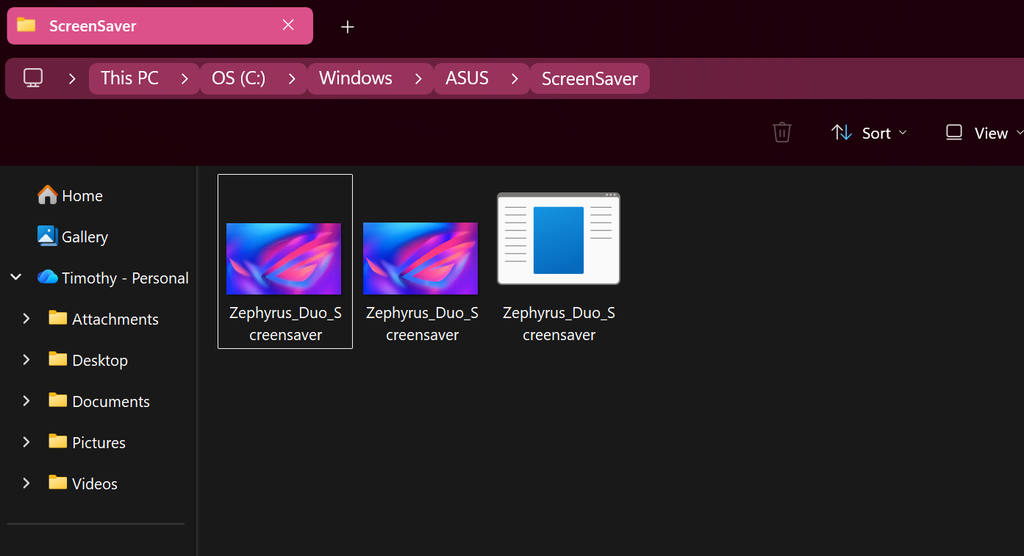
The official G-Helper FAQ says OLED ASUS laptops ship a native OLED Care Screensaver, that you pick it from the Windows screensaver dropdown, and that if it doesn’t show up on its own you’ll find the file sitting at C:\Windows\ASUS\ScreenSaver\.
On my G16, that folder exists and contains Zephyrus_Duo_Screensaver. That’s an asset for the dual-screen Duo, sitting on a laptop that has one screen. There is no OLED Care Screensaver file anywhere in it.
The dropdown backs that up. Mine lists (None), 3D Text, Blank, Bubbles, Mystify, Photos and Ribbons. That list is alphabetical, so OLED Care would land between Mystify and Photos, and it isn’t there.
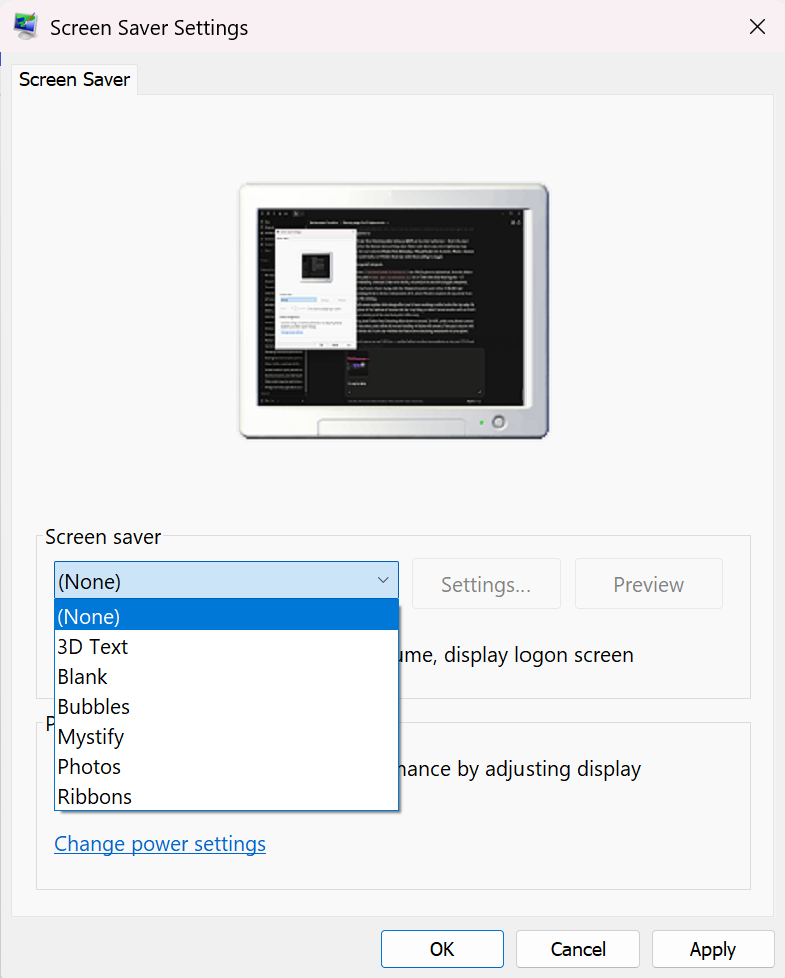
Now, I can’t tell you from 1 laptop whether ASUS never shipped it for the 2024 G16 or whether something took it. The folder itself survived my uninstall with another file still sitting in it, which makes me lean toward it never being there in the first place. Check your own before you assume the fix from the FAQ works for you, because on my machine it doesn’t.
How to check yours in 30 seconds
- Press the Windows key, type Change screen saver, and open it
- Click the dropdown and look for OLED Care Screensaver between Mystify and Photos
- If it’s not there, open File Explorer and paste C:\Windows\ASUS\ScreenSaver\ into the address bar
- Look for a .scr file with OLED Care in the name. Right-click it and choose Install to register it with Windows
- Back in the dialog, pick it, set a Wait time, then click Apply and OK
If you get through step 4 and there’s no OLED Care file, you’re where I am and there’s nothing to install. Skip to the next bit, because there’s a decent argument you don’t want the screensaver anyway.
The timer conflict that stops it running anyway
Here’s the part that got me, and it’s why I’d tell most of you guys not to chase the screensaver even if yours does exist.
A screensaver only runs if your screen is still on when its wait timer expires. Head to Settings > System > Power & battery > Screen, sleep, & hibernate timeouts and put the 2 numbers side by side.
Mine on battery: screen off after 3 minutes, which is the value Windows itself marks as Recommended. Screensaver wait: 5 minutes, the default sitting in that dialog. The screen dies a full 2 minutes before the screensaver could ever fire. That’s not me misconfiguring something, that’s Windows’ own recommended default making the thing structurally impossible to run on battery.
Plugged in I’m at 30 minutes for screen off, so there a 5-minute wait would actually trigger.
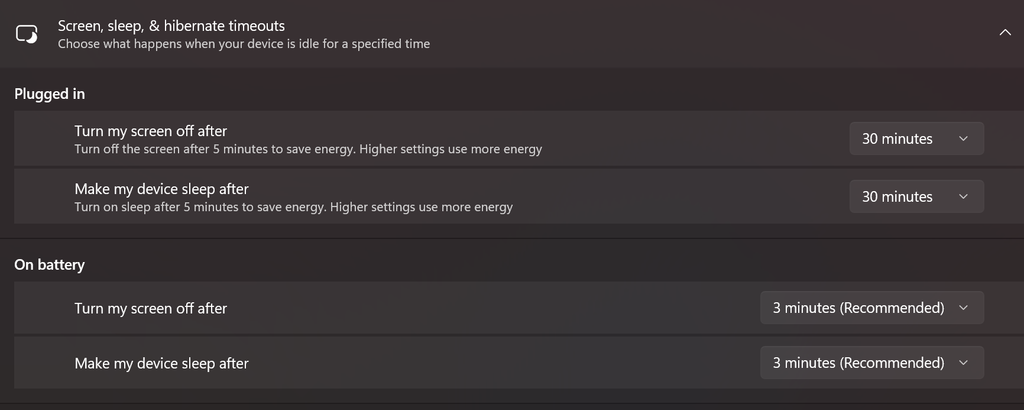
And honestly, once you see it laid out like that, the screensaver stops looking important on battery at all. A screen that’s fully off is better burn-in protection than a screen running moving pixels. It was only ever doing work in the plugged-in case where you walk away from a laptop that stays awake for half an hour.
So if you want it covered, set a screensaver wait and keep your plugged-in screen-off timer higher than it. Don’t raise your battery screen-off timer to make a screensaver run, you’d be burning battery to avoid a risk you just removed by letting the screen turn off.
Flicker-free dimming is the only one G-Helper actually owns
This is the setting that genuinely needs software, because it changes how the panel dims rather than what’s drawn on it. It’s also the only one of the ASUS OLED Care settings you can’t rebuild out of Windows toggles.
There’s 2 ways a screen can get darker. It can drop the actual power going to the pixels, which is DC dimming, or it can leave them at full power and switch them off and on very fast so your eye averages it out, which is PWM. The faster that switching runs the less you notice, but at low brightness the off periods get long enough that some people pick up on it as flicker, eye strain or headaches after a couple of hours. Flicker-free dimming is ASUS telling the panel to lean on the first method instead of the second.
You’ll find it on G-Helper’s main window as the row labeled Flicker-free Dimming / Visual Mode, with the brightness slider under it and 3 dropdowns below that for visual mode, color temperature and gamut.
There’s no toggle to turn on
I went looking for the enable switch and there isn’t one. No checkbox, no gear icon on that row, nothing buried under Extra. The label is describing how G-Helper drives that slider, not offering you a mode to pick.
So if you came here searching for how to enable flicker-free dimming specifically, that’s your answer, it’s already how brightness works. Nothing to click.
I did try to measure whether it does anything I can perceive. Phone camera pointed at the panel at 100% brightness, then again down around 20%, looking for banding rolling across the frame. I got faint diagonal lines at both, identical either way, which is the camera’s rolling shutter beating against the refresh rate rather than the panel pulsing. If your panel is PWM dimming you’d expect that banding to get noticeably worse as you drop the brightness. Mine didn’t change, so on this G16 there’s nothing to see.
Worth doing on your own panel before you assume either way, since this varies by model and it takes about a minute.
When the ASUS OLED Care settings are grayed out or missing
A few things stop the ASUS OLED Care settings showing up at all, in the order they’re worth checking.
Your panel isn’t OLED. The obvious one, but ASUS sells the same chassis with both panel types and the software hides the section on IPS models. Press Windows, type System Information, or just check your exact model number against the spec sheet. No OLED panel means no OLED Care, and nothing is broken.
Both apps are installed and fighting. MyASUS and Armoury Crate both expose these, and they’re writing to the same place. If a setting keeps reverting, pick one app and uninstall the other rather than trying to keep them agreeing.
ASUS services are stopped. If you’re running G-Helper and used its Extra panel to stop ASUS services, the ASUS apps lose the plumbing they need. That’s usually deliberate, but it surprises people who then open MyASUS and find half of it dead. There’s more on what that button actually stops over in G-Helper not working.
The screensaver file isn’t on your model. Covered above, and the reason the FAQ’s fix can dead-end.
7 months with none of it running
Here’s my actual data point, which is the reason I’m comfortable telling you the ASUS OLED Care settings matter less than the panel on them suggests.
Armoury Crate gone since February, MyASUS deleted, screensaver sat at (None) the entire time, no wallpaper rotation, taskbar not hidden. I use a dark wallpaper but not pure black. Static taskbar, static browser tab bar, hours a day of coding and writing on the same 2 windows.
I pulled up a full-screen white image and looked at the top edge for a ghost of the taskbar or the tab bar. Nothing. Clean panel.
So my honest read is that laptop OLED burn-in is overblown for normal use, as long as you don’t do the extreme stuff. Leaving a static HUD or a dashboard on screen at full brightness for 10 hours a day is a real risk. Coding with the screen off when you walk away isn’t. If you want the chemistry behind why panels wear the way they do, RTINGS has been running a multi-year burn-in test on real panels that’s worth a look.
The habits that actually protect the panel are the same ones that save battery anyway. My laptop sits at 11.7W discharging in Silent mode partly because the brightness is down and the screen turns itself off quickly, and both of those do more for the panel than pixel shift ever did. I went through the rest of those numbers in my best G-Helper settings guide. And if it’s the battery’s lifespan you’re protecting rather than the panel’s, the 80% cap in ASUS Battery Care Mode is the other ASUS setting that survives uninstalling everything.
What I’d actually do instead
Habits beat the ASUS OLED Care settings here, and all 5 of these cost you nothing.
- Run your brightness lower than you think you need, which helps wear and battery at the same time
- Keep the screen-off timer short, since an off screen is perfect protection
- Use a dark wallpaper, which on OLED cuts drain and wear together
- Auto-hide the taskbar if you leave the same screen up for hours
- Don’t leave a static full-brightness dashboard up overnight, which is the thing that actually does damage
If you’re still weighing whether dropping Armoury Crate costs you anything real, I went through the full trade in G-Helper vs Armoury Crate, and if you haven’t made the switch yet there’s a full setup walkthrough on the site.
ASUS OLED Care settings FAQ
Do I lose OLED Care if I uninstall Armoury Crate?
Barely. Pixel shift and hide taskbar are Windows settings you can reproduce in 2 minutes, flicker-free dimming carries over through G-Helper, and pixel refresh is a standard Windows screensaver rather than something Armoury Crate was running in the background. The panel’s own firmware protections aren’t touched by uninstalling anything. If you’re still deciding whether to remove it at all, I measured what Armoury Crate actually runs in the background.
What are the best ASUS OLED Care settings to use?
The best ASUS OLED Care settings are Hide Taskbar on if you leave the same screen up for long stretches, a short screen-off timer, and lower brightness. Those 3 do the real work. Pixel shift is close to cosmetic since it only moves the wallpaper, and the screensaver only matters plugged in, where your screen stays awake long enough for it to fire.
Does G-Helper have a pixel refresh or pixel shift feature?
No, and it doesn’t need one. Pixel shift was only ever moving your wallpaper, which Windows does better with a slideshow background. Pixel refresh was a screensaver you set in Windows, not something the ASUS app was doing for you.
How do I know the OLED Care screensaver is actually running?
Compare 2 numbers. Your screensaver wait time in the Change screen saver dialog has to be lower than your “Turn my screen off after” value in Settings > System > Power & battery. If the screen-off timer is shorter, the display blanks first and the screensaver never fires. On battery, Windows’ recommended 3-minute screen-off default beats the 5-minute screensaver default, so it never runs.
Is OLED burn-in covered under warranty?
Depends entirely on your region and the terms you bought under, so check your own paperwork rather than trusting a forum post. Burn-in is often treated as wear rather than a defect, which puts it outside a standard warranty in a lot of places. Some ROG monitors ship with a separate burn-in warranty, and laptop panels generally don’t get the same treatment.
Where are the ASUS OLED Care settings if I only have G-Helper?
They’re split up rather than sitting in one panel. Flicker-free dimming is on G-Helper’s main window, pixel shift becomes a Windows slideshow background, hide taskbar is in Taskbar settings, and pixel refresh is a Windows screensaver if your model shipped one. There’s no single OLED Care screen in G-Helper and it doesn’t need one.
Check your own C:\Windows\ASUS\ScreenSaver\ folder and tell me what’s in it. I want to know whether the missing OLED Care screensaver is a G16 thing or whether it’s across the lineup, so drop your exact model number and what you find in the comments.