Armoury Crate Keyboard Lighting: Setup and Battery Drain
I opened Armoury Crate to change my Armoury Crate keyboard lighting. Instead of a color picker, I got a message telling me to install something first, even though my keyboard had been lit up the whole time.
Getting it working took a couple of steps that aren’t obvious, and once it was, I wanted to know how much battery the backlight was actually costing me. So whether you’re setting up your keyboard lighting for the first time or trying to cut down how fast it drains your battery, I’ll walk through everything I tested on mine down below.
After I set the keyboard backlight to Static at 100%:
- Battery drain: Went up about 1.0 W, roughly 12% at idle
- Slash strip: Cost about twice that
- On battery: The light switched off after 1 minute of no typing by default
- Zephyrus G16 (GA605WI)
- Ryzen AI 9 HX 370
- RTX 4070 Laptop
- 1-zone RGB keyboard
- Windows 11 Home 26H2
- Armoury Crate 6.5.14.0
Build 26300
Why Armoury Crate Keyboard Lighting Is Missing
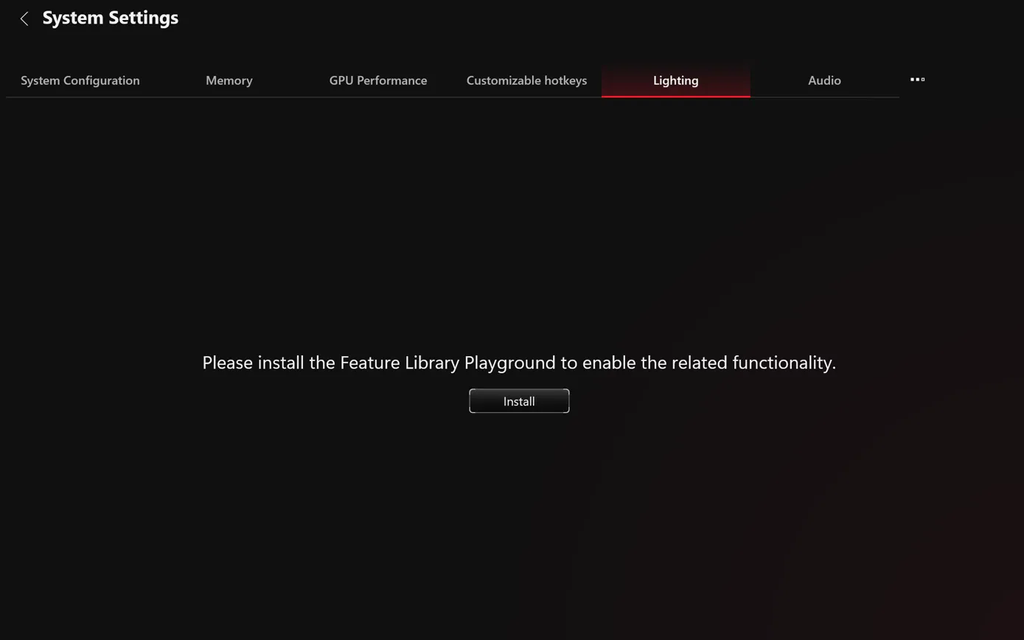
Armoury Crate doesn’t come with its lighting controls installed. On my laptop, going to System Settings > Lighting only showed “Please install the Feature Library Playground to enable the related functionality” with an Install button, and the Devices section on the Home page only listed the laptop itself. My keyboard kept glowing red at low brightness the whole time, most likely because the laptop holds on to the last lighting setting it was given, but there was no way to change it from Armoury Crate.
How to Set Up Keyboard Lighting (Install Playground)
- Go to System Settings > Lighting and click Install. That takes you to the Feature Library page.
- Under Playground, click Install next to Playground Core. Aura Wallpaper stays grayed out until Core is in.
- On the “Important reminder” box, click Install.
- Wait on the “Installing Feature Libraries” screen. It took about 3 minutes on my connection.
- When the notice says Playground has been installed, click Reopen app. No Windows restart needed.
- Armoury Crate then pops up a box about Windows Dynamic Lighting. Click OK for now, since I cover what it’s asking for further down.
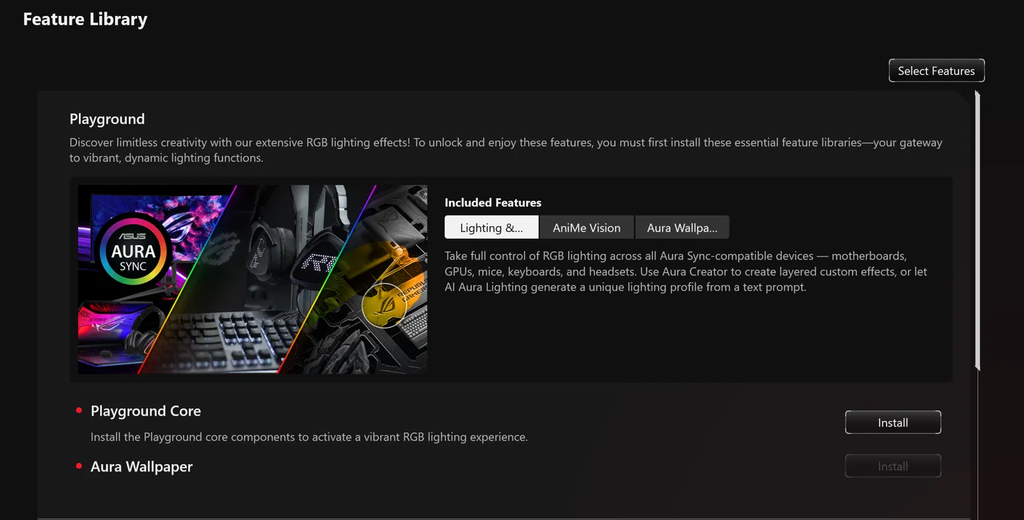
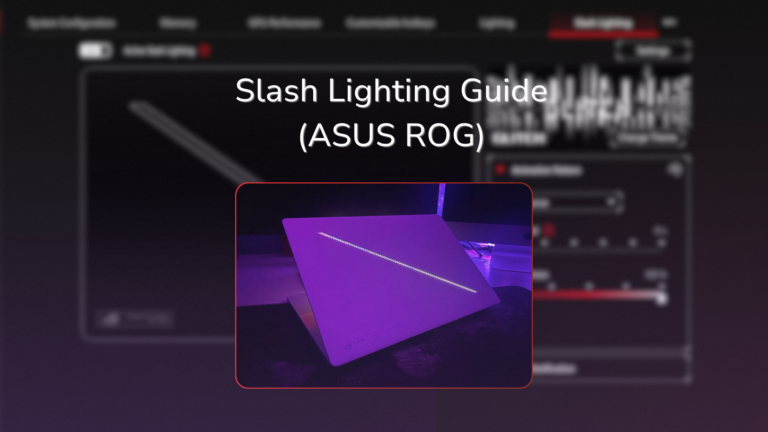
Playground also brings in AniMe Vision and Aura Wallpaper, and it’s one of the optional modules I went through in my Armoury Crate lite vs full post. On a G16 it’s also what unlocks the Slash Lighting strip on the lid, which got its own ASUS Slash Lighting post.
Keyboard Effects, Color and Brightness
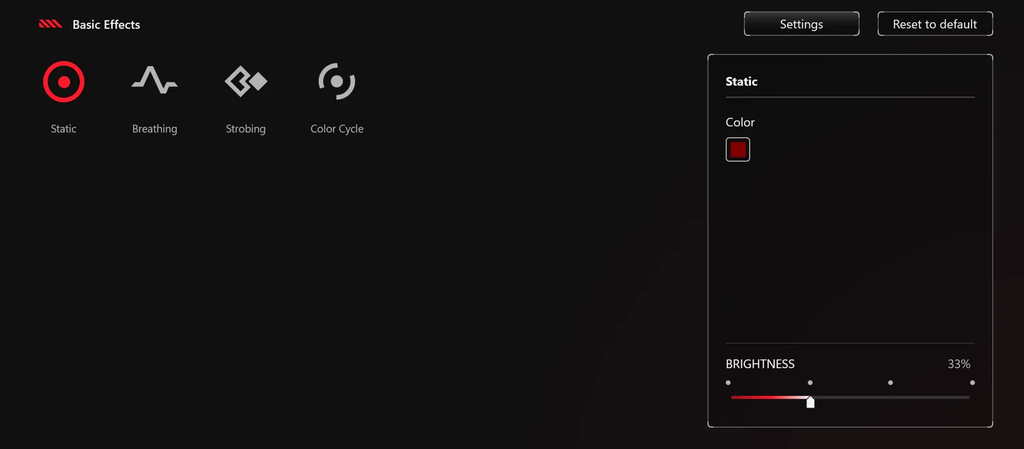
After reopening, the Lighting tab showed Basic Effects with 4 options, Static, Breathing, Strobing and Color Cycle, and it had already picked up the red at 33% I had before. The G16’s keyboard is 1 zone, so whatever color you pick covers every key, and there’s no per-key lighting on this model. To change it, click an effect, click the color square under Color to pick a new one, and drag the Brightness slider, which only has 4 steps, 0, 33, 66 and 100%. Reset to default at the top right puts it back to ASUS’s defaults.
The Setting That Keeps Turning Your Keyboard Off
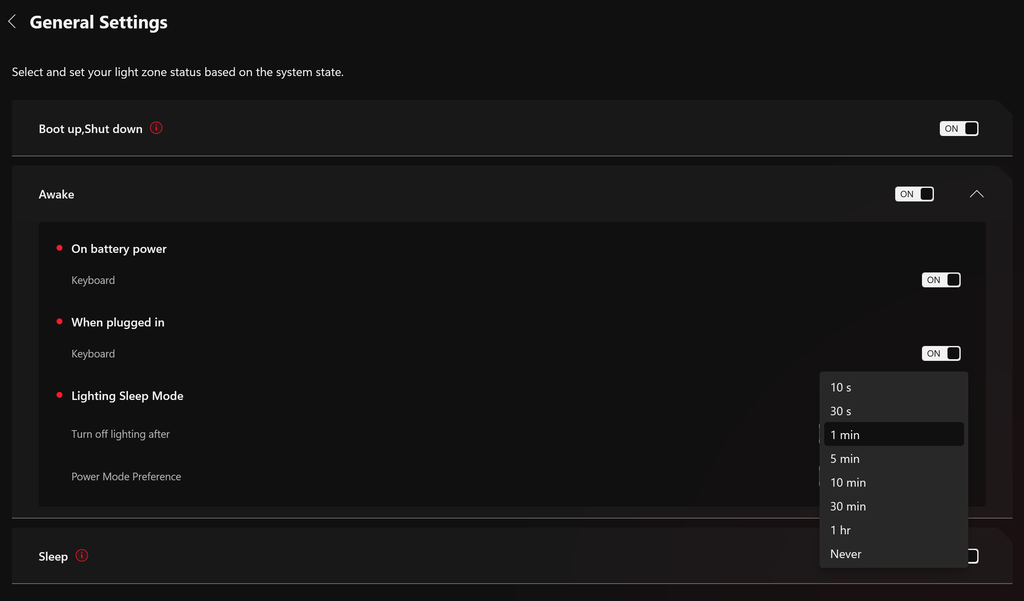
The Settings button on the Lighting tab opens General Settings, where the keyboard light has separate switches for Boot up, Shut down, Awake and Sleep, all on by default. Expanding Awake shows Lighting Sleep Mode, and that’s the one that got me. By default, Turn off lighting after is set to 1 min with Power Mode Preference on On battery power, so on battery the keyboard goes dark after 1 minute of not typing. It switched itself off in the middle of one of my battery runs and I had to redo it.
The timer goes from 10 s up to 1 hr, or Never, and Power Mode Preference can be When plugged in, On battery power or Both. If you want the keyboard to stay lit on battery, set the timer to Never, and I’ll show what that costs in the next section.
How Much Battery Armoury Crate Keyboard Lighting Drains
For battery, I unplugged, set the screen to 50% brightness, left a browser window open, kept Armoury Crate on Silent with the graphics card off (Optimized GPU mode) and read the battery’s discharge rate 5 times per run in PowerShell, with the timer on 10 min so the keyboard stayed on. I sorted the runs into the table below, with an all-off run at the start and end to check the battery wasn’t drifting.
| Run | Lighting | Battery drain (W) |
|---|---|---|
| 1 | Keyboard and Slash off Baseline | 8.79 |
| 2 | Keyboard Static red at 100% | 9.57+12.3% |
| 3 | Keyboard and Slash off again Baseline | 8.26 |
Against the average of the 2 off runs (8.53 W), Armoury Crate keyboard lighting at full brightness added about 1.0 W, roughly 12% more drain at idle. That’s in the same range as the 1 to 2 W I measured through G-Helper in my G-Helper keyboard backlight post. The Slash strip on the lid cost about twice that, so if you’re trying to save battery on a G16, the lid is the bigger one to turn off. The script I used is in my Armoury Crate GPU mode post.
Armoury Crate Lighting Service and Background Processes
I also counted every ASUS background process with Armoury Crate’s window closed, before and after installing Playground. It went from 27 processes to 29, and the 2 new ones were AacAmbientLighting and LightingService, which started at 9.3 and 7.4 MB right after the install and settled to 5.5 and 6.3 MB by the next morning, so the Armoury Crate lighting service costs about 12 MB of memory once it’s been running a while. The overall ASUS total crept up overnight too, but that was spread across processes Playground doesn’t touch, like asus_framework and ROGLiveService, so I’m only counting the 2 lighting ones. I also didn’t test what happens to the keyboard if you disable LightingService.
Armoury Crate Keyboard Lighting Not Working? Check These
- The Lighting tab only has an Install button: Playground isn’t installed yet, so follow the steps above.
- The keyboard keeps turning off: that’s the 1 minute Turn off lighting after timer on battery.
- The Lighting tab is grayed out with a Windows message: Windows Dynamic Lighting has control, which I cover next.
- G-Helper is also installed: G-Helper and Armoury Crate both try to control the same lighting, so close one of them.
Armoury Crate Dynamic Lighting
Dynamic Lighting is a Windows 11 feature in Settings > Personalization > Dynamic Lighting that lets Windows itself control RGB devices, and Microsoft’s guide covers the basics. On my G16 the keyboard showed up there as a tile named after the PC itself (LAPTOP-OLL31P6O), not as an ASUS keyboard, and Use Dynamic Lighting on my devices was off. Under Background light control, Windows’ own Dynamic Lighting Background Controller was listed first, with Armoury Crate second.
The popup Armoury Crate showed after installing Playground tells you to turn Dynamic Lighting on and drag Armoury Crate to the top of that list, so I tested every combination and sorted the results in the table below.
| Dynamic Lighting | First in Background light control | Did Armoury Crate change the color? |
|---|---|---|
| Off (default on mine) | Doesn’t matter | Yes |
| On | Armoury Crate | Yes |
| On | Dynamic Lighting Background Controller | No, Lighting tab grayed out |
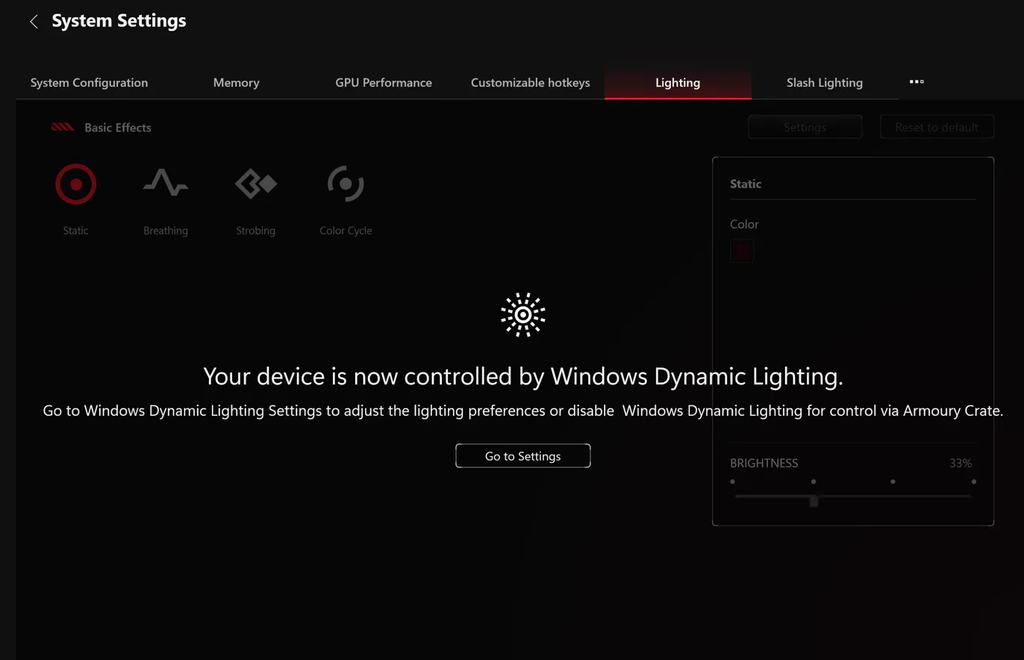
In that last case, Armoury Crate grays out the whole Lighting tab and says “Your device is now controlled by Windows Dynamic Lighting,” with a Go to Settings button, so at least it tells you what’s going on. Both fixes that ASUS’s Dynamic Lighting FAQ gives worked on mine, either drag Armoury Crate to the top of Background light control, or turn Use Dynamic Lighting on my devices off. Leaving it off is the simpler one, and it’s how Windows had it on my laptop to begin with.
Aura Sync on a Laptop
Aura Sync is ASUS’s name for syncing lighting across its devices, and on a laptop it comes in through the same Playground module. With nothing else ASUS plugged in, my Devices section only ever listed the laptop, so there was nothing for Aura Sync on a laptop to sync with. If you add an ASUS mouse or keyboard later, ASUS’s Dynamic Lighting FAQ covers syncing them, and the same Background light control order applies.
Keyboard Lighting Without Armoury Crate
If installing a whole module just to change a color feels like a lot, G-Helper controls the same keyboard with no extra download, and I went through its effects and brightness in my G-Helper keyboard backlight guide. For the rest of Armoury Crate’s settings, check out my best Armoury Crate settings.
Armoury Crate Keyboard Lighting FAQ
Why can’t I change my keyboard color in Armoury Crate?
Either Playground isn’t installed, which shows as an Install button on the Lighting tab, or Windows Dynamic Lighting has control, which grays the tab out. Install Playground, or turn Dynamic Lighting off in Windows Settings.
Why does my keyboard light turn off by itself?
On battery, Armoury Crate turns it off after 1 minute of no typing by default. Change Turn off lighting after under the Lighting tab’s Settings > Awake.
Does keyboard lighting drain the battery?
A little. At full brightness it added about 1.0 W at idle on my G16, roughly 12% more drain.
Can I get per-key RGB on a Zephyrus G16?
Not on mine. The G16’s keyboard is a single zone, so 1 color covers every key.
How do I turn off keyboard lighting in Armoury Crate?
Drag Brightness to 0% on the Lighting tab, or turn off Awake under Settings to keep it off while you’re using the laptop.
If your keyboard still won’t take a color after checking Dynamic Lighting, drop your laptop model and Armoury Crate version in the comments and I’ll take a look.