ASUS Slash Lighting: Settings, Fixes and Battery Cost (2026)
I turned on ASUS Slash Lighting in Armoury Crate on my Zephyrus G16, the switch said On, and the light bar on the back of my lid stayed completely dark. It wasn’t broken, and getting to that switch in the first place took more digging than it should have, since it wasn’t where ASUS’s own guide said it would be.
Once it was running, the light bar also turned out to cost my battery more than the entire keyboard backlight did, and a couple of default settings decide whether you ever see it at all. So whether your Slash Lighting won’t turn on, or you’re deciding if it’s worth leaving on, I’ll go through every setting I tested on my laptop down below.
After I turned on ASUS Slash Lighting (GLITCH / Bounce at 100%):
- On battery: Stayed dark until I turned on Allow lighting active on battery power
- Battery drain: Went up about 2.1 W, roughly 25%, twice the keyboard backlight
- With the keyboard light: Slash and the keyboard together added about 3.4 W
- Zephyrus G16 (GA605WI)
- Ryzen AI 9 HX 370
- RTX 4070 Laptop
- Windows 11 Home 26H2
- Build 26300
- Armoury Crate 6.5.14.0
What ASUS Slash Lighting Is
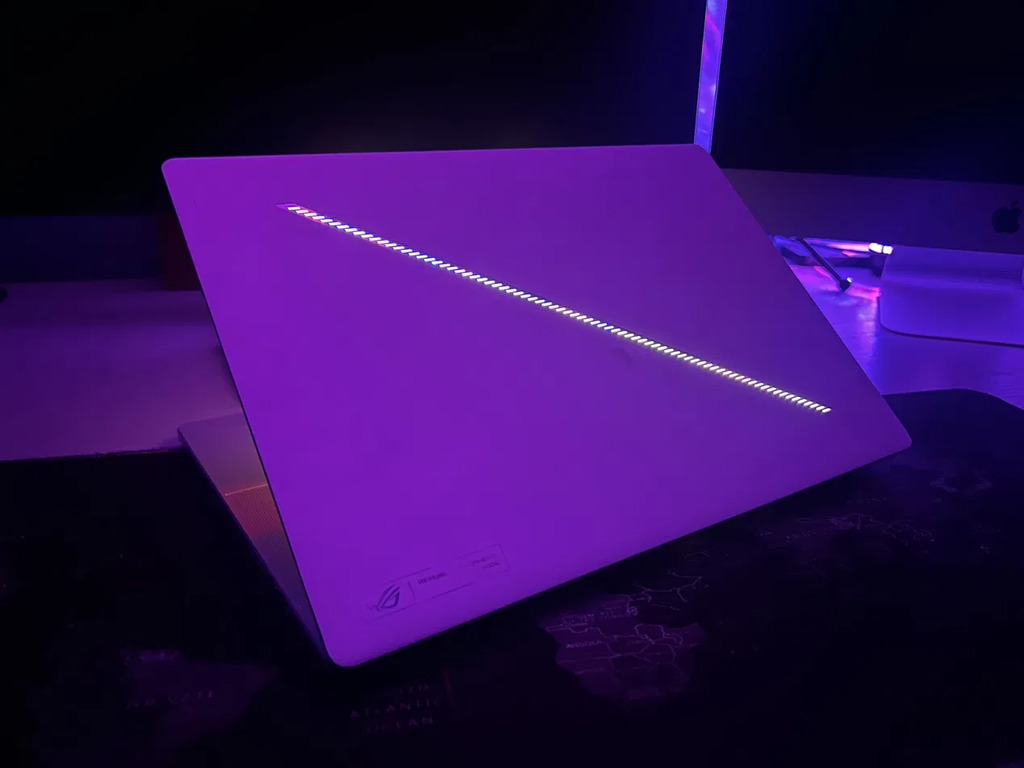
ASUS Slash Lighting is the diagonal strip of tiny LEDs on the back of the lid, and it plays animations instead of just glowing one color like the keyboard does. It’s controlled entirely through Armoury Crate, and ASUS’s Slash Lighting page says you need Armoury Crate 6.0 or newer. On my laptop it also needed the Playground module before it showed up anywhere, which I’ll get to next.
Where to Find ASUS Slash Lighting in Armoury Crate
ASUS’s guide says to open Armoury Crate and pick Slash Lighting from the Devices section on the Home page. On mine, Devices only ever showed the laptop itself (GA605WI), with no Slash Lighting entry before or after I set things up. What actually got me there:
- Open Armoury Crate and go to System Settings.
- If the Lighting tab says “Please install the Feature Library Playground to enable the related functionality,” click Install, then Install next to Playground Core, then Install again on the reminder. It took about 3 minutes to download on my connection, and it only asked me to click Reopen app, with no Windows restart.
- Back in System Settings, click the ⋯ at the end of the tab row and pick Slash Lighting.
- The first time, you get a 4-page “Welcome to Slash Lighting” tutorial, so click Next through it or hit Skip.
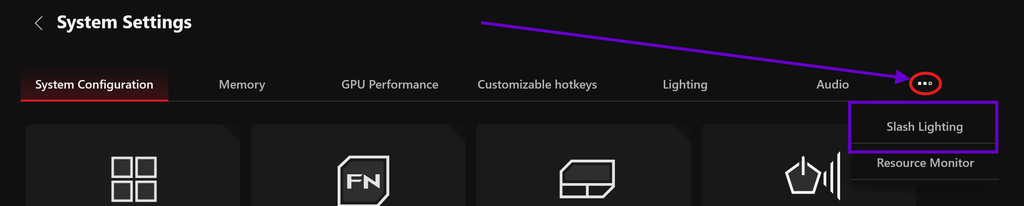
I go through the Playground install step by step, plus what it adds to your background processes, in my Armoury Crate keyboard lighting post, since the keyboard needs the same module.
ASUS Slash Lighting Settings
The Slash Lighting tab has an Active Slash Lighting switch at the top, a preview of the strip, and the animation controls on the right. Mine came on the GLITCH theme with the Bounce animation pattern, an Interval of 0 s (the pause between loops) and Brightness at 100%. You change the theme with Change Theme, and ASUS lists several more, including a Sonic Match pattern that reacts to audio and a Slash Mixer for recording your own, which I didn’t try.
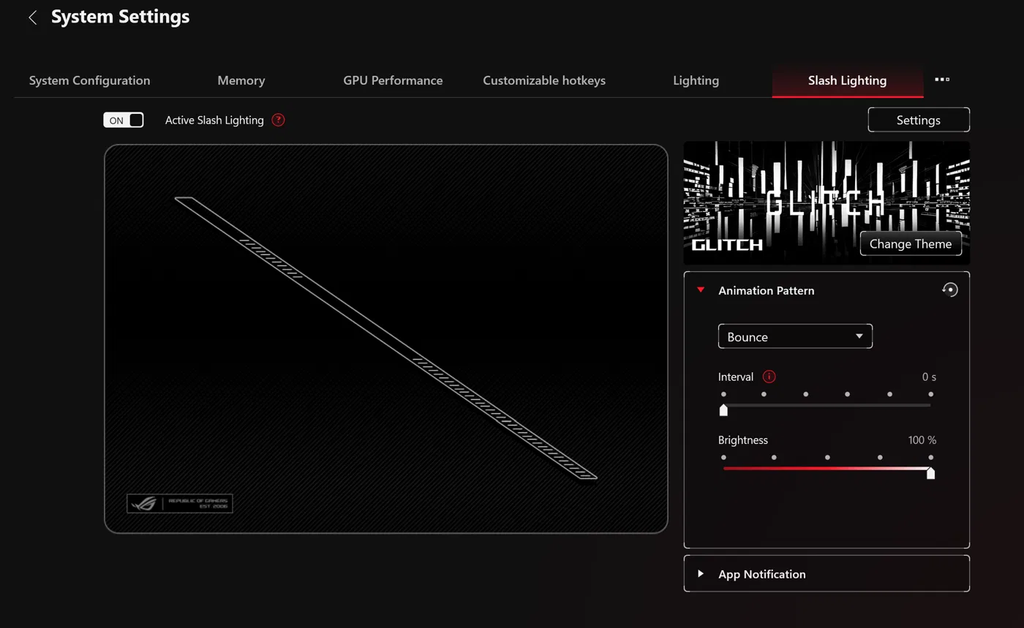
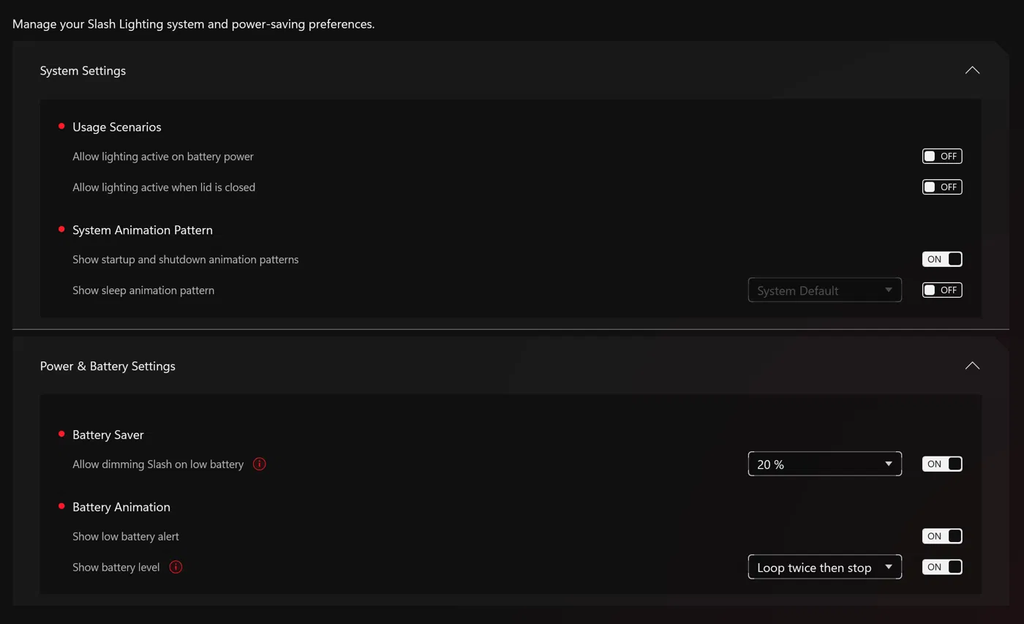
The settings that actually decide when Slash lights up are behind the Settings button at the top right of that tab, and I sorted the defaults on mine into the table below.
| Setting | Default on my G16 | What it does |
|---|---|---|
| Allow lighting active on battery power | Off | Keeps Slash on when unplugged |
| Allow lighting active when lid is closed | Off | Keeps Slash on with the lid shut |
| Show startup and shutdown animation patterns | On | Plays an animation at power on and off |
| Show sleep animation pattern | Off | Plays an animation going into sleep |
| Allow dimming Slash on low battery | On, at 20% | Dims Slash below that battery level |
| Show low battery alert | On | Flashes the strip when the battery is low |
| Show battery level | On, Loop twice then stop | Shows the charge level on the strip |
ASUS Slash Lighting Not Working? Check These First
That first row in the table is why my strip stayed dark. Active Slash Lighting was on, but I was unplugged, and Allow lighting active on battery power is off by default, so the switch on the main tab only does anything while you’re on the charger. To fix it, go to the Slash Lighting tab, click Settings and turn Allow lighting active on battery power on, and the strip lit up for me right away.
If yours still isn’t on after that, these are the other things to check, in the order I’d go through them:
- Lid closed: Allow lighting active when lid is closed is off by default too, so Slash goes dark when you shut the lid.
- Low battery: with the default settings, Slash dims once you’re under 20%.
- Slash Lighting tab missing: install Playground and look behind the ⋯ in System Settings rather than in Devices.
- It disappeared after an update: ASUS’s fix is Settings > Update Center > Check for Updates in Armoury Crate, then install the Slash Kit update if one shows up and reopen the app.
- G-Helper is installed: G-Helper can control Slash too, so close one of them before blaming the other.
What ASUS Slash Lighting Costs on Battery
Since ASUS turns Slash off on battery by default, I wanted to see what it actually costs. I unplugged, set the screen to 50% brightness, left a browser window open, kept Armoury Crate on Silent with the graphics card off (Optimized GPU mode), and read the battery’s discharge rate 5 times per run with a PowerShell script. Everything is in the table below, including a second all-off run at the end to check the battery wasn’t drifting over the session.
| Run | Lighting | Battery drain (W) |
|---|---|---|
| 1 | Everything off Baseline | 8.79 |
| 2 | Keyboard only, Static at 100% | 9.57+12.3% |
| 3 | Slash only, GLITCH / Bounce at 100% | 10.66+25.0% |
| 4 | Keyboard and Slash | 11.88+39.4% |
| 5 | Everything off again Baseline | 8.26 |
Taking the 2 all-off runs as the baseline (8.53 W), ASUS Slash Lighting added about 2.1 W, roughly 25% more drain, while the whole keyboard backlight at full brightness only added about 1.0 W. Both together added about 3.4 W, close to the 2 numbers added up. So the strip on the lid costs about twice what the keyboard does, and ASUS keeping it off on battery by default makes sense even if it confuses people.
Those numbers are for GLITCH with Bounce at 100%, and I didn’t test the other themes or lower brightness. The script I used is in my Armoury Crate GPU mode post if you want to check yours, and if battery is the reason you’re here, switching the graphics card off saved me close to 9 W in my best Armoury Crate settings testing, way more than either light.
How to Turn Off Slash Lighting
To turn off Slash Lighting completely, switch Active Slash Lighting off at the top of the Slash Lighting tab. The startup and shutdown animation and the battery level display are separate switches under Settings, so if you want the strip to stay dark at power on and while charging too, turn off Show startup and shutdown animation patterns and Show battery level as well.
Zephyrus Slash Lighting: Which Models Have It
Zephyrus Slash Lighting is on the G14 and G16, starting with the 2024 models, and ASUS’s page lists the GA403 G14s and the GU605 and GA605K G16s, plus newer 2026 models. My GA605WI isn’t named on that list, and Slash works fine on it, so if your G14 or G16 has the strip on the lid, it’s worth checking Armoury Crate even if your exact model number isn’t listed.
Slash Lighting in G-Helper
If you’d rather skip Armoury Crate, G-Helper added Slash support for the 2024 models, and I covered its keyboard side in my G-Helper keyboard backlight guide. I didn’t test Slash through G-Helper for this post.
ASUS Slash Lighting FAQ
Why is my Slash Lighting on but not lighting up?
Most likely you’re on battery. Allow lighting active on battery power is off by default, so open the Slash Lighting tab, click Settings and turn it on.
Does Slash Lighting drain the battery?
On mine it added about 2.1 W at idle with GLITCH and Bounce at 100%, around 25% more drain, which is about twice what the keyboard backlight cost at full brightness.
Can Slash Lighting stay on with the lid closed?
Yes, with Allow lighting active when lid is closed under Settings, which is off by default. I didn’t test it with that option on.
Why does Slash light up when I plug in the charger?
That’s Show battery level, which is on by default and set to loop twice then stop. Turn it off under Settings if you don’t want it.
Where is Slash Lighting in Armoury Crate?
On my G16 it’s a tab in System Settings, hidden behind the ⋯ at the end of the tab row, and it only appeared after installing Playground.
If your Slash Lighting still won’t turn on after flipping the battery setting, drop your laptop model and Armoury Crate version in the comments and I’ll take a look.