Armoury Crate Hotkeys: Every Option + Macros (Tested 2026)
Armoury Crate hotkeys look simple enough, 4 slots called M1 to M4 that you can point at almost anything, so I went through every option on my G16 expecting to remap a key or 2 and be done. Then I set M1 to open Calculator, pressed every key it could possibly be, and Calculator never opened once.
On top of that, the very first option in every dropdown is a line of placeholder code ASUS forgot to replace, and macros need a separate install before they work at all, then cap out at about 50 key presses each. Whether you want to remap a key, set up a macro, or figure out why your hotkeys stopped working, I’ll go through what each option does and what your laptop’s keys actually do down below.
After I went through every Armoury Crate hotkey option on my G16:
- M1 to M4: None of my keys were in that row, since the G16 doesn’t have it
- Dropdowns: The first option in every one was placeholder code ASUS never replaced
- Macros: Needed a separate install, then capped out at about 50 key presses each
- Zephyrus G16 (GA605WI)
- Ryzen AI 9 HX 370
- RTX 4070 Laptop
- Windows 11 Home 26H2
- Build 26300
- Armoury Crate 6.7.6.0
Where Armoury Crate Hotkeys Are Hiding
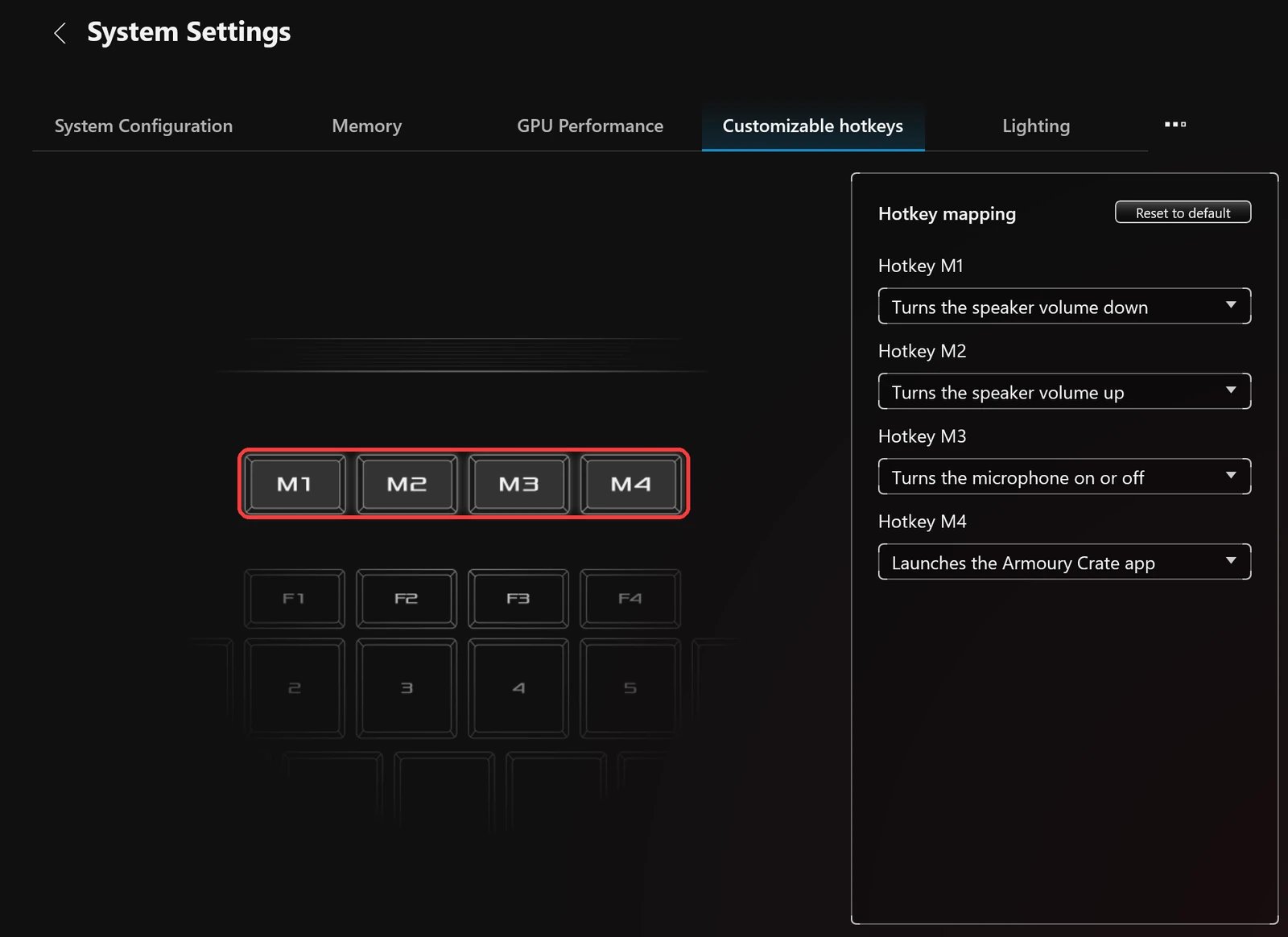
They aren’t on the Home page or anywhere in the left sidebar. In Armoury Crate, click Devices, click your laptop, then click the … button to the right of the GPU Performance tab and pick Customizable hotkeys from the menu (with the window maximized it shows up as its own tab instead). That page is a list called Hotkey mapping with 4 slots, Hotkey M1 through Hotkey M4, and a Reset to default button in the corner, which you can see in the screenshot down below.
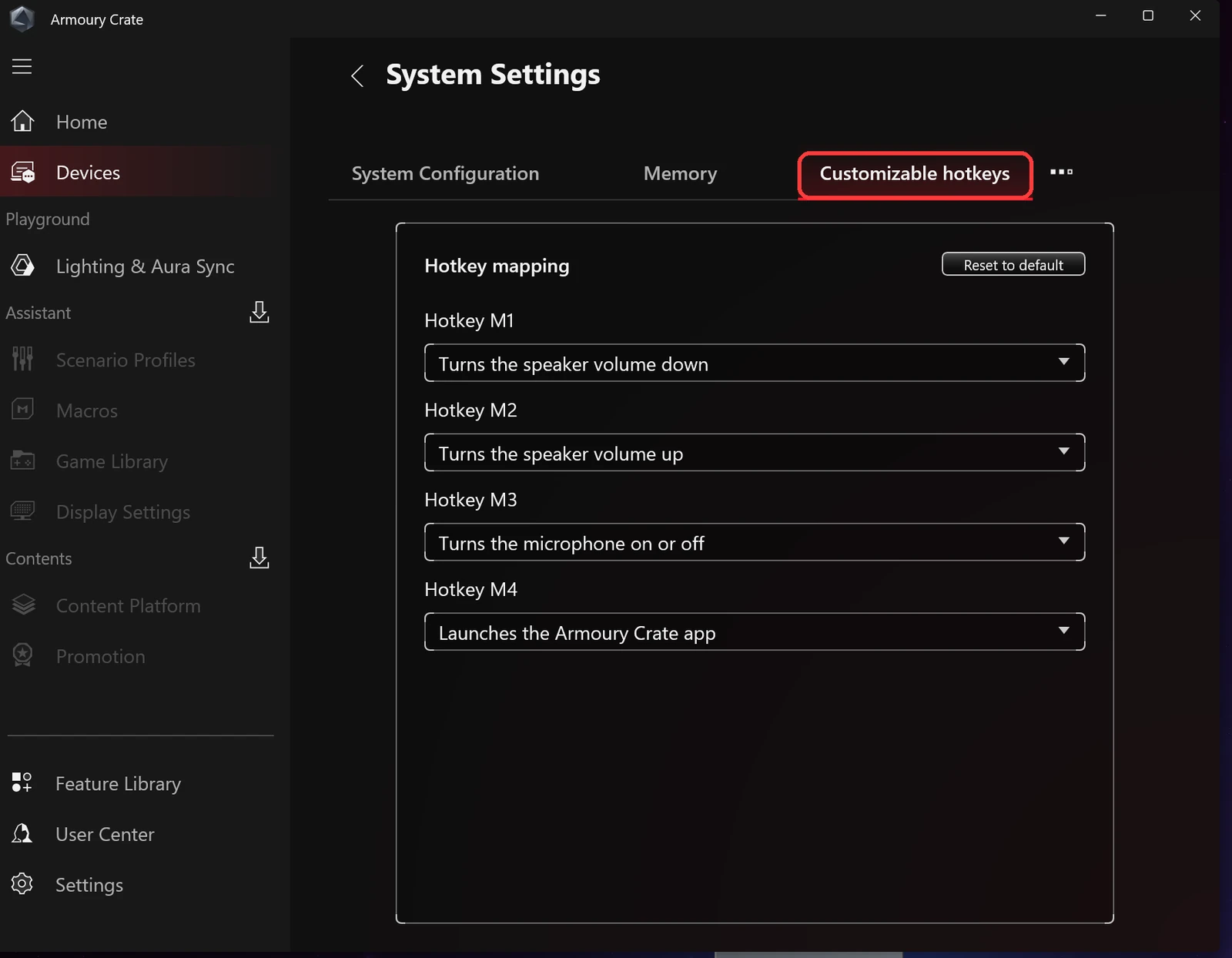
Out of the box, mine were set to:
- M1: Turns the speaker volume down
- M2: Turns the speaker volume up
- M3: Turns the microphone on or off
- M4: Launches the Armoury Crate app
On my laptop the Customizable hotkeys page was already there on a fresh Armoury Crate install. A ROG forum thread has an ASUS reply saying newer versions need an extra component installed before it shows up, so if yours is missing, the Update Center fix further down is where I’d look first.
Which Keys Are M1 to M4?
With the window maximized, the Customizable hotkeys page draws M1 to M4 as their own row of keys sitting above F1 to F4, which I boxed in the screenshot down below. My G16 doesn’t have that row. The top row of my keyboard is just F1 to F12, so I went across all of them holding Fn to see which ones line up with the 4 slots.
I sorted what each key did into the table down below.
| Key on my G16 | What it did |
|---|---|
| Fn + F1 | Opened my default browser (Vivaldi) |
| Fn + F2 | Opened my mail app (Outlook) |
| Fn + F3 | Switched windows, same as Alt + Tab |
| Fn + F4 | Opened File Explorer |
| Fn + F5 | Nothing |
| Fn + F8 | Play/pause on a video |
| Fn + F10 | Mute |
| Fn + F11 | Volume down |
| Fn + F12 | Volume up |
Fn + F11 and Fn + F12 do the same thing as the M1 and M2 defaults, so to check whether they actually are M1 and M2, I set Hotkey M1 to Launches the Calculator app and pressed Fn + F11 again. It still just turned the volume down, and Calculator never opened from any key on the laptop. So on my G16, the 4 Armoury Crate customizable hotkeys aren’t tied to any key I could find, and the volume, mute and app keys on the top row work on their own without them.
The most likely reason is that this page is built for ROG models that do have a dedicated M1 to M4 row, and the G16 gets the same page anyway, though I only have the G16 to check that on. I didn’t check Fn + F6, F7, F9, Fn + V or the Windows key combos. When I was done, I clicked Reset to default to put M1 back on volume down.
Every Armoury Crate Customizable Hotkeys Option
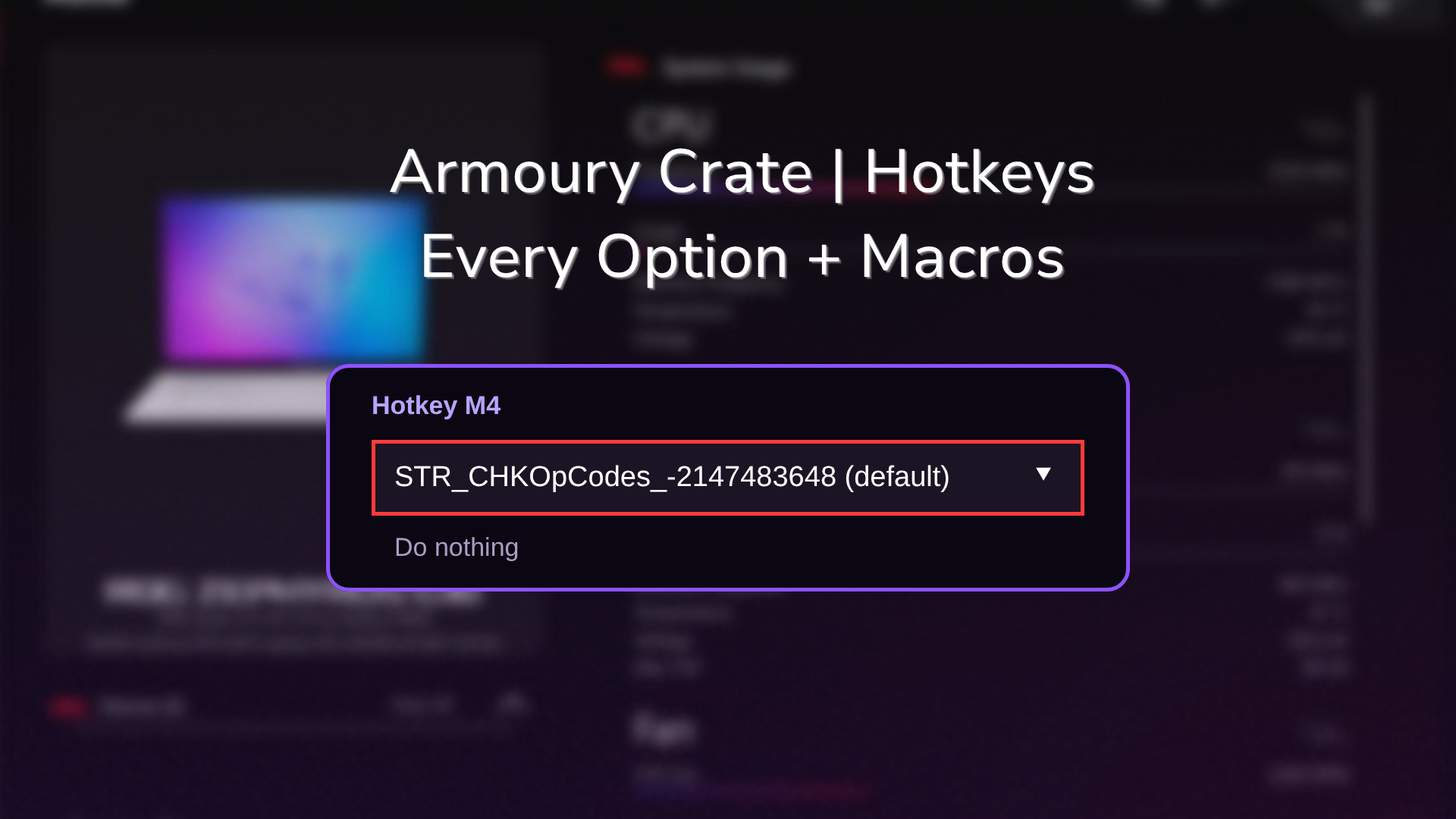
Click the dropdown under any of the 4 slots and you get the full list of Armoury Crate customizable hotkeys actions. The very top line on mine says STR_CHKOpCodes_-2147483648 (default), which is a text label ASUS never filled in, so it shows you the raw name from the code instead of a normal word like Default. (Side note: -2147483648 is the lowest number a 32-bit integer can hold, which is usually what a blank value looks like inside a program lol.) Below it is Do nothing if you just want a key to stop doing anything.
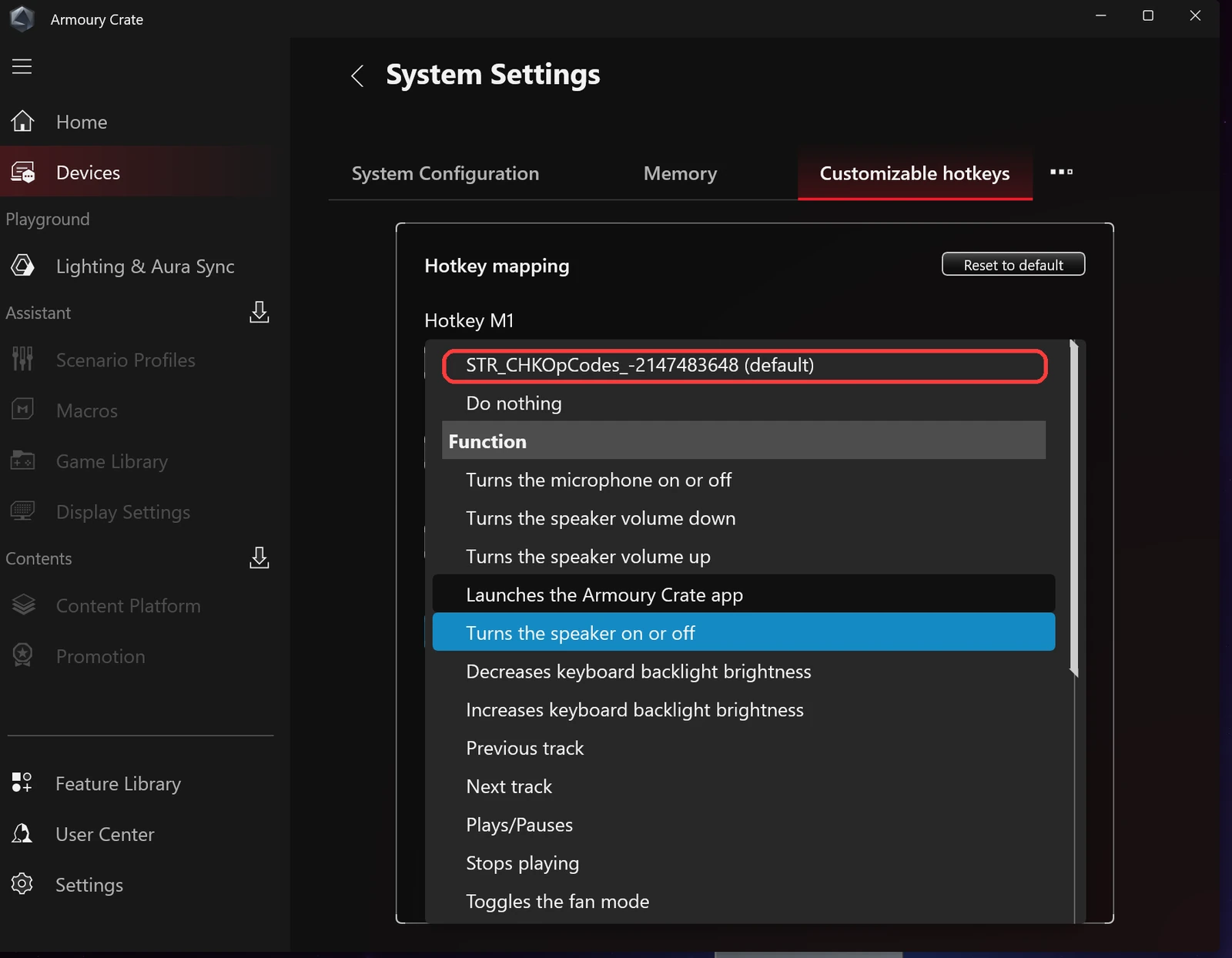
Under Function there are 19 actions you can put on any slot:
- Microphone on or off, speaker on or off, speaker volume down and up
- Keyboard backlight brightness down and up, display brightness down and up
- Previous track, next track, play/pause and stop
- Toggles the fan mode
- Toggles the display mode
- Enables or disables the touchpad
- Enters Sleep mode, turns Airplane mode on or off
- Launches the Armoury Crate app or the Calculator app
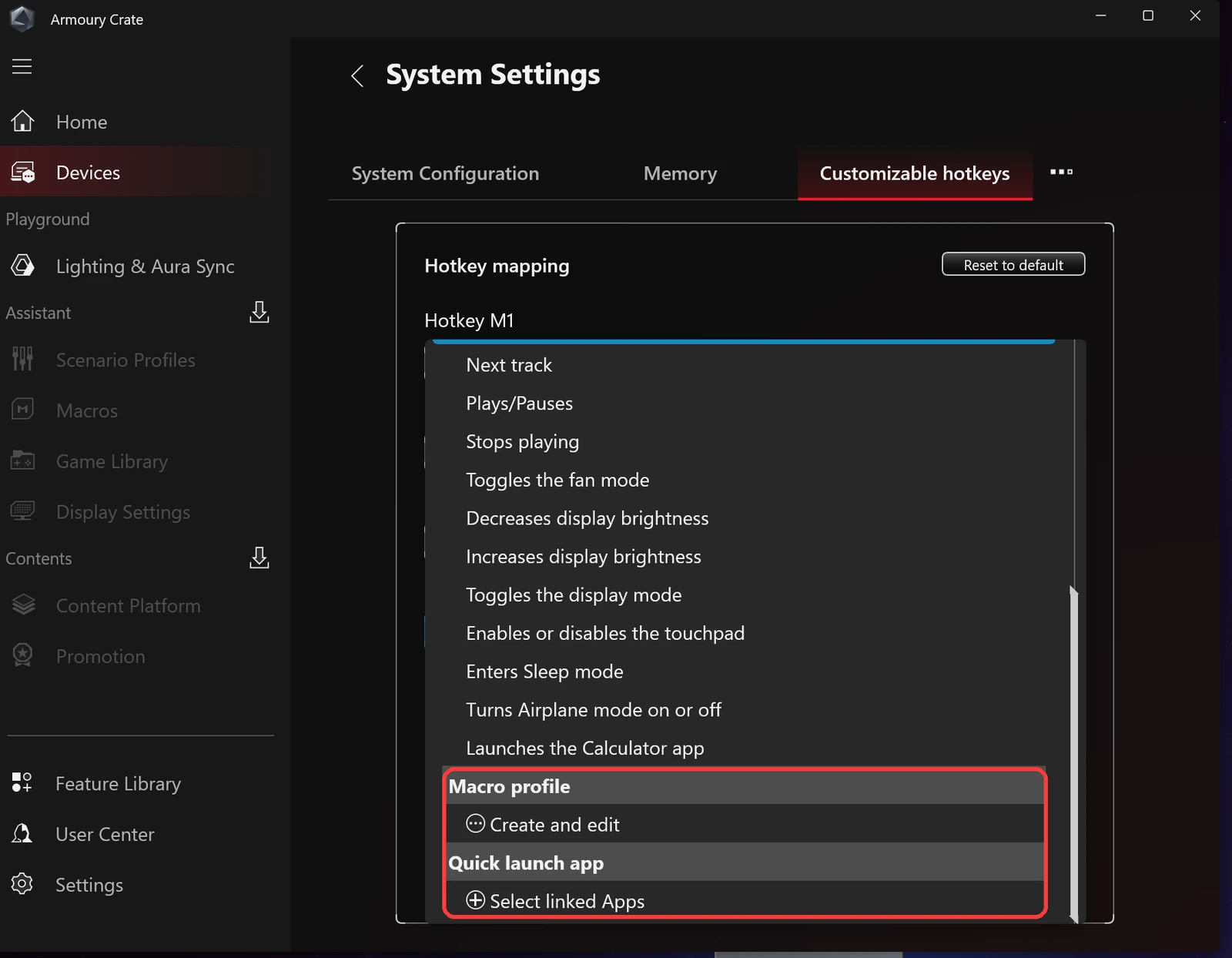
At the bottom of the list are 2 more sections, Macro profile with Create and edit and Quick launch app with Select linked Apps, which I boxed in the screenshot down below. Quick launch lets a key open any app you pick, and Macro profile is the one that needs more work, so I’ll go through that next.
Macros Need an Extra Install
When I clicked Create and edit, Armoury Crate threw up a Go to Feature Library box instead of a macro editor, because Macros wasn’t installed on my laptop. The Macros, Scenario Profiles, Game Library and Display Settings entries in the sidebar were all grayed out for the same reason.
Clicking Learn more opens the Feature Library page. Macros doesn’t install on its own, it comes in a package called Assistant together with those other 3, so it’s all 4 or nothing. To get it:
- Click Feature Library at the bottom of the left sidebar.
- Scroll down to Assistant and click Install.
- Click Install again on the Important reminder box.
- Wait for Installing Feature Libraries to finish, then click Reopen app.
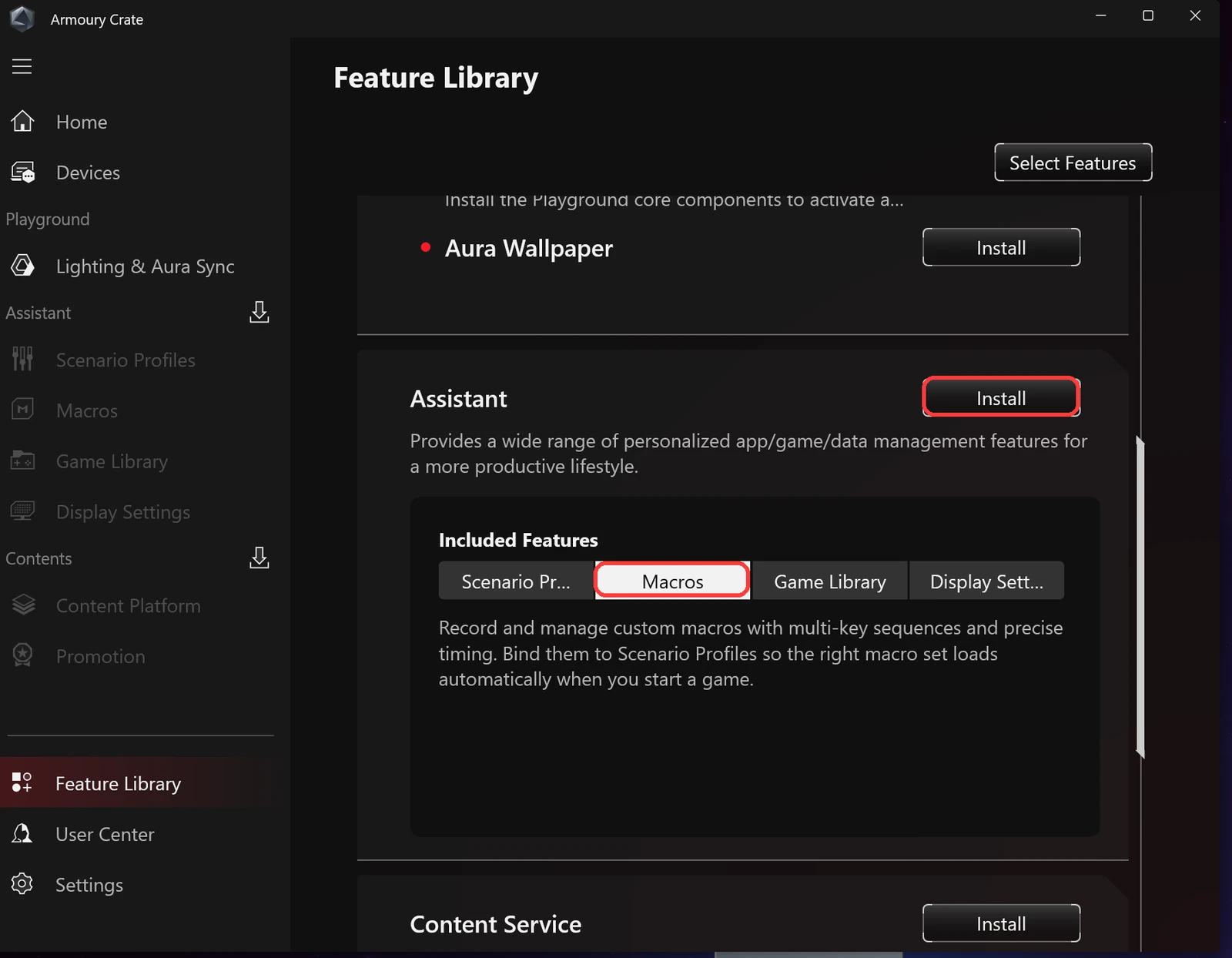
On my laptop the whole thing took about 70 seconds on Wi-Fi with no Windows admin prompt, and Armoury Crate restarted itself with the 4 sidebar entries unlocked.
How to Make a Macro in Armoury Crate
The Macros page gives you 2 ways in. Record captures what you type live, and Insert lets you add a Keystroke or a Mouse click by hand and then set the key and a delay in the Properties panel on the right. Click Save when you’re done, since leaving the page without saving pops up a Save macro file? box.
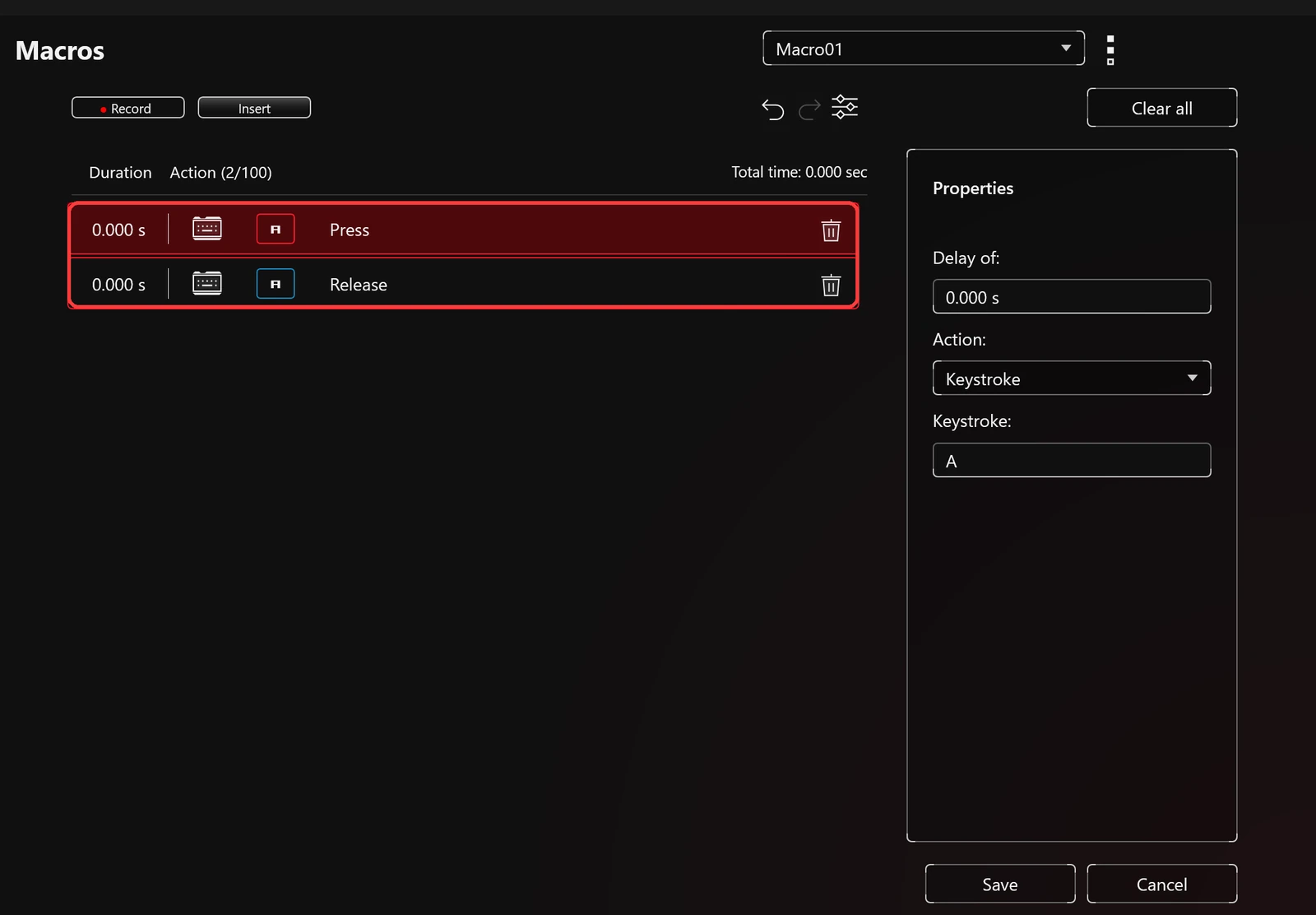
Here’s the catch though, each macro is capped at 100 actions, and 1 inserted keystroke counts as 2 of them, a Press and a Release, which you can see in the screenshot above. So the real limit is about 50 key presses per macro. Once a macro is saved, it shows up under Macro profile in the hotkey dropdown so you can put it on an M slot.
Armoury Crate Hotkeys Not Working
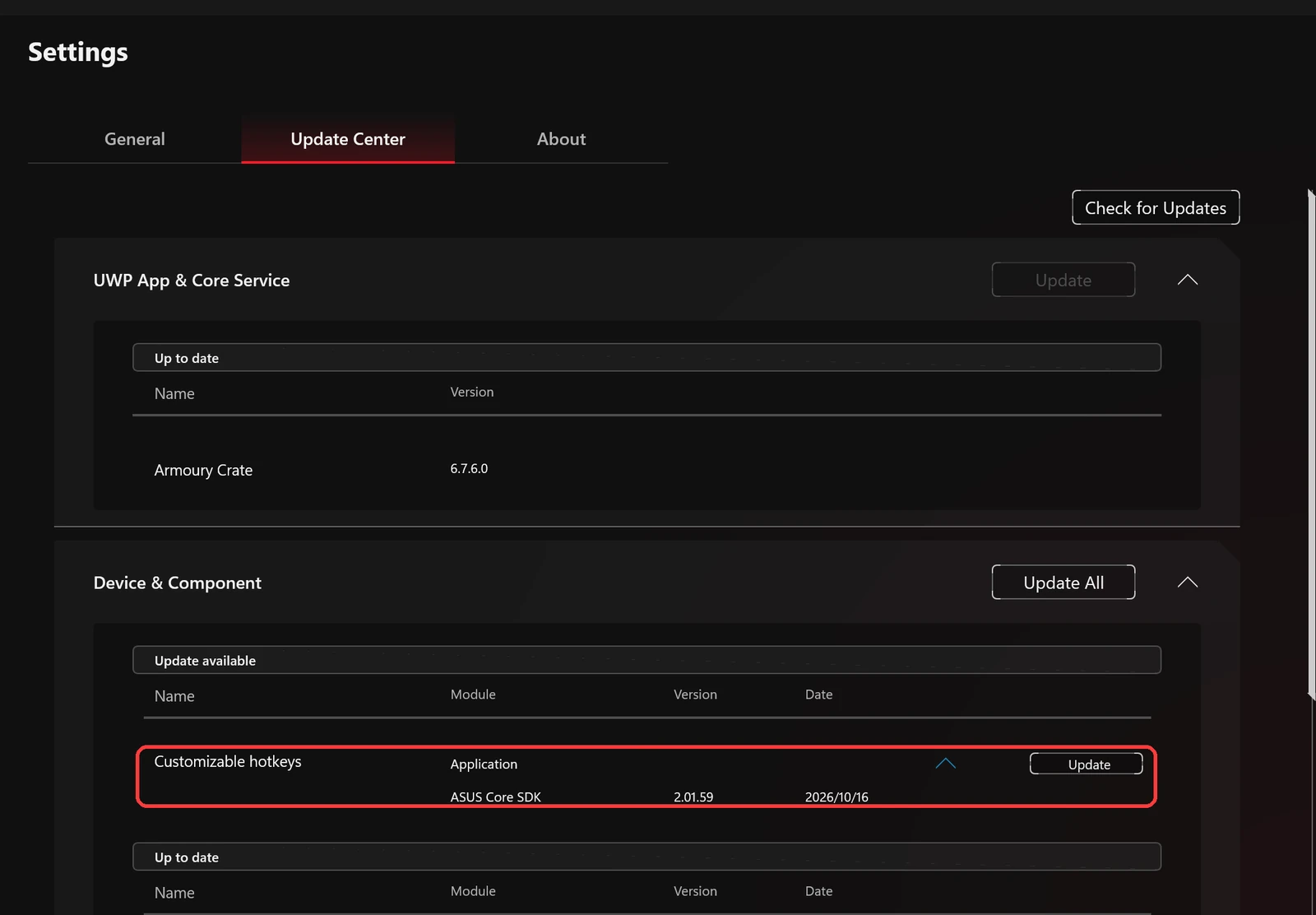
Customizable hotkeys gets updated separately from the main app, so it can be out of date even when Armoury Crate itself says it’s current. On mine, Settings > Update Center showed Armoury Crate 6.7.6.0 as up to date, while Customizable hotkeys sat under Update available with a new version dated October 16, 2026. A G18 owner on the ROG forum had their hotkeys stop working until they updated exactly this component.
If your Armoury Crate hotkeys are not working, go through these in order:
- Check that your laptop actually has keys for the M1 to M4 slots. On my G16, changing those 4 slots did nothing because no key triggers them, which looks exactly like the hotkeys being broken.
- Open Settings > Update Center, click Check for Updates, and update Customizable hotkeys if it’s listed.
- Check the Function key tile under Devices > your laptop > System Configuration. When it says Locked, F1 to F12 do the hotkey action without holding Fn, so if you’re holding Fn you might be getting the plain F-key instead.
- Check the Win Key tile on that same tab, since it can lock the Windows key.
- Close G-Helper if you have it, since it handles the same hotkeys itself according to its GitHub page and the 2 can fight over them. I went through running them side by side in G-Helper vs Armoury Crate.
- Restart the laptop.
I didn’t test the Function key or Win Key tiles with real key presses, so those 2 steps come from what ASUS writes on the tiles themselves.
Armoury Crate Hotkeys FAQ
What is STR_CHKOpCodes in Armoury Crate?
It’s the label on the default option in the hotkey dropdown. ASUS never gave it a proper name, so it shows the internal text ID from the app’s code instead. I didn’t select it, so what it does to a slot is untested.
Can I remap the Armoury Crate button?
Hotkey M4 is the slot set to launch Armoury Crate by default, but on my G16 no key triggered it, so I left remapping it untested. If your laptop has a dedicated Armoury Crate or M4 key, pick any action from the M4 dropdown, or Do nothing to turn it off.
Do I need to install anything for Armoury Crate hotkeys?
Not for the 4 hotkey slots on my laptop. You only need the Assistant package from the Feature Library if you want macros, and it installs Scenario Profiles, Game Library and Display Settings along with it. Which Armoury Crate download you start from doesn’t change that, which I tested in Armoury Crate lite vs full, and for the settings that actually change performance and battery, check out my best Armoury Crate settings.
If one of your hotkeys does something different from mine, drop your laptop model and the key in the comments and I’ll add it to the list.