

ASUS ROG Fn Keys Not Working? Tested on a G16
Most forum answers to ASUS ROG Fn keys not working tell you to reinstall Armoury Crate. I uninstalled it on my Zephyrus G16 to see if that was really needed. Only 1 Fn shortcut stopped working. Brightness, volume, mute and the app launch keys all kept doing their jobs without it. Below is a quick checklist sorted by which key died on yours, plus every key I pressed before and after the uninstall.
I went into this because the Armoury Crate hotkeys never worked for me, and the one Fn key that did something was the display mode switch, which I wasn’t even sure belonged to Armoury Crate. Then there was Fn Lock, which I had never used before and found annoying. I’m not the type to keep my function row locked, since it distracts me more than it ever helps, and it frustrated me when I first ran into it.
After I uninstalled Armoury Crate on my G16, every Fn key I tried kept working except Fn + V, the GameVisual shortcut. Its Function key tile also read Locked the whole time, even though my F-row acted unlocked.
- Zephyrus G16 (GA605WI)
- Ryzen AI 9 HX 370
- Windows 11 26H2
- Built-in keyboard
ASUS ROG Fn keys not working? Check these first
If your ASUS function keys are not working on Windows 11, these are in the order I’d go through them, based on what I ran into on the G16. Find the key that’s dead on your laptop and start with that step, since ASUS’s built-in keyboard troubleshooting page ties each kind of key to a different driver or app.
- Fn + V or another Armoury Crate shortcut does nothing. Make sure you’re pressing the shortcut on the laptop’s own keyboard. When I tested GameVisual, Fn + V only worked on the G16’s built-in keyboard and did nothing on an external one. Then check that Armoury Crate is installed, open Settings > Update Center and update Customizable hotkeys if it’s listed. That component was sitting under Update available on mine even though the app said it was current, which I covered in my guide to the Armoury Crate hotkeys page. ASUS’s page also says that on its gaming laptops, turning off the Win Key tile in Armoury Crate’s System Configuration disables the display mode hotkey along with it, so check that tile while you’re in there. If Fn + V is the one you want back and the app is gone, my Armoury Crate download guide has the lean install I used.
- Brightness, volume or mute does nothing. If it’s brightness, volume or mute that’s dead, Armoury Crate isn’t the cause on a G16, since all 3 worked without it. The ASUS page ties the volume and mute keys to the ASUS System Control Interface driver plus your audio driver, and points to Windows Update for brightness, so I’d update those through MyASUS before reinstalling anything. If updating doesn’t bring them back, the bigger fix is reinstalling the ASUS System Control Interface driver from Device Manager, and the steps for that are in my G-Helper not working guide (they work the same whether or not you use G-Helper).
- Your whole F-row feels swapped. Press F5 in a browser. If it reloads, your function row is in its normal mode. Press Fn + Esc and press F5 again to see whether it flips, and go by what F5 does rather than Armoury Crate’s Function key tile. ASUS lists Fn + Esc as depending on the ASUS System Control Interface driver too, so if pressing it changes nothing on your laptop, updating that driver through MyASUS is the next thing to try.
- You use G-Helper and the keys only work some of the time. In a G-Helper GitHub issue, a Zephyrus S17 owner with Armoury Crate uninstalled said the Fn key and ROG key didn’t work the first time G-Helper started, and that they worked every time once Asus Optimisation Service was running. The developer suspected the external USB keyboard plugged into that laptop was confusing the app, and a newer build fixed it, so if you have one plugged in, unplug it and restart G-Helper. Another ROG owner’s write-up found F5 switching performance modes instead of refreshing because Fn Lock was on in G-Helper, and pressing Fn + Esc put it back. Both of those were G-Helper setups, and G-Helper wasn’t on my G16 for this test, so those are their results rather than mine.
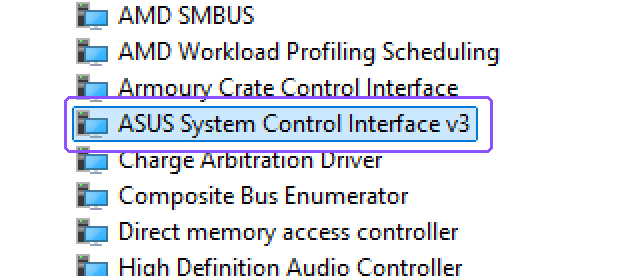
If you end up in Device Manager for step 2, expand System devices and look for the ASUS entry. On my G16 it showed up as ASUS System Control Interface v3 (the purple box below), right under an Armoury Crate Control Interface entry that was still listed even though Armoury Crate itself was uninstalled.
Every Fn key I tested
I pressed each key on the laptop’s built-in keyboard, once with Armoury Crate installed and once after running ASUS’s Uninstall Tool and restarting, and wrote down what happened. You can see both results side by side in the table below, and the row that changed is the last one.
| Key | With Armoury Crate | After uninstalling |
|---|---|---|
| Fn + F1 | Brightness down | Same |
| Fn + F2 | Brightness up | Same |
| Fn + F3 | Opened Vivaldi on a blank page | Same |
| Fn + F4 | Opened the older Outlook | Same |
| Fn + F5 | Opened Calculator | Same |
| Fn + F6 | Opened the video player | Same |
| Fn + F7 to F9 | Nothing I could see | Same |
| Fn + F10 | Mute | Same |
| Fn + F11 | Volume down | Same |
| Fn + F12 | Volume up | Same |
| F5 on its own | Reloaded the page | Same, before and after Fn + Esc |
| Fn + V | Switched GameVisual modes | Nothing |
Brightness, volume, mute and the 4 app launch keys behaved the same with Armoury Crate gone, so reinstalling the app wouldn’t have brought any of them back on my G16.
Fn + V is the GameVisual shortcut, and GameVisual is an Armoury Crate module. When I tested it for my GameVisual modes post, the app had a Hotkey Switch toggle that said it used Fn + V to switch modes, so it makes sense that the shortcut went when the app did. With Armoury Crate uninstalled, pressing it did nothing at all, which means the display mode switch I mentioned at the top, the one Fn key that ever did anything for me, turned out to be the only one that actually needed Armoury Crate. The M1 to M4 slots on the Armoury Crate hotkeys page never did anything for me even with the app installed, which I went through in my Armoury Crate hotkeys guide.
Why Fn Lock looked broken on my G16
The top row of your keyboard has 2 jobs. Pressing a key like F5 on its own gives you the normal F-key action, which is a page reload in a browser, and holding Fn with it gives you the laptop shortcut printed on the key. Fn Lock swaps those 2, and ASUS’s own keyboard troubleshooting page lists Fn + Esc as the toggle, tied to the ASUS System Control Interface driver rather than to Armoury Crate. Mine was already off when I started, and pressing Fn + Esc didn’t change what F5 did before or after the uninstall, which honestly felt very weird, like the toggle just doesn’t do anything on my laptop.
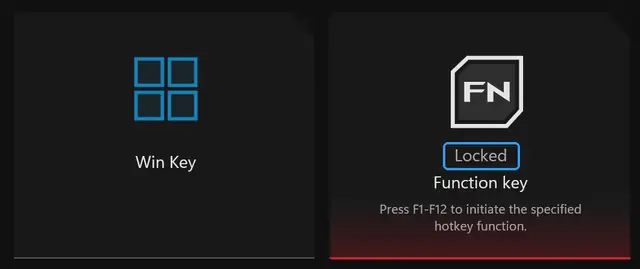
Armoury Crate made it more confusing. If you open Devices, pick your laptop and go to System Configuration, there’s a Function key tile, and on mine it read Locked with a note saying to press F1-F12 to use the hotkey functions, while a plain F5 kept reloading the page like any normal F-key. You can see that tile in the screenshot below, and it’s showing the opposite of what my keyboard was actually doing, so go by what the key does when you press it rather than what that tile says.
If you uninstalled Armoury Crate on purpose, what the official uninstall tool leaves behind covers what stays running afterward. For the settings that are actually worth changing if you keep it, see my best Armoury Crate settings.
Are these keys worth chasing?
I wouldn’t tell the average person to go chasing these. Most people use their laptop the way they learned on it and only change things when something truly bothers them, which I think is fine. My guides are for getting more out of the laptop than you knew it could do, so if a key is bugging you now you know what it depends on, and if it isn’t, the defaults are fine.
ASUS Fn keys FAQ
Do ASUS Fn keys need Armoury Crate?
Not most of them on my G16. After I uninstalled it, brightness, volume, mute and the 4 app launch keys kept working. Only Fn + V, the GameVisual shortcut, stopped.
ASUS Fn keys not working after uninstalling Armoury Crate?
Check which key it is. On mine, only the Armoury Crate shortcut (Fn + V) went away, and the rest of the row looked exactly like it did before the uninstall.
How do I turn Fn Lock off on an ASUS laptop?
ASUS lists Fn + Esc as the toggle, and it relies on the ASUS System Control Interface driver. Whatever Armoury Crate’s Function key tile says, press F5 in a browser, and if the page reloads, Fn Lock is off.
Why does F5 change performance modes on my ROG?
In the write-up linked in the checklist, that was G-Helper’s Fn Lock being on. Pressing Fn + Esc turned it off, F5 went back to reloading pages, and Fn + F5 still switched performance modes. On my G16 without G-Helper, a plain F5 reloaded the page the whole time.
If you’ve got a Fn key that behaves differently on your ASUS, or a tip that fixed yours, drop your laptop model and what you did in the comments. What would you recommend to someone whose keys stopped working? I’ll add the best ones to this article.
Did this fix it for you?
Nice, glad it worked.
Thanks, that helps.
I use these to decide what to retest next. If you want a reply, ask in the comments and I'll take a look.