ASUS AI Noise Cancelling Not Working? What I Found (2026)
I went to test ASUS AI noise cancelling on my Zephyrus G16 and found out it wasn’t working at all, and honestly, neither was my mic. Armoury Crate just threw a popup saying drivers were missing, and every app on my laptop had been telling me my mic didn’t work for months. I went through 3 fixes plus a restart trying to bring ASUS’s version back, and none of them touched the popup, but one of them fixed my mic, and a setting already built into Windows ended up doing the job ASUS’s software was supposed to do. If your ASUS mic or noise cancelling is acting up, I’ll go through what to check first, what didn’t work for me, and the fix that actually got me clean voice chat.
After I tried 3 fixes for the “Prerequisite drivers are missing” popup on my G16, here’s what happened:
- Realtek Audio Console: Installed in about 20 seconds, popup still there
- Realtek driver reinstall: Took 7 seconds plus a restart, popup still there
- Microphone Array: Was set to Disabled in Windows; turning it on fixed my mic but not the popup
- Voice Clarity: Blocked out the background noise in Windows’ mic test, with my voice getting blurrier as the noise got louder
- Zephyrus G16 (GA605WI)
- Ryzen AI 9 HX 370
- RTX 4070 Laptop
- Windows 11 Home 26H2
- Armoury Crate 6.7.6.0
- AI Noise Cancelation 5.0.0
Realtek audio driver 6.0.9706.1
What ASUS AI noise cancelling is supposed to do
ASUS’s Two-Way AI Noise Cancelation is a filter that sits between your mic and your apps. It’s supposed to keep your voice and cut out keyboard clicks, fan noise and background chatter, and the “two-way” part means it can also clean up what you hear from other people. It lives inside Armoury Crate now, under Devices > your laptop > Audio, and according to ASUS’s own setup guide it works by adding 2 virtual devices to Windows: AI Noise-Cancelling Input (ASUS Utility) and AI Noise-Cancelling Output (ASUS Utility). You then pick those in Discord, Teams or Zoom instead of your normal mic and speakers.
So if those 2 devices don’t exist, nothing else about it works, and that’s exactly where mine was stuck.
Why ASUS AI noise cancelling is not working on my G16
The software itself was installed. AI Noise Cancelation Audio Software 5.0.0 showed up in Installed apps, since Armoury Crate installs it on its own during setup. But opening Armoury Crate > Devices > GA605WI, clicking the three dots next to the tabs and then Audio gave me this every single time:
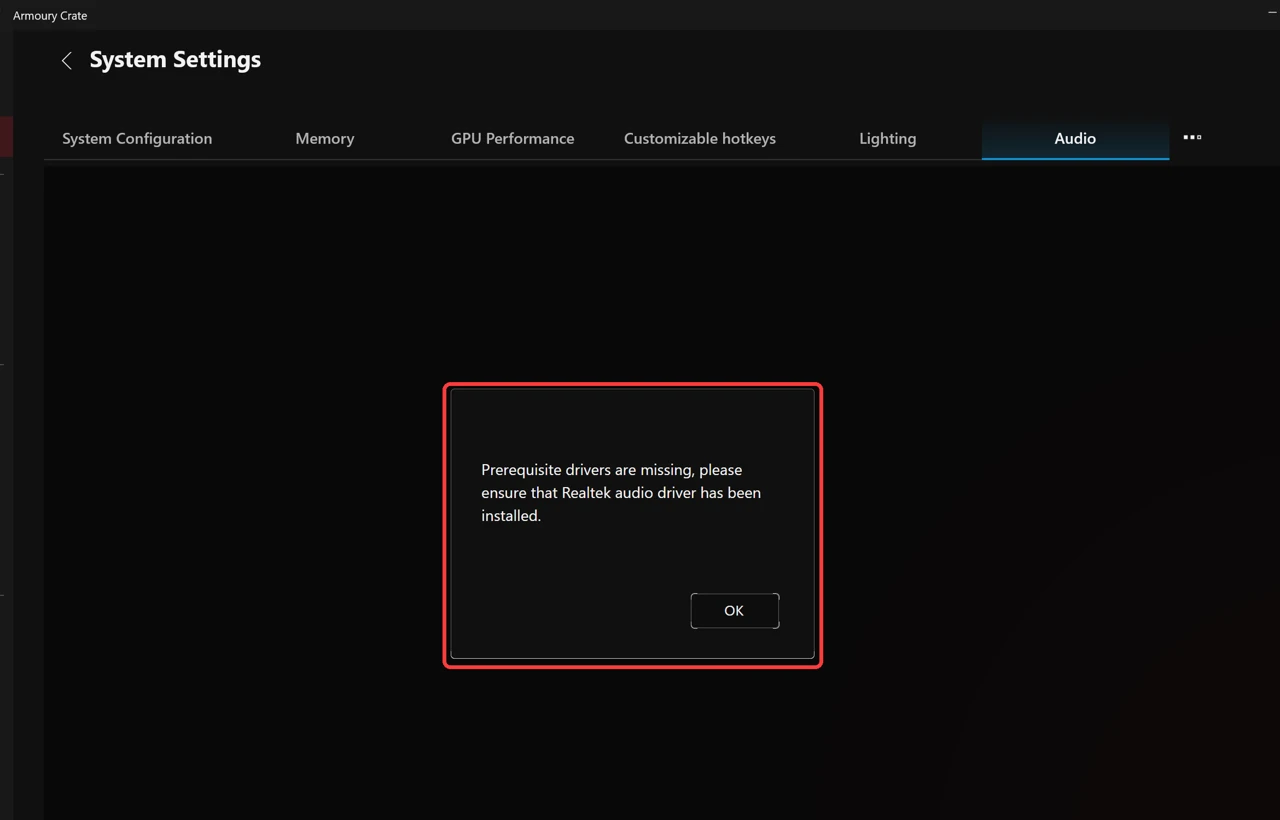
“Prerequisite drivers are missing, please ensure that Realtek audio driver has been installed.” After clicking OK the Audio tab is just blank, and Windows had no AI Noise-Cancelling Input or Output device anywhere. The weird part is the Realtek driver was installed, version 6.0.9706.1, which is the newest Realtek package on ASUS’s download page for my model. That same page doesn’t list a separate AI noise cancelling download either, so there’s no obvious “install the missing driver” button to click.
Check this first: is your mic even turned on?
Now this one got me for a while. My mic had been “broken” for months, and every app just said it didn’t work. When I finally opened Settings > System > Sound, the Input section said No input devices found. The mic wasn’t broken at all. Windows had the laptop’s built-in Microphone Array set to Disabled.
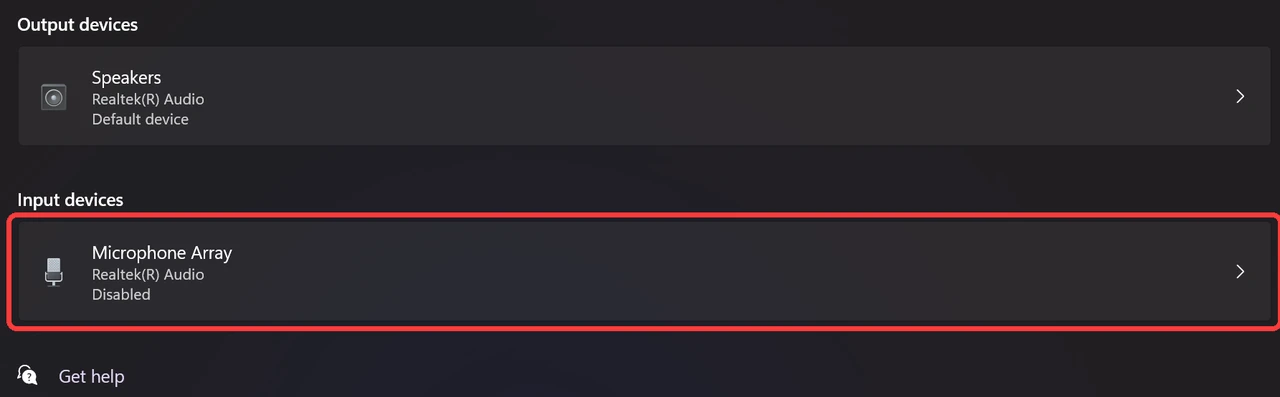
In the screenshot up above, the red box shows “Disabled” sitting right under the device name. I turned it back on like this:
- Open Settings > System > Sound.
- Scroll down to Advanced and click All sound devices.
- Under Input devices, click Microphone Array.
- Next to Audio, click Allow. The button flips to Don’t allow once it’s on.
- Click Start test under Microphone test, talk for a few seconds, and you should see a volume percentage show up next to the button.
Mine showed a volume reading right away and my mic worked in every app again. I didn’t find out what disabled it in the first place. If your ASUS AI noise cancelling mic is not working, check this before anything else, because no noise cancelling software in the world can filter a mic Windows has switched off.
What I tried that didn’t fix the popup
Turning the mic on fixed my mic, but Armoury Crate still showed the same “Prerequisite drivers are missing” popup, even after I closed and reopened Armoury Crate. These are the other things I tried, in the order I’d try them on yours:
- Install Realtek Audio Console. ASUS’s guide mentions turning off Realtek’s own voice enhancement in Realtek Audio Console, and my laptop didn’t have that app at all. I got it from the Microsoft Store in about 20 seconds with no restart. The popup came back the next day exactly the same.
- Reinstall ASUS’s Realtek audio driver. I downloaded the Realtek audio package from ASUS’s support page for the GA605WI and ran it. It finished in 7 seconds and asked for a restart. After restarting, still no AI Noise-Cancelling devices and the same popup.
- Enable the Microphone Array. Covered up above. It fixed the mic but not the popup.
The Armoury Crate uninstall connection
Looking back at my notes, the popup was already there on Oct 12, the first time I reinstalled Armoury Crate after removing it, and I’ve run ASUS’s official Armoury Crate Uninstall Tool on this laptop more than once while testing. A ROG forum user with a Strix G18 posted the same missing “AI Noise-Cancelling Input (ASUS Utility)” device, and they had also run the uninstall tool. The most likely reason is that the uninstall tool removes the piece that creates those virtual devices, and reinstalling Armoury Crate doesn’t put it back. I didn’t confirm that on a clean Windows install. If you’ve never used the uninstall tool and still get the popup, let me know in the comments, because that would rule it out. I went through everything else the tool leaves behind in my Armoury Crate uninstall test.
The fix that actually worked: Windows Voice Clarity
Once the mic was turned back on, a new option showed up on the same page in Windows: Voice Clarity. It’s Microsoft’s built-in noise filter, and it does the same basic job ASUS’s version is supposed to do, without Armoury Crate, without extra drivers and without picking a special device in every app.
- Go back to Settings > System > Sound > All sound devices > Microphone Array.
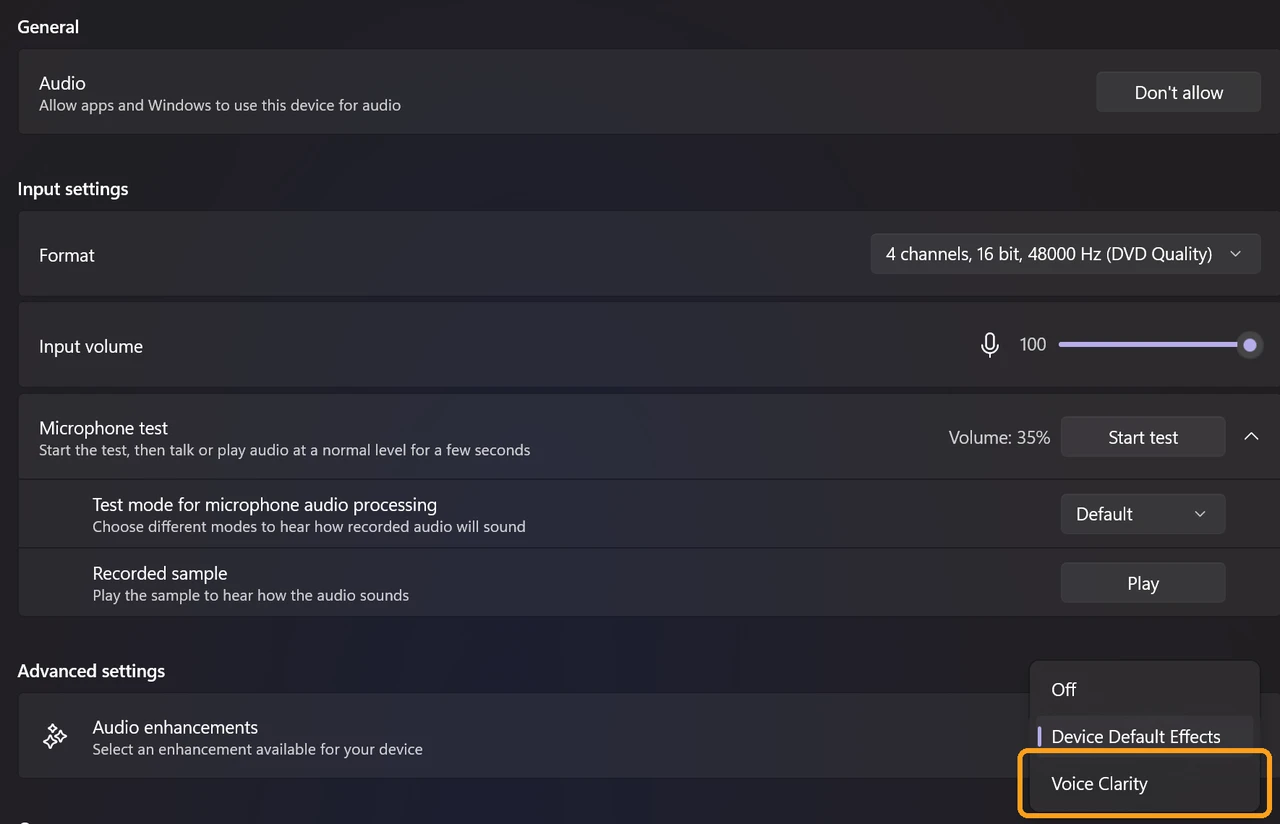
- Under Advanced settings, open the Audio enhancements dropdown. Mine had 3 options: Off, Device Default Effects and Voice Clarity.
- Pick Voice Clarity. A Voice Focus setting by Microsoft shows up under it, set to Automatic, and I left it there.
To actually hear what it does, I used Windows’ own mic test. In the screenshot down below, box 1 is Audio enhancements set to Voice Clarity, and box 2 is Test mode for microphone audio processing switched from Default to Communications, which is the mode meant for voice calls. Then click Start test, talk for about 5 seconds while typing, and click Play to hear the recording. Doing the same thing with Audio enhancements set to Off gives you a before and after.
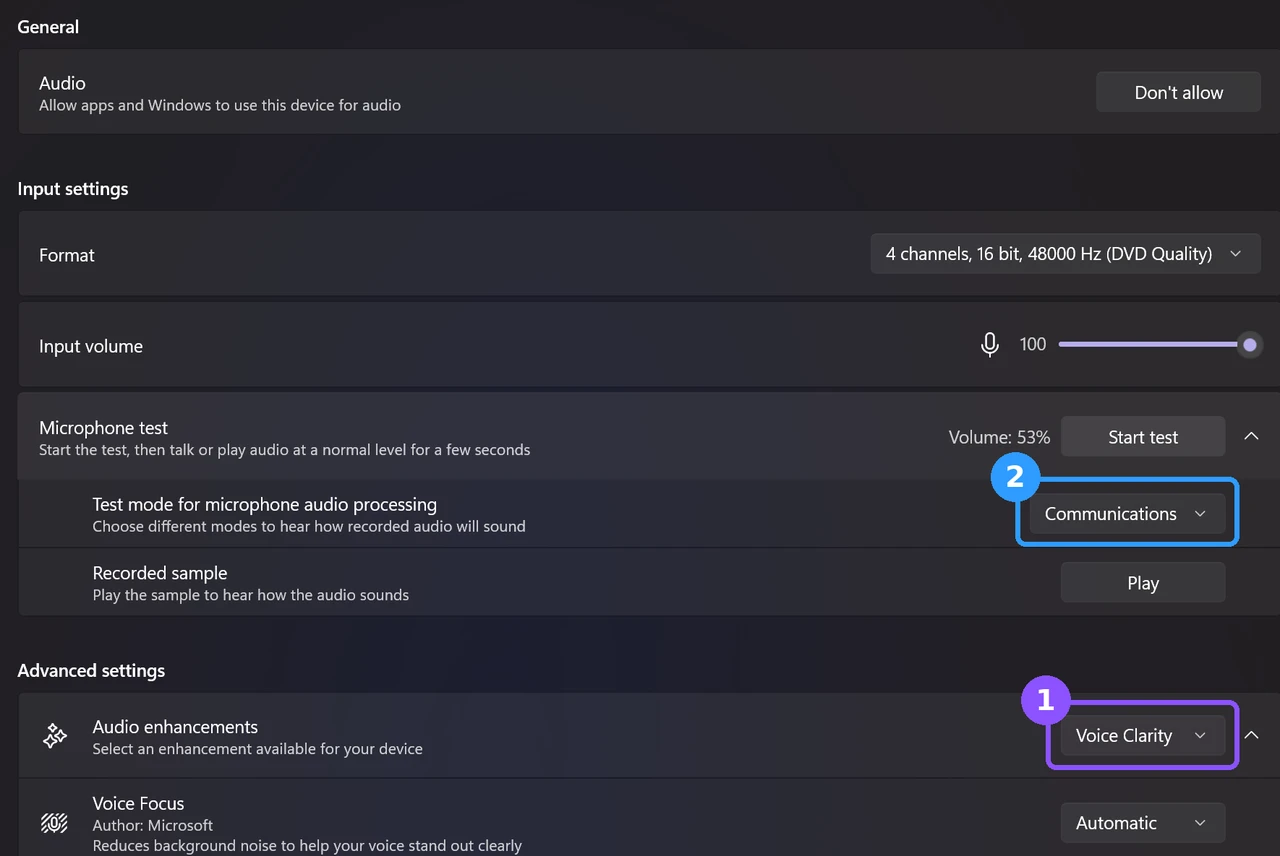
Honestly, it’s quite good at blocking out external noise. On the playback I didn’t hear anything but my own voice. The only catch I noticed is that the louder the background noise gets, the blurrier your voice becomes, but it was still easy to understand. I judged it by ear in Windows’ mic test and didn’t measure how much it cut in decibels, and I haven’t tried it inside Discord or Teams yet.
If Voice Clarity ever makes your voice sound off, Microsoft’s audio troubleshooting guide turns enhancements off from the same Audio enhancements menu, so it’s easy to undo.
ASUS AI noise cancelling software vs Voice Clarity
When ASUS’s version works, its advantage is the “two-way” part, since it can clean up incoming voices too, and it lets you pick Low, Middle or High strength. Voice Clarity only handles your mic. But on my G16 the ASUS AI noise cancelling software couldn’t even get to the point of showing a toggle, and Voice Clarity worked the moment the mic was on. If you’re fighting the same popup, I’d set up Voice Clarity and stop there instead of reinstalling drivers over and over. If you’re cleaning up ASUS apps in general, I went through which ones are worth keeping in my Armoury Crate bloatware breakdown.
FAQ
Why doesn’t AI Noise-Cancelling Input (ASUS Utility) show up in Discord?
Discord can only list devices Windows has. On my G16 that device didn’t exist anywhere in Windows, and Armoury Crate showed “Prerequisite drivers are missing” instead of the noise cancelling toggle. If Armoury Crate’s Audio tab shows the same popup, the device won’t be in any app.
Can I download ASUS AI noise cancelling separately?
Not for my model. The GA605WI support page lists the Realtek audio driver, Realtek Audio Console and the Cirrus speaker driver under Audio, but no AI noise cancelling package. On my laptop the AI Noise Cancelation Audio Software 5.0.0 came in automatically with Armoury Crate.
Does reinstalling the Realtek driver fix “Prerequisite drivers are missing”?
It didn’t for me. I reinstalled ASUS’s Realtek package and restarted, and the popup came back exactly the same.
Is this the same as the ASUS AI noise cancelling mic adapter?
No, the mic adapter is a separate USB hardware product. This article is about the software built into Armoury Crate on ASUS gaming laptops.
If you got ASUS’s AI noise cancelling working again after seeing the “Prerequisite drivers are missing” popup, drop your laptop model and what fixed it in the comments. I’d love to add a real fix for the ASUS side to this post.