
Find BitLocker Recovery Key Without Microsoft Account
If you need to find your BitLocker recovery key without a Microsoft account, most guides send you straight to a sign-in page you can’t use. My Zephyrus G16 signs in to Windows with a local account, so I figured the key only lived on the laptop. Then I ran 1 command and it said the key was backed up to a Microsoft account anyway. Below is how to check yours and keep a copy before you ever need it.
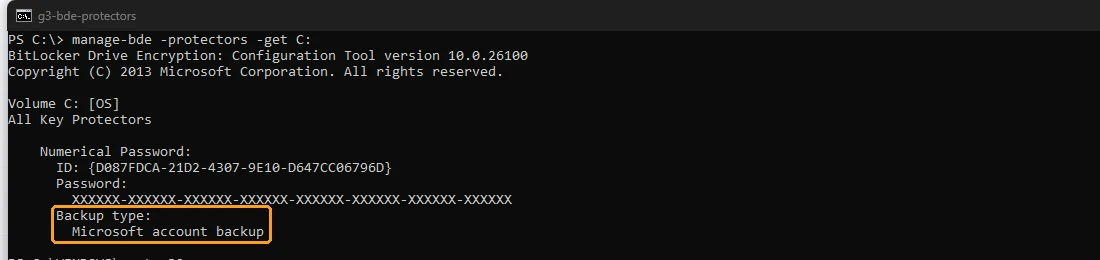
After I ran manage-bde on my local-account laptop, the key’s backup type read “Microsoft account backup,” so a local sign-in doesn’t mean your key isn’t online. The same command also shows you the key itself, right on the laptop, as long as Windows still boots.
- Zephyrus G16 (GA605WI)
- Ryzen AI 9 HX 370
- RTX 4070 Laptop
- Windows 11 Home 26H2
Build 26300.9711 · Device encryption · local account
Why a local account doesn’t mean your key is offline
I knew laptop encryption was a thing, but I didn’t know the specifics until I was testing the 5 reset levels on this laptop and ran into the recovery key for the first time. A lot of Windows 11 laptops (mine included) come with device encryption turned on, which is Microsoft’s lighter version of BitLocker for Home editions, and Windows quietly saves a recovery key somewhere during setup so you can unlock the drive if something like a BIOS change makes it suspicious. If you set your laptop up with a Microsoft account at any point, even if you switched to a local account later, that key can still be sitting in the Microsoft account, which is exactly what my laptop showed.
Check if your laptop is encrypted first
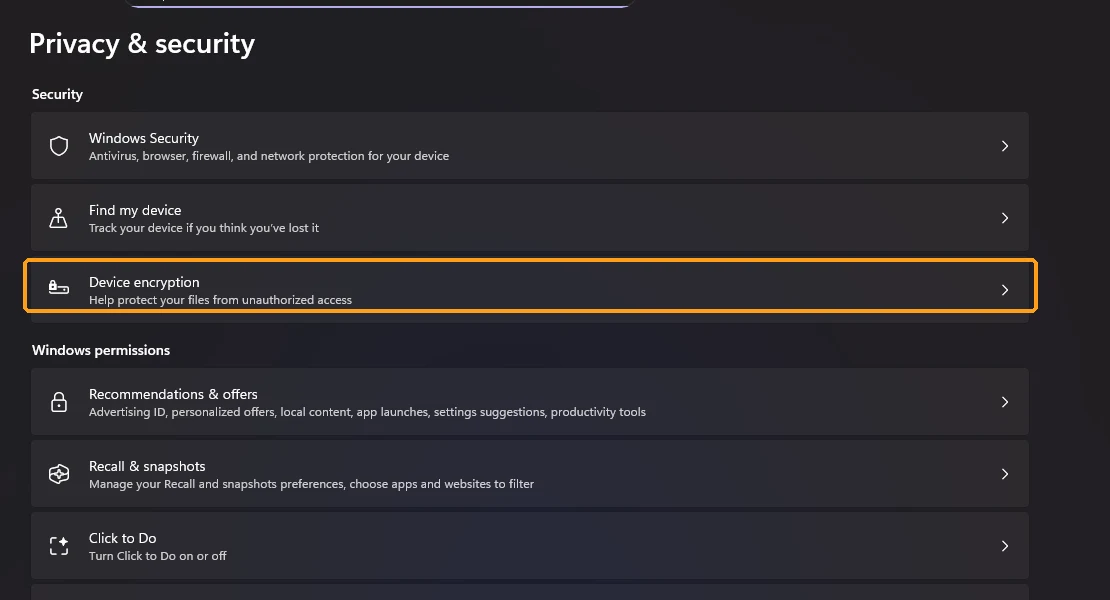
There’s no point hunting for a key if your drive isn’t encrypted, so start in Settings. Open Settings > Privacy & security and look for Device encryption near the top, in the orange box below. If that entry isn’t there at all, your laptop doesn’t support device encryption and you’re most likely not encrypted.
Click into it and you’ll see whether the toggle is on. Mine was on, but there was also a yellow warning (in the red box below) saying “Device encryption is temporarily suspended. Encryption will resume automatically the next time you restart this device.” That message had been showing since at least my reset testing a week earlier, even though I’d restarted the laptop plenty of times since, so don’t trust that it really resumes by itself. The Find your BitLocker recovery key link in the purple box just opens Microsoft’s help page, so it won’t show you your key directly.

How to find your BitLocker recovery key with cmd
This is the way to find your BitLocker recovery key without a Microsoft account at all, because it reads the key straight off your own laptop. It only works while Windows still boots, so do it now rather than when you’re already stuck on the blue recovery screen. Right-click the Start button, click Terminal (Admin), click Yes on the prompt, then run this to see the state of your drive:
manage-bde -status C:On mine it came back 100.0% encrypted with Protection Status: Protection Off (in the red box below), which matches that “suspended” warning in Settings. Protection off means the drive is still encrypted, but Windows isn’t currently locking it behind the key, which is also why a reset I tested earlier on this laptop never asked me for it.

Then run this one to see the actual key:
manage-bde -protectors -get C:Under Numerical Password you get 2 things, an ID and a Password. The Password line is your 48-digit recovery key (I hid mine with X’s in the screenshot below, and you should never post yours anywhere). The part that surprised me was the Backup type line in the orange box, which said “Microsoft account backup” on a laptop that signs in locally.
Where the Microsoft account copy lives
If your Backup type says the same thing, the online copy is in whichever Microsoft account was used when the laptop was set up. Microsoft’s find your BitLocker recovery key page sends you to aka.ms/myrecoverykey, where you sign in from any phone or computer and match the key by the first 8 characters of that ID. That’s the copy that saves you when the laptop won’t boot, so make sure you know which account it’s under (if you’ve had a few Microsoft accounts over the years, check each one). I didn’t open my own account’s key page for this post, so I’m going off what manage-bde reported.
Save a copy before a BIOS update or reset
If a friend was about to mess with anything like the BIOS, or anything else that could have a big impact on their laptop, I’d tell them to definitely write their key down with pen and paper, and maybe keep it somewhere safe on their phone too. I already saved mine. The paper copy matters because the blue recovery screen shows up before Windows loads, so you can’t copy and paste from anywhere on that laptop. If a reset is on your list, my test of ASUS Cloud Recovery vs Reset this PC shows what each one asked for on my G16, and Microsoft’s back up your recovery key page lists the other places Windows can save it.
Find BitLocker recovery key FAQ
Can’t find BitLocker recovery key anywhere?
If Windows still boots, the manage-bde -protectors -get C: command above shows it every time, no account needed. If you’re already locked out, check every Microsoft account you’ve used at aka.ms/myrecoverykey and match the key ID shown on the blue screen. If none of them have it, a reset from the recovery screen is usually the only way back, which I covered in factory resetting an ASUS laptop without a password.
Is it safe to share the key ID?
The ID only tells you which key to look for, so it’s fine to read off when you’re matching keys. The 48-digit password is the part that unlocks your drive, and that’s the one to keep private.
Does a local account turn BitLocker off?
No. My laptop uses a local account and the drive was still 100.0% encrypted, just with protection suspended.
If a BIOS update is what sent you looking for your key, MyASUS hid my BIOS 317 update as optional, so check there before you assume you’re up to date. And if your manage-bde output shows a different backup type than mine, drop it in the comments (just the Backup type line, never the key) along with your laptop model, because I’m curious how many local-account laptops are quietly backed up online.
Did this fix it for you?
Nice, glad it worked.
Thanks, that helps.
I use these to decide what to retest next. If you want a reply, ask in the comments and I'll take a look.