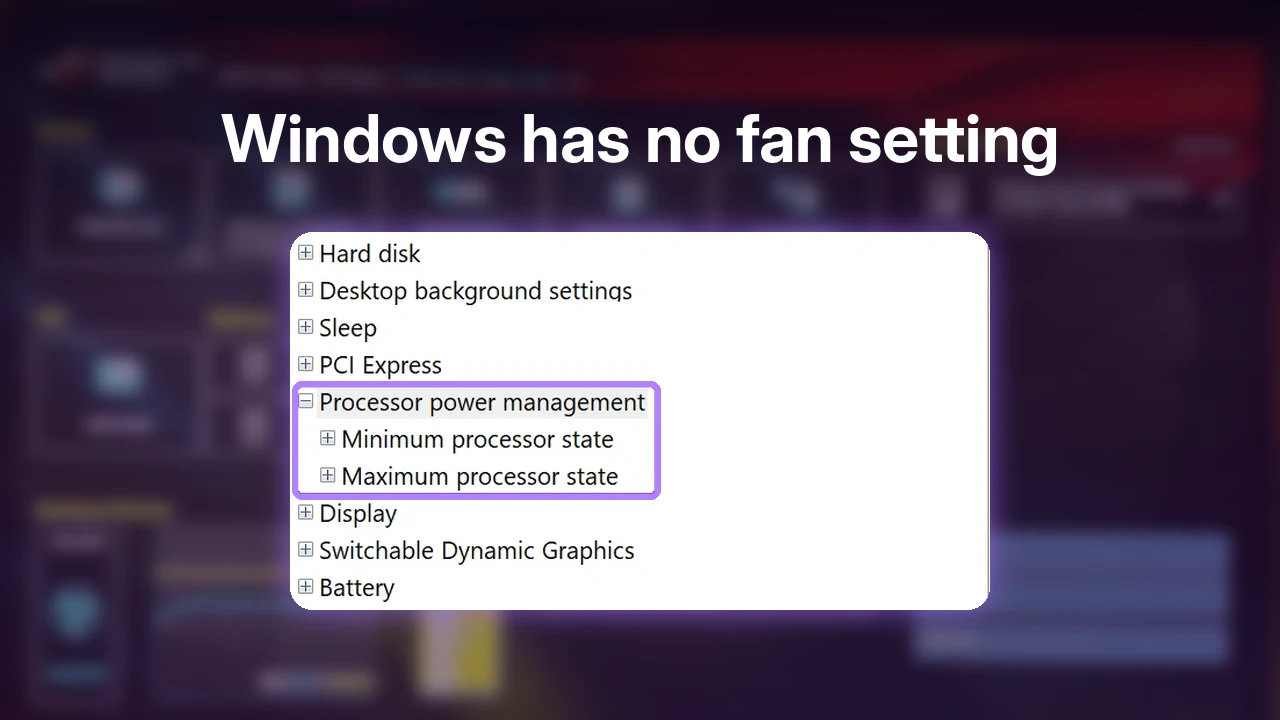

How to Control Fan Speed on ASUS Laptop (6 Ways Tested)
If you’ve looked up how to control fan speed on ASUS laptop models like my Zephyrus G16, you’ve got more options than ASUS tells you about. I tested 6 of them under the exact same game load. The loudest one barely beat Turbo, and one fan app lost its grip on most of my fans once the game started. Which one you should pick depends on whether you want silence or frames, so I matched each method to the job it did best.
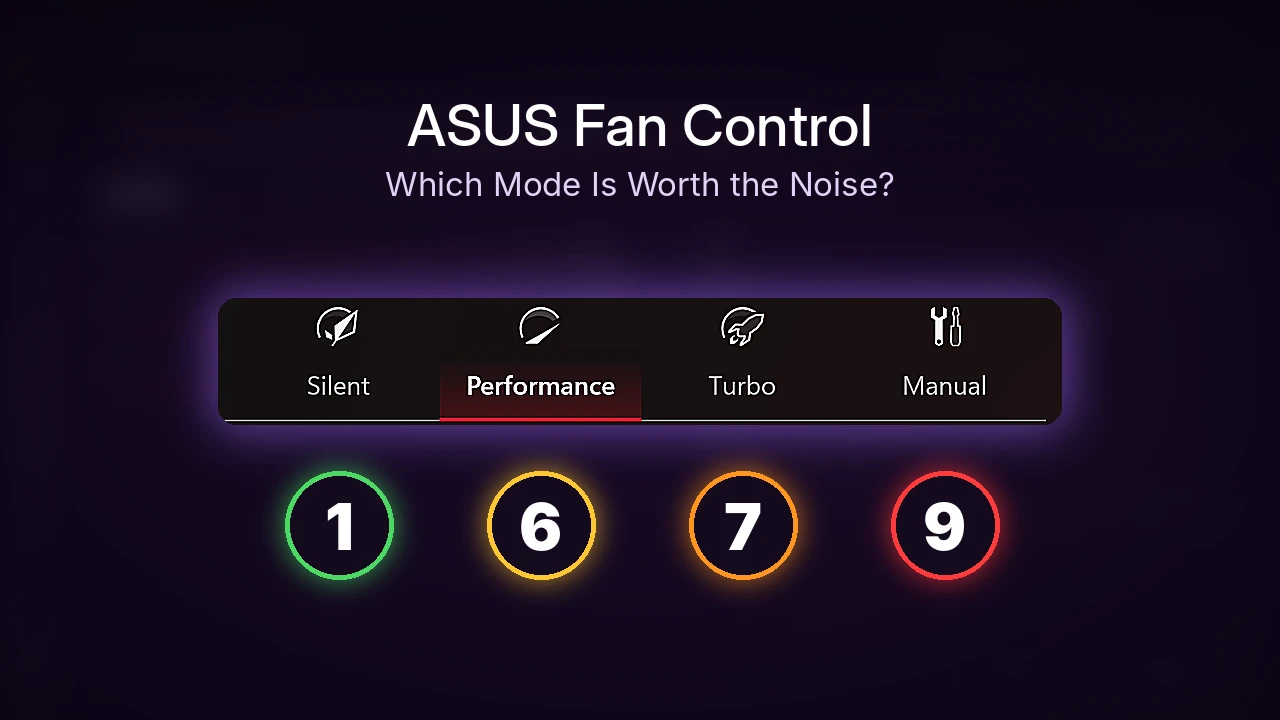
After I ran the same Cyberpunk benchmark with every method, Armoury Crate’s Performance mode came out as the one most of you should stick with, and Turbo is there for the games where you need more frames:
- Performance: 98.1 FPS at a 6/10 on my noise scale
- Silent: The quietest by far, but about 22% fewer frames than Performance (76.6 FPS)
- Turbo: About 10% more frames than Performance (107.7 FPS), but louder at 7/10
- Manual mode: Only about 1.6% faster than Turbo, and the loudest at 9/10
- Zephyrus G16 (GA605WI)
- Ryzen AI 9 HX 370
- RTX 4070 Laptop
- Windows 11 Home 26H2
- Armoury Crate 6.7.6.0
- Cyberpunk 2077 benchmark
G-Helper 0.291 · AsusFanControl v6 · plugged in · BIOS 317
I care about this one a lot because I want 2 completely different things out of my fans. When I’m studying in class or at the library, I want complete silence, and when I’m gaming I want the most cooling I can get without the fans getting insanely loud. My worst case is sitting in bed with the laptop, where the fans can’t breathe properly, so I end up turning them up and burning more battery, which is annoying. If you just want a fan curve that’s already tuned, my G-Helper fan curve walkthrough has the exact curves I use.
How I tested every ASUS fan control method
To figure out how to control fan speed on ASUS laptop models with real numbers instead of guesses, I gave every method the same test: the laptop plugged into its barrel charger, the external monitor unplugged, and Cyberpunk 2077’s built-in benchmark at the same settings each time. While each run was going, I logged the CPU and GPU temperature and the speed of all 3 fans every 2 seconds, straight from the laptop’s own ASUS interface, and after each run I gave the noise a score from 1 to 10 by ear.
You can see all 6 results in the table below, compared against Performance, which is the mode I normally run my laptop in.
| Method | Average FPS | CPU temp (°C) | CPU fan (RPM) | My noise score |
|---|---|---|---|---|
| Armoury Crate Performance Baseline My pick | 98.1 | 88 | 4,000 | 6/10 |
| Armoury Crate Silent | 76.6−21.9% | 86−2° | 3,341−16.5% | 1 to 4/10 |
| Armoury Crate Turbo | 107.7+9.8% | 93+5° | 4,674+16.9% | 7/10 |
| Armoury Crate Manual (80 W) | 109.4+11.5% | 90+2° | 6,167+54.2% | 9/10 |
| G-Helper Turbo + my fan curve | 107.7+9.8% | 90+2° | 5,345+33.6% | 8/10 |
| AsusFanControl at 60% | 106.3+8.4% | 92+4° | 4,644+16.1% | 7/10 |
The FPS numbers are each method’s average over the whole benchmark run, and the temperature and fan columns are averages over that same window. Silent got 2 scores because I ran it twice, and the first run felt like a 1/10 while the rerun felt more like a 4/10.
How to control fan speed on ASUS laptop
If you’re figuring out how to control fan speed on ASUS laptop models without installing anything extra, Armoury Crate is already on your laptop, and for most of you it’s the only app you’ll need. Armoury Crate doesn’t give you a fan slider on its main screen, it gives you operating modes, and each mode sets the power limits and the fan behavior together. To switch, open Armoury Crate, stay on the Home page, scroll to Operating Mode, and click Silent, Performance or Turbo (the orange box below). It applies right away, with no Save or Apply button.

Silent behaved differently from the rest. Instead of spinning the fans up when the game started, it held the CPU at 86°C the entire run and kept the CPU fan down around 3,300 RPM, which is how it stays so quiet, but it cost me about 22% of my frames compared with Performance. I would save it for studying in class or at the library and switch out of it before launching a game.
Turbo went the other way. It finished the benchmark at 107.7 FPS, which was about 10% ahead of Performance, and even sitting in the game’s menu afterward it kept the CPU fan at about 4,700 RPM. For the people looking to tweak their settings while using Armoury Crate, it wouldn’t be too worth it, and I would tell them to just run Turbo for gaming. If you want to see what each mode does to power and battery too, I went through all 5 Armoury Crate operating modes in a separate test.
Armoury Crate Manual mode fan curve
Manual mode is the only place inside Armoury Crate where you actually draw a fan curve, meaning you pick how fast each fan spins at each temperature. The Manual tile on my G16 was greyed out on the Home page until I had a manual profile applied, so you’ll need to build one in the editor first:
- On the Armoury Crate Home page, click Edit Manual Mode in the top right of the Operating Mode section.
- Pick which fan you’re editing with the CPU, GPU, 3rd Fan and SYS tabs (box 1 below).
- Drag the points on the Fan graph to set the speed at each temperature (box 2).
- Click Apply (box 3), then click Yes on the overclocking warning that pops up.
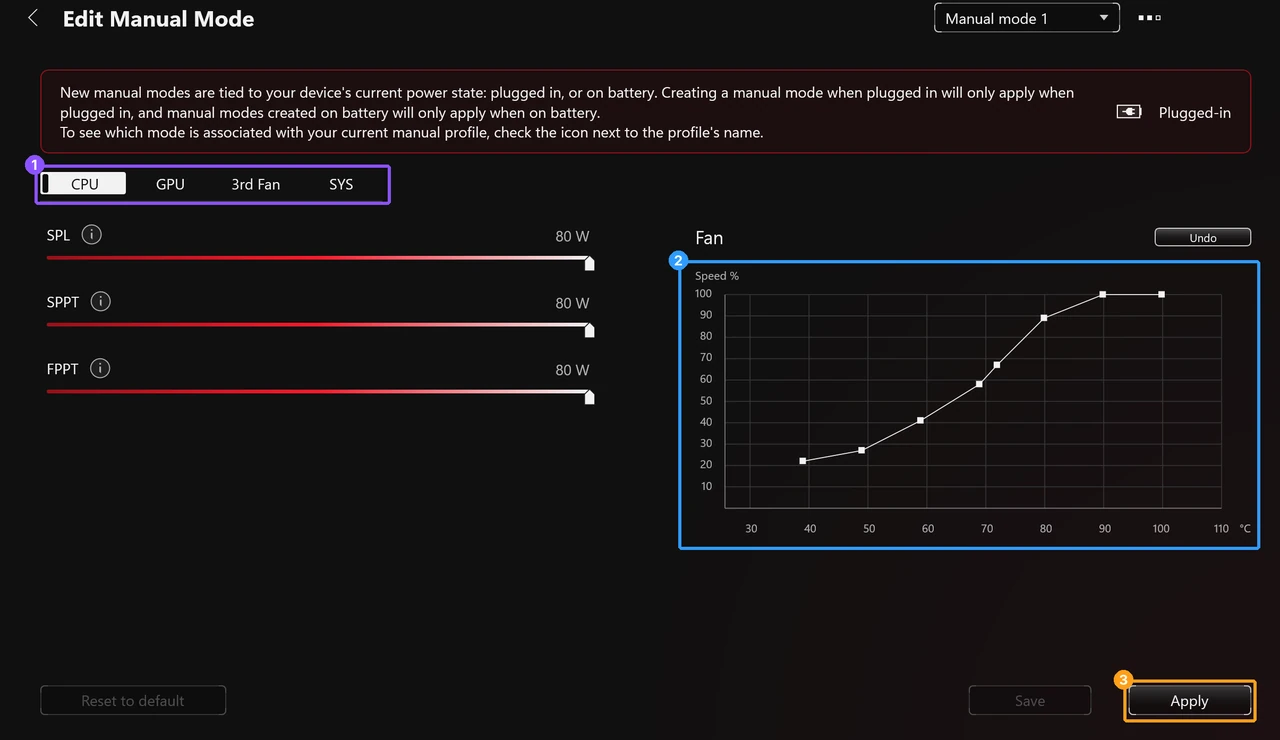
That warning is worth knowing about before you click, because it says ASUS isn’t accountable for any damage from manual overclocking and asks you to accept responsibility. The red banner at the top of the screen also matters, because a manual profile you make while plugged in only applies while plugged in, and one you make on battery only applies on battery, so if your curve “stops working” when you unplug, that’s why.
My saved profile was set to 80 W with a steep curve that hits 100% fan speed at 90°C, and it was the fastest thing I tested at 109.4 FPS. It was also the loudest thing I tested, with the CPU fan averaging about 6,170 RPM, and even sitting in the game’s menu it held the CPU fan at 6,300 RPM. It got a 9/10 from me, and I would hear this through headphones unless I was blasting something, all for about 1.6% more frames than Turbo. If you still want to build your own, I went through the Manual mode fan graph and power sliders in more detail.
G-Helper as ASUS laptop fan control software
G-Helper is a free, lightweight piece of ASUS laptop fan control software that can replace Armoury Crate, and it’s where to go if you truly do want the best possible setup. For this test I put it in Turbo with my own saved Turbo curve applied, which G-Helper shows as Turbo+ (box 1 below), and you edit the curves from Fans + Power (box 2). If you’ve never edited a curve in that window, my step-by-step G-Helper fan curve guide goes through it point by point.

It finished at 107.7 FPS, the exact same as Armoury Crate’s Turbo, but my curve kept the CPU about 3°C cooler (90°C vs 93°C) by spinning the CPU fan harder, around 5,350 RPM instead of 4,670. It came in at an 8/10 for noise. The bigger reason to switch is everything around the fans, since G-Helper also gets you extra benefits like undervolting your CPU and setting your own power limits.
One thing went wrong though. With Armoury Crate still running, G-Helper’s Fans + Power window froze and showed “Not Responding” when I opened it during testing, while the main G-Helper window kept working fine. I had to end G-Helper in Task Manager to get rid of it, so if you’re running both apps at once and that window locks up, that’s probably why.
AsusFanControl for a fixed fan speed
AsusFanControl is a tiny open-source app that sets your fans to a fixed percentage instead of a curve. Getting it to run at all was the hard part on my laptop, because when I started it as admin it couldn’t read any fans and showed a CPU temperature of 0. It only worked once it ran as the Windows SYSTEM account, which is what its own launcher, run.bat, does using a Microsoft tool called PsExec, and from there you tick Turn on fan control (box 1 below) and drag the slider (box 2). For the actual test I used its command-line version, AsusFanControl.exe --set-fan-speeds=60, so I could log everything from a script, and since G-Helper had left the laptop in Turbo, its frame rate in the table is really Turbo’s power limits with AsusFanControl handling the fans.
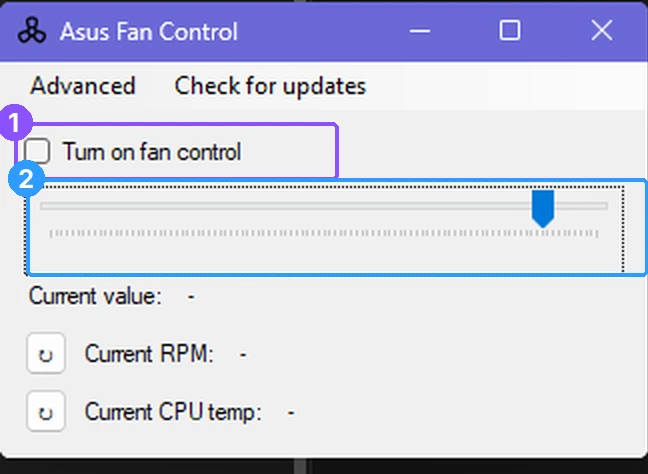
At idle it did exactly what it said. Setting 60% spun all 3 fans from 0 up to about 4,620, 2,010 and 3,470 RPM within 3 seconds, and the CPU dropped from 60°C to 45°C in about 20 seconds. Under the game load it was a different story: it held the CPU fan at about 4,600 RPM, but the GPU fan and the 3rd fan kept speeding up with temperature anyway, so it only really pinned 1 of the 3 fans. It scored a 7/10, though the laptop was still hot from the run before, which might have made it sound louder than it would from cold.
ASUS laptop fan control key and MyASUS
You might have seen Fn + F5 mentioned as the shortcut for switching fan modes. When I pressed Fn + F5 on my G16, it opened the Calculator, so if you’re hunting for an ASUS laptop fan control key on a ROG model like mine, don’t count on that shortcut. ASUS’s own MyASUS Fan Profile article says Fn + F switches between Standard, Whisper and Performance on models that have a Fan Profile in MyASUS, but my G16 doesn’t have that option at all. When I went through the MyASUS settings I kept on, Device Settings only had 4 controls and a button sending me to Armoury Crate for everything else, so on my G16, Armoury Crate or G-Helper is where fan control lives.
ASUS laptop fan control not working
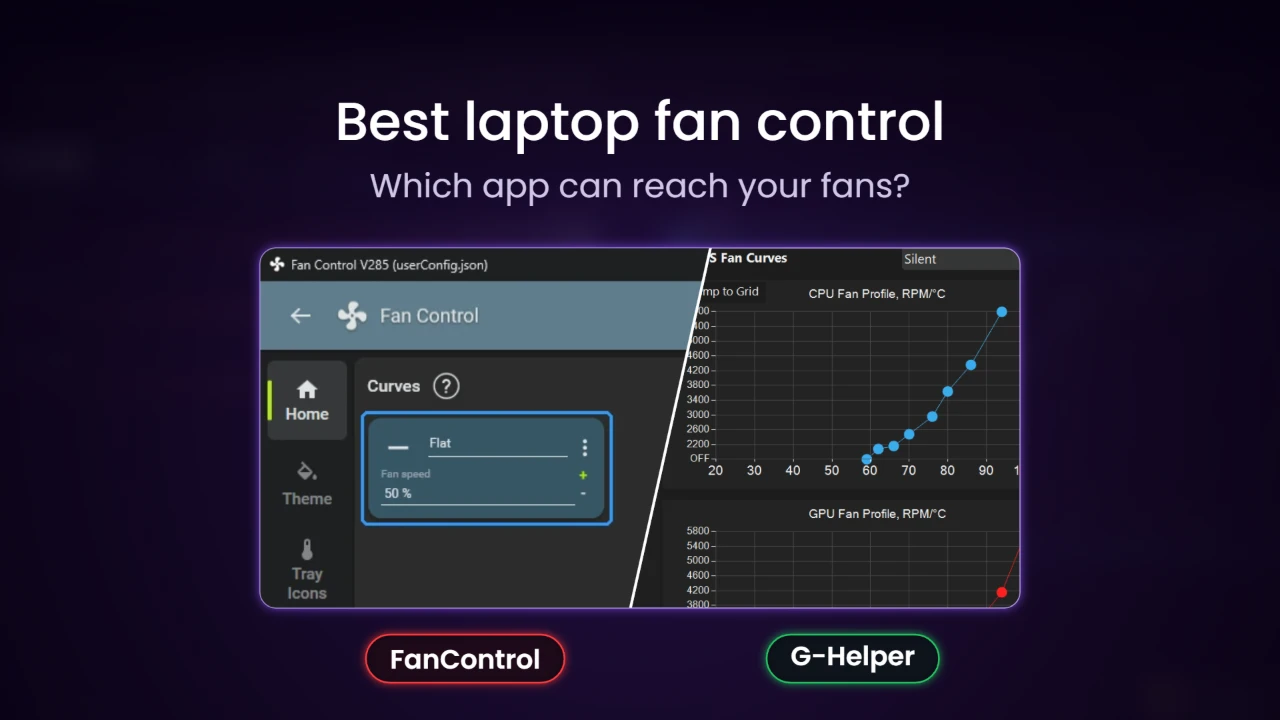
If you’re stuck on how to control fan speed on ASUS laptop models because a generic fan app won’t do anything, the app is usually the problem, since a lot of generic fan apps are built around desktop motherboards and can’t talk to an ASUS laptop’s fans at all. I tested FanControl, one of the most popular free fan apps on Windows, on this same laptop, and its setup found 0 fans it could control (everything I checked is in the post on FanControl’s empty fan list). The community NBFC app doesn’t have a config file for any Zephyrus model either, so on an ASUS laptop you’re better off sticking with Armoury Crate or G-Helper, which use ASUS’s own controls (and if you’re helping someone with a different brand, I went through every place fan control can live, from Windows to the BIOS, in how to control laptop fan speed). If it’s your Armoury Crate Manual curve that stopped working, check whether you made it plugged in or on battery (that red banner from earlier), and if G-Helper’s fan window froze on you, check whether Armoury Crate was running next to it, since that’s when it froze for me.
Which ASUS fan control method to use
So if you came here wondering how to control fan speed on ASUS laptop models without overthinking it, this is what I’d tell a friend with the same laptop. I would honestly tell my friend that Performance will give them solid performance without sounding like a jet engine in their room, so unless they’re chasing or need higher fps for some game they should just stick with Performance. Silent is best if they’re in public or have to stay quiet, but the dip in fps is too much of a trade off personally.
If you do need those extra frames, Turbo gave me about 10% more than Performance and came within about 1.6% of my loudest Manual profile for a lot less noise, without touching a single curve. And if you truly do want the best possible, switch to G-Helper instead of Armoury Crate for its extra benefits like undervolting, since it matched Turbo’s frames and ran cooler with a curve I set myself, even though it was a bit louder.
ASUS fan control FAQ
Can you control fan speed on an ASUS laptop?
Yes. Armoury Crate’s operating modes and Manual mode, G-Helper and AsusFanControl all changed the fan speed on my G16, while FanControl couldn’t find a single fan.
FanControl vs Armoury Crate on a laptop
Armoury Crate won by default on my G16, since FanControl is built for desktop PCs and its own FAQ says it mostly doesn’t work on laptops. Its setup found no fans on mine, so it had nothing to control. The other laptop fan apps I tried are compared in my laptop fan control software roundup.
Whichever mode you settle on, the next Armoury Crate settings I’d look at are GPU mode and the battery tiles, since Eco cut my idle battery drain by 53% in my best settings test. If you’ve got a different ASUS laptop where Fn + F5 does switch fan modes, or where MyASUS shows a Fan Profile, drop your model in the comments, because I want to know which laptops still have it.