

FanControl Not Detecting Fans? What I Found on a Laptop
FanControl not detecting fans was the first thing I hit on my Zephyrus G16, and it wasn’t because of a setting I missed. The app’s own setup scanned the laptop and came back with 0 fans it could control. It could still read my CPU and GPU temperatures, which only made it more confusing.
If you’re stuck on the same screen, you’ll see why it happens on laptops and which FanControl screens hide fans after they’re found. You’ll also see the plugin error I ran into when I tried to force it anyway.
After I ran FanControl’s assisted setup on my G16, it found no fan controls and no fan speed readings at all, and nothing I tried in its settings, its refresh button or the ASUS plugin changed that. It still read my CPU and GPU temperatures fine, so the app itself was working.
- Zephyrus G16 (GA605WI)
- Ryzen AI 9 HX 370
- RTX 4070 Laptop
- Windows 11 Home 26H2
- FanControl V285
- FanControl.AsusWMI 1.0.13
PawnIO 2.2.0.0 · Armoury Crate 6.7.6.0 running · BIOS 317
If you got here because Windows Defender flagged FanControl or you’re unsure about the driver it asks for, I went through what FanControl and its PawnIO driver actually installed on my laptop in a separate post. Otherwise, FanControl not detecting fans can mean a few different things, so pick the symptom below that matches yours.
Find your symptom:
- Setup said no fans responded, and you’re on a laptop
- Your Home page only shows curves, with no fans or fan speeds
- FanControl shows no sensors at all, or a PawnIO popup
- “Initialization retry failed” after adding a plugin
FanControl not detecting fans on a laptop
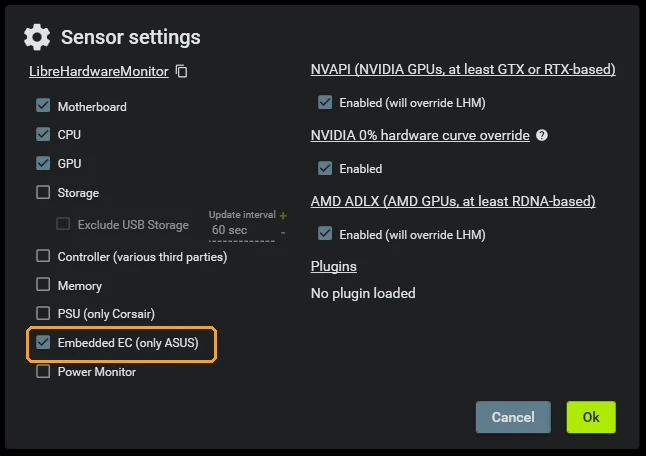
The first time you open FanControl, it runs an assisted setup that’s supposed to find every fan, calibrate it and let you name it. The first step is picking which sensor types to scan for, and on my G16 the defaults already had Motherboard, CPU, GPU and Embedded EC (only ASUS) ticked (the orange box below), so it did try the ASUS route on its own.
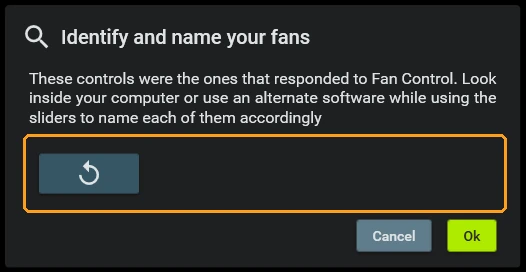
After I clicked Ok, it skipped every calibration step and jumped straight to Identify and name your fans, which says “These controls were the ones that responded to Fan Control” above an empty box (the orange box below). That empty box is the whole answer for a lot of laptops: nothing on my G16 responded when FanControl tried to change a fan. Armoury Crate was running in the background during my setup (the assisted setup screen warns against running other fan utilities), so if you want to rule that out, exit it before you run the setup.
The reason is how laptops are built. FanControl’s own FAQ on its GitHub release page says it mostly doesn’t work on laptops, because laptops don’t expose their fans the way a desktop motherboard does. It says a plugin can add support for specific laptops, and the ones it lists cover older Dell laptops, newer Dell laptops over WMI, some Lenovo laptops, the Acer Predator PH315-53 and GPD devices, with nothing for ASUS laptops.
It felt quite disappointing that FanControl couldn’t see my fans, but it honestly makes sense, since it seems to be made for PC use overall. So if you’re dealing with FanControl not detecting fans on your laptop and it isn’t one of those listed models, the problem most likely isn’t anything you set wrong, and no setting inside FanControl is going to unlock fans the laptop never exposed in the first place. The apps that did reach my fans are lined up side by side in my comparison of 5 laptop fan control apps.
FanControl not showing fans on the Home page
The last setup screen has a line that’s easy to skip: “All controls that didn’t respond to the assisted setup will be hidden.” Once I finished it, my Home page only had a single Flat curve set to 50% (the blue box below), with no fan controls and no fan speed readings anywhere on the page.

There’s also a second thing hiding cards by default. The layout button next to the refresh icon at the top right opens a small menu where Show hidden cards was off and Hide fan speed cards was already ticked on a fresh install, so even a fan speed FanControl can read won’t show up until you change that. To see everything it found:
- Click the layout button just to the right of the refresh icon at the top right of FanControl.
- Tick Show hidden cards.
- Untick Hide fan speed cards.
- Click Home in the left sidebar and look for a Controls section and a Speeds section.
On my G16 that made a Speeds header appear with nothing under it (the orange box below), and there was still no Controls section at all, so the laptop wasn’t giving FanControl even a fan RPM reading to show. If FanControl is not detecting fans on a PC where you know they’re connected, those 2 boxes are the first place you should check, since the fans may already be found and just hidden.

Does Refresh sensors detection help?
It’s the round arrow at the top right (or Ctrl + R), and it makes FanControl scan your hardware again without restarting the app. I ran it on my G16 with hidden cards showing, and the Home page looked exactly the same afterward, still with an empty Speeds section and no fans, so if your laptop’s setup came back empty too, don’t expect it to fix FanControl not detecting fans.
FanControl can’t find sensors at all
Missing fans and missing sensors are 2 different problems. If your CPU and motherboard temperatures are missing too, the driver FanControl reads that hardware through is the first thing to check. When I opened it on my G16 after removing the PawnIO driver, it showed a PawnIO installation required popup saying that without it, every built-in sensor from LibreHardwareMonitor would be unavailable (sensors from NvAPI, ADLX and plugins still work, per the same popup). I clicked Install, then OK on the PawnIO “as is” notice, and OK again on “PawnIO was successfully installed.” If you clicked Cancel instead, the button to install it later is under Settings > Sensors > Install PawnIO driver….
The other common cause is an old version. The developer says V237 and below used a WinRing0 driver that Windows Defender has flagged as a trojan since 2025, which also stops sensors from being detected, and the fix is updating to V238 or later. Your version is in the window title (mine read Fan Control V285).
With PawnIO installed, my G16 gave FanControl real temperatures: the CPU’s Core (Tctl/Tdie) read 55.8°C, and both the Radeon 890M and the RTX 4070 Laptop read 43°C. The CCD readings (CCD14 to CCD16, plus their max and average) all sat at 22°C though, which isn’t a believable reading for a running laptop CPU, so if a plugin ever gets your laptop’s fans working and you build a curve, use Core (Tctl/Tdie) as the source.
Fan Control initialization retry failed
This one I caused myself. There’s a community plugin called FanControl.AsusWMI for ASUS boards, so I tried it to see whether it could reach my laptop’s fans. The plugin’s page says it’s for ASUS motherboards that have a WMI interface called ASUSHW, and you can check whether yours has it by running this in PowerShell as administrator:
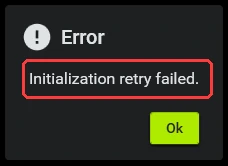
Get-CimInstance -Namespace root/wmi -ClassName ASUSHWMine came back with “Invalid class”, meaning the G16 doesn’t have it, but I installed the plugin anyway to see what would happen. I copied FanControl.AsusWMI.dll into C:\Program Files (x86)\FanControl\Plugins, unblocked it with PowerShell’s Unblock-File, and restarted FanControl. It opened with an error saying Initialization retry failed (the red box below).
FanControl keeps a log.txt in its install folder, and mine showed “AsusWMIPlugin Initialization failed” 4 times in a row, then “Try refresh failed. Retry count (4) exceeded.” So the popup was FanControl giving up after the plugin kept failing to start. To fix it:
- Exit FanControl from its tray icon (right-click it, then click Exit), because closing the window only sends it to the tray.
- Open
C:\Program Files (x86)\FanControl\Pluginsand move the plugin’s.dllout of that folder. - Open FanControl again.
Once the plugin was out, FanControl opened normally and its log stayed clean. If you get this error without having added a plugin, open that same log.txt first, since mine named the exact plugin that failed.
What I’d use on an ASUS laptop instead
If a friend with an ASUS laptop asked me, I’d point them at my G-Helper fan curve profiles for stopping loud fans first, since G-Helper’s fan controls worked fine for me when I used it on this laptop.
If you’d rather keep ASUS’s app, a custom curve in Armoury Crate does the same job without installing anything else, and I ran both against Armoury Crate’s built-in fan modes in the same Cyberpunk test if you want to see which one is actually worth the noise.
FanControl not detecting fans on my laptop doesn’t make it a bad app, since it’s built for desktops. After trying it on my laptop, I’m inspired to run it on my desktop in the future, and I’ll update this post when I do (hopefully it actually finds the fans then). If you’re done with it on your laptop for now, removing FanControl and its PawnIO driver takes a couple of extra steps, since the driver stays behind after the normal uninstall. If FanControl does find the fans on your laptop, drop your laptop model and whichever plugin got it working in the comments, because I want to know which ones actually work.
Did this fix it for you?
Nice, glad it worked.
Thanks, that helps.
I use these to decide what to retest next. If you want a reply, ask in the comments and I'll take a look.