
Windhawk Not Working? 7 Proven Fixes (2026 Guide)
Windhawk not working is almost never Windhawk itself being broken. Nearly every case I’ve seen comes down to one of a few things: an antivirus stopping the engine from loading into your programs, a Windows update landing before Microsoft publishes the debug symbols a mod needs, or 2 mods fighting over the same part of Windows. The mod’s debug log tells you which one you’re dealing with in about 30 seconds.
Everything here is off my ROG Zephyrus G16 (Ryzen AI 9 HX 370) on Windows 11 25H2 build 26200.9168, running Windhawk v1.7.3 with 9 mods enabled and Windows Defender as the only antivirus.
So here’s the short version for anyone who just wants it fixed. Turn on detailed debug logging for the broken mod, toggle it off and back on, and read what the log says. An empty log means something is blocking Windhawk, and HTTP_STATUS_NOT_FOUND means you wait a day or two. If the log looks clean but the mod still acts weird, another mod is probably stepping on it. The rest of this guide goes through each case properly.
First, Figure Out What’s Actually Broken
Now before you start reinstalling things, it’s worth figuring out which of these you’re actually looking at, because each one has a completely different fix:
- The Windhawk app itself won’t open. That’s an app problem, jump to the not-opening section.
- The app opens, but every mod does nothing. That points at injection, meaning something is stopping Windhawk from loading into your programs.
- 1 mod is broken or half-working while the rest are fine. That’s either the mod, a Windows update, or a conflict with another mod.
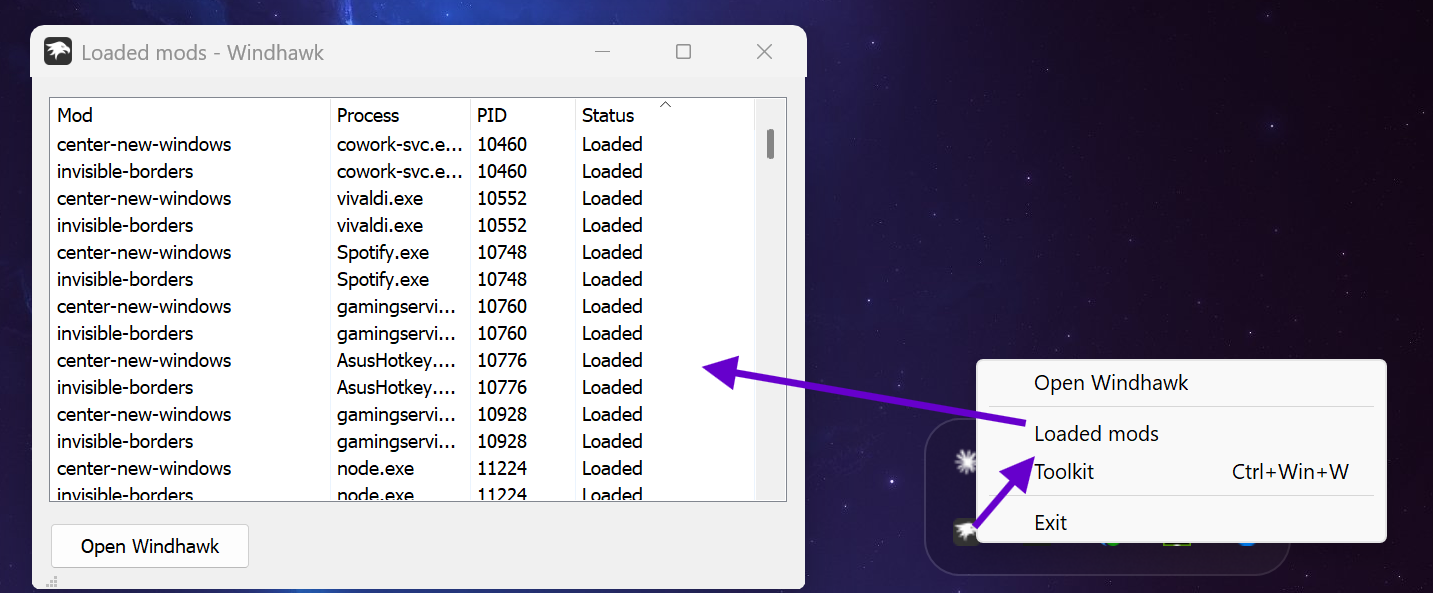
The fastest check is one most people never find. Right-click the Windhawk icon in your system tray and click Loaded mods. This window lists which mods Windhawk has actually loaded into running programs. If your mods show up there, Windhawk is doing its job and the problem is further down the line. If it’s empty while you have mods enabled, Windhawk isn’t getting into anything at all, which is exactly what the Windhawk maintainer checked first in this GitHub thread (that one turned out to be a corporate antivirus killing it).
The 3 Reasons Behind Windhawk Not Working
To understand why Windhawk not working happens at all, you need to know a little about how it works under the hood. It’s simpler than it sounds.
Windhawk changes how Windows behaves by loading a small piece of its own code, called the engine, into running programs. Once the engine is inside a program like explorer.exe, it loads whatever mods target that program. According to the official injection targets page, Windhawk loads into almost every process by default (minus a list of critical system ones). It does that so it can catch new programs the moment they start and load mods early. If anything blocks that loading step, every mod fails at once.
The second reason is debug symbols. A lot of mods hook into internal Windows functions that Microsoft never meant anyone to touch, and those functions sit at different memory addresses in every Windows build. To find them, Windhawk downloads symbol files from Microsoft’s public symbol server, which map function names to addresses for your exact build. A new Windows update means new addresses, and new symbols have to exist before the mod can find anything.
The third reason is the mods themselves. A mod can have a bug, it can target a Windows version you’re not on, or it can clash with another mod changing the same thing. Windhawk can’t do anything about any of those.
Read the Debug Log Before Anything Else
Honestly, this is the step that makes the rest of the guide make sense, and it’s buried pretty deep in the official Troubleshooting wiki. Every mod has its own logging switch, and the log spells out what went wrong.
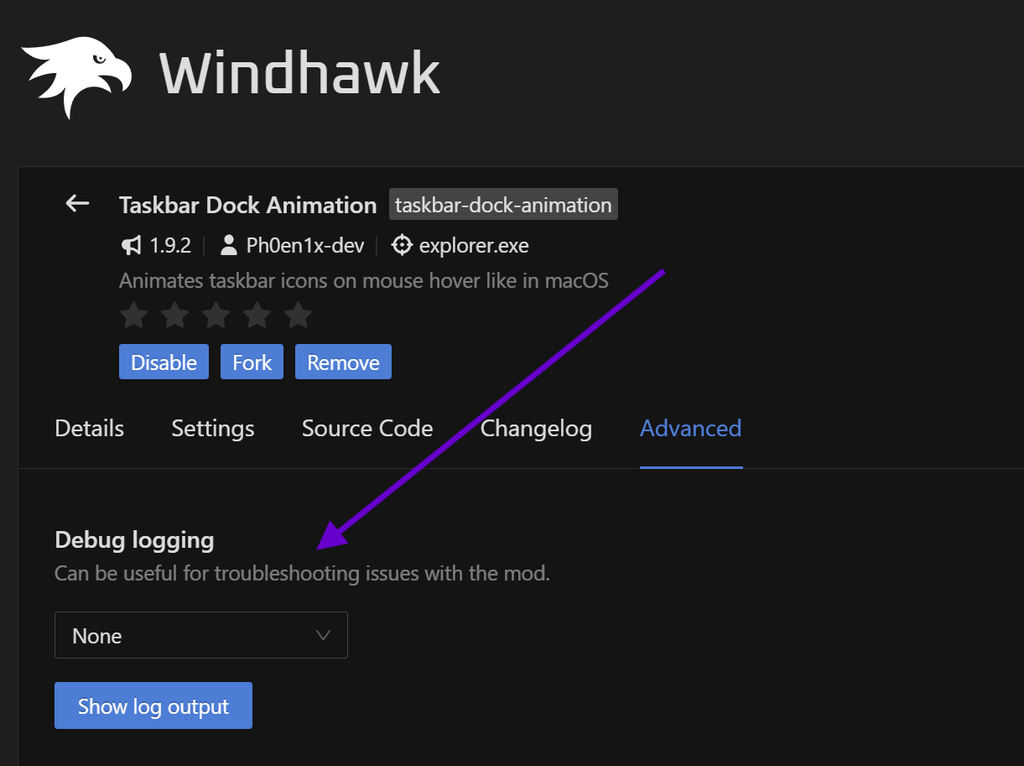
Here’s how to capture one, in this exact order:
- Open Windhawk and click into the mod that isn’t working.
- Click Disable to turn the mod off.
- Go to the mod’s Advanced tab.
- Set Debug logging to Detailed debug logs.
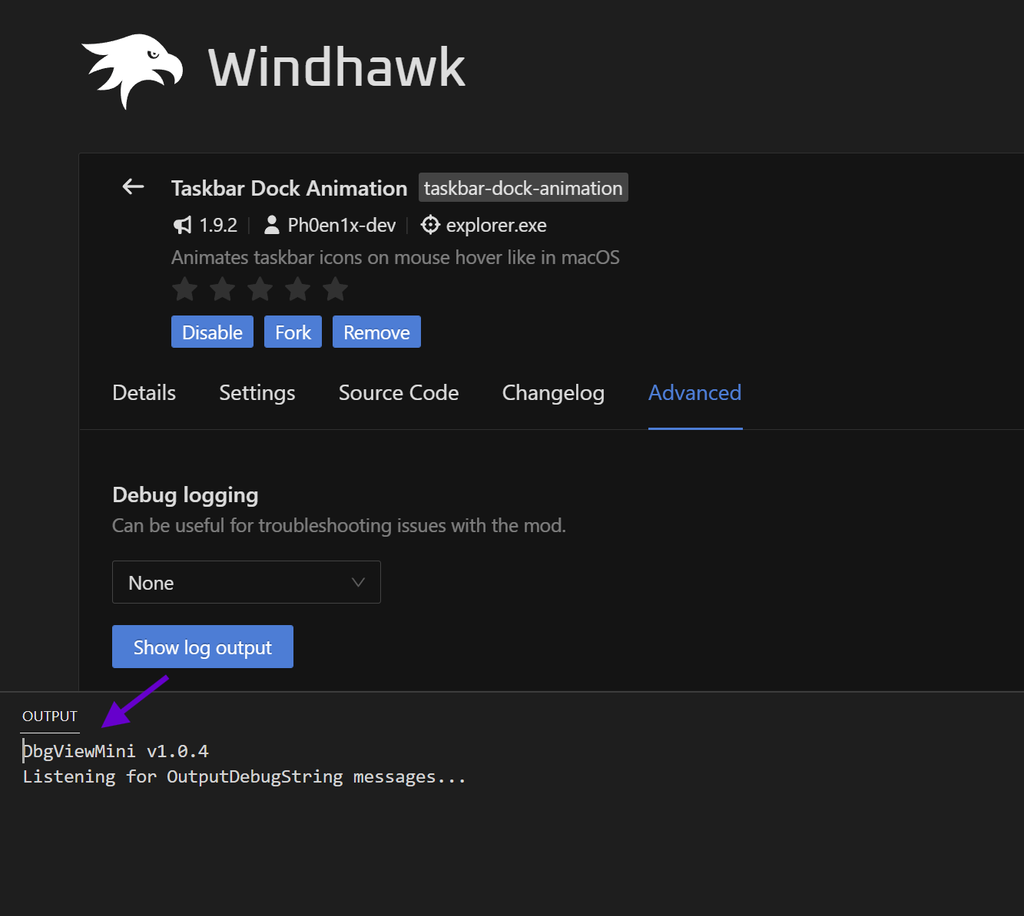
- Click Show log output. A log window opens.
- Go back and Enable the mod.
- Check that the mod still isn’t working, then copy the log and save it to a text file.
- Set Debug logging back to None when you’re done, so it isn’t logging in the background forever.
Now open the file and look for one of these 3 outcomes.
The Log Is Empty
An empty log means Windhawk never got into the program, so the mod never had a chance to run. The wiki’s first suspect here is an antivirus, since some of them treat code injection as an attack and block or kill it. The test is to temporarily turn the antivirus off and see if your mods come back. If they do, you’ll need to add an exclusion for Windhawk (Defender’s steps are in the not-opening section). For the full breakdown of why antivirus apps react like this, I went through it in is Windhawk safe.
The Log Shows HTTP_STATUS_NOT_FOUND
This one means Microsoft hasn’t published debug symbols for your Windows build yet. There’s nothing to fix on your end. According to the wiki it usually takes no more than a day or two after an update for symbols to show up, and in rare cases Microsoft never publishes them for a build at all. Leave the mod enabled and check again tomorrow.
The Log Shows ERROR_INTERNET_CANNOT_CONNECT
Here the symbols exist, but Windhawk can’t download them. Check that you’re actually online, and if you run a third-party firewall, make sure it isn’t blocking Windhawk. If you’re on a school or work network with a proxy, that can cause this too.
Windhawk Mods Not Working Because They’re Fighting Each Other
This is the case the official docs don’t really cover, and it’s the only one I’ve run into myself. When I had the vertical taskbar mod installed, it half worked. The taskbar would sit where I set it, then randomly jump back to the bottom of the screen at times. I had it running on top of the other taskbar mods I already use, and I ended up just uninstalling it.
So my honest take after 9 mods is this: don’t stack a bunch of mods on the same part of Windows. When several mods are all changing the taskbar, they can end up overwriting each other’s changes, and you’ll get exactly this kind of flicker or half-applied look. When Windhawk mods not working only shows up after you’ve added a new one, the new one is your first suspect.
The way I avoid it now is installing mods in order of most needed to least needed, one at a time, and using the PC for a bit after each one. That way if something starts acting up, you know exactly which install caused it. If you’re already in a mess of Windhawk mods not working with 10+ enabled, disable every mod that touches the same component as the broken one, then turn them back on one by one until it breaks again.
If the broken mod is Taskbar Styler specifically, I’ve got a separate breakdown in the Windows 11 Taskbar Styler guide. The same goes for the Start Menu Styler and the File Explorer Styler, since each of those has its own quirks.
Windhawk Not Working After Windows Update
Now for the most common version of this problem. Windhawk not working after Windows update almost always traces back to the symbols thing from earlier: the build changed, the addresses changed, and the mod can’t find what it’s looking for yet. Run the debug log from the section above first. If it says HTTP_STATUS_NOT_FOUND, you’re waiting on Microsoft and nothing else will help.
If the log isn’t showing that error, a few people on the Windhawk subreddit got their mods back after an update by disabling and re-enabling the broken ones. I haven’t needed this myself, but it makes sense: re-enabling makes Windhawk reload the mod into the program, which re-runs its setup against the new build.
The other thing to check is whether Windhawk and the mod are both up to date, since mod authors often push fixes within days of a big Windows update. If you’re not sure how updating works, I cover it in my guide on how to install Windhawk.
How to Fix Windhawk Not Working on 25H2
Here’s the catch though: sometimes the update genuinely breaks the mod, and no amount of toggling brings it back. For example, after 25H2 build 26200.8655, Start Menu Styler’s Classic layout just stopped applying, as reported in issue #4379. In that case, fixing Windhawk not working is out of your hands until the mod author ships an update.
The quick way to tell whether you’re in that situation is to search the windhawk-mods issues page for the mod name plus your build number. If other people are reporting the same thing on the same build, it’s a mod bug, so save yourself the time and just wait for the fix. For what it’s worth, I’m on 26200.9168 and none of my 9 mods have broken on this build.
Windhawk Not Opening
If the Windhawk window won’t open at all, check the tray first, since it might already be running in the background and just not coming to the front. Double-click the Windhawk tray icon to bring it up.
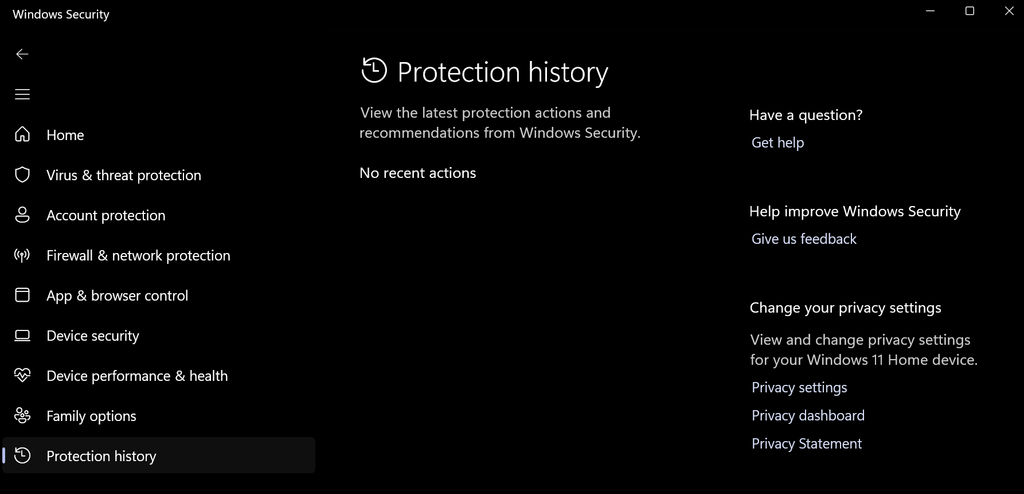
If it’s genuinely not running, the most likely reason for Windhawk not opening is that your antivirus quarantined or killed it. Defender has never flagged Windhawk on my machine, but other antivirus apps are a lot pickier about code injection. For Defender, open Windows Security > Virus & threat protection > Protection history and look for anything mentioning Windhawk. If you find it, restore it, then add the Windhawk folder as an exclusion under Virus & threat protection > Manage settings > Exclusions > Add or remove exclusions > Add an exclusion > Folder. Microsoft has the full exclusion steps here.
One more case for Windhawk not opening: if you’re on a school or work laptop, security software you don’t control might be blocking it, and you’ll often see errors like “Server error: Proxy authentication required”. The developer’s note on that is blunt: Windhawk isn’t designed for managed environments. The last resort is limiting Windhawk to only the programs you want to mod (like explorer.exe), which the injection targets page explains.
If you’re getting a SmartScreen “blocked for your protection” popup instead, that’s a different thing entirely, and I explain it in is Windhawk safe.
Windhawk Not Running on Startup
Mine has launched with Windows every single time, but if yours doesn’t, the symptom is easy to spot. Your mods don’t kick in after a reboot until you open Windhawk manually. That’s Windhawk not running on startup, and where you look depends on which version you installed.
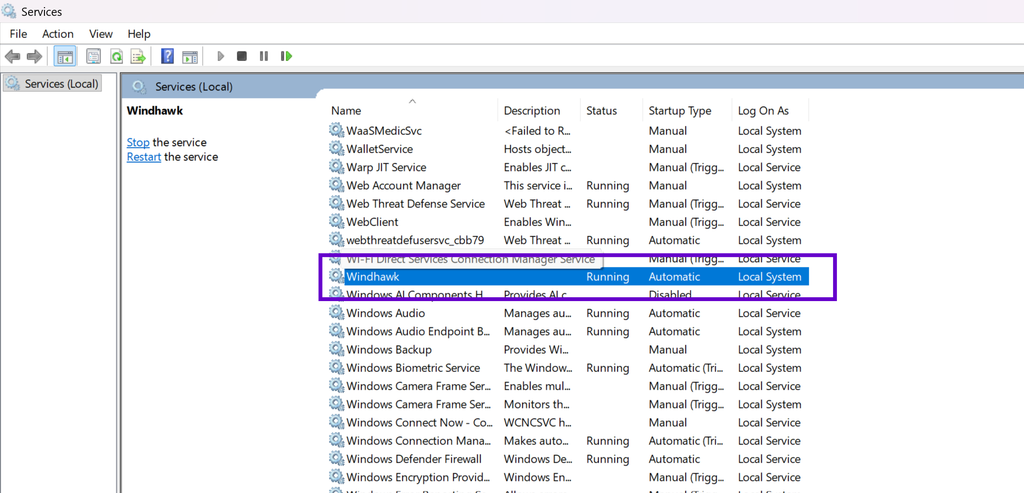
Now here’s the part that threw me off. Windhawk doesn’t show up in Task Manager > Startup apps at all, even though it starts with Windows every time on my G16. That’s because the regular installed version runs as a Windows service, and services don’t get listed there (it’s confirmed in this GitHub issue that only the non-portable version runs as a service). So don’t go hunting for it in Startup apps like I did.
To check the service, press Win + R, type services.msc, click OK, and find Windhawk in the list. It should show Running with the startup type set to Automatic. If it doesn’t, double-click it, set Startup type to Automatic, click Apply, click Start, then click OK.
If you grabbed the portable version instead, it doesn’t start with Windows at all by default. The workaround from the Windhawk GitHub discussions is making a shortcut to windhawk.exe and dropping it in your startup folder: press Win + R, type shell:startup, click OK, and paste the shortcut in. Heads up though, a plain shortcut opens the full Windhawk window on every boot. Adding -tray-only to the end of the shortcut’s Target keeps it in the tray, and the full steps are in the portable section of my Windhawk install guide.
Last thing, the antivirus check from the last section applies here too. If something is killing Windhawk at sign-in, it’ll look exactly like Windhawk not running on startup, even though it technically did start for a second.
When Windhawk Breaks a Different Program
Sometimes the opposite happens and a normal program starts crashing or acting up because Windhawk loaded into it. Windhawk already skips programs known to be incompatible, but you can add your own:
- Open Windhawk and click Settings.
- Expand Advanced settings and click More advanced settings.
- Add the program’s
.exename to the Process exclusion list. - Click Save and restart Windhawk.
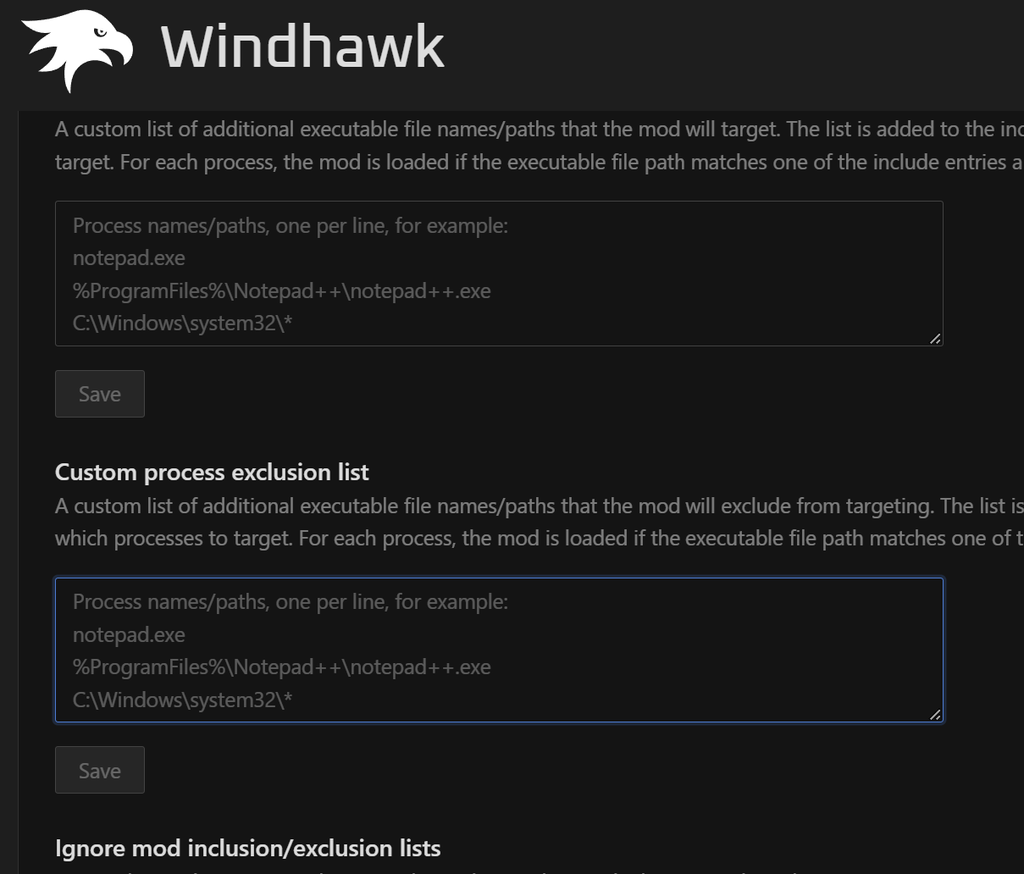
Excluded programs are completely untouched by Windhawk, regardless of which mods you have. For what it’s worth, I’ve never had to exclude anything, and I run G-Helper and play Valorant with Windhawk running the whole time.
Still Broken? Report It the Way the Developer Asks
If you’ve gone through all of this and still have Windhawk not working, it’s time to file a report, and doing it properly gets you an answer way faster. For a mod problem, open an issue on the windhawk-mods repo with the mod name in the title, tag the mod author by their GitHub handle, and attach the debug log you saved earlier. Include your Windows build number too, since so many of these problems are build-specific.
Windhawk Not Working FAQ
Does Windhawk work on Windows 10?
Windhawk itself runs on Windows 10, but a lot of the popular mods are built only for Windows 11’s taskbar and Start menu. Check the mod’s description for supported Windows versions before assuming Windhawk is the problem. I can’t test Windows 10 myself, so I’d go by what each mod page says.
Will reinstalling Windhawk fix it?
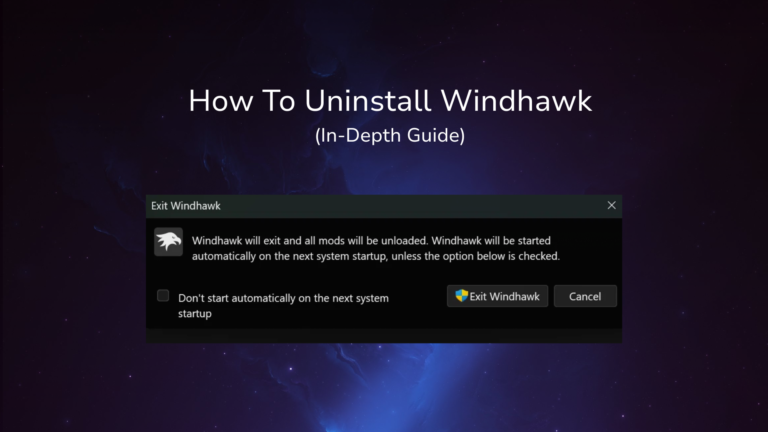
Usually not. A reinstall doesn’t change your antivirus, missing symbols, or a mod conflict, which covers most cases of Windhawk not working. Read the debug log first, and only reinstall if the app itself is corrupted and won’t open. And if you do reinstall, a default uninstall keeps every mod and setting on your PC, so the same broken mod comes straight back. I measured what gets left behind in my guide on how to uninstall Windhawk completely.
Can a Windows update break Windhawk itself?
It’s usually individual mods that break, not the Windhawk app. The app keeps running, and the mods that depend on build-specific symbols stop until symbols or a mod update arrive.
Why does a mod work for a second and then snap back?
That flicker is usually 2 mods overwriting each other’s changes, which is what my vertical taskbar did. The maintainer has also seen the same symptom when an antivirus kills Windhawk right after it loads, so run the debug log to tell the 2 apart.
If you’re still stuck after reading the log, drop the exact error line, your Windows build number, and which mod is broken in the comments and I’ll take a look. And if you want to see which mods I actually trust enough to keep running, my best Windhawk mods list has all 9.

Please let me know if you had a bug or error that I couldn’t cover or troubleshoot here, Ill make sure to update the article accordingly.