Armoury Crate Not Working? What Actually Fixed It (2026)
Armoury Crate not working is one of those problems where every guide hands you the same list of fixes and hopes one of them sticks. So I broke it on purpose on my G16, in the same ways people complain about online, and ran the usual fixes one at a time to see which ones actually brought it back.
The 2 fixes almost every guide leads with didn’t fix it at all, and one of them ended with an Error 501 screen that people regularly search for. Whether your Armoury Crate won’t open, keeps landing on a Service Error, or won’t finish installing, I’ll go through what broke it and the fix that actually worked down below.
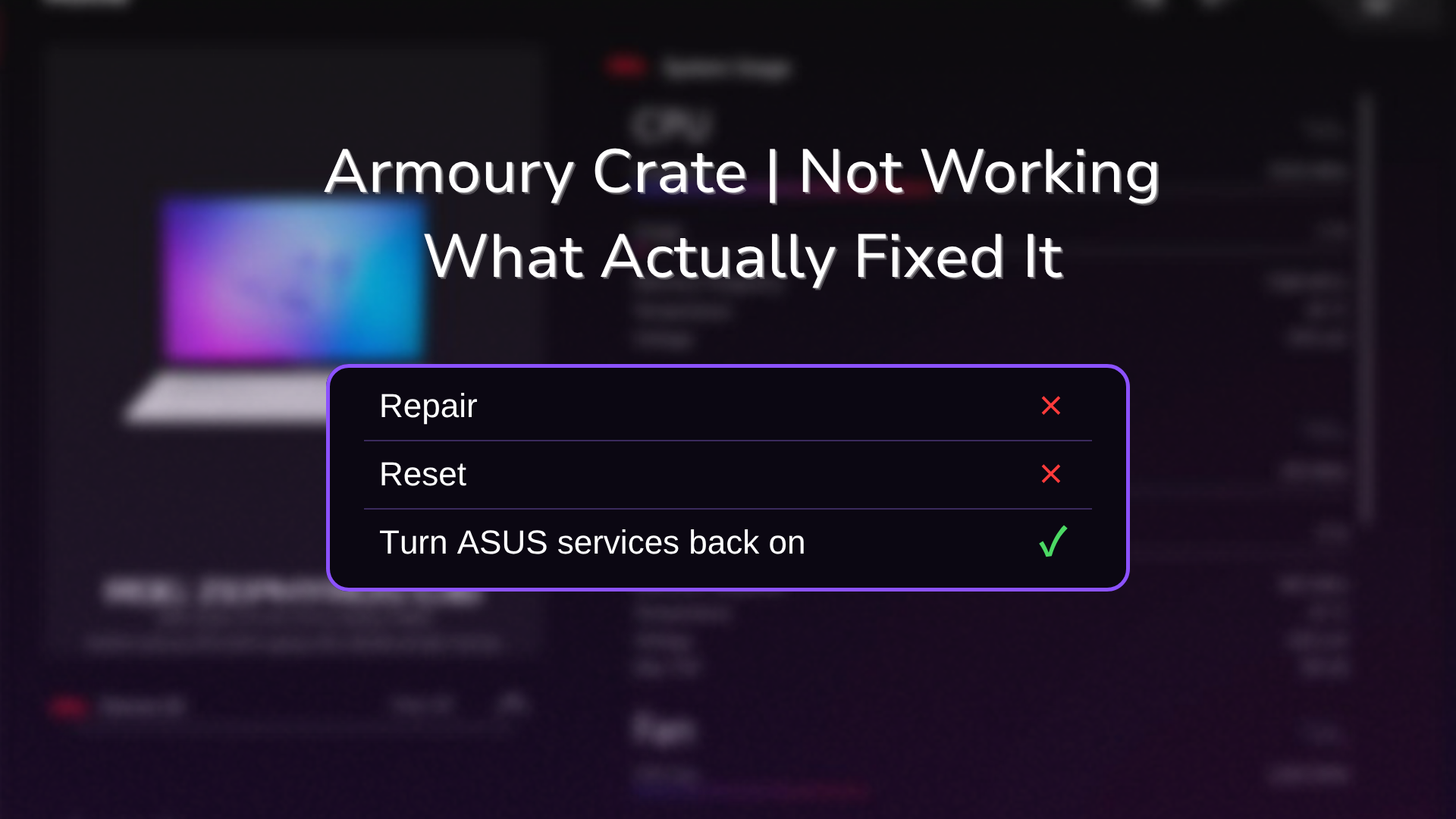
After I broke Armoury Crate on purpose by disabling its services:
- Repair: Didn’t bring it back
- Reset: Ended on an Error 501 screen
- ASUS services back on: Fixed it, with my Feature Library modules still there
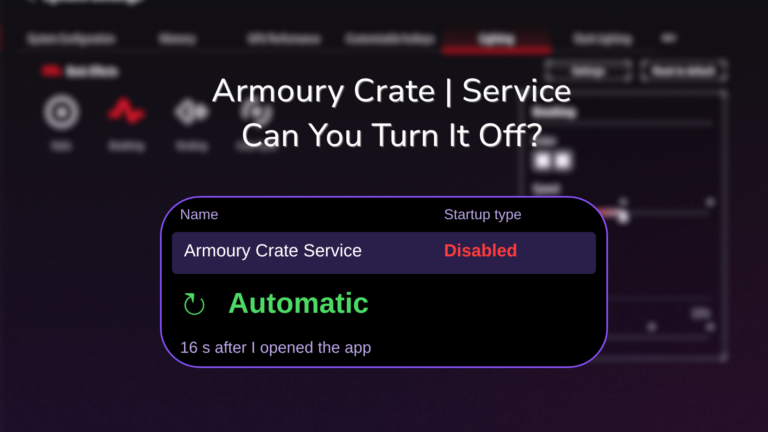
- Main service only: Didn’t stick, since opening the app switched it back on in about 16 seconds
- Zephyrus G16 (GA605WI)
- Ryzen AI 9 HX 370
- RTX 4070 Laptop
- Windows 11 Home 26H2
- Build 26300
- Armoury Crate 6.7.6.0
What “Not Working” Usually Comes Down To
Armoury Crate is really 2 things. There’s the window you open, and there’s a set of background services, which are programs Windows runs behind the scenes without any window of their own. On my laptop that’s 13 ASUS and ROG services plus the touchpad driver, and they’re the part that actually switches your modes, runs the fans and lighting, and handles updates. The window is mostly just the front end for them.
So when someone says Armoury Crate isn’t working, it’s usually 1 of 3 things: it won’t open or sits on a loading screen, it opens straight to a Service Error, or it won’t finish installing or updating. Honestly, Armoury Crate has mostly just worked for me, and the few times it didn’t were when some of its processes never started because another app was getting in the way. Every way I broke it below came back to those services too.
How I Broke It on Purpose
I used an admin PowerShell window to stop and disable Armoury Crate’s services in 3 steps, then opened the app each time and watched what the services did while it loaded. I sorted what happened into the table down below.
| What I did | What Armoury Crate did |
|---|---|
| Stopped Armoury Crate Service | Opening the app started it again in about 10 seconds |
| Set only Armoury Crate Service to Disabled | Opening the app switched it back to Automatic and started it in about 16 seconds |
| Set all 11 Armoury Crate, ASUS and ROG Live services to Disabled (touchpad and the 2 update services left alone) | A Statement box, a Windows admin prompt, then Service Error |
The first 2 surprised me. Armoury Crate quietly undoes it if you only turn off its main service, and with the app closed the service stayed off for the full 75 seconds I watched, so it’s the app itself turning it back on. That’s also why turning off just 1 service to fix something or save battery doesn’t stick.
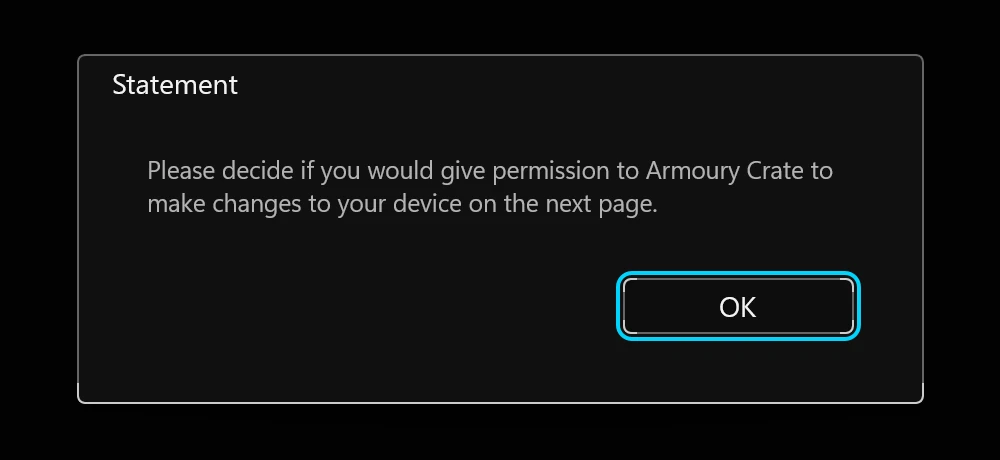
Turning all of them off is what finally broke it. Opening the app showed a Statement box asking for permission to make changes to my device, which I clicked OK on, then a Windows admin prompt that I approved, and it still landed on Service Error with every service still disabled afterward. That’s the screen in the screenshot down below, and it’s what a lot of you guys are probably staring at right now.
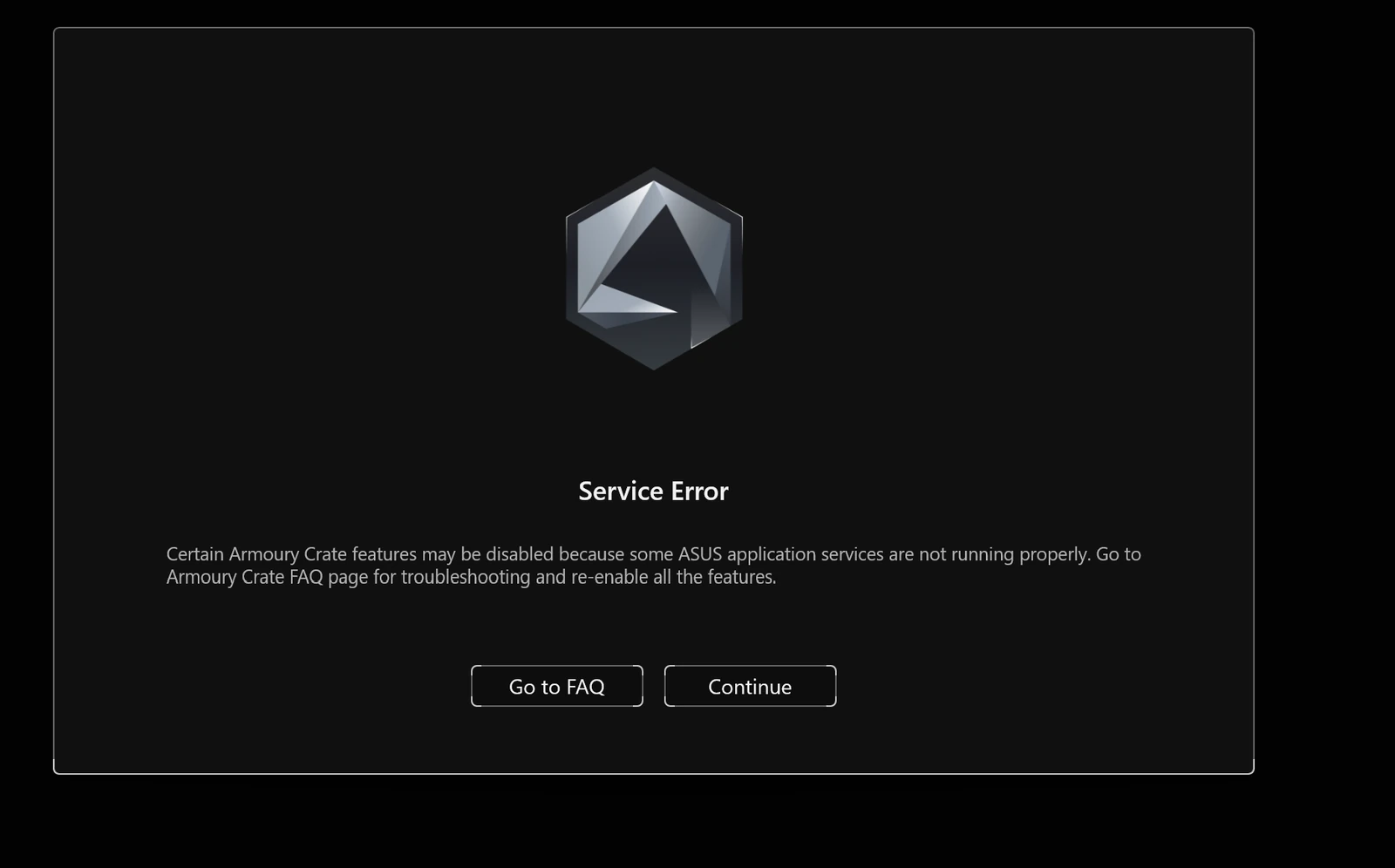
Clicking Continue lets you into the app anyway, and when I did that during my battery testing, Home still showed live temperatures and fan speeds, though I didn’t check which controls still worked. Go to FAQ opens ASUS’s own Armoury Crate FAQ page, which I’ll come back to in the install section.
Armoury Crate Not Working: Repair vs Reset
Both fixes live in Windows, not in Armoury Crate. Open Settings > Apps > Installed apps, find Armoury Crate, click the three dots next to it, then Advanced options, and scroll down to the Reset section, which you can see in the screenshot down below.

Repair
Windows says Repair won’t touch the app’s data, and that held up. I clicked Repair, waited for the checkmark and opened Armoury Crate again, and it went right back to Service Error. The only thing that changed was that opening the app turned Armoury Crate Service back on, while the other 10 stayed disabled, so Repair fixed the app’s own files and nothing else.
Reset
Reset warns that it deletes the app’s data, including preferences and sign-in details. After clicking Reset twice, Armoury Crate started over from its first-launch screens, the privacy policy and then the Power mode synchronization prompt, and then ran the Armoury Crate Installer on its own. That installer failed with Update failed (Error code: 501), which I boxed in the screenshot down below.
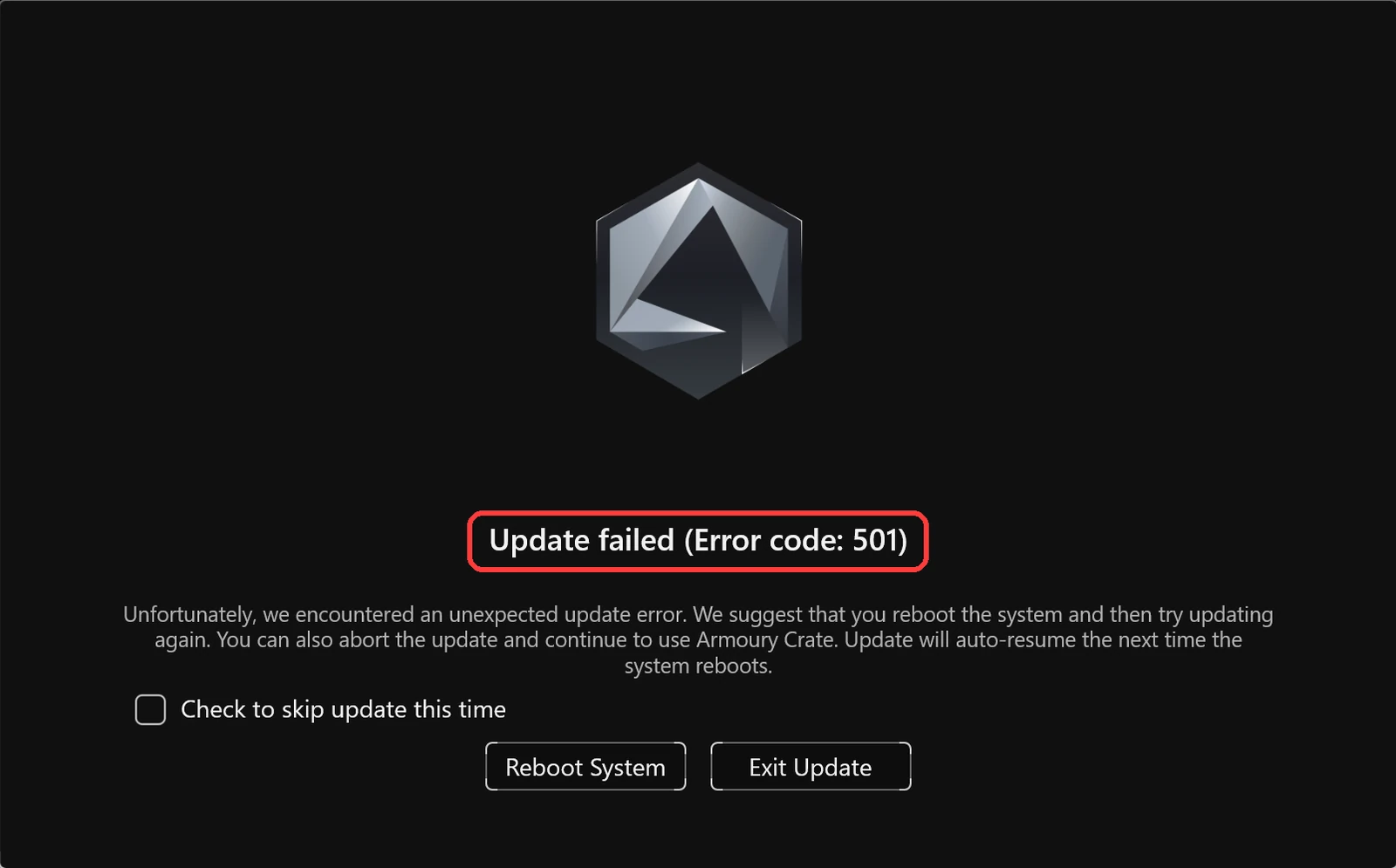
The services were still disabled the whole time, so Reset didn’t touch them either. The good news is it didn’t throw away much, since the extra modules I’d installed from the Feature Library earlier that day were all still there afterward. My take after watching both is to try Repair since it costs nothing, and skip Reset, because all it did was make me click through the setup screens again before hitting the same wall.
The Fix That Worked: Turn the ASUS Services Back On
Since every version of Armoury Crate not working that I caused came back to the services, putting them back is what fixed it, and I didn’t even need to restart. You can do it by hand in Windows’ Services list or with 1 command.
In Services
- Press Win + R, type
services.msc, and press Enter. - Click the Name column header to sort, then scroll to the entries starting with Armoury Crate and ASUS, plus ROG Live Service.
- Look at the Startup Type column. Double-click any of them set to Disabled.
- Set Startup type to Automatic, click Apply, then click Start and OK.
- Repeat for every disabled one, then open Armoury Crate again.
Leave ASUS Update Service (asusm) alone if it says Manual, since that’s how mine shipped.
With 1 PowerShell command
Right-click Start, click Terminal (Admin), click Yes on the prompt, then paste this and press Enter. It only touches ASUS, Armoury Crate and ROG Live services that are set to Disabled, switches them to Automatic and starts them, which is the same thing my test script did to bring mine back.
Get-Service | Where-Object { $_.DisplayName -match 'ASUS|Armoury|ROG Live' -and $_.StartType -eq 'Disabled' } | ForEach-Object { Set-Service -Name $_.Name -StartupType Automatic; Start-Service -Name $_.Name }It uses Windows’ built-in Set-Service command, so there’s nothing to install. If it prints nothing, none of your ASUS services were disabled and the problem is somewhere else, so jump to the sections below.
After that, open Armoury Crate. Mine was still sitting on the Error 501 screen from the Reset, so I clicked Exit Update, and it went through a short what’s-new tour and an ASUS account prompt before loading Home with everything working again.
Armoury Crate Not Opening or Stuck on Loading
If Armoury Crate not working for you means it won’t open, know that every time I opened it during testing, the window sat completely blank for 5 to 10 seconds before Home drew in, even with all the services healthy, so give it a few seconds before deciding it’s stuck. If it really won’t get past loading, this is the order I’d go in:
- Check the services first, using either method above. A disabled service is the one cause I could reproduce every time.
- Close any other app that controls the same hardware. G-Helper is the big one, and when I had it running next to Armoury Crate it quietly overrode settings, which I ran into in my Armoury Crate Panel Power Saver testing and went through in G-Helper vs Armoury Crate.
- Try Repair from Advanced options.
- Restart the laptop.
I didn’t get Armoury Crate to stay on a blank window forever, so I left that exact case untested beyond the steps above.
Armoury Crate Not Installing
The one install error I reproduced was Error 501, and on my laptop it came from the ASUS services being disabled while Armoury Crate tried to reinstall its components. The most likely reason is that the installer leans on one of those services to do the work, though I didn’t check which one. Its own buttons suggest Reboot System, but turning the services back on and clicking Exit Update fixed it without a reboot.
For a fresh install, ASUS’s Armoury Crate FAQ says to use a stable connection with no VPN, make sure your antivirus isn’t blocking it, and run the Armoury Crate Uninstall Tool and restart before reinstalling. When I tested ASUS’s 2 downloads in Armoury Crate lite vs full, the small installer went through without a restart, while the 5 GB Full Installation Package refused to start until I’d run the Uninstall Tool and took about 31 minutes from unzipping to the home screen.
Other codes people report, like 102, 201 or 601, didn’t come up on my laptop, so I left them untested. If you hit one, ASUS’s FAQ points to their Armoury Crate Lite Log Tool to collect logs for their support team.
Armoury Crate Not Showing Devices, GPU or Features
A few things look broken but are normal, and I’ve seen all of them on a perfectly healthy install:
- No Devices Connected on Home just means you don’t have an ASUS mouse, keyboard or headset plugged in. Your laptop itself shows up under Devices, not in that box.
- Grayed-out Scenario Profiles, Macros, Game Library or Display Settings in the sidebar mean that package isn’t installed yet. They come from the Feature Library, which I walked through in Armoury Crate hotkeys.
- The NVIDIA GPU missing from Armoury Crate and Device Manager is expected in Eco mode, since Eco turns it off completely. I tested all 4 modes in Armoury Crate GPU mode.
- Turbo and Manual grayed out under Operating Mode happens on battery, and on mine Turbo only shows up with the barrel charger plugged in.
Should You Disable ASUS Services at All?
I wouldn’t. When I measured it for Armoury Crate battery life, turning the services off saved me about 0.4 W, and this testing showed the app either switches its main service back on or breaks completely depending on how many you turn off. If you want Armoury Crate gone, uninstall it properly instead, and if you’re deciding whether it’s worth keeping, my Armoury Crate bloatware post goes through everything it runs.
Armoury Crate Not Working FAQ
What does Armoury Crate Error 501 mean?
It’s the code Armoury Crate’s installer showed when its update failed on my laptop. In my case it happened because the ASUS services were disabled, and setting them back to Automatic and starting them fixed it without a reboot.
Why does Armoury Crate say Service Error?
It means some of the ASUS services it depends on aren’t running. On mine it only showed up once all of them were disabled, since the app restarts its main service on its own if that’s the only one off.
Does Repair or Reset fix Armoury Crate?
Neither fixed it for me, since neither one touches the services. Repair is still worth a try because it keeps your settings, while Reset wipes your preferences and reruns setup.
Why is Armoury Crate not working after an update?
On mine the update itself was what failed, with Error 501, because the services it needed were off. Check the services first, then reopen Armoury Crate and let the update run again or click Exit Update.
Do I need to restart after turning the services back on?
Not on my G16. Starting the services and reopening Armoury Crate was enough.
If your Armoury Crate is still not working after the services are back on, drop your laptop model and the exact error or code you’re seeing in the comments, and I’ll see if it lines up with anything I ran into.