Is Armoury Crate Bloatware? I Measured It Instead of Guessing
7 months after I uninstalled Armoury Crate, I put it back on my ROG Zephyrus G16 for one reason — to count what it actually starts. Sorted Task Manager by name and got 26 ASUS processes sitting there running.
Now that’s the number that gets screenshotted and posted as proof in every armoury crate bloatware thread, and it’s wrong in both directions. Only 11 of those 26 belong to Armoury Crate at all. And the memory column everyone reads them off overstates what they’re using by roughly 7×.
So here’s the answer up front, since some of you just want it and out — no, it isn’t bloatware, not by any strict reading. Idle with the window closed it’s 114 MB across 11 processes, which is about 2 browser tabs. It’s just doing far more than most of you guys need, and that’s a different complaint entirely. That’s the whole Armoury Crate “bloatware” argument in one line, the rest of this article will be me showing you the number from my personal testing.
Everything here is off my ROG Zephyrus G16 (GA605WI) with the Ryzen AI 9 HX 370 and RTX 4070, 32 GB LPDDR5, on Windows 11, running the current Armoury Crate release as of writing alongside G-Helper 0.283.0.
First, what Armoury Crate is even doing on your laptop
Before the numbers, the simple version, because this matters for judging it fairly.
Your laptop has a pile of things software can adjust that Windows has no idea about. Fan speeds. How much power the CPU is allowed to pull. Whether your display runs off the integrated graphics or the dedicated GPU. Keyboard lighting. Screen refresh rate. Charge limits. None of that is standard Windows stuff — it’s ASUS-specific hardware, and something has to sit there and talk to it.
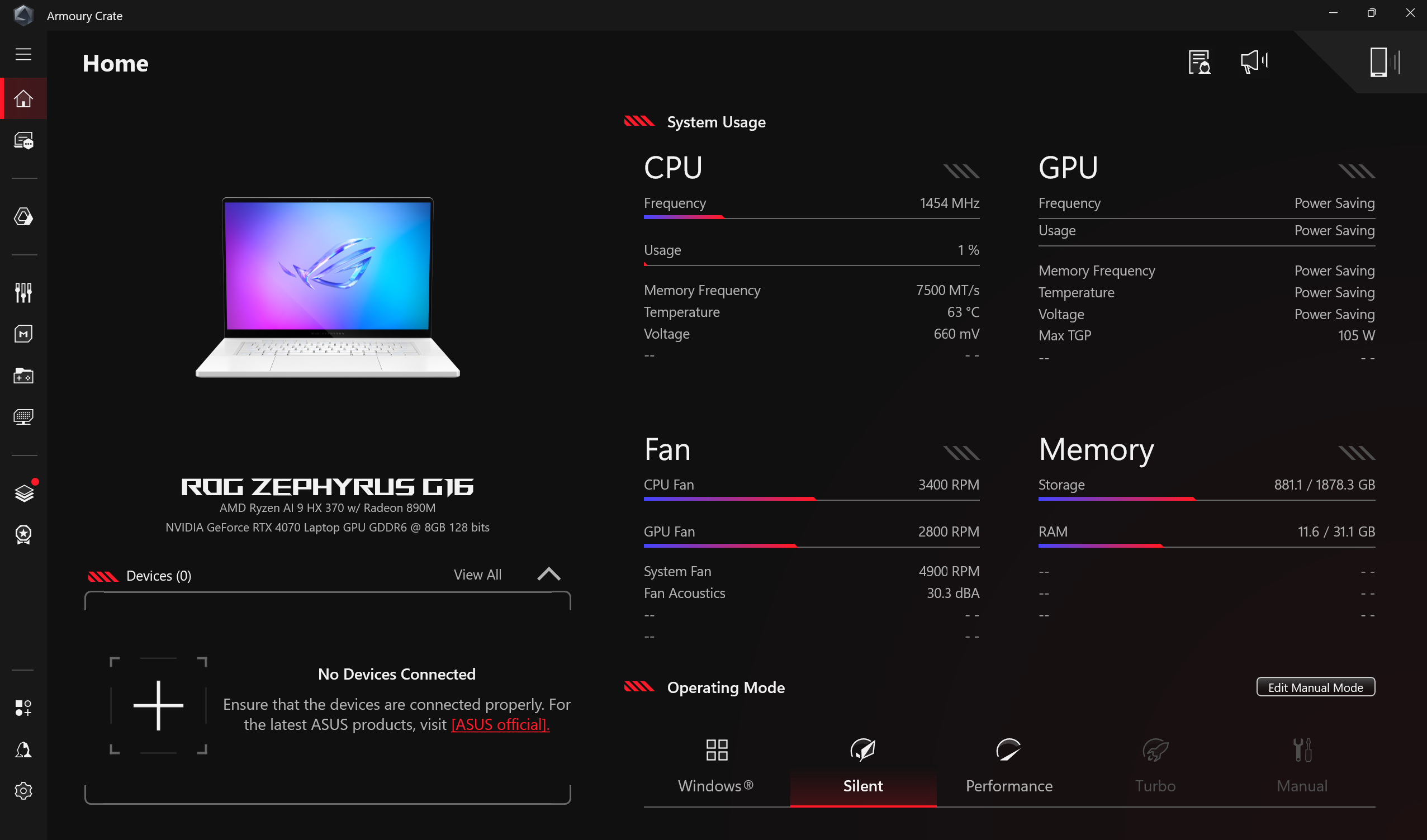
Armoury Crate is that something. It’s the app ASUS ships to control all of it from one window. The part most of you guys actually touch is the mode bar on the home page, and I benchmarked what each Armoury Crate operating mode does on this same laptop.
That’s the part people skip when they call it junk. You do need something doing this job, or you’re stuck with whatever the BIOS decided on your behalf. The argument isn’t whether the job needs doing. It’s whether Armoury Crate is a reasonable way to do it.
What people mean when they say Armoury Crate bloatware
Here’s why these threads go in circles. “Bloatware” gets used for 3 completely different complaints, and people arguing about it are usually arguing about different ones without noticing.
1. It came preinstalled and you never chose it. Fair, and Armoury Crate is guilty. Worse than guilty, since there’s a BIOS setting that lets Windows pull it down on its own.
2. It eats resources in the background. This is the one everybody claims and almost nobody measures. It’s the whole reason I did this.
3. It’s stuffed with commercial stuff you didn’t ask for. Game deals, community wallpapers, a rewards program, a news feed, an account login inside your fan control app.
Armoury Crate scores differently on all 3, which is exactly why the armoury crate bloatware question never resolves in a forum thread. Complaint 2 is the only one you can put a number on, so that’s where I started.
Installing it, and the part that nearly made me quit
Quick warning before you follow along, because this one got me.
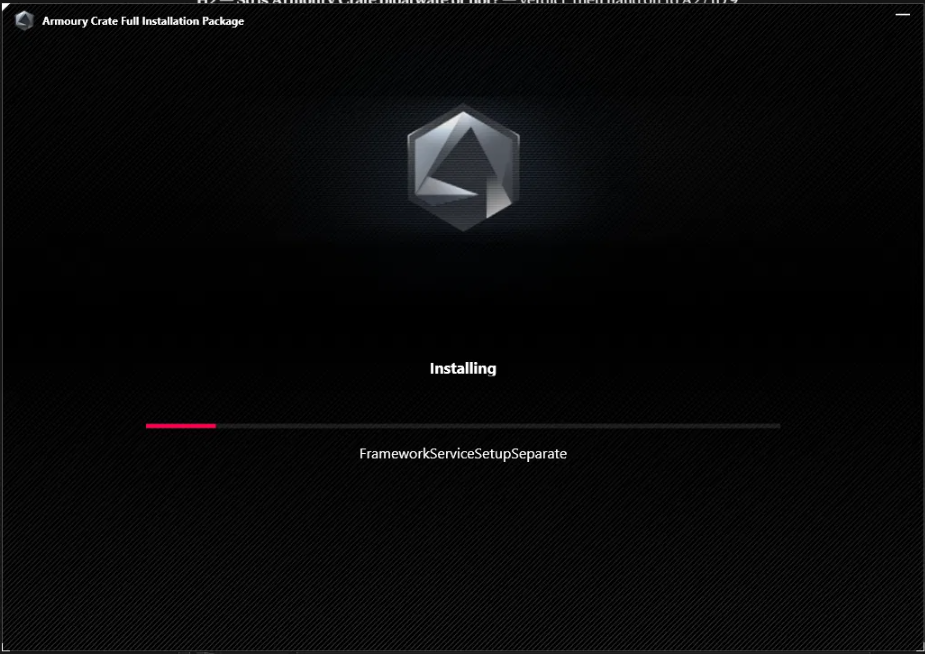
The Full Installation Package is 4.99 GB. It sat on a step called FrameworkServiceSetupSeparate for about 10 minutes without the progress bar moving at all. I checked Task Manager → Performance and Disk 0 was reading 0%, which normally means something is actually hung.
I nearly killed it. Don’t. It finished on its own.
That matters because pretty much every guide for this tells you to end the task and start over. On my machine, the installer just parks there and eventually keeps going. Give it 15 minutes before you touch anything.
Opening Task Manager and counting what’s actually running
So this is the part I actually wanted to show you.
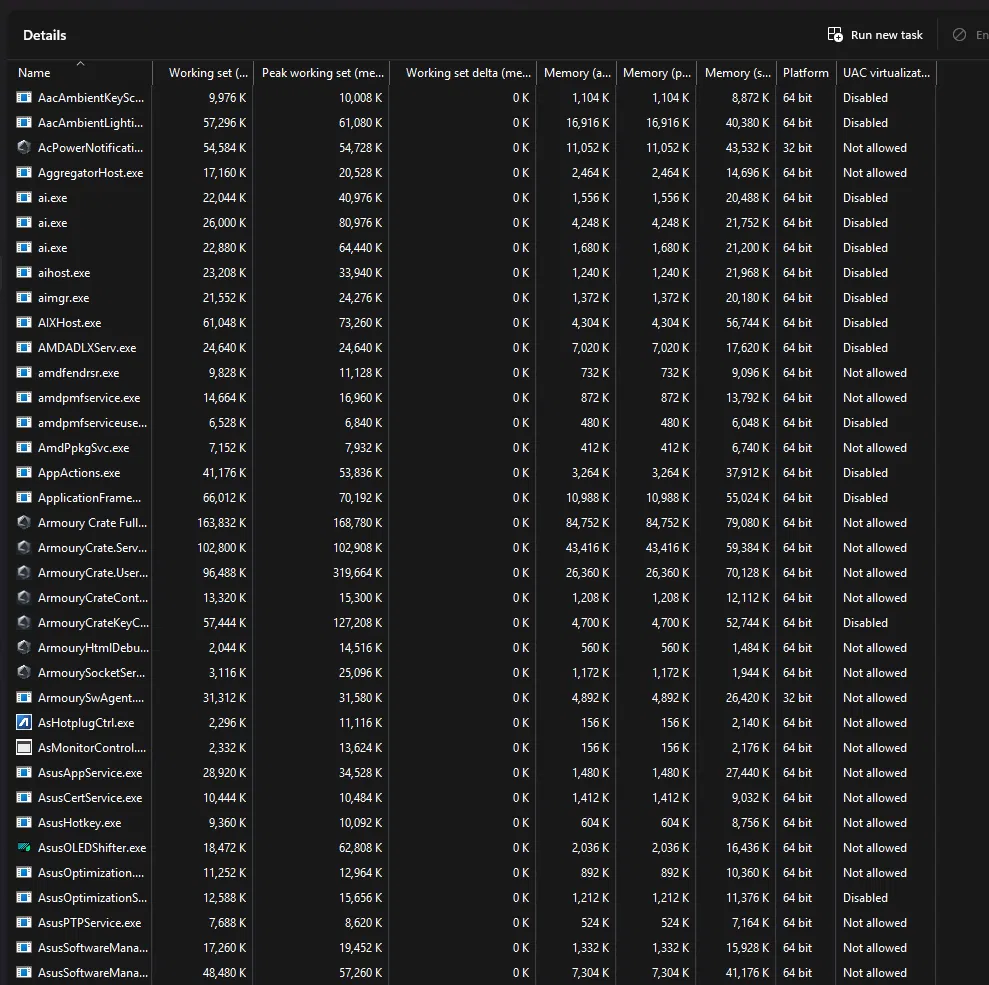
Open Task Manager, go to the Details tab, and sort by clicking the Name column header so everything groups alphabetically. That’s how I got the counts below.
26 ASUS-branded processes were running.
That number looks damning and it’s also misleading, so stay with me. Only 11 of them belong to Armoury Crate. The rest are ASUS System Control Interface components — AsusOptimization, AsusHotkey, AsusPTPService and friends — and G-Helper depends on that same layer. Several were already running before I installed anything. Blaming Armoury Crate for all 26 would be exactly the sloppiness I’m writing this to fix, and it’s how most armoury crate bloatware claims get built in the first place.
So here are the 11 that are genuinely Armoury Crate, with the window closed:
| Process | Memory |
|---|---|
| ArmouryCrate.Service | 43,416 K |
| ArmouryCrate.UserSessionHelper | 26,360 K |
| AacAmbientLighting | 16,916 K |
| asus_framework.exe (×4, 32-bit) | ~18,900 K |
| ArmouryCrateKeyControl | 4,700 K |
| ArmouryCrateControlInterface | 1,208 K |
| ArmourySocketServer | 1,172 K |
| AacAmbientKeyScanner | 1,104 K |
| ArmouryHtmlDebugServer | 560 K |
Roughly 114 MB. GHelper.exe on the same machine at the same moment: 6,300 K.
Why the armoury crate bloatware numbers you’ve seen are wrong
Here’s the catch though, and it took me a couple of tries to get this right myself.
There are 2 different memory columns in Task Manager and they tell you very different things. The one showing by default is Working set. The one you want is Memory (private working set) — right-click any column header, hit Select columns, check it, and click OK.
Working set counts shared Windows DLLs against every process that touches them. So 4 copies of the same helper get billed 4 times over for the exact same memory. When I first measured with working set, those 4 asus_framework.exe instances came to about 102 MB. Private working set puts them at 14 MB. Same processes, same moment — the default column overstates it by roughly 7×.
Almost every armoury crate bloatware screenshot you’ll find online is reading off the inflated column.
Second correction, and this one also goes in Armoury Crate’s favor. With the window open, ArmouryCrate.exe alone is 166 MB, because the interface is Chromium-based and that’s a live render process. Total goes to about 286 MB. Close the window and that process exits completely — it doesn’t even sit in the tray. So over half of what gets posted as proof is just the window somebody opened to take the screenshot.
Third: 114 MB is about 2 browser tabs. On 32 GB that’s nothing and I’m not going to pretend otherwise. Where it bites is a 16 GB laptop with 40 or so tabs open, where you’re already near the ceiling, and Windows is compressing memory to cope. There, 114 MB is 2 tabs you could have had, plus 11 more processes competing for CPU time on wake. Real, but a lot narrower than the forums make it out to be.
The thing I didn’t expect
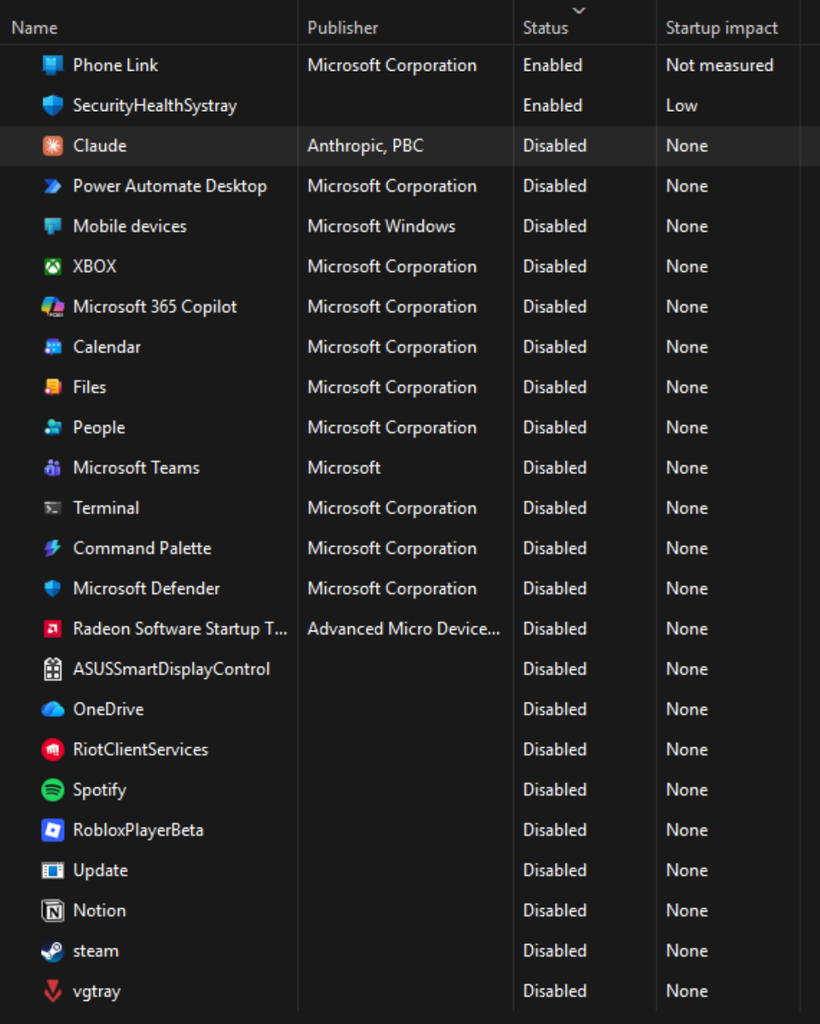
Check Task Manager → Startup apps and Armoury Crate is not in the list. At all.
My whole startup list has 2 enabled entries on it, Phone Link and SecurityHealthSystray. Armoury Crate still launches every single boot.
Sit with that one, because the standard advice everywhere for stopping it is to go into Startup apps and switch it off. There is nothing there to switch off. It runs through services and scheduled tasks instead, which is exactly why it feels unkillable and why people think it’s reinstalling itself.
So it isn’t in your face at startup. It’s doing something more awkward — it isn’t in the place users get told to look.
Worth heading this off before someone spots it: there is one ASUS entry in my list, ASUSSmartDisplayControl, and it’s disabled. It isn’t Armoury Crate and it isn’t running. Which makes the armoury crate bloatware complaint a stranger one than it looks, because the app skips the startup list entirely rather than sitting in it.
2 details in that process list that bug me
asus_framework.exe was running 3 times when I first looked and 4 times a couple of hours later. All 4 are 32-bit, on a Ryzen AI 9 HX 370 with 32 GB of RAM. Individually tiny. They also multiply on their own while you’re not doing anything, which is the sort of thing that keeps the armoury crate bloatware reputation alive even when the totals are small.
ArmouryHtmlDebugServer. A debug server, running by default, on a laptop that shipped to a customer. It’s 560 K so it costs you nothing, and I’m not claiming it’s dangerous because I haven’t tested what it exposes. It just shouldn’t be there, and it tells you something about how this gets built.
The argument against it that nobody makes
This is the strongest case against Armoury Crate and I have never once seen it raised in an armoury crate bloatware thread.
ASUS kernel drivers have a rough security history. CVE-2025-3464 was a high-severity flaw that could let an attacker escalate to SYSTEM level. Cisco Talos pulled apart the AsIO3.sys driver and found 2 critical vulnerabilities. It hasn’t stopped either — CVE-2026-8917 came in at CVSS 8.4 on an ASUS kernel driver exposing an IOCTL interface, with more driver escalation CVEs through 2026.
I have to be fair here though, because G-Helper ships a kernel driver too. It uses WinRing0, and I’ve told people that’s fine in my G-Helper safety write-up. I’m not going to pretend one is spotless and the other isn’t.
The difference I’d actually defend is surface area. G-Helper is 1 process using 1 driver. Armoury Crate is 11 processes, a debug server, a socket server and a stack of components with their own drivers, several of them actively exploited and patched more than once.
And honestly, nobody removed Armoury Crate over a CVE. I didn’t. This is the better argument, not the one that motivated me.
What actually annoyed me
I opened Update Center on a fresh install and it told me my device is up to date. Aura Service on 3.07.54, AURA lighting effect add-on on 0.0.44, GameSDK Service on 1.0.5.0 — all 3 dated 2022/09/25.
On the same screen, Armoury Crate itself was flagging an update available for the app.
So a brand new install handed me 4-year-old service components and called them current, from the module whose entire job is keeping things updated. That’s my real answer to why is armoury crate so bad as a piece of software. Not the RAM. This. If you want one armoury crate bloatware data point that has nothing to do with memory, it’s this screen.
What you actually give up by removing it
This is the part armoury crate bloatware arguments always skip, so I want to be straight about it. I expected this list to be longer than it is. G-Helper covers more ground than people realize — fan curves, power limits, GPU modes, undervolting, charge limit, refresh rate, Slash Lighting, BIOS and driver update checking, an in-game overlay, and ASUS mice, keyboards and headsets. The full feature list is on its GitHub page if you want to check it against what you actually use.
- Scenario Profiles. Launch a specific game and Armoury Crate switches your performance profile, disables the Windows key and touchpad, and fires a lighting effect. Per-app automation, and there’s nothing like it elsewhere. ASUS has their own walkthrough of it if you want to see the full setup.
- Aura Creator. Layered custom RGB effects built in a separate app that feeds into Aura Sync. If RGB is a hobby rather than a color setting, this is what you’d miss.
- Game Library. Pulls your installed games together across launchers.
- Peripherals outside G-Helper’s supported list. G-Helper’s device list is long but finite.
And one I’ll admit to enjoying on reinstall: the idle lighting animation looks genuinely good. That’s not a technical argument, it’s just true.
2 things people assume they lose and don’t: the battery charge limit is stored by the laptop itself, so ASUS Battery Care Mode keeps working with Armoury Crate gone, and 3 of the 4 ASUS OLED Care settings turn out to be plain Windows features.
So is Armoury Crate bloatware?
By the strict definition, no. It isn’t junk, it isn’t malicious, it does real work, it exits properly when you close it, and 114 MB idle is 2 browser tabs.
By the definition most people are actually using — preinstalled, awkward to remove, packed with commercial stuff nobody asked for — the armoury crate bloatware reputation is earned.
My own position is that I’d keep it uninstalled no matter how much RAM I had. I like knowing what every process on my machine is for, and 11 processes plus a debug server plus 4 copies of a 32-bit helper is the opposite of that. The RAM was never the point for me.
Keep it if you don’t mind the usage and you actually want Scenario Profiles, Aura Creator, or peripheral support G-Helper doesn’t reach. That’s a real use case and I’m not talking you out of it.
Remove it if you use 3 or 4 of its features and want those without the rest. That was me, and the full comparison covers what replaces it.
One last thing worth knowing: you don’t have to uninstall it to stop it running. G-Helper’s Extra tab can stop the ASUS services directly, which gets you most of the benefit with none of the risk of a botched removal.
If you run this on your own machine and get a different number, drop your model and your private working set total in the comments — I want to know whether 114 MB is a G16 thing or the same across the range.
FAQ
Is the Armory Crate a bloatware?
Not by the strict definition. It runs 11 background processes using around 114 MB idle on my G16, roughly 2 browser tabs. The armoury crate bloatware label is earned more for being preinstalled and packed with commercial content than for resource use.
Should I remove the ASUS Armoury Crate?
Remove it if you only use a few features and want to know what’s running on your machine. Keep it if you use Scenario Profiles, Aura Creator, or ASUS peripherals outside G-Helper’s supported list.
Is Armoury Crate a good or bad software?
Functional software with poor maintenance. A fresh install shipped me service components dated 2022 while reporting the device as up to date, and it runs a debug server by default.
Do I really need an ASUS armory crate?
No. G-Helper covers fan curves, power limits, GPU modes, undervolting, charge limit, refresh rate, updates and most ASUS peripherals in a single 6 MB process.