Armoury Crate Service: What It Is and Can You Disable It?
Armoury Crate Service is the one that shows up in Task Manager even when you never opened Armoury Crate, and on my Zephyrus G16 it’s 1 of 4 Armoury Crate background processes still running with the app closed, holding about 165 MB between them. So I measured every one of them with the app closed and open, and then tried switching the service off to see if it would stay off.
It didn’t stay off for long, and the reason why is the part most people asking “can I disable it” don’t get told. Whether you spotted it in Task Manager and want to know if it’s safe, or you’re trying to stop it from running at all, I’ll go through what each Armoury Crate process does and what happened when I turned them off down below.
After I closed Armoury Crate and checked what was still running:
- App closed: 4 background processes stayed running, about 165 MB together
- App open: Jumped to about 410 MB, with the app window alone at about 243 MB
- Service disabled: Armoury Crate set it back to Automatic about 16 seconds after I opened the app
- CPU: Peaked at about 0.5% for the busiest one over 60 seconds
- Zephyrus G16 (GA605WI)
- Ryzen AI 9 HX 370
- RTX 4070 Laptop
- Windows 11 Home 26H2
- Armoury Crate 6.7.6.0
Armoury Crate Service 6.7.4.0 · Build 26300
What Is Armoury Crate Service?
Armoury Crate is really 2 halves. The app is the window you click around in, and the service is the background part that Windows starts on its own every time the laptop boots, whether you open the app or not. On my G16 it runs as ArmouryCrate.Service.exe from C:\Program Files\ASUS\Armoury Crate Service, set to Automatic and running as Local System.
ASUS didn’t put much effort into explaining it either. The description field in Windows Services just says “Armoury Crate Service”, which you can see in the screenshot further down. From my testing, the app needs it running, because when it’s off, the app either turns it back on or shows an error, which I’ll get to in a sec.
What Is Armoury Crate Service in Task Manager?
In Task Manager you’ll usually see more than 1 Armoury Crate entry, so here’s what each one is on my laptop:
- Armoury Crate (ArmouryCrate.exe) is the app window itself.
- Armoury Crate Service is the background service this post is about.
- Armoury Crate User Session Helper runs inside your Windows account and starts when you log in. Windows’ event log showed it resetting my power plan right at login, so it looks like it handles the settings that belong to you as a user.
- Armoury Crate Control Interface lives in C:\Windows\System32\ASUSACCI and comes with a driver for an ASUS device in the BIOS. It’s the one that survived ASUS’s own uninstall tool in my uninstall Armoury Crate testing.
- ROG Live Service installed alongside Armoury Crate during setup, and its description in Services is blank.
For the numbers, I closed the app, waited 3 minutes, then sampled every Armoury Crate process 12 times over 60 seconds. Then I opened the app and ran the same thing again. I sorted both runs into the table down below, using private memory, which runs a bit higher than Task Manager’s Memory column.
| Process | App closed (MB) Baseline | App open (MB) | CPU, app open (%) |
|---|---|---|---|
| Armoury Crate (the app window) | not running | 243.0 | 0.27 |
| Armoury Crate Service | 77.8 | 78.0 | 0.02 |
| Armoury Crate User Session Helper | 67.8 | 68.1 | 0.30 |
| ROG Live Service | 16.6 | 17.2 | 0.00 |
| Armoury Crate Control Interface | 3.2 | 3.2 | 0.00 |
| Total | 165.4 | 409.5 +147.6% |
With the app closed, the 4 background pieces held about 165 MB and did basically nothing, the busiest being the User Session Helper at about 0.44% CPU. Opening the app added 243 MB on its own, which more than doubled the total. I ran it once each, so the CPU numbers are just a snapshot of the laptop sitting idle, not a gaming test.
Armoury Crate vs Armoury Crate Service
The app is the part you can close, and the service is the part that keeps going. Here’s the catch though, closing the app didn’t free its memory right away on mine. ArmouryCrate.exe was still sitting there a minute after I closed the window, and it was gone a couple of minutes later. It had also started by itself 16 seconds after I booted the laptop and sat frozen in the background at about 247 MB until I opened it, so check Task Manager before assuming it’s closed.
Do I Need Armoury Crate Service?
If you use Armoury Crate at all, yes. Switching operating modes, graphics modes and the charge limit all go through the app, and the app expects the service running. If you’ve replaced the app with something like G-Helper, you don’t need any of it, and uninstalling Armoury Crate is a cleaner way to get rid of it than fighting the service, which I compared in G-Helper vs Armoury Crate.
As for whether it’s slowing anything down, about 78 MB and roughly 0% CPU at idle isn’t something you’d notice on a laptop with 32 GB of RAM. The bigger chunk is the rest of ASUS’s background stuff, which I counted up in is Armoury Crate bloatware.
Can I Disable Armoury Crate Service?
You can, but it doesn’t stick. I tested it on the same Armoury Crate version while writing my Armoury Crate not working post, and I sorted what happened into the list below:
- Stopped, app closed: It stayed stopped for as long as I watched (75 seconds). Stopping it took about 35 seconds, and Windows even said it couldn’t stop it, but it did.
- Stopped, then opened the app: The app window showed up after 5 seconds and the service was running again at 15 seconds.
- Set to Disabled, then opened the app: Armoury Crate flipped it back to Automatic and started it about 16 seconds later, with no error.
- All 10 ASUS services disabled: The app showed a Service Error saying some features may be disabled, and nothing came back on its own. Windows’ Repair and Reset didn’t fix it either, and Reset ended in Error 501. Turning the services back on is what fixed it.
So disabling just the service gets undone the next time you open the app, and disabling everything breaks the app. If you want it gone for good, uninstall Armoury Crate instead.
How to Stop Armoury Crate Service
If you still want to stop it, for troubleshooting or just to test, here’s how in Windows Services:
- Press Windows + R, type services.msc, and press Enter.
- Click Armoury Crate Service in the list (#1 in the screenshot below).
- Click Stop in the panel on the left (#2). It can take around 30 seconds.
- To keep it from starting at boot, right-click it, click Properties, set Startup type to Manual, then click Apply and OK.
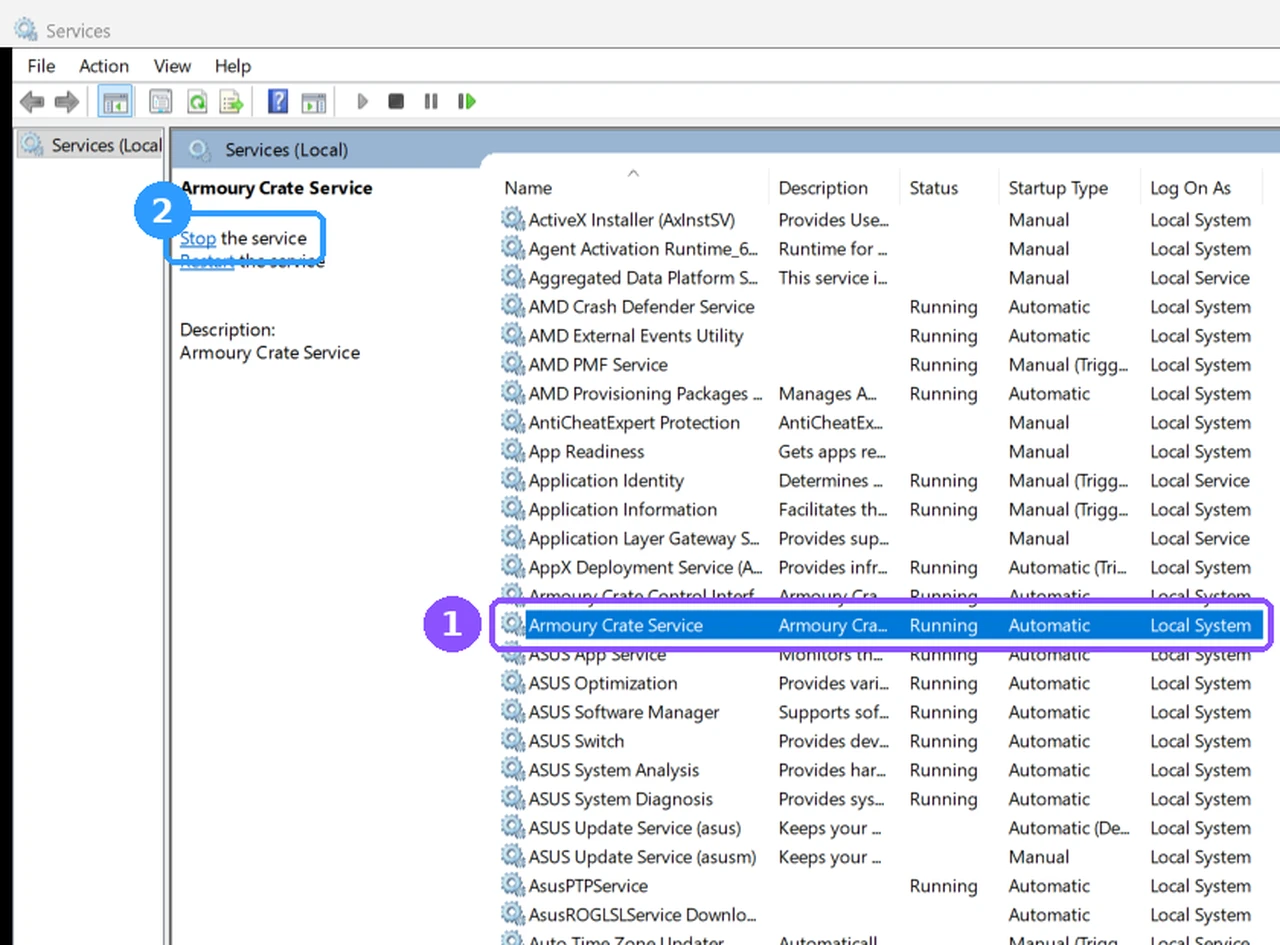
Keep in mind the app turns it back on the moment you open Armoury Crate, so this only helps if you’re not using the app. To start it again, use the same window, click Start, and set Startup type back to Automatic.
How to Uninstall Armoury Crate Service
The service doesn’t have its own entry to uninstall, since it comes and goes with Armoury Crate. ASUS’s Armoury Crate Uninstall Tool removed it on my G16, but it left the Control Interface service and driver running, plus a few scheduled tasks, which I went through in uninstall Armoury Crate. If you want it back later, the installer puts the service back during the first launch, which I walked through in Armoury Crate download.
Armoury Crate Service Error or Not Running
The Service Error message and “cannot communicate with Armoury Crate Service” both point at ASUS’s background services not running. On mine, the fix was opening Services and setting every ASUS service back to Automatic and starting it, no restart needed. ASUS’s own Armoury Crate FAQ suggests restarting and reinstalling with the uninstall tool, which is the step to try if the services are already running and it still errors.
Armoury Crate Service FAQ
Is Armoury Crate Service a virus?
Not on my laptop. ArmouryCrate.Service.exe sits in C:\Program Files\ASUS\Armoury Crate Service and has a valid digital signature from ASUSTeK, which I checked with Windows’ Get-AuthenticodeSignature command. If yours is running from somewhere else, like a Temp or Downloads folder, that’s worth a closer look.
What is Armoury Crate Lite Service?
I didn’t have one on Armoury Crate 6.7.6.0. The only 2 Armoury Crate services on my G16 were the main service and the Control Interface, so I left Lite Service untested.
What is Armoury Crate Content Service?
It’s 1 of the 3 add-on packs in Armoury Crate’s Feature Library, and ASUS describes it as “Tons of rich content for your exploration!”. It comes pre-checked during setup, and I unchecked it in my lean install.
Does Armoury Crate Service affect gaming performance?
I didn’t run a game with it stopped, so I left FPS untested. At idle it used about 78 MB and roughly 0% CPU. For the settings that actually move FPS, check out my best Armoury Crate settings.
If the service is using way more memory or CPU on your laptop than the numbers above, drop your model and what Task Manager shows in the comments, and I’ll compare it against mine.