
How to Turn On Keyboard Light on ASUS Laptop (Not Fn + F7)
If your ASUS keyboard won’t light up no matter which Fn combo you try, you’re probably following the same advice I found everywhere online. I tested every shortcut on my Zephyrus G16, and ASUS’s own Fn + F7 shortcut did absolutely nothing. The light lives on its own half-sun key, and whether you need Fn for it comes down to a setting most guides never mention. If your light won’t turn on, keeps shutting off, or changed color on its own, this covers every switch I found.
After I tested every shortcut on my G16, the half-sun backlight key on its own was what turned the light on, and Fn + Esc decides whether you have to hold Fn with it.
- Fn + F7: Did nothing on the G16, even though it’s the combo ASUS’s own help page gives
- On battery: G-Helper switched the light off after 60 seconds without typing
- Plugging in: The light turned off until I set a level once while plugged in and once on battery
- Services stopped: The key still cycled all 3 levels with 7 ASUS services off
- Zephyrus G16 (GA605WI)
- Ryzen AI 9 HX 370
- RTX 4070 Laptop
- Windows 11 Home 26H2
- G-Helper 0.291
Build 26300.9974 · Armoury Crate not installed
How to turn on keyboard light on ASUS laptop models
The first thing I tried was the combo every result on Google gives you. ASUS’s own backlit keyboard FAQ says most of its laptops use Fn + F7, and other guides throw in F3 and F4, so I pressed Fn with all of those, plus Fn with the up and down arrows, and none of them did anything to my keyboard (it was off the whole time).
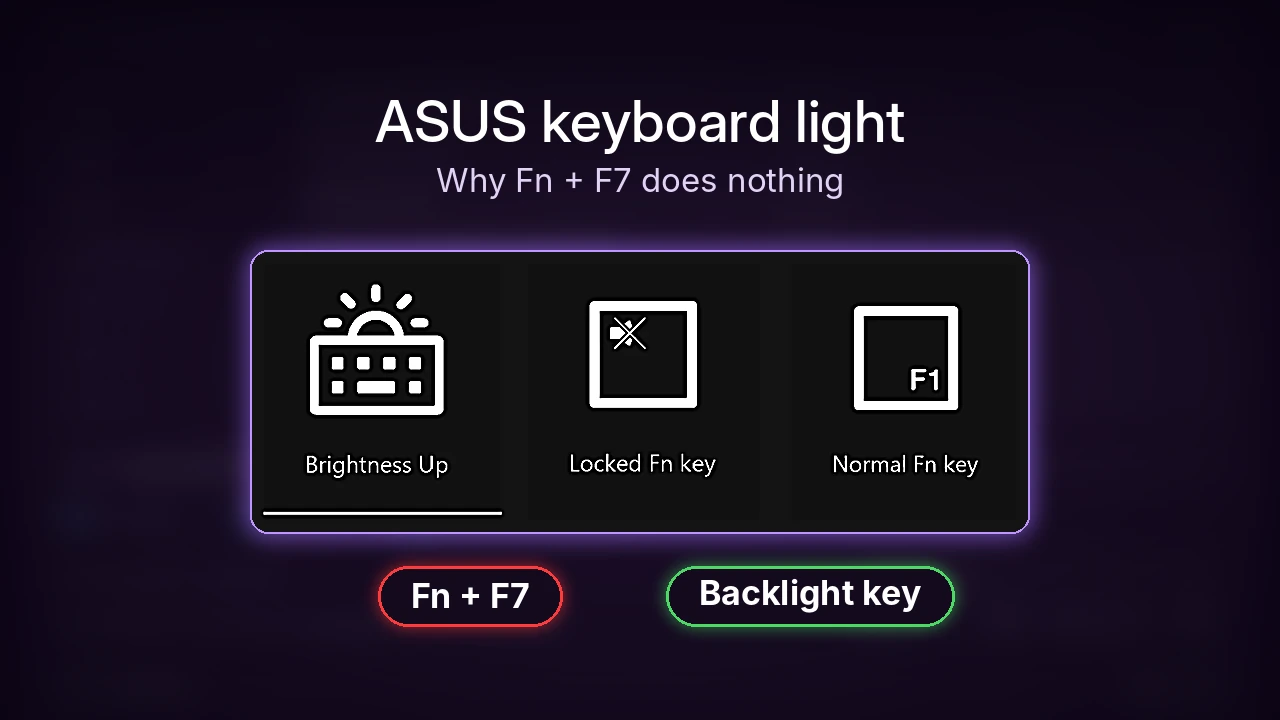
The key that actually worked was the one with the half-sun icon in the top row. There isn’t a separate F2 or F3 key on the G16: the backlight key has F2 and F3 printed small in its top right corner, which means you’d have to hold Fn to get those F-key functions instead. Pressed on its own, it went through 3 brightness levels and then back to off, and every press brought up the small popup you can see on the left in the image below.
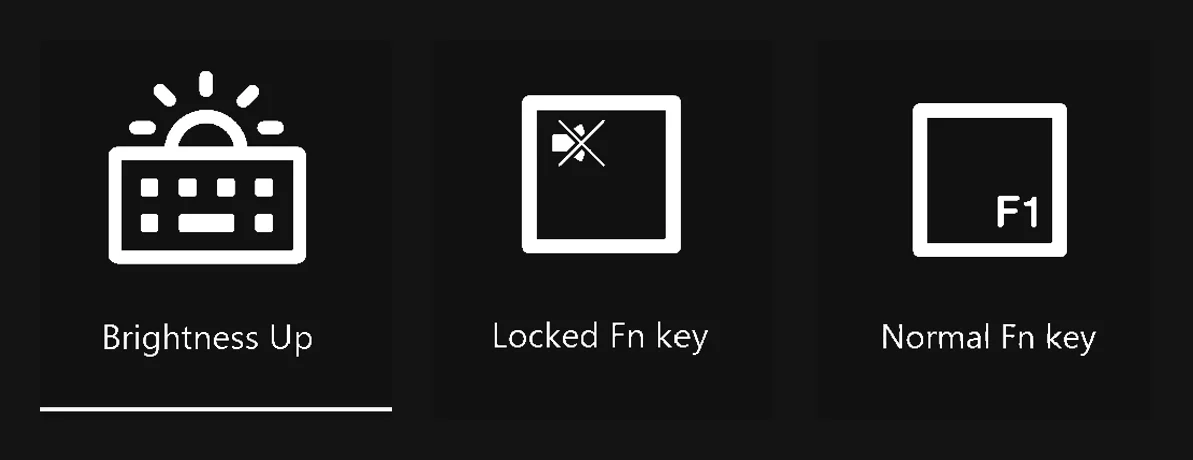
If you’re on a different ASUS model, the backlight might sit on another key in the top row, so look for the little keyboard-with-a-sun icon rather than a specific F number, and try pressing it alone before you add Fn.
Why Fn plus the key didn’t work for me
This is the part that tripped up every combo I tried, and none of the top results mention it. ASUS laptops have something called Fn Lock, which decides what the top row does when you press a key alone: either the printed shortcut (brightness, volume, the backlight) or the plain F1 to F12 key. You switch it with Fn + Esc, and each press brought up one of the 2 popups in the middle and on the right of the image above.
Mine was on Locked Fn key, so the backlight key worked by itself and every Fn combo did nothing. When I pressed Fn + Esc to switch to Normal Fn key, pressing the backlight key normally did nothing, but holding Fn changed it like normal, and once I put it back it worked alone again. So if the key alone doesn’t do anything for you, try it with Fn before you assume anything is broken.
I keep mine on Locked, since I use the utilities like keyboard and screen brightness constantly and the F keys not so much. If you use G-Helper, it also has its own Fn Lock shortcut, FN + C, which you can see in its key bindings (number 1 further down), so either combo can be the one that flipped your keys.
ASUS keyboard backlight not working at all
If the key does nothing in either Fn Lock mode, the next thing people usually blame is ASUS’s software. I wanted to see whether the light even needed it, so I opened G-Helper’s Extra window and clicked Stop next to Asus Services Running: 7 (the orange box below). With all 7 stopped, the backlight key still cycled through every level, and Fn + Esc still flipped Fn Lock, the only difference being that the popups switched to G-Helper’s own plain FN-Lock On and FN-Lock Off labels.

That lines up with what the G-Helper developer said in a GitHub issue about backlight keys: if the keys work without the ASUS services, they’re adjusting the backlight at the firmware level, without any app in between. The same thread shows it isn’t like that on every ASUS, though, since the owner of an ASUS V16 found their backlight key only worked while the ASUS Optimization service was running. So if your key does nothing in both Fn modes, make sure ASUS Optimization is running (in G-Helper, simply click Start in that same spot) before you reinstall anything, and if it still does nothing after that, that’s the point where I’d contact ASUS support, since I didn’t have a broken backlight to test. I clicked Start afterward and all 7 services came back on my G16.
Windows Dynamic Lighting took over my colors
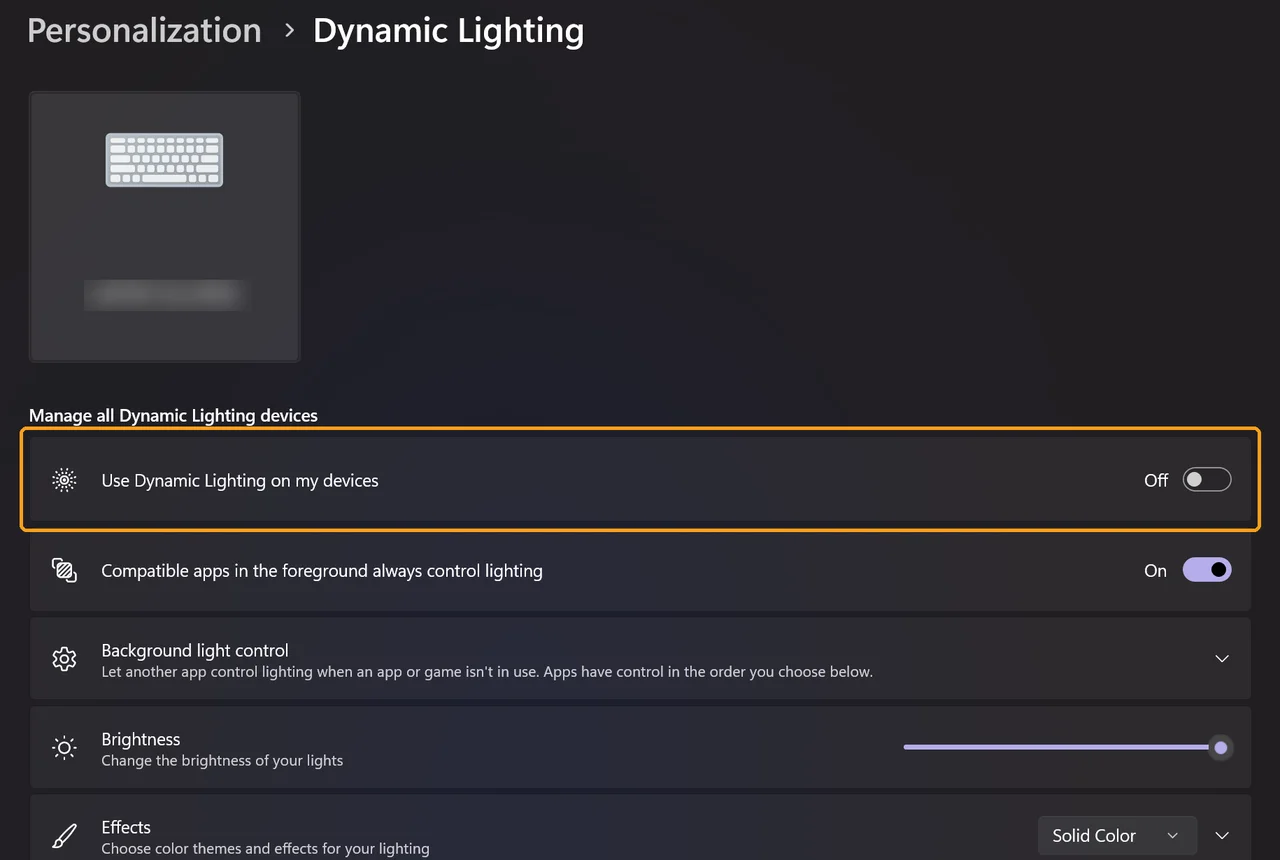
Windows 11 has its own lighting control called Dynamic Lighting, and my G16 keyboard showed up in it as a device (the tile at the top of the screenshot below). When I turned Use Dynamic Lighting on my devices on, my keyboard switched to white at the same max brightness, and the backlight key still changed levels normally. Picking green in G-Helper while it was on did turn the keyboard green, but switching Dynamic Lighting on again put it straight back to white.
To hand control back to your ASUS app, open Settings > Personalization > Dynamic Lighting and switch Use Dynamic Lighting on my devices off (the orange box). As soon as I switched it off, the keyboard went back to the green I had picked in G-Helper.
Why your ASUS keyboard light keeps turning off
The backlight timeout on battery
If your light shuts off a minute after you stop typing, check the timeout. In G-Helper, open the main window, click Extra under Laptop Keyboard, and look at Backlight timeout plugged / on battery (number 2 below). Mine was set to Off plugged in and 60 (sec) on battery, so I unplugged, stopped touching the laptop and timed it: the light went off right at 60 seconds and came back with just a slight movement of the touchpad.
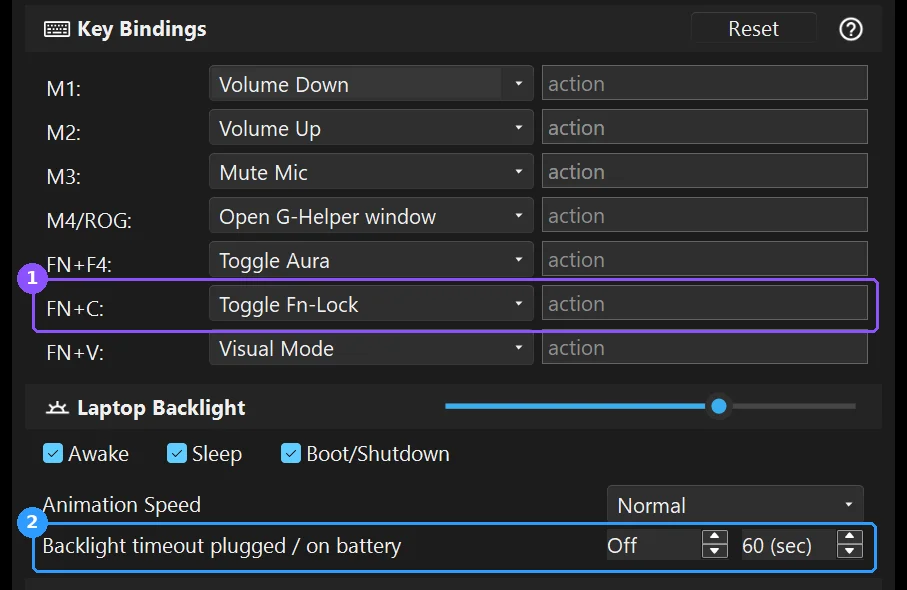
I would keep the 60 seconds, since if I’m not currently typing I’d rather save the battery drain that comes with leaving the keyboard on (in my G-Helper backlight test max brightness cost about 1 to 2 W). If you want it to stay on, use the arrows next to the battery value to raise it or set it to Off.
It turns off when you plug in or unplug
This one confused me at first. When I plugged my charger in, the light turned off and G-Helper popped up saying it had switched to Silent mode, and when I unplugged, it said Silent again but the light came back on. Both of my modes were already set to Silent, so the popup was just G-Helper re-applying its plugged-in and battery settings, and the light was doing the same thing: G-Helper keeps a separate backlight level for plugged in and for battery, and mine was off for plugged in.
To fix it, set the level once in each state. I plugged in, pressed the backlight key up to max, unplugged, and it stayed at that high level, then stayed at 3 when I plugged back in too. If you use Armoury Crate instead of G-Helper, its lighting settings live in a separate tab, and my Armoury Crate keyboard lighting guide covers where that tab is and what to do when it’s missing (Armoury Crate wasn’t installed on my G16 for these tests).
Changing your ASUS keyboard light color
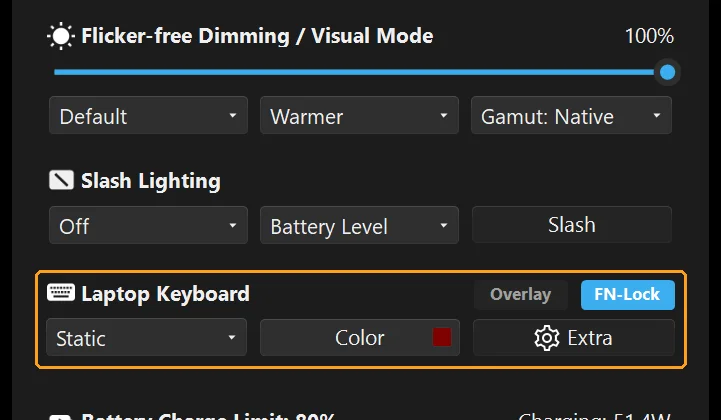
The backlight key only does brightness. For colors and effects, I use the Laptop Keyboard section in G-Helper (the orange box below): the dropdown on the left picks the effect, Color opens the color picker, and Extra holds the timeout from earlier. If you’re on a ROG with the light bar on the lid, my Slash Lighting guide covers that one separately.
What I’d do
If you just want to see your keys, the basic light button works just fine, and I’d keep the 60-second timeout on, since there’s no point draining battery on a keyboard you aren’t typing on. If you want to customize your color, just get G-Helper, since it gives you a very simple way to switch back and forth. Make sure Windows Dynamic Lighting is off, though, or it’ll keep turning your keyboard white over whatever color you pick.
If the rest of your top row is acting up too, my ASUS ROG Fn keys test goes key by key, and for the rest of the ASUS software side, my best Armoury Crate settings are the place to start.
ASUS keyboard light FAQ
What is the ASUS keyboard light shortcut?
ASUS’s help page lists Fn + F7 for most models, but on my Zephyrus G16 that did nothing. The light was on its own half-sun key in the top row, which worked alone with Fn Lock on Locked and needed Fn with it on Normal.
Why does my ASUS keyboard light turn off by itself?
On my G16 it was G-Helper’s backlight timeout, which turned the light off after 60 seconds without typing on battery. A slight touch of the touchpad brought it back.
Does the keyboard light need Armoury Crate?
Not on my G16. Armoury Crate wasn’t installed, and the key still worked with all 7 ASUS services stopped in G-Helper. On some other models, like the ASUS V16 in the GitHub thread above, the key needed the ASUS Optimization service running, so check that one first if yours is dead.
If your ASUS keyboard light still won’t turn on after all this, drop your laptop model and what happens when you press the backlight key with and without Fn in the comments, and I’ll help you figure out which switch it is.