
How to Use Revo Uninstaller: 3 Scan Modes Tested
After witnessing the various bloated leftovers covering my laptop, I realized that the usual uninstall program for apps is simply not effective. I decided to learn how to use Revo Uninstaller, one of the top-rated uninstallers out today, and record what I learned. I tested this app through a browser, game launcher, and branded software to see how they differ and what they truly leave behind. If it’s your first time using Revo, or want a refresher on the basics I’ll outline everything I learned down below.
After I ran Revo Uninstaller Free on the same 3 apps Windows had already failed to clean up, my G16 ended up with:
- Windows alone: 1,106 leftover files (135.7 MB), plus 2 Opera update tasks pointing at a file that no longer existed
- Revo Free: 90 leftover files (5.5 MB) on the same 3 apps, and both dead tasks gone
- Safe mode: 835 of Opera’s files still there, almost as many as Windows left (897)
- Collateral: Nothing outside the test apps deleted across 4 Revo runs
- Zephyrus G16 (GA605WI)
- Ryzen AI 9 HX 370
- RTX 4070 Laptop
- Windows 11 Home 26H2
- Revo Uninstaller Free 2.7.2
- Opera GX 139
Build 26300.9974 · Epic Games Launcher 1.3.210 · Logitech G Hub 2026.7 · tested Nov 16, 2026
Why I went looking for an uninstaller
I’ve always uninstalled apps the normal way, through Settings > Apps > Installed apps, and nothing had ever gone visibly wrong. Then I started taking snapshots of my laptop before and after uninstalls, and the amount that stayed behind is what pushed me to finally try one of these tools. I had already seen it happen with single apps too, like Windhawk’s own uninstall leaving 68 MB behind, so I wanted to know how much a dedicated uninstaller actually catches.
Leftovers within my device bug me because when I used to uninstall, I felt the peace of mind of letting go of whatever programs came with that specific app. Now that I’ve actually run some checks I realized that peace of mind was false hope, and that over years of uninstalling apps normally it’s natural for these things to build up like cobwebs within your machine, and likely contributing to some slowing down of your computer over time.
To be clear on that last part, my tests counted leftover files, folders and registry keys, not speed, so the slowdown is my own suspicion rather than something I measured.
What Windows left behind vs Revo Free
To keep it fair, I installed the same 3 apps fresh, opened each one for 2 minutes like a normal first run, restarted, and took a snapshot of every file, folder, registry key, scheduled task and firewall rule on the laptop. Then I removed them once with Windows alone and once with Revo Free, restarting and snapshotting again each time. The numbers in the table below only count things those apps added, matched by their own names.
| App | Files left, Windows Baseline | Files left, Revo Free | Size left, Windows Baseline | Size left, Revo Free |
|---|---|---|---|---|
| Opera GX | 897 | 0 −100.0% | 128.4 MB | 0.0 MB −100.0% |
| Epic Games Launcher | 162 | 49 −69.8% | 2.0 MB | 1.3 MB −35.0% |
| Logitech G Hub | 47 | 41 −12.8% | 5.3 MB | 4.2 MB −20.8% |
| All 3 | 1,106 | 90 −91.9% | 135.7 MB | 5.5 MB −95.9% |
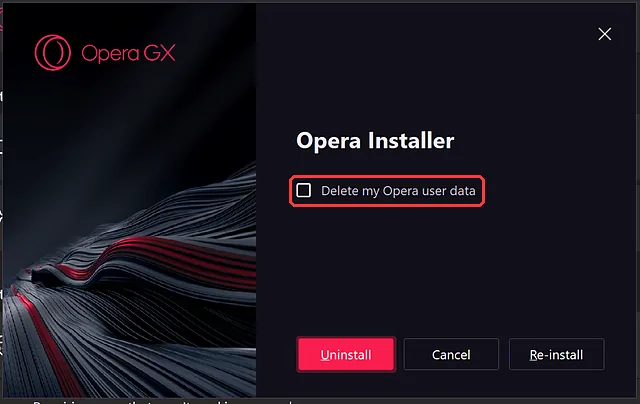
Most of what Windows left wasn’t Windows’ fault, though. Opera GX’s own uninstaller has a Delete my Opera user data box that comes unticked, so by default it keeps your whole browser profile (122.4 MB of it on my laptop, in AppData\Roaming\Opera Software). You can see the box in the red outline below.
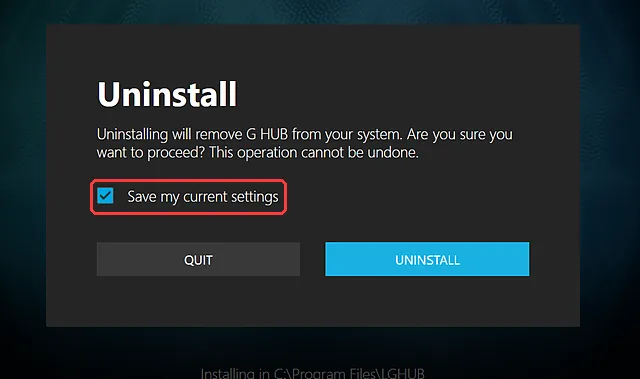
G Hub does the opposite and comes with Save my current settings already ticked, which is why about 1.2 MB of settings stayed in AppData\Roaming\G HUB even after Revo ran (Revo left them alone, since that’s what the box asked for).
The part that surprised me most was Opera’s 2 scheduled tasks. After the Windows uninstall, both “Opera GX scheduled Autoupdate” tasks were still set to Ready, pointing at opera_autoupdate.exe in a folder that no longer existed, along with an inbound firewall rule for the deleted browser. After every Revo run, all 3 were gone.
How to use Revo Uninstaller step by step
This is the exact flow I followed in Revo Uninstaller Free 2.7.2, downloaded from the official site. Make sure you grab it from there and not a mirror, since the official page is also where you’ll find the portable version if you don’t want to install anything.
1. Close the app you’re removing
Quit the app first, including its tray icon. When I tried removing Epic Games Launcher while it was still running in the background, its own setup wizard refused to continue and told me to close it and run the wizard again, which then left Epic Online Services installed, so make sure you close it first, since it saves you a second run.
2. Pick the app and click Uninstall
Open Revo, type the app’s name in the search box at the top left, click it in the list, then click Uninstall in the toolbar. Revo shows a confirm box with the app’s size, publisher and the exact uninstall command it’s about to run. Make a System Restore Point before uninstall (box 1) comes ticked, so leave it that way and click Continue (box 2).
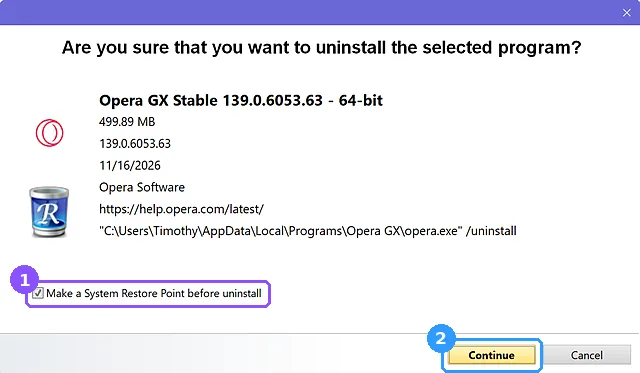
The restore point is your way back if something goes wrong, so make sure it stays ticked. Microsoft’s own guide on using System Restore covers how to roll back to one if you ever need to.
3. Let the app’s own uninstaller finish
Revo doesn’t rip the app out first. It runs the app’s built-in uninstaller (the same one Windows would run), so you’ll see Opera’s or G Hub’s normal window pop up. Simply answer it however you normally would (I kept every default so the comparison stayed fair).
This order confused me at first, because I assumed Revo would just uninstall the app with everything else in one go. Looking back it makes sense, since it gives you the control to see exactly what’s left before anything else gets deleted, so I’m not against it.
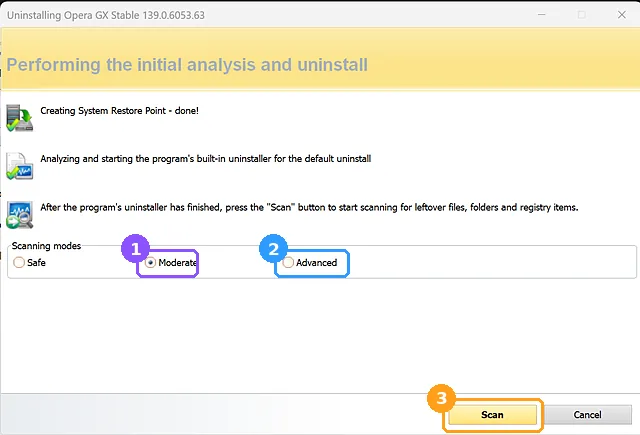
4. Pick a scan mode and click Scan
Once the app’s uninstaller closes, Revo shows 3 scanning modes. Moderate (box 1) is selected by default, and the first time through I didn’t even notice the picker and just hit Scan (box 3). For apps that hook deep into Windows, like game launchers, pick Advanced (box 2) instead. The next section shows what each mode actually removed.
5. Delete the leftover registry items
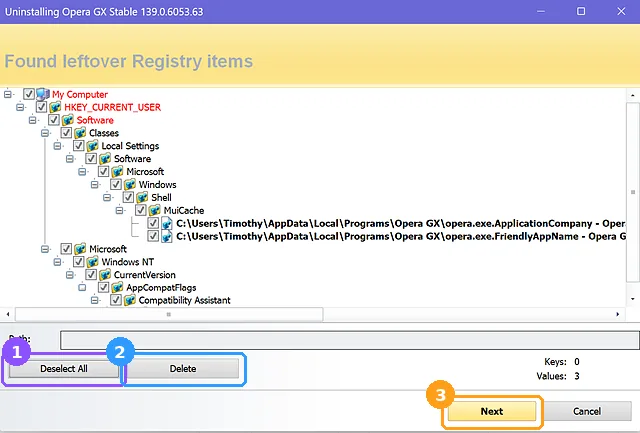
The first results screen lists leftover registry items, and nothing comes ticked. Click Select All (box 1), then Delete (box 2), confirm, then Next (box 3). If Revo found no registry leftovers at all, it skips this screen and goes straight to files, which happened on my Safe mode run.
6. Delete the leftover files and folders
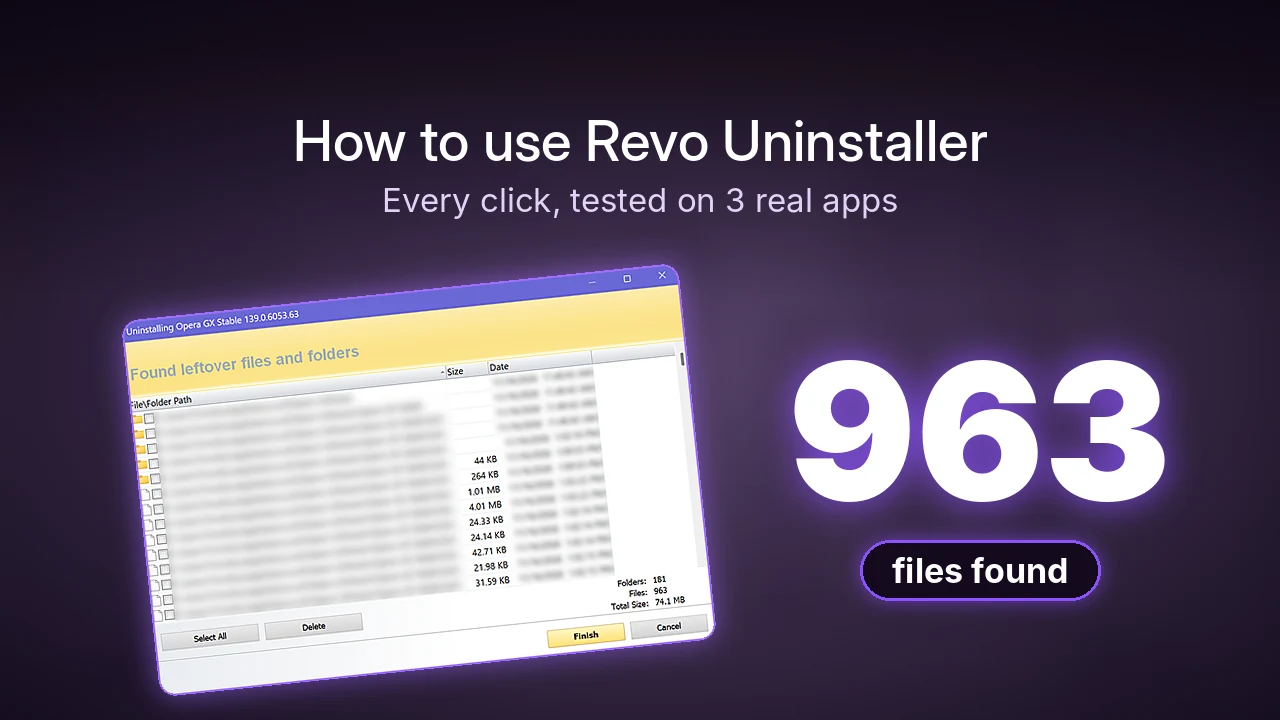
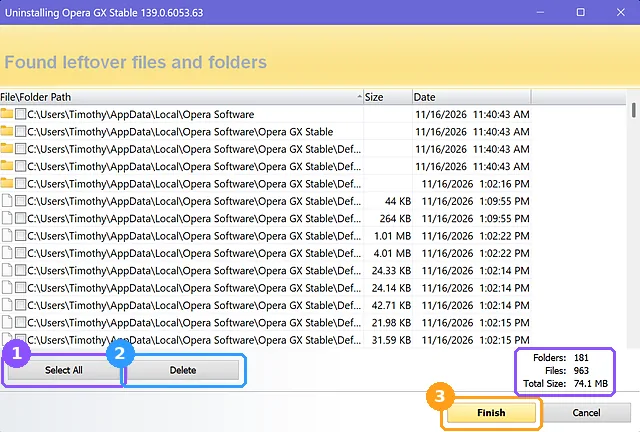
The second screen is files and folders, and this is where the real difference showed up. After Opera’s own uninstaller had already run, Revo still found 181 folders and 963 files totaling 74.1 MB (the counts in the purple box). Click Select All (box 1), Delete (box 2), confirm, then Finish (box 3).
7. Empty the Recycle Bin
This is the step nobody mentions. Revo doesn’t wipe the leftover files right away, it moves them to your Recycle Bin, so the space doesn’t actually come back until you empty it. After all my test runs, my Recycle Bin was holding 438.6 MB of Revo’s deletions. Restart once you’re done too, since that’s when Windows lets go of anything that was still in use. If Revo threw an error anywhere along the way, my guide to Revo Uninstaller not working covers the 3 problems I ran into and how I got past each one.
Which Revo Uninstaller scan mode should you pick?
For this one I reinstalled Opera GX 3 times and removed it with each mode, keeping Opera’s own “delete my data” box unticked every time. That box is what keeps the 122.4 MB profile around, so it’s the perfect test of how far each Revo scan mode actually looks.
| How Opera GX was removed | Files left | Size left | Dead update tasks left |
|---|---|---|---|
| Windows alone Baseline | 897 | 128.4 MB | 2 |
| Revo Safe | 835 −6.9% | 61.5 MB −52.1% | 0 −2 |
| Revo Moderate (default) | 0 −100.0% | 0.0 MB −100.0% | 0 −2 |
| Revo Advanced | 0 −100.0% | 0.0 MB −100.0% | 0 −2 |
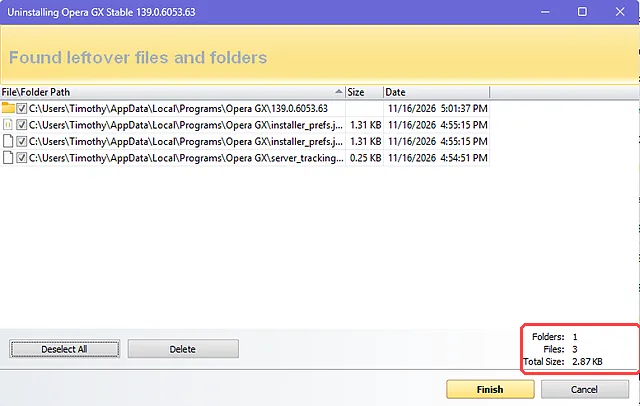
Safe is the one I’d skip. It only looked inside Opera’s program folder and found 3 files worth 2.87 KB (the red box below), so the whole profile in AppData\Roaming stayed put, which makes it barely better than not using Revo at all.
Moderate, the default, already cleared every file and folder Opera left. Advanced matched it on Opera, but on Epic Games Launcher it caught something nothing else had: a discord-432980957394370572 registry key, which is a Discord “launch game” link still pointing at the Fortnite exe from an install I had removed a day earlier. Windows missed it, and so did my own cleanup, because it’s filed under Discord’s name instead of Epic’s.
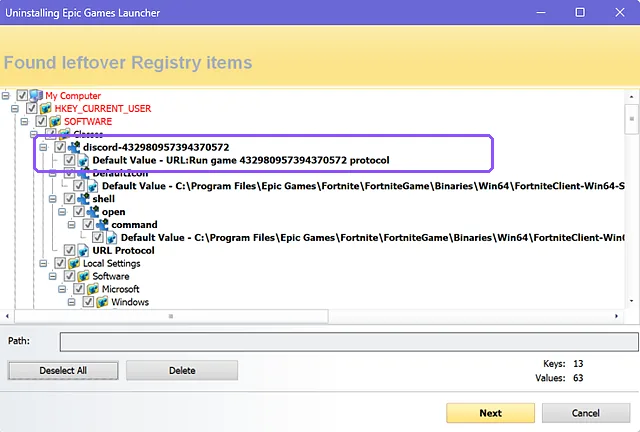
So if you’re removing a normal app, the default Moderate is enough. If it’s a game launcher, anti-cheat, or anything that’s been on your laptop for a long time, switch to Advanced, since that’s where the strays tied to other apps show up.
Is Revo Uninstaller safe?
The usual warning is that Advanced mode can delete registry entries other programs need. So after each Revo round, I also checked everything on the laptop that disappeared and wasn’t part of the test apps. Across 4 Revo runs, the only things that changed outside the test apps were normal Windows churn: Defender rotating its virus definitions, an Outlook update that happened mid-test, and 2 ASUS firewall rules that renew on every boot (they changed during the Windows-only round too).
2 entries did look suspicious at first, a pair of COM class IDs that vanished during a Revo round. When I traced them through every snapshot, they turned out to be created by Opera’s own uninstaller and removed by Opera’s own installer the next time I put it back on, before Revo had even started. So in my testing, Revo didn’t touch anything it shouldn’t have, and with the restore point on by default there’s still a way back if it ever does on yours.
Revo Uninstaller Hunter Mode
Hunter Mode is for apps you can see but can’t find in the list. Click Hunter Mode and Revo’s window disappears, leaving a small target icon in the top right of your screen (box 1). Hold the target and drag it onto a window, a desktop shortcut or a tray icon, and a menu pops up with Uninstall, Stop Auto Starting, Kill Process and a few more (box 2).
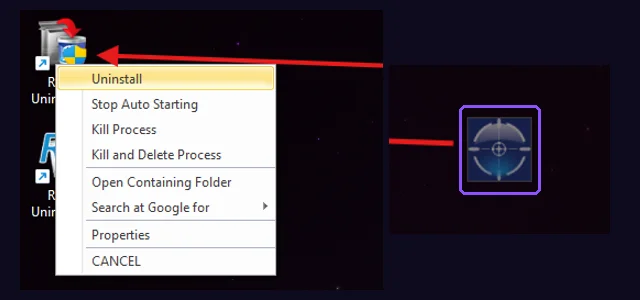
If you drop it on empty desktop, it just says “Unresolved! Try to point to another window, icon or a taskbar item.” To get Revo’s main window back, right-click the target and choose Open Main Window. I tried it in the Pro trial, but the official page lists Hunter Mode in the free version too.
What Revo still missed
Revo still wasn’t perfect, though, and the same 3 Opera registry keys under HKEY_CURRENT_USER\Software\Opera Software stayed after every single run, in every mode, and none of Revo’s scans ever listed them. On Epic, 49 small log files in ProgramData\Epic\EpicOnlineServices stayed too. Those are tiny, but if you want a fully clean slate, they’re the spots to check by hand afterward.
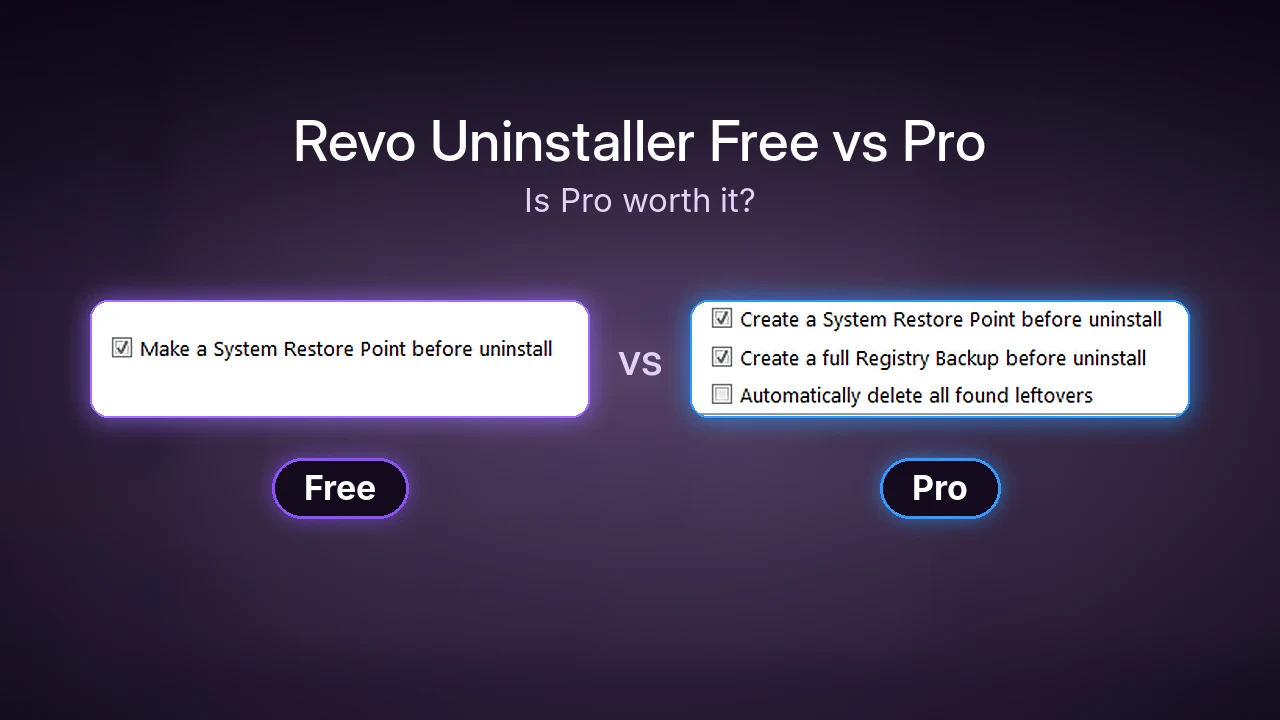
If you’re also wondering about the paid version, Revo Uninstaller Pro adds Forced Uninstall, batch uninstalls and a logs database, and it costs $24.95 for a 1-year license on the official site. I ran the same apps through the Pro trial too, and you can see what it did differently in my Revo Free vs Pro comparison.
I’ve also measured what other uninstallers leave on their own, like ASUS’s own Armoury Crate removal tool and FanControl with its PawnIO driver, if you want to see how common this is.
My take on Revo after this
I think Revo is a useful install for anyone trying to invest in the future health of their computer, since I can definitely see how years of uninstalling apps that leave leftovers like this would slow anybody’s PC down. Overall it’s a great tool, and a clean way to get the peace of mind I originally thought I had when I uninstalled apps on my own.
If you ran Revo on an app and something still came back afterward, drop the app’s name in the comments and I’ll put it through the same snapshot test on my G16.