Armoury Crate Panel Power Saver: On or Off? (Tested 2026)
Armoury Crate Panel Power Saver is 1 tile with 1 line of explanation under it, so it’s easy to turn on and forget about. I had it on for weeks on my G16, and when I first measured it sitting on the desktop, the battery barely noticed it was there.
Once I unplugged and put a YouTube video on though, that same tile was worth roughly an extra hour on a full charge, and it turned out to be the reason my screen blinked black every time I pulled the charger. Whether you just want more time off the wall or you want that blinking gone, I’ll go through what Panel Power Saver actually does, what it saved me, and whether you should leave it on down below.
After I turned on Panel Power Saver, which drops the screen to 60 Hz on battery:
- Video playback: Drew about 3.2 W less, around 18%, roughly 1 more hour of watching
- Sitting on the desktop: Changed under 1 W, inside the normal bounce
- Against other battery settings: That 1 tile saved more than Eco, Silent and the keyboard light off put together
- Zephyrus G16 (GA605WI)
- Ryzen AI 9 HX 370
- RTX 4070 Laptop
- 240 Hz OLED
- Windows 11 Home 26H2
- Armoury Crate 6.7.6.0
Build 26300
What Is Panel Power Saver in Armoury Crate?
Your screen redraws the picture a set number of times every second, and that number is the refresh rate, measured in hertz (Hz). My G16 runs at 240 Hz, which is why scrolling and games feel so smooth on it, and Microsoft’s own refresh rate page spells out the tradeoff right in Settings, where a higher rate gives smoother motion but uses more power.
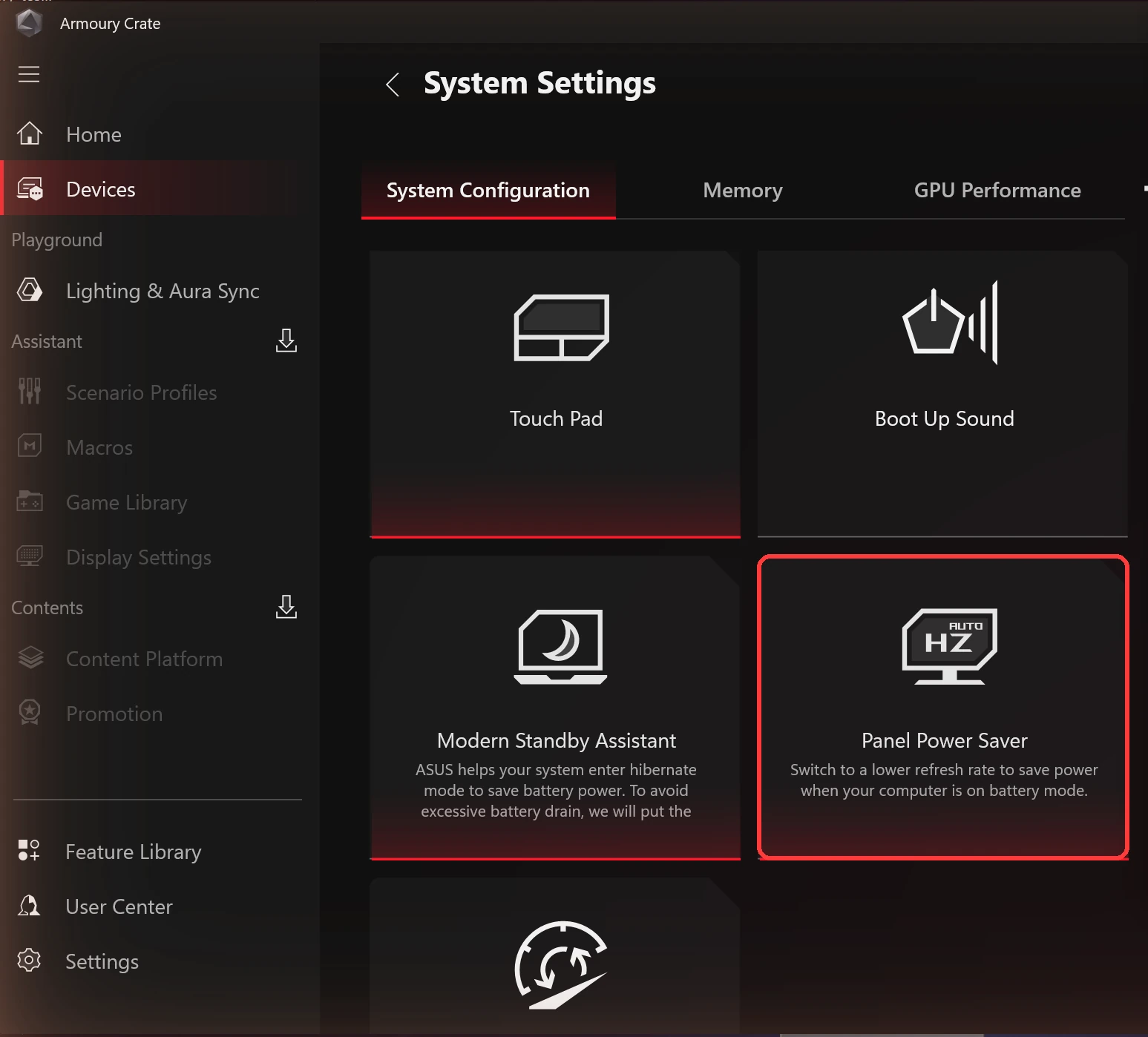
So what is Panel Power Saver in Armoury Crate? It’s the switch that handles that tradeoff for you. When you unplug, it drops the laptop screen to 60 Hz, and when you plug back in, it puts it back to 240 Hz. ASUS sums it up in 1 sentence on the tile, which you can see in the screenshot down below, and that’s genuinely all it does.

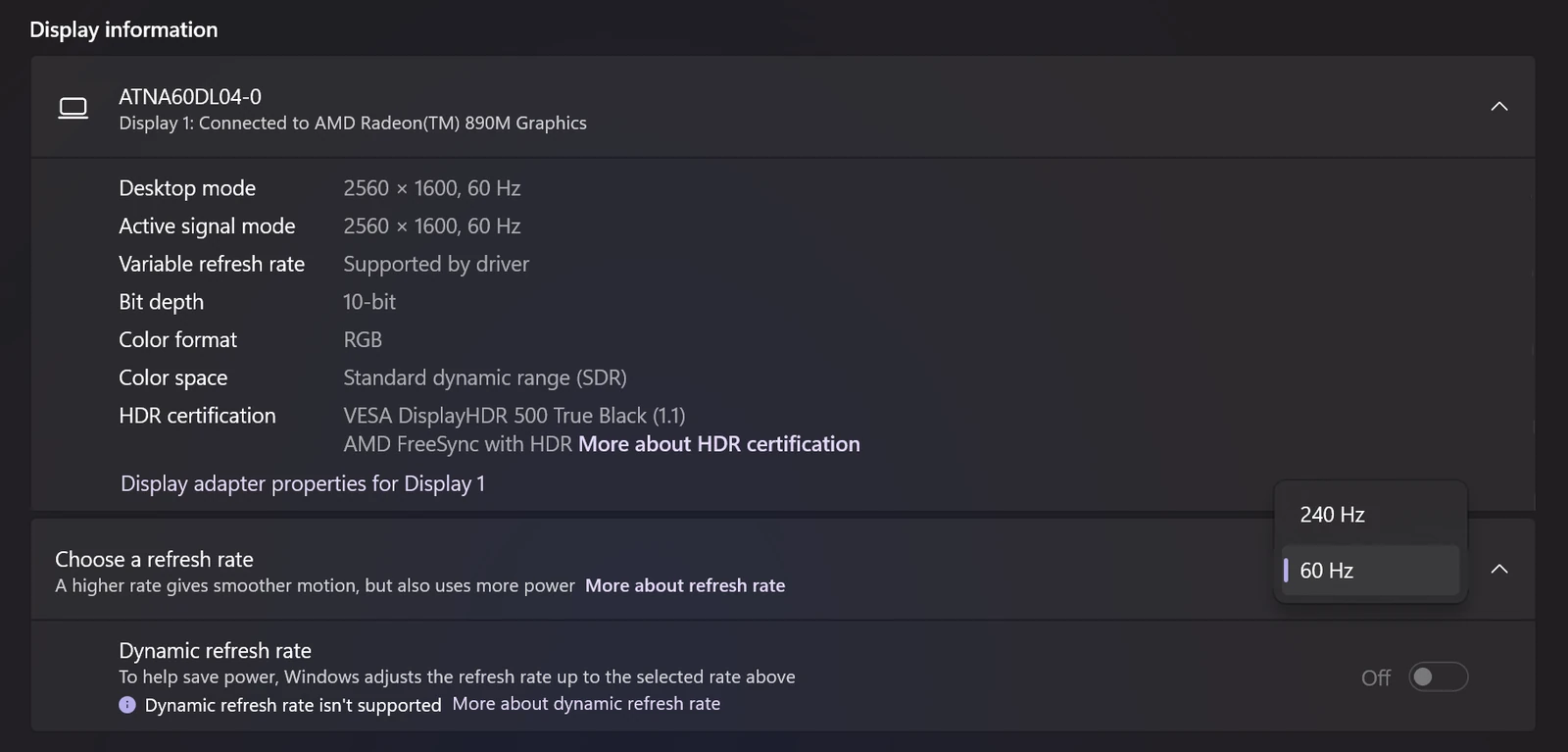
My panel only offers 2 options in Windows, 240 Hz and 60 Hz, so there’s nothing in between for it to pick. After unplugging with the tile on, Settings > System > Display > Advanced display showed Desktop mode at 2560 x 1600, 60 Hz, which is the proof it actually switched.

Where to find it
It isn’t on the Home page, which is where I’d expect most people to look first. In Armoury Crate, click Devices in the left sidebar, click your laptop, and stay on the System Configuration tab. Scroll down a little and the Panel Power Saver tile sits next to Modern Standby Assistant. A red bar along the bottom of a tile means it’s on, so in my screenshot down below Touch Pad and Panel Power Saver are on and Boot Up Sound is off.
Armoury Crate Panel Power Saver Battery Test
Armoury Crate doesn’t show how many watts the laptop is pulling, so I read the battery’s discharge rate straight from Windows with PowerShell. Every run was unplugged at 50% brightness with Wi-Fi on, and for each one I waited 2 minutes for things to settle, then took 24 readings over 4 minutes. The full method and the script are in my Armoury Crate battery life post if you want to run it on yours.
First I tested it sitting on a bare desktop, in Eco GPU mode and Silent, and the tile on vs off landed within 1 W of each other (7.92 to 9.18 W on, 9.22 W off). A gap under 1 W sits inside the normal bounce of the readings, so at idle it didn’t count as a real saving, and if that was the only test I ran I would’ve written the whole tile off.
Panel Power Saver on video
Then I played the same 1080p YouTube video fullscreen in Vivaldi (with hardware acceleration on, which turned out to matter a lot more than I expected) in my everyday setup: Performance, Standard GPU mode, keyboard backlight at max, and the screen at 240 Hz. Then I ran it again with only the Panel Power Saver tile switched on, and I sorted both runs into the table down below.
| Same video, same settings | Average draw (W) | Full charge at that rate (h) |
|---|---|---|
| Panel Power Saver off (240 Hz) Baseline | 17.81 | ~4.3 |
| Panel Power Saver on (60 Hz) | 14.66−17.7% | ~5.3+1.0 h |
So during video it saved about 3.2 W, around 18%, which works out to roughly 1 more hour of watching on my battery. For comparison, turning on Eco, Silent and switching the keyboard light off on top of that only got me another 1.8 W combined, so this 1 tile did more than the other 3 settings put together.
The most likely reason idle and video are so different is that a still desktop barely has anything new to draw, so 240 Hz doesn’t cost much, while video keeps the screen and graphics chip redrawing the whole time. I didn’t measure the screen’s power on its own, so that’s the explanation that fits my numbers rather than something I proved.
Should Panel Power Saver Be On or Off?
For most of you guys, on. For normal unplugged use like browsing, YouTube, notes in class or emails, 60 Hz is the same refresh rate most office laptops ship with, and on video it was the biggest single setting inside Armoury Crate for my battery.
Here’s the catch though, it only ever touches the laptop screen while you’re unplugged, so I’d only turn it off if you actually game on battery and want 240 Hz there, or if the black blink every time you plug in bugs you more than an hour of battery is worth. Plugged in, it does nothing at all, and you get your full 240 Hz back the second the charger goes in.
What Happens When You Unplug
With the tile on, my screen goes black when I unplug, flashes on for a split second, and then comes back at 60 Hz. Plugging back in does the same on the way back up to 240 Hz. The panel is switching modes when that happens, and Armoury Crate even pops up a notification saying a brief black screen when you plug or unplug is normal and will recover on its own, so it isn’t your laptop dying.
I also checked 3 things about how it behaves once you’re unplugged:
- Setting 240 Hz by hand on battery: it sticks. Panel Power Saver doesn’t force it back down while you stay unplugged.
- Plugging in and unplugging again after that: back to 60 Hz. The tile reapplies 60 Hz every single time the charger is pulled, so a manual 240 Hz only lasts until your next unplug.
- External monitor connected: the tile still worked on the laptop screen.
If you were hoping Windows’ own Dynamic refresh rate could do a smarter version of this, it says Dynamic refresh rate isn’t supported on my panel, which you can see at the bottom of the Advanced display screenshot further up. So on the G16, Panel Power Saver is the only automatic option there is.
Armoury Crate Panel Power Saver Missing or Not Working
Yeah, this one got me the first time. When I tested my best Armoury Crate settings earlier this month, the tile was on and my screen stayed at 240 Hz on battery anyway, and I almost wrote it off as broken. G-Helper was still running in the background at that point. After I removed G-Helper, the tile dropped the screen to 60 Hz on every unplug without fail.
The most likely reason is that G-Helper has its own Auto screen refresh rate (60 Hz on battery and max Hz plugged in, per its GitHub page) and the 2 apps were stepping on each other, though I didn’t confirm which one set 240 Hz that day. So if the tile is missing on yours or isn’t dropping the screen to 60 Hz, check these in order:
- Make sure G-Helper or any other refresh rate tool is fully closed, including its tray icon. I went through running the 2 side by side in G-Helper vs Armoury Crate.
- Look under Devices > your laptop > System Configuration instead of on Home, since the tile lives there on mine.
- Unplug, wait for the black blink, then check Settings > System > Display > Advanced display to see what refresh rate you actually landed on.
I haven’t seen the tile disappear on my G16, so I left the missing-tile case untested past those checks. If it’s missing on yours, mention your model in the comments, since it’d help narrow down which laptops don’t get it.
How to Disable Panel Power Saver in Armoury Crate
To disable panel power saver in Armoury Crate:
- Open Armoury Crate and click Devices in the left sidebar.
- Click your laptop.
- On the System Configuration tab, scroll down to Panel Power Saver.
- Click the tile once. The red bar along the bottom goes away when it’s off.
Turning it off doesn’t push you back up to 240 Hz if you’re already unplugged at 60 Hz. To set it yourself, go to Settings > System > Display > Advanced display, click the dropdown next to Choose a refresh rate and pick 240 Hz. There’s no Save button, it applies right away after another quick black blink.
If you’d rather keep the tile on and just want 240 Hz on battery for 1 session, you can skip the tile and only change the dropdown, since that manual setting holds until you plug in and unplug again.
If you’re setting up the rest of the app for battery too, the GPU mode made the biggest difference sitting idle on mine, and I tested all 4 in my Armoury Crate GPU mode post.
Panel Power Saver FAQ
Does Panel Power Saver actually save battery?
On my G16, about 3.2 W during YouTube, roughly 1 extra hour on a full charge. Sitting on a still desktop the difference was under 1 W and inside the normal bounce of my readings.
Does Panel Power Saver affect gaming?
Only on battery, where your screen shows at most 60 frames per second no matter what the game runs at. Plugged in it doesn’t do anything. I didn’t benchmark games on battery with it on or off.
Why does my ASUS screen go black when I unplug the charger?
With Panel Power Saver on, that’s the screen switching between 240 Hz and 60 Hz. Mine blinks black, flashes on briefly, and then settles. Turning the tile off stops it.
Is Panel Power Saver the same as OLED Care?
No, OLED Care is a separate set of toggles meant to protect an OLED screen from burn-in, and I went through each one in my ASUS OLED Care settings post. Panel Power Saver only changes the refresh rate when you unplug.
If your screen is still stuck at 240 Hz on battery with the tile on, drop your laptop model and whatever else you have running in the background in the comments, and I’ll see if it lines up with the G-Helper conflict I ran into.