

Open Shell Windows 11 Setup: My Daily Start Menu
I’ve used the open shell Windows 11 setup in this post as my everyday Start menu since early October. It feels simpler and more usable than the stock menu. On my laptop it also used about 4 MB of memory. It isn’t perfect though, so I tested the quirk that bugged me the most. Below is the exact setup I run and how to keep that quirk from getting you.
After a month on Open-Shell’s Windows 7 style with the Windows Aero skin, I’m keeping it: it’s light, it was one of the easiest things I’ve set up, and its only real flaw is that if you type the instant you hit the Windows key, the letters can land in the app you were using.
- Zephyrus G16 (GA605WI)
- Ryzen AI 9 HX 370
- RTX 4070 Laptop
- Windows 11 26H2
- Open-Shell 4.4.198
Build 26300.9711 · running next to Windhawk’s Taskbar and Start Menu Stylers
What Open-Shell changes on Windows 11
Open-Shell is a free, open-source program (the continuation of the old Classic Shell) that gives you a classic-style Start menu on top of Windows 11 without removing the real one. I use it because I love the feel of the menu, it just feels much simpler and more usable than what Windows 11 ships with. On my laptop it runs as a small StartMenu.exe process that used about 3.6 MB of private memory, plus a helper file loaded into Explorer (the process that draws your taskbar), and it launches with Windows from the same startup list as your other apps.
If you’re wondering whether it fights with Windhawk, it didn’t for me. I run it next to Windhawk’s Taskbar Styler with the Windows7 theme and the Start Menu Styler, and the Windows key opens Open-Shell while the regular Windows 11 menu is still a click away (more on that below). That combo is how I built my Windows 7 look on Windows 11.
How to install Open-Shell
Setting it up wasn’t confusing at all, it was actually one of the easiest things I’ve done on this laptop. Grab the installer from the official Open-Shell GitHub page (stick to that page or its releases list rather than random download sites), run it, keep the default components, and click through to Finish. After that, search for Open-Shell Menu Settings in Start to open the settings window you’ll see in the screenshots below.
Pick the Windows 7 style
The first tab, Start Menu Style, gives you 3 layouts. I went with Windows 7 style (the purple box below), which is the 2-column one with your programs on the left and your folders on the right.
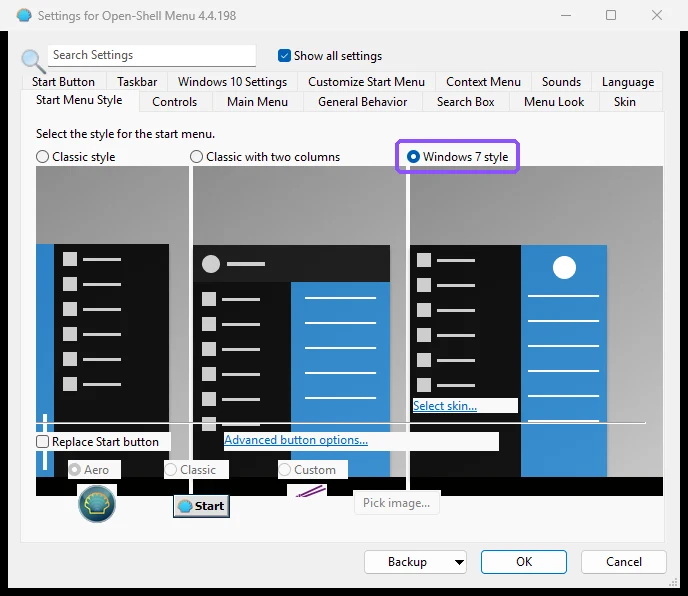
The open shell Windows 11 skin I use
Make sure you change the skin, because the default one on my laptop was Immersive, a flat dark blue that looked nothing like Windows 7. Tick Show all settings at the top, open the Skin tab and pick Windows Aero from the dropdown in the purple box, then click OK. I keep Show user picture, Large font and White sub-menus on.
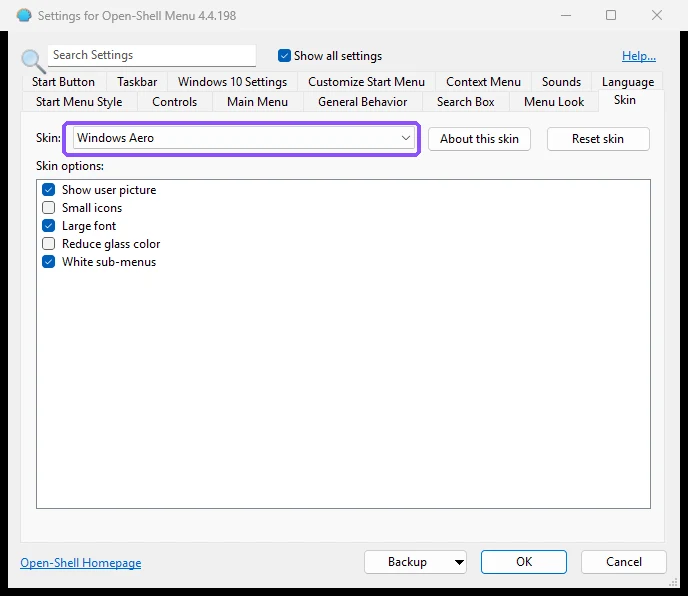
This is where Open-Shell really shines for anybody who loves a cleaner, more Aero-feeling Start menu. You can use specific colors and images like your own profile picture (I even pointed the custom Start button at my own logo file), which gives people who wish they could customize their laptop more the tools to actually use some of their creativity. If you want the menu see-through too, my Frutiger Aero build covers the glass checkbox that works the opposite way you’d expect.
Keep the Windows 11 Start menu one click away
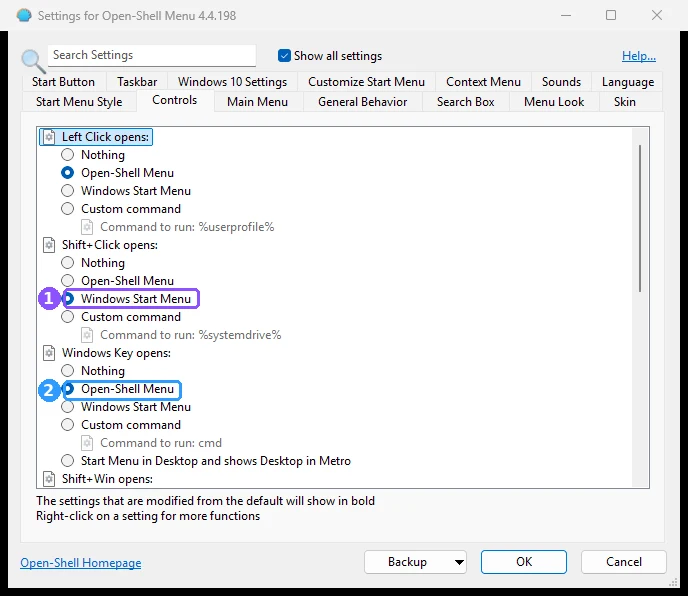
Open-Shell doesn’t delete the Windows 11 menu, it just decides which one each click opens. On the Controls tab, I have Shift+Click set to Windows Start Menu (box 1) and the Windows Key set to Open-Shell Menu (box 2), so pressing Windows gets me Open-Shell and Shift-clicking the Start button still gets me the stock menu whenever I need it.
Typing too fast after the Windows key
The one thing that really bugs me is what happens when you type too fast. Sometimes when you press Windows and start typing right away, the letters keep going into the app you were on instead of the Start menu search, so you end up having to click the menu first. To see how fast you’d have to be, I had my laptop press the Windows key and type a short word after different delays, 4 times each, with Notepad open underneath, and then counted where the letters actually landed (you can see the results in the table below).
| Typed after pressing Windows | Letters that went to Notepad instead |
|---|---|
| Instantly (0 ms) | 3 of 4 tries |
| 50 ms | 1 of 4 |
| 150 ms | 0 of 4 |
| 300 ms | 0 of 4 |
| 600 ms | 0 of 4 |
So it’s real, but it only happens in about the first tenth of a second, which is why it mostly shows up when you’re typing fast out of habit. Simply waiting a beat before typing fixed it every time in my test. I didn’t run the same test on the stock Windows 11 menu, so I can’t tell you it never happens there.
Open shell Windows 11 not working fast after boot?
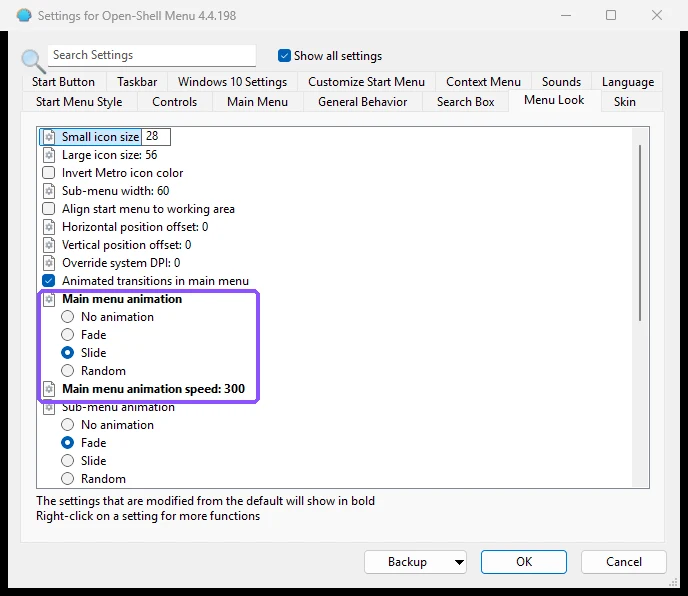
My other annoyance is that the open animation sometimes glitches or takes a moment, especially right after I boot the laptop. On my G16, Open-Shell starts from the same startup list as about 12 other apps (Steam, Discord, Spotify and the rest), so it’s competing with all of them for the first few seconds after you sign in. If it bugs you, turning off startup apps you don’t need in Settings > Apps > Startup is the first thing to try. The animation itself lives on the Menu Look tab, where mine is set to Slide at a speed of 300 (purple box), and No animation is right there if you’d rather the menu just appear.
Personally, I think it could be more tightly linked to Windows to cut that loading time, and it would benefit from a stickier typing hand-off so your keystrokes always follow the menu. If I ever made a Start menu tool, those are the first 2 things I’d tackle, but everything else about it is definitely an upgrade over the base Start menu.
Is Open-Shell safe for Windows 11?
It’s open source, so anyone can read its code on GitHub, and on my laptop it stayed tiny at about 3.6 MB of memory. The main risks are downloading it from a lookalike site, so use the official GitHub page, and since it hooks into Explorer, it’s worth checking your menu still opens normally after a big Windows update.
Open-Shell FAQ
Does Open-Shell work on Windows 11 26H2?
Yes, version 4.4.198 has been my daily Start menu on 26H2 since October.
Can I use it with Windhawk’s Start Menu Styler?
Yes. The Windows key opens Open-Shell, and the Windows 11 menu (styled by the Start Menu Styler) is still there through Shift+Click.
If you want to keep going with the classic look, the 4 Windhawk mods behind my Windows XP build pair well with this menu, and the 9 mods I still keep enabled are the rest of my daily setup. If you’ve hit the typing issue or the slow first open too, tell me in the comments which skin you’re running and roughly how many apps start with your laptop, because I want to see if it lines up with what I found.