How I Turned My Windows 11 Into a Frutiger Aero Theme
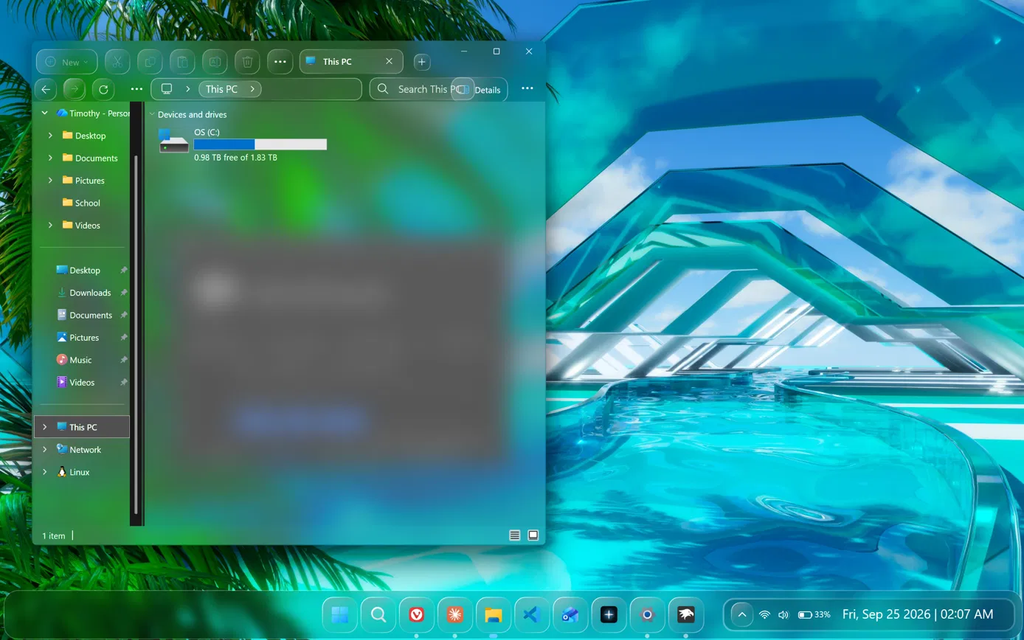
This is how I turned my Windows 11 laptop into a Frutiger Aero theme. The whole Frutiger Aero Windows 11 build took me about 20-30 minutes, using 3 free Windhawk mods and one wallpaper. The taskbar ended up on the OS26 Liquid Glass (Clear Taskbar) theme in Taskbar Styler, File Explorer on OS26 Liquid Glass (Compact) with Acrylic on the Entire window, and the Start menu on TranslucentStartMenu. It’s not a perfect Vista recreation, and it’s got a couple of glitches I’ll show you, but it’s the closest I’ve gotten to that 2008 feel without paying for anything or patching system files.
Everything here is off my ASUS ROG Zephyrus G16 (2024, Ryzen AI 9 HX 370, OLED) on Windows 11 25H2 build 26200.9168, running Windhawk v1.7.3.
So this isn’t a strict tutorial. It’s me walking through exactly what I did, in the order I did it, including the stuff that didn’t go smoothly. Copy it exactly if you just want the look, or treat it as a starting point and improve on it. There’s a lot of room to push this further, and I’ll point out where at the end.
Where I Started (and Why Glass Alone Didn’t Do It)
Here’s what my desktop looked like before any of this, just a black wallpaper and the stock taskbar:
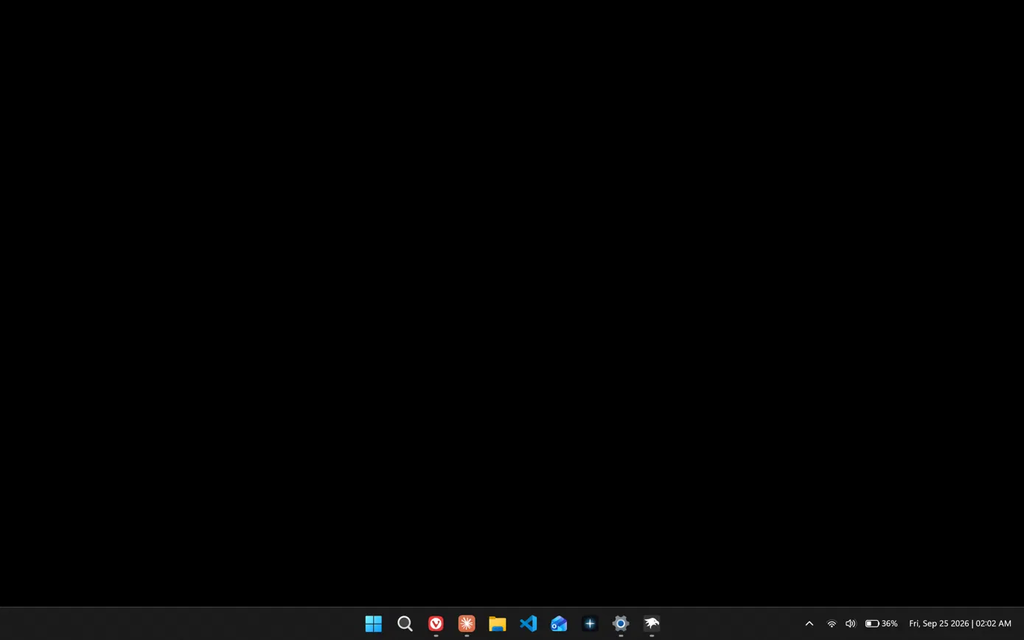
Frutiger Aero is the look that was everywhere from roughly the mid-2000s to the early 2010s: blue skies, clear water, bubbles, bright green grass, glossy buttons, and glass on everything. Most “bring back Aero” guides only give you the glass part. But see-through glass over a black wallpaper is just black, so if I’d started with the mods, every theme would have looked identical and I’d have had no idea what I was actually picking.
So for a Frutiger Aero Windows 11 setup, the wallpaper does at least half the work. The mods are really there to make Windows match it.
Frutiger Aero vs Windows Aero
These get mixed up constantly, so quickly: Windows Aero is the specific glass interface Microsoft shipped in Vista and 7, meaning see-through window borders, the glossy taskbar, and the glowing buttons. Frutiger Aero is the wider aesthetic that interface lived inside, covering ads, websites, phone wallpapers and pretty much everything else from that era. You can recreate Windows Aero pixel for pixel and still miss the feeling people mean by Frutiger Aero. What surprised me is that the reverse also works: get the sky and water right, and a modern glass theme gets you most of the way there.
What You Need Before You Start
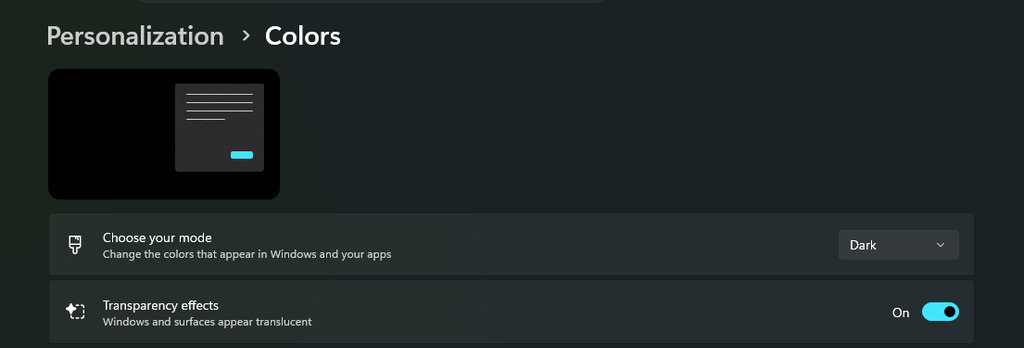
2 Windows settings have to be on first, and skipping either one makes the themes look broken when they aren’t:
- Transparency effects: go to Settings > Personalization > Colors and turn Transparency effects on. Every glass theme falls back to a flat color without it.
- Dark mode: on the same Colors page, set Choose your mode to Dark. The File Explorer effect I used only works across the whole window in dark mode.
You’ll also need Windhawk. If you came here from the Frutiger Aero side and have never used it, Windhawk is a free, open-source app that lets you install small mods that change how parts of Windows look and behave, like the taskbar, Start menu and File Explorer. You browse mods inside the app, click Install, and pick settings from dropdowns, so there’s no coding involved for anything in this guide.
If you just want a simple setup, my guide on how to install Windhawk walks you through it in about 2 minutes, covering both the regular installer and the winget route. Grab it from the official Windhawk site and nowhere else, then come back here for the themes.
Step 1: How I Picked My Frutiger Aero Wallpaper
My Frutiger Aero wallpaper came from the Frutiger Aero Archive wallpaper page, specifically the Perfect Hue section. I went through a good chunk of the site, and personally I think that section has the best choices by a mile. Mine is a glass-and-water render with palm trees on the left and clear glass arches running over a pool into the distance.
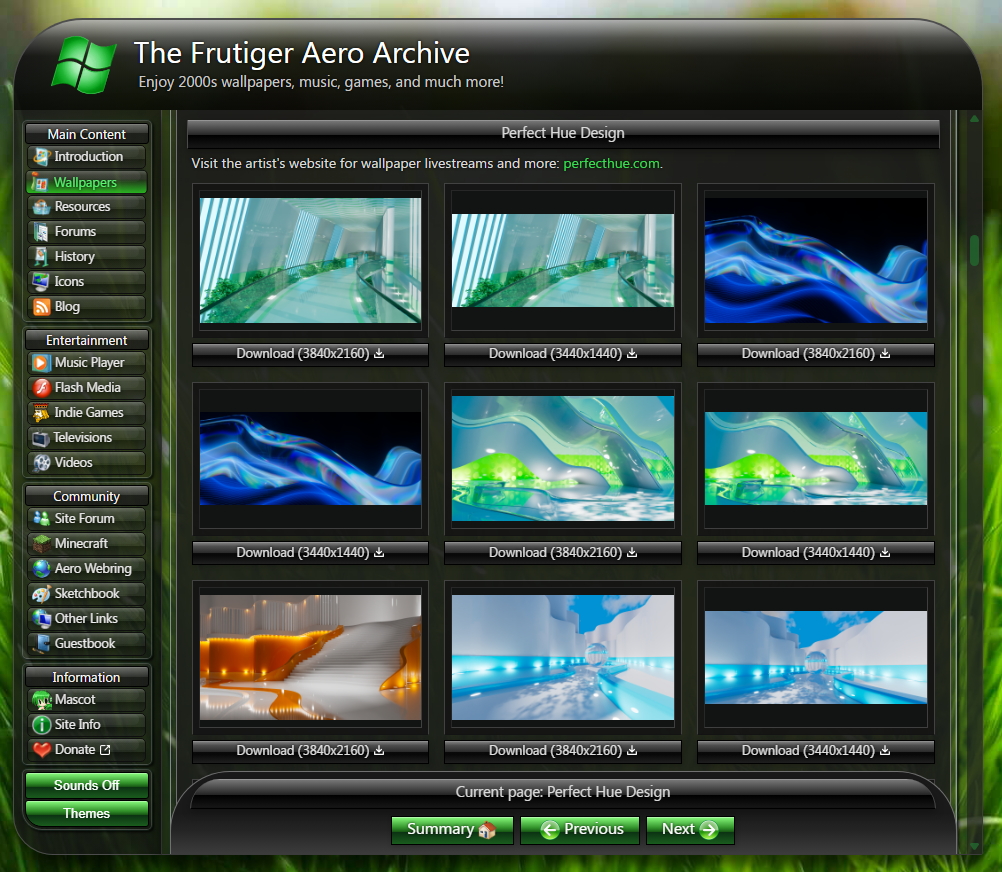
If you’d rather pick your own Frutiger Aero wallpaper, here’s what I’d look for after trying a few:
- Bright, with color in the bottom third. The taskbar sits at the bottom, and a clear taskbar over a dark strip of wallpaper just looks like a dark taskbar.
- Lots of detail. Blur works by smearing whatever is behind it, so a busy image gives the glass something to show. A flat gradient makes acrylic look muddy.
- Blues, greens and water. Those are the colors the glass themes pick up best, and they’re the core of the aesthetic anyway.
To set it, download the image, right-click it, and pick Set as desktop background. Or go through Settings > Personalization > Background and click Browse photos.
One heads up for OLED laptops like mine: a bright Frutiger Aero wallpaper pulls more battery than a black one, because OLED pixels showing black are basically off. Not a big deal plugged in, just worth knowing if you live on battery.
How I Built the Frutiger Aero Windows 11 Look With 3 Windhawk Mods
All 3 mods are made by the same author (m417z), and they all work the same way: pick a theme from a dropdown, then save. I installed them 1 at a time and looked at the desktop for a minute after each one, which I’d recommend, because when something looks off you’ll know exactly which mod to blame.
Step 2: How I Turned the Taskbar Into Glass (Taskbar Styler)
- Open Windhawk and click Explore.
- Search for Windows 11 Taskbar Styler, click into it, and hit Install.
- Open the Settings tab inside the mod.
- Open the Theme dropdown and pick OS26 Liquid Glass (Clear Taskbar).
- Click Save settings.
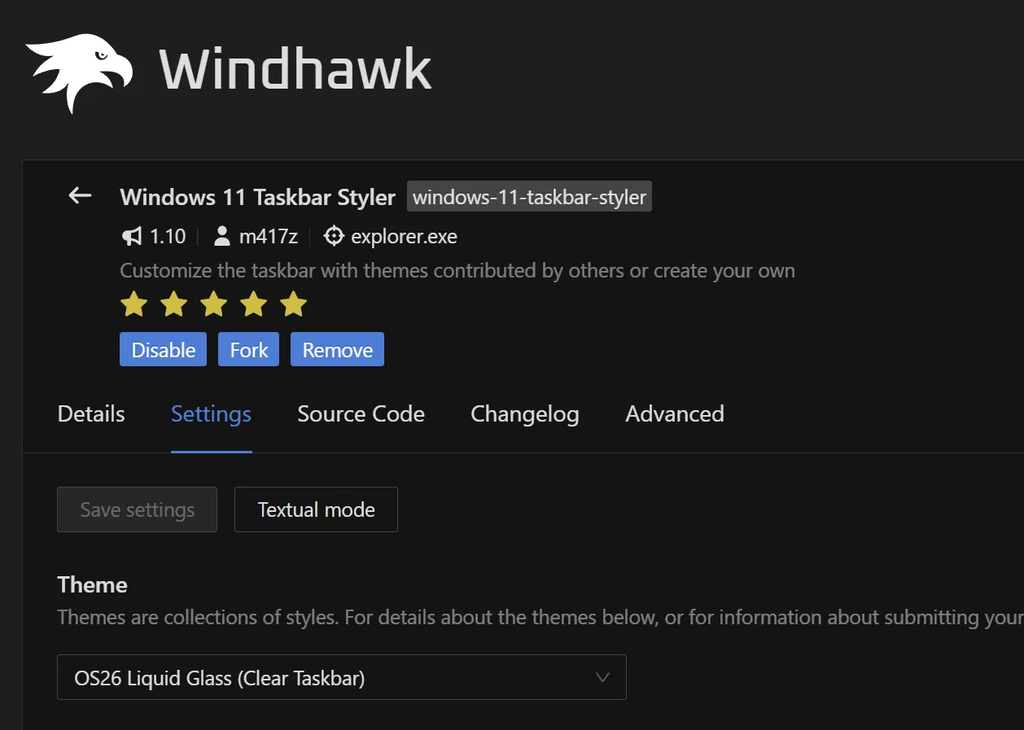
That Save settings button stays grayed out until you actually change something, and nothing applies until you click it. Obvious, but it’s the step that makes people swear a theme “didn’t work.”
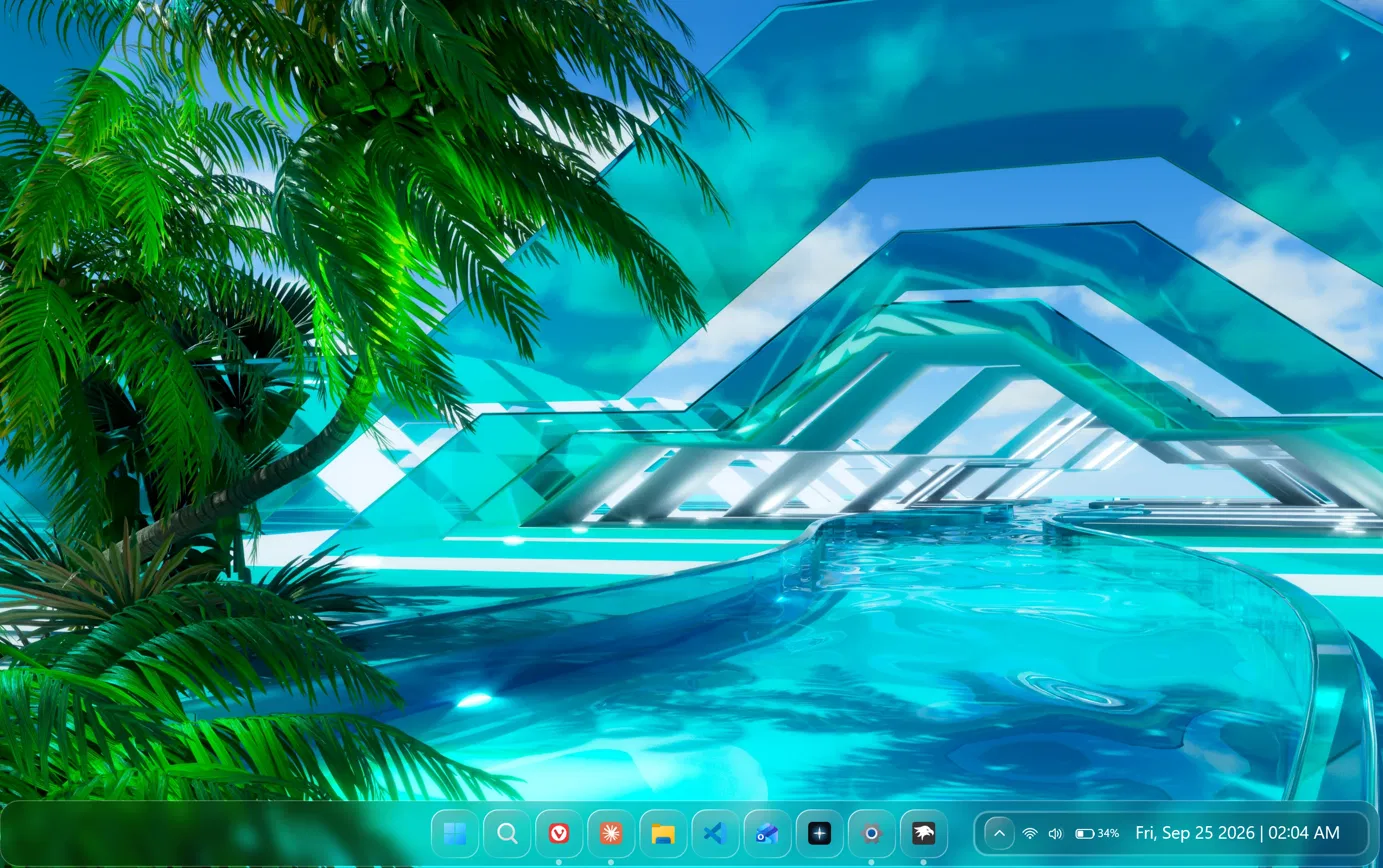
Now, the funny part is that OS26 Liquid Glass isn’t a retro theme at all. It’s modeled on Apple’s Liquid Glass design from 2025, and yet over this wallpaper it honestly reads as 2008. Each icon sits in its own rounded glass bubble, and the system tray gets its own glass pill on the right, which is pretty much exactly what Frutiger Aero UI felt like.
The Taskbar Styler dropdown also has themes styled after Windows 7 and Vista. I stuck with Liquid Glass because it matched the other 2 mods better, but if you want a stricter old-school look, that’s the first thing I’d swap. There’s a WinXP theme in that list too, and I used it later to make Windows 11 look like Windows XP with the blue taskbar and green Start button. I go through the rest of this mod in my Windows 11 Taskbar Styler guide.
Step 3: How I Made File Explorer See-Through (File Explorer Styler)
This is the one that sells the whole look, and also the one that gave me the most trouble.
- In Explore, search for Windows 11 File Explorer Styler and hit Install.
- Open the mod’s Settings tab.
- Set Theme to OS26 Liquid Glass (Compact).
- Set Translucent background effect to Acrylic.
- Set Translucent background effect region to Entire window.
- Click Save settings.
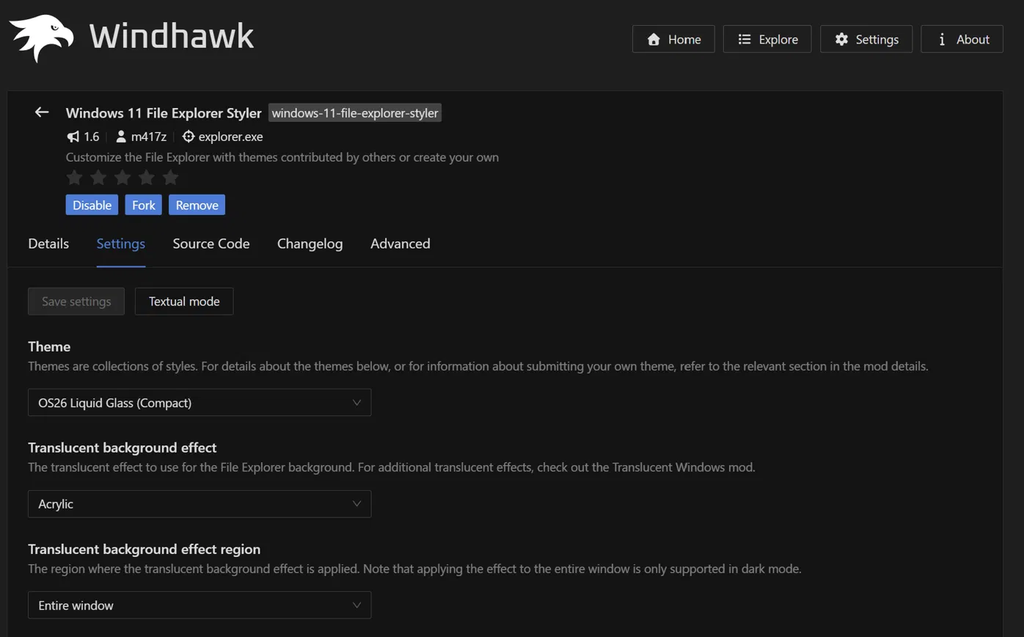
The Acrylic setting is the part I’d underline. Without it, the theme alone doesn’t make the window fully see-through, and you end up with glass-styled buttons sitting on a mostly solid background. Acrylic is what lets the wallpaper come through the whole window, from the navigation pane all the way across the file area. The mod itself also notes that the Entire window region only works in dark mode, which is why I had you switch that on earlier.
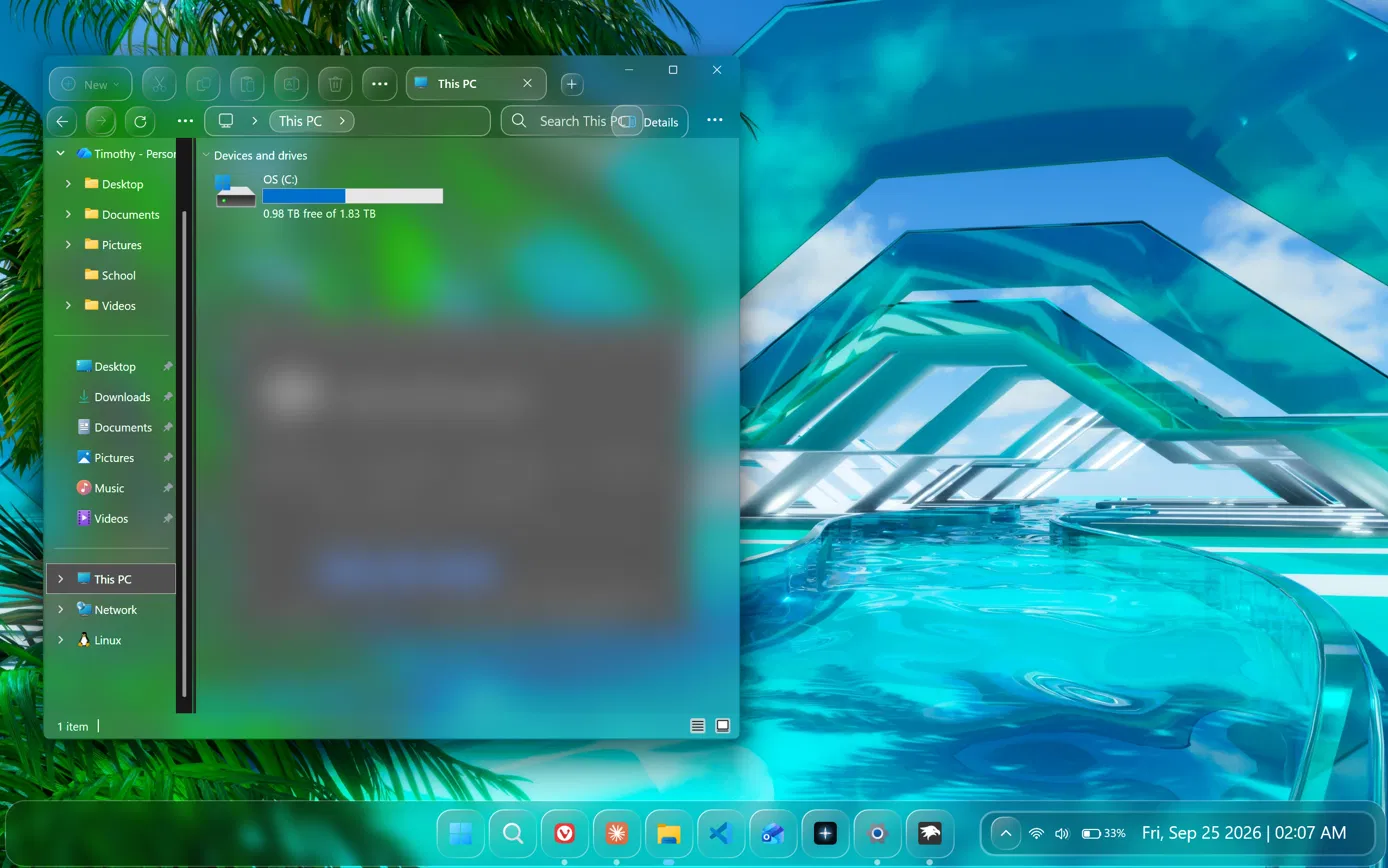
Here’s what went wrong along the way, so you don’t think your setup is broken:
- A gray blob in the middle of the window. Acrylic blurs whatever sits directly behind the window, including other open apps. With another window underneath, it showed up as a big gray smudge in the file area. Minimize everything else and it’s pure wallpaper again.
- The search box running into the Details button. At one point the Search This PC box overlapped the Details button at the top right. It did go away, but honestly the mod is a little buggy at times, and it seems pretty random when it happens. If you see it, resize the window and it should sort itself out.
- A dark strip down the edge of the navigation pane. One thin vertical strip next to the scrollbar doesn’t pick up the theme. It’s there in the Compact variant, so if it bugs you, the non-Compact version of the theme is the thing to try. Or add the Windhawk Translucent Windows mod on top, which turned that strip fully transparent for me while keeping the Liquid Glass look.
- The whole window going flat gray when you click away. That one isn’t the mod at all. Windows does it to every app using that material when the window loses focus, and I explained exactly why in my Windows 11 File Explorer Styler post.
Step 4: How I Styled the Start Menu (Start Menu Styler)
- In Explore, search for Windows 11 Start Menu Styler and hit Install.
- Open the mod’s Settings tab.
- Set Theme to TranslucentStartMenu.
- Leave Start menu layout on Windows default.
- Click Save settings.
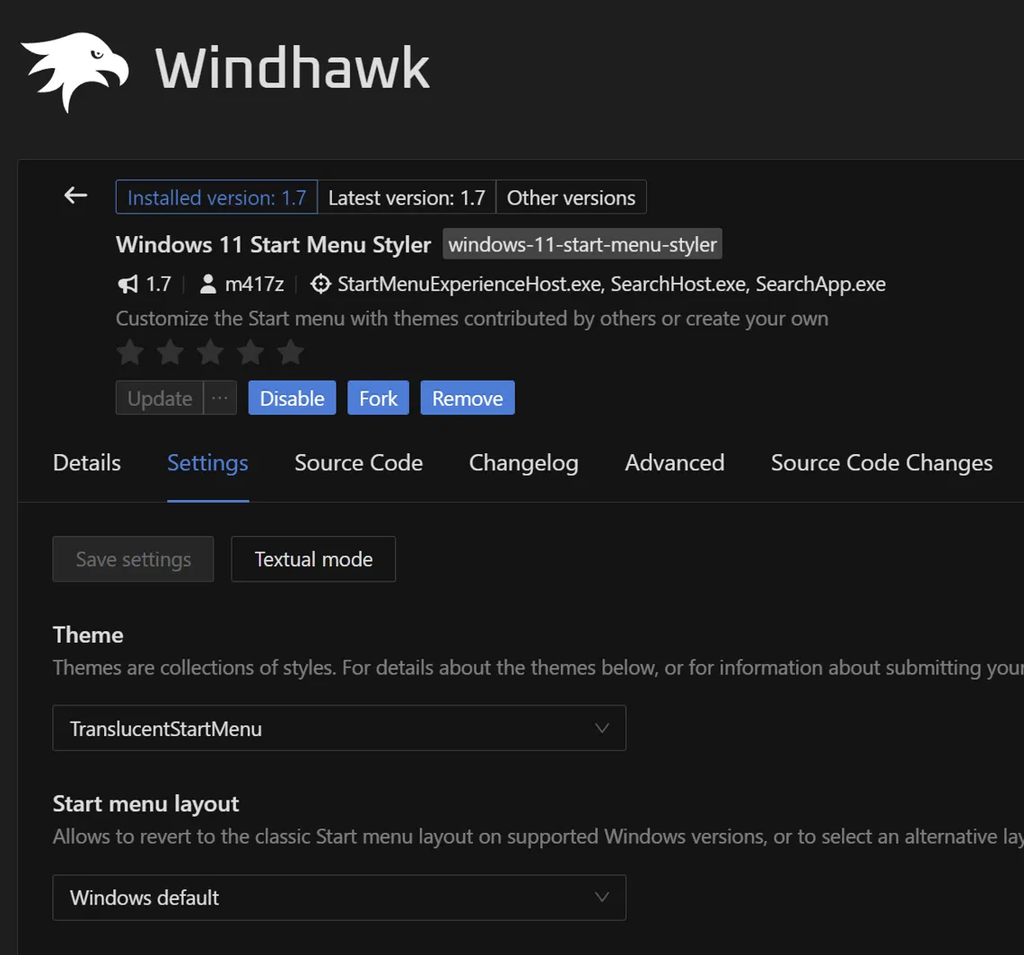
I kept this one simple on purpose. The taskbar and File Explorer were already doing a lot visually, and a heavier Start menu theme would have fought with them. TranslucentStartMenu just blurs the wallpaper behind it and picks up the greens and teals, so the menu looks like part of the scene instead of a panel sitting on top.
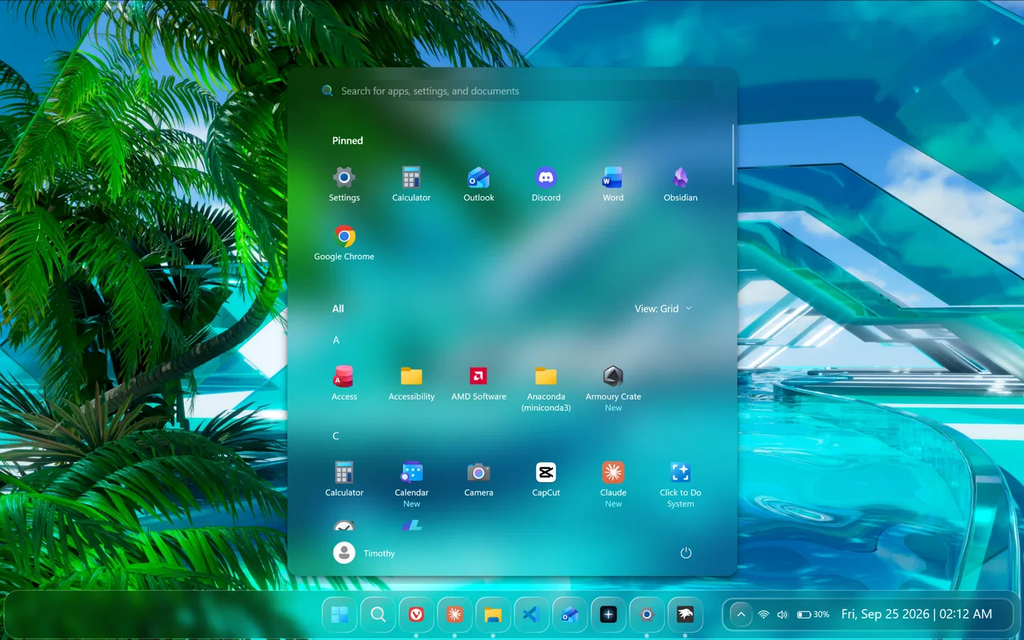
Worth knowing: 25H2 has the new Start layout, where the full app grid sits on the same page as your pinned apps. Plenty of older Start Menu Styler themes were built around the previous layout and can render oddly on the new one, but TranslucentStartMenu worked fine for me. If you want the old layout back, that’s what the Start menu layout dropdown is for, on Windows versions that still support it.
The mod targets StartMenuExperienceHost.exe, SearchHost.exe and SearchApp.exe rather than Explorer, so it didn’t interfere with the other 2 mods at all. My Windows 11 Start Menu Styler guide covers the rest of the themes if you want to compare.
Is a Windhawk Frutiger Aero Setup Safe?
Yeah. You’ll see guides saying these mods change your system files, and that’s just not how Windhawk works. It loads code into programs that are already running, mostly Explorer here, and nothing on your disk gets modified or replaced. Toggle a mod off and your desktop is back to stock instantly, with nothing to clean up. That’s a big part of why a Windhawk Frutiger Aero setup is such an easy thing to experiment with.
The one thing I’d still flag is games with kernel-level anti-cheat (Valorant, or anything running Easy Anti-Cheat or BattlEye). Those are built to spot exactly this kind of code injection, so close Windhawk before launching them. I go through that properly, along with what Windhawk actually costs you in RAM, in is Windhawk safe.
Aero Glass Windows 11 Window Frames: Where I Stopped
So there’s one thing my setup doesn’t do. The 3 mods style the taskbar, the Start menu and File Explorer, but every other app’s title bar and window frame stays stock Windows 11. If you want real aero glass Windows 11 frames on every single window, the way Vista and 7 had them, that takes a separate tool called OpenGlass.
OpenGlass hooks into dwm.exe, the part of Windows that draws every window on your screen. Its README lists Windows 11 builds below 28000 as stable, which covers 26200, and it ships with Windows Vista and Windows 7 glass color presets. It also documents an emergency exit: long-press Ctrl + Win + Shift + Q to kill DWM if your screen hangs. The developer describes it as a tool for advanced users who are comfortable troubleshooting DWM. The other name you’ll see is DWMBlurGlass, but there are a lot of community reports of it being broken on 24H2 and 25H2, so check its GitHub issues against your build before trying it.
I stopped before OpenGlass for 2 reasons. The look already felt complete to me, since File Explorer is the window I have open most of the time anyway. And hooking DWM is a bigger step than modding Explorer: if an Explorer mod misbehaves you lose your taskbar for a second, while if DWM misbehaves you lose your whole screen. For aero glass Windows 11 frames it’s the only real route though, so if you try it on top of this setup, I’d genuinely like to hear how it went.
How to Turn It All Back Off
Every piece reverts from inside Windhawk:
- Open Windhawk and go to Installed mods.
- Click into each of the 3 stylers and hit Disable. This keeps your theme settings, so you can switch them back on later exactly as you left them.
- If you’re done with them for good, click Remove instead.
Your taskbar, Start menu and File Explorer go back to stock the second each mod is off, with no restart or sign-out. Set your old wallpaper back through Settings > Personalization > Background, and turn Transparency effects or dark mode back off if you only turned them on for this.
Frutiger Aero Windows 11 FAQ
How long does a Frutiger Aero Windows 11 setup take?
It took me about 20-30 minutes, and most of that was browsing wallpapers and flipping between themes to compare them. If you already have Windhawk installed and just copy the settings here, you could realistically be done in 10.
Is Windows 11 Frutiger Aero?
No. Windows 11 uses Microsoft’s Fluent design with Mica and acrylic materials, which do blur and tint with your wallpaper, but they’re mostly opaque and subtle. Frutiger Aero is much glossier and more see-through. These mods push Windows 11’s own materials further toward transparency, which is why the result looks the way it does.
Is there a Frutiger Aero theme for Windows 11 without Windhawk?
There are other routes, like StartAllBack or full transformation packs, but I haven’t used those, so I can’t vouch for how they hold up. What I’d steer you away from is any single-download “Frutiger Aero theme for Windows 11” sitting on a random site. Those tend to be bundles of patched system files or installers wrapped in junk, which is a completely different risk level from 3 toggles you can switch off. Out of what I’ve tried, the Windhawk route is the easiest Frutiger Aero theme for Windows 11, and it’s free.
Does this work on Windows 10?
Not these 3 mods. They’re built specifically for the Windows 11 taskbar, Start menu and File Explorer, so on Windows 10 they won’t do anything. Windhawk itself runs on Windows 10, just not these particular mods.
Will this slow down my laptop?
I didn’t notice any difference day to day. Blur effects are handled by your GPU, and my G16 had no trouble with them. When I properly measured my full 11-mod setup, which includes these 3, Explorer used about 2 MB more than with Windhawk closed and battery drain went up by half a watt at most. I go through the whole test in does Windhawk affect performance.
Why does my File Explorer go gray when I click another window?
Windows does that by itself. The material these themes use goes flat when a window loses focus, and it does it to every app. The full explanation is in my File Explorer Styler post.
Where You Could Take This Next
Honestly, this is version 1 of my Frutiger Aero Windows 11 attempt, and there’s plenty I didn’t get to. If you want to improve on it, here’s where I’d start:
- Swap the taskbar to a Windows 7 or Vista theme in Taskbar Styler for a more literal throwback.
- Add OpenGlass for glass frames on every window, with the emergency shortcut memorized first.
- Try a different wallpaper from Perfect Hue. The glass picks up whatever colors are behind it, so the whole setup shifts with the wallpaper.
- Go after icons and sounds. Glossy icon packs and old Windows sound schemes are the parts of the aesthetic I didn’t touch at all.
Windhawk can also take Windows in a completely different direction. I built a floating glass dock with it in how to make Windows 11 look like macOS, went one era further back with a Windows XP theme for Windows 11, and the full list of what I keep running is in my best Windhawk mods rundown. If any of these themes refuse to apply at all, Windhawk not working covers the usual culprits.
If you build your own version of this, drop a screenshot link or your theme combo in the comments, I’d love to see what people come up with. And if your File Explorer won’t go fully see-through even with Acrylic and Entire window set, drop your Windows build and whether you’re in light or dark mode, and I’ll take a look.