
How to Control Laptop Fan Speed: 6 Methods I Tested
I went looking for how to control laptop fan speed on my ROG Zephyrus G16, and Windows didn’t have a single fan setting to give me. The fan controls lived somewhere else entirely. If you want your laptop silent in a library or cooler in games, the method that works depends on who made your laptop. Below are the 6 places I checked and what each one actually did.
After I checked 6 ways to control my laptop’s fans on the G16, only the maker’s app and a custom curve changed anything:
- Maker’s app: Silent to Turbo moved Cyberpunk from 76.56 FPS to 107.69 FPS
- Custom curve: 109.39 FPS, the fastest run, at a noise I rated 9/10
- Windows power settings: No System cooling policy option at all
- BIOS: Showed the CPU fan at 3218 RPM, with nothing to change it
- Zephyrus G16 (GA605WI)
- Ryzen AI 9 HX 370
- RTX 4070 Laptop
- Windows 11 Home 26H2
- Armoury Crate 6.7.6.0
- Cyberpunk 2077
G-Helper 0.291 · FanControl V285
For me it comes down to 2 situations that pull in opposite directions. In a lecture hall or a quiet study room any fan noise at all feels loud, but once a game is open I’d rather the laptop run cool and put up with some whir, as long as it doesn’t take over the room. Bed is the setup I like least, since the vents get half blocked and I end up pushing the fans harder (and draining the battery faster) just to keep up.
Can I control my laptop fan speed?
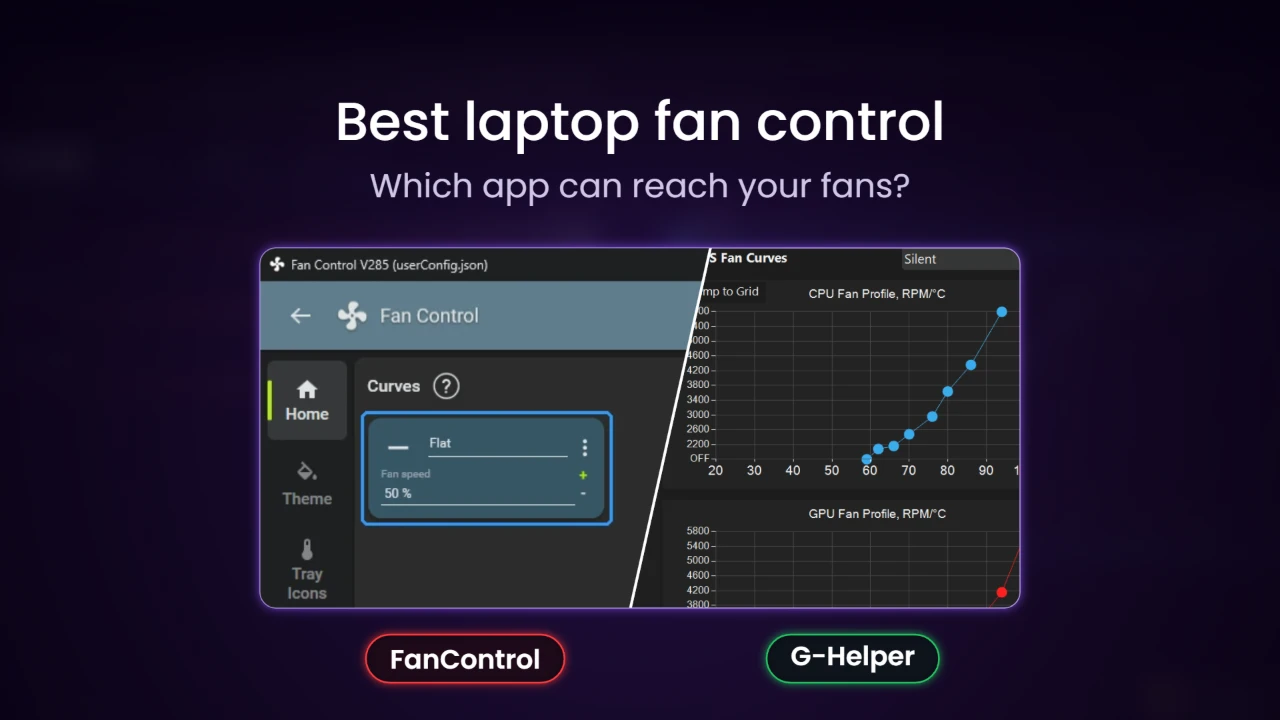
Usually yes, but not where you’d expect. On a laptop, the fans are run by a small chip called the embedded controller (EC), and each laptop maker decides how much of it you get to touch, usually through its own app. This is why the 6 methods in the table below gave me such different results, and why the answer for your laptop depends a lot on its brand. If you came here looking for an app to do it, I put the best laptop fan control software I could find side by side in a separate roundup, including the ones that couldn’t see a laptop’s fans at all.
| Method | Changed my G16’s fans? |
|---|---|
| Your laptop maker’s app | Yes, with modes |
| A custom fan curve | Yes, the most control |
| Windows power settings | No, the setting isn’t there |
| The BIOS | No, it only shows the fan speed |
| A keyboard shortcut | No, not without ASUS’s app running |
| A general fan app | No, FanControl found 0 fans |
How to control laptop fan speed in your maker’s app
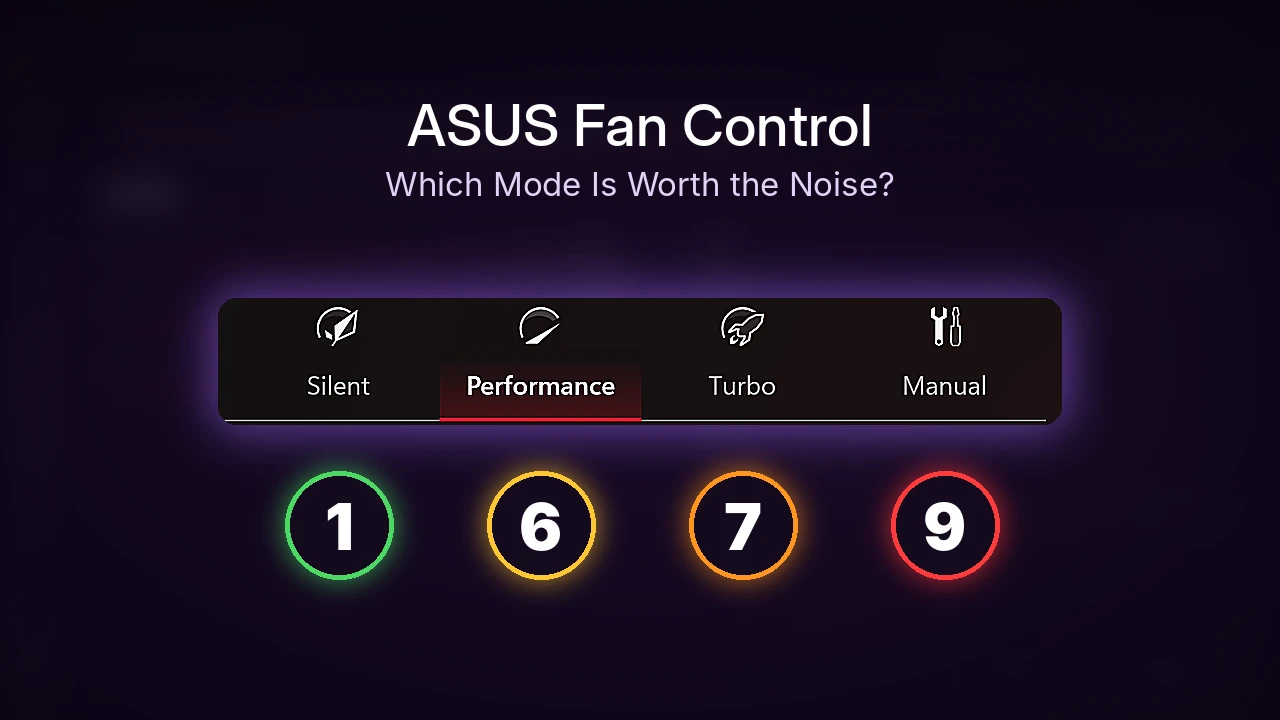
On ASUS gaming laptops that app is Armoury Crate, and the fan modes are the row of buttons along the top. Each mode changes how hard the fans spin and how much power the CPU and GPU are allowed to pull, so it trades noise for speed. In practice I just switch it to Silent when I need it quiet and Performance when I’m playing, and you can see how big that trade is in the table below.

| Mode | Avg FPS | CPU avg (°C) | My noise rating (1 to 10) |
|---|---|---|---|
| Performance Baseline | 98.06 | 88 | 6 |
| Silent | 76.56 −21.9% | 86 −2° | 1 (4 on a rerun) |
| Turbo | 107.69 +9.8% | 93 +5° | 7 |
| Manual (my aggressive curve) | 109.39 +11.6% | 90 +2° | 9 |
For most of you, Performance is going to be the sweet spot, because it kept my frame rate high while the fans sat at a 6 on my noise scale. Silent dropped Cyberpunk by about 22%, so I don’t game on it, but it’s the mode I switch to whenever I’m somewhere people can hear my laptop. Every mode I tested is in my post on controlling fan speed on an ASUS laptop.
Set your own fan curve
A fan curve tells the fans exactly how fast to spin at each temperature, instead of letting a preset mode decide. Armoury Crate does this in its Manual mode, and my aggressive curve got the fastest run of anything I tried at 109.39 FPS, but I rated it a 9 out of 10 for noise, the loudest result in the whole test. When you click Apply on a Manual profile, Armoury Crate asks you to accept a warning before it takes over, and it keeps separate profiles for plugged in and on battery, which is why Manual mode greys out on battery if you only made a plugged-in one.
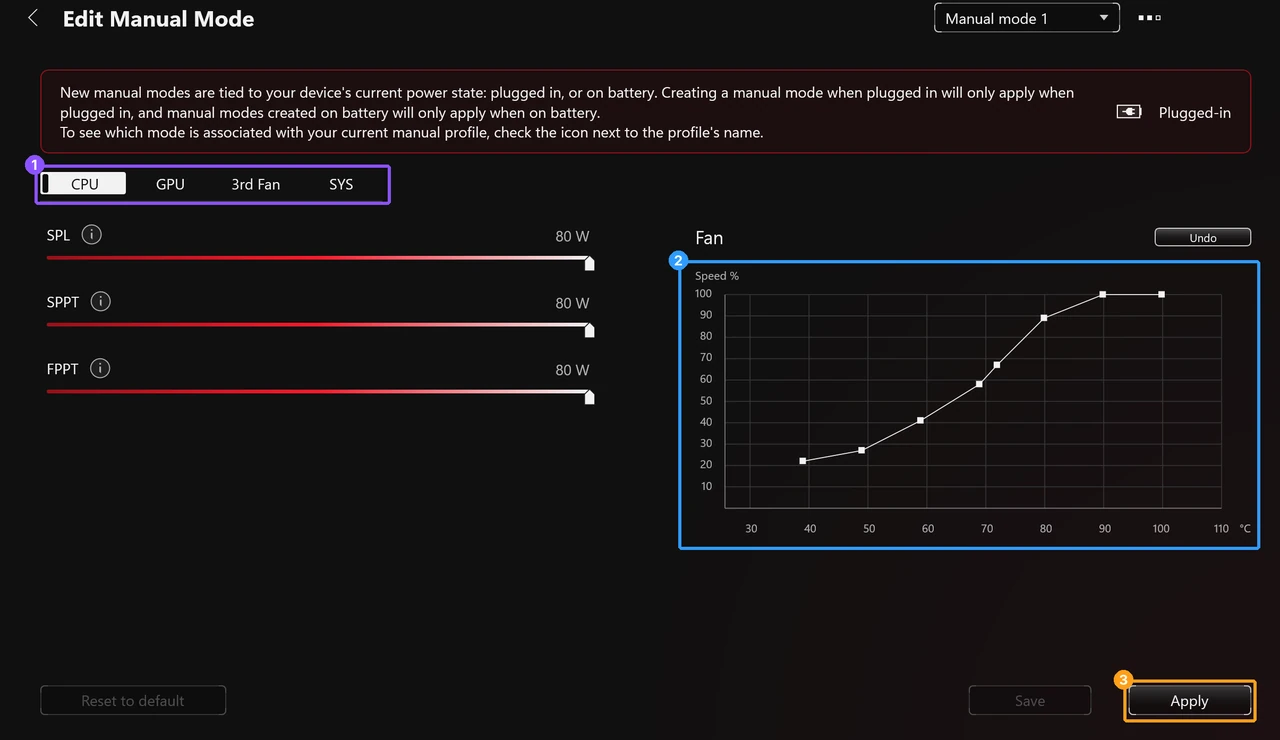
G-Helper is where I actually do this day to day, with a study mode and a gaming mode I built myself, each carrying its own fan curve, and every setting in them is in my G-Helper settings guide. If you want to build your own, I covered the 3 curves I use in setting up fan curves in G-Helper.
How to control laptop fan speed in Windows 11
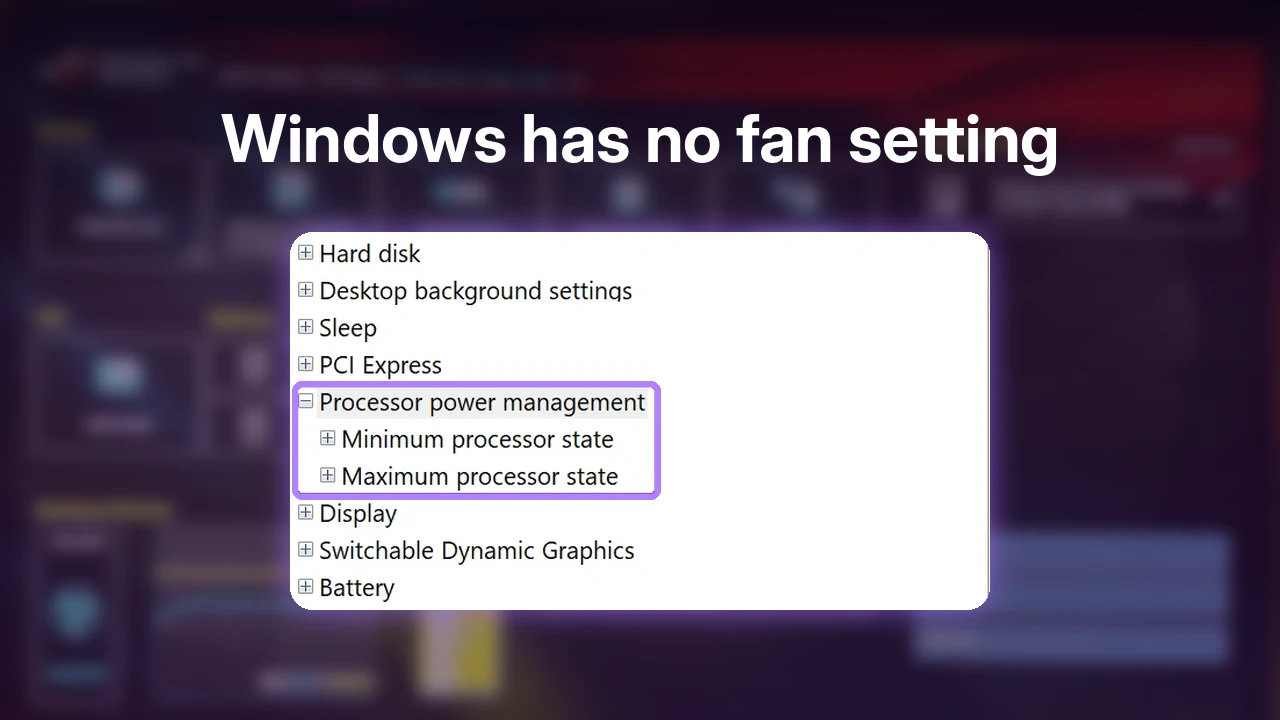
A lot of guides tell you to open Power Options and change System cooling policy from Passive to Active. On my G16 that setting simply isn’t there. I opened Control Panel > Power Options > Change plan settings > Change advanced power settings, expanded Processor power management, and all it showed was Minimum processor state and Maximum processor state (in the purple box).

Windows 11 has no fan slider of its own, so if your laptop’s maker hands cooling to the EC, Power Options has nothing to offer you. Check yours anyway, since it only takes a minute, and if you do see System cooling policy, Active spins the fans up before slowing the CPU, while Passive slows the CPU first (Microsoft explains the difference in its thermal management docs).
Check your BIOS for fan settings
The BIOS is the setup screen your laptop loads before Windows starts, and on a lot of desktops it’s where the fan curves live. To get into it on an ASUS laptop, restart and tap F2 as soon as the screen lights up, then press F7 to open Advanced Mode (in the white box below).
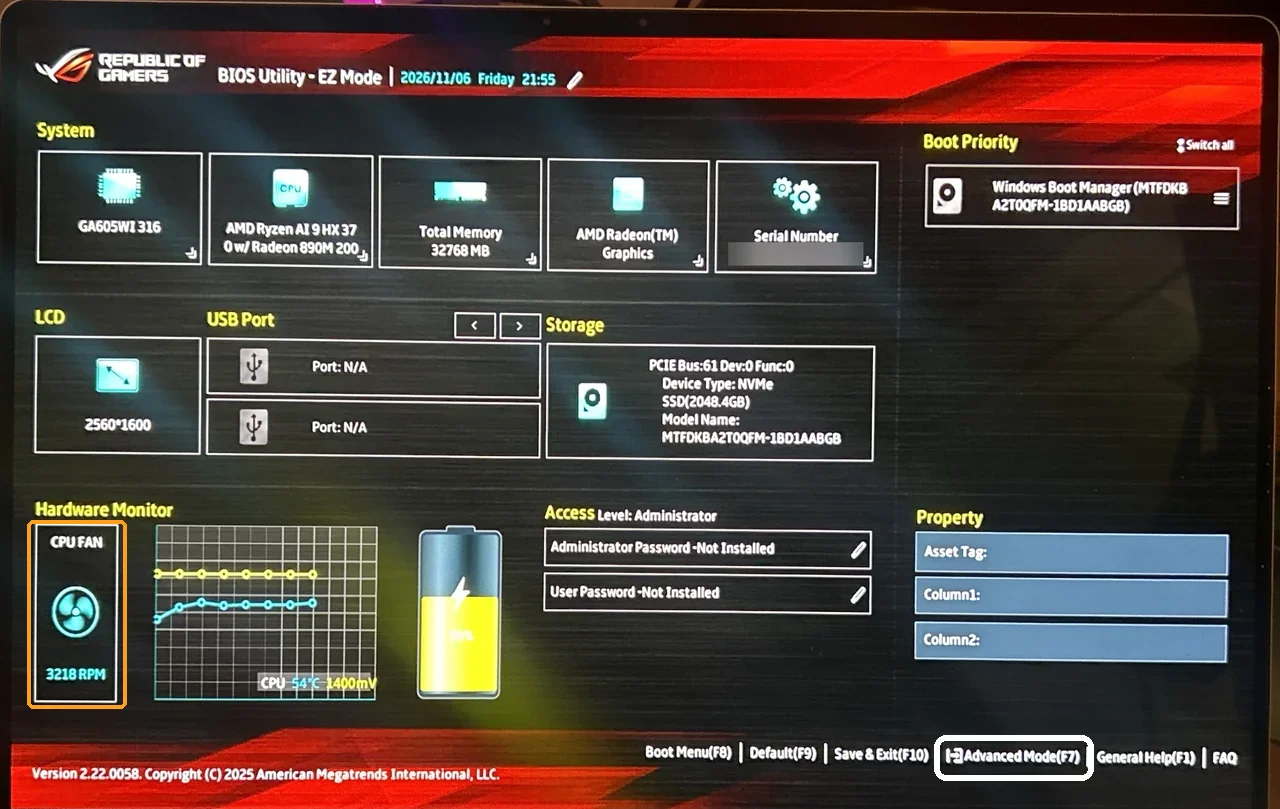
When I went through mine, the EZ Mode screen showed my CPU fan spinning at 3218 RPM (in the orange box), but there was nothing there to change it with. The Advanced tab only had things like EZ Flash, Cloud Recovery, System Diagnostics and the Fn Lock option, with no fan or cooling setting anywhere, so on an ASUS gaming laptop like mine, every fan change has to happen from Windows through software. If you check yours, leave without saving so nothing else changes.
Is there a fan shortcut key?
Some laptops cycle fan modes with a function key. ASUS says Fn+F switches between Standard, Whisper and Performance on models that have its MyASUS Fan Profile, but my G16 doesn’t have that feature. With Armoury Crate uninstalled, pressing F5 on its own did nothing at all, and Fn+F5 just worked as a normal F5 and refreshed the window I had open, so on my laptop there was no fan mode on the keyboard without ASUS’s app running (I went through which other Fn keys stopped working without Armoury Crate separately). If your laptop has a fan icon printed on one of its F keys, that’s the shortcut to try first, and make sure your maker’s app is installed.
General fan apps mostly don’t work
FanControl is the app you’ll see recommended most, and on my G16 its setup found 0 fans and could only read my temperatures. It’s built for desktops, where fans plug into the motherboard, and its own FAQ on GitHub says it mostly doesn’t work on laptops for that reason. It annoyed me at first, but on a laptop the maker’s own software already covers most of what I’d want from my fans, so FanControl would earn its spot a lot more on a desktop I built myself. If yours shows the same empty list, I went through why in FanControl not detecting fans on a laptop.
In my fan app roundup I tested every app I could get running, including the ASUS-only ones that did work. The best example was AsusFanControl, a small ASUS-only tool, and once I ran it with the right permissions and set it to 60%, my CPU fan jumped to 4617 RPM and the CPU dropped from 60°C to 45°C in about 20 seconds at idle. If you’re worried about the driver FanControl asks you to install, I checked what it actually put on my laptop in is FanControl safe, and getting it back off is in my FanControl uninstall steps.
If your fans are still loud
If you just want quieter fans, start with the quiet mode in Armoury Crate (or whatever your laptop’s app calls it). If you’re still getting heat and fan noise after that, look into undervolting your CPU, because once your dedicated GPU is off, the CPU is the main thing generating heat, and less heat means the fans don’t have to spin as hard. I went through how I do it step by step in my guide to undervolting with G-Helper.
Other laptop brands
My advice for anyone not on an ASUS is to start with the app that came on the laptop, because I don’t know whether HP or Lenovo owners have anything like G-Helper. The usual names are Omen Gaming Hub on HP, Lenovo Vantage, MSI Center and Alienware Command Center. All my testing was on the G16, so those are pointers to check, not things I’ve run.
On a desktop
Desktops work differently, since the fans plug into the motherboard and its BIOS or an app like FanControl can reach them. I haven’t tested a desktop yet, and once I do, those results go here.
Which method I actually use
Day to day I just switch modes in whatever software I’m running. When I was on Armoury Crate that meant flipping between Silent and Performance, and in G-Helper I did the same thing, but with the fan curves I picked inside each mode, so it was a lot more personalized. For most of you, your laptop’s own app is going to be all you need, with a custom curve there if you want to tune it further. If that app is Armoury Crate, the GPU mode and battery settings that made the biggest difference on my G16 are worth a look next.
FAQ
Is it safe to run laptop fans at full speed?
Running them fast just means more noise and a bit more power. My aggressive curve kept the CPU at 90°C in Cyberpunk instead of the 93°C Turbo hit. Running them too slow is the risk, which is why the maker’s modes hold a temperature target.
Why does my laptop get hotter in bed?
Blankets and soft surfaces block the vents underneath, so the fans can’t pull in air. That’s exactly what happens to mine, and it’s why I end up turning the fans up when I’m in bed. A hard surface under it helps more than any fan setting.
If your laptop has a fan setting I didn’t cover, drop your model and where you found it in the comments and I’ll add it here.