Undervolt with G-Helper: 4 Safe Steps for a Cooler Laptop
Here is a step-by-step guide to undervolting with G-helper. Undervolting is the act of giving your CPU less energy than it’s programmed to get. If you’re wondering how to get the most out of your laptop’s battery life, undervolting is definitely something to consider, and it’s 1 of the 6 settings in the G-Helper battery profile that took my G16 from 3 hours to 7+. You might be asking – Wouldn’t giving the CPU less power make your computer slower? No, it won’t (If you do it right). In this guide, I’ll go through what an undervolt is and how you can safely implement it on your rig.
What does Undervolting actually do?
Before we learn what undervolting actually is, we need to understand a specific concept about CPU voltage. Every CPU ships with a voltage for each clock speed, and manufacturers set it with a safety margin on top, since not every chip off the line is equally good. In reality, most chips can hold the same clock speed with less voltage than that preset. Undervolting is purposefully lowering that voltage, which cuts power and heat without losing essentially any performance at all.
Is Undervolting Safe?
Before we get into the meat, please understand that software-based undervolting (specifically with G-Helper in this case) can not cause any permanent damage to your components. If you do go full throttle and end up pushing it too much, the worst that can happen is a crash or freezing of your computer. The g-helper undervolt setting is native to the app, and hitting Factory Defaults in Fans + Power clears it straight back to stock. If you’re also wondering about the app itself rather than just the undervolt, I answer that separately in is G-Helper safe.
Which CPUs Can’t Undervolt in G-Helper?
So before you go hunting for the slider, not every laptop actually has one. G-Helper can only undervolt AMD Ryzen CPUs, and only the Ryzen models it supports. If you open Fans + Power > Advanced and there’s no undervolt slider sitting there, that’s G-Helper telling you your CPU isn’t on the list, since it hides the slider on unsupported chips instead of showing one that does nothing (this is straight from the G-Helper FAQ).
Intel CPUs
Every Intel chip falls into this bucket. The G-Helper developer confirmed on GitHub that there’s no known open-source way to undervolt Intel CPUs, so the feature was never built for them. I found a 2026 G14 owner on Reddit with a Core Ultra 9 386H who ran into exactly this while following my settings guide, and there was just no undervolt option anywhere in his G-Helper.
Now, Intel’s own Intel XTU is the usual workaround people point to, but on most newer laptop chips it won’t get you far either. After the Plundervolt security flaw in 2019, Intel let laptop makers lock CPU voltage control through a firmware update (Notebookcheck covers the background here), and from 12th gen onward the regular H-series chips, Core Ultra H included, have it locked. The HX chips are the exception that still allow undervolting, and even those can get capped by the BIOS, with ASUS Strix owners reporting a -30mV limit on the 275HX.
Older Ryzen CPUs
AMD is way more open with this, but a few older Ryzens still miss out. The developer’s own support list marks the Ryzen 7 6800H in the 2022 G14 as not supported, for example. Same rule applies here though: no slider means no support, so you don’t need to go digging through lists to find out.
Power Limits vs Undervolting (they’re not the same thing)
This was the actual question in that Reddit post, since Intel owners still see PL1 and PL2 sliders under Power Limits and assume that’s the undervolt. It isn’t. An undervolt lowers the voltage your CPU runs at for the same clock speed, so it does the same work with less power and less heat. A power limit caps the total wattage your CPU is allowed to pull, and the CPU stays under that cap by dropping its clock speed. PL1 is the wattage it can hold indefinitely, and PL2 is the higher wattage it’s allowed to burst to for a short window.
So the difference comes down to what you pay for the savings. An undervolt saves power at basically no performance cost, while a power limit saves power by giving up some of your peak performance. On a locked Intel chip though, lowering the power limits is the closest lever you’ve got, and I went through what each of the G-Helper power limits sliders actually caps in its own guide.
Where to save power if you can’t undervolt
If your laptop is locked out, these are the G-Helper settings that’ll get you the most back:
- Power Limits – In Fans + Power, lower PL1 a few watts at a time, tick Apply Power Limits, and run the same Cinebench test from Step 3 after each change. Stop once the score drops more than you’re okay with.
- CPU Boost – Set it to Efficient at Guaranteed or Disabled when you’re on battery. Boost spikes are where a lot of the heat and drain comes from, and I broke down all 7 modes in my G-Helper CPU Boost guide.
- GPU Mode – Eco turns the dedicated GPU off completely, which is one of the biggest battery wins on any laptop with 2 GPUs. More on that in my G-Helper GPU mode guide.
- Refresh Rate – Drop the screen to 60Hz whenever you’re unplugged.
- Fan Mode – Silent keeps the fans to a minimum during light work, which saves both noise and a bit of power.
Being locked out of the undervolt still leaves the other 5 settings from that battery profile on the table, and they’re all laid out in my best G-Helper settings guide.
Step 1: Open the Fans + Power panel
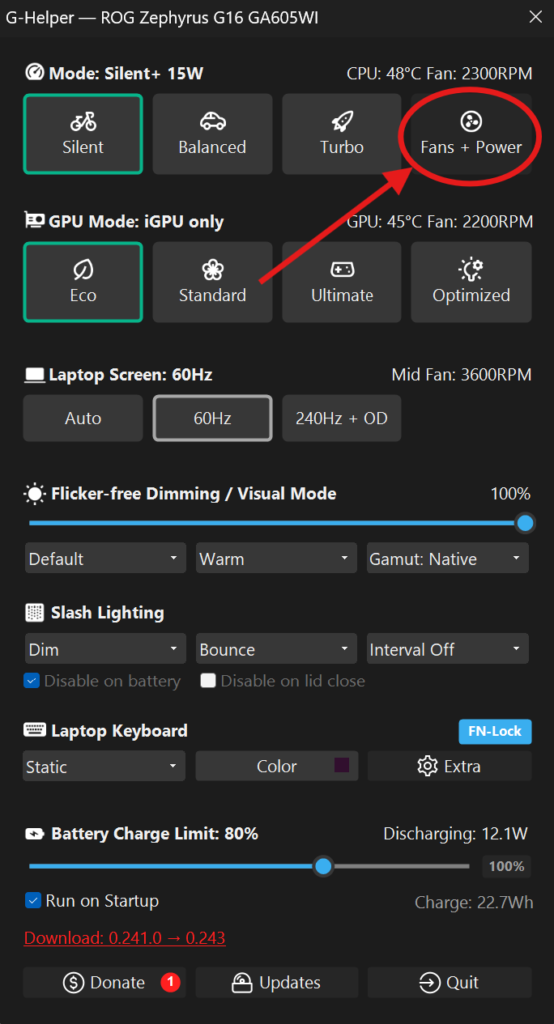
In this guide, we’re going to be using G-Helper, a free app used to edit laptops and tweak specs with ease. If you don’t have G-helper installed, you can check out my G-helper installation guide.
To get started, open up G-Helper from your system tray and go over to the Fans + Power section. This menu contains the main section for more advanced controls; therefore, it is where we will be spending most of our time.
Step 2: Start Safe
In this menu, click the Advanced tab. Once you see the undervolt slider from the screenshot, you know you’re in the right section.
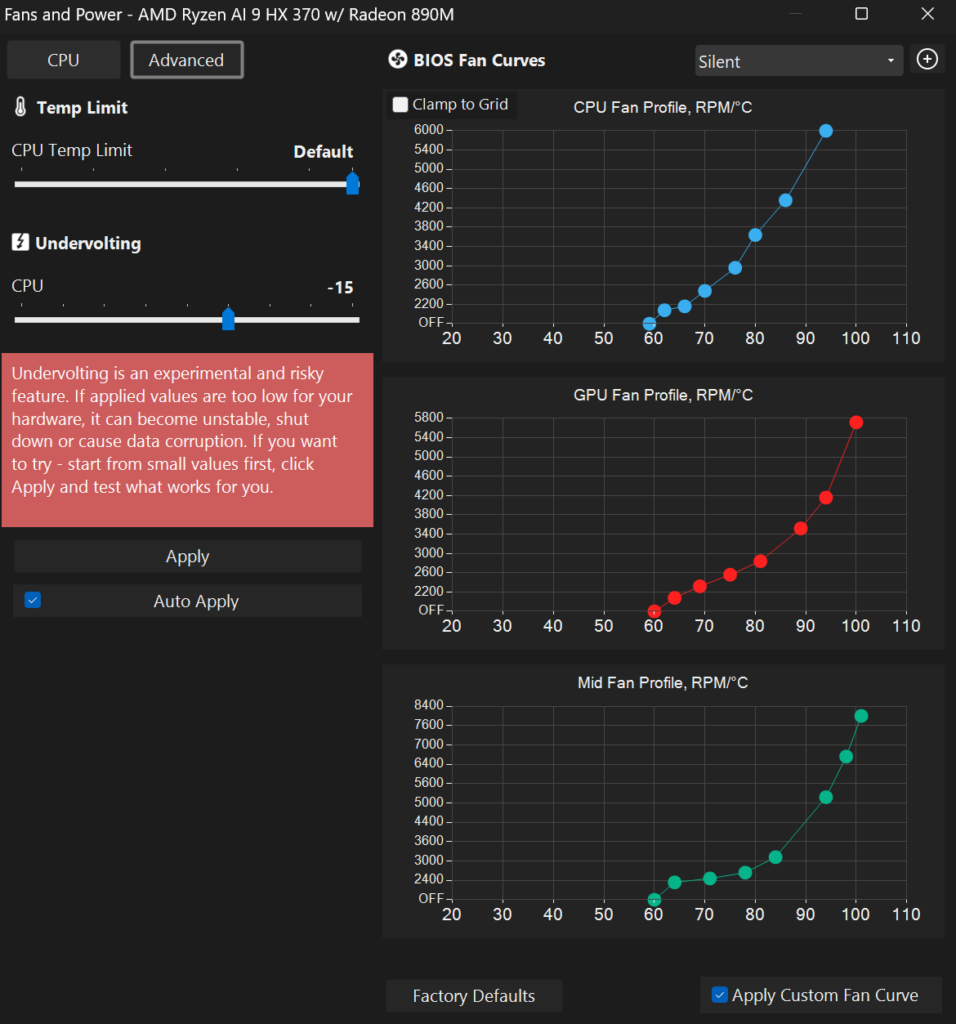
The main control is a simple slider, which you can choose to your liking – but be careful not to go too far. In the screenshot, I have my ASUS Zephyrus (2024) set to -15mV of Undervolting, which is a pretty safe amount. From personal testing, some CPUs can see glitches anywhere farther than -20mV. I’d recommend starting within that range.
Step 3: Stress test for stability
Now that your laptop is undervolted, I recommend testing it right away, as each CPU can perform slightly differently depending on the amount of undervolt. For this, we’re going to use a tester called Cinebench, which is a free app that allows you to push and test your CPU at 100% performance. Go ahead and download Cinebench (Cinebench 2024) on your laptop, then come back here. Quick tip before you test – Make sure your charger is plugged in, with the highest power settings, so the CPU voltage won’t be limited.
Once it’s downloaded, choose the Multi-Core test while making sure your undervolt is active. The test will take around 10 minutes, but make sure to pay attention to any crashing or glitches, which would indicate your undervolt is too much. If it passes without any of these, then congrats! Your CPU is now more power-efficient. If you feel like getting the most out of it, you can push the undervolt a bit higher and test again, but discretion is advised.
My personal results from the stress test
G-Helper undervolt data I got from my ASUS G16 Zephyrus with a Ryzen AI 9 HX 370
- No undervolt: 1158 Points, 95C CPU
- -20mV : 1208 Points, 95C CPU – +4.3%
- -25mV : 1256 Points, 95C CPU – +8.5%
- -30mV : 1241 points, 95C CPU – +7.2%
What do these results mean?
It seems that at max CPU usage, undervolting it will actually increase its performance, as it lowers the rate of thermal throttling occurring (This is when the CPU reduces clock speed due to overheating). This means my CPU was able to perform better with less energy, since the extra wattage that was given to it was simply overheating it while not adding to performance. How hard your CPU is allowed to boost feeds straight into this, since a capped boost mode produces less heat to throttle against in the first place, and I went through all 7 of those in my G-Helper CPU Boost guide.
Step 4: Find the sweet spot
As seen in my test, undervolting allowed for an increase in CPU performance, giving stronger performance at max temps. Since my CPU performed the best at -25mV (8.5% improvement in performance), I will be using that instead of my previous safe amount of -15mV. If you also wish to find the sweet spot for yourself, take some time to run Cinebench at these varied undervolt values, selecting the one that performs the best for you! Remember, each CPU can be different, so don’t just copy mine. Look out for any crashes or glitches, as that would mean you’re pushing it slightly too far.
Undervolting is a wonderful free tool that any supported laptop user can take advantage of to limit the wastage of battery life or even reduce the thermal throttling at max temps. Take the time to find your chip’s limit, and post any results in the comments! Would love to see what specs worked out for you guys. If you’re looking to increase your battery life in other ways, check out my guide to G-Helper fan curves (You’ll be surprised how much energy they waste).