
How to Factory Reset ASUS Laptop Without Password (F12)
I wanted to see if I could factory reset my ASUS laptop without a password, but little did I know the two most preached tricks, holding shift on restart and forcing a crash, never worked for me. Here I’ll walk through how I ended up succeeding, and every single step I took, so if you’re in a similar situation just follow along.
If you landed here searching “how to factory reset ASUS laptop without password” because you’re locked out, start with the reset link hiding behind the PIN screen. If that doesn’t get you back in, tapping F12 at power-on got me into recovery every time. From there I clicked through every Reset this PC screen right up to the last button. ASUS also hides its own Cloud Recovery in that recovery menu, and I tested what it asks for next to Reset this PC.
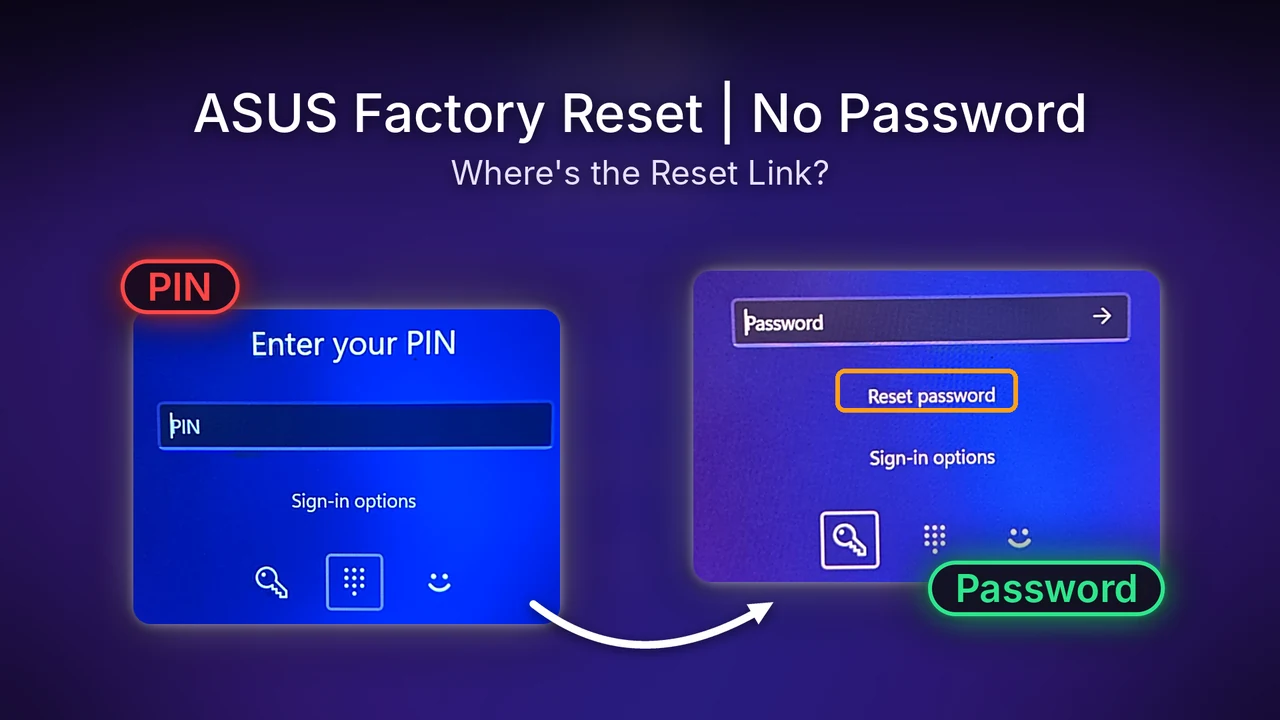
Once I gave up on Shift + Restart and tapped F12 at power-on, my G16 went into the recovery screen every time, and Reset this PC took me all the way to the final Reset button without asking for my password or PIN. Before going that far, the key icon on my sign-in screen swapped the PIN box for a password box with a Reset password link, which the PIN view never showed.
- Zephyrus G16 (GA605WI)
- Ryzen AI 9 HX 370
- RTX 4070 Laptop
- Windows 11
- BIOS 316
Local Windows account · Run on battery, charger unplugged
Why there’s no forgot PIN link
When I think about who’s actually searching this, I picture someone who forgot their PIN, because the PIN box is the first thing Windows 11 puts in front of you on the sign-in screen. My G16 showed Enter your PIN with a Sign-in options row of 3 icons under it (a key for your password, a PIN pad, and a smiley face for Windows Hello face sign-in), and there was no I forgot my PIN link anywhere on that screen, even after 1 wrong PIN.
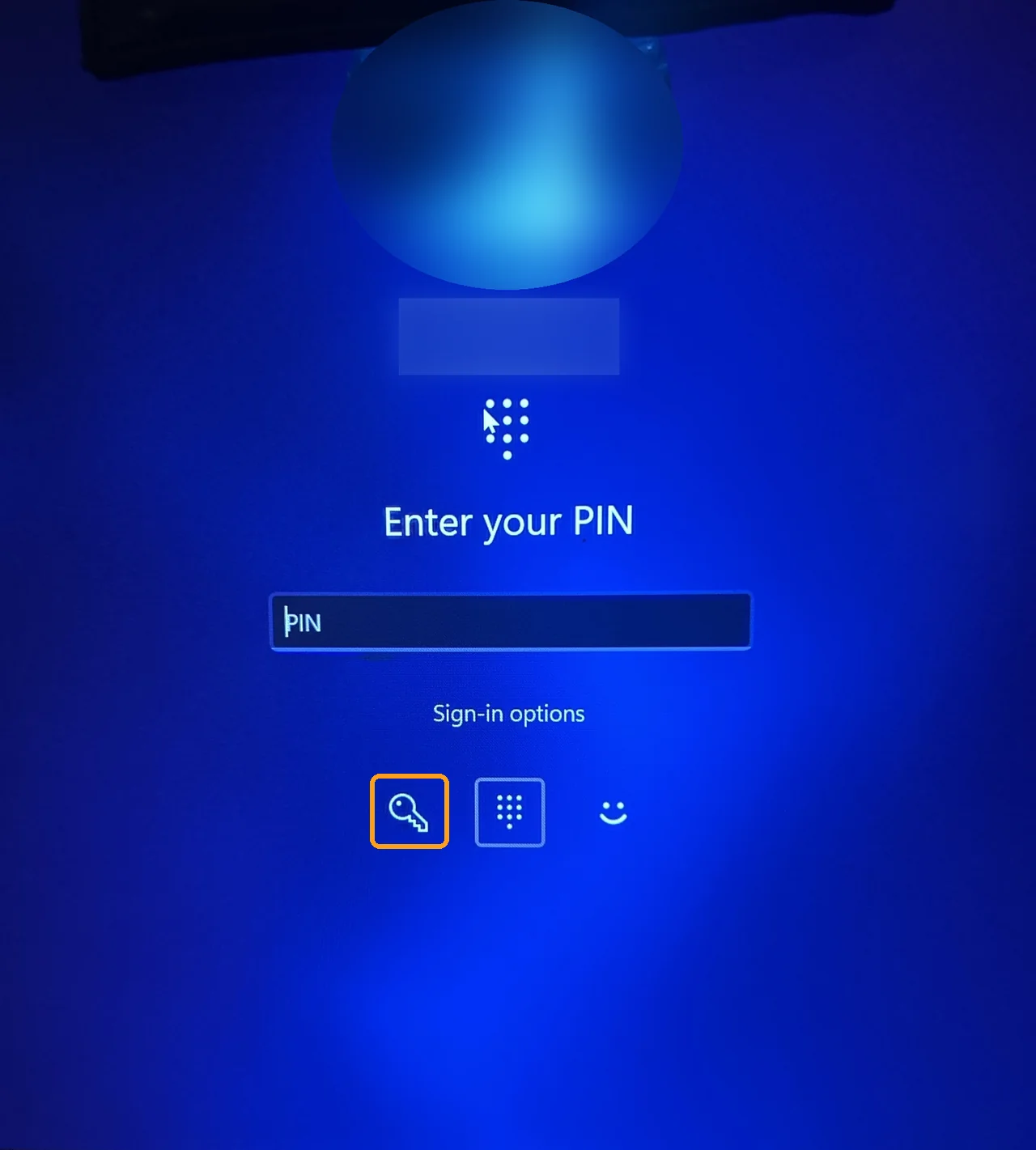
To get to the reset option, click the key icon under Sign-in options (see the orange box above), which swaps the PIN box for a password box, and a Reset password link shows up right under it.
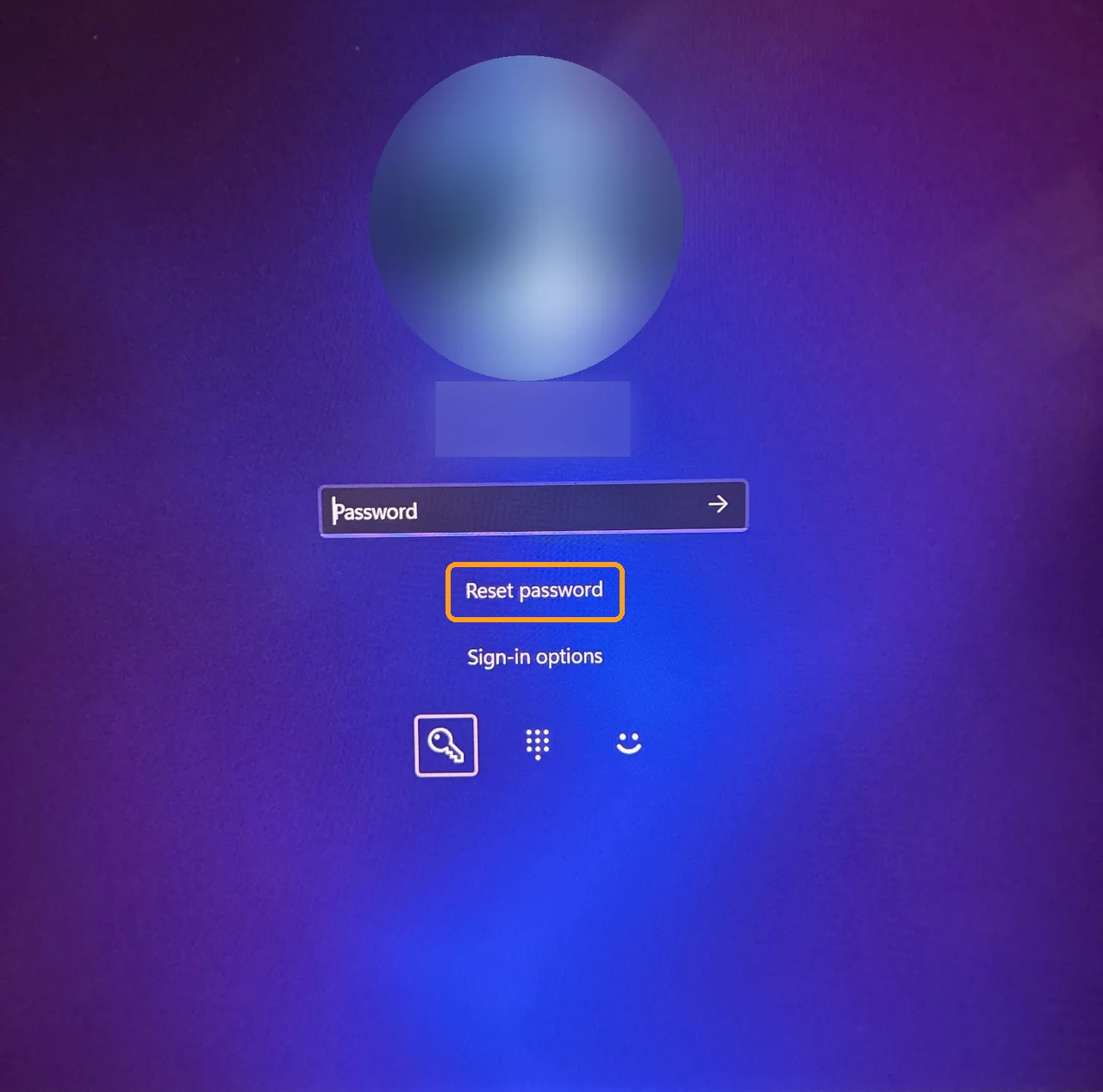
Because my laptop uses a local account, clicking Reset password (the orange box) brought up 3 security questions: the city where you were born, the first school you attended and the first name of your oldest cousin. Under them sat a Use a password reset disk instead link, for anyone who made one of those ahead of time. If you remember your answers, this gets you back in without wiping anything, and I left mine blank since I wasn’t actually locked out.

If you sign in with a Microsoft account instead, that reset usually goes through account.microsoft.com rather than security questions, and a local account is the only kind I had to test with.
If a friend told me they were locked out, I’d tell them to go to the password option instead of the PIN or face sign-in and reset it from there, because a lot of people see there’s no forgot PIN option and start to worry. I’ve never been locked out myself (I keep my passwords in a pattern I remember), and if I ever forgot my PIN I would try anything before resetting.
Why Shift + Restart never worked for me
Most guides on how to factory reset ASUS laptop from login screen say to hold Shift and click Restart, or force-restart it 3 times until Automatic Repair opens, but I feel like knowing that F12 gets you into recovery on an ASUS would be a lot more helpful.
I held Shift and clicked the power icon and then Restart on the sign-in screen 3 times, and 0 of those 3 tries reached the recovery screen. Each time it lagged a bit before shutting off, the spinning circle stopped, and then it did a normal restart right back to sign-in, which is exactly what happened both times I tried it a few days earlier too.
This was quite disappointing, because people rely on ASUS for this kind of thing, and if I hadn’t known it was broken until I actually needed it, I would’ve been quite mad. Shift + Restart felt like the simple way in, so needing a roundabout method just to reach a reset screen was annoying.
The other trick people preach is forcing the laptop off during boot until Windows gives up and opens Automatic Repair on its next start. My G16 shows a white logo first and then a red logo when it boots, so across 3 attempts I held the power button at different points, during the white logo and during the red logo, and every next boot went straight back to a normal sign-in screen without any repair menu. I stopped there, because repeated hard power-offs aren’t worth the risk to me when there’s a safer key that works.
How to factory reset ASUS laptop without password
Tapping F12 right as you press the power button is what ASUS’s own guide to MyASUS in WinRE lists as the way into the recovery menu, and it worked every single time I tried it on my G16. Since it opens before Windows even loads, nothing on the way there asked for my password, which makes it the route to use if you can’t get past the sign-in screen.
- On the sign-in screen, click the power icon in the bottom-right corner and choose Shut down, then wait for the screen to go fully dark.
- Press the power button once and start tapping F12 straight away, and keep tapping until the screen changes.
- Mine showed Please wait about 6 seconds after I pressed power, and then the blue Choose an option screen with Continue, Troubleshoot and Turn off your PC. Click Troubleshoot.

On the Troubleshoot screen, click Reset this PC (the orange box). Mine also listed Point-in-time restore, MyASUS in WinRE and Advanced options next to it.

MyASUS in WinRE is ASUS’s own recovery route with Cloud recovery inside it, and I went with Reset this PC here because it was already on the same screen and there was no reason for me to detour through the ASUS app for a plain reset. I went over what the regular app does once you’re back in Windows in my breakdown of the MyASUS app, if you’re deciding whether to keep it.
Factory reset ASUS laptop without logging in
Everything from this point happens outside Windows, which is why you can factory reset ASUS laptop without logging in at all. I walked through every screen on my G16 and pressed Cancel on the very last one, so these are the exact choices you’ll get, in the order they showed up for me.
Remove everything or keep your files
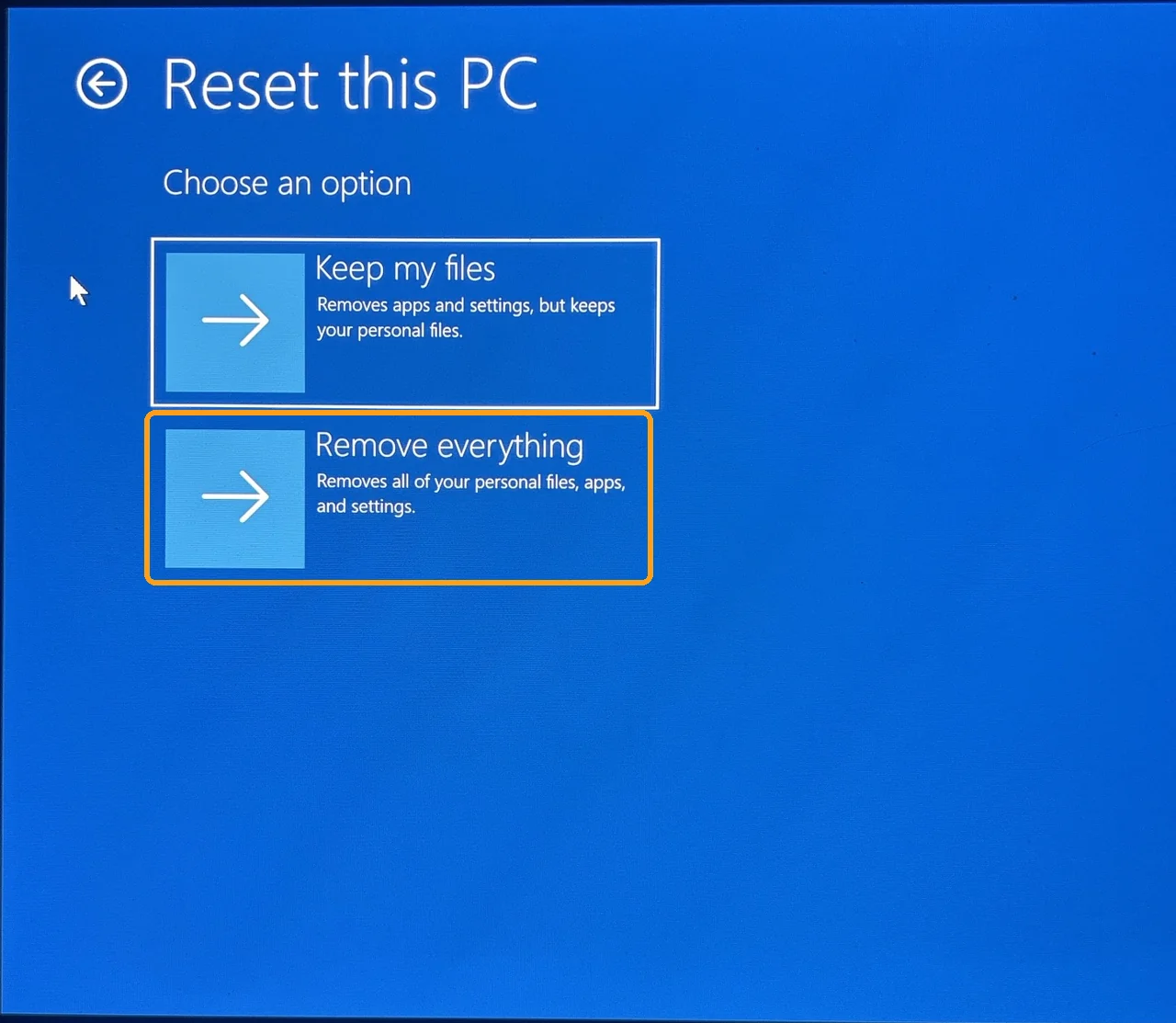
The first screen asks whether to keep your files. Keep my files reinstalls Windows but holds on to your personal files, while Remove everything wipes all of it, which Microsoft’s Reset your PC page recommends for a fresh start or before you give the PC away. For a true factory reset, click Remove everything (the orange box), and if you’d rather keep your files, Keep my files didn’t ask me for a password either when I tested it a few days earlier.
Local reinstall or Cloud download
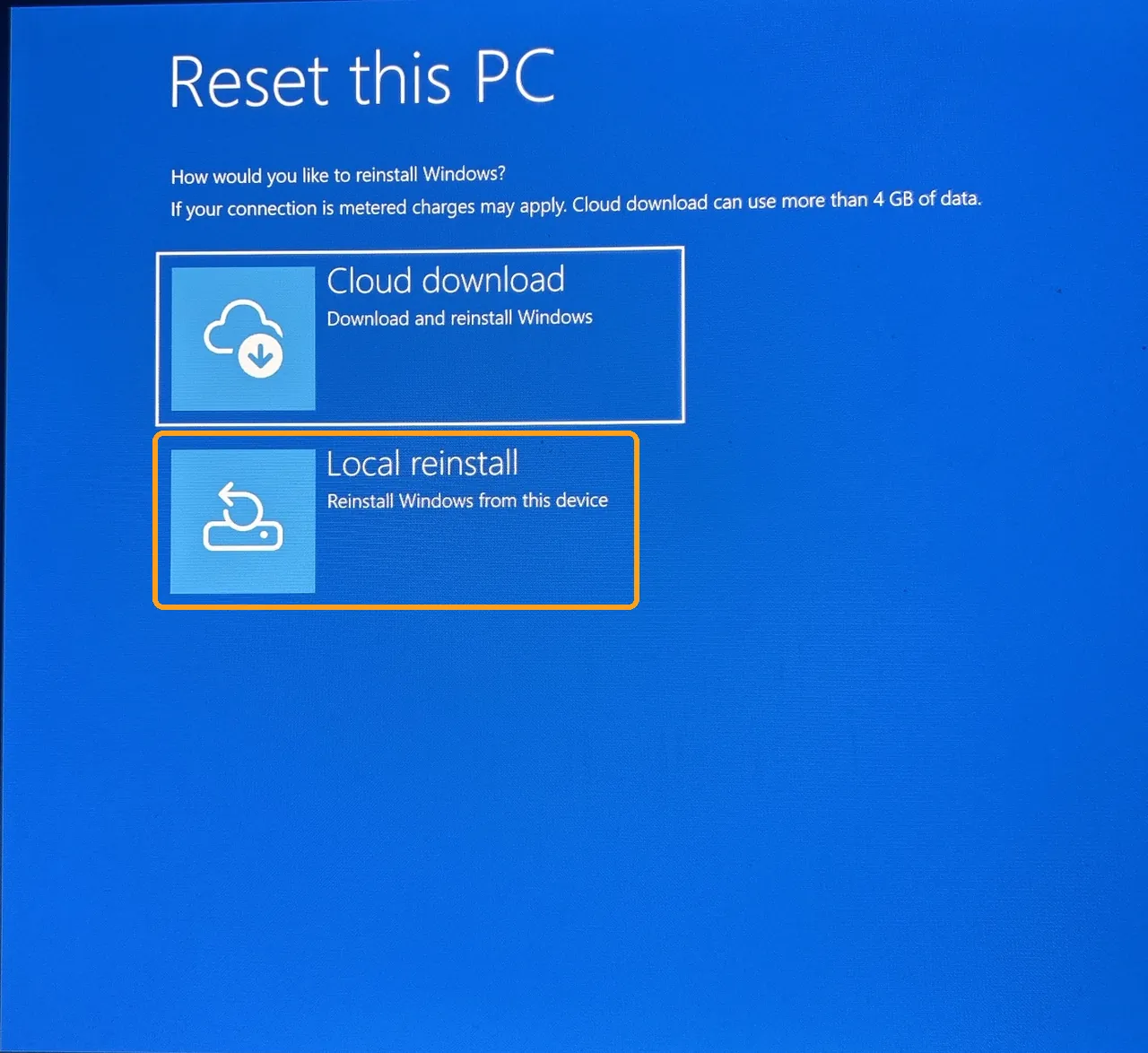
Next it asks how you’d like to reinstall Windows, and the screen warns that Cloud download can use more than 4 GB of data if your connection is metered. If you’re on a phone hotspot or slow Wi-Fi, click Local reinstall (the orange box) so that warning never comes into play.
Say no to the workplace question
After that came Do you want to keep this PC set up for your workplace? which showed up even though mine is a personal laptop. Unless your work or school set the laptop up for you, click No (the orange box) and move on.

Just remove files or fully clean
Then it asks Do you want to fully clean your drive? The screen says to use Just remove my files if you’re keeping your PC, and Fully clean the drive if you’ll recycle the PC, with a warning that the full clean can take several hours. If the whole point is getting back into your own laptop, click Just remove my files (the orange box), and save the full clean for when you’re selling it or handing it off to someone else.

The last screen before the wipe
The final screen reads Are you ready to reset this device?, warns that it can’t be undone, lists what it’s about to remove, and gives you Reset (the orange box) or Cancel. I clicked Cancel here, so nothing on my laptop actually got wiped, but this is the button that starts the reset on yours.
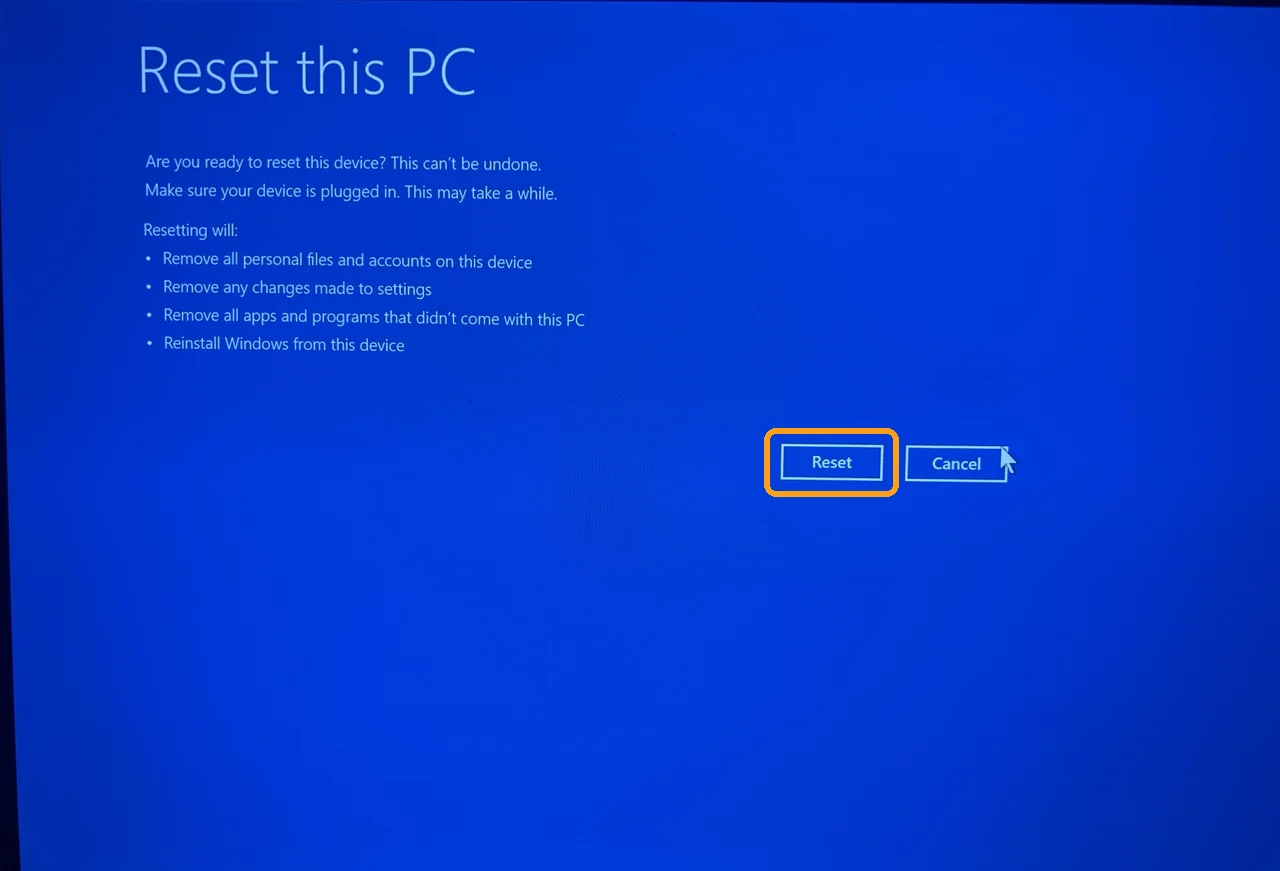
I was on battery the whole time, and the Reset button was still there to click, with the screen only telling me to make sure my device was plugged in. Plug your charger in anyway before you click it, because that same screen says the reset may take a while. If MyASUS is missing once you’re back on the desktop, you can get it back with winget and skip the Microsoft Store.
None of those screens asked for my password, my PIN or a BitLocker key, but device encryption protection was off on my laptop, so I can’t show you what an encrypted drive asks for at this point. If a friend of mine were doing this, I would make sure they got their BitLocker recovery key onto their phone or a note first so they don’t lose everything, and I showed where to find that key in my guide to every way to reset an ASUS laptop.
Questions before you wipe it
Factory reset ASUS laptop forgot password, what first?
Start at the sign-in screen by clicking the key icon and then Reset password, since on a local account the security questions get you back in without losing anything. If those answers don’t come back to you, tap F12 at power-on and run Reset this PC from there, which never asked me for a password on my G16.
Can I reset on battery from recovery?
From the recovery screen, my G16 still had the Reset button available on battery, and Windows only warned me to plug in. Starting Reset this PC from Windows Settings went differently when I tried it a few days earlier, because it stopped on battery with a Plug in your PC message and wouldn’t go any further.
What I would do if I got locked out
If I ever forgot my PIN, I would switch to the password option and try its Reset password link first, since that keeps everything on the laptop, and I would only tap F12 for a full reset once I had run out of ideas. For me, the whole thing comes down to skipping Shift + Restart completely and going straight to F12, because it was the only route that never failed on my G16. If tapping F12 does nothing because your screen stays black at power-on, a 40-second hold on the power button is what to try first, and if the reset went through and you’re setting the laptop up again, 3 pre-checked boxes in the Armoury Crate installer are worth unticking on the way in.
If Shift + Restart actually got you into recovery on your ASUS, drop your model in the comments, because I’m curious whether my G16 is the odd one out.
Did this fix it for you?
Nice, glad it worked.
Thanks, that helps.
I use these to decide what to retest next. If you want a reply, ask in the comments and I'll take a look.