ASUS Smart Display Control: What It Does (Tested 2026)
ASUS Smart Display Control is a background app with no window and no tray icon, and on my Zephyrus G16 it sits at about 2.7 MB of memory, so most people only ever see it in Task Manager with no idea what it’s for. I killed it in the middle of a test to find out, and my screen stopped doing something it had done every single time I unplugged the charger.
It also kept starting with Windows even though Task Manager listed it as disabled, and the G-Helper developer has a specific warning about it. Whether you’re cleaning up startup apps or trying to figure out if it’s safe to uninstall, I’ll go through what it does, why turning it off in Task Manager doesn’t work, and when it’s worth keeping down below.
After I killed ASUS Smart Display Control and unplugged the charger:
- Running: Screen dropped from 240 Hz to 60 Hz on battery and went back to 240 Hz on the charger
- Killed: Screen stayed at 240 Hz on battery
- Task Manager startup: Showed Disabled, but it still started at login through a scheduled task
- Memory: About 2.7 MB, with no window or tray icon
- Zephyrus G16 (GA605WI)
- Ryzen AI 9 HX 370
- RTX 4070 Laptop
- Windows 11 Home 26H2
- Smart Display Control 2.10.0
- Armoury Crate 6.7.6.0
Panel Power Saver on during the refresh test · Build 26300
What Does ASUS Smart Display Control Do?
In plain terms, it’s the piece of software that changes your screen’s refresh rate when the power source changes. Refresh rate is how many times a second the screen redraws, and a higher number looks smoother but uses more battery, which is why ASUS wants it lower when you’re unplugged.
On my G16 that switching is tied to Armoury Crate’s Panel Power Saver setting, which drops the screen to 60 Hz on battery. With Panel Power Saver on, I unplugged and replugged the charger twice, once with Smart Display Control running and once after killing it in Task Manager, and read the refresh rate Windows reported right after each switch. I sorted both runs into the table down below.
| Smart Display Control | Unplugged (Hz) | Plugged back in (Hz) |
|---|---|---|
| Running Stock | 60 | 240 |
| Killed in Task Manager | 240 | 240 |
With it running, unplugging dropped the screen to 60 Hz and plugging back in put it back at 240 Hz. With it killed, nothing happened, and the screen just stayed at 240 Hz on battery. So Armoury Crate is where you flip the setting, but Smart Display Control is the thing that actually does the switching. I ran 1 round each, but there was no in-between result to argue about.
It matters for battery too, since in my Armoury Crate Panel Power Saver testing, 60 Hz cut video playback from about 17.81 W to 14.66 W.
Where It Lives and How Much It Uses
Smart Display Control is its own app, separate from Armoury Crate, with its own entry in Installed apps. On my laptop it was installed at the factory, version 2.10.0, and it runs from C:\Program Files (x86)\ASUS\ASUS Smart Display Control. That folder only has 4 files, and about 14.7 MB of the roughly 14.9 MB total is a Microsoft Visual C++ installer it carries around, so the app itself is tiny.
Running, it used about 2.7 MB of private memory and a 5.5 MB working set, with no window to open. The exe has a valid ASUSTeK digital signature, so if yours is somewhere other than that folder, that’s the one to be suspicious of. For a sense of scale, the Armoury Crate processes next to it held about 165 MB with the app closed, which I broke down in Armoury Crate Service.
ASUS Smart Display Control Startup: On or Off?
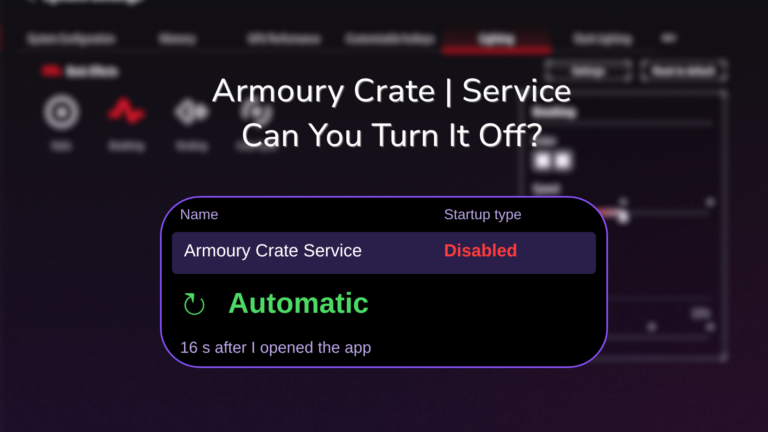
Open Task Manager, click Startup apps on the left, and on my laptop ASUSSmartDisplayControl already showed as Disabled, boxed in the screenshot down below. It still started with Windows anyway.
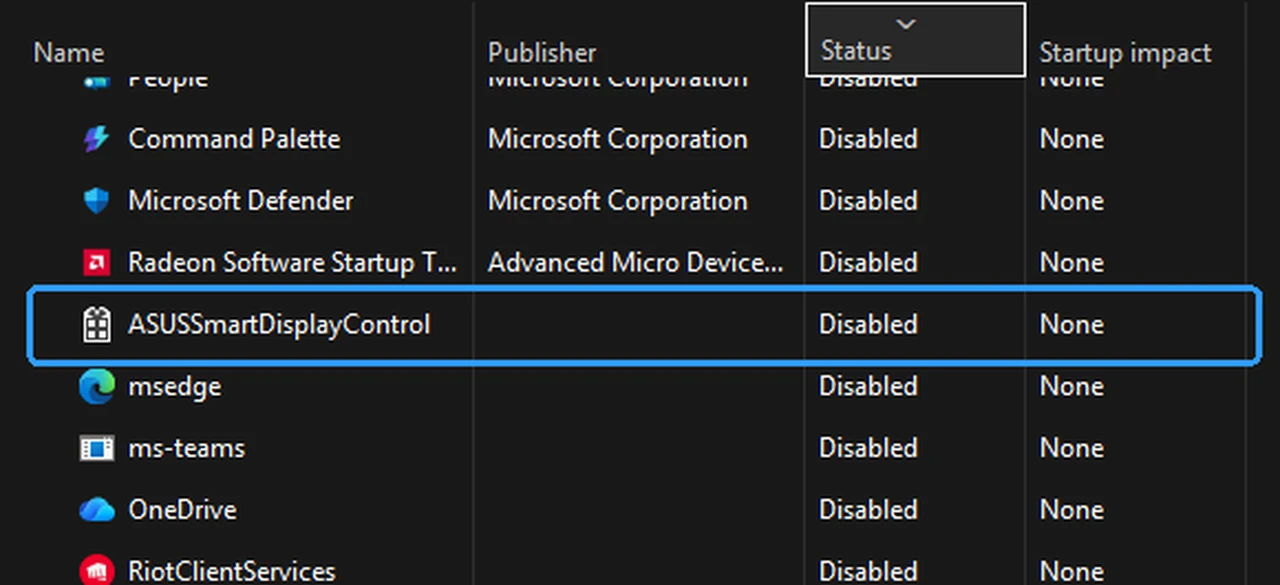
It starts 2 different ways. One is the normal startup entry that Task Manager controls. The other is a scheduled task called ASUSSmartDisplayControl that runs at every login with the highest privileges, and Task Manager’s Startup apps list doesn’t show or control scheduled tasks at all. So disabling it there only turns off 1 of the 2, and the scheduled task launched it again on my G16 at the next login.
To actually stop it from starting, it has to be the scheduled task. Press Windows + R, type taskschd.msc, press Enter, click Task Scheduler Library on the left, then right-click ASUSSmartDisplayControl in the list and click Disable. I left mine enabled, so I haven’t checked whether anything brings it back after that. If you’ve never used Task Scheduler before, Microsoft’s overview explains what the library list is.
Is ASUS Smart Display Control Necessary?
It depends on whether you want the automatic refresh rate switching:
- Keep it if you use Armoury Crate with Panel Power Saver on and want 60 Hz on battery without thinking about it.
- Remove it if you use G-Helper. The G-Helper wiki says it will “fight with g-helper for the same function” and that you can safely uninstall it, which lines up with my older testing, where Panel Power Saver didn’t switch to 60 Hz while G-Helper was also installed.
- It doesn’t matter much if you set your refresh rate by hand in Settings > System > Display > Advanced display and leave it there.
If you’re going through all the ASUS background stuff at once, I counted up everything else that runs in is Armoury Crate bloatware.
How to Uninstall ASUS Smart Display Control
Since it has its own uninstall entry, you don’t need any ASUS tool for it:
- Open Settings > Apps > Installed apps.
- Search for ASUS Smart Display Control.
- Click the three dots next to it, click Uninstall, then click Uninstall again to confirm.
- Click Yes if Windows asks for permission.
I didn’t uninstall it on mine, so I left the uninstall itself untested. Afterward, check Task Scheduler for a leftover ASUSSmartDisplayControl task. If you change your mind, ASUS lists it under Driver & Tools on the support page for your laptop model.
ASUS Smart Display Control Error or Not Working
I didn’t hit any errors with it on my G16. If Panel Power Saver stops switching your screen to 60 Hz, the first thing I’d check is whether ASUSSmartDisplayControl.exe is actually running in Task Manager’s Details tab, since my test showed the switching stops completely without it. For a system error when it launches, reinstalling it from your model’s ASUS support page is the step I’d try first, though I couldn’t reproduce one to test that.
ASUS Smart Display Control FAQ
Is ASUS Smart Display Control the same as Armoury Crate?
No, it’s a separate app with its own install and uninstall entry. Armoury Crate’s Panel Power Saver setting depends on it though, as my test above showed. Uninstalling Armoury Crate with ASUS’s tool doesn’t remove it either, since it was still there after my uninstall Armoury Crate test.
Can I disable ASUS Smart Display Control on startup?
Yes, but only fully through Task Scheduler. Disabling it in Task Manager’s Startup apps left the scheduled task running it at every login on my laptop.
Does it work with an external monitor?
I only tested the laptop’s own screen, so I left external monitors untested.
For the rest of the settings worth changing on an ASUS laptop, check out my best Armoury Crate settings. If ASUS Smart Display Control is doing something on your laptop that it didn’t do on mine, like switching refresh rates when it shouldn’t, drop your model and what you’re seeing in the comments.