ASUS GPU Tweak for Laptops: Does It Do Anything? (2026)
I installed ASUS GPU Tweak for laptops on my Zephyrus G16 because the name sounds exactly like what a lot of you guys want: a one-click way to squeeze more out of the RTX 4070 without learning MSI Afterburner. It installs fine, it shows the GPU, and it even has a big OC Mode button sitting right at the top. But when I ran the same GPU load test in each of its modes, the frame rate barely moved, while one button in Armoury Crate got me about 19% more. I’ll go through what GPU Tweak III actually lets you change on a laptop, what it put on my system, and how to get rid of all of it, so you can decide if it’s worth keeping on yours.
After I switched GPU Tweak III between Default, OC and Silent Mode on my G16, my RTX 4070 Laptop:
- OC Mode: Added a 0 MHz clock offset and ran 130.2 FPS vs 128.9 FPS in Default
- Silent Mode: Took 20 MHz off the core and memory and still ran 129.8 FPS
- Armoury Crate Turbo: Jumped to 153.1 FPS at 84.6 W, about 19% faster than GPU Tweak’s Default
- Uninstall: Left a second app, 2 background processes and a startup task behind after the first pass
- Zephyrus G16 (GA605WI)
- Ryzen AI 9 HX 370
- RTX 4070 Laptop
- Windows 11 Home 26H2
- GPU Tweak III 2.1.8.0
- FurMark 2.10.2
Armoury Crate 6.7.6.0 · Performance mode unless noted · plugged in
What GPU Tweak III is, in plain English
GPU Tweak III is ASUS’s graphics card tuning app. It’s built for desktop cards, where you can raise the clock speed, raise the power limit and set your own fan curve. ASUS’s own GPU Tweak III FAQ says it’s for “NVIDIA and AMD desktop graphics cards”, and on ROG laptops ASUS points you to Armoury Crate for this stuff instead. Still, the winget package and the official GPU Tweak III page will happily install it on a laptop, and it does detect the laptop GPU, so I wanted to see what’s actually left once it’s running on one. Honestly, going in I didn’t know what GPU Tweak was supposed to do that Armoury Crate doesn’t already, and that’s most of what this test answers.
It struggles here because on a gaming laptop the GPU’s power limit (how many watts it’s allowed to pull) is set by the laptop’s own firmware and by Armoury Crate’s operating modes. GPU Tweak can nudge the clock speed, but when the GPU is already running into that power limit, a faster clock setting has nowhere to go.
Does ASUS GPU Tweak for laptops actually work?
It works in the sense that it opens, reads the GPU and applies what you set. The problem is how little there is to set. On my RTX 4070 Laptop, the home screen gave me 4 profiles at the top (Default Mode, OC Mode, Silent Mode, User Mode) and 3 panels underneath:
- Power only has a GPU Voltage slider sitting at 0%. There’s no power target slider at all, which is the one setting that matters most on a laptop.
- Clock has GPU Boost Clock (1605 MHz) and Memory Clock (16002 MHz), each with an offset under it.
- Fan Speed is completely empty. Laptop fans are run by the laptop itself, so there’s nothing here for GPU Tweak to grab.
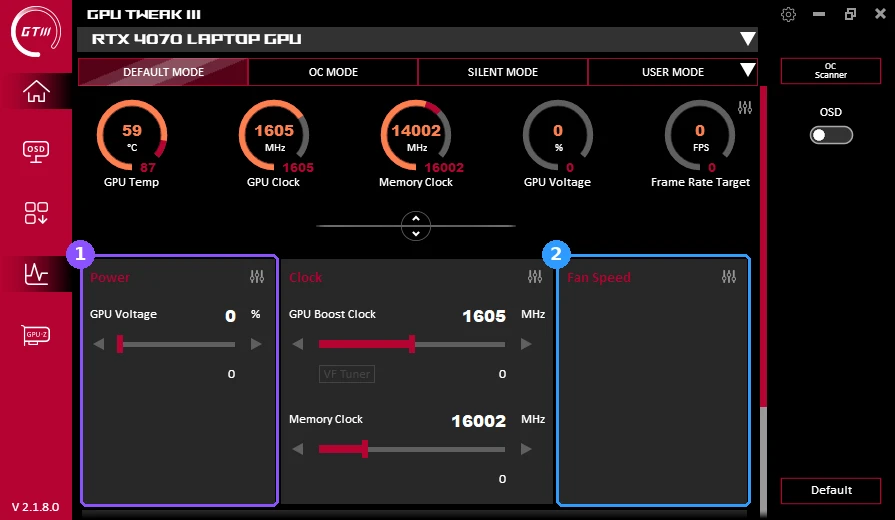
In the screenshot up above, box 1 is the whole Power panel and box 2 is the Fan Speed panel, which stayed empty the entire time I had it installed.
OC Mode and Silent Mode on a laptop
Now OC Mode is what got me. On desktop cards it’s a small factory overclock. On my G16, clicking OC Mode changed the highlighted tab and nothing else. The boost clock stayed at 1605 MHz and both offsets stayed at 0.
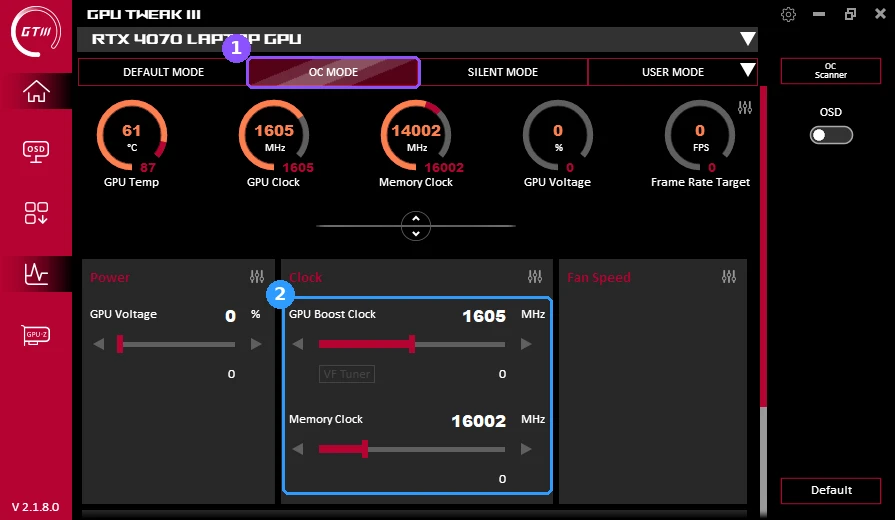
Box 1 is the OC Mode tab after I clicked it, and box 2 is the Clock panel still showing 0 on both offsets. Silent Mode at least does something: it drops the core to 1585 MHz and the memory to 15982 MHz, so 20 MHz off each. The memory change really did apply, too, since nvidia-smi showed the memory clock at 7991 MHz under load instead of 8001 MHz. The saved Silent profile also stores a 10% lower power target, but with no power slider on the laptop screen I have no way to show it doing anything.
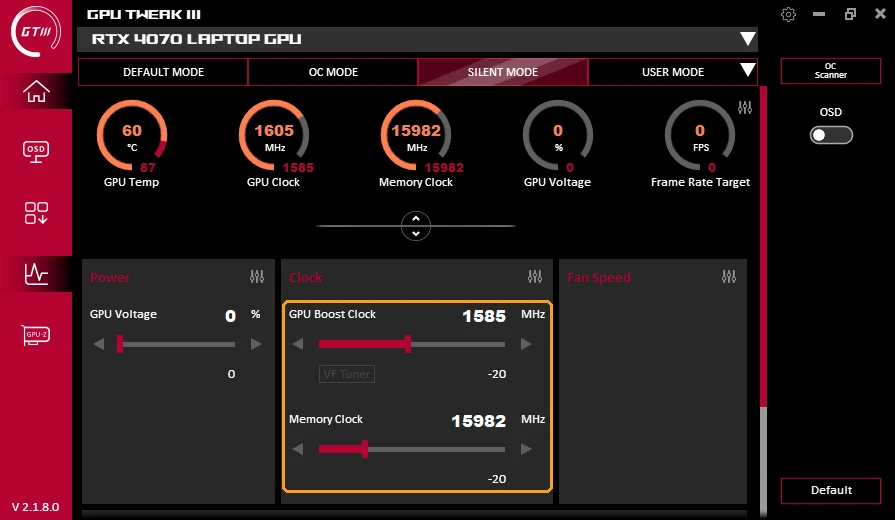
User Mode is where you’d drag the boost clock slider yourself. I didn’t push my own offset through GPU Tweak, because I already tested GPU clock offsets on this exact laptop in my G-Helper core clock offset guide, and +200 MHz added under 1 FPS there for the same power limit reason I’m about to show you.
My test: GPU Tweak modes vs Armoury Crate Turbo
For the load I used FurMark 2 for 75 seconds at 1920×1080 per run, plugged into the barrel charger, with nvidia-smi logging the GPU once a second. I averaged the last 45 seconds of each run so the warm-up didn’t count. FurMark’s FPS isn’t a game frame rate, but it’s a steady, repeatable GPU load, which is what you want when the differences are this small. Armoury Crate stayed in Performance for every GPU Tweak run, and I ran Default twice to see how much a run wobbles on its own (128.6 FPS and 129.1 FPS). Then I left GPU Tweak on Default and switched Armoury Crate to Turbo for the last run. I sorted it all out in a table to make it easier:
| Setup | FurMark (FPS) | GPU power (W) | GPU clock (MHz) | GPU temp (°C) |
|---|---|---|---|---|
| GPU Tweak Default, AC Performance Stock | 128.9 | 63.1 | 1386 | 71.2 |
| GPU Tweak OC Mode, AC Performance | 130.2 +1.0% | 63.9 +1.3% | 1416 +2.2% | 71.0 −0.2° |
| GPU Tweak Silent Mode, AC Performance | 129.8 +0.7% | 63.7 +1.0% | 1386 0.0% | 71.2 0° |
| GPU Tweak Default, AC Turbo | 153.1 +18.8% | 84.6 +34.1% | 1682 +21.4% | 77.7 +6.5° |
OC Mode came out about 1% ahead, and I’m calling that run-to-run noise, since OC Mode didn’t change a single clock setting on this laptop. Silent Mode landed right next to Default too. Turbo is the only row that actually moved, about 19% more FPS, but it also pulled about 34% more power and ran 6.5°C hotter, so your fans will let you know about it. Personally I think Turbo is worth it for gaming. If you’re gaming you’re probably wearing headphones anyway, so the extra fan noise isn’t really something you’ll notice.
Why the GPU Tweak modes didn’t matter
nvidia-smi reports why the GPU is holding its clocks back, and in every single sample from every run (45 out of 45 each time) the reason was the same: the software power cap. In Performance mode the 4070 was parked at about 63 W no matter which GPU Tweak profile I picked, and the clock just settled wherever that wattage allowed. Turbo raised that cap to about 85 W, and the clock went up by itself to fill it. So on a laptop, the power limit decides your GPU performance, and GPU Tweak III doesn’t get a slider for it. If you want to understand what each Armoury Crate mode does to that limit, I went through all 5 in my Armoury Crate operating mode tests.
What GPU Tweak III installs on a laptop
The winget install took 29 seconds and ended with “Restart your PC to finish installation.” I scanned the laptop before and after, and here’s what it added:
- 3 entries in Settings > Apps > Installed apps: GPU Tweak III, GPU Tweak III Install and GPUTweak III Mobile
- A new always-on service, AsusCertService
- 2 kernel drivers, AsIO3.sys and IOMap64.sys (low-level drivers that let the app talk to hardware)
- A scheduled task called GPU Tweak III that opens the app every time you log in
- A desktop shortcut with the admin shield on it, since the app runs as administrator
- A Windows restore point, which it created by itself during the install
- About 230 MB in C:\Program Files (x86)\ASUS\GPUTweakIII
After the restart I didn’t open anything, and it was already running 7 processes using about 248 MB of RAM. The main window opened on its own at login, plus a separate Monitor window, a control service and something called GT3 mobile service.
What is GPU Tweak III mobile service?
Right after the restart, Windows popped up 2 firewall prompts asking to let GPU Tweak and its mobile service on the network. I clicked no on both, because I had no idea what a mobile service wanted to connect to on a laptop, and I don’t want stuff running on my laptop that I’m not actually using. Afterwards I checked what it was: GT3 mobile service.exe is the companion for ASUS’s phone app (there’s even a QR code image sitting in the install folder), and it was listening on network port 5001 on every network adapter. Clicking no made Windows add 2 inbound block rules for it, so the service kept running but nothing outside the laptop could reach it. If you never plan to use the phone app, no is the right answer.
Is ASUS GPU Tweak III safe?
It’s signed by ASUSTeK, it came straight from ASUS’s download server, and nothing it did broke anything on my G16. The part worth knowing about is the kernel drivers. AsIO3.sys loads at boot with full system access, and it’s actually the same driver Armoury Crate Service ships in its own folder, so if you run Armoury Crate you likely already have that piece. IOMap64.sys was new to my laptop. Safe or not, it’s a lot of low-level access to hand over for an app that can’t change your power limit on a laptop. If ASUS GPU Tweak for laptops is just one of several ASUS apps on yours, it’s worth checking the rest too. For a deeper look at what ASUS runs in the background in general, I counted every process in Is Armoury Crate Bloatware?
How to uninstall GPU Tweak III completely
Here’s the catch though: uninstalling “GPU Tweak III” doesn’t remove all of it. My first uninstall took 11 seconds, and afterwards GPUTweak III Mobile was still in Installed apps, GT3 mobile service and GT3ControlService were both still running in the background, and 63.3 MB was still sitting in the install folder. I’d do it in this order:
- Go to Settings > Apps > Installed apps, find GPU Tweak III, click the three dots, then Uninstall, and confirm.
- Back in the same list, uninstall GPUTweak III Mobile the same way. This is the one that stops the 2 leftover processes. It took about 2 seconds for me.
- Open Task Scheduler, click Task Scheduler Library, right-click the GPU Tweak III task and pick Delete. It survived both uninstalls on my laptop.
- If you clicked no on the firewall prompts, open Windows Defender Firewall with Advanced Security, go to Inbound Rules and delete the 2 GT3 mobile service rules.
- Restart.
Even after all that, AsusCertService was still running with no uninstall entry of its own, and the AsIO3 and IOMap drivers were still loaded until the restart. I left AsIO3 alone on purpose, since Armoury Crate uses the same driver. If you want to see how ASUS’s other uninstallers compare, the official Armoury Crate one left a running service and 4 dead tasks behind in my Armoury Crate uninstall test.
GPU Tweak III vs Armoury Crate vs G-Helper on a laptop
Armoury Crate is the one that actually owns your GPU’s power limit on a ROG laptop, through its operating modes and GPU modes, which is why Turbo was the only thing in my table that moved. G-Helper does the same job in a much smaller app, and it adds the clock offset and clock limit controls GPU Tweak has, without the drivers, the phone service or the startup window. GPU Tweak III makes sense on a desktop with an ASUS graphics card. On a laptop it’s a third app doing a smaller version of what the other 2 already do, so it came off my G16 right after testing. If you were looking at ASUS GPU Tweak for laptops as an easy overclock button, Armoury Crate’s Turbo did more in one click than anything inside GPU Tweak did for me. If you’re setting up the Armoury Crate side, my best Armoury Crate settings guide covers the 5 settings that changed my results the most.
FAQ
Can GPU Tweak III overclock a laptop GPU?
It can change the clock offset in User Mode, and its Silent Mode offset did apply on my RTX 4070 Laptop. But it has no power target slider on a laptop, and my GPU sat at its power cap in every run, so a clock offset alone had almost nothing to work with. OC Mode set a 0 MHz offset on my laptop.
Does GPU Tweak III conflict with Armoury Crate?
I didn’t run into a crash or a setting getting reset with both installed, and switching Armoury Crate between Performance and Turbo worked normally with GPU Tweak open. They also share the AsIO3 driver. Armoury Crate’s mode still decided my GPU power in every run.
Does GPU Tweak III need to run in the background?
Only if you want a custom profile applied, since the app has to be running to apply it. On a laptop where the profiles barely change anything, that’s 7 processes and about 248 MB of RAM at login for very little.
Should I allow GPU Tweak III mobile service through the firewall?
Only if you plan to use ASUS’s phone app with it. Clicking no just blocks incoming connections to the service, and the main app still worked fine for me.
If you’ve got GPU Tweak III doing something useful on a laptop, especially a non-ROG one where Armoury Crate isn’t around, drop your laptop model in the comments and what you changed. I’m curious if any of them actually expose a power slider.