Armoury Crate Download: Official Link + Lean Install (2026)
The top Google result for an Armoury Crate download isn’t actually an ASUS website, and the real one makes you scroll past 5 different downloads to find the one you need. So I uninstalled Armoury Crate from my Zephyrus G16 and reinstalled it from scratch, screenshotting every screen along the way.
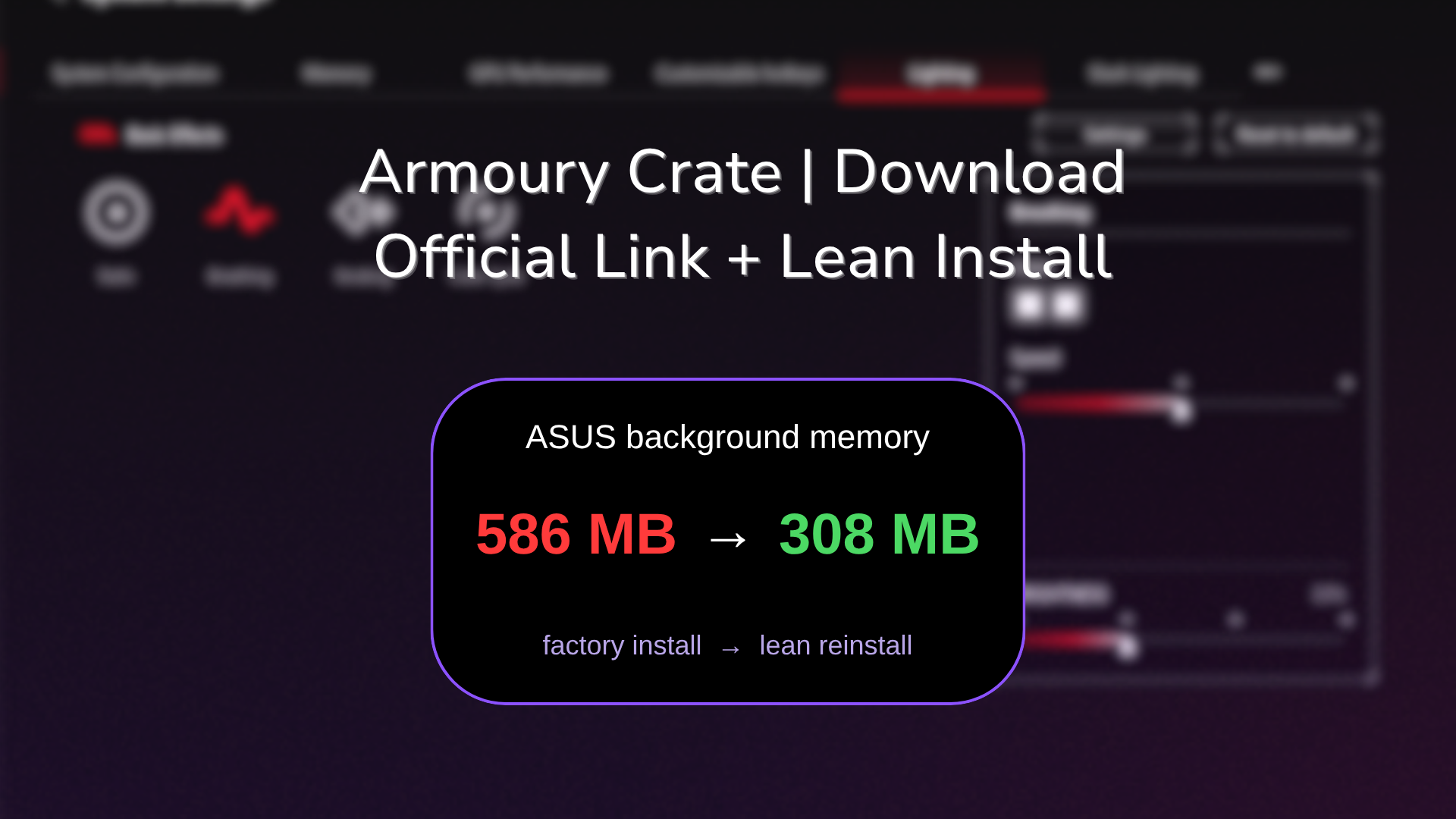
What surprised me was how much ASUS pre-checks for you during setup, and unchecking all of it left me with an install using about half the background memory my factory one did. Whether you’re setting up a new ROG laptop or putting Armoury Crate back after removing it, I’ll go through the official link, which file to grab, and every box worth unchecking down below.
After I reinstalled Armoury Crate and unchecked everything ASUS pre-checks:
- Background memory: Dropped from 586 MB to 308 MB, about half
- ASUS processes: Went from 33 to 22
- Startup: The app opened on its own about 67 seconds after I clicked Start
- Zephyrus G16 (GA605WI)
- Ryzen AI 9 HX 370
- RTX 4070 Laptop
- Windows 11 Home 26H2
- Armoury Crate 6.7.6.0
- Installer 3.3.6.0
Build 26300 · Armoury Crate & Aura Creator Installer
The Official Armoury Crate Download Link
The only place I’d get Armoury Crate is ASUS’s own Armoury Crate support page, on asus.com. The #1 search result when I checked was armoury-crate.com, which isn’t an asus.com address, and Softonic shows up a few spots down as a third-party mirror. Neither of those is where ASUS hosts its files, so there’s no reason to take the chance.
Once you’re on the ASUS page, stay on the Driver & Tools tab and pick your Windows version under Please select OS. It lists 5 downloads with no explanation of which is which, so I sorted them into the table down below.
| Download | Size | What it’s for |
|---|---|---|
| Armoury Crate & Aura Creator Installer (3.3.6.0) | 2.2 MB | The normal Armoury Crate download. It grabs the rest from the internet as it installs. |
| Armoury Crate Full Installation Package (1.5.0.7) | 4.99 GB | Offline installer, and it ships an older Armoury Crate (6.2.11) |
| Armoury Crate SE Installer | 2.1 MB | Only for the ROG Ally handhelds |
| Armoury Crate Uninstall Tool | 1.21 MB | Removes Armoury Crate completely |
| Armoury Crate Lite Log Tool | 186 KB | Collects logs for ASUS support when an install fails |
For almost everyone the answer to “which Armoury Crate to download” is the first one, the 2.2 MB installer. I tested it against the 5 GB package in Armoury Crate lite vs full and both ended up giving me the same app, the big one just took about 31 minutes to get there.
Each download on that page also has a SHA-256 checksum printed under it. Mine matched, and you can check yours in 10 seconds with Windows’ built-in Get-FileHash command in PowerShell, then compare the result against the one on the page:
Get-FileHash "$env:USERPROFILE\Downloads\ArmouryCrateInstallTool.zip"How to Install Armoury Crate on Windows 11
ASUS’s Armoury Crate FAQ lists Windows 10 version 1903 or later, or Windows 11, so this works for the Armoury Crate download on Windows 11 and Windows 10 the same way. If Armoury Crate was installed on your laptop before, run the Uninstall Tool and restart first, since ASUS’s FAQ calls that out as a requirement for a clean reinstall. Then:
- Right-click ArmouryCrateInstallTool.zip, click Extract All, then Extract.
- Open the ArmouryCrateInstaller_3.3.6.0 folder and double-click ArmouryCrateInstaller.exe.
- Uncheck anything you don’t need (more on that right below), then click Start.
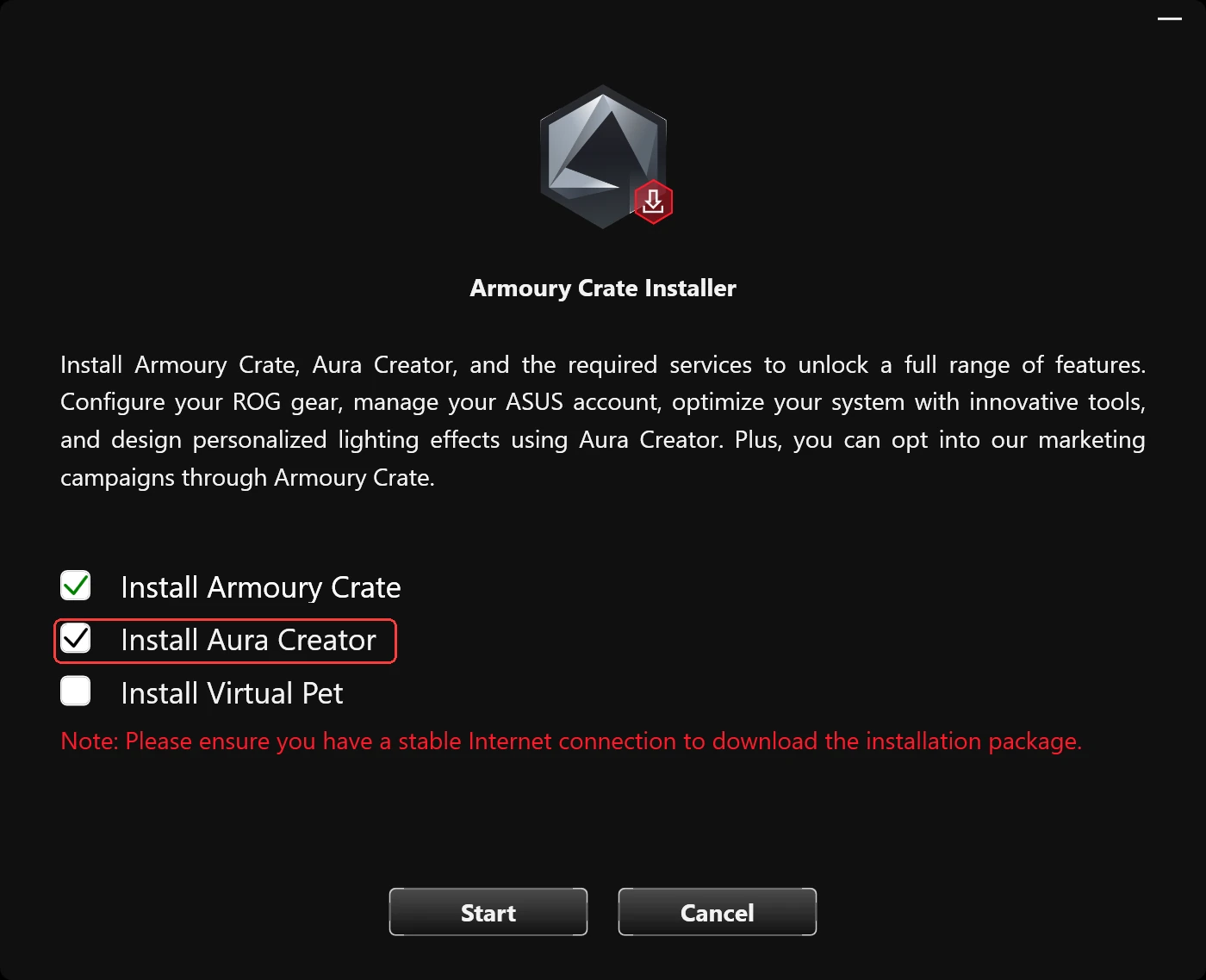
The installer comes with Install Armoury Crate and Install Aura Creator both checked, and Install Virtual Pet unchecked, which you can see in the screenshot above. There’s also a hidden 4th box for Install Armoury Crate SE that never showed up on my G16, which makes sense since that’s the ROG Ally version.
I unchecked Aura Creator, since it’s an editor for per-key RGB effects and my G16 has a single-zone keyboard, so it can’t do anything with it. If your laptop or keyboard has per-key RGB, leave it on. Virtual Pet is a little animated character app, and I’ve never met anyone who wanted it, so I left it off.
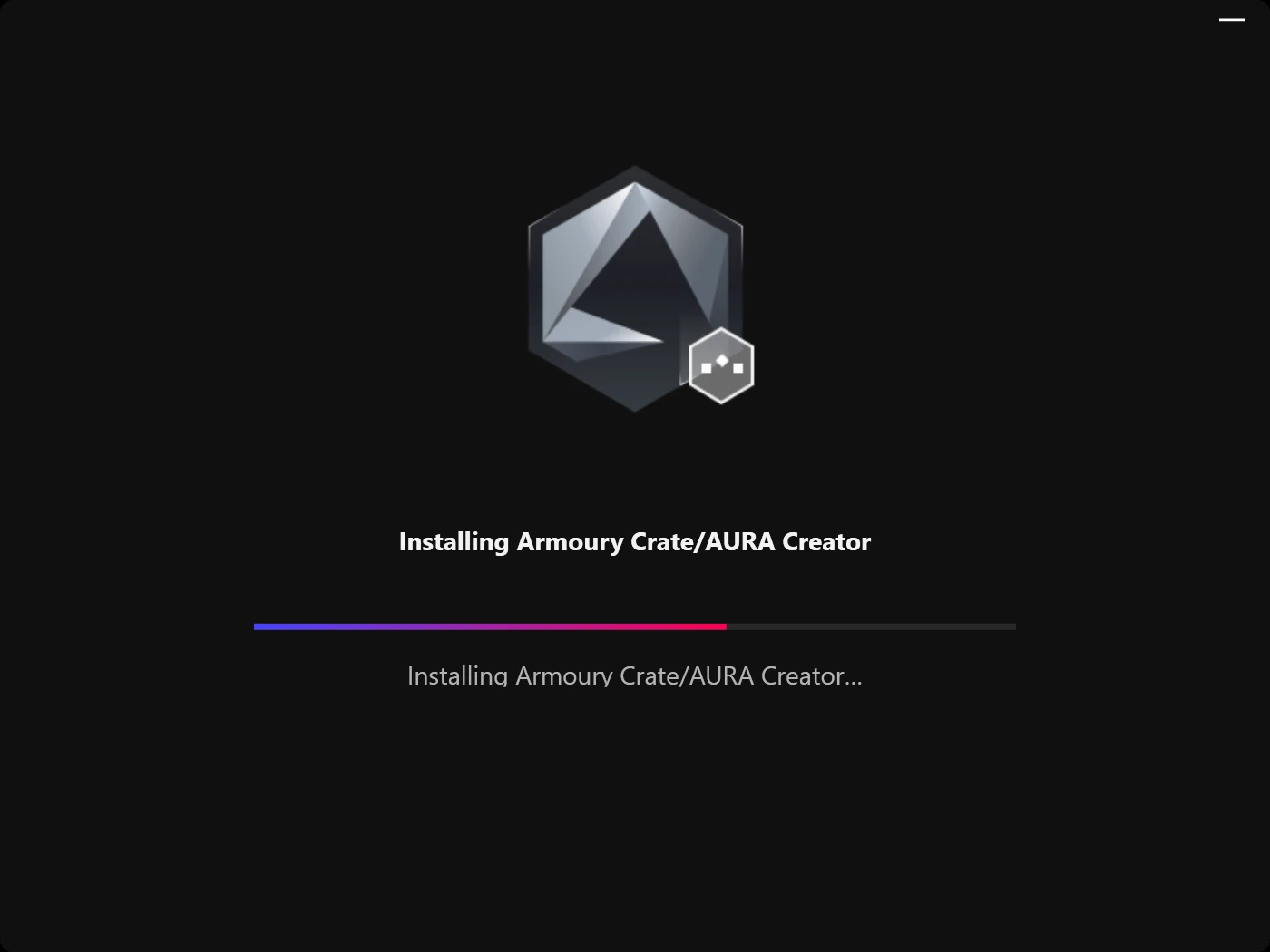
After clicking Start, the installer handed off to 4 more ASUS programs one after another, and Armoury Crate itself opened on its own about 67 seconds later. The progress screen still said Installing Armoury Crate/AURA Creator even with Aura Creator unchecked, so don’t panic if yours does the same. My laptop pulled about 650 MB from the internet in that window, though other apps were open too, so think of that as the most it could have been.
Uncheck These 3 During First Setup
Armoury Crate’s first launch walks you through 4 screens, and one of them is where most of the extra weight comes from. The first is the ASUS Privacy Notice / ASUS EU Data Act Notice with Agree and Decline, and ASUS warns the app may not work correctly if you decline, so I agreed.
Feature Library
The Feature Library screen comes with all 3 packs pre-checked, Playground, Assistant and Content Service, boxed in the screenshot down below, and I unchecked all 3 before clicking Next.
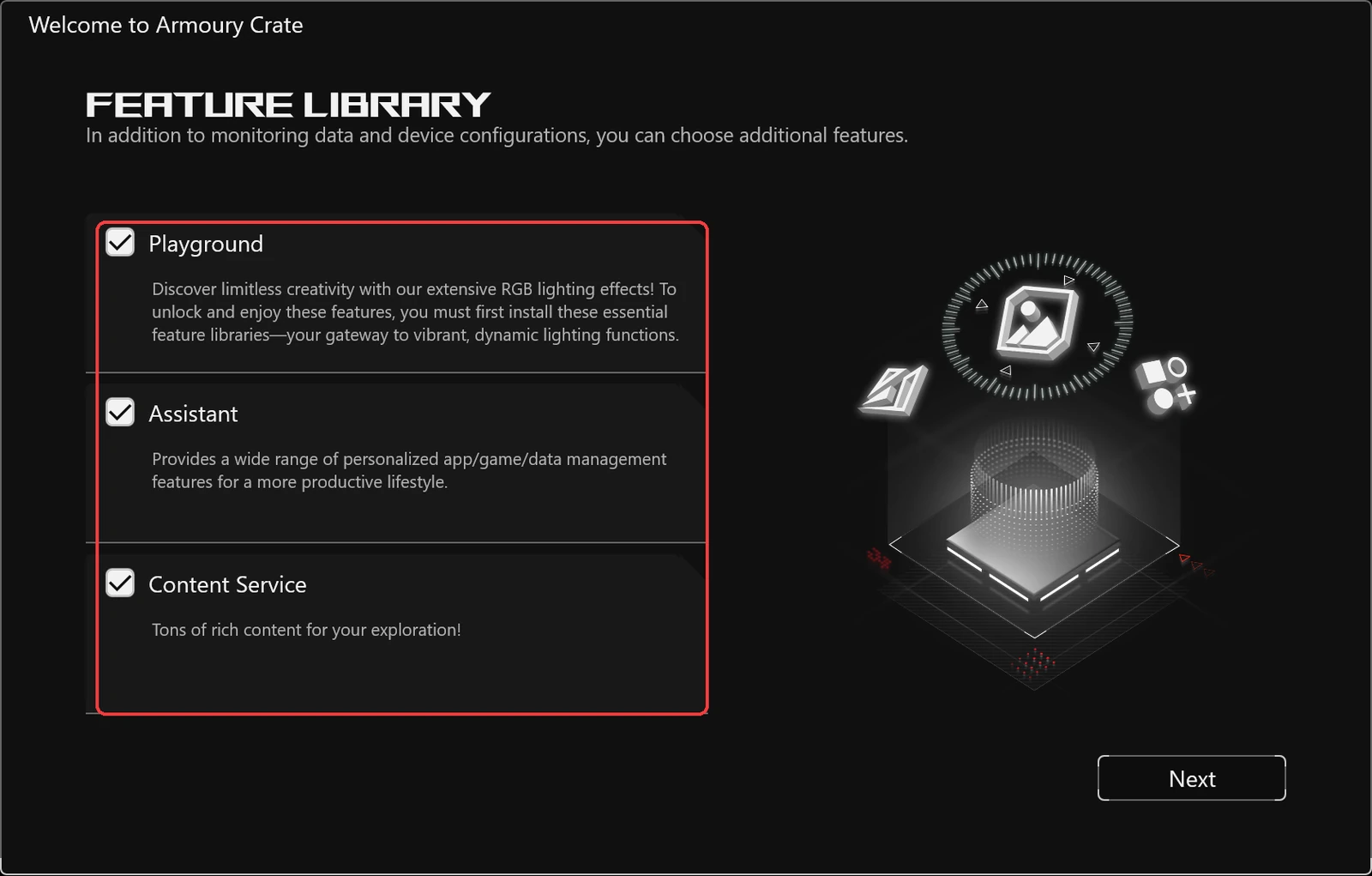
- Playground is extra RGB lighting effects, which my single-zone keyboard has no use for.
- Assistant is the pack that unlocks Macros, Scenario Profiles, Game Library and Display Settings, which I went through in Armoury Crate hotkeys. You can add it later from the Feature Library page, so skipping it now costs nothing.
- Content Service describes itself as “Tons of rich content for your exploration!”, which is about as vague as it gets.
Next is the Theme screen with Off-black, Moonlight White and Follow system, where I left Off-black and clicked Start using.
The User Account Control screen
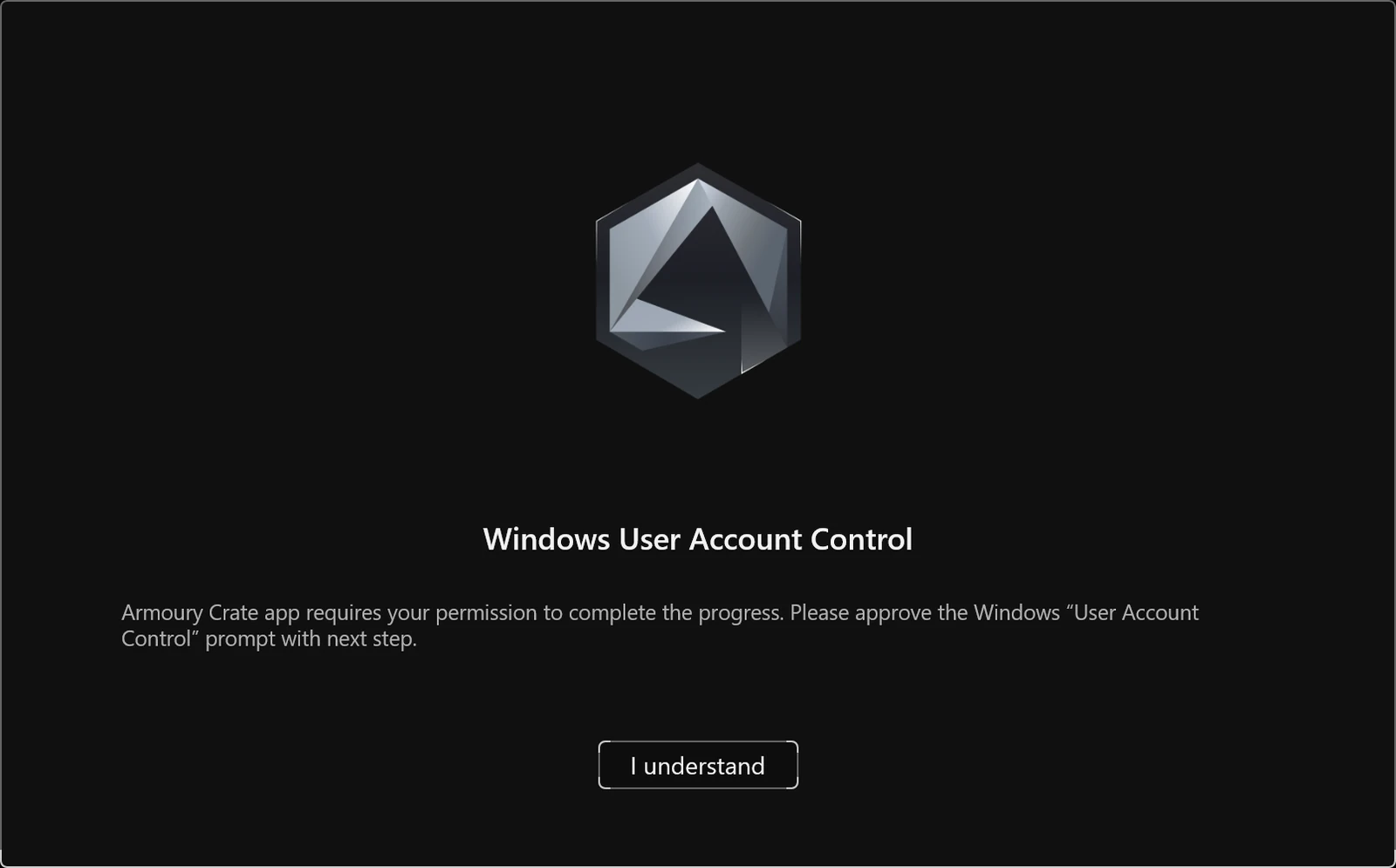
Armoury Crate then shows its own Windows User Account Control page saying it needs permission to finish, with an I understand button. On mine no separate Windows prompt popped up after clicking it, and the remaining pieces (ROG Live Service, the ASUS update service, Armoury Crate Service, and an AI Noise Cancelation audio update I never asked for) installed on their own in about 30 seconds.
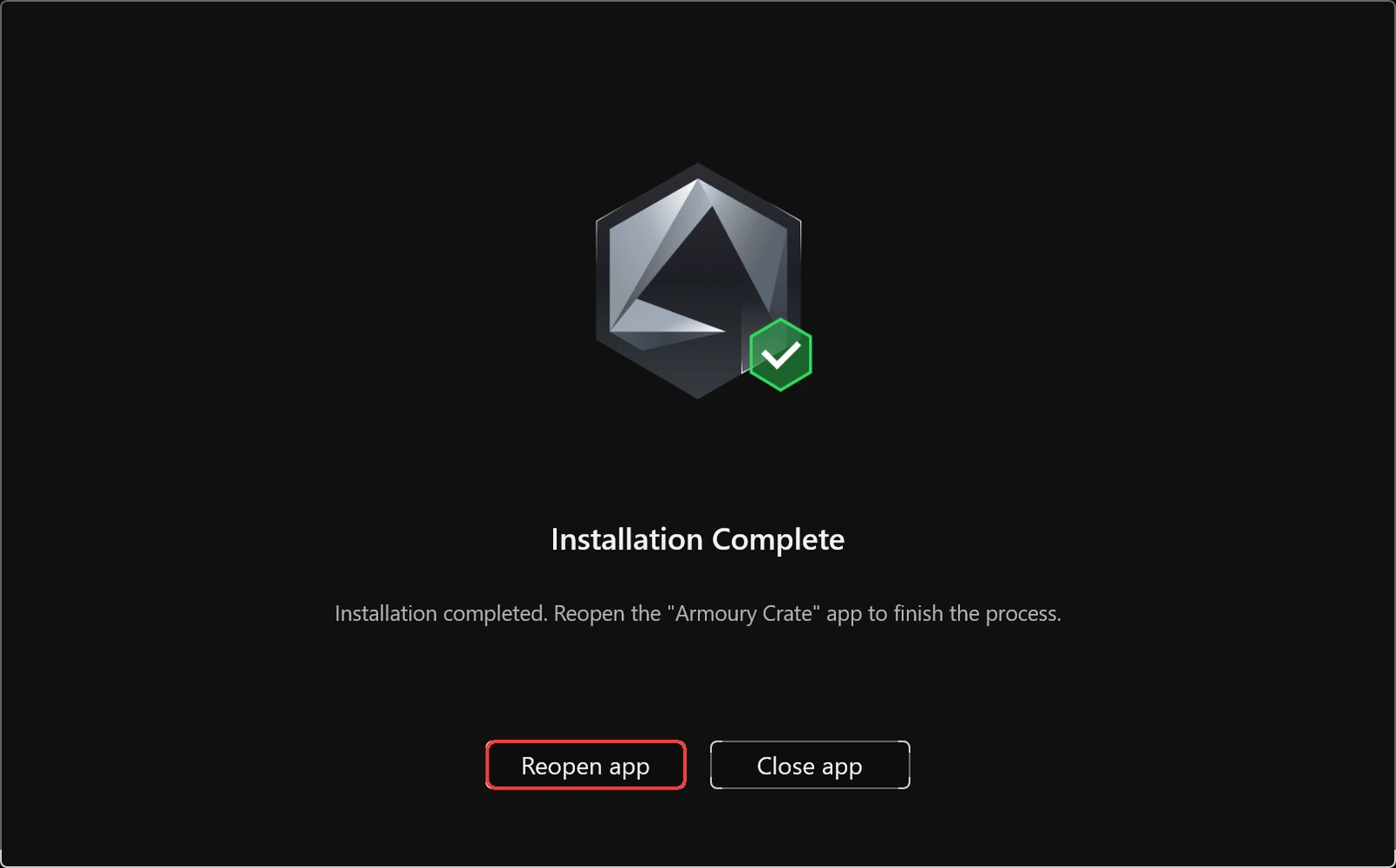
When it says Installation Complete, click Reopen app, boxed in the screenshot down below.
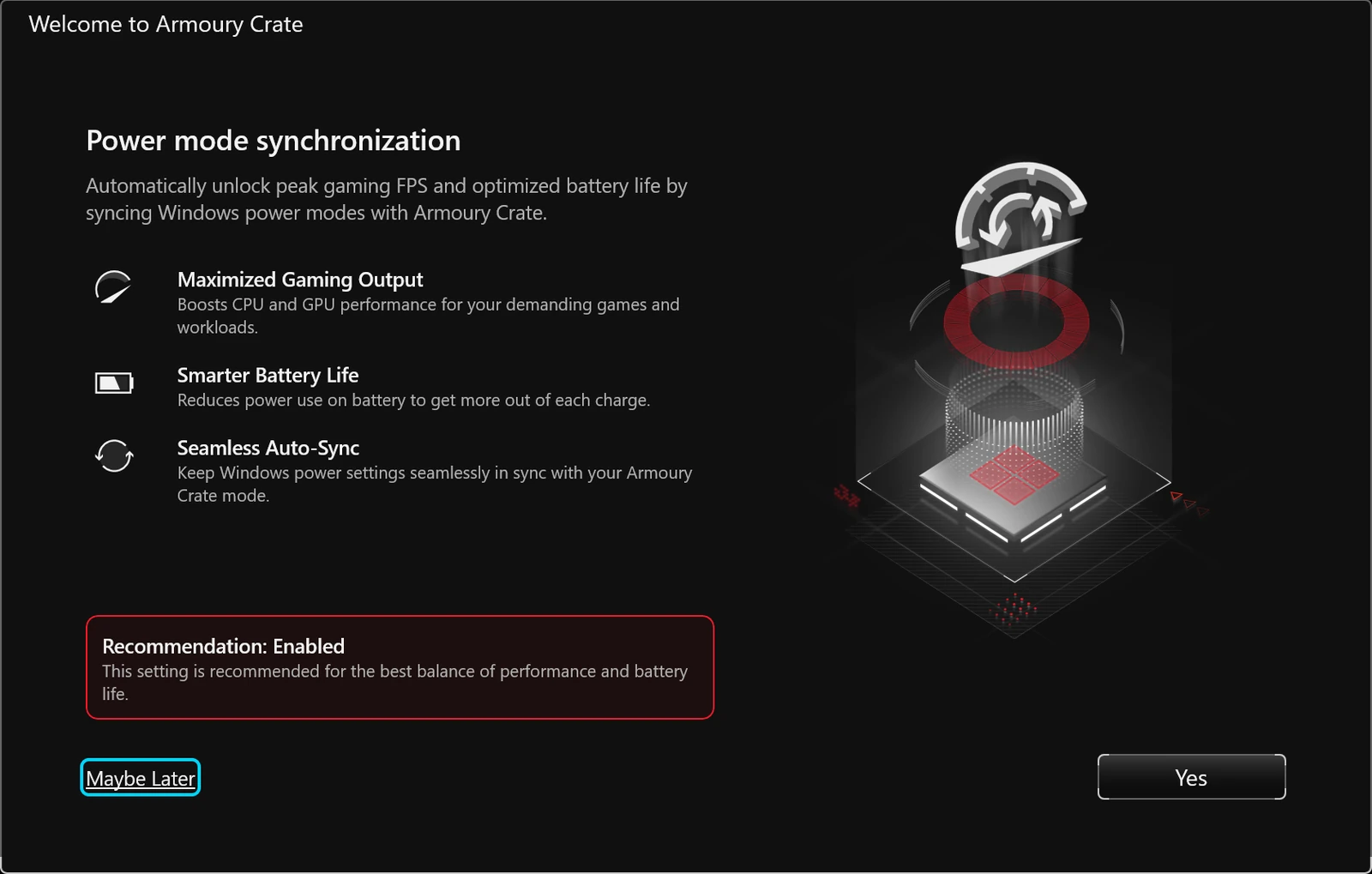
The reopened app asks one last thing, Power mode synchronization, which ties your Windows power mode to Armoury Crate’s operating modes. I went through what that actually changes in my Armoury Crate operating mode testing, so I’d read that before clicking Yes or Maybe Later.
Lean Install vs the Factory Install
Here’s the catch though, everything you leave checked during that setup keeps running in the background afterward. So with the app closed, I scanned every ASUS service and process on the fresh install and compared it against the same scan from my factory setup earlier that day, which I sorted into the table down below.
| Factory install Baseline | Lean reinstall | |
|---|---|---|
| ASUS services | 18 | 17−1 |
| ASUS background processes | 33 | 22−11 |
| Memory those processes held | 586 MB | 308 MB−47.4% |
| Files in the ASUS folders | ~815 MB | ~320 MB−60.7% |
Both columns include every ASUS app on the laptop, like GlideX and Smart Display Control, and the memory number is Windows’ private memory count per process, which runs higher than Task Manager’s Memory column. The biggest drop was 4 ASUS Framework processes that had been holding about 200 MB on the factory install and never came back, along with Lighting Service.
2 things to keep in mind with this one. The lean number still includes a 78 MB ArmouryCrateKeyControl process that started while Armoury Crate was uninstalled, which I went through in my uninstall Armoury Crate post, and I didn’t restart to see whether it sticks around. And my factory install had months of updates on it, so I haven’t checked yet whether updates pull those pieces back in over time.
Should You Download Armoury Crate?
If you’ve got an ROG or TUF laptop and want to switch fan and graphics modes, set a charge limit and get ASUS’s updates without thinking about it, the lean install above is a reasonable way to have it. If all you ever do is switch modes, G-Helper does that in a fraction of the background load, which I compared in G-Helper vs Armoury Crate. And if you’re on the fence, I measured everything the full app runs in is Armoury Crate bloatware, plus the settings worth changing once it’s on in best Armoury Crate settings.
Armoury Crate Download Stuck or Not Downloading
The installer downloads most of Armoury Crate while it runs, so an Armoury Crate download stuck partway is usually the connection or something blocking it. ASUS’s FAQ lists these, and I’d go through them in this order:
- Use a stable connection and turn off any VPN.
- Make sure your antivirus or any “PC optimizer” app isn’t blocking ASUS processes.
- If Armoury Crate was installed before, run the Armoury Crate Uninstall Tool, restart, and try again.
- If you need to install without internet, use the 4.99 GB Full Installation Package instead.
Mine went through without any of that, so I didn’t reproduce a stuck download. The one install error I did hit was Error 501, back when ASUS’s services were disabled, and I went through the fix in Armoury Crate not working.
Armoury Crate Download FAQ
Is there an Armoury Crate download for Mac or Linux?
No. ASUS only lists Windows 10 (1903 or later) and Windows 11. There’s an Armoury Crate app on Google Play, but that’s a phone companion for controlling your ROG laptop and gear remotely, not a replacement for the Windows app.
How long does it take to install Armoury Crate?
On my G16, about 67 seconds from clicking Start to the app opening, then roughly another 30 seconds of components after the first-run screens. The 5 GB offline package took me about 31 minutes in an earlier test.
Does Armoury Crate download drivers?
It pulled in an AI Noise Cancelation audio update on its own during setup, and it has an Update Center for ASUS drivers and firmware. I didn’t run a full driver update for this post, so I left the Update Center untested here.
Which Armoury Crate should I download for an ASUS TUF laptop?
The same Armoury Crate & Aura Creator Installer, since ASUS’s Armoury Crate FAQ covers ROG and TUF Gaming laptops together. I’ve only tested it on my G16, so I left TUF models untested.
Is armoury-crate.com official?
It isn’t on an asus.com address, so I’d treat it as unofficial and stick to ASUS’s own support page for the download.
If your Armoury Crate download or install ran into something different from mine, drop your laptop model and the screen it stopped on in the comments, and I’ll take a look.