Armoury Crate Operating Mode: Best of 5 Modes Tested (2026)
On my Zephyrus G16, switching the Armoury Crate operating mode from Performance to Turbo got me no extra frames in Cyberpunk 2077. Across 2 benchmark runs each, Performance averaged 112.33 FPS and Turbo averaged 111.05 FPS. Silent came in at 105.55 FPS, and at idle it was the only mode that took all 3 fans to 0 RPM. Turbo grays out the second you unplug, and on mine it stays gone on a USB-C charger too, so it’s a barrel-charger-only mode.
Everything here is off my ROG Zephyrus G16 (GA605WI, Ryzen AI 9 HX 370, RTX 4070) on Windows 11 25H2, running Armoury Crate 6.5.14.0.
So there’s 5 buttons sitting in that Operating Mode bar, and ASUS doesn’t tell you a whole lot past the names. I’ll go through what each one actually changes, what the numbers looked like on mine, why yours might be grayed out, and which one I’d actually leave it on.
What an Armoury Crate Operating Mode Actually Changes
Short version first. Each Armoury Crate operating mode is a preset that sets a few things at once:
- Power limits — how many watts the CPU and GPU are allowed to pull
- Fan behavior — how early and how hard the fans ramp up
- Windows Power Mode — the setting in Windows that decides how eagerly your CPU boosts
ASUS says as much in their own ROG operating modes explainer: each mode is built around a wattage budget and a noise target, and every one of them also pushes a matching Windows power setting.
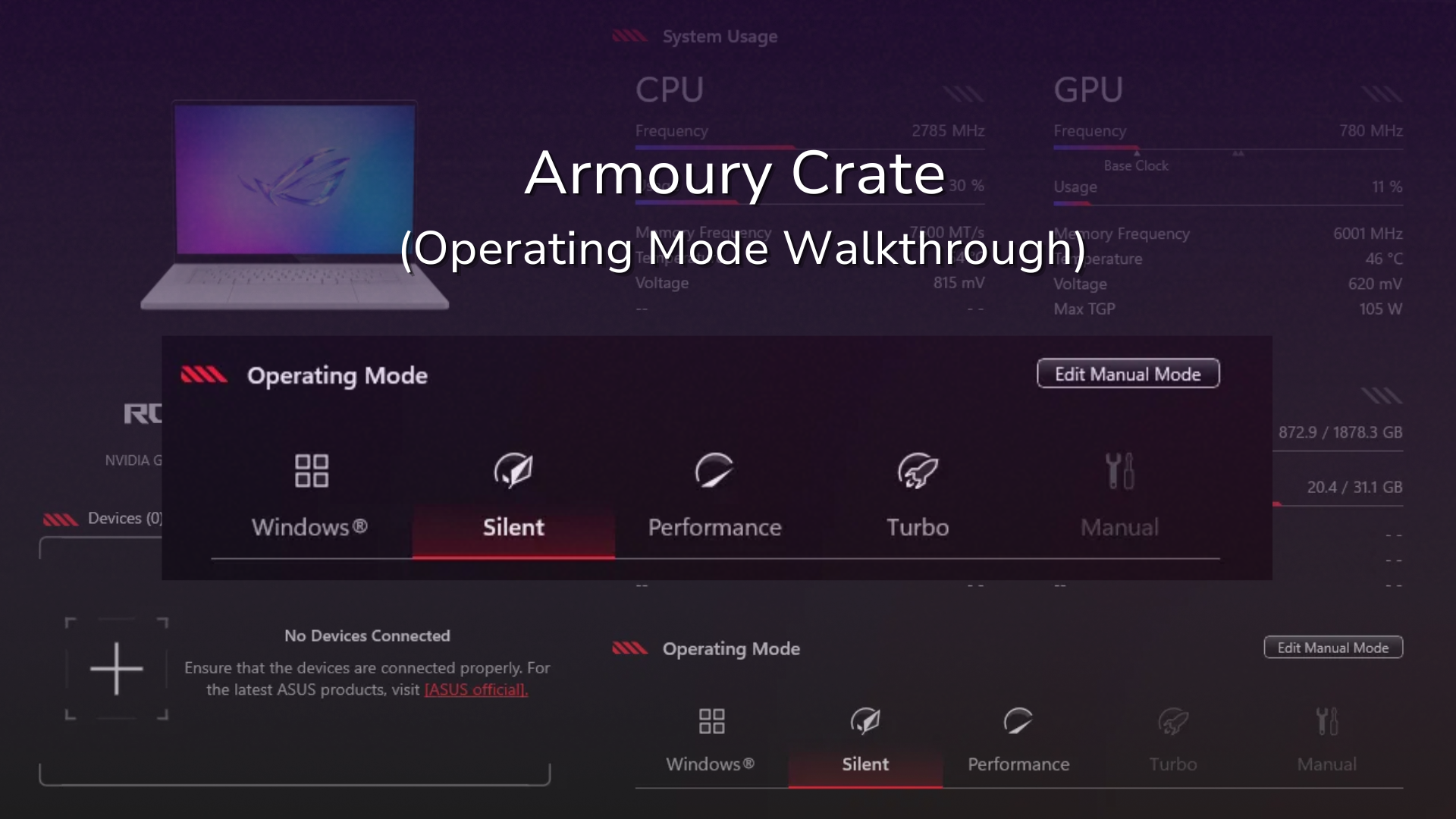
That last part is the one that confuses people. When I clicked Silent, the Windows Power Mode under Settings > System > Power & battery flipped to Best Power Efficiency, for both plugged in and on battery. I never touched it, Armoury Crate did.
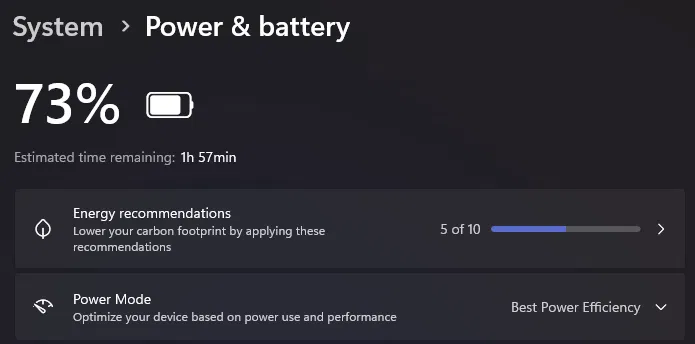
So picking a mode changes your power budget and a Windows setting too, on top of the fans. Keep that in mind, because it’s behind most of the “my mode keeps changing” complaints further down.
Every Armoury Crate Operating Mode, One at a Time
Silent
Silent caps the power so the fans can stay quiet. ASUS aims for roughly 35 dBA under load in this mode, and at idle the fans are allowed to switch off entirely. That’s exactly what mine did: CPU fan, GPU fan and system fan all at 0 RPM, with Armoury Crate reading 0 dBA. Honestly it’s essentially inaudible, and it’s the quietest Armoury Crate operating mode by a mile. It’s what I’d use in class or in a library.
Here’s the catch though. With the fans off, my CPU sat at 51°C at 5% usage, which was the warmest idle reading out of the 4 modes I checked. That’s nowhere near a worrying temperature, it just means the heat sits in the chassis longer because nothing is pushing it out.
Performance
Performance is the Armoury Crate operating mode ASUS recommends for most people, and it’s the default on most of their laptops. At idle, mine had all 3 fans spinning (2,200 / 2,200 / 3,700 RPM), and Armoury Crate called it 22.5 dBA, which you’d basically have to put your ear to the keyboard to hear. Under load, this is where the fans get room to ramp up without going to Turbo’s power levels.
(Side note: the CPU idled at 39°C in Performance against 51°C in Silent. Those 2 readings are from different days, so I wouldn’t lean on the exact gap, but that’s the direction you’d expect with the fans spinning versus off.)
Turbo
Turbo raises the CPU and GPU power limits and turns on ASUS’s ROG Boost factory GPU overclock. It’s the loud one. On my G16 it’s quite loud, the kind where you want headphones on if you’re sitting next to it for a while. It also only shows up on the barrel charger, which I’ll get to below.
What surprised me is that all that extra power and noise didn’t turn into frames. In my Cyberpunk 2077 benchmark runs, Turbo averaged 111.05 FPS against 112.33 for Performance, which is a tie once you account for how much the benchmark moves between identical runs. The full numbers are in the game benchmark section.
Manual
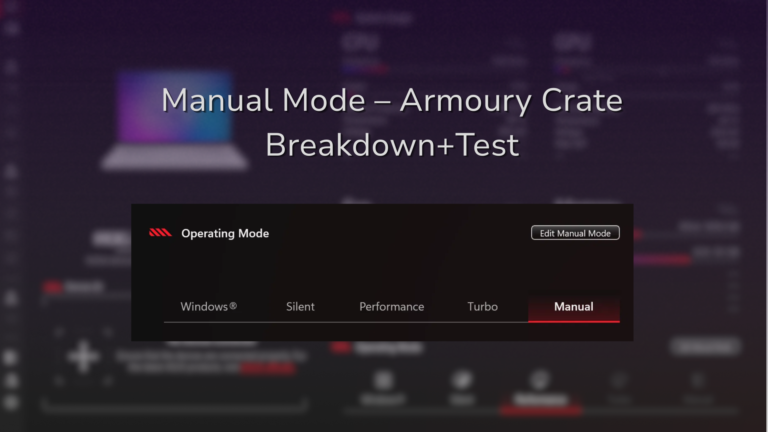
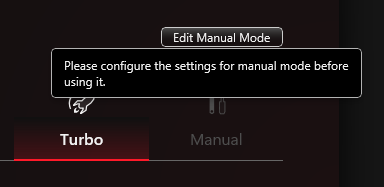
Manual lets you set your own power limits and fan curves through the Edit Manual Mode button in the top right of the Operating Mode section. It stays grayed out until you do that, and hovering over it shows “Please configure the settings for manual mode before using it.” Once I set mine up, it grayed out again on battery, because a profile made while plugged in only applies when plugged in. I tested 4 profiles against Turbo in my Armoury Crate Manual Mode guide. If you actually want that level of control, I’d point you at G-Helper instead, which I get into at the end.
What Is Windows Mode in Armoury Crate?
What is Windows mode in Armoury Crate? It’s the button that tells Armoury Crate to stop picking the Windows power setting for you and hand that choice back to the Windows Power Mode dropdown (or the battery slider in your taskbar).
On mine, switching to it didn’t reset anything. It seemed to keep going with whatever the previous mode had left in place, and my Windows mode readings (fans at 2,300 / 2,200 / 3,700 RPM, CPU at 42°C, 22.8 dBA) looked a lot closer to Performance than to Silent.
So who’s it for? Mostly people who’d rather drive power from the Windows side, or who have another app managing power and don’t want Armoury Crate stepping on it.
Armoury Crate Operating Mode Numbers on My G16
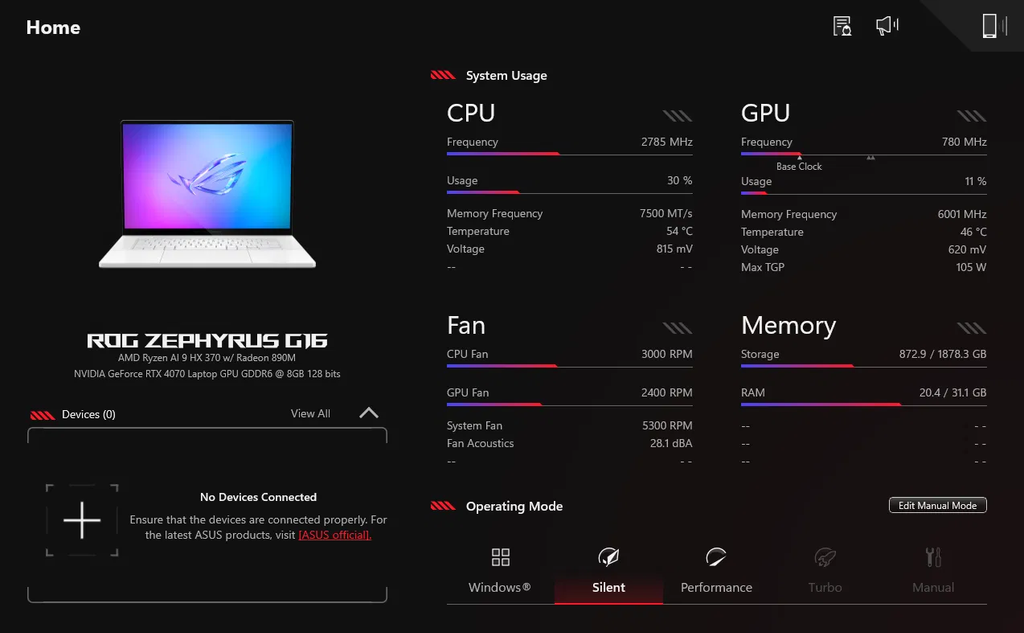
These are idle readings straight off the System Usage panel on Armoury Crate’s home page, taken a couple of minutes after switching each Armoury Crate operating mode.
| Reading | Windows | Silent | Performance | Turbo |
|---|---|---|---|---|
| CPU frequency | 1,479 MHz | 2,542 MHz | 1,412 MHz | 2,402 MHz |
| CPU usage | 5% | 5% | 2% | 12% |
| CPU temperature | 42°C | 51°C | 39°C | 38°C |
| CPU voltage | 740 mV | 820 mV | 660 mV | 855 mV |
| CPU / GPU / System fan | 2,300 / 2,200 / 3,700 RPM | 0 / 0 / 0 RPM | 2,200 / 2,200 / 3,700 RPM | 2,900 / 2,600 / 4,100 RPM |
| Fan acoustics (Armoury Crate) | 22.8 dBA | 0 dBA | 22.5 dBA | 26.6 dBA |
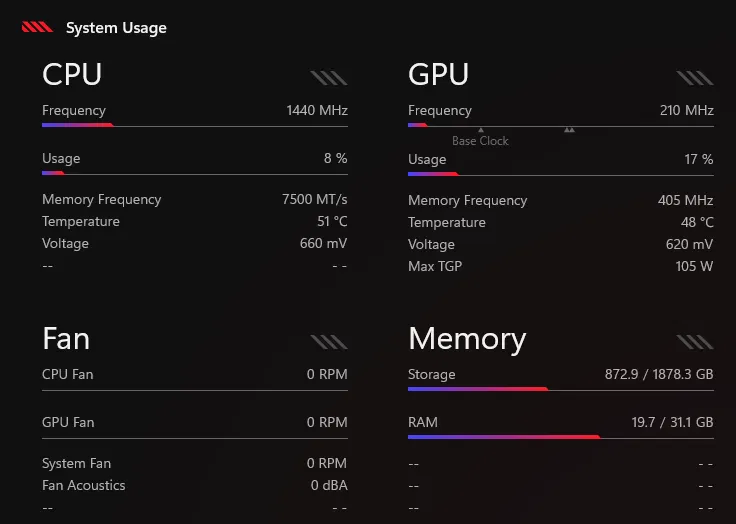
A few honest caveats. These are idle readings, so they tell you how each mode behaves while you’re browsing and nothing about gaming. The GPU readings jumped around at 0% usage, so I left them out. And the Performance and Turbo readings came from later sessions than Windows and Silent (Turbo on the barrel charger, Performance off it), with the laptop cooler to start with, so don’t read much into the temperature gaps between columns.
The clearest takeaway is the fan row. At idle, Performance and Windows mode are both about as quiet as a laptop gets, and Silent goes one step further by just stopping the fans. Turbo ran them the hardest even with nothing going on, with the system fan at 4,100 RPM and Armoury Crate reading 26.6 dBA.
How I Tested Each Armoury Crate Operating Mode
Nothing fancy, no extra software. I clicked each Armoury Crate operating mode on the home page, left the laptop idle for a couple of minutes, then screenshotted the System Usage panel. Same room, same apps open, about 14.3 GB of RAM in use for the Windows and Silent readings (Performance and Turbo came later, at 21.2 GB and 19.8 GB). If you want to check your own laptop, it’s the same panel, just scroll down on the Armoury Crate home page.
Silent vs Performance vs Turbo in a Real Game
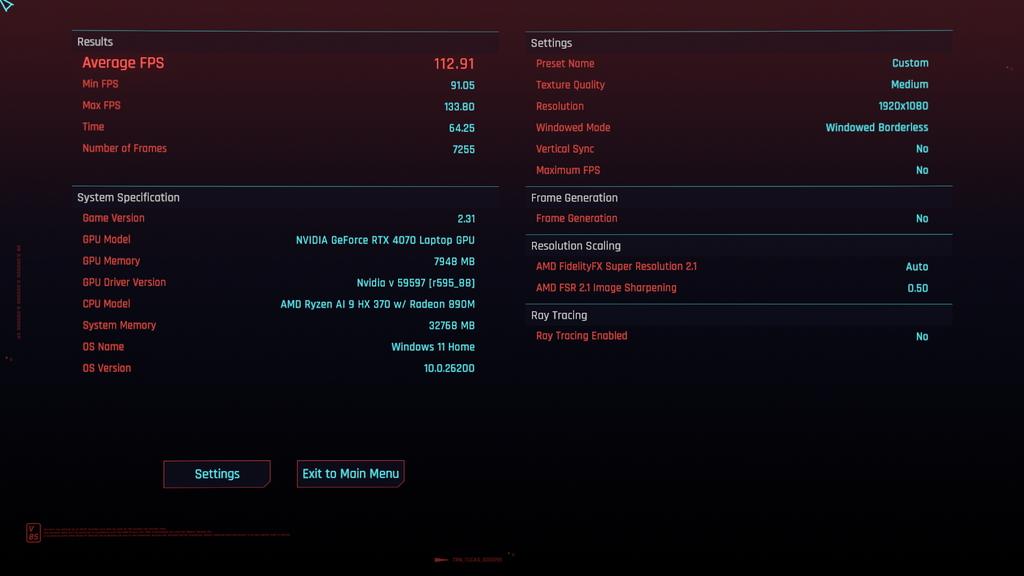
Idle numbers only tell you about browsing, so I also ran the built-in Cyberpunk 2077 benchmark in Silent, Performance and Turbo on the barrel charger. Settings were the Medium preset at 1920×1080, Windowed Borderless, VSync off, no FPS cap, Frame Generation off, FSR 2.1 on Auto and ray tracing off, on game version 2.31 with NVIDIA driver 595.97. Performance and Turbo got 2 runs each in opposite orders, since a laptop heats up over a session and that drags later runs down.
| Mode | Run 1 average FPS | Run 2 average FPS | Mean average FPS | Mean min FPS |
|---|---|---|---|---|
| Silent | 105.55 | (1 run) | 105.55 | 84.62 |
| Performance | 112.91 | 111.75 | 112.33 | 90.12 |
| Turbo | 111.77 | 110.33 | 111.05 | 88.78 |
Performance->
Turbo->
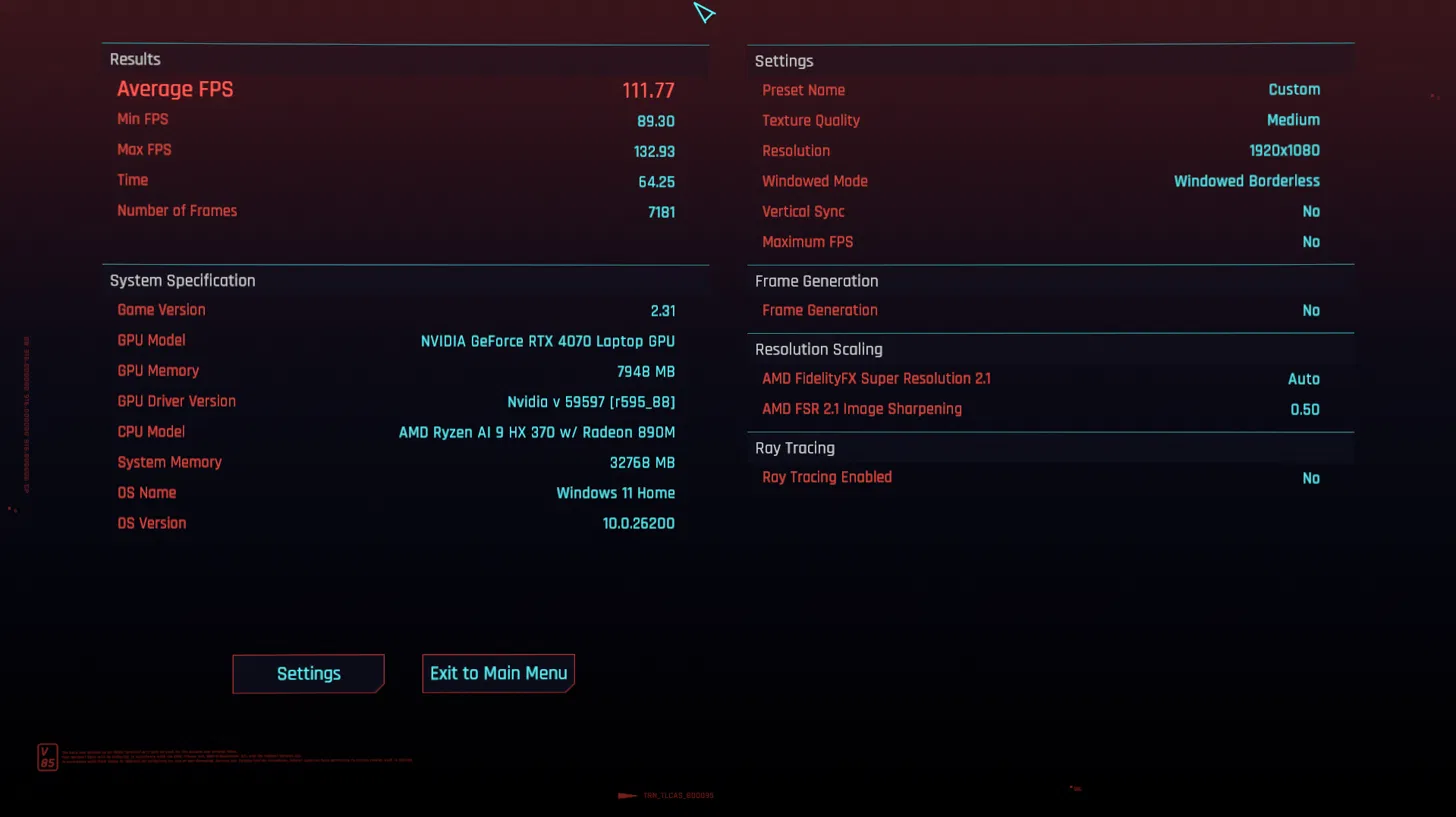
Turbo came out 1.28 FPS behind Performance on average, about 1.1%, and it was behind in both run orders. I wouldn’t call Turbo slower off that, because my 2 Performance runs were 1.16 FPS apart from each other and my 2 Turbo runs were 1.44 apart. So on my G16, in this game at these settings, Turbo bought me nothing I could measure, and by ear it was the loudest of the 3 by a wide margin (I didn’t capture fan readings mid-run, so I don’t have a dBA number for that part).
Silent cost about 6% average FPS against Performance (105.55 vs 112.33), and about the same on min FPS. Honestly that’s a smaller hit than I expected from the quietest mode.
I also ran all 3 with a 90 FPS cap and FSR 3.1 Frame Generation on, which is how I normally play. Performance averaged 177.57 FPS and Turbo 178.08, both sitting right under the roughly 180 FPS ceiling that setup allows, while Silent averaged 161.55. So if you play with a frame cap, Performance already reaches it.
One caveat, this is 1 game at 1080p. Something heavier, like ray tracing or a long render, could put Turbo’s extra watts to use, so I’m only speaking for what I tested.
Armoury Crate Best Operating Mode for Each Situation
There isn’t one Armoury Crate best operating mode for everything, it depends on whether you’re plugged in and whether you care about noise. Here’s how I’d pick:
- On battery, in class, at a library — Silent. Fans off at idle, lowest power budget.
- Plugged in, everyday use and most gaming — Performance. Quiet at idle, room to ramp when you need it.
- Leaving a long render or export running on the barrel charger — Turbo is worth trying, but it gave me no extra FPS in Cyberpunk 2077.
- Another app is managing your power — Windows.
If you just want the Armoury Crate best operating mode for a laptop that mostly lives on a desk, it’s Performance. ASUS says the same thing, and after seeing it sit at 22.5 dBA at idle I don’t really see a reason to argue.
On battery, the Armoury Crate best operating mode is Silent, no contest. Turbo isn’t even an option unplugged, and Silent is the only one that stops the fans entirely. If you’re keeping the laptop on the charger most of the day, it’s also worth setting a charge limit, which I covered in ASUS Battery Care Mode and whether 80% is worth it.
Armoury Crate Operating Mode Not Showing or Grayed Out
Most of the time, “armoury crate operating mode not showing” searches come down to one of 3 things, and only one of them is actually broken.
Turbo is grayed out on battery, Manual until you set it up
This one’s by design. Unplug the laptop and Turbo grays out, which you can see in the screenshot at the top of this post. Plug back in and it comes back. Manual is separate, it’s grayed out on mine even on the charger, because Armoury Crate wants you to click Edit Manual Mode and set your limits before it’ll let you pick it.
The charger matters too. ASUS’s guide says Turbo may not be available on a USB-C adapter, and on my G16 that’s exactly what happens: plugged into USB-C, Turbo stays grayed out. It only comes back on the barrel charger that came in the box. So if you’re charging over USB-C and wondering why Turbo won’t show up, that’s the whole answer, nothing is broken.
Windows keeps overriding your mode
Because every mode also sets the Windows Power Mode, Windows and Armoury Crate can end up disagreeing, especially when you plug in or unplug. People on Microsoft’s Q&A forum describe getting a popup every time the power source changes, asking whether to override the ROG operating mode.
The simplest rule is to only change power from one place. If you’re using Armoury Crate modes, leave the Windows Power Mode setting alone. If you’d rather use the Windows slider, switch Armoury Crate to Windows mode so the 2 aren’t fighting.
The whole Operating Mode section is missing
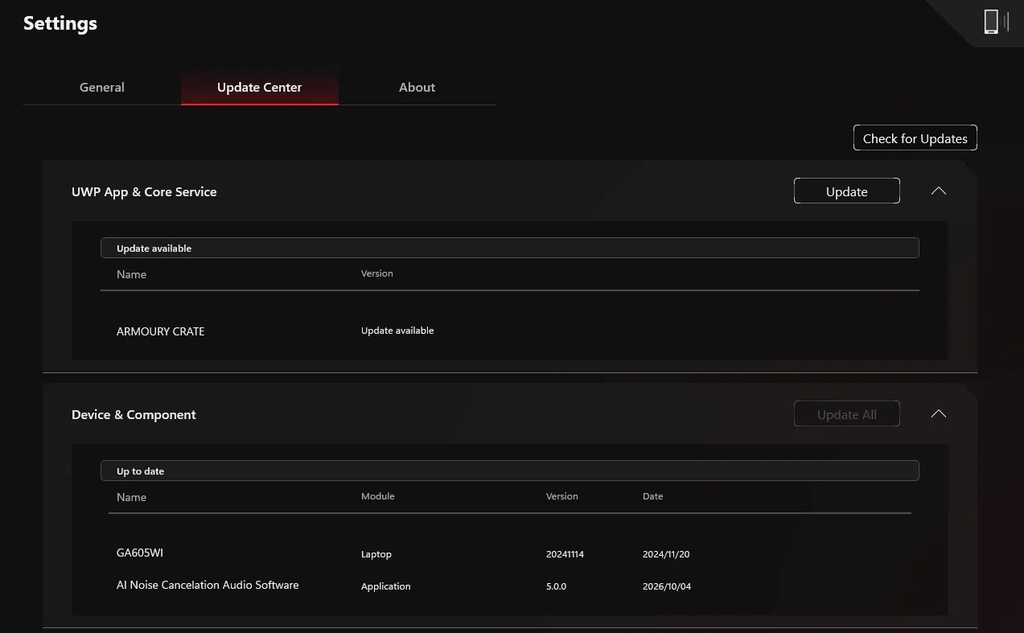
If the Armoury Crate operating mode not showing problem is the entire bar rather than one or 2 grayed buttons, that’s the actually broken case. Armoury Crate isn’t talking to the laptop properly. Click the gear icon to open Settings, go to the Update Center tab and click Check for Updates. Then click Update next to UWP App & Core Service and Update All next to Device & Component if either one has something waiting, and restart the laptop. Armoury Crate leans on a pile of background services to talk to the hardware (I counted 26 ASUS processes in my Armoury Crate bloatware test), and a missing or outdated one is the usual culprit.
Even on mine, with nothing actually wrong, Armoury Crate itself had an update waiting under UWP App & Core Service, while the Device & Component list right under it said Up to date. So don’t assume you’re up to date just because Armoury Crate isn’t nagging you about it.
Using the Same Modes Without Armoury Crate
These modes are stored in the laptop’s firmware, and Armoury Crate is just one app that can switch them. G-Helper, the free open-source alternative I run day to day, switches the same modes with its Silent, Balanced and Turbo buttons, with Balanced being ASUS’s Performance under a different name.
What you get on top is the stuff Manual mode is supposed to be for, without the background services. I’ve got my own tuned versions in G-Helper fan curves: 3 profiles to stop loud fans and what G-Helper’s 3 power limit sliders actually do. If you’re still deciding whether to switch at all, my G-Helper vs Armoury Crate comparison covers the whole tradeoff.
Armoury Crate Operating Mode FAQ
What is the default Armoury Crate operating mode?
According to ASUS, Performance is the default on most of their laptops. If you’ve never touched the Operating Mode bar, that’s most likely what you’re on.
Is Turbo mode bad for my laptop?
No. It runs hotter and louder because it allows more power, but it’s a mode ASUS ships and supports on this laptop. The real costs are the noise and a hotter chassis, so I wouldn’t leave it on for browsing.
Which is the Armoury Crate best operating mode for gaming?
Performance. In my Cyberpunk 2077 benchmark, Turbo averaged 111.05 FPS against 112.33 for Performance, so it added noise and no frames. On battery or USB-C, the Armoury Crate best operating mode for gaming is Performance too, since Turbo isn’t available there anyway.
Does Windows mode in Armoury Crate reset my settings?
Not on mine. If you’re wondering what is Windows mode in Armoury Crate actually doing when you click it, it’s handing the Windows Power Mode back to you, and it seemed to keep whatever the last mode had set until I changed it myself.
If your Operating Mode bar looks different from mine, or Turbo stays grayed out even on the barrel charger, drop your laptop model and Armoury Crate version in the comments and I’ll take a look.