Windhawk Taskbar Mods: 10 Tested, 1 Broke My Taskbar (2026)
Windhawk taskbar mods are the easiest way to make the Windows 11 taskbar do the stuff Microsoft took away, like separate buttons for every window, a clock with seconds, or a taskbar on the side of the screen. The catch is there are a lot of them now, and the mod pages never tell you which ones fight each other. So I installed 10 of the popular ones on top of my own daily setup and turned them on one at a time, and 1 of those 10 made my entire taskbar disappear the second I switched it on. Some of the others turned out way more useful than I expected, and one combo did something weird I didn’t see coming. Whether you just want your taskbar to look different or you want it to behave like it did on Windows 10, I’ll go through every mod I tested, what each one changes, and which ones to keep away from each other down below.
After I ran 10 Windhawk taskbar mods on my daily setup:
- Taskbar on top: Made my whole taskbar disappear next to the rest of my stack
- Vertical Taskbar + Dock Animation: Shifted my buttons sideways in a staircase
- TranslucentTB: Crashed on all 3 launches next to Taskbar Styler
- Everything else: Loaded together with no conflicts
- Zephyrus G16 (GA605WI)
- Ryzen AI 9 HX 370
- Windows 11 26H2
- Build 26300.9711
- Windhawk 1.7.3
- Taskbar Styler 1.10
Windows7 Styler theme · 44px taskbar · auto-hide and Dock Animation on
The quick picks
For those of you who just want the list, I sorted every mod I tested into a table so you can see what it changes and whether it played nice with my setup. The version numbers are what Windhawk installed for me in October 2026.
| Mod (version) | What it changes | How it went on my setup |
|---|---|---|
| Windows 11 Taskbar Styler (1.10) | The whole look, through themes | My daily, running the Windows7 theme |
| Taskbar Clock Customization (1.8.1) | Clock format, seconds, extra lines | Worked, but the default adds a news headline |
| Always show all taskbar tray icons (1.1) | Kills the hidden-icons arrow | Worked, 6 extra icons showed up |
| Taskbar tray icon spacing and grid (1.4) | Gaps between tray icons | Loaded with no conflicts |
| Disable grouping on the taskbar (1.3.11) | One button per window | Worked after an Explorer restart |
| Vertical Taskbar for Windows 11 (1.5) | Moves the taskbar to the side | Worked with my theme, weird with Dock Animation |
| Taskbar on top for Windows 11 (1.3) | Moves the taskbar to the top | Made my whole taskbar disappear |
| Taskbar Background Helper (1.2) | Background fill and transparency | Loaded with no conflicts |
| Taskbar Volume Control (1.3.1) | Scroll on the taskbar for volume | Loaded with no conflicts |
| Cycle taskbar buttons with mouse wheel (1.1.11) | Scroll to switch windows | Loaded with no conflicts |
| Click on empty taskbar space (2.6) | Custom action on an empty-space click | Loaded with no conflicts |
“Loaded with no conflicts” means the mod switched on and nothing else on my taskbar broke or changed. I didn’t sit there and exercise every single feature of those 5, so treat those rows as a compatibility check rather than a full review.
What Windhawk taskbar mods actually do
The simple version is that each mod is a small add-on that changes 1 thing about your taskbar, and you switch it on or off inside the Windhawk app (if you don’t have it yet, my guide on how to install Windhawk takes about 2 minutes). Nothing gets installed into Windows itself, so if one of them goes wrong, you switch it off and your taskbar goes back to normal.
Now the slightly more technical version. Windhawk loads each mod into the program it targets, and for the taskbar that’s explorer.exe, the same process that runs File Explorer and your desktop. It’s why some of these need an Explorer restart before they show up, and it’s also why 2 mods touching the same part of the taskbar can clash. They’re both editing the same running program at the same time.
Every install also pops up a Proceed with care warning, and you have to click Accept Risk and Install to go ahead. It shows up on every single mod, so don’t let it freak you out. If you want the longer answer on whether any of this is safe to run, I went through it in is Windhawk safe.
Windhawk taskbar skins and looks
Windows 11 Taskbar Styler
This is the big one, and it’s where almost all Windhawk taskbar skins come from. You pick a theme from a dropdown, click Save settings, and the whole taskbar changes. I run the Windows7 theme on mine. I switched to it after building my Windows 7 look and just never switched back, because I really like that Windows Aero feel. The same mod is what does most of the work in my Windows 10, Windows XP and Frutiger Aero builds too. I’ve got a full walkthrough of every theme and setting in my Windows 11 Taskbar Styler guide, so I’m not going to repeat all of that here.
The one thing to know for this post is that the Styler can’t share the taskbar with TranslucentTB. I tested that properly and it crashed TranslucentTB on every launch, which I wrote up in Windhawk vs TranslucentTB. The Styler also pairs with Taskbar height and icon size on my setup (44 tall, 26px icons) without any issues, but some themes have their own height values in their readme, so check that before you stack them.
Taskbar Background Helper
This one handles the taskbar background, things like fill color and transparency. It turned on fine next to the Styler with nothing changing visibly on my end, which makes sense because my Windows7 theme already sets its own background. If you’re running a Styler theme, you probably don’t need this one. It’s more for people who want a different background without picking a full theme, and it’s also one of the documented fixes when an Acrylic background breaks on 2 monitors, which I covered in the Taskbar Styler guide.
Tray and clock mods
These 3 all live on the right side of the taskbar, and honestly these were the ones I’d tell most of you guys to start with because they fix stuff that’s been annoying since Windows 11 came out.

Taskbar Clock Customization is the one I’d look at first, but the defaults caught me off guard. Right after I turned it on, my clock showed the date, the seconds, and a news headline crammed in next to it, which you can see in the screenshot up above (I blurred the headline). If you only want seconds, go into the mod’s Settings tab, clear out the extra lines you don’t want, and click Save settings. The Taskbar Clock Customization mod page lists every format code if you want something specific.
Always show all taskbar tray icons gets rid of that little up arrow that hides your tray icons. The moment I turned it on, 6 icons that had been hidden this whole time popped out onto the taskbar. When I ran it long-term a while back it made my tray way too cluttered and I switched it off, so it really depends on how much stuff you have running in the background. Still worth turning on once just to see what’s been hiding there.
Taskbar tray icon spacing and grid changes the gaps between tray icons. It loaded without breaking anything, but I left it on the default spacing, so I can’t show you a before and after on this one.
Windhawk mods for taskbar behavior
These are the Windhawk mods for taskbar behavior, the ones that change what happens when you click, scroll or hover instead of how it looks.
Disable grouping on the taskbar
If you’ve ever had 4 Chrome windows open and had to hover over 1 icon to find the right one, this is the fix. It gives every window its own button, like Windows used to do. Here’s the catch though, nothing changed for me when I first switched it on. It only kicked in after Explorer restarted, and then my 2 open windows of the same app showed up as 2 separate buttons.

To restart Explorer, open Task Manager, right-click Windows Explorer and click Restart. Your taskbar blinks out for a second and comes back.
Volume, scrolling and empty-space clicks
Taskbar Volume Control lets you change volume by scrolling over the taskbar, Cycle taskbar buttons with mouse wheel lets you scroll through your open windows, and Click on empty taskbar space (by m1lhaus) lets you set an action for clicking a blank part of the taskbar. All 3 switched on next to my stack without breaking anything. I’ve lived with Volume Control before and could never get it to feel intuitive, but that’s personal preference since it’s a popular one. The other 2 I only checked for clean loading, so I haven’t tested how well they work day to day.
One thing to keep in mind is that Volume Control and Cycle taskbar buttons both use the scroll wheel over the taskbar. I didn’t test how they split that up when both are on, so if you want both, try them one at a time first.
Auto-hide and Dock Animation
These are the 3 behavior mods I already run daily: Taskbar Auto-Hide Instant Show, the auto-hide when maximized mod, and Taskbar Dock Animation, which makes icons grow under your cursor like a Mac dock. I covered why I keep them in my best Windhawk mods list, and the Dock Animation setup is in my macOS look build. They were on for every test in this post, which is how I found the conflict in the next section.
Taskbar position mods: vertical and on top
Windows 11 doesn’t let you move the taskbar anywhere but the bottom, so these 2 mods are the main reason a lot of people install Windhawk in the first place. They went very differently for me.
Taskbar on top made my taskbar vanish
I switched on Taskbar on top for Windows 11 and the whole taskbar just disappeared. It didn’t show up at the top either. I switched the mod off right away and the taskbar came back on the bottom with everything intact. My setup has a lot stacked on it (a Styler theme, custom height, auto-hide and Dock Animation), so one of those is the most likely thing it doesn’t get along with. I didn’t go through and narrow down which one, so if you run a plain taskbar it may work fine for you. Just know where the toggle is before you flip it.
Vertical Taskbar works, with one weird side effect
Vertical Taskbar for Windows 11 worked fine with my Windows7 theme, which surprised me since themes are built for a horizontal bar. The first time I ran it a while back, my taskbar kept randomly jumping back to the bottom of the screen, which I wrote up in Windhawk not working, and that didn’t happen this time. The weird part is Dock Animation. When I hovered over an icon on the vertical taskbar, the buttons got pushed sideways in a little staircase instead of growing in place, which you can see on the right side of the image below.
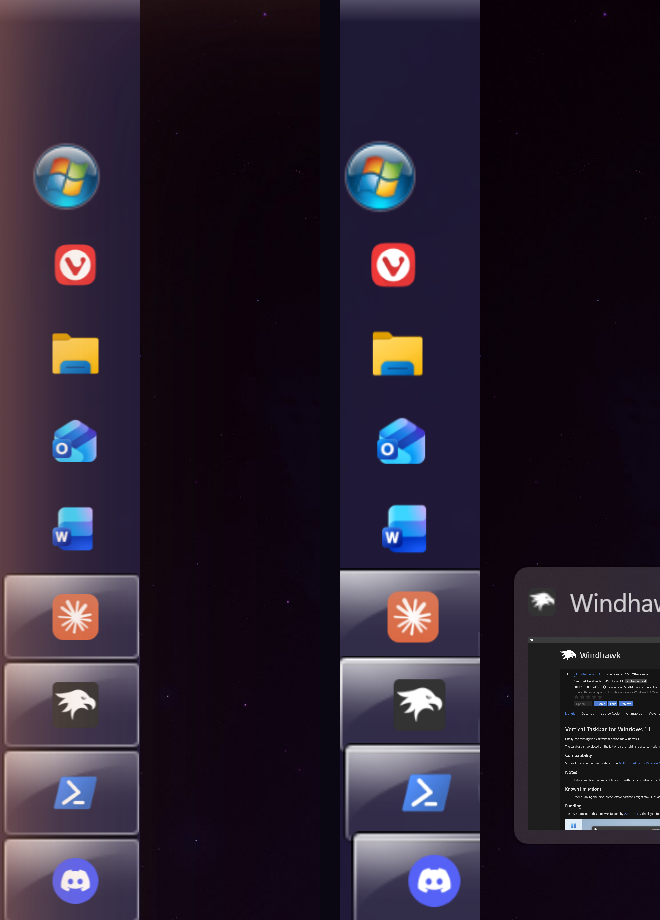
Nothing broke and you can still click everything, it just looks off. This is the same clash that got both position mods cut from my setup the first time around, and I’m still picking the hover animation over moving the taskbar. If you want a vertical taskbar, switch Dock Animation off while you use it.
Which Windhawk taskbar mods conflict
Out of everything I ran together, these are the combos that actually caused problems. Everything not listed here loaded side by side with no visible issues on my setup.
| Combo | What happened | What to do |
|---|---|---|
| Taskbar on top + my stack (Styler, height, auto-hide, Dock Animation) | Taskbar disappeared completely | Switch Taskbar on top off, the taskbar comes right back |
| Vertical Taskbar + Taskbar Dock Animation | Buttons shift sideways in a staircase on hover | Switch Dock Animation off while vertical |
| Taskbar Styler + TranslucentTB (not a mod, but common) | TranslucentTB crashed on all 3 launches | Pick one, details in Windhawk vs TranslucentTB |
| Taskbar Styler + Taskbar height and icon size | No issue on my Windows7 theme | Check your theme’s readme for its own height values |
If your Styler theme stops showing up after adding another mod, I went through every cause I could reproduce in Windhawk Taskbar Styler not working. For Windhawk problems in general, like mods not loading at all, that’s in Windhawk not working.
Windhawk taskbar mod settings
Every one of these has its own settings page, and it’s easy to miss because Windhawk doesn’t open it for you after an install. To get to Windhawk taskbar mod settings:
- Open Windhawk and go to the Home page, where your installed mods are listed.
- Click Details on the mod you want to change.
- Open the Settings tab.
- Change what you want, then click Save settings. Nothing applies until you hit that button.
The on/off toggle lives on the same page, so that’s also where you go to switch a mod off when something breaks. For Styler themes specifically, the Windows 11 taskbar styling guide on GitHub is where all the community themes and their readmes live, and it’s the best place to dig into Windhawk taskbar customization past the dropdown.
Do Windhawk taskbar mods slow anything down?
Not in any way I could measure. Since all of these load into explorer.exe, I checked its memory and CPU with my bench script, taking 12 samples over a minute right after a fresh Explorer restart.
- Explorer with the Styler and 13 Windhawk taskbar mods on: 131.9 MB of memory, about 0.02% CPU.
- Explorer with the Styler off, earlier the same night: 158.6 MB.
So the run with more mods actually came in lower. Explorer’s memory moves around by tens of MB on its own depending on what windows you’ve opened, and whatever these mods add is small enough to get lost in that swing. If you want the bigger picture on FPS and battery, I benchmarked 11 mods in does Windhawk affect performance.
Windhawk taskbar mods FAQ
How many Windhawk taskbar mods can I run at once?
There’s no set limit. I had 13 taskbar mods on at the same time with the only problems being the 2 position combos above. On my end, the trouble always came from a specific pair of mods.
Do Windhawk taskbar mods work on Windows 10?
Some do and some don’t. Anything with “Windows 11” in the name, like Taskbar Styler, Vertical Taskbar and Taskbar on top, targets the Windows 11 taskbar only. Each mod’s page on windhawk.net lists which Windows versions it supports, so check that before installing. I only tested on Windows 11.
A mod broke my taskbar. How do I undo it?
Open Windhawk, click Details on the last mod you turned on, and switch it off. Switching it off is what fixed my disappearing taskbar. If the taskbar still looks wrong after that, restart Explorer from Task Manager.
How do I remove a mod completely?
On the mod’s page in Windhawk, click Remove and confirm. I removed all 10 test mods that way after this post and my mod list went back to exactly what it was before. If you want Windhawk itself gone, read uninstall Windhawk first, because the default uninstall leaves files behind.
After all of this my taskbar is still the same Windows7 theme, custom height, auto-hide and Dock Animation it was before, I just know a lot more about what not to stack on it now. If you’ve got a combo of Windhawk taskbar mods that broke your taskbar in a way I didn’t hit, drop the mod names and your Windows build in the comments and I’ll try it on mine.