Make Windows 11 Look Like Windows 10 for Free (Tested 2026)
I set out to make Windows 11 look like Windows 10 on my own laptop, and the first surprise was how far I got before installing anything. 2 minutes in the normal Windows settings got my desktop to what I’d call a 7/10 match, and that’s coming from someone who used Windows 10 for 6 years.
Adding 4 free mods took it to a 9/10. Along the way I got back 2 things other guides say you can’t have without paying for a tool, and I found 1 popular mod I decided not to install at all. So whether you want the 2 minute version or the full conversion, I’ll walk through exactly what I changed and how close each step got me down below.
Everything here is off my ROG Zephyrus G16 (GA605WI) with the Ryzen AI 9 HX 370, running Windows 11 Home 26H2 (OS build 26300.9457) and Windhawk 1.7.3.
Short version: my scores
Short version first for those of you who just want the answer. I split this into levels so you can stop wherever you’re happy, and I scored each one out of 10 in the table below.
| Level | What it uses | Ease | Looks like Windows 10 |
|---|---|---|---|
| 1 | Windows settings only | 9/10 | 7/10 |
| 2 | Add 4 free Windhawk mods | 7/10 | 9/10 |
| 3 | The real Windows 10 taskbar mod | Not run | Not run |
I also scored every piece on its own, so you can see which installs are worth it.
| What | Score | Note |
|---|---|---|
| Taskbar height and icon size (40 / 24) | 10/10 | Exact Windows 10 dimensions |
| Classic context menu on Windows 11 | 10/10 | The actual old right-click menu |
| Windows Tools ribbon (no mod) | 9/10 | Loses a point for 1 extra click |
| Windows 11 Taskbar Styler (SunValley) | 8/10 | Almost there, there’s no true Windows 10 theme |
| Windows 11 Start Menu Styler (Windows10 + list fix) | 7/10 | The part that still gives it away |
The 3 levels to make Windows 11 look like Windows 10
Now, most guides hand you a list of tools and leave you to figure out how far to go. I’d rather you pick based on how much effort you want to put in.
Level 1 is for everybody. It’s already in your settings, it applies right away, and you can undo it in seconds.
Level 2 is for the person who wants a quick addition that moves them even closer. With the mods on, it’s almost seamless coming from the old OS.
Level 3 swaps out the taskbar for the real Windows 10 one. I read through what it needs and left it alone, and I’ll explain why further down.
Level 1: Windows settings only (2 minutes, 7/10)
Make Windows 11 look like Windows 10: taskbar settings
So the biggest giveaway on a stock Windows 11 desktop is the centered taskbar, and Microsoft lets you fix that yourself.
- Right-click the taskbar and click Taskbar settings, or go to Settings > Personalization > Taskbar.
- Under Taskbar items, set Search to Search box.
- In the same list, turn off Task view and Widgets.
- Open Taskbar behaviors and set Taskbar alignment to Left.
The search box is the one I didn’t expect to care about. Windows 10 had a search box sitting right next to the Start button, and putting it back did more for the look than I thought it would. I liked it enough that I kept it on my laptop after the test was over.
Microsoft documents all of these options on its Customize the Taskbar in Windows page if your settings are laid out differently than mine.
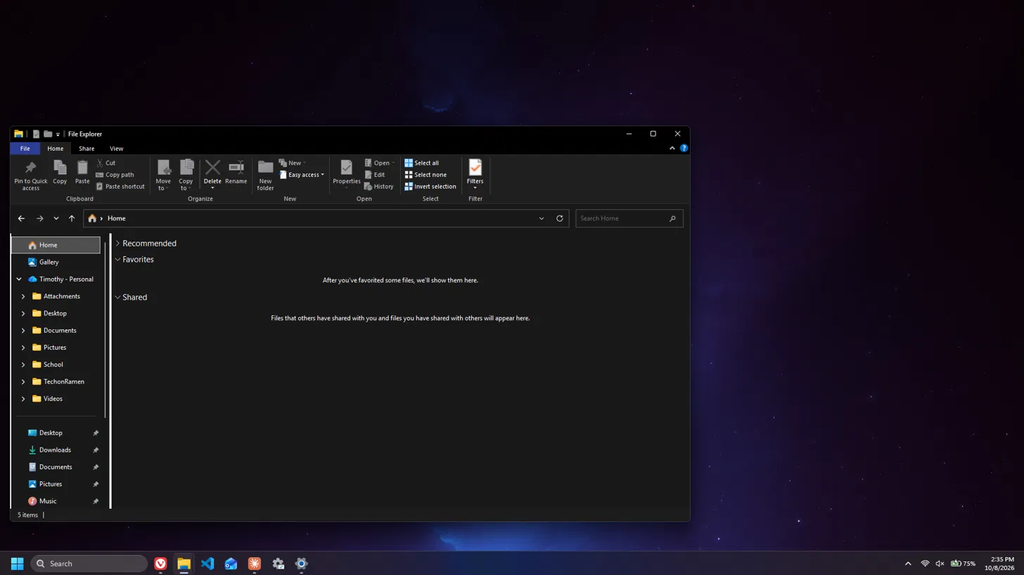
Make Windows 11 look like Windows 10: File Explorer ribbon
Honestly, this is the one I thought would need a mod. The Windows 10 File Explorer had a ribbon across the top with File, Home, Share and View tabs, and Windows 11 replaced it with a row of small icons.
The old ribbon is still in Windows, and on my build you can get to it like this:
- Open Start and search for Windows Tools, then open it.
- In the left sidebar of that window, click Home.
That window turns into the Windows 10 File Explorer, ribbon and all. I got the full thing with the Clipboard, Organize, New, Open and Select groups.
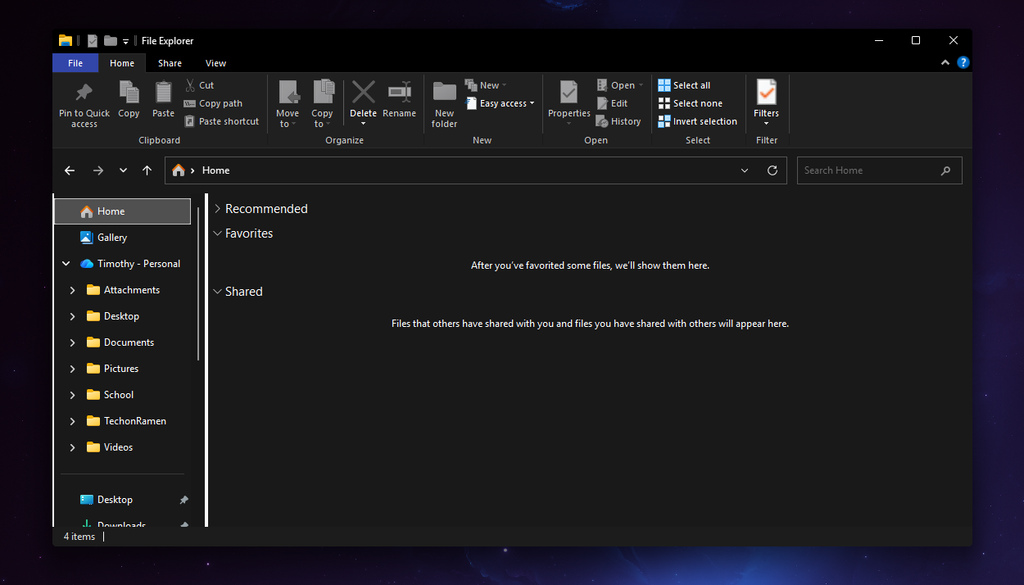
Here’s the catch though, the ribbon only lives in that one window. If you press Win+E you get the normal Windows 11 File Explorer again. Inside the ribbon window it stays put, and I clicked through my folders without losing it.
To make it livable, right-click Windows Tools in the Start menu and choose Pin to taskbar. From there the ribbon is 2 clicks away, which is only 1 more than opening File Explorer normally. That extra click is the only reason I scored it a 9 and not a 10.
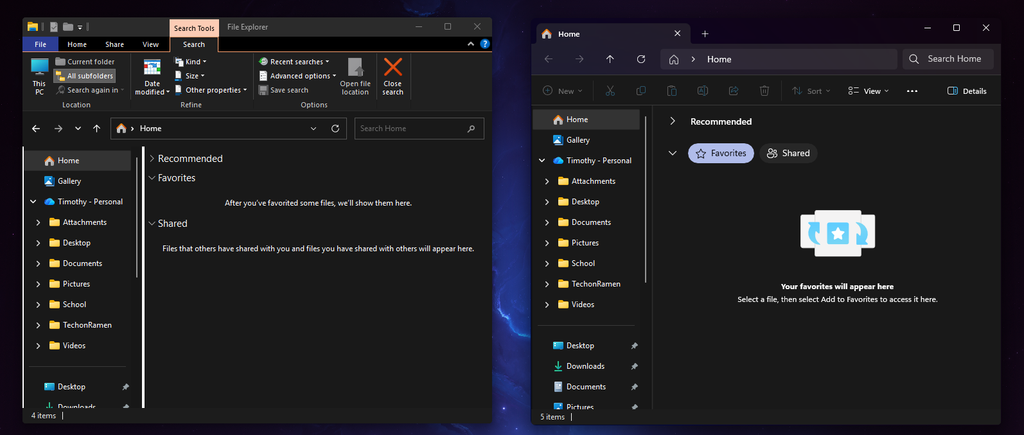
I also checked the Windows 11 File Explorer Styler mod for a shortcut here, and it doesn’t have a Windows 10 theme.
At this point you’re at my 7/10. What’s still giving it away is the Windows 11 Start logo, the rounded search box, a taskbar that’s a little too tall, and the new Start and right-click menus.
Windhawk mods (9/10)Windhawk is a free app that loads small mods into Windows to change how parts of it look and behave. If you don’t have it yet, my how to install Windhawk guide covers the setup.
This level took me around 30 minutes because I was trying themes as I went. With the values below you won’t need to do that part.
What to install
In Windhawk, click Explore, search each name, open the mod and click Install.
| Mod | Version I used | What it fixes |
|---|---|---|
| Windows 11 Taskbar Styler | 1.10 | Start logo, search box shape, taskbar look |
| Taskbar height and icon size | 1.3.10 | Taskbar height |
| Windows 11 Start Menu Styler | 1.7 | Start menu layout |
| Classic context menu on Windows 11 | 1.0.2 | Right-click menu |
If you already run taskbar animation or auto-hide mods like I do, switch those off for this build. The Windows 10 taskbar stayed visible and didn’t animate.
Taskbar: SunValley at Windows 10 height
So I went looking for a Windows 10 theme in Taskbar Styler and there isn’t one. Typing “wind” in the theme box gives you Windows7 and a few WindowGlass themes, and that’s it.
The closest one is SunValley:
- Open Windows 11 Taskbar Styler, then the Settings tab.
- In the Theme box, type
sunand pick SunValley. - Click Save settings.
SunValley swaps the Start logo for a flat one that looks a lot more like Windows 10’s, and it squares off the search box so it sits flat in the bar.
Then fix the height:
- Open Taskbar height and icon size, then the Settings tab.
- Set Taskbar height to 40 (Windows 11’s default is 48).
- Leave Icon size at 24.
- Click Save settings.

40 pixels is the Windows 10 taskbar height, so that mod gets a 10/10 from me. SunValley I’d put at an 8. It reads quite accurate at a glance, and it’s as close as Taskbar Styler gets right now. My Windows 11 Taskbar Styler guide goes through the other themes if you want to compare.
Make Windows 11 look like Windows 10: Start menu and the list fix
The Start menu took me the longest out of everything here, so I’d save you guys the time on it.
- Open Windows 11 Start Menu Styler, then the Settings tab.
- In the Theme box, type
windand pick Windows10. - Click Save settings.
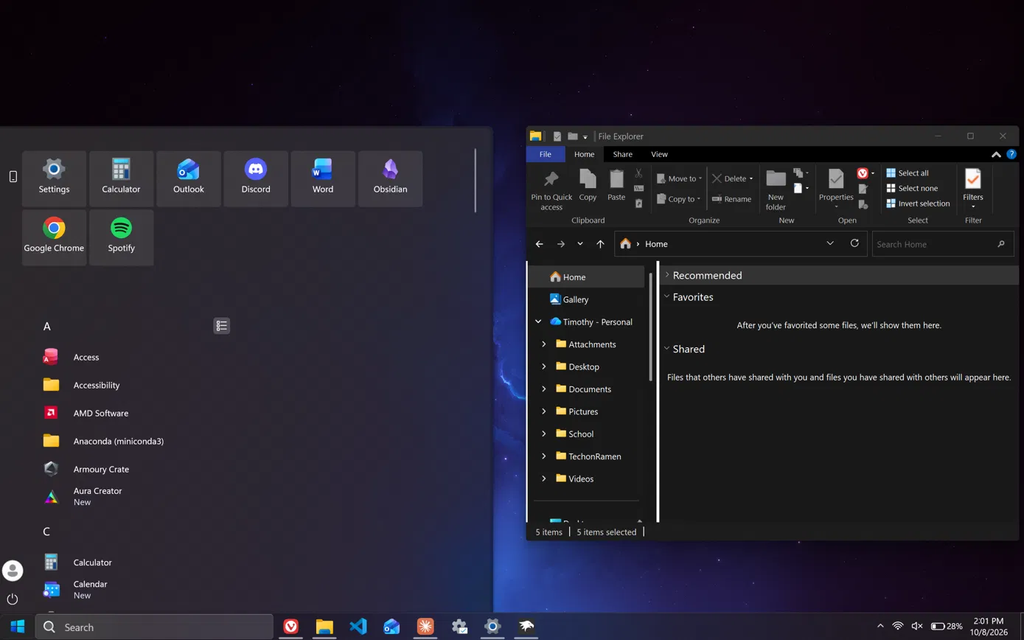
The Start menu now opens flush against the left edge, your pinned apps turn into square tiles, and your account and power buttons move to a strip on the left, which is how Windows 10 laid it out.
The problem is the app list. On my build it showed up as a grid of icons, where Windows 10 had a plain list of names. There’s a small list button next to the letter headers, but that one only opens the A to Z jump screen.
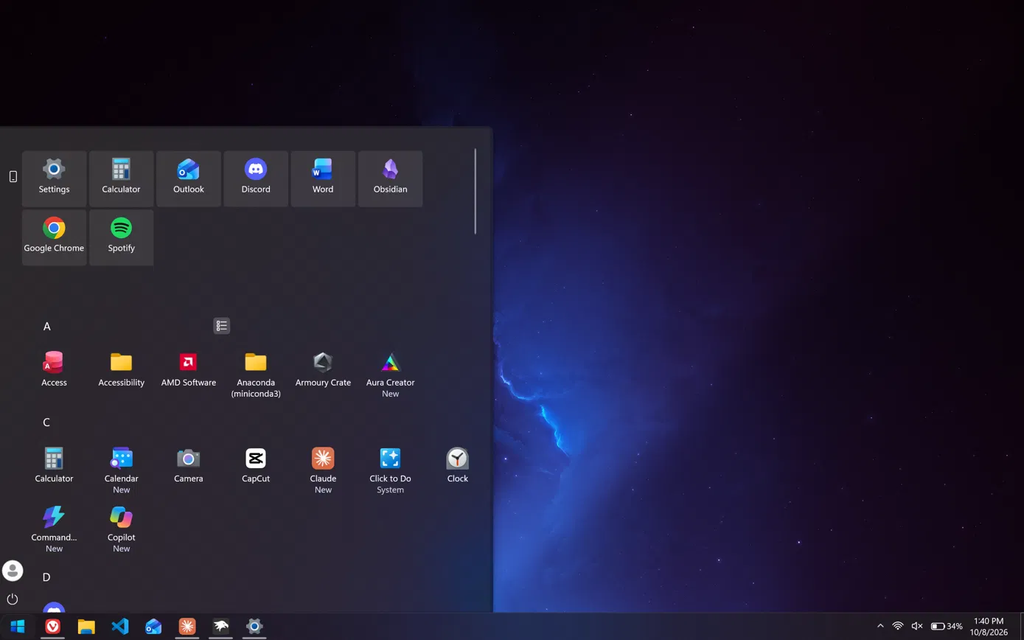
The setting you need is a View dropdown that Windows 11 has built in, and the Windows10 theme hides it. So you set it under a theme that shows it and then come back:
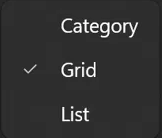
- In Windows 11 Start Menu Styler > Settings, change the theme to SideBySide2 and click Save settings.
- Open Start, find View at the top right of the All section, and choose List.
- Change the theme back to Windows10 and click Save settings.
The list held after I switched back. Use SideBySide2 for this and skip the plain SideBySide theme, because on 26H2 that one drew its “Pinned” heading as 2 words stacked on top of each other.
Even with the fix I’m scoring the Start menu a 7/10. The list sits underneath the tiles, and on Windows 10 it sat to the left of them, so anyone coming from the old OS will still spot the difference. There’s also a Windows10 (Minimal) theme that drops the tiles and shows only your apps in a narrow panel.
For my own laptop, I ended up keeping SideBySide2, since it leaves that View dropdown where I can reach it. My Windows 11 Start Menu Styler guide has more on the other themes.
Make Windows 11 look like Windows 10: right click menu
Windows 11 shortened the right-click menu and hid the rest behind Show more options. The Classic context menu on Windows 11 mod puts the full menu back as the default.
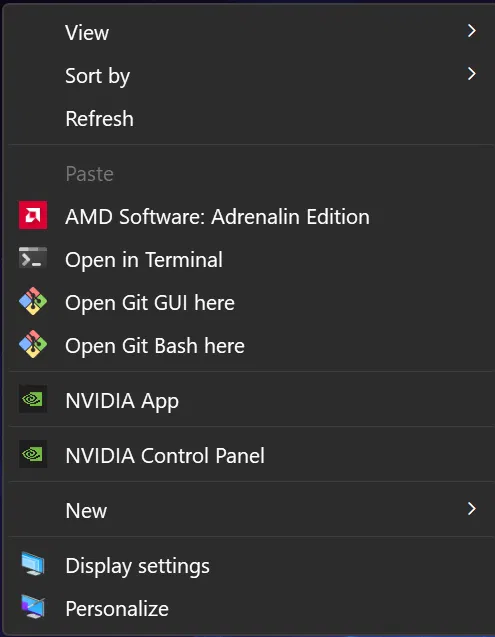
There’s nothing to configure. After I installed it, right-clicking my desktop gave me the old layout with View, Sort by, Refresh and all my app entries in one menu.
If you ever want the Windows 11 menu for a second, the mod’s page says you can hold Ctrl while you right-click. You’re getting the real old menu back, so I scored it a 10/10.
With all 4 mods on, I’d call the whole desktop a 9/10. It feels like Windows 10, and the Start menu is the one place where a longtime user can tell.
On the performance side, I’ve already measured Windhawk with 11 mods running and Cyberpunk 2077 averaged 153.26 FPS with them on against 153.59 with them off. The full test is in my does Windhawk affect performance post.
Level 3: the real Windows 10 taskbar mod (why I skipped it)
If you search Windhawk for a Windows 10 taskbar, you’ll find a mod called Win10 taskbar on Win11 24H2 or 25H2. It works differently from everything above. It downloads Windows 10’s own taskbar program from Microsoft and runs that in place of the Windows 11 one.
I didn’t run it. Everything in this section comes from the mod’s own description, and I left it untested on my laptop for 3 reasons:
- Setup. Its readme says to install a second mod first, stay online for the first restart, and remove critical system processes from Windhawk’s exclusion list.
- Known issues. The same readme lists notifications that can crash Explorer and Store apps that don’t show up on the taskbar.
- Windows version. It’s named for 24H2 and 25H2, and I’m on 26H2.
Levels 1 and 2 got me to a 9/10 without replacing any part of Windows, so swapping the taskbar wasn’t worth the risk on the laptop I use every day. I think most of you guys looking this up want a simple fix, and the first 2 levels are that.
Why I didn’t use ExplorerPatcher or StartAllBack
Nearly every other guide on this sends you to ExplorerPatcher, StartAllBack or Start11. I haven’t used any of them, so what follows is from their own pages and from user reports.
| Tool | Cost | What I found |
|---|---|---|
| ExplorerPatcher | Free | Replaces the taskbar. A user on 26H2 reported on ElevenForum that Windows Security disabled version 70.2 as a Trojan, which they called a false positive |
| StartAllBack | About $5 per PC after a 30 day trial | Replaces the taskbar and Start menu |
| Start11 | Paid | Replaces the Start menu |
ExplorerPatcher and StartAllBack both replace the taskbar, which means my Taskbar Styler setup would stop applying. I didn’t want to give that up for a look I could mostly get with what I already had.
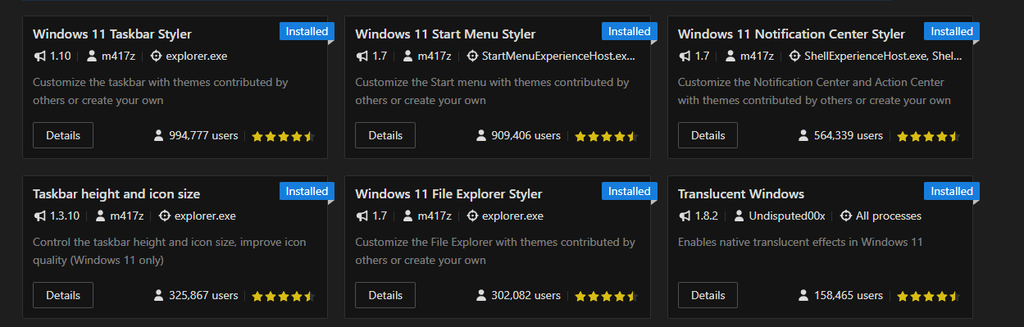
The bigger reason is that Windhawk is the customization tool I trust. It’s a community platform, so no mod shows up there from nothing. Every mod is submitted in the open to the official Windhawk mods collection on GitHub, and you can read its code in the Source Code tab before you install it. The big ones have been downloaded and rated by a lot of people, which makes them essentially reliable. When I checked inside Windhawk, Taskbar Styler showed 994,777 users, Start Menu Styler 909,406, and Taskbar height and icon size 325,867.
I go deeper on that in my is Windhawk safe post.
Undoing all of it
Reverting took me about 1 minute and nothing got stuck.
- Level 1: set Taskbar alignment back to Center, change Search back to how you had it, and unpin Windows Tools.
- Level 2: in Windhawk, click Disable on each of the 4 mods, or change the themes back to what you had.
If you decide you’re done with Windhawk altogether, my uninstall Windhawk guide shows what it leaves behind.
FAQ
Can you make Windows 11 look like Windows 10 without software?
Yes, partly. Level 1 above uses only Windows settings and the built-in Windows Tools window, and it got me to a 7/10 with a left-aligned taskbar, a search box and the old File Explorer ribbon. The Start menu and right-click menu stay Windows 11 until you add mods.
Is it free to make Windows 11 look like Windows 10?
Everything I used is free. Windows settings cost nothing, Windhawk is free, and so are all 4 mods. StartAllBack and Start11 are the paid options, and I didn’t need either.
Will these mods survive a Windows update?
My laptop updated to 26H2 the day before I did this build, and nothing in my existing Windhawk setup broke, including Taskbar Styler and Start Menu Styler. I haven’t tested them against any update after that. If a mod stops working after an update, start with my Windhawk not working guide.
Can I get the real Windows 10 Start menu back?
Not with what I tested. The Windows10 theme gets the shape, the tiles and the app list, but the list sits under the tiles when it should sit beside them. That’s why it’s my lowest score at 7/10.
What else can Windhawk change?
A lot more than this. My best Windhawk mods list covers what I run daily, and I’ve done the same kind of build to make Windows 11 look like Windows XP.
If you try this and something looks different on your build, drop your Windows version and which level you stopped at in the comments and I’ll take a look. And if you found a Start menu theme that gets the list next to the tiles, I’d really like to know which one.