Make Windows 11 Look Like Windows 7 for Free (Tested 2026)
I set out to make Windows 11 look like Windows 7 on my own laptop, and about 17 minutes and 2 free tools later I had a desktop I’d score a 10/10. I personally never used Windows 7, so I had some fun looking into how it actually looked and noticed the things people missed the most were the glass window frames and that iconic Start button.
I got 1 of those 2 back perfectly and the other one broke my File Explorer when I tried it. The Start menu also sat at a 5/10 for most of the build, until I added a small tool I’d never touched before. So whether you want the 2 minute version or the whole conversion, I’ll walk through exactly what I changed and how close each step got me down below.
Everything here is off my ROG Zephyrus G16 (GA605WI) with the Ryzen AI 9 HX 370, running Windows 11 Home 26H2 (OS build 26300.9457), Windhawk 1.7.3 and Open-Shell 4.4.198, on a 2560 x 1600 screen at 175% scaling.
Short version: my scores
Short version first for those of you who just want the answer. I split my attempt to make Windows 11 look like Windows 7 into 3 levels so you can stop wherever you’re happy, and I scored each one out of 10 in the table below.
| Level | What it uses | Time | Ease | Looks like Windows 7 |
|---|---|---|---|---|
| 1 | Windows settings only | About 2 minutes | 10/10 | 6/10 |
| 2 | Add Windhawk | 10 minutes | 7/10 | 8/10 |
| 3 | Add Open-Shell | 5 minutes | 7/10 | 10/10 |
I scored the parts on their own too, so you can see which installs are doing the work.
| Part | Score | Note |
|---|---|---|
| Taskbar (Taskbar Styler, Windows7 theme) | 10/10 | Round Start button and glass bar, sharp at 175% scaling |
| Start menu with Windhawk only (SideBySide2) | 5/10 | Has the essentials but not the true feel of it |
| Start menu with Open-Shell (Windows Aero skin) | 10/10 | The 2 column Windows 7 menu |
| Glass window frames (Translucent Windows) | Left off | Broke File Explorer in Light mode |
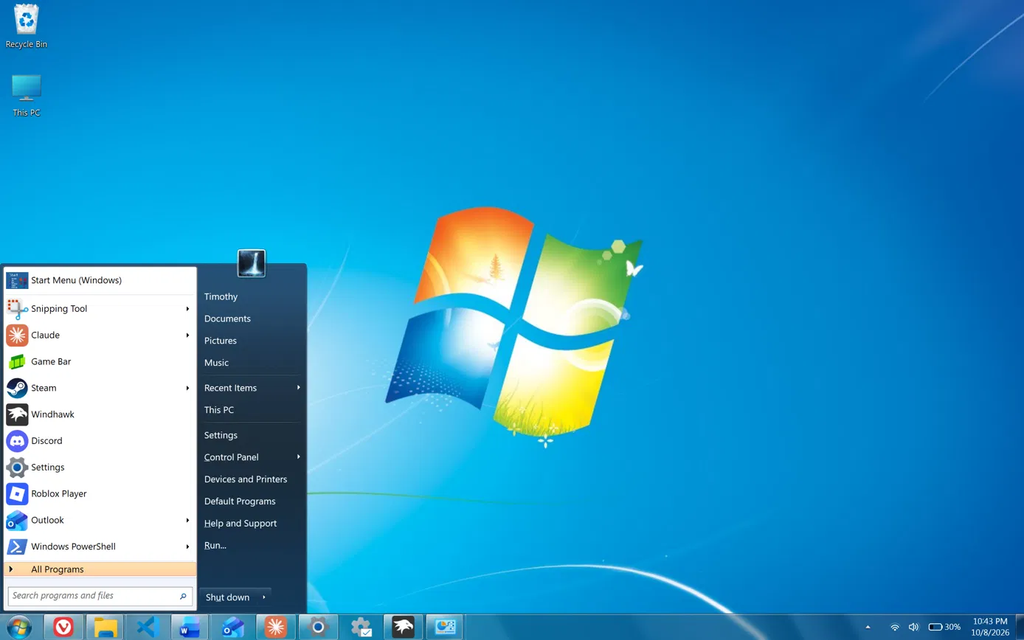
That 10/10 is for the desktop you look at all day, meaning the taskbar and the Start menu, since File Explorer keeps its Windows 11 top bar and the window frames aren’t glass. Those are the 2 places this build stops, and I go through both further down.
The 3 levels to make Windows 11 look like Windows 7
Now, I judged all of this against screenshots of Windows 7, since I never ran it myself. That means my scores are about how it looks, and I left how the real thing behaved out of it.
Level 1 is for everybody. It’s already in your settings and you can undo it in seconds.
Level 2 adds Windhawk, which is where the Start button and the glass taskbar come from.
Level 3 adds Open-Shell for the Start menu. I planned on skipping it and only tried it because the Windhawk Start menu wasn’t close enough.
Level 1: Windows settings only (2 minutes, 6/10)
So the first thing I wanted to know was how far plain Windows settings could go to make Windows 11 look like Windows 7 before installing anything.
Make Windows 11 look like Windows 7: taskbar and colors
- Right-click the taskbar and click Taskbar settings.
- Under Taskbar items, set Search to Hide, then turn off Task view and Widgets.
- Open Taskbar behaviors and set Taskbar alignment to Left.
- Go to Settings > Personalization > Colors and set Choose your mode to Light.
- On the same page, turn Transparency effects on.
- Under Accent color, pick a blue, then turn on Show accent color on title bars and window borders.
Windows 7 didn’t have a search box on the taskbar, so hiding it gets you closer here. Microsoft lists every one of these taskbar options on its Customize the Taskbar in Windows page if your settings are laid out differently than mine.
Wallpaper and desktop icons
- Download the default Windows 7 wallpaper, right-click the image and click Set as desktop background.
- Go to Settings > Personalization > Themes > Desktop icon settings.
- Tick Computer and Recycle Bin, then click Apply and OK.
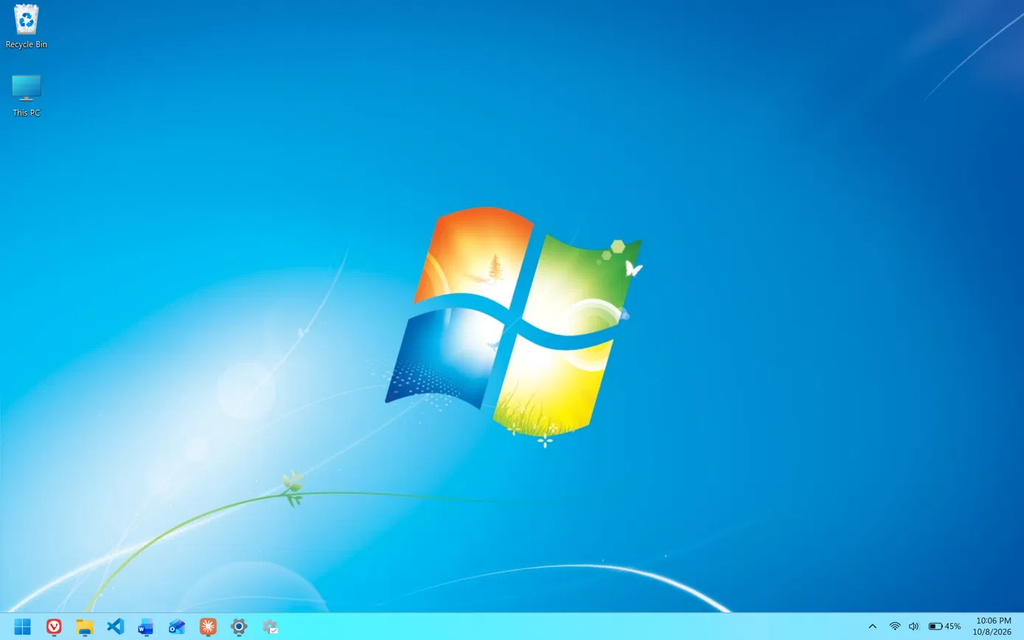
The wallpaper does more of the work than I expected for something that takes 10 seconds.
What about File Explorer?
Windows 11 still has the older ribbon File Explorer inside it. If you open Start, search Windows Tools, open it and click Home in the left sidebar, that window switches to the ribbon layout with File, Home, Share and View tabs.
That ribbon is the Windows 8 and Windows 10 design though, and Windows 7 used a plain bar with an Organize button, so I left it out of my score here. I covered the trick properly in my make Windows 11 look like Windows 10 build, which is where it actually belongs.
At this point I’d say it’s a 6/10. It looks similar but obviously isn’t, because the Start button is still the Windows 11 logo, the taskbar is flat, and the Start menu is the new one.
Level 2: how to make Windows 11 look like Windows 7 with Windhawk (10 minutes, 8/10)
Windhawk is a free app that loads small mods into Windows to change how parts of it look and behave. If you don’t have it yet, my how to install Windhawk guide covers the setup.
What to install
In Windhawk, click Explore, search each name, open the mod and click Install.
| Mod | Version I used | What it changes |
|---|---|---|
| Windows 11 Taskbar Styler | 1.10 | Start button and taskbar glass |
| Taskbar height and icon size | 1.3.10 | Taskbar height, icon size and button width |
| Windows 11 Start Menu Styler | 1.7 | Start menu layout |
| Classic context menu on Windows 11 | 1.0.2 | Right-click menu |
If you already run taskbar animation or auto-hide mods like I do, switch those off for this build.
Make Windows 11 taskbar look like Windows 7
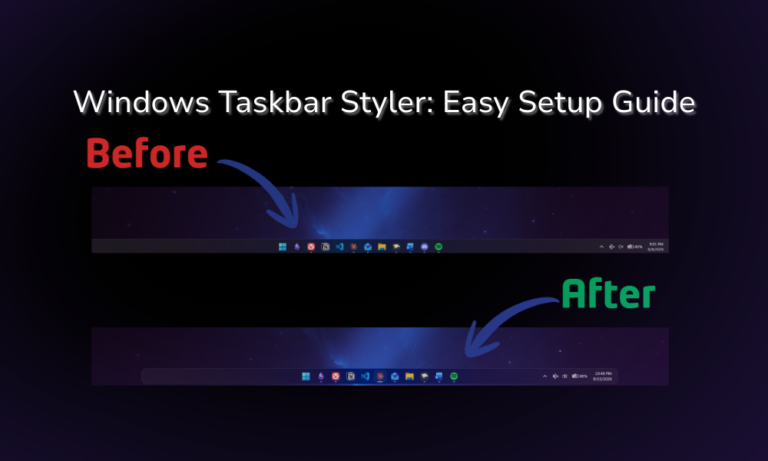
Taskbar Styler has a theme that’s literally called Windows7, and it’s the best part of this whole build.
- Open Windows 11 Taskbar Styler, then the Settings tab.
- In the Theme box, type
windand pick Windows7. - Click Save settings.
- Open Taskbar height and icon size, then the Settings tab.
- Set Taskbar height to 39, Icon size to 32 and Taskbar button width to 58.
- Click Save settings.
The round Start button showed up right away with the glass bar and the bigger icons behind it, and I can’t lie, the taskbar is a 10/10.
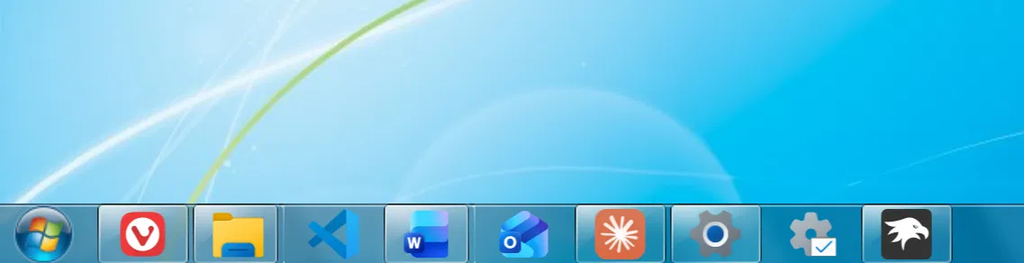
I went in expecting less than that, because the Windows7 theme’s own README calls it a proof of concept that isn’t accurate and says it was designed for 100% scaling. My screen runs at 175% and the Start button still loaded sharp, so don’t let that note scare you off if you’re on a high resolution laptop. The README also says the theme needs an internet connection, which I’d guess is for loading the Start button image, and I didn’t test it offline.
My Windows 11 Taskbar Styler guide goes through the other themes if you want to compare.
Start menu with Windhawk only
I spent most of the 10 minutes on this part, so I’d save you guys the time on it. I tried 3 themes in Windows 11 Start Menu Styler, and I sorted out how each one went in the table below.
| Theme | What happened on 26H2 |
|---|---|
| Down Aero | Broken. It drew an oversized rounded panel and cut the app list off |
| SideBySideMinimal | 2 columns like Windows 7, but no search box |
| SideBySide2 | 2 columns with search, and the one I kept |
To set it up:
- Open Windows 11 Start Menu Styler, then the Settings tab.
- In the Theme box, type
sideand pick SideBySide2. - Click Save settings.
SideBySide2 puts your app list on the left and your pinned apps on the right, with the power button at the bottom left and your account at the bottom right. Typing still searches, which is the main thing I’d want from a Windows 7 style menu. The search box sits at the top though, and Windows 7 had it at the bottom.
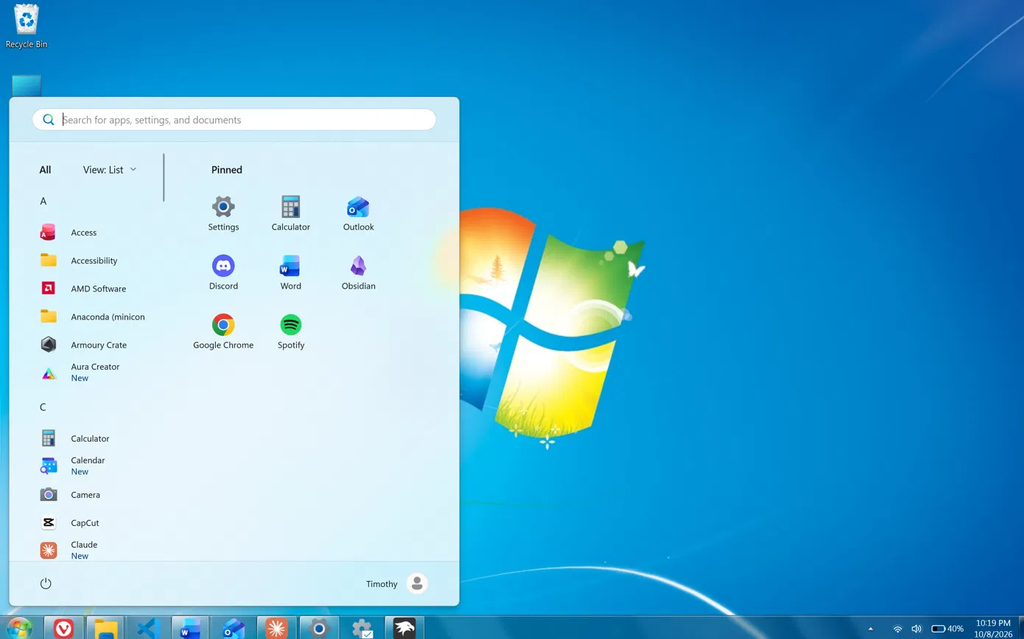
I’d put this Start menu at about a 5/10, since it has the essentials but not the true feel of it. My Windows 11 Start Menu Styler guide has more on these themes.
Right-click menu
The Classic context menu on Windows 11 mod has nothing to configure. Once it’s installed, right-clicking gives you the full old menu and you don’t have to click Show more options anymore.
The glass window frames that didn’t work
Now this is the one I really wanted, since glass window frames were the other thing people kept bringing up about Windows 7. The Windhawk mod for it is Translucent Windows, and with my desktop in Light mode it broke both kinds of File Explorer window I had open.
- The ribbon window went black with most of its text missing.
- The normal Win+E window got a flat blue-purple band across the top, a white box around the Details button and a black strip next to the sidebar.
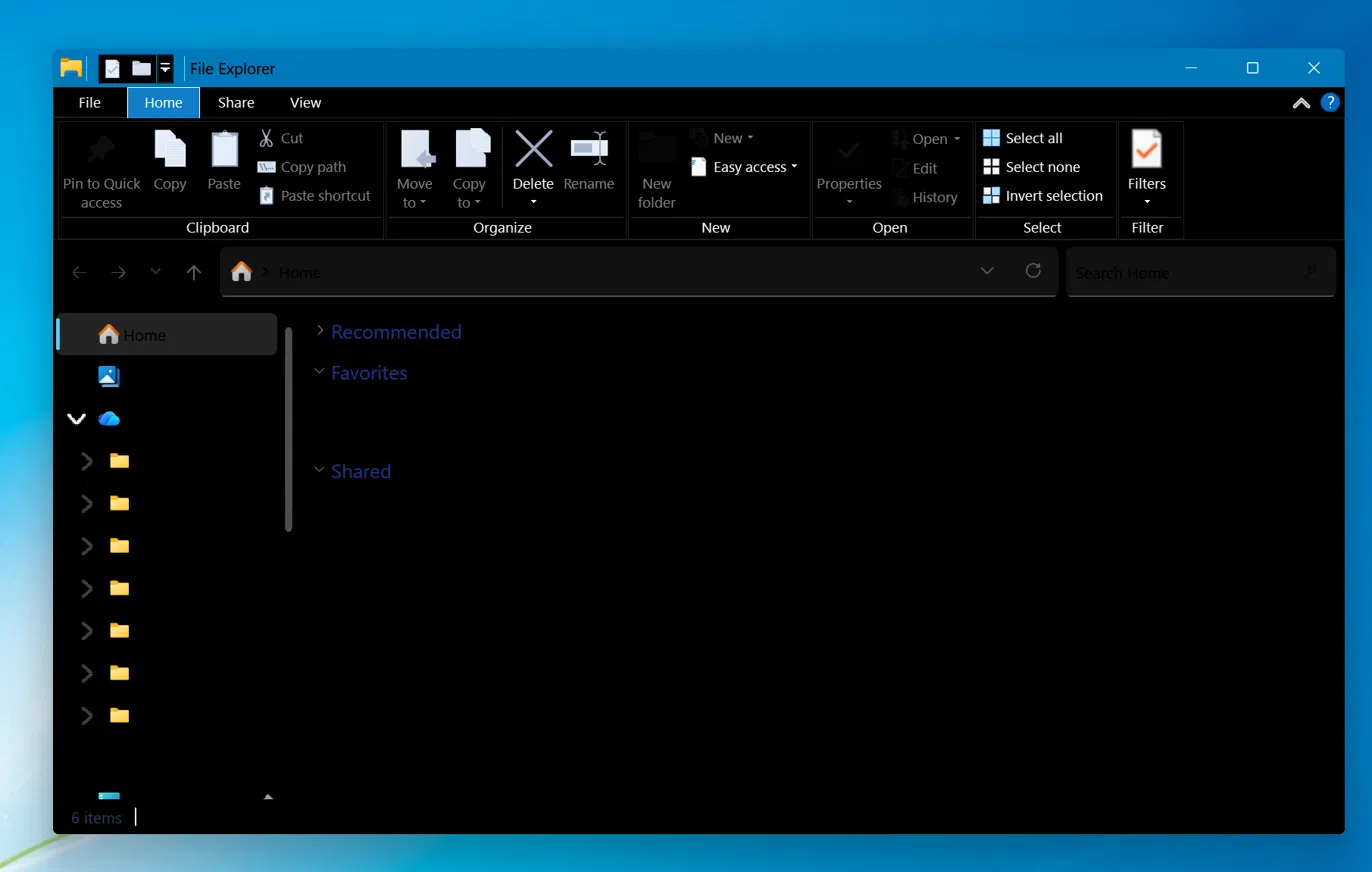
I turned it off and left it off for the rest of the build. I didn’t retest it in Dark mode on this build, and Dark mode wouldn’t match Windows 7 anyway. If you want to see what that mod does when it’s working, I went through it in my Windhawk Translucent Windows post.
With the taskbar at a 10 and the Start menu at a 5, I’d say Windhawk brings the whole desktop to a solid 8/10.
Level 3: Open-Shell for the Start menu (5 minutes, 10/10)
Open-Shell is a free, open source program that adds its own Start menu to Windows in the old 2 column style. It’s the continuation of an older project called Classic Shell, and it’s the tool most people reach for first when they want to make Windows 11 look like Windows 7. I’d never used either one before this build.
Install and pick the Windows 7 style
- Download the installer from the Releases page on Open-Shell’s GitHub and run it. I used version 4.4.198.
- Open Open-Shell Menu Settings from the Start menu.
- On the Start Menu Style tab, pick Windows 7 style.
- Leave Replace Start button unticked, since the Windhawk theme is already drawing the round one.
Switch the skin to Windows Aero
So when I first opened the menu, it was flat dark blue and looked nothing like the screenshots I’d been comparing against. The skin it picked for me by default was Immersive, and that one is the flat style.
- In Open-Shell Menu Settings, open the Skin tab.
- Change Skin to Windows Aero.
- Leave Show user picture and White sub-menus ticked, and Reduce glass color unticked.
- Click OK.
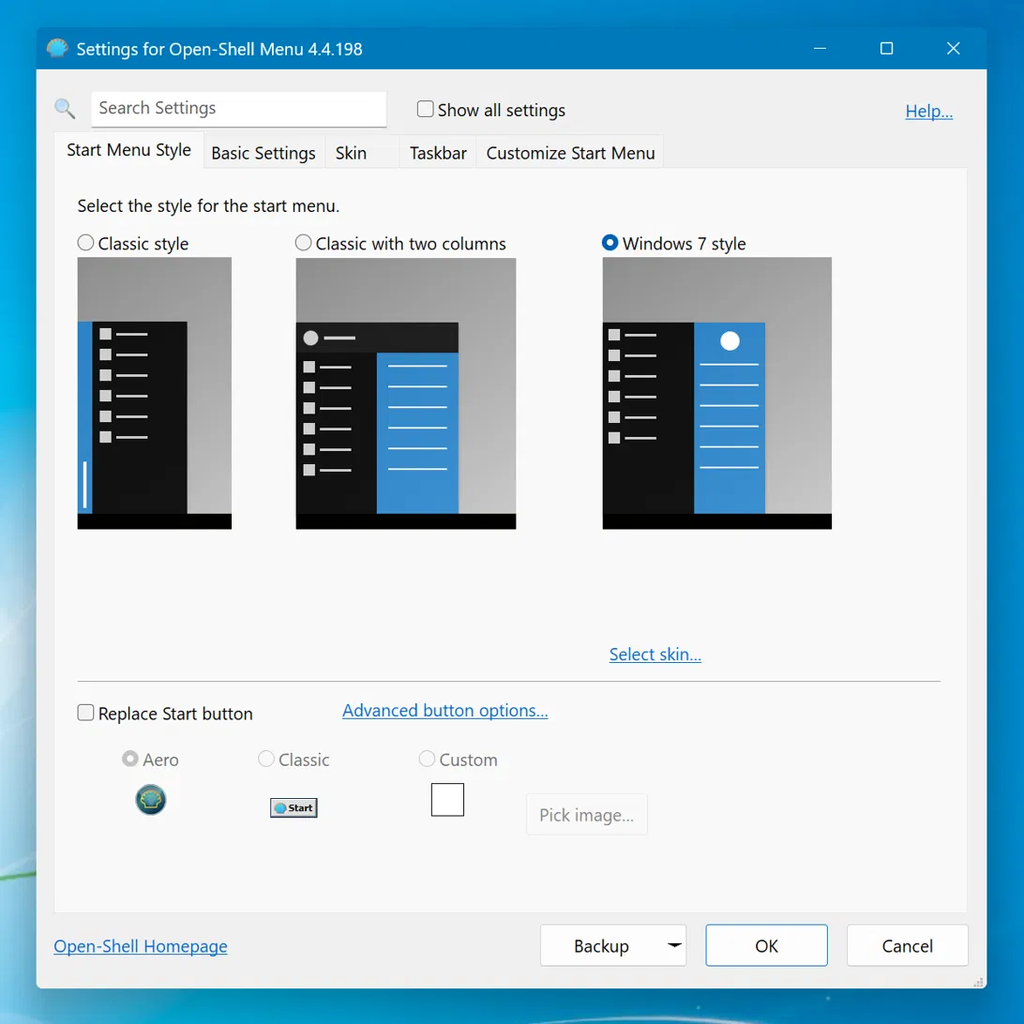
Changing that 1 dropdown turned the menu into the glass 2 column layout with the user picture at the top right, and I’m really digging how clean it is.
How it works next to Windhawk
I wasn’t sure these 2 would get along, since they’re both touching the Start button. On my laptop they did:
- Clicking the round Start button from the Windhawk theme opens the Open-Shell menu.
- Pressing the Windows key opens the Open-Shell menu too.
- The Start Menu (Windows) entry inside Open-Shell opens the SideBySide2 menu from Level 2, so the Windows 11 menu is still 1 click away.
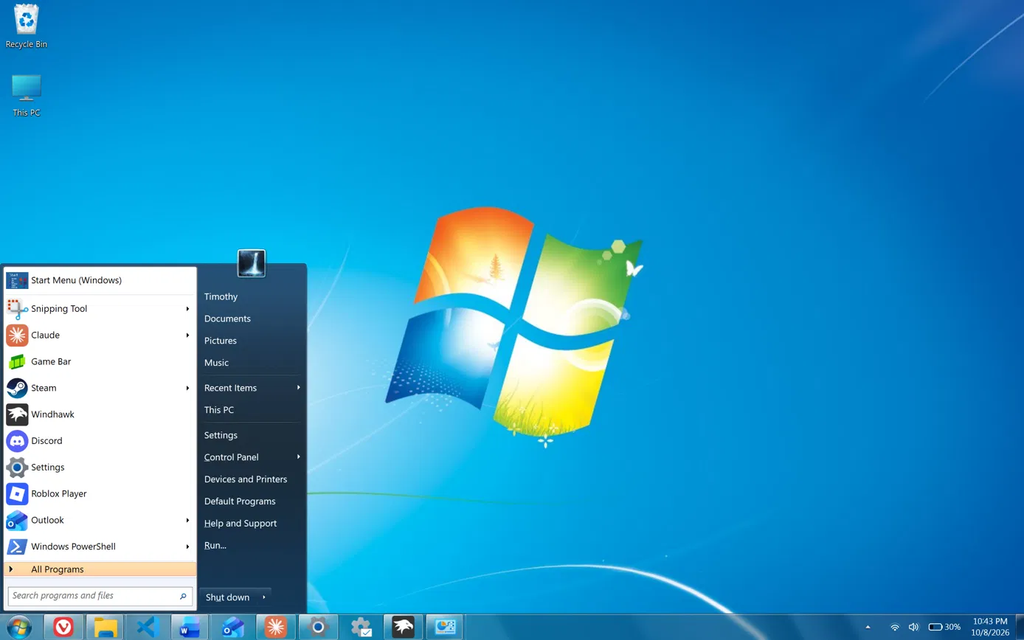
Start menu’s a 10/10 with this. Open-Shell was quite simple to install and use too, without too many steps, so I gave it the same 7/10 for ease as Windhawk.
Why I’m calling the whole build a 10/10
I first had this at a 9 because it’s impossible to be perfect, and then I looked at the finished desktop again and changed it, because it’s crazily good. To make Windows 11 look like Windows 7 this closely with 2 free tools in under 20 minutes is more than I expected going in.
I’m keeping Open-Shell on my laptop after this. I’ve seriously never used Windows 7, but I can see why people miss it.
What I couldn’t get
There were 2 things I left unsolved, and you should know about them before you start.
- Glass window frames. Translucent Windows broke File Explorer in Light mode, so my windows have solid blue title bars from the Level 1 accent color.
- The Windows 7 File Explorer. The top bar stays Windows 11, and the ribbon trick gives you the Windows 10 look, which isn’t the same thing.
Most guides on how to make Windows 11 look like Windows 7 send you toward heavier setups to chase those 2, with skin files and several extra programs stacked together. I didn’t go down that road because I wanted something I’d actually leave on my daily laptop, and I trust Windhawk since every mod is submitted in the open to the official Windhawk mods collection on GitHub, which I go deeper on in my is Windhawk safe post.
Undoing all of it
- Level 1: set Taskbar alignment back to Center, change Search and Choose your mode back to how you had them, and swap your wallpaper back.
- Level 2: in Windhawk, click Disable on each mod, or change the themes back to what you had. This took me about 1 minute on my Windows 10 build the day before.
- Level 3: I didn’t uninstall Open-Shell, since I’m keeping it. The normal route is Settings > Apps > Installed apps, then the 3 dots next to Open-Shell and Uninstall, and I left that untested.
If you decide you’re done with Windhawk altogether, my uninstall Windhawk guide shows what it leaves behind.
FAQ
Can you make Windows 11 look exactly like Windows 7?
Not exactly. I got the taskbar and Start menu to what I’d call a 10/10 from screenshots, but File Explorer and the window frames stayed Windows 11 on my build.
Can you make Windows 11 look like Windows 7 free?
Yes. Windows settings, Windhawk, all 4 mods and Open-Shell cost nothing, and I didn’t pay for anything in this build.
Can you make Windows 11 look like Windows 7 in one click?
No. There’s no single theme that does all of it. The closest thing to one click is the Windows7 theme in Taskbar Styler, which handles the Start button and taskbar by itself.
Does this work on 24H2 and 25H2?
I only tested it on 26H2 (OS build 26300.9457). My Windhawk setup carried over from 25H2 to 26H2 without anything breaking, and I haven’t run this exact build on the older versions.
Does Windows 11 have working Aero glass?
Not on my setup. The Start menu and taskbar got their glass from the Open-Shell skin and the Windows7 theme, but the mod I tried for window frames broke File Explorer in Light mode.
Is Open-Shell safe to use with Windhawk?
They ran side by side on my laptop with no conflicts. The Windhawk theme draws the Start button and Open-Shell draws the menu it opens.
Does Windhawk slow down your PC?
I measured that separately with 11 mods running, and Cyberpunk 2077 averaged 153.26 FPS with them on against 153.59 with them off. The full test is in my does Windhawk affect performance post.
What other looks can Windhawk do?
I’ve done the same kind of build to make Windows 11 look like Windows XP and to make Windows 11 look like macOS, the Start button and Open-Shell menu from this post are also what my Frutiger Aero Windows 11 theme is built on, and my best Windhawk mods list covers what I run daily.
If you make Windows 11 look like Windows 7 with these steps and something looks different on your build, drop your Windows version and your display scaling in the comments and I’ll take a look. And if you got glass window frames working in Light mode without breaking File Explorer, I’d really like to know which mod and settings you used.