G-Helper Overlay: Does It Hurt FPS? Best Mode Tested (2026)
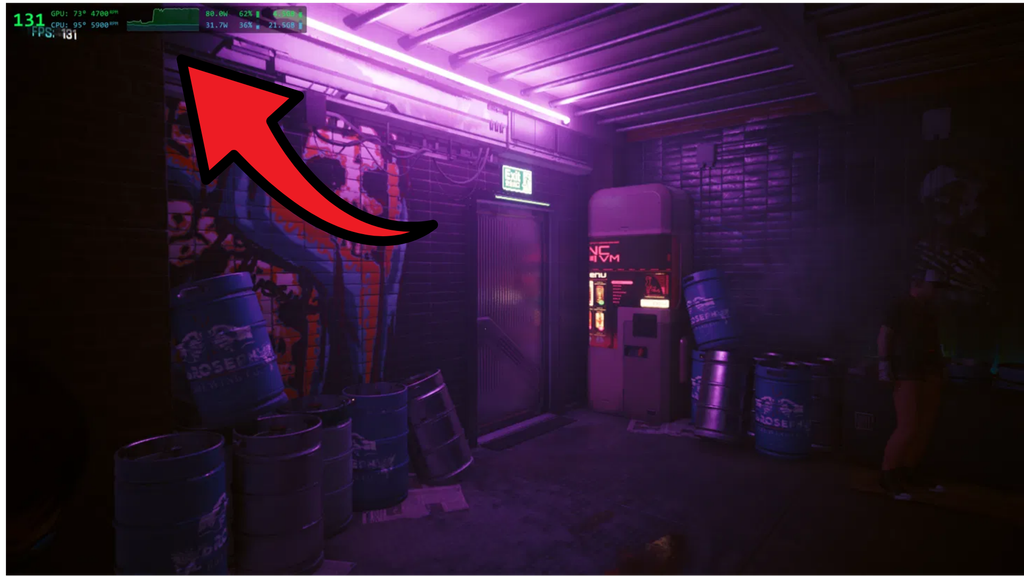
I used G-Helper every day for months without knowing it had an overlay, and when I finally turned the G-Helper overlay on in Cyberpunk 2077, its FPS number read 131 while the game’s own counter right underneath it read 131 too.
So the number can be trusted, but what I really wanted to know was whether keeping the G-Helper FPS overlay on screen costs you any frames, and I ran the same benchmark 5 times to find out. Along the way I found a mode the official page doesn’t mention and a reading that didn’t match the documentation once I turned my graphics card off. So whether you just want an FPS counter or you want every number your laptop can give you, I’ll go through how the overlay works and what I measured on my own laptop down below.
Everything here is off my ROG Zephyrus G16 (GA605WI) with the Ryzen AI 9 HX 370 and RTX 4070, running G-Helper 0.285.0 on Windows 11 26H2, in Balanced mode with my own fan curve and a -25mV G-Helper undervolt.
What the G-Helper Overlay Shows
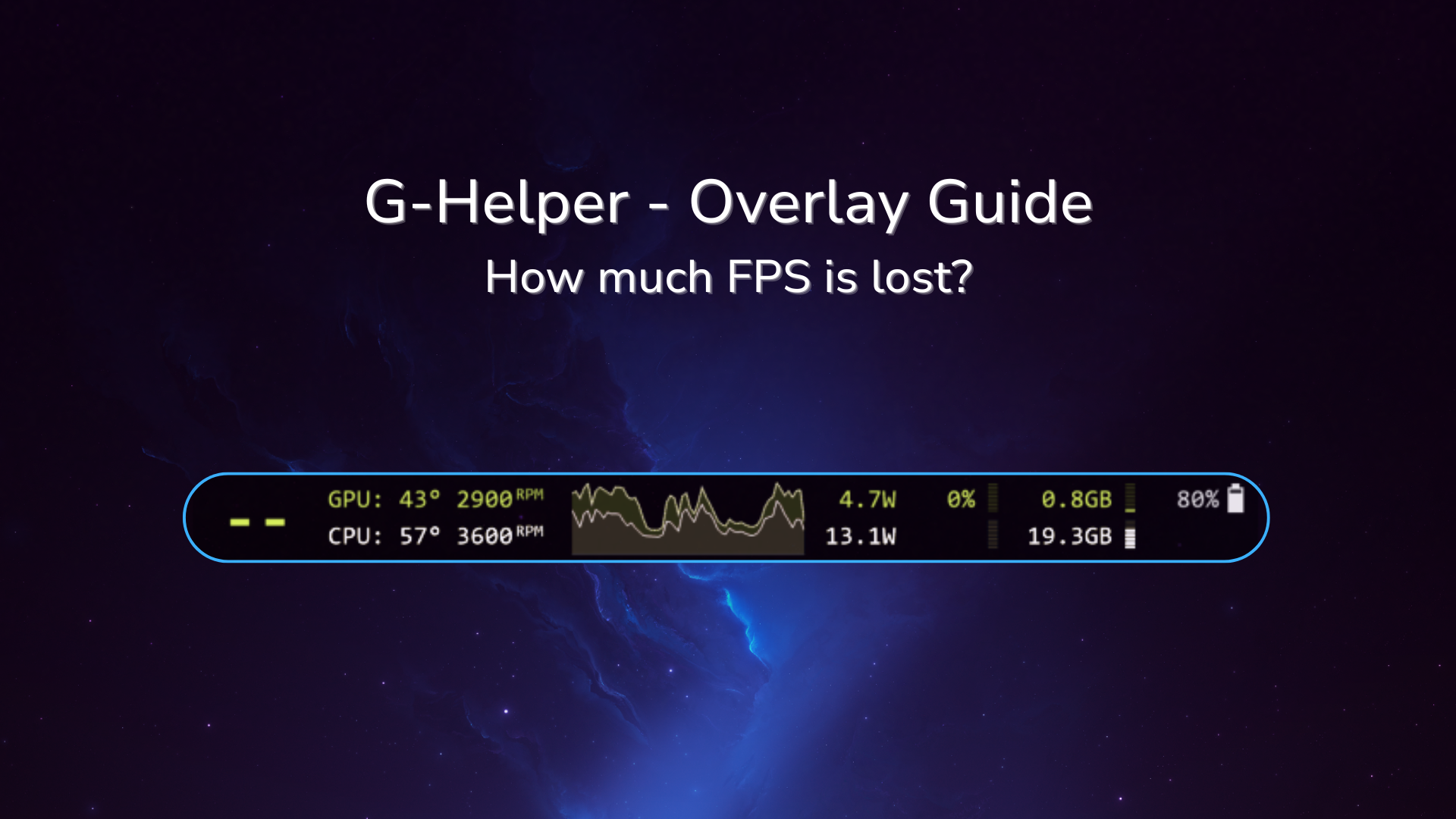
The overlay is a small bar that G-Helper draws on top of your game, and it shows you what your laptop is doing while you play. Normally you’d install a separate tool like MSI Afterburner to get these numbers, so having them built into an app you already run saves you a download. It sits in the top-left corner of the screen and updates live.
I sorted everything it can show into the table below, and you get to pick how much of it appears.
| Reading | What it tells you |
|---|---|
| FPS | Frames per second of the game you’re in |
| Temperatures | CPU and GPU temperature in °C |
| Fan | CPU and GPU fan speed in RPM |
| Power | Watts the CPU and GPU are pulling |
| Chart | A graph of that power draw over the last 60 seconds |
| Load | How busy the CPU and GPU are, as a percentage |
| RAM | GPU memory and system memory in use, in GB |
| Battery | Battery percentage |
On the desktop the FPS spot shows 2 dashes, since there’s no game running for it to count.
How to Turn On the G-Helper Overlay
The fastest way is the main G-Helper overlay shortcut, so press Ctrl + Shift + Alt + O and the overlay appears, then press the same keys again to hide it. It worked on the first press for me, both on the desktop and inside Cyberpunk.
Where the G-Helper overlay button is
Now if you’d prefer clicking, open the main G-Helper window and look at the Laptop Keyboard row (the same row that holds the G-Helper keyboard backlight controls), where there’s a small Overlay badge sitting next to FN-Lock. The badge is gray while the overlay is off and turns green once it’s on. Clicking it opens the Overlay settings window, and the Overlay checkbox in the bottom-left corner of that window switches it on.
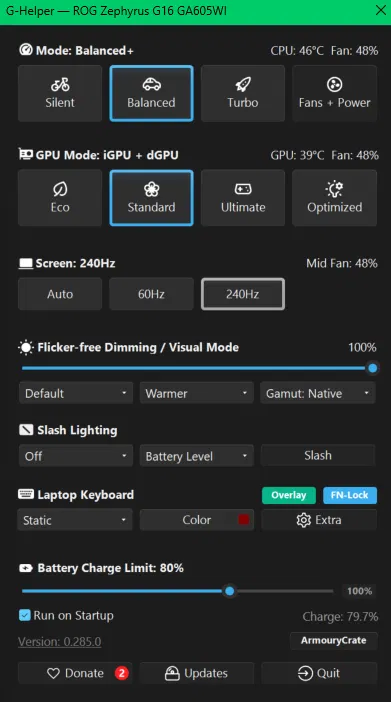
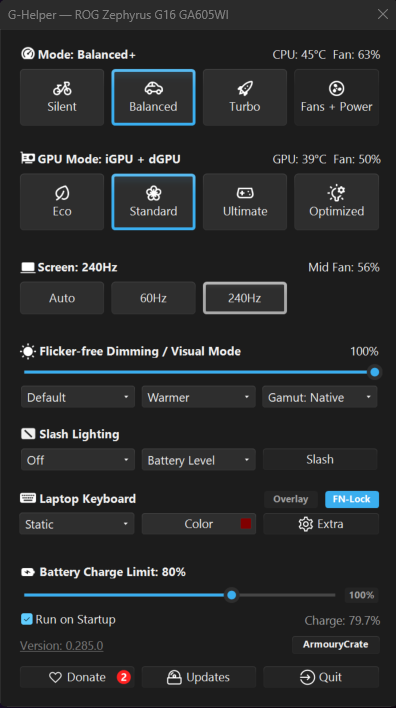
G-Helper’s overlay page also lists it in the tray icon’s right-click menu as Hardware Overlay. If you don’t see the badge at all, you’re likely on an older build, and I covered updating in my G-Helper install guide.
G-Helper Overlay Shortcut List
Every G-Helper overlay shortcut uses the same 3 keys with something added on the end, so once you know the first one you know them all, and I put the full list in the table below.
| Shortcut | What it does |
|---|---|
| Ctrl + Shift + Alt + O | Turns the overlay on or off |
| Ctrl + Shift + Alt + Mouse Click | Switches to the next mode |
| Ctrl + Shift + Alt + Mouse Drag | Moves the overlay |
| Ctrl + Shift + Alt + Wheel | Resizes the overlay |
| Ctrl + Shift + Alt + Wheel Click | Resets the size |
For the mouse ones, hold the keys with your cursor over the overlay itself. The top-left corner put it right on top of my Recycle Bin, so I’d drag it somewhere else if you keep desktop icons up there.
G-Helper Overlay Settings and the 4 Modes
Click the Overlay badge and you get the G-Helper overlay settings window, with 4 buttons across the top for Light, Default, Full and Complete. G-Helper’s own page still describes 3 levels, since Complete arrived later in version 0.258. Each mode adds another block of readings onto the right side of the bar, which you can see in the table below.
| Mode | What it shows |
|---|---|
| Light | FPS, temperatures, power |
| Default | Adds fan speed and the power chart |
| Full | Adds CPU and GPU load |
| Complete | Adds GPU memory and RAM |
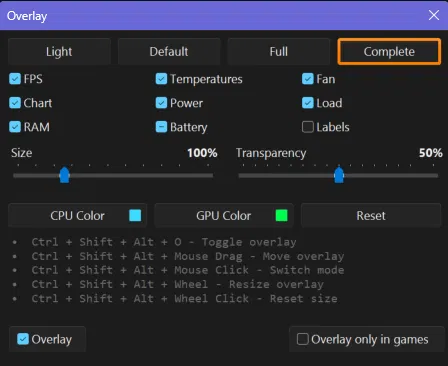
Under the mode buttons there’s a checkbox for each reading, and a mode is a saved set of those checkboxes. So if you want Light plus fan speed, pick Light and check Fan.
Which mode should you use?
I’d run Light if I just want it on while I play, since it’s the smallest one and still gives me FPS, temperatures and power. When I’m actually tracking data I’d switch to Complete, because it shows the most.
The rest of the G-Helper overlay settings
The Size and Transparency sliders start at 100% and 50%. CPU Color and GPU Color change the color of each row, and Reset puts everything back.
The Battery checkbox has 3 states instead of 2. A check keeps your battery percentage on the bar all the time, a dash only shows it while you’re unplugged, and an empty box turns it off.
There’s also Overlay only in games in the bottom-right corner. I checked it and the overlay disappeared from my desktop, so turn that on if you don’t want it sitting over your icons between games.
Does the G-Helper FPS Overlay Lower Your FPS?
An FPS counter that eats your FPS would be a bad trade, so I tested the G-Helper FPS overlay in the mode that draws the most, Complete. I used the Cyberpunk 2077 built-in benchmark at 1080p on the Medium preset with no FPS cap and Frame Generation off, plugged in, with the GPU mode on Standard. After 1 warm-up run I did 5 more, switching the overlay off and on between each one, and the results are in the table below.
| Run | Overlay | Average FPS | Min FPS | Max FPS |
|---|---|---|---|---|
| 1 | Off | 119.52 | 94.88 | 140.78 |
| 2 | On | 114.75 | 90.04 | 136.51 |
| 3 | Off | 116.56 | 94.53 | 136.09 |
| 4 | On | 116.74 | 91.80 | 137.94 |
| 5 | Off | 116.87 | 92.27 | 138.00 |
With the overlay off I averaged 117.65 FPS across 3 runs, and with it on I averaged 115.75 across 2. That’s a gap of 1.9 FPS, or about 1.6%, and the 3 runs with the overlay off were already spread 2.96 FPS apart from each other. The last 3 runs landed at 116.56, 116.74 and 116.87 whether the overlay was on or off, so on my G16 the G-Helper FPS overlay has no cost I can measure.
The minimum FPS was about 3 lower with it on (90.92 against 93.89), though run 5 with the overlay off dipped to 92.27, right next to run 4’s 91.80 with it on. I only tested 1 game at 1 resolution, so a different game could behave differently.
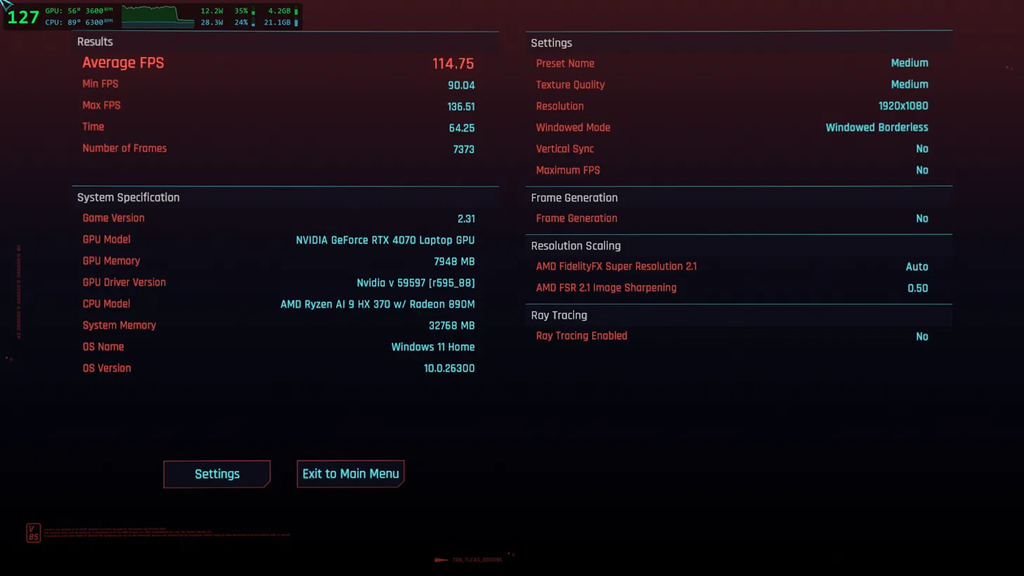
The screenshot at the top of this post is from one of those runs, and besides the matching 131 FPS it had my CPU at 95°C with the fan at 5,900 RPM. That didn’t surprise me since Cyberpunk is a heavy game, but if a number like that bothers you, my G-Helper fan curves and G-Helper power limits guides are where I’d start. The graphics card was at 73° in that same shot, and capping its clock speed in my G-Helper core clock offset test ran it 5° cooler for about 4% fewer frames.
What the Overlay Shows in Eco Mode
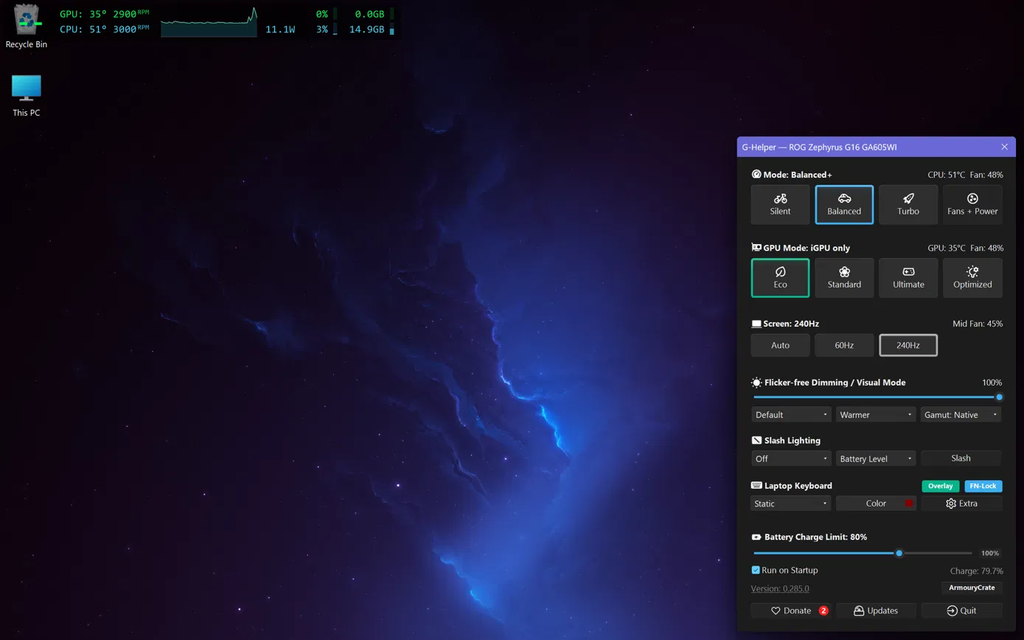
Eco is the G-Helper GPU mode that switches your dedicated graphics card off to save battery, and G-Helper’s page says the overlay’s GPU temperature turns into dashes when that happens, but mine kept showing a number with the main window reading GPU Mode: iGPU only, 47° right after the switch and 35° about 3 minutes later.
The other GPU readings did react to the switch, with the GPU power going blank, the load sitting at 0% and the GPU memory reading 0.0GB while the CPU row kept updating like normal. I didn’t check which sensor that leftover temperature comes from.
G-Helper Overlay Not Working? What to Check
I didn’t run into G-Helper overlay not working on my own laptop, so the fixes here come from G-Helper’s documentation and its GitHub issues instead of my own testing.
The overlay doesn’t show up in a game. It draws on games that use DirectX 10, 11, 12 or Vulkan. The overlay page says very old games running in exclusive full screen may not show it, and switching the game to borderless or windowed mode lets it through.
The FPS shows dashes inside a game. Dashes are normal on the desktop, but inside a game they mean the counter isn’t getting frame data. In this GitHub issue the developer suggested turning the overlay on before launching the game, since some anti-cheats can block FPS counting once the game is already running, and then updating to the newest build. That user was on a modified Windows install, and a newer build of G-Helper fixed it for them.
The overlay is too big or too small. Hold Ctrl + Shift + Alt and scroll the mouse wheel over it, or click the wheel to reset the size, which is the same answer given in this report about an oversized overlay.
The G-Helper overlay shortcut does nothing. Check that G-Helper is still running in your tray, and if the whole app is acting up, my G-Helper not working guide covers that side of it.
Hidden Overlay Options in config.json
For those of you who want more than the G-Helper overlay settings window gives, G-Helper reads a few extra overlay options from its config file at %AppData%\GHelper\config.json. I left mine alone, so this part is from G-Helper’s power user settings page. Click Quit in G-Helper first, add the line, then start it again, because the options only get read when the overlay starts.
| Line to add | What it does |
|---|---|
"overlay_names": 1, | Adds a column with your CPU and GPU model names |
"overlay_alpha": 128, | Background opacity, from 0 (see-through) to 255 (solid black) |
"keybind_overlay": 79, | Changes the O in the toggle shortcut to another key code, and 0 turns the shortcut off |
Copy config.json somewhere safe before you edit it. That same page warns that a broken file, like one with a missing comma, makes G-Helper throw it out and start an empty one, and that would take your fan curves with it.
FAQ
Does G-Helper have an overlay like Armoury Crate?
Yes. It was added in 2026, so older Reddit answers saying G-Helper has no overlay are out of date. It shows FPS, temperatures, fan speed, power, load and memory on top of your game.
How do I enable the G-Helper overlay?
Press Ctrl + Shift + Alt + O, or click the Overlay badge in the Laptop Keyboard row of the main window and check Overlay in the window that opens.
Is the G-Helper hardware overlay different from the performance overlay?
No, they’re the same thing. G-Helper has 1 overlay, and its tray menu calls it Hardware Overlay.
What happened to the AMD overlay on the ROG Ally?
G-Helper’s release notes for version 0.262 say the default AMD overlay button on the ROG Ally was replaced with G-Helper’s built-in overlay. I don’t own an Ally, so I haven’t tested that one.
Why is G-Helper overlay not working in some games?
The overlay only draws on games that use DirectX 10, 11, 12 or Vulkan, and G-Helper’s overlay page says very old games in exclusive full screen may not show it until you switch them to borderless or windowed mode.
Does the G-Helper overlay lower FPS?
On my Zephyrus G16 it didn’t in any way I could measure. In Cyberpunk 2077 I averaged 117.65 FPS with it off and 115.75 with it on in its heaviest mode, and identical runs varied by more than that.
The overlay is 1 small piece of what G-Helper can do, and my best G-Helper settings guide covers the rest. If you’ve got G-Helper overlay not working in a way I didn’t cover, like dashes where the FPS should be inside a game, drop your laptop model, the game and your G-Helper version in the comments and I’ll take a look.