Windows 11 Taskbar Styler: Full Setup Guide
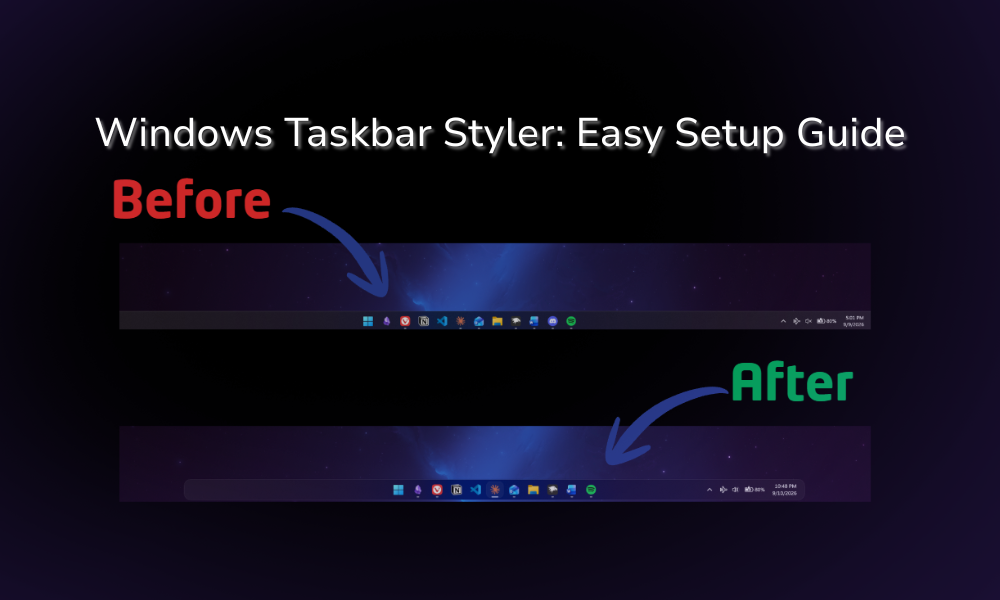
Out of the 9 Windhawk mods I still have running, the Windows 11 Taskbar Styler is easily the one doing the most work. It’s the first thing I’d install on a fresh laptop, and it’s the reason my desktop doesn’t look like every other Windows 11 machine out there.
Now it’s also the mod I see people get stuck on the most, mostly because it doesn’t work how you’d expect a theme tool to work. So I’ll go through the full setup, which themes are actually worth your time, and a couple of limits I wish someone told me about before I wasted an evening chasing an effect that straight up isn’t possible.
Everything here is off my ROG Zephyrus G16 on Windows 11 25H2, running Windhawk 1.7.3.
What the Windows 11 Taskbar Styler actually does
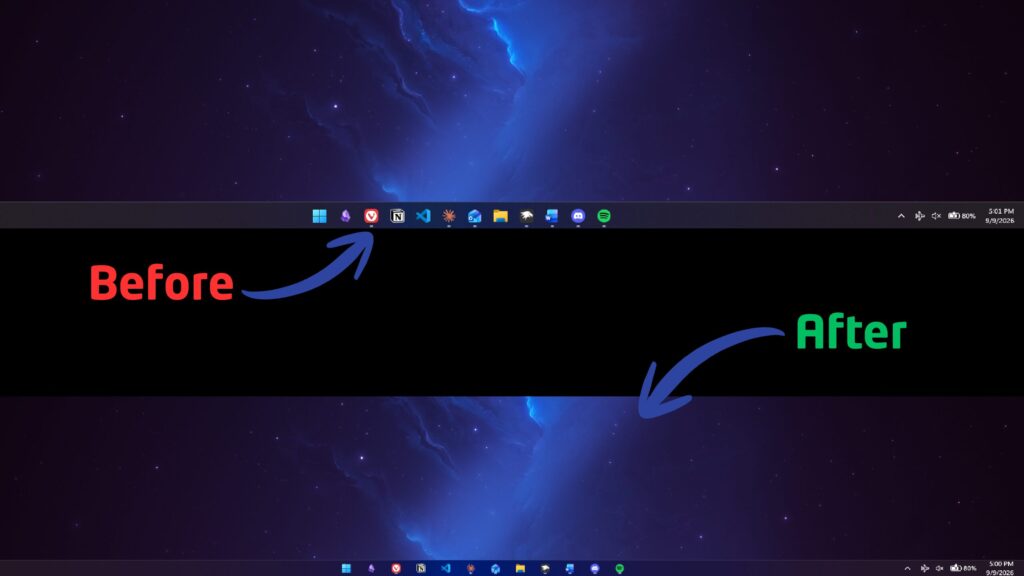
This isn’t a skin, and it isn’t swapping your taskbar out for a different one. The mod reaches into the XAML that Windows already uses to draw your taskbar and overrides specific bits of it. That matters for 2 reasons. This mod was the one that won it for me because of its clean aesthetic and minimal footprint, allowing me to make the most of my laptop screen without any apps getting in the way.
First, nothing gets written to your disk. Flip the mod off, and you’re back to a stock taskbar instantly, which is why I’m fine recommending this over tools that go around replacing system files.
Second, it can only touch what Windows exposes through XAML. That covers a lot, but not everything, and it’s why a couple of the most requested effects just can’t be done no matter how long you sit in the settings menu.
How to set up Taskbar Styler
You’ll obviously need Windhawk first. If you haven’t gotten that far, my guide on how to install Windhawk covers it, including why your antivirus might throw a fit over it. Once that’s done, the Windhawk Taskbar Styler takes about 2 minutes to get running.
Installing the mod and picking a theme
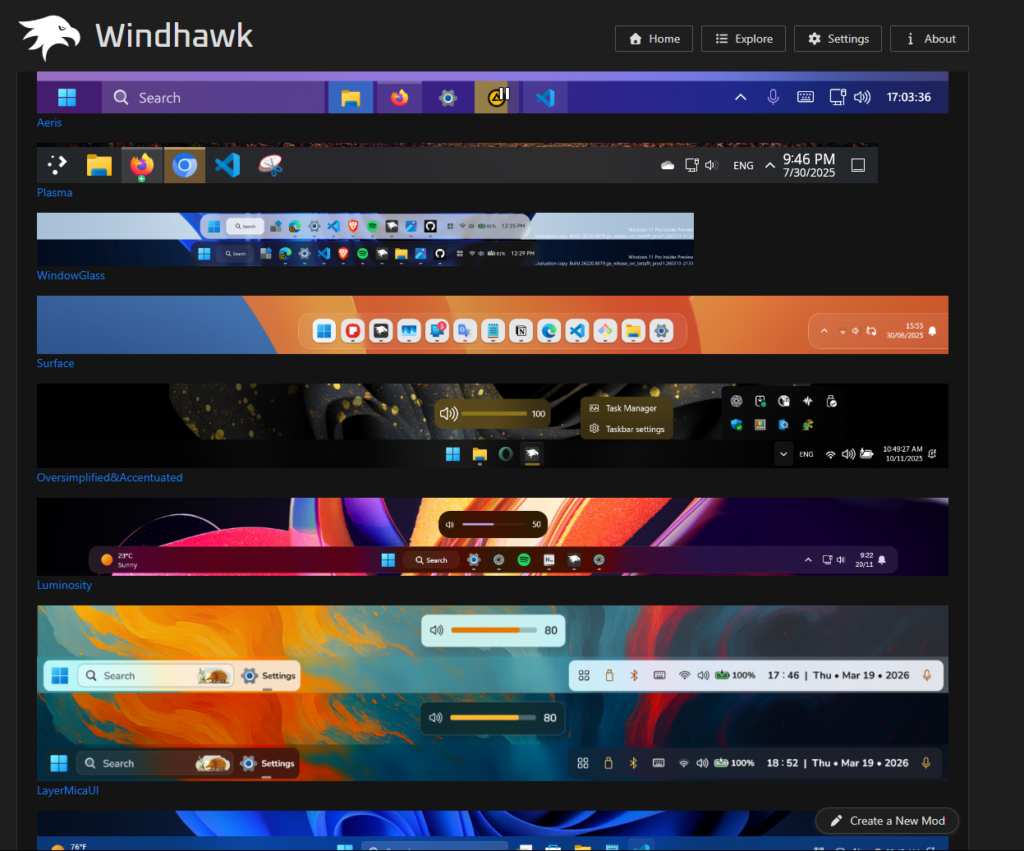
Open Windhawk, head into Explore, and search for Windows 11 Taskbar Styler. Install it, then click into its Settings tab. The theme dropdown is right there at the top, and honestly, for most of you guys that’s the whole setup. Pick a theme, save, done. Your taskbar changes while you’re watching it.
The mod comes with a solid set of built-in themes like Bubbles, Squircle, RosePine, DockLike, TranslucentTaskbar, WindowGlass, Matter, WinXP and WinVista. I’m running Luminosity (compact) myself, which pulls the whole bar in smaller and cleaner than stock. That dropdown is basically the full catalog of Windows 11 taskbar themes you get out of the box, and it’s more than enough for most people.
Worth knowing that some themes ship with variants, which is the part in parentheses you’ll see next to a few of the names. Luminosity has a compact version and that’s the one I went with. Nobody really mentions this anywhere, so if you tried a theme and thought it was close but not quite right, check whether it has a variant sitting in that same dropdown before writing it off.
Textual mode, and when you actually need it
Under the dropdown there’s a Textual mode option, and this is where all the community stuff lives. Ramen Software keeps an official taskbar styling guide on GitHub packed with customizations that never made it into the dropdown. To use one, flip to Textual mode, paste that theme’s block into the box, and hit save. There’s a lot more taskbar styler themes floating around out there than the built-in list lets on.
Don’t let the code scare you off, you don’t need to understand any of it. It’s copy, paste, save. The only time XAML actually matters is if you like a theme but want to change one specific thing about it.
Which taskbar styler themes are worth it
I bounced around a few of these before landing anywhere, and testing them across a Surface and an ultrawide made the decision for me pretty fast. Not all Windows 11 taskbar themes hold up once you’re actually living with them. The themes that float the bar or pull it in and leave empty space along the sides look great in screenshots, but I realized I was never actually putting anything in that space. It was just gap. On an ultrawide especially, that’s a lot of screen doing nothing, so anything that traded usable bar for empty margin got dropped.
Luminosity (compact) is where I ended up, and the reason is that it messes with proportions instead of just colors. The bar sits tighter and the whole desktop feels less heavy, which matters way more on a 16 inch laptop screen than it would on some 27 inch monitor. The compact variant pushes that further again, which is exactly why I went with it over the standard one.

DockLike is the one to grab if you’re going for that macOS feel, since it pulls the bar off the bottom edge entirely. I came across something worth passing on while reading up on it though, apparently it hides the standard taskbar background element, so if you want to customize what’s behind it you’re aiming at a different target than the other themes use. If that’s the look you’re chasing, I went through the whole build in my guide on how to make Windows 11 look like macOS.

Matter expects you to be running Taskbar Clock Customization next to it so the clock matches. Install Matter on its own and it looks slightly off in a way you can’t quite place, and yeah, that one got me for a while. There’s a Matter theme for Explorer as well if you want the 2 matching, which I went through in my Windows 11 File Explorer Styler guide.

OS26 Liquid Glass (Clear Taskbar) is the one I used when I turned my Windows 11 into a Frutiger Aero theme. It’s based on Apple’s newer glass design, but put it over a bright sky-and-water wallpaper and it honestly reads like 2008, with every icon sitting in its own glass bubble. The full build, including the matching Start menu and File Explorer themes, is in my Frutiger Aero Windows 11 guide.
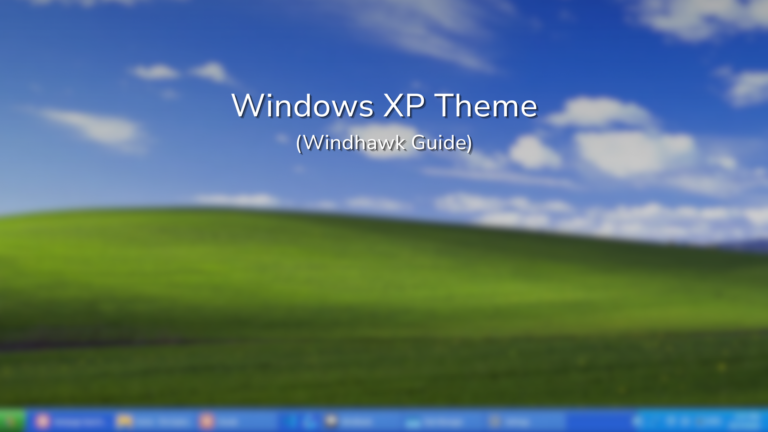
WinXP turns the bar blue with the green Start button, and there’s a WinXP (Zune) version with a gray bar and an orange Start button. I used the regular one, plus taskbar labels and the Bliss wallpaper, when I set out to make Windows 11 look like Windows XP.
How to customize Windows 11 taskbar beyond the presets
Backgrounds, blur, and the acrylic catch
Backgrounds are what most people want to change once a preset gets them 90% of the way there, and the styling guide covers solid colors, gradients, images, and 2 different blur options. This is where you actually customize Windows 11 taskbar backgrounds properly instead of just picking something off the shelf.
Here’s the part I haven’t seen in a single other guide, and it’s straight out of the official styling guide rather than something I ran into myself. AcrylicBrush only works properly if you’ve got one taskbar. Run 2 monitors with a taskbar on each, and Acrylic breaks on you. The documented fix is either using WindhawkBlur, which is the mod’s own blur, or going with a transparent background plus the Taskbar Background Helper mod.
I’ve run my G16 alongside a Surface and an ultrawide, so I’m in multi-monitor territory most of the time, but I never went digging into custom backgrounds myself. The preset does what I want and I left it there. So take this one as a heads-up from the docs rather than something I’ve personally broken.
Why you can’t get Mica
If you’ve been sitting there trying to get a Mica effect on your taskbar, save yourself the time. It’s not possible with any of Windhawk’s styler mods, and that comes straight from the official guide, so it’s not something you’re doing wrong. Acrylic and WindhawkBlur get you close enough, and at taskbar size you’d struggle to tell the difference anyway.
Mods that pair with the Windhawk Taskbar Styler
Taskbar Styler handles looks, and there’s a handful of mods covering stuff it leaves alone on purpose. Taskbar Clock Customization for the clock (which, like I mentioned, the Matter theme basically expects). Taskbar Background Helper if the acrylic thing above bit you. There are also mods for tray icon spacing and killing icon grouping if that’s your thing. Worth knowing there’s a sibling mod that does the same job for the Start menu, and I covered that one in my Windows 11 Start Menu Styler guide if you want the 2 looking like they belong together.
One that does not play nice: Taskbar height and icon size. Whichever theme you use is already handling taskbar geometry, so running both just means 2 mods arguing over the same values. Don’t do what I did and install it anyway; it was one of the 6 I ended up switching off in my rundown of the best Windhawk mods.
Troubleshooting: theme applied, but nothing happened
This is the complaint I keep seeing come up, and from what I can tell it usually isn’t the theme’s fault. Taskbar styler themes fail quietly rather than throwing an error at you, which is exactly why it’s so confusing the first time.
Some themes need entries added to Windhawk’s custom process inclusion list, which lives under the mod’s Advanced settings. If a theme’s GitHub page hands you a block to paste in there and you skip past it, the theme saves perfectly fine and then does absolutely nothing. I haven’t hit this one myself since the themes I’ve used didn’t need it, but it comes up enough that it’s worth checking first before you start swapping themes around trying to find one that works.
If that’s not it, explorer.exe probably didn’t restart properly. Styling applies live, but a stuck Explorer will sit there holding the old look. Signing out and back in fixes it in about 10 seconds. If it’s more than 1 mod acting up, my Windhawk not working guide goes through reading the debug log.
Windows 11 Taskbar Styler FAQ
Is the Windhawk Taskbar Styler safe to use?
It doesn’t touch system files, so switching the mod off puts your taskbar right back to stock. For the bigger question about Windhawk itself, including why antivirus sometimes flags it, I go through all of it in my Windhawk safety guide.
Do I need to know XAML to use it?
Nope. The dropdown themes need zero code, and community themes are copy and paste. XAML only comes into it if you want to change one specific property of a theme you otherwise like. You can customize Windows 11 taskbar styling pretty far without ever touching a line of code.
My taskbar is too big, can Taskbar Styler shrink it?
Yeah, and this is actually why I ended up on Luminosity (compact) in the first place. The theme pulls the whole bar in tighter, icons and all, so it’s doing the job without you touching a single setting. That’s the route I’d take if you’re already running the mod.
Now there’s 2 other ways to get there, and which one makes sense depends on your setup. Windows 11 added its own taskbar size option in the September 2026 update, sitting under Settings, Personalization, then Taskbar, with Default and Small to pick from. It’s rolling out gradually so don’t panic if you don’t see it yet. There’s also the Taskbar height and icon size mod, which gives you proper granular control, but don’t do what I did and run it next to a styling theme. Both of them go for the same values and you’ll just end up with 2 mods arguing over your taskbar.
Will my theme survive a Windows update?
Usually. Styler mods hook into Windows components that Microsoft changes now and then, so it can happen. In 2 months on a 25H2 build, nothing has broken here, but mod authors push fixes when Windows shifts underneath them, so keep an eye out for pending mod updates. The Windhawk Taskbar Styler in particular gets updated fairly often, so it’s rarely behind for long.
Can I use Taskbar Styler with multiple monitors?
Yeah, with the one catch above. Acrylic backgrounds only behave with a single taskbar, so on a multi-monitor setup go with WindhawkBlur or the Taskbar Background Helper mod instead.
The 2 limits worth remembering
Most of you will pick a theme from the dropdown, hit save, and never open those settings again, and that’s genuinely the whole appeal here. Textual mode and the styling guide are sitting there for when you want to go further, and the only 2 limits worth remembering are the acrylic one and the fact that Mica just isn’t happening. Out of every way to customize Windows 11 taskbar setups I’ve messed with, the Windhawk Taskbar Styler is the one I’d point people at first.
If you haven’t figured out the rest of your setup yet, my rundown of the best Windhawk mods covers the other 8 I run alongside this one.
If a theme saved fine but your taskbar didn’t change, drop the theme name and your Windows build in the comments and I’ll take a look.